
AI safety features
Overview
Section titled “Overview”During AI Studio jobs, the editor does not blindly trust the tool calls Studio sends; it checks them itself on your PC before running them. A blocked call is not run, and the reason is reported to the AI and in the panel log. The AI reads the reason and continues another way. These rules apply both to jobs from the AI Studio panel and to jobs from Web Studio.
| Safeguard | What it does |
|---|---|
| One undo step · copy | One job = one Ctrl+Z. A copy of the world is made before the job starts. |
| Protected areas · locks | The AI cannot change protected areas or regions locked by other people either. |
| Allowed folders | Files are read and written only inside the open world folder · default folder · Studio folder. |
| Blocked tools | Tools that run external programs or plugins or change settings are not run. |
| Server tools | Work only with a server the editor is already connected to live. |
| Server console commands | Refused by default (“Ask every time” in the settings). |
| Checking your work | Asks first when the AI would overwrite cells you placed yourself. |
| Official Studio verification | Only replies with a valid official NP Studio signature are run. |
| Stop | Calls that arrive after Stop are not run. |
Basic use
Section titled “Basic use”Before handing work to the AI, check which places to guard and the settings, and watch the log while the job runs. The account demo@noplatea.com and the credit numbers in the images are example values from a test Studio.
-
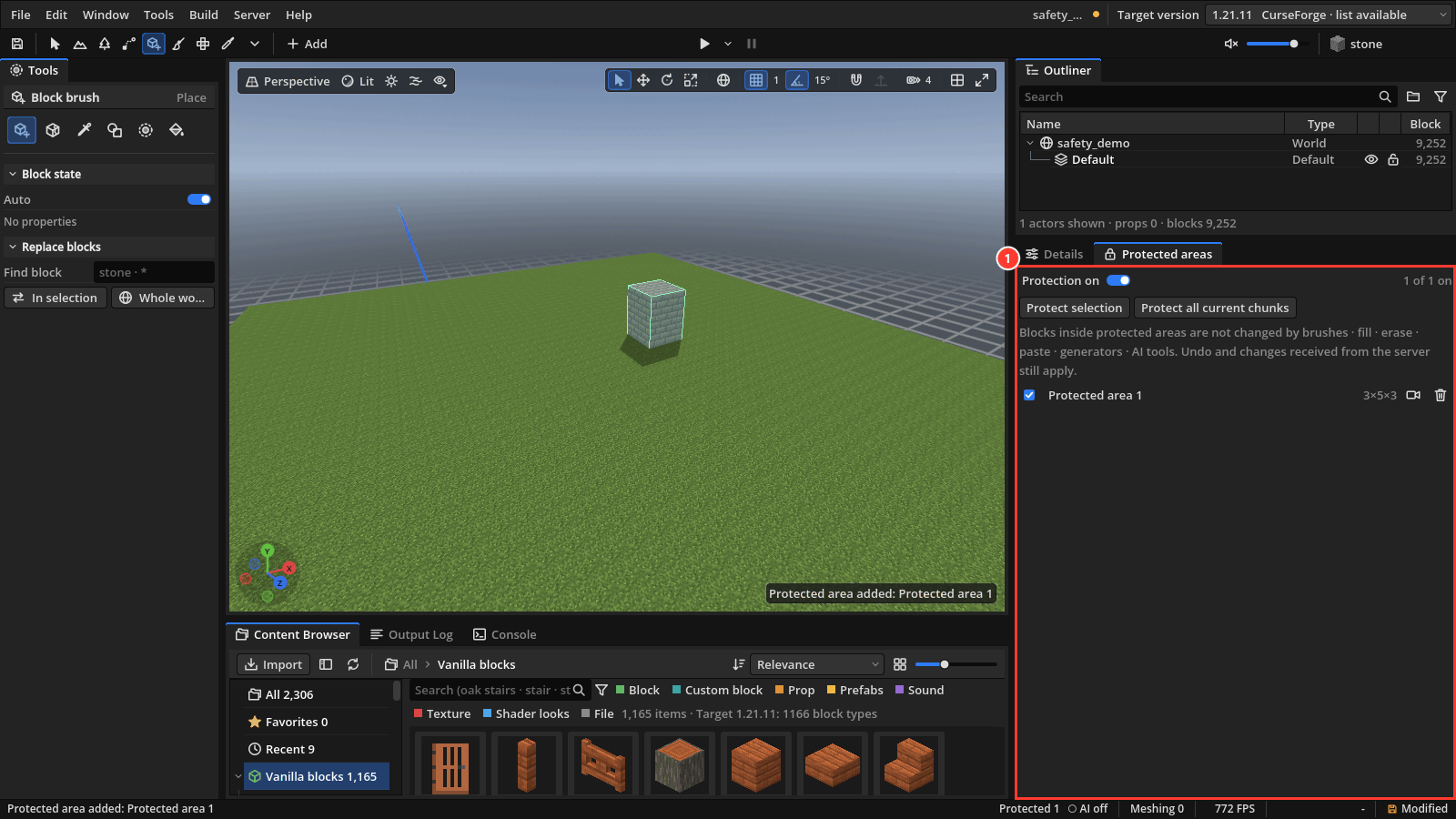
Select the place to guard, then click Edit > Protect selection. The area appears in the Protected areas panel and a green outline is drawn in the viewport. AI tools do not change cells inside a protected area that is on, either. For details, see Protected areas.
-
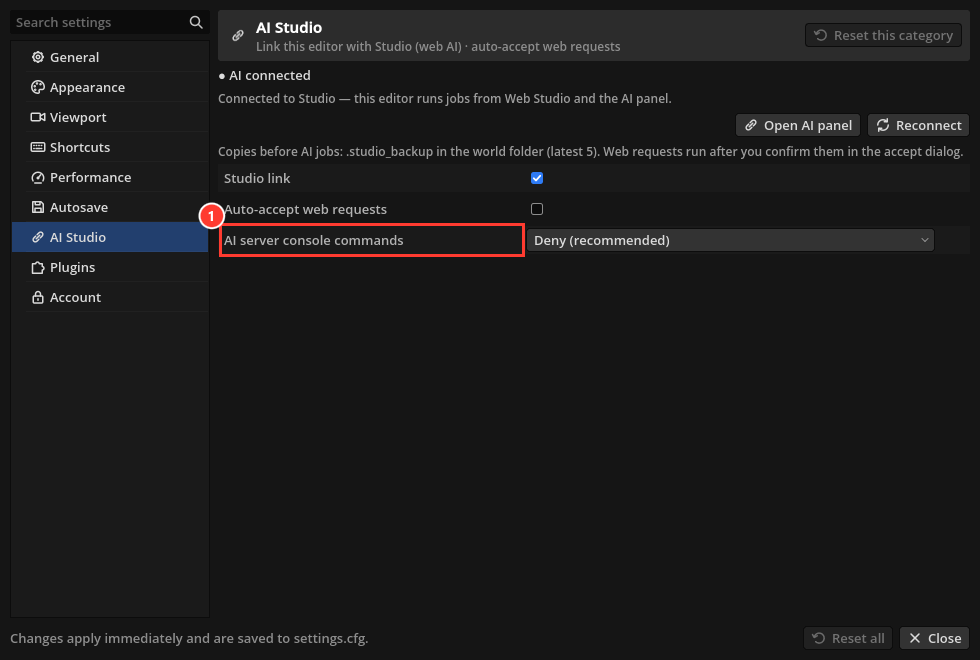
Click Edit > Editor Preferences… (Ctrl+,), then click the AI Studio section. Check that AI server console commands is set to Deny (recommended).
-
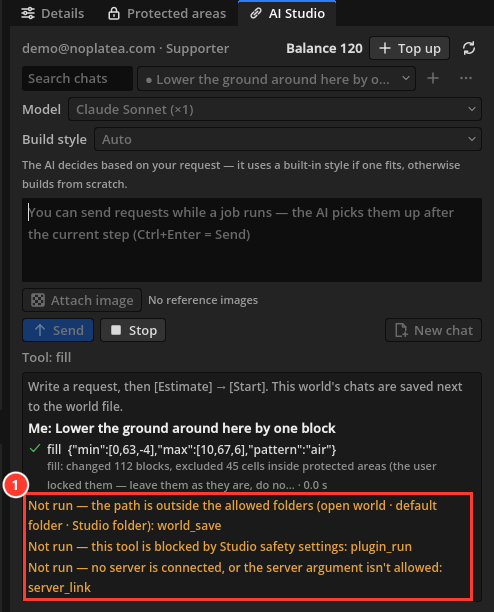
Calls blocked during a job are not run, and the reason is left in yellow text in the AI Studio panel log. The image shows a path outside the allowed folders, a blocked tool and a server tool without a connected server being blocked.
-
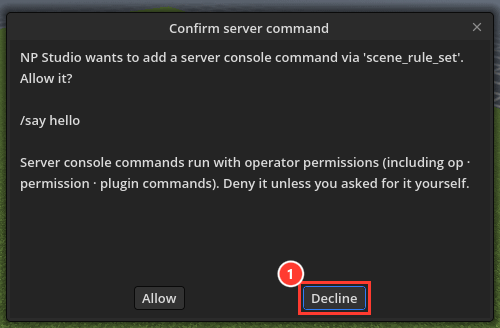
If you changed AI server console commands to Ask every time, the Confirm server command dialog appears when the AI tries to enter a console command. The dialog shows the command it wants to enter. If you did not ask for that command yourself, click Decline. If you do not answer within 60 seconds, it is declined as well.
-
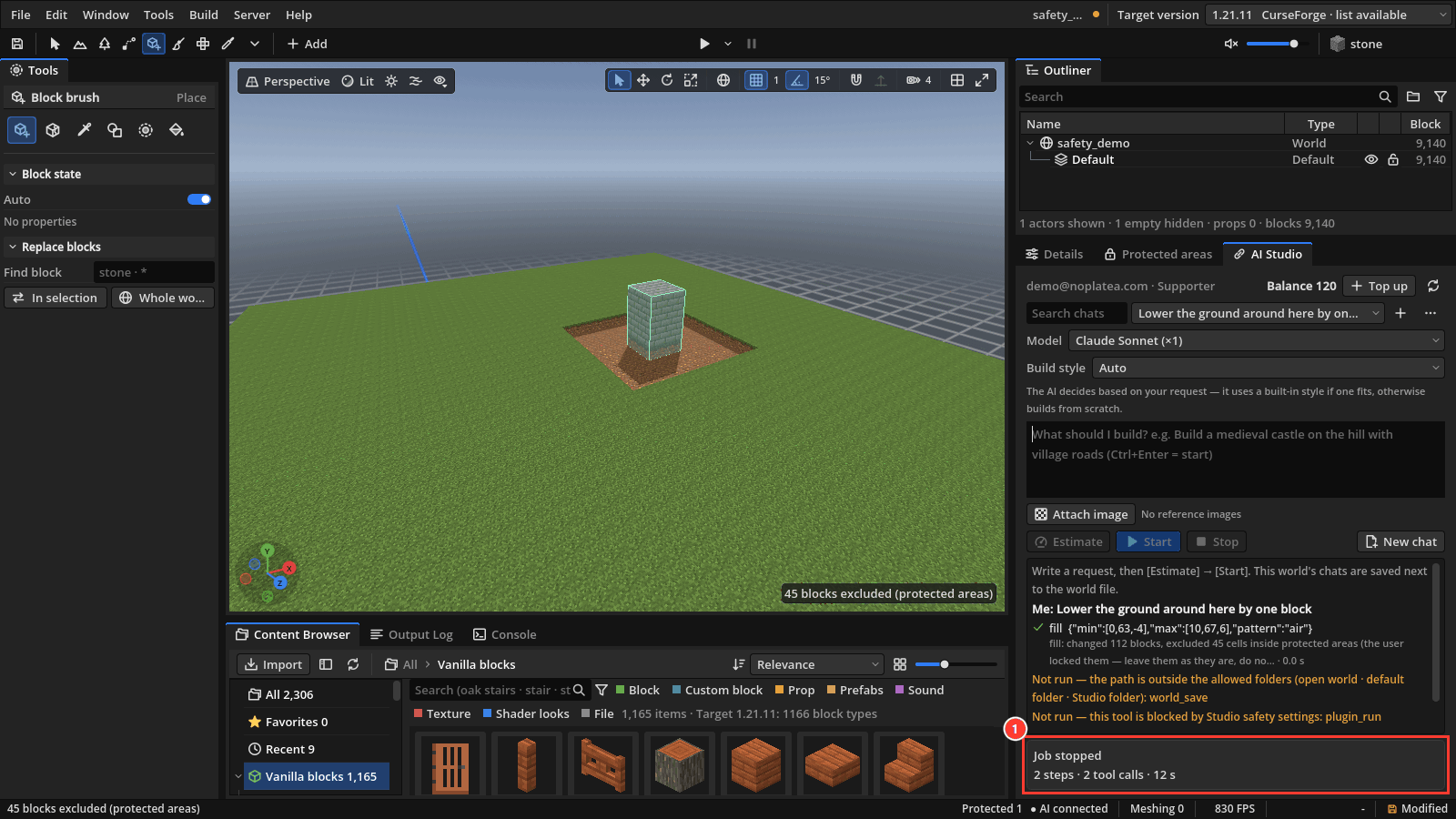
If the result looks wrong, click Stop in the panel or in the job bar of the viewport. The remaining tool calls are not run, and the end card shows “Job stopped”. In the image, the AI cleared the surrounding ground, but the pillar in the protected area is unchanged. Press Ctrl+Z to undo all of this job’s edits at once.
Tips and tricks
Section titled “Tips and tricks”- AI edits that reach into a protected area run on everything except the protected cells. The status bar shows the number of skipped cells, such as “45 blocks excluded (protected areas)”, and the tool result in the panel log also notes that protected cells were skipped. Before a large job, put the buildings you want to keep in protected areas first.
- A job stopped with Stop is also one undo step. A single Ctrl+Z undoes only what that job changed, and the protected areas stay as they are.
- When AI server console commands is Deny (recommended), the command is refused right away without a dialog. The AI is also told to use other actions such as messages or titles instead. Switch to Ask every time only when you really need it, and set it back to Deny (recommended) afterwards.
Reference
Section titled “Reference”Undo and copies
Section titled “Undo and copies”- Everything one AI job changes is a single undo step.
- Before the job starts, the current world is copied to
.studio_backupin the world folder (latest 5). For an untitled world, it is%APPDATA%\NPEditor\studio\.studio_backup. - Before the AI switches maps (
world_open·world_new), a copy is also made first if there are unsaved changes. - The AI’s
undotool undoes only steps made by its own job. It stops at user edits, other jobs and protected-area changes, so the AI cannot use undo to remove your edits or protection.
Allowed folders
Section titled “Allowed folders”Files that AI tools read and write must be inside these three places.
| Allowed folder | Location |
|---|---|
| Open world folder | The folder containing the open .npworld |
| Default folder | Documents\NPEditor |
| Studio folder | %APPDATA%\NPEditor\studio |
- Relative paths resolve against the default folder.
- Refused even inside these places:
.., network paths, shortcut links and junctions, hidden folders and files whose names start with a dot, startup, editor install, settings and system folders, writing executable files (.exe·.bat·.ps1·.jarand so on), and the chat history folder next to the world (.npchat). - When tool results are sent to Studio, paths on your PC in the result text are replaced with labels such as
<world>·<default>·<studio>, and server tokens are hidden.
Blocked tools
Section titled “Blocked tools”Tools with names matching these patterns are blocked both in the editor and on the Studio server.
| Pattern | Meaning |
|---|---|
plugin_* | Running plugins |
run_* · exec* · process_* · shell* | Running external programs or commands |
settings_* · config_* | Changing settings |
Server tools and console commands
Section titled “Server tools and console commands”- Server tools starting with
server_work only with the server the editor is connected to live. They are refused when there is no connection, or when another server address or token is passed as an argument. - Minecraft server console commands (operator level — including op, permission and plugin commands) are refused by default. The same applies to putting them in the “Command” action of a world logic rule. If the AI creates a rule containing a console command through another tool, that step is undone.
- While connected to a live server, the AI cannot open or create maps (“Didn’t switch maps because a live server connection is active: …”).
When the AI overlaps your work
Section titled “When the AI overlaps your work”When a step of the AI would change cells you placed yourself, the editor stops that step, shows the overlapping cells and asks you. Who placed each cell is saved in the world file too. For details, see AI Studio in the editor.
Official Studio only · sign-in check
Section titled “Official Studio only · sign-in check”- The installed editor connects only to the official NP Studio (
https://studio.noplatea.com). There is no setting to change the address. - Every Studio reply is signed, and the editor checks the signature. Replies without a valid signature are discarded, and none of their tool calls are run. The status bar AI item changes to ”● Studio verification failed”.
- AI tools do not run before the sign-in and license check is done, or while the account is locked.
- A job from Web Studio runs only after you click Accept in the AI job request dialog when Auto-accept web requests is off (the default).
Refusal messages
Section titled “Refusal messages”These messages appear in the panel log, followed by the name of the blocked tool.
| Message | Reason |
|---|---|
| “Not run — the path is outside the allowed folders (open world · default folder · Studio folder): …” | Path outside the allowed folders |
| “Not run — this tool is blocked by Studio safety settings: …” | Blocked tool |
| “Not run — no server is connected, or the server argument isn’t allowed: …” | Server tool limits |
| “Didn’t switch maps because a live server connection is active: …” | Switching maps during a live server connection |
| “Not run — the job was stopped: …” | A call that arrived after Stop |
| “AI tools were not run — sign-in · license check is not done yet” | Before the check |
| “AI tools were not run because the account is locked — sign in again” | Account locked |
Preferences
Section titled “Preferences”Edit > Editor Preferences… > AI Studio:
| Setting | Default | Meaning |
|---|---|---|
| AI server console commands | Deny (recommended) | Deny = always blocked, Ask every time = the Confirm server command dialog (declined if there is no answer within 60 seconds) |
| Auto-accept web requests | Off | When off, each job from the web runs only after you confirm it in the AI job request dialog. |
| Studio link | On | When off, no AI jobs are received. |
Shortcuts
Section titled “Shortcuts”| Shortcut | Action |
|---|---|
| Ctrl+Z | Undo one whole AI job |
| Ctrl+Alt+P | Toggle all protected areas — the key shown in the menu, but it does not work in 0.10.2. Click Edit > Toggle all protected areas instead (Protected areas). |
| Ctrl+, | Editor Preferences |
Related pages
Section titled “Related pages”Not an official Minecraft product. Not approved by or associated with Mojang or Microsoft.