
Export and import
Overview
Section titled “Overview”Exporting saves the current world as files that the server and the game use. A single run of the export window creates a resource pack, a server registry, a .npbuild (install file for the server build module), a .schem (WorldEdit schematic) and a Minecraft world folder. Importing reads a .schem or a range of a Minecraft world and pastes it into the current world.
Basic use
Section titled “Basic use”This walkthrough exports a copy of the example world castle as a set of files for the server. The results go to the export folder next to the world file (<project>/export in the window).
-
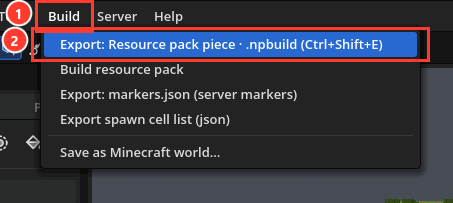
Click the Build menu, then click “Export: Resource pack piece · .npbuild (Ctrl+Shift+E)”. The Export (resource pack · .npbuild) window opens.
-
Under Target, check World save (.mca). Resource pack · Server registry ·
.npbuild·.schemare on from the start, and Target version is the editor’s target version (1.21.11 here).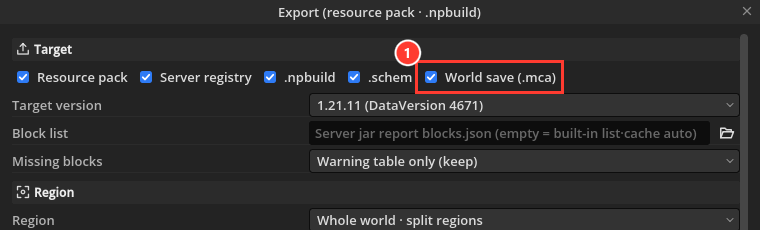
-
Click the Region list and select Whole world · single file. The default Whole world · split regions splits the files every 256 blocks (Region size).
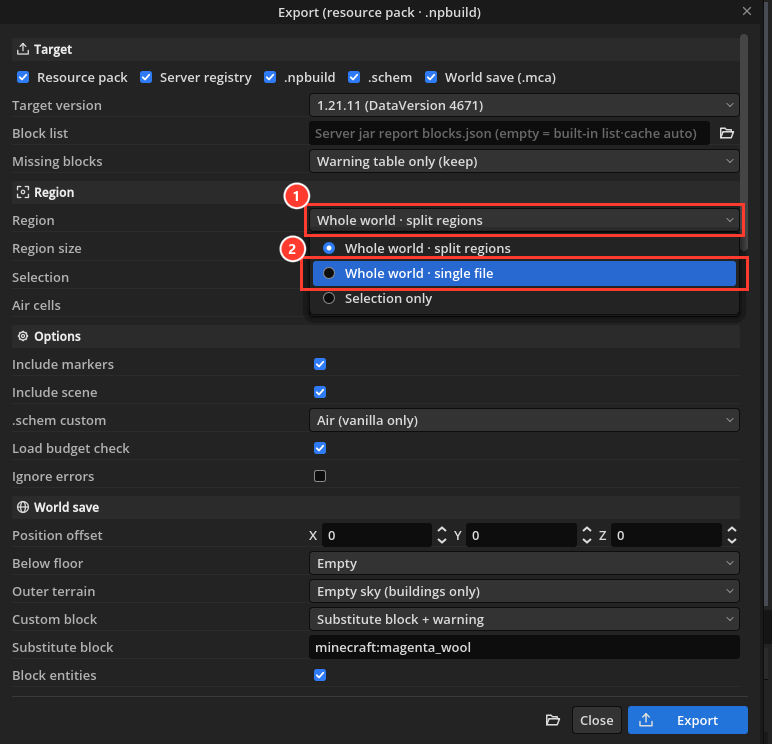
Known issue in 0.10.2: the Region size field shows its unit in untranslated Korean (“256 블록” = “256 blocks”).
-
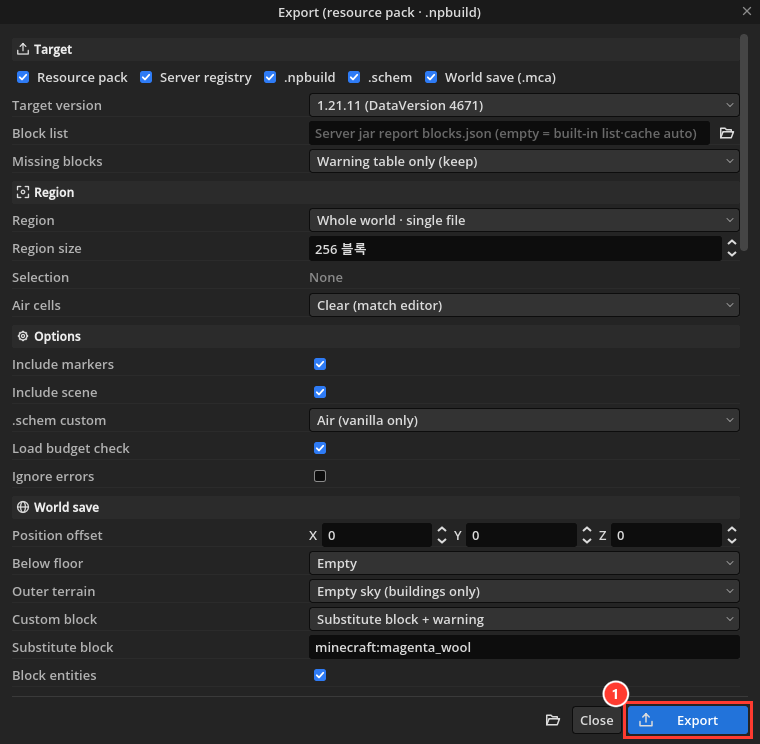
Click Export at the bottom right of the window. The notification reads “Export finished: Done · files 7 · warnings 0”.
-
Check the created files in the Log at the bottom of the window. In this example,
castle_rp_v1.zip(+.sha1.txt· report.txt) ·castle_registry_v1.json·castle_all_v1.npbuild·castle_all_v1.schem· the world foldercastle_world(level.dat+region/*.mca) are created.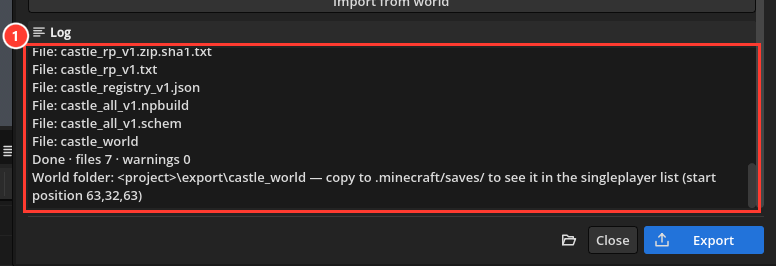
Copy the world folder into .minecraft\saves\ and it appears in the single-player list (in the game — no image). The folder icon at the bottom of the window (Open folder) opens the newly created output folder in File Explorer (Windows window — no image).
Tips and tricks
Section titled “Tips and tricks”- Exports never overwrite. Every file name gets a version number starting at
_v1, and clicking Export once more creates a new_v2set. Only the world folder starts without a number as<name>_world, followed by<name>_world_v2. You can keep the version on the server and the fixed version side by side and compare them. - You can read the newly created
.schemback in with Import .schem in the same window and paste it. The pasted range is selected, and a single Ctrl+Z cancels the whole paste. - Build > Save as Minecraft world… opens a folder picker (Windows dialog). Type
mcworld <folder>in the console to write only the world straight to that folder without the picker (with no folder,<project>/export). The path must not contain spaces.
Reference
Section titled “Reference”Where to open
Section titled “Where to open”| What | Where |
|---|---|
| Export window | Build menu “Export: Resource pack piece · .npbuild (Ctrl+Shift+E)” · Ctrl+Shift+E |
| Minecraft world only | Build > Save as Minecraft world… (folder picker) · console mcworld [folder] |
| Resource pack only | Build > Build resource pack (Resource pack and HUD) |
| markers.json | Build menu “Export: markers.json (server markers)” (Markers, load budget and snapshots) |
| Import .schem | File menu “Import: .schem (Sponge schematic)” · Import .schem in the export window |
| Import a world | Import world in the export window |
| Deploy to a running server | “Server” window — Server connection (live) |
What is exported
Section titled “What is exported”| Target | What it creates | Where it is used |
|---|---|---|
| Resource pack | Complete resource pack (standalone) or fragment zip + .sha1.txt + report | Server resource pack |
| Server registry | <name>_registry_vN.json (plus <name>_sounds_server_vN.json if there are sounds) | Server plugin |
.npbuild | Blocks · block entities · props · groups, markers.json with Include markers, scene.json with Include scene | Server build module |
.schem | Sponge v3 schematic | WorldEdit · FAWE |
| World save (.mca) | level.dat + region/*.mca (+ entities/*.mca if there are props) — Creative, time fixed at noon | Single player · server world |
.npbuildand.schemfile names end inr<X>_<Z>(split regions) ·all(single file) ·sel(selection), depending on the Region setting.- If there are blocks that do not exist in the target version,
<name>_version-check_vN.mdis created too.
Window options
Section titled “Window options”| Group · field | Values · default | Meaning |
|---|---|---|
| Target version | 1.20.1 – 1.21.11 (the editor’s target version) | .schem DataVersion · .npbuild header · basis for block checks |
| Block list | Empty | The server jar report blocks.json. If empty, cache · automatic |
| Missing blocks | Warning table only (keep) · Replace as suggested · Don’t export | What to do with blocks that do not exist in the target version |
| Region | Whole world · split regions · Whole world · single file · Selection only | |
| Region size | 256 (multiples of 16) | Side length when splitting regions |
| Air cells | Clear (match editor) · Keep (overlay) | How air cells are handled when installing on the server |
| Include markers · Include scene | On · on | Put markers.json · scene.json into the .npbuild |
| .schem custom | Air (vanilla only) · Note block states | How custom blocks are written into the .schem |
| Load budget check | On | Opens the “Server load budget exceeded” dialog (Export anyway · Cancel) when chunks are over the limit |
| Ignore errors | Off | Creates files even with errors (for review). |
| World save group | Position offset X·Y·Z · Below floor (Empty · Fill with stone (bedrock at bottom)) · Outer terrain (Empty sky (buildings only) · Flat) · Custom block (Substitute block + warning · Note block states (resource pack required)) · Substitute block minecraft:magenta_wool · Block entities · Prop · Verify after write (all on) | |
| Output group | Output folder (if empty, <project>/export) · File name (if empty, the world name) · RP to merge (fragment mode) | |
| Merge resource packs | Fragment zips · Merged output · Bump description version · Merge | Merges several fragment zips into an existing pack |
Import
Section titled “Import”| Import | Fields | Result |
|---|---|---|
| Import .schem | .schem file · Note blocks to custom (on by default) | Reads Sponge v1–v3, pastes it under the mouse (or at the origin) and selects that range. One undo step. |
| Import world | World folder (the folder with level.dat) · Range start · Range end (Minecraft coordinates, default 0 – 15) · Import from world | Pastes the blocks, block entities and props in that range. Only worlds from 1.18 or later; a range that is too large is refused. |
- Signs, banners, container names and container items are read too. Unknown blocks are kept as placeholders and reported in a list. Other entities such as mobs and item frames are not imported.
- Files that would unpack to an abnormal size (a possible compression bomb) are not read, and the editor tells you so.
Versions supported for world save
Section titled “Versions supported for world save”| Version | World save |
|---|---|
| 1.20.1 · 1.21.1 | Supported. Props are not written. |
| 1.21.4 – 1.21.11 | Supported. Props (item_display) are written too. |
| 26.x (when chosen as the target version) | Written in 1.21.11 format; the game upgrades it. |
Shortcuts
Section titled “Shortcuts”| Shortcut | Action |
|---|---|
| Ctrl+Shift+E | Export window |
| Esc | Close the export window |
- If the resource pack’s own check finds errors, the resource pack zip and the server registry are not created.
.npbuild·.schem· the world are blocked only when Missing blocks is set to Don’t export. Fix the[Error]lines in the Log first. - For accurate prop sizes, check Resource pack as well.
- The resource pack SHA-1 lines are in
.sha1.txt.
Related pages
Section titled “Related pages”Not an official Minecraft product. Not approved by or associated with Mojang or Microsoft.