
Landscape
Overview
Section titled “Overview”The Landscape mode changes terrain height with brushes. Each drag raises or lowers the ground, smooths it, flattens it or adds roughness. The Mode list in the same panel also creates curves (castle walls · roads · ditches), caves and overhang cliffs. Water, roads and coasts are covered in Water, roads and coasts, and planting trees and grass in Foliage.
The Walkability check mode paints the cells you can reach on foot and finds problem cells such as unclimbable ledges and drops. It is covered at the end of this page.
Basic use
Section titled “Basic use”Painting with the height brush
Section titled “Painting with the height brush”-
Click the Landscape button (mountain icon) on the toolbar. T also enters it. The Terrain · water section opens in the Tools panel on the left, and Mode is Height brush.
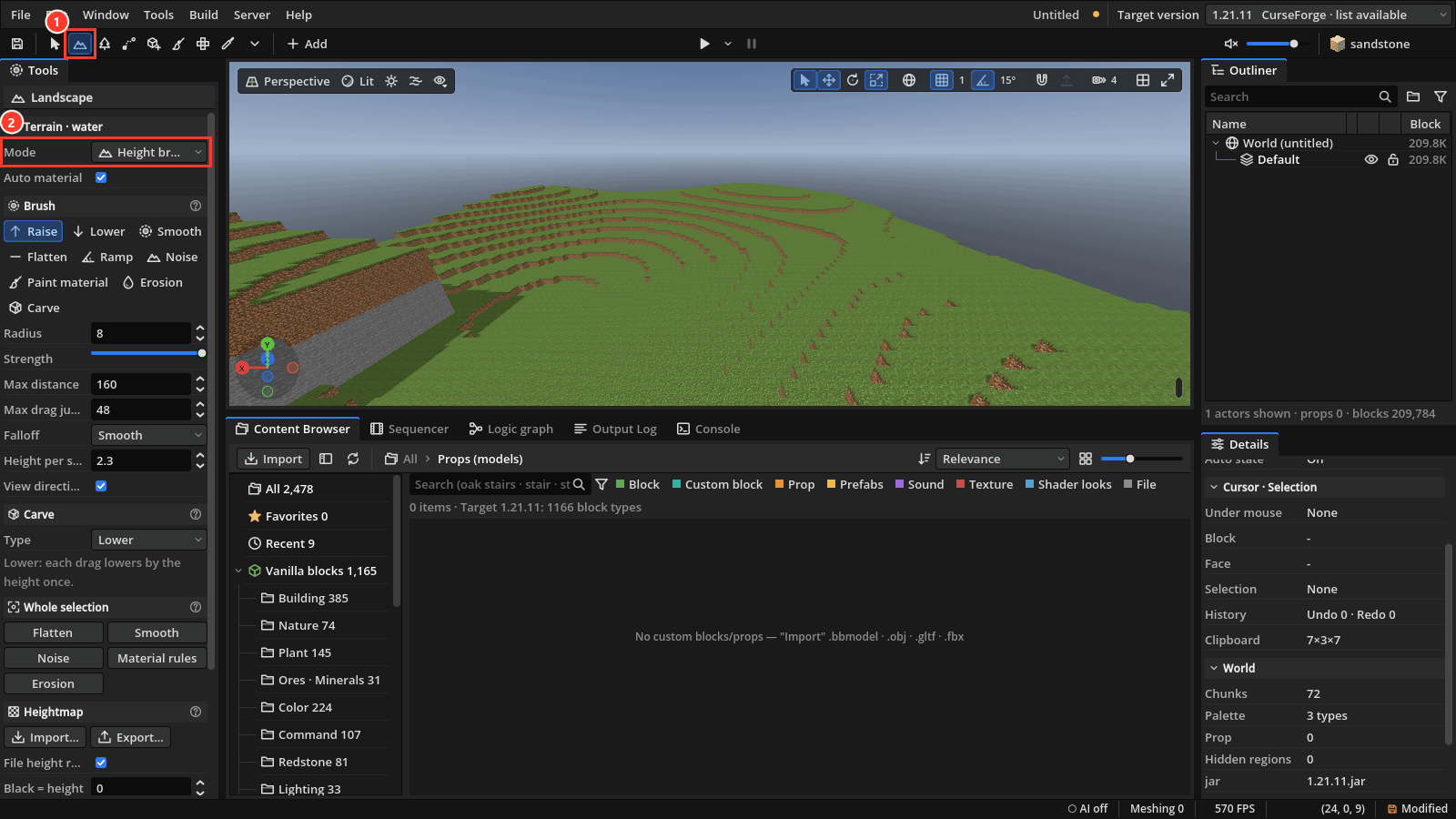
-
Click Raise under Brush and type
10in Radius.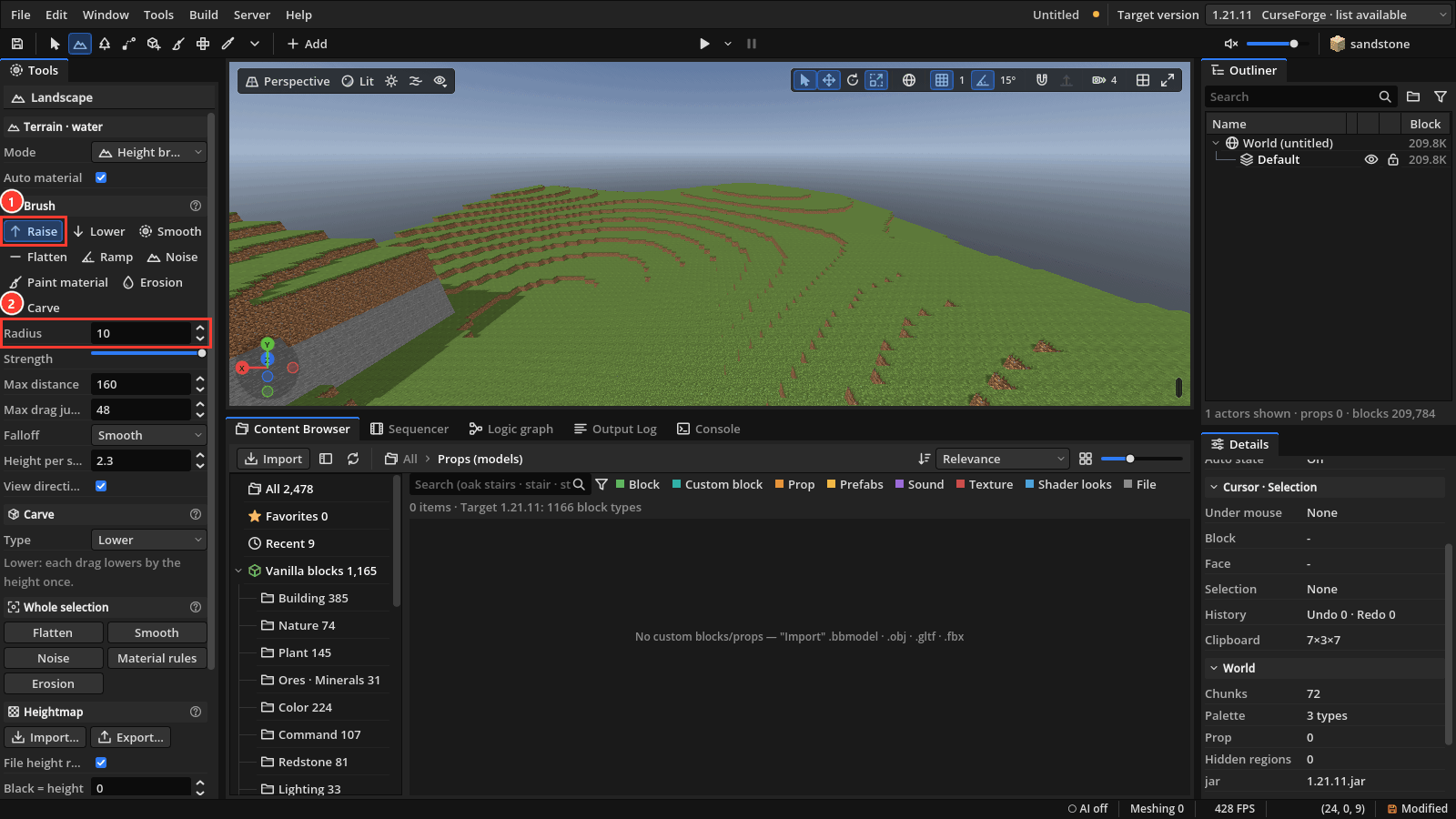
-
Hover over the ground in the viewport. The brush circle and a ghost appear. The ghost is the height this stroke will change: green = up, red = down.
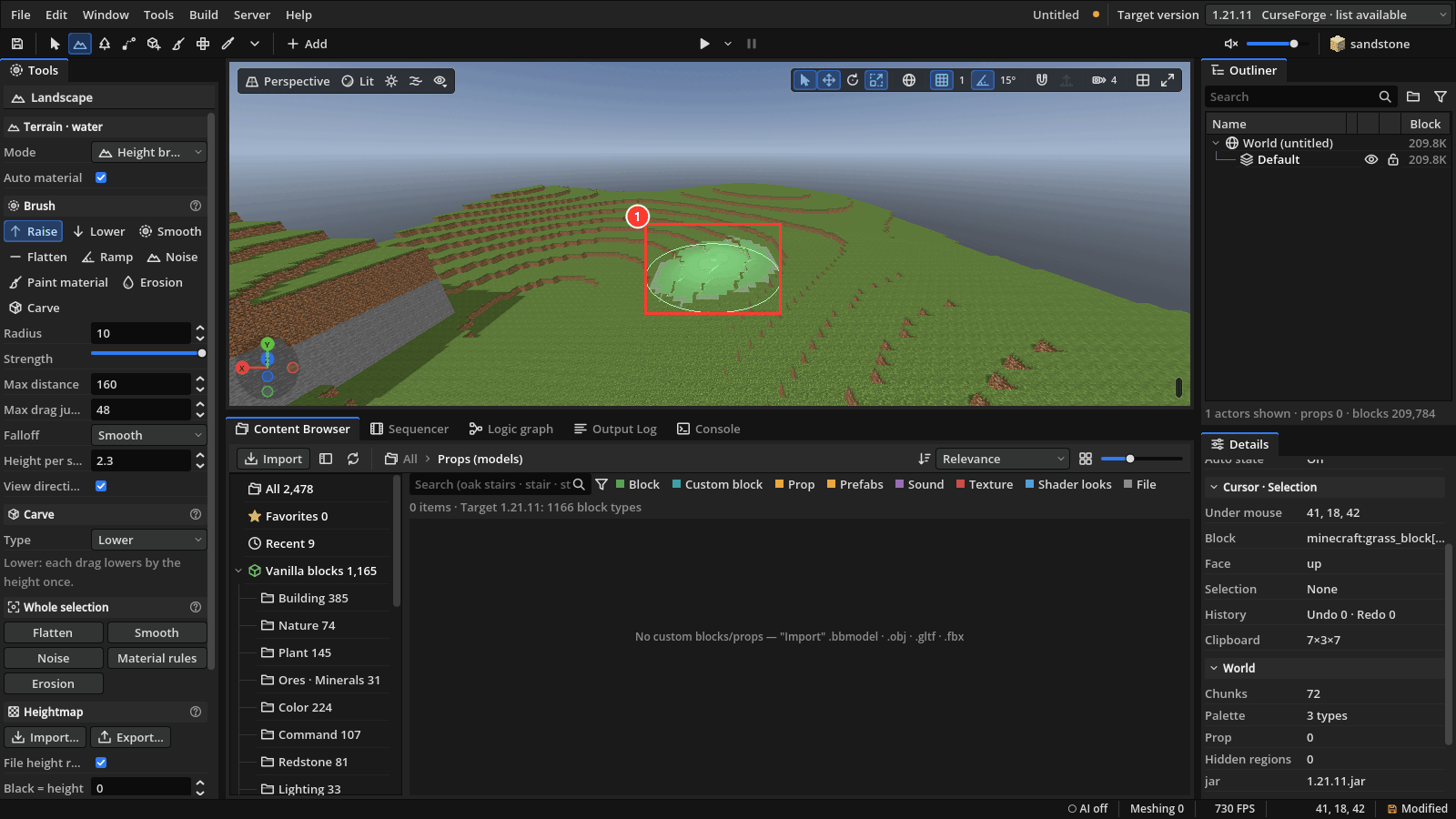
-
Drag across the ground. The area you drag over rises. Dragging over the same spot several times raises it further (demo: three drags raised the center by 7 blocks). One drag is one undo step.
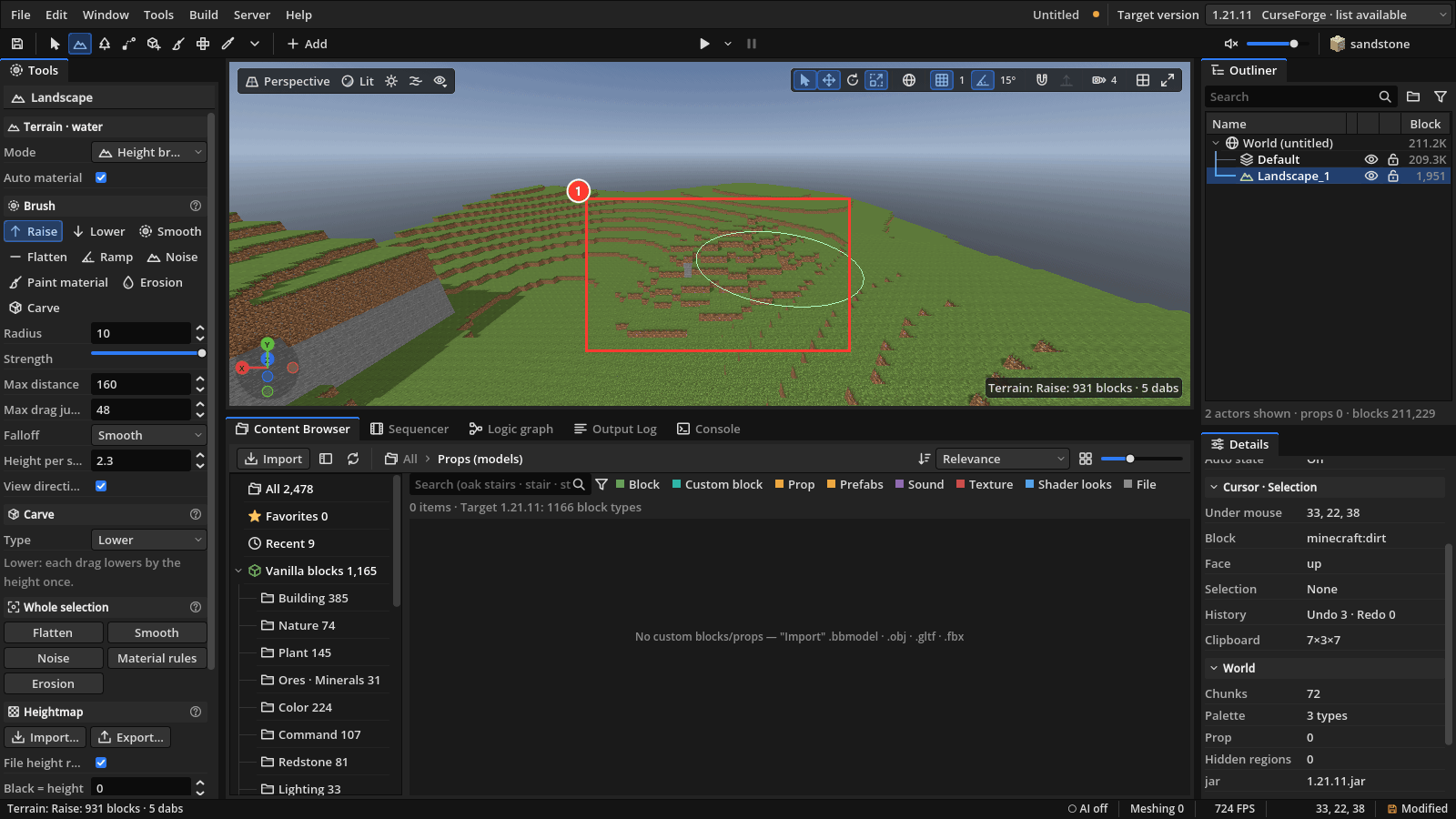
-
Ctrl+drag. Whatever tool is selected, that stroke paints with Smooth, and step-like protruding cells are matched to the neighboring height.
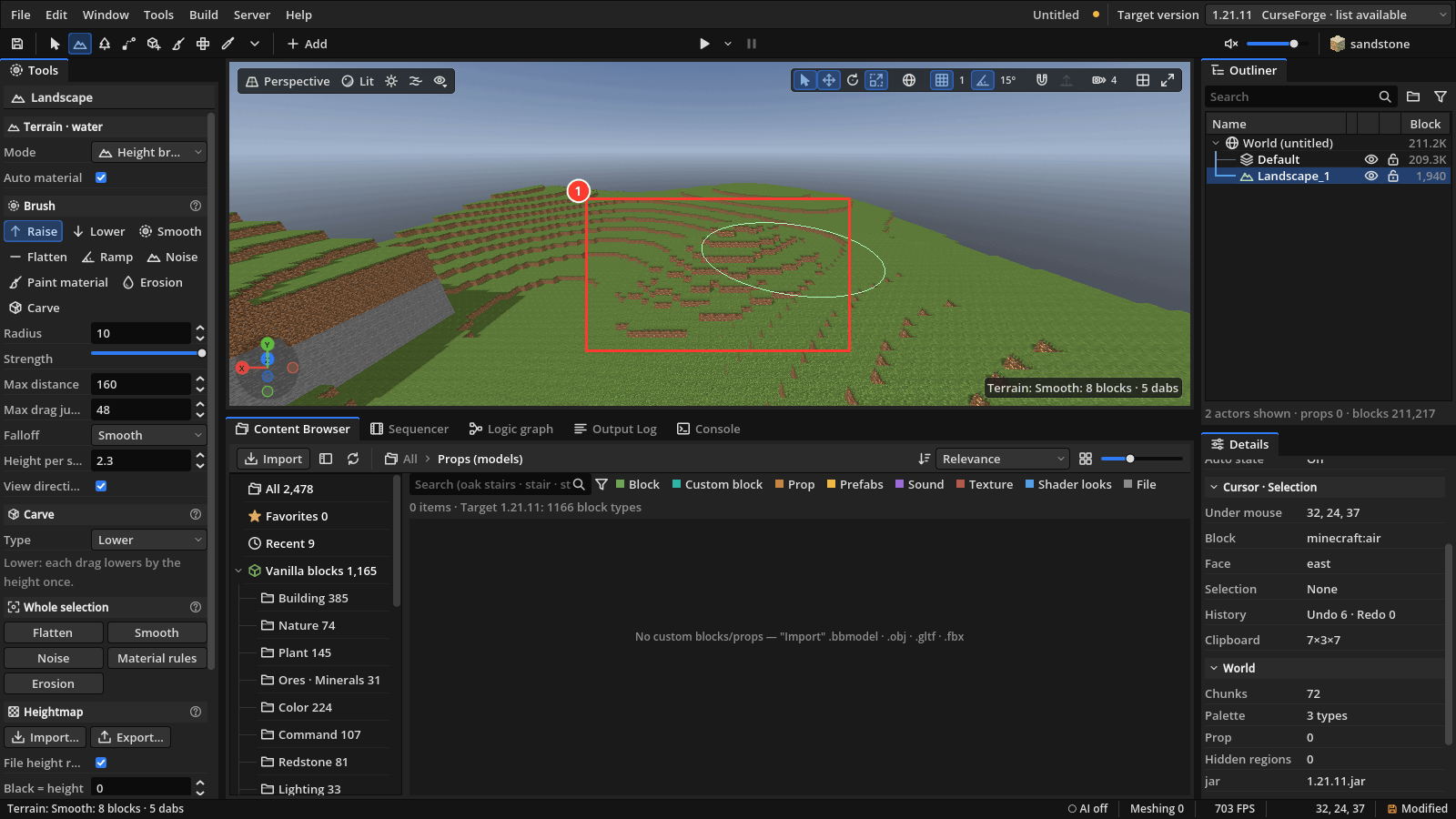
-
Click Flatten and drag across the ground. With To start height on (default), the ground flattens to the height where the drag started.
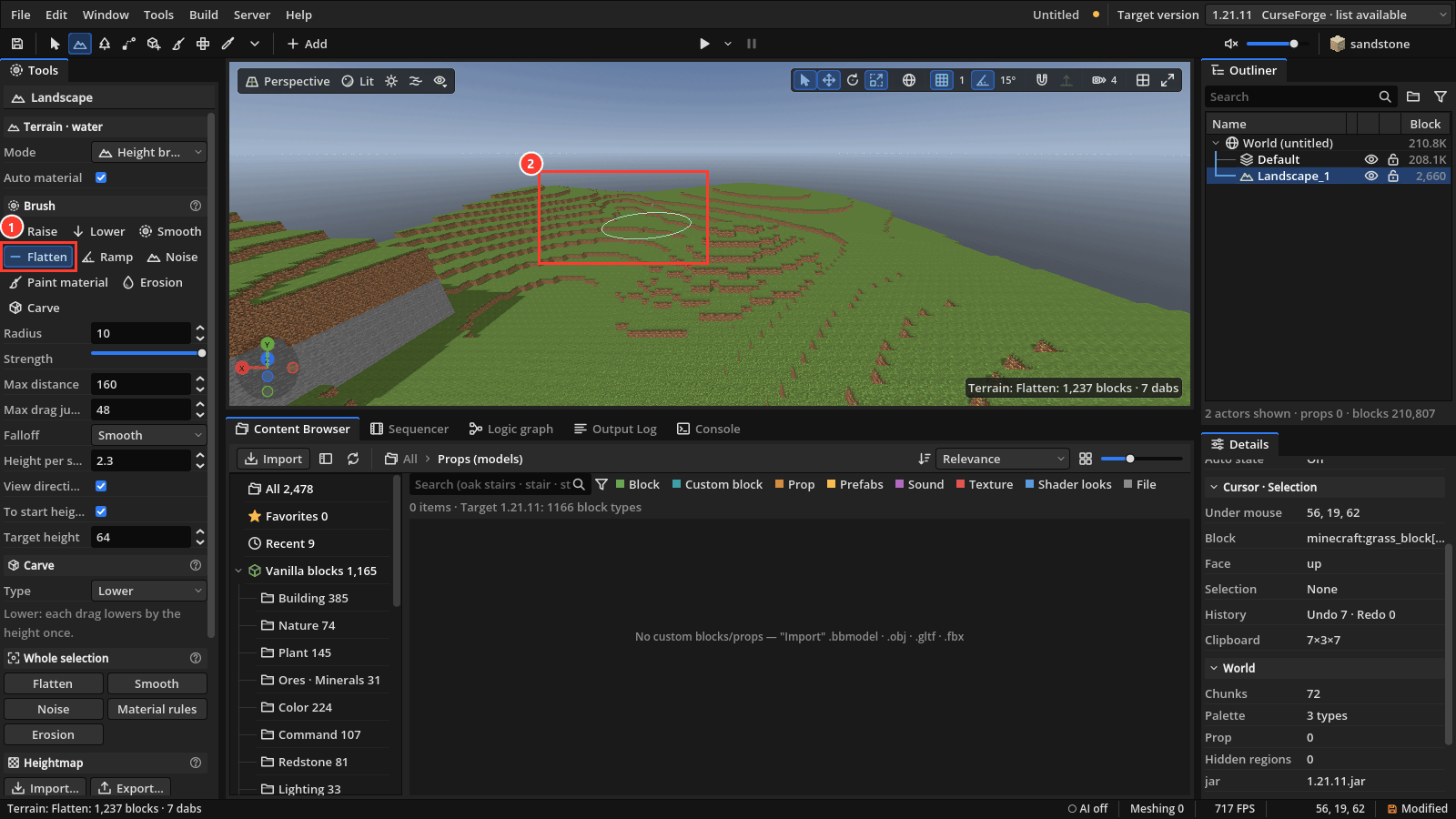
-
Click Noise, type
8in Strength (blocks) and drag. Natural roughness is added.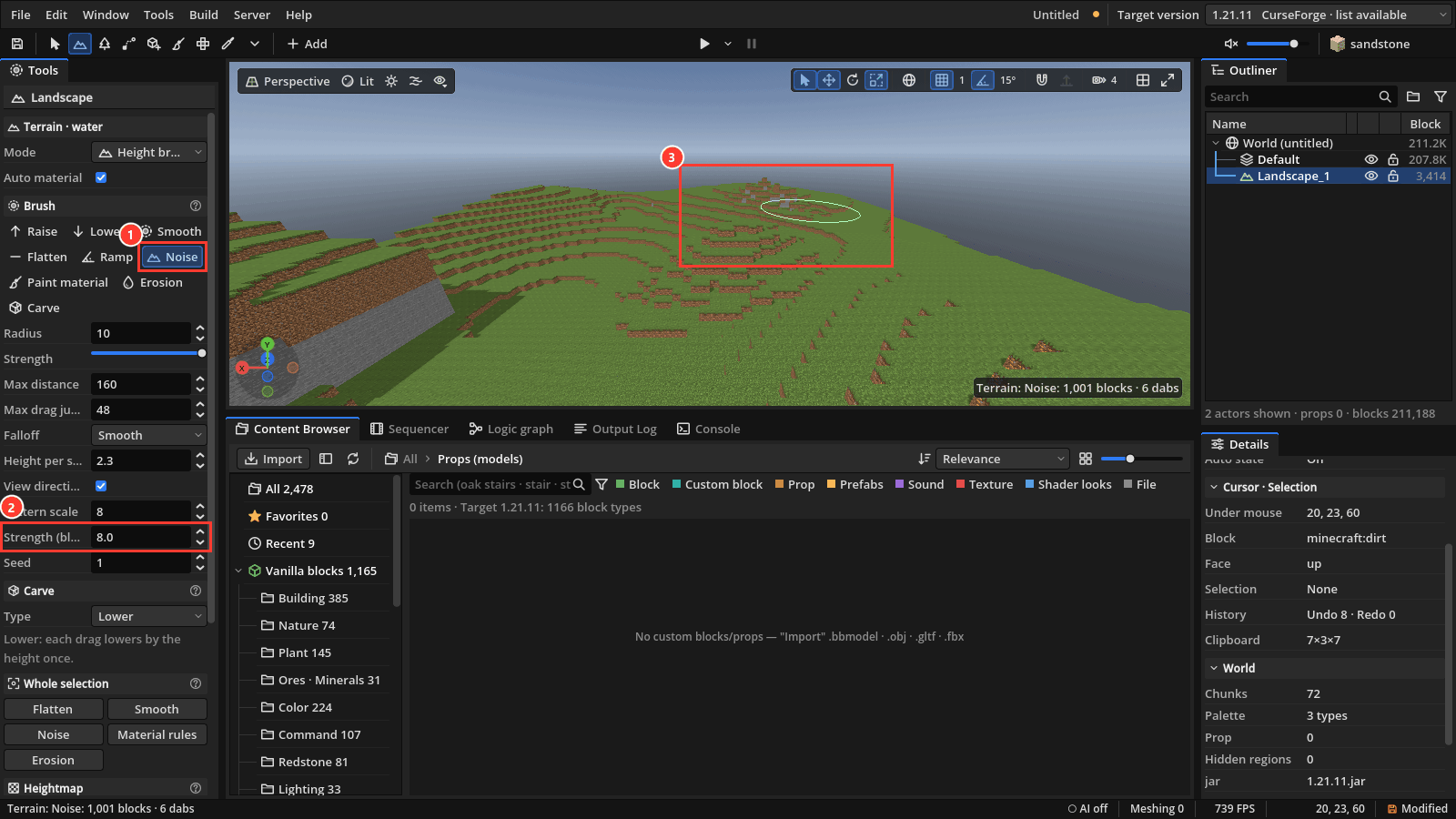
-
Press Ctrl+Z to undo the last stroke. The height goes back to what it was before the noise stroke.
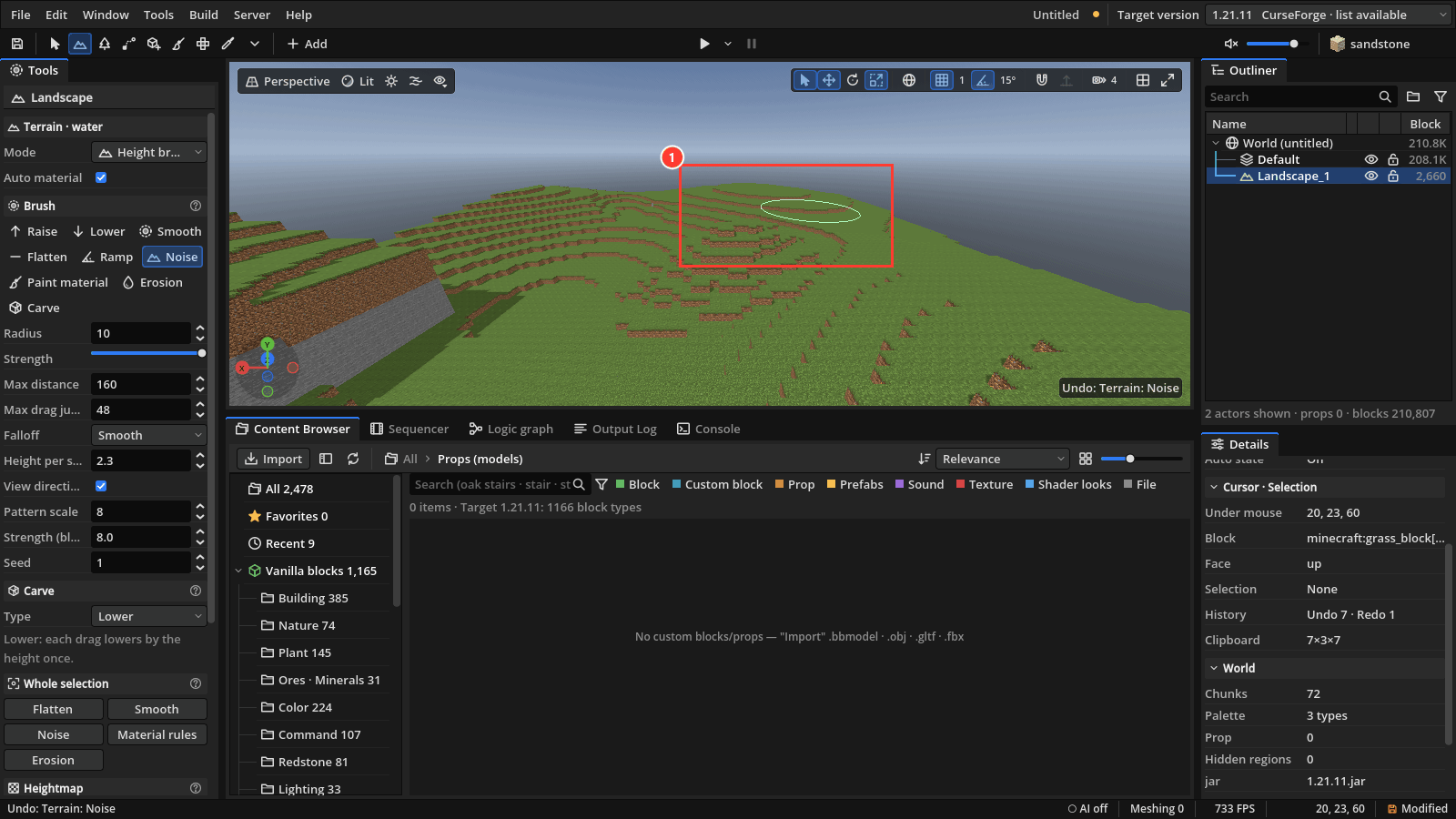
The whole selection at once
Section titled “The whole selection at once”-
Select a region (Selection and region editing). Click Flatten under Brush and type
26in Target height.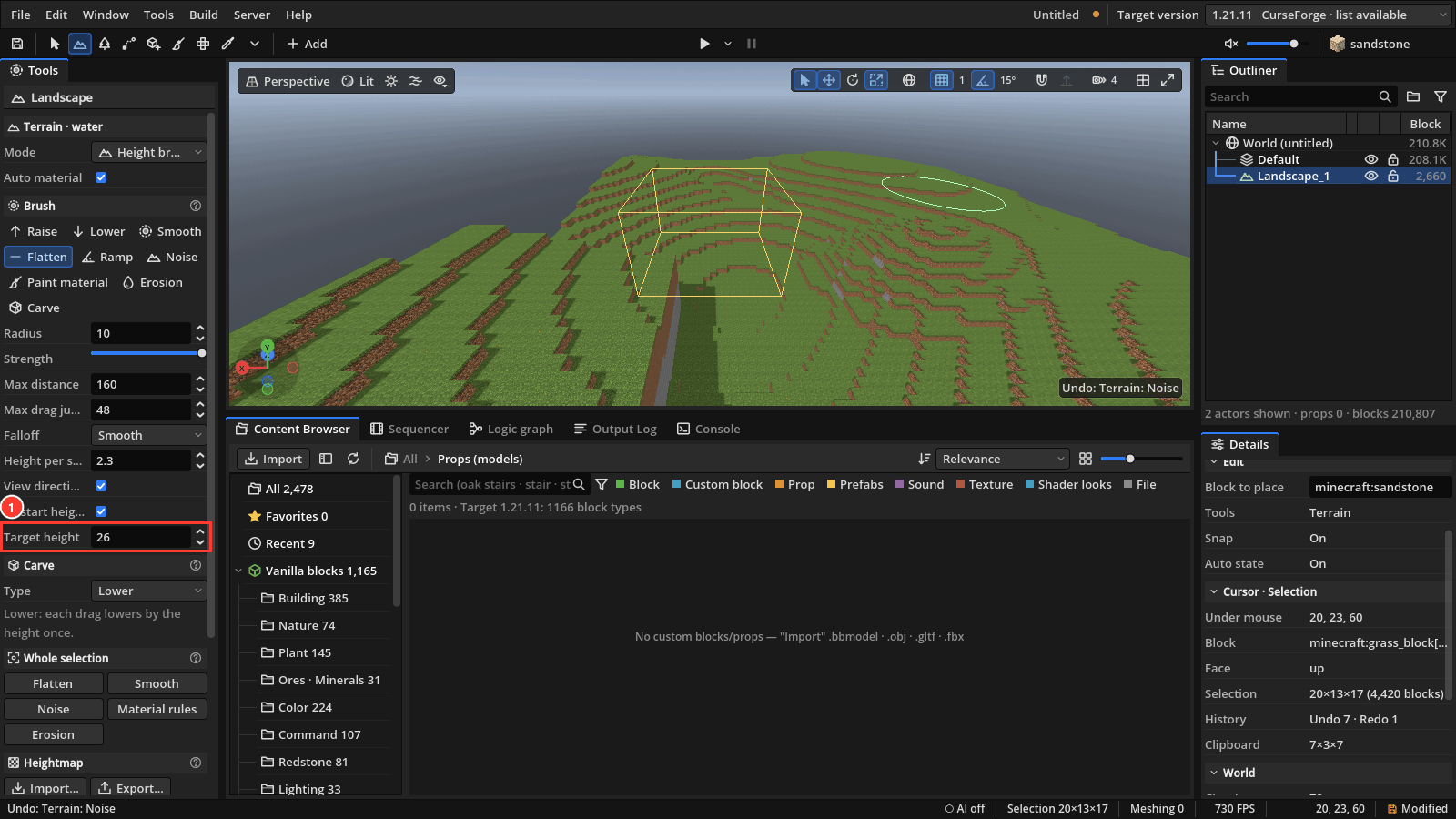
-
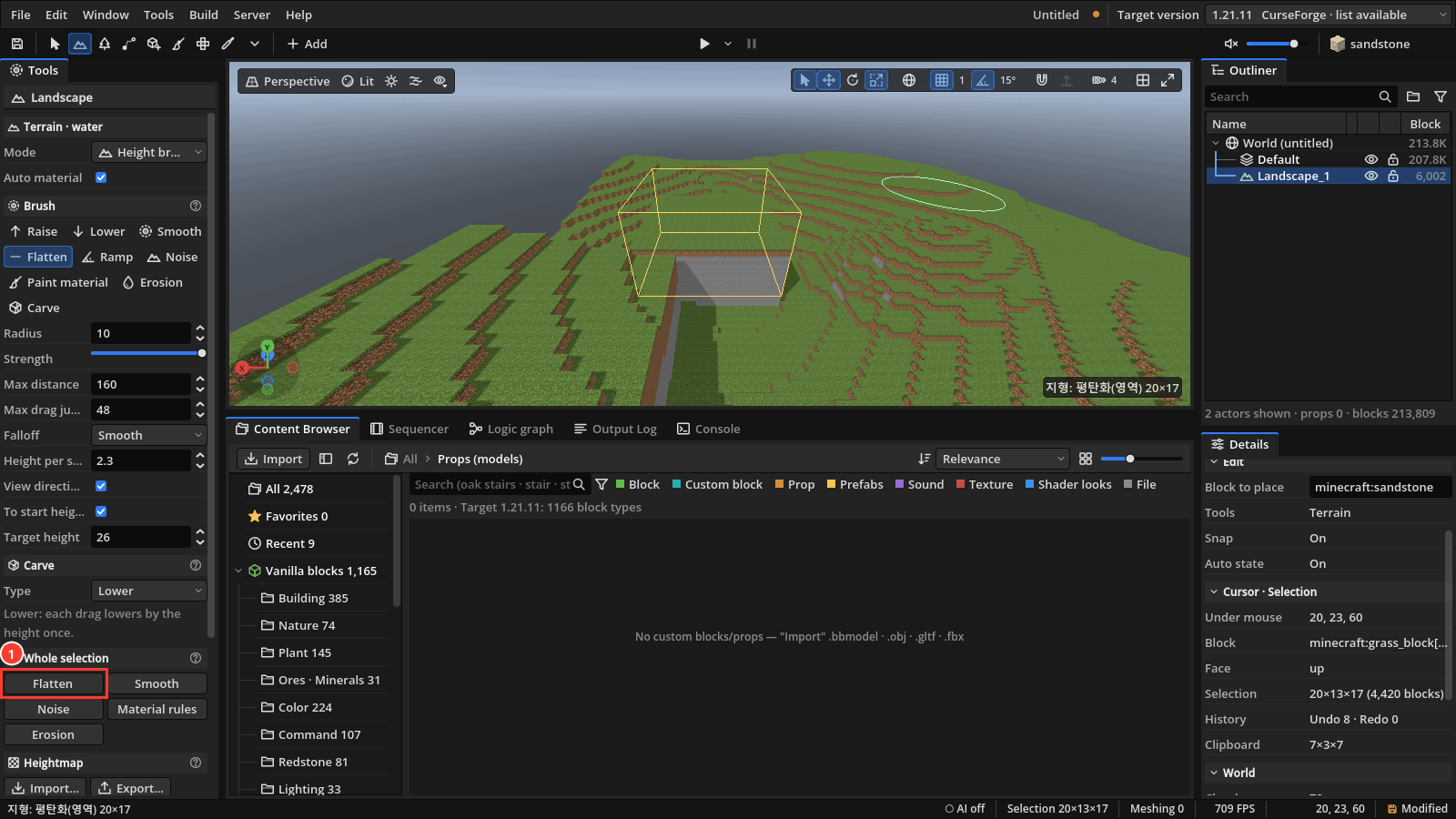
Click Flatten under Whole selection. The ground height of every selected column becomes 26 (top block y = 25). Large jobs show progress in the status bar; press Esc to cancel.
Building a castle wall with a curve
Section titled “Building a castle wall with a curve”-
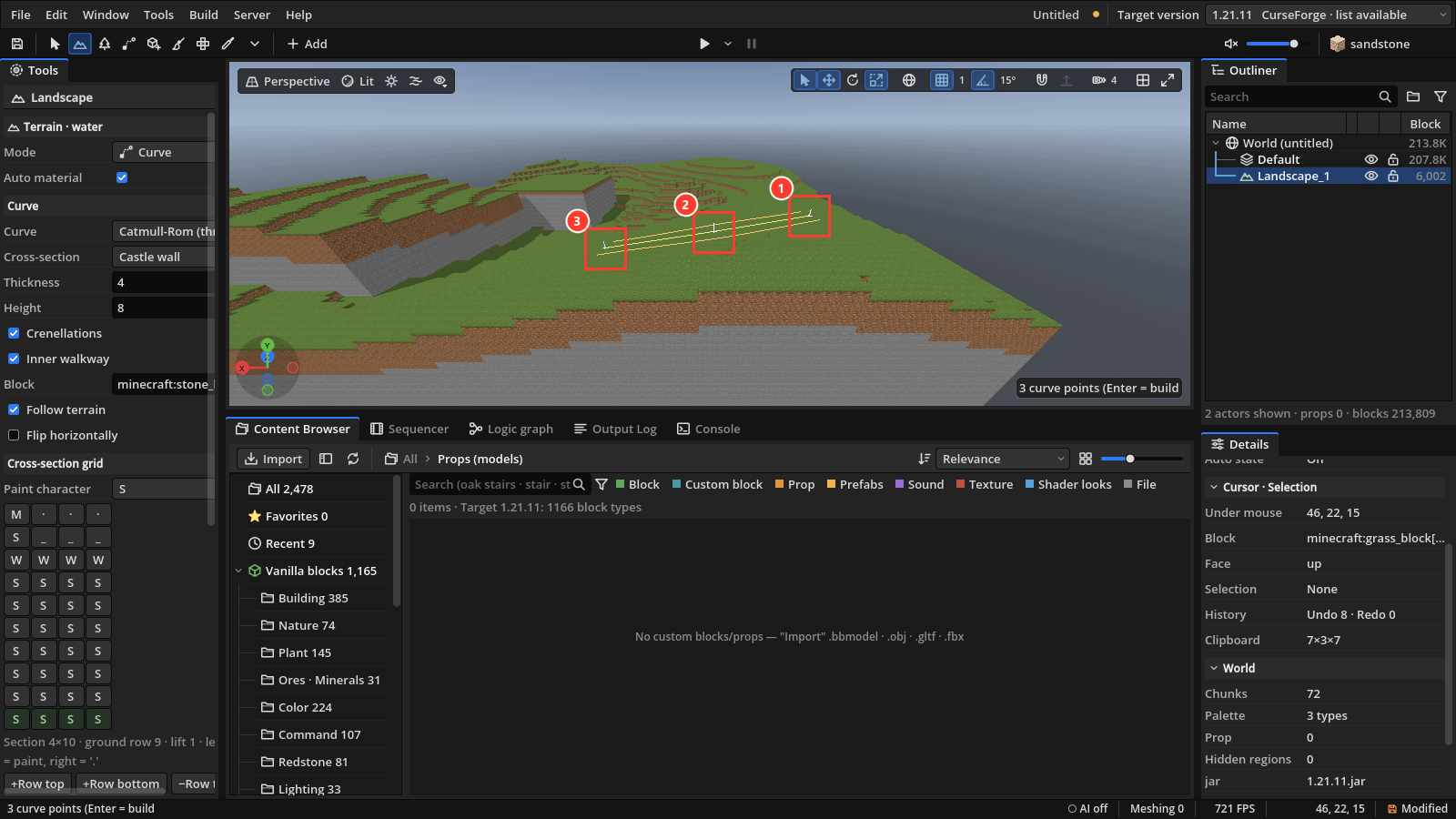
Select Curve in Mode and click the ground to place 3 points. Drag a point to move it.
-
Press Enter to create it. Following the default Cross-section “Castle wall”, a wall through the points is built along the ground and added to the Outliner as the
Spline_1actor. This is one undo step.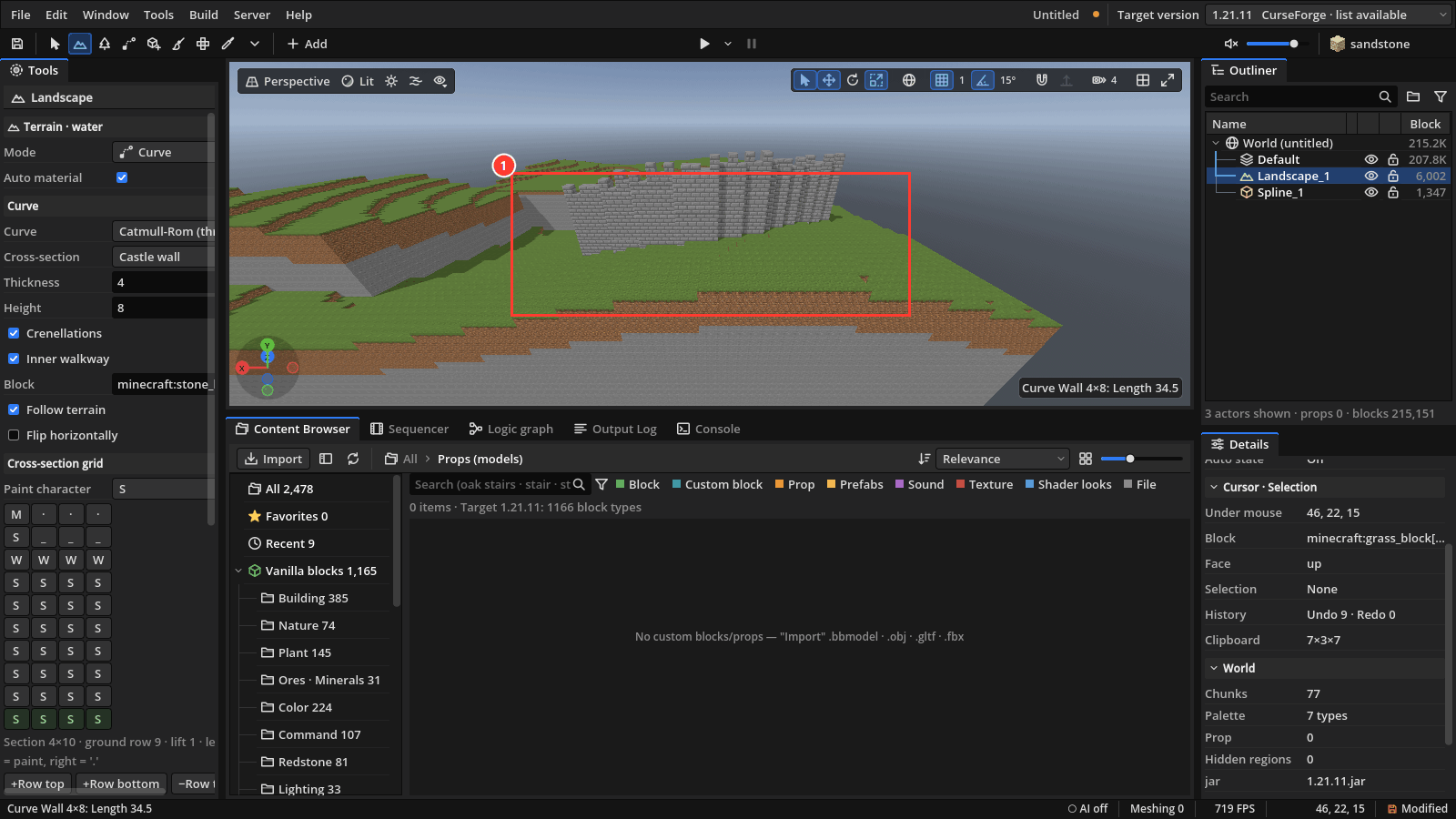
Checking what is reachable on foot
Section titled “Checking what is reachable on foot”-
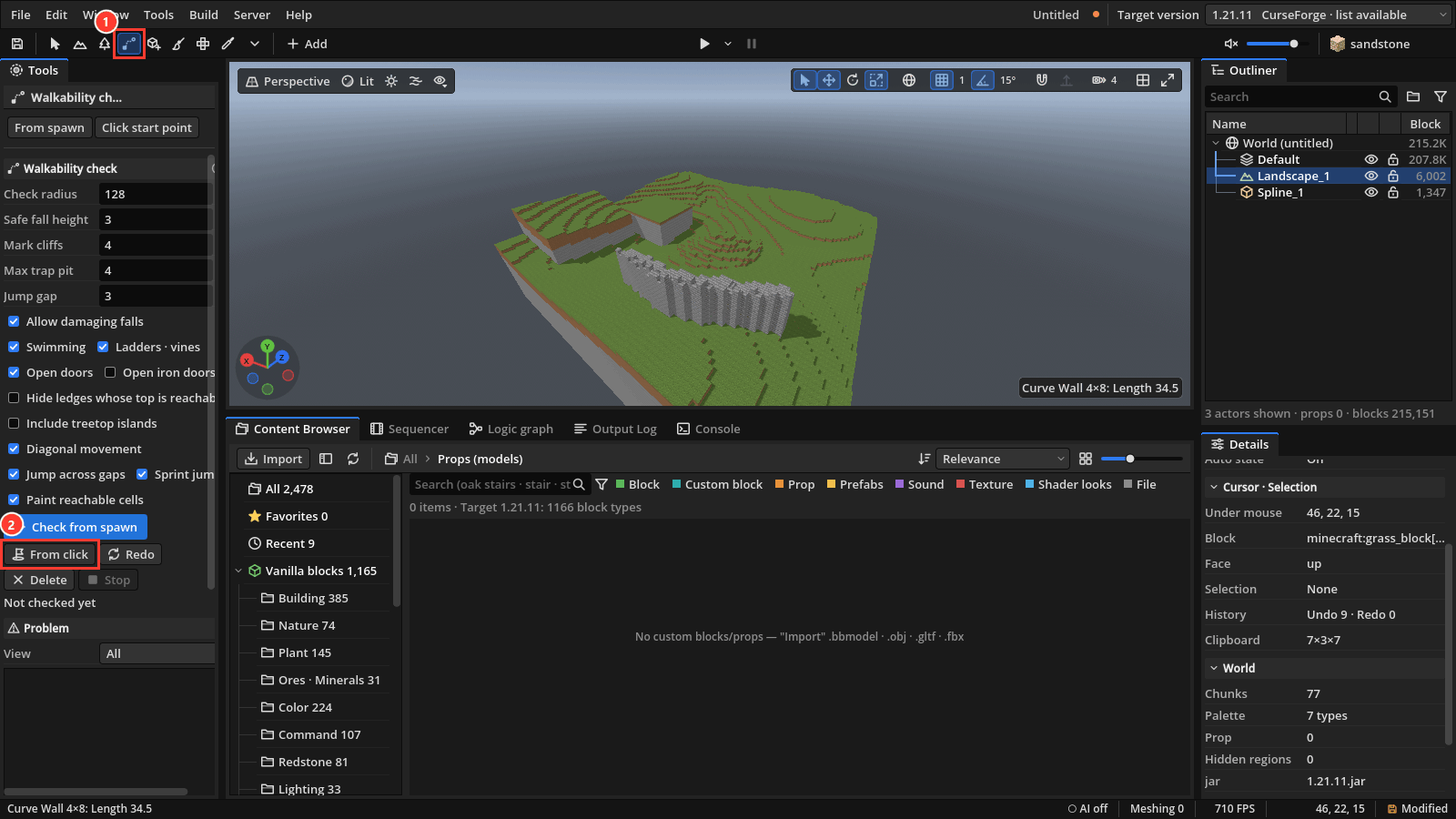
Click the Walkability check button (path icon) on the toolbar.
-
Click From click and click the ground in the viewport. The cells reachable on foot from that spot are painted green, and the panel shows a summary (cell count · reached · islands) and the Problem list. Click a row in the list to go to that cell.
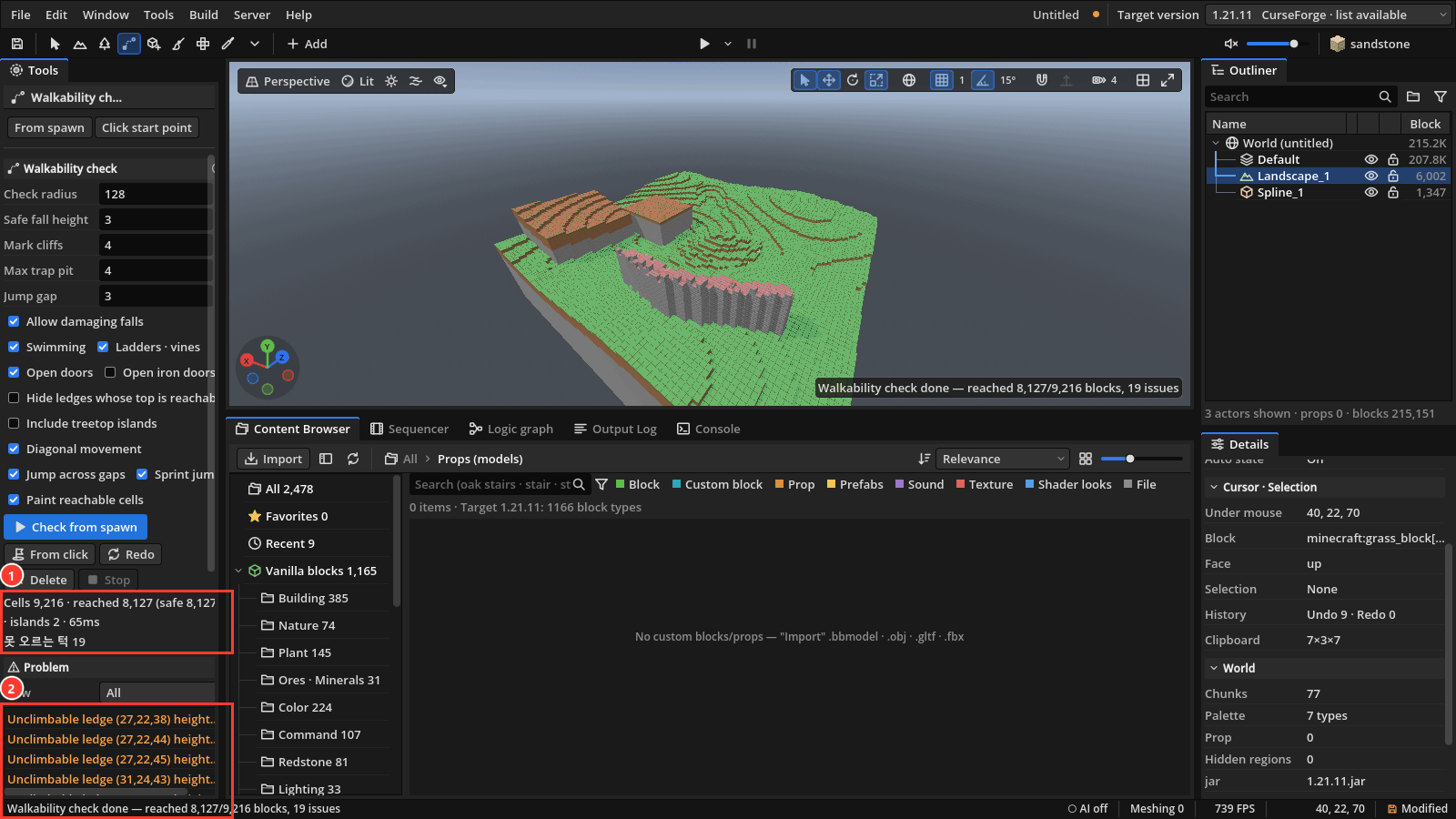
Known issue in 0.10.2: the problem count line of the summary is shown in untranslated Korean, for example “못 오르는 턱 19” (19 unclimbable ledges).
If there are player spawn markers, Check from spawn starts from all spawns at once. After you change the world, Redo checks again from the same start point.
Tips and tricks
Section titled “Tips and tricks”- [ · ] decrease and increase Radius by 1. Shift+] takes a larger step (demo: 10 → 15).
- Shift+drag always carves, whatever the current tool. Even with Raise selected, Shift+drag lowers the ground instead of raising it. The carving method follows Type in the Carve section.
- Ramps: click Ramp, Shift+click the ground (point A) · Ctrl+click (point B), then click A-B at once. The stretch between the two points becomes a straight slope that rises in one direction only. Its width is the brush diameter.
- When the panel first opens, the Strength slider sits at the right end (1), but the brush paints with 0.5. The Height per stroke field also shows 2.3, but the actual value is 2. Once you change a slider or field, painting uses the values on screen from then on. To paint strongly, move the Strength slider once and then set it where you want.
- In the Walkability check mode, Shift+click the ground to check from that spot right away without going through From click.
- One drag · one Whole selection operation · one curve is each one undo step. Paint until you are happy and step back one stroke at a time with Ctrl+Z.
Reference
Section titled “Reference”Height brush tools
Section titled “Height brush tools”| Tool | Action | Fields used |
|---|---|---|
| Raise · Lower | Raises or lowers the ground with each drag. | Radius · Strength · Falloff · Height per stroke |
| Smooth | Matches protruding cells to the neighboring height. Same as Ctrl+drag. | Radius · Strength · Falloff |
| Flatten | Sets the circle to one height. | To start height · Target height |
| Ramp | Connects points A · B with a straight slope. | A-B at once |
| Noise | Adds roughness. The same Seed gives the same pattern. | Pattern scale · Strength (blocks) · Seed |
| Paint material | Keeps the height and paints only the surface blocks with one layer of the material rules. | Paint layer |
| Erosion | Collapses steep spots (thermal) or lets rainwater cut gullies (hydraulic). | Erosion type · Iterations (per stroke) · Collapse angle° · Region iterations |
| Carve | Carves the ground. Carve never raises the ground. | Type · Depth · Trench width · Trench depth · Side slope° · Depth follows terrain |
Type of Carve:
| Type | Action |
|---|---|
| “Lower” | Lowers by Height per stroke with each drag. |
| “Dig (target depth)” | Lowers only down to the starting height − Depth. The bottom is flat. |
| “Dig along path” | Digs a ditch or trench along the dragged path. Side slope° 90 = vertical walls, 45 = 1 block deeper for every 1 block inward. Turn off Depth follows terrain for a flat-bottomed channel. |
| “Cut cliff” | Lowers the circle to the starting height − Depth in one go. The edge becomes a vertical wall. |
Height brush fields
Section titled “Height brush fields”| Field | Range | Default | Description |
|---|---|---|---|
| Auto material | On/off | On | Repaints the surface blocks of changed columns according to the material rules. |
| Radius | 1 ~ 128 | 8 | Brush circle radius (blocks). |
| Strength | 0 ~ 1 | 0.5 | Fraction changed per dab (see the note on screen values in Tips and tricks). |
| Max distance | 0 ~ 1024 | 160 | Spots farther than this from the camera are not painted. Prevents painting far away when grazing the horizon. |
| Max drag jump | 0 ~ 512 | 48 | Distance the brush may skip in one drag. |
| Falloff | “Constant” · “Straight” · “Smooth” · “Round” · “Sharp” | “Smooth” | How the effect weakens toward the circle edge. |
| Height per stroke | 0.25 ~ 16 | 2 | Blocks changed at once (center) by Raise · Lower at strength 1. |
| View direction (side faces) | On/off | On | When you drag a block’s side face (cliff · overhang) with Raise · Lower · Carve, it builds out from or digs into that face instead of using the height seen from above. Dragging a top face is the normal height brush. |
| To start height · Target height | On/off · −64 ~ 320 | On · 64 | Flatten: matches the starting height or the target height. Flatten under Whole selection always uses Target height. |
| Pattern scale · Strength (blocks) · Seed | 1 ~ 256 · 0.5 ~ 64 · 0 ~ 99999 | 8 · 3 · 1 | Size · height · pattern of the Noise roughness. |
| Erosion type | “Thermal (collapse)” · “Hydraulic (rain)” | “Thermal (collapse)” | Moves soil without changing its amount. |
| Iterations (per stroke) · Collapse angle° · Region iterations | 1 ~ 64 · 5 ~ 85 · 1 ~ 500 | 6 · 40 · 30 | Erosion iterations · collapse angle · iterations of Erosion under Whole selection. |
| Paint layer | “Grass” · “Stone” · “Snow” · “Sand” · “Gravel” | “Stone” | Layer that Paint material paints. |
Material rules
Section titled “Material rules”With Auto material on, the surface blocks of columns whose height changed are repainted by the rules below. The first matching rule from the top is used.
| Rule | Condition | Layers (surface / below) |
|---|---|---|
| Steep = stone | Slope > 45° | Stone / stone |
| High = snow | Height ≥ 120 | Snow block / 2 dirt |
| Shore = sand (off by default) | Height ≤ 63 | Sand / 3 sandstone |
| (no rule matches) | — | Grass block / 3 dirt |
- With Steep sides only on (default), the slope rule applies only to exposed side faces. Top faces follow the flat-ground rule, so a stepped slope gets grass on top and stone on the sides.
- Load… · Save… in the Material rules section exchange rules as JSON files. Saving does not overwrite a file with the same name; it writes a new name such as
_v2.
Whole selection · heightmap
Section titled “Whole selection · heightmap”| Button | Action |
|---|---|
| Whole selection > Flatten | Matches Target height. |
| Whole selection > Smooth · Noise · Erosion | Smooths · roughens · erodes the whole region. |
| Whole selection > Material rules | Keeps the height and repaints only the material rules. |
| Heightmap > Import… | Applies a 16-bit grayscale PNG. With a selection, it is stretched to that size; without one, it starts at (0, 0) at the image’s size. With File height range off, Black = height · White = height are used. |
| Heightmap > Export… | Writes the selection’s heights to a PNG. Auto range stretches the region’s lowest ~ highest heights over the full gray range. Importing the exported file again restores the heights exactly. |
Curves
Section titled “Curves”Mode > Curve builds a cross-section along a curve that connects the points.
| Field | Description |
|---|---|
| Curve | “Catmull-Rom (through points)” or “Bézier (smooth)” |
| Cross-section | “Castle wall” · “Path” · “Ditch · canal” · “Legs” · “Fence · railing” · “Custom”. Fields such as Thickness · Height · Block change with each cross-section (castle wall: Crenellations · Inner walkway). |
| Follow terrain | When on, follows the ground height. |
| Flip horizontally | The outside of a castle wall is on the left of the travel direction. When on, the right side is the outside. |
| Cross-section grid | Draws the cross-section as a character grid. Choose a Paint character and click a cell to paint it; right-click sets it to ”.” (empty). Set a block for each character in Legend and click Apply legend. Ground row · Lift set which row sits at ground height. |
| Show block outlines | Previews the outlines of the blocks that will change (up to 2000 blocks). |
| Precompute | Shows a summary of the result without creating it. |
Known issue in 0.10.2: the “Legs” cross-section is the bridge cross-section (the Korean “다리” means both “bridge” and “legs”).
Caves · overhang cliffs
Section titled “Caves · overhang cliffs”| Mode | How to use |
|---|---|
| Cave — Method “Path cave (place points, Enter)” | Click a cliff face or a top face to place points, then press Enter (or Carve) to dig the tunnel. Open entrance (on by default) opens the first point up to the ground surface. |
| Cave — Method “Dig brush (drag)” | Dragging hollows out a round space where it hits. Hitting the bottom of a dug hole again goes deeper. |
| Cave network in selection | Create caves in selection creates a cave network of tangled tunnels and rooms in the selection. With Carve water/lava too off (default), cells next to liquids are kept so water does not leak. |
| Overhang cliff | Click near a cliff to create ledges that stick out like eaves along cliff edges within Circle radius. Whole selection creates them over the whole region. |
Walkability check
Section titled “Walkability check”| Field | Default | Description |
|---|---|---|
| Check radius | 128 | Half-width (blocks) of the square around the start point. |
| Safe fall height | 3 | Falls higher than this count as damaging. |
| Mark cliffs | 4 | Marks damaging falls of this height or more as problems. |
| Max trap pit | 4 | Areas you cannot get out of are a “Trap hole” up to this many cells, and a “One-way zone” beyond. |
| Jump gap | 3 | Maximum same-height gap (blocks) crossed by a sprint jump. 4 is for experts. |
| Allow damaging falls · Swimming · Ladders · vines · Open doors | On | Treats these as passable. |
| Open iron doors | Off | Treats iron doors as openable and passable. |
| Diagonal movement · Jump across gaps · Sprint jump | On | Adds or removes movement methods. |
| Paint reachable cells | On | Paints reachable cells in the viewport. |
View under Problem shows only “Trap hole” · “One-way zone” · “Unclimbable ledge” · “Damaging drop” · “Lethal drop” · “Low gap” · “Dead end”. Marker links shows whether NPC, quest and warp markers are reachable from spawn, and Unreachable islands shows land masses you cannot reach from the start point. During a check, stop with Stop or Esc; Delete clears the painted results.
Shortcuts
Section titled “Shortcuts”| Shortcut | Action |
|---|---|
| T | Landscape mode |
| Drag | Paint with the current tool |
| Shift+drag · Ctrl+drag | Carve · smooth |
| Shift+click · Ctrl+click | Ramp: point A · point B / curve: delete point · insert point |
| [ · ] | Size of the current mode −1 · +1 (height brush = radius, cave = thickness, overhang cliff = circle radius). Shift = larger step |
| Enter · Backspace · Esc | Curve · path cave: create · delete last point · delete all points |
| Ctrl+Z | Undo the last stroke · operation |
Good to know
Section titled “Good to know”- Height brush, cave and Whole selection operations go into the Outliner as
Landscape_Nactors, and curves asSpline_Nactors. - When protected areas are on, terrain operations skip protected cells.
- To create terrain by describing it in words, use the AI Studio panel.
Related pages
Section titled “Related pages”Not an official Minecraft product. Not approved by or associated with Mojang or Microsoft.