
Face extrude
Overview
Section titled “Overview”The “Face extrude (pattern)” mode extends or shrinks one face of a block group (top · bottom · any of the four sides) when you drag its yellow arrow handle. If you select several layers, it continues the pattern on its own, like auto-fill in Excel (crenellated walls · diagonal stairs · pyramids · spiral pillars). It uses the same interpretation engine as the scale handle of a selection, and this mode adds a field for entering the block count as a number and “Inserted modules”, which insert a prefab every N blocks.
Basic use
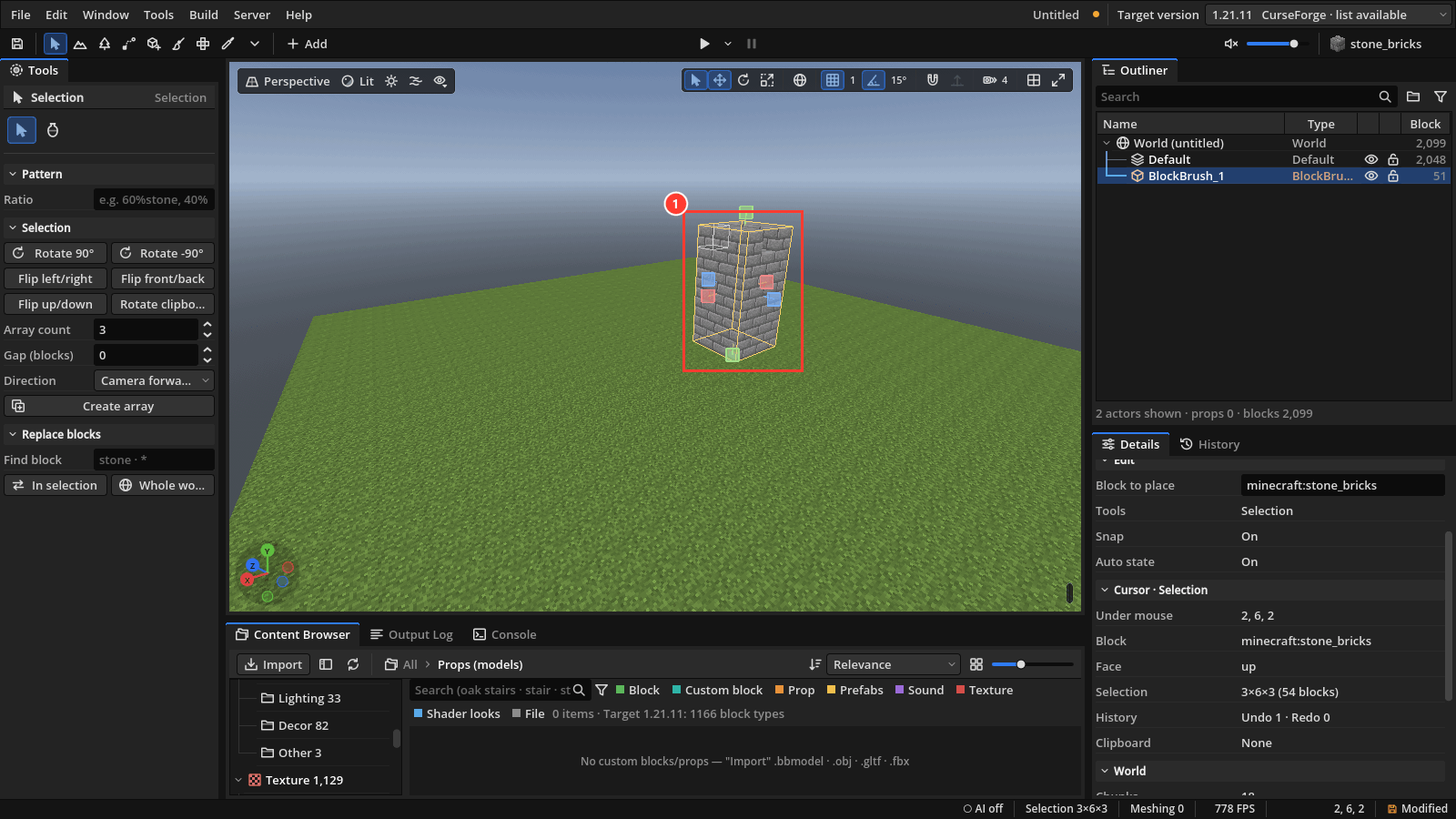
Section titled “Basic use”The example is three rows of a stone brick castle wall (3 blocks thick, 5 blocks high). Only the front and back rows have a crenel (one block on top), so the wall has a period-2 pattern toward +X (crenel · none · crenel).
-
With the Selection tool (Q), box-select the three wall rows. Drag from the top of a crenel to the opposite corner, and while dragging, roll Shift+wheel down five notches to include the floor layer (3×6×3). The pattern is read as a repeat only if you select up to where it repeats once (period 2 = three rows).
-
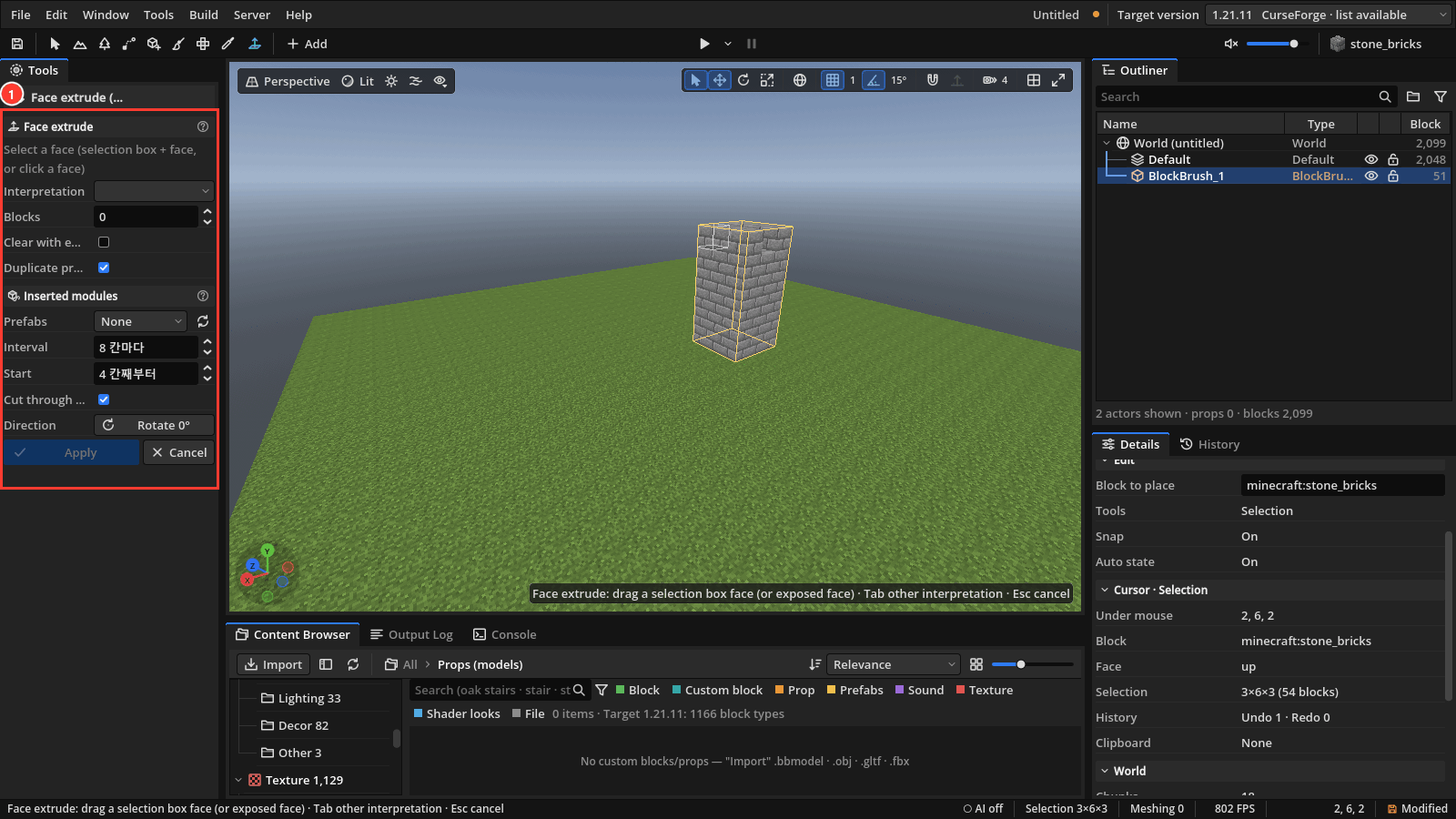
Press Ctrl+E to switch to the Face extrude (pattern) mode. The Tools panel shows the Face extrude panel (Interpretation · Blocks · Inserted modules · Apply · Cancel).
-
Drag outward about 10 blocks from the +X face of the selection box. A yellow arrow appears at the center of the face, along with a green ghost and the text “+10 blocks · Repeat with period 2 · [Tab] 다른 해석 · [Enter/놓기] 적용 · [Esc] 취소”. The panel shows “Face PosX · 3 layers · section 6×3”, Interpretation “자동: Repeat with period 2” and Blocks 10.
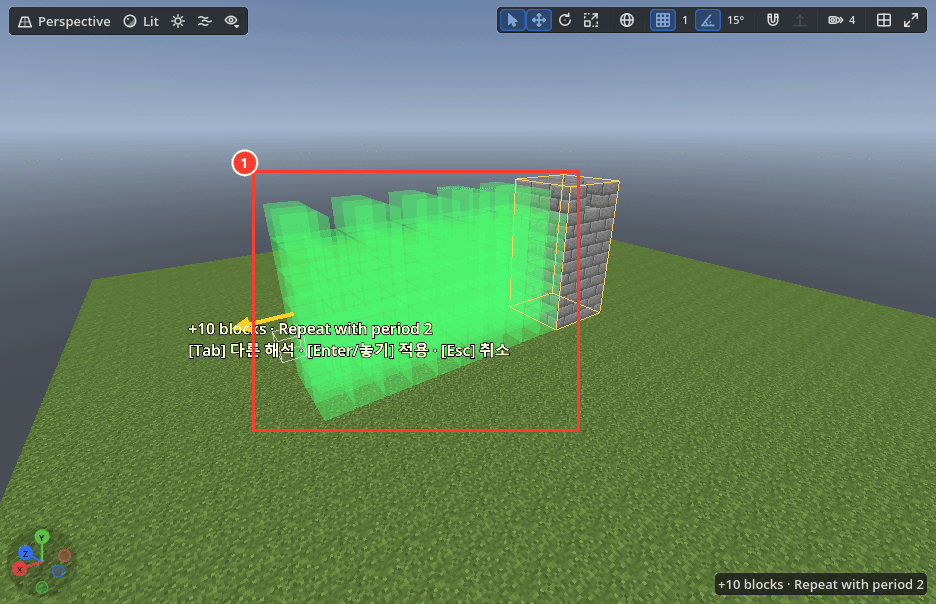
Known issue in 0.10.2: the second line of the handle text (“[Tab] other interpretation · [Enter/release] apply · [Esc] cancel”) and the “자동:” (“Auto:”) prefix in Interpretation are shown in untranslated Korean.
-
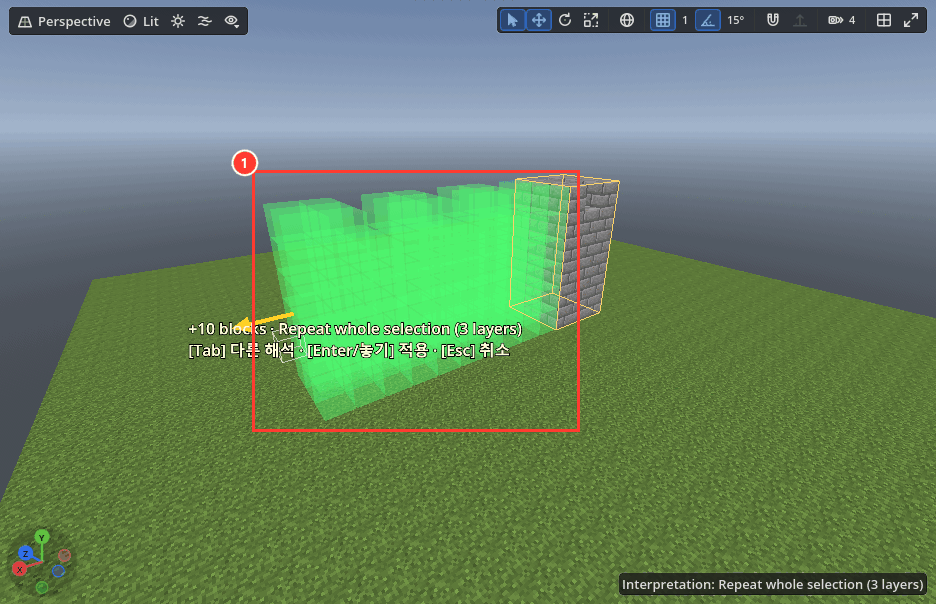
While dragging, press Tab to switch to the next interpretation, “Repeat whole selection (3 layers)”. The ghost changes to the three selected rows repeated as one unit. Press Shift+Tab to go back to the previous interpretation (Repeat with period 2).
-
Release the mouse button to apply. The wall grows by 10 blocks and the crenels continue every other block (165 blocks). The status bar shows “밀어내기: Extrude face 10 blocks (Repeat with period 2): 165 blocks …”, and this is one undo step.
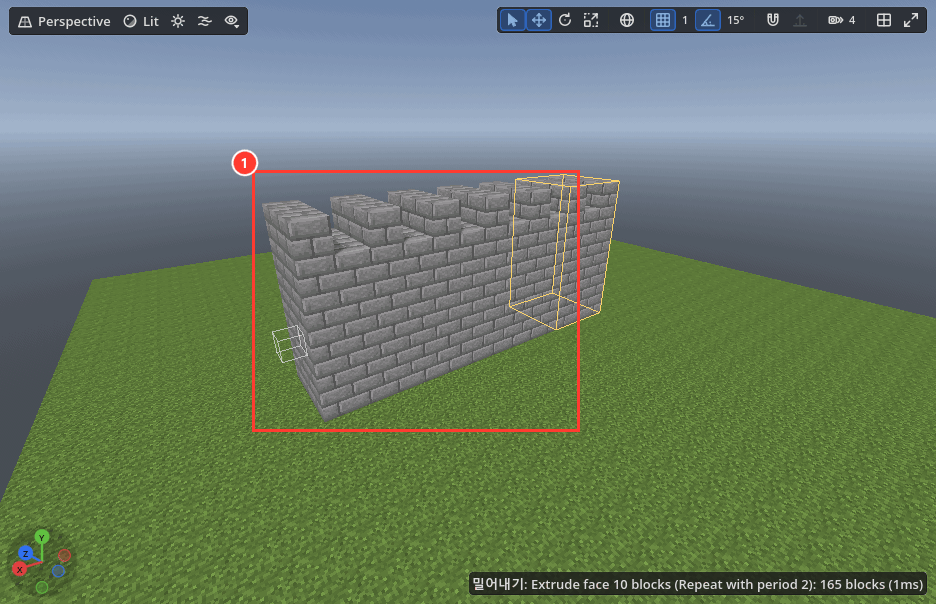
Known issue in 0.10.2: the status message starts with the untranslated Korean “밀어내기:” (“Extrude:”).
-
Press Ctrl+Z to undo (the selection box comes back too). This time, click the same face without dragging. Only the yellow arrow and the panel information appear, and Blocks is 0.
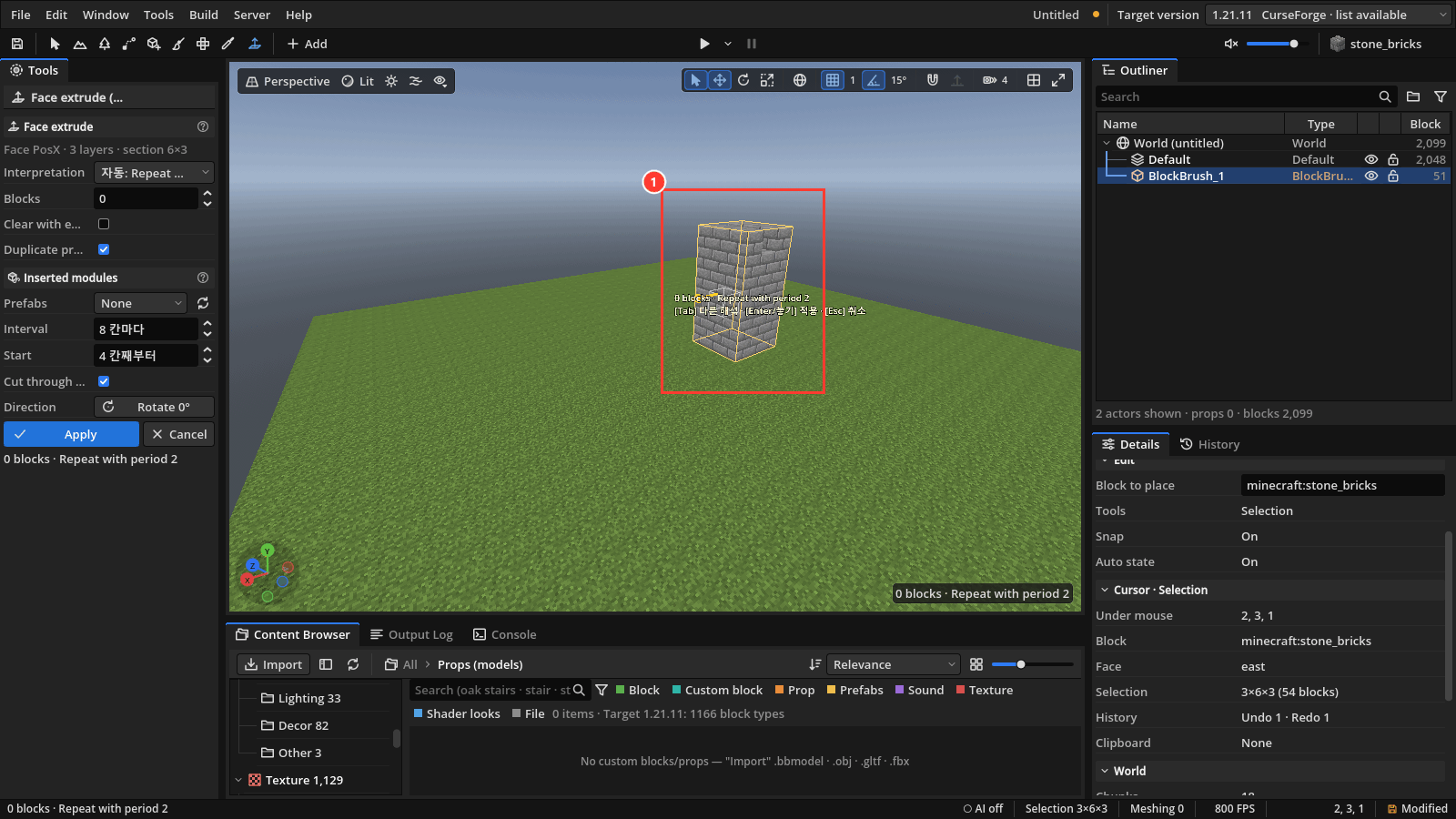
-
Type
6in Blocks in the panel. A 6-block ghost and “+6 blocks · Repeat with period 2” appear.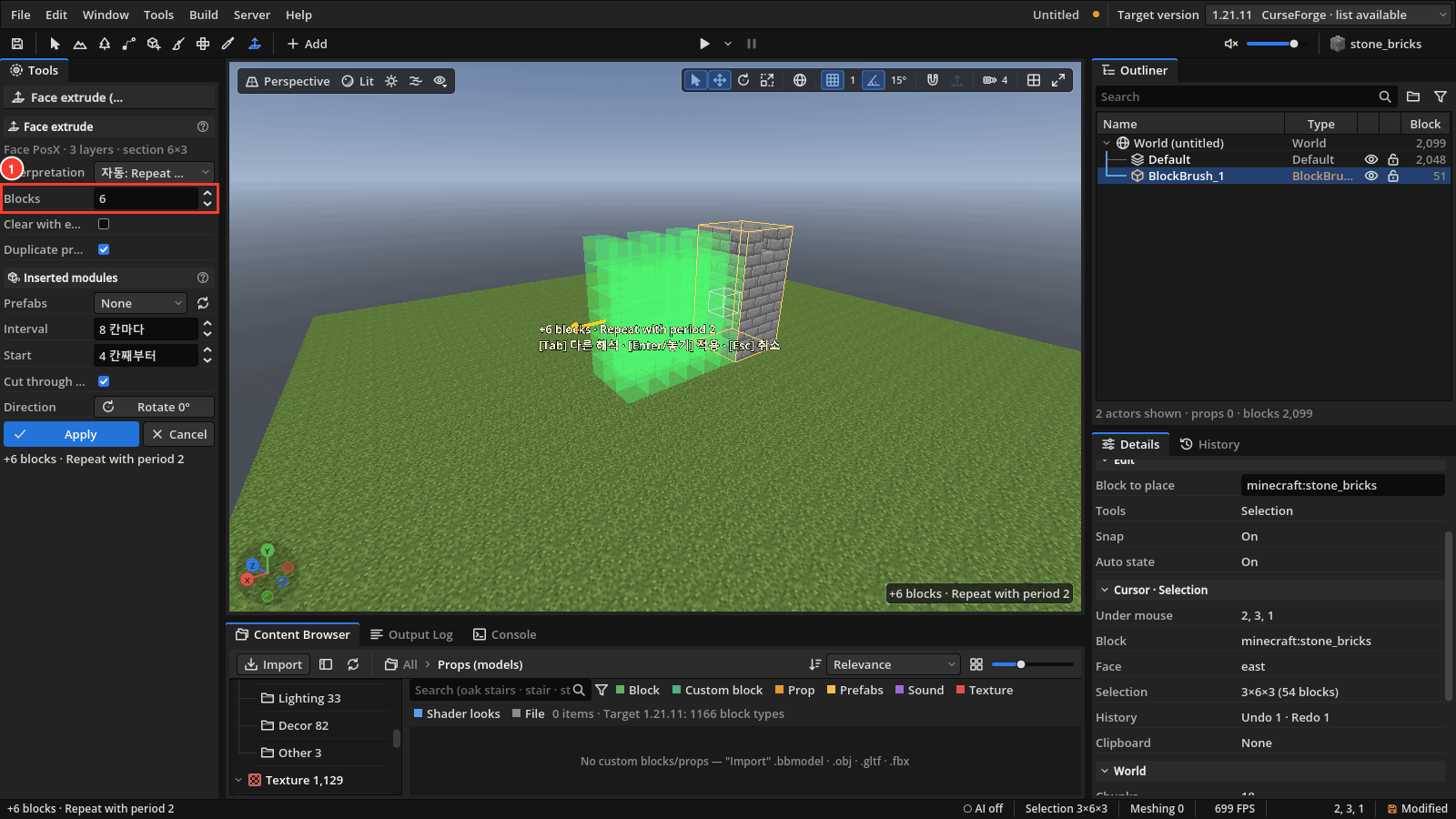
-
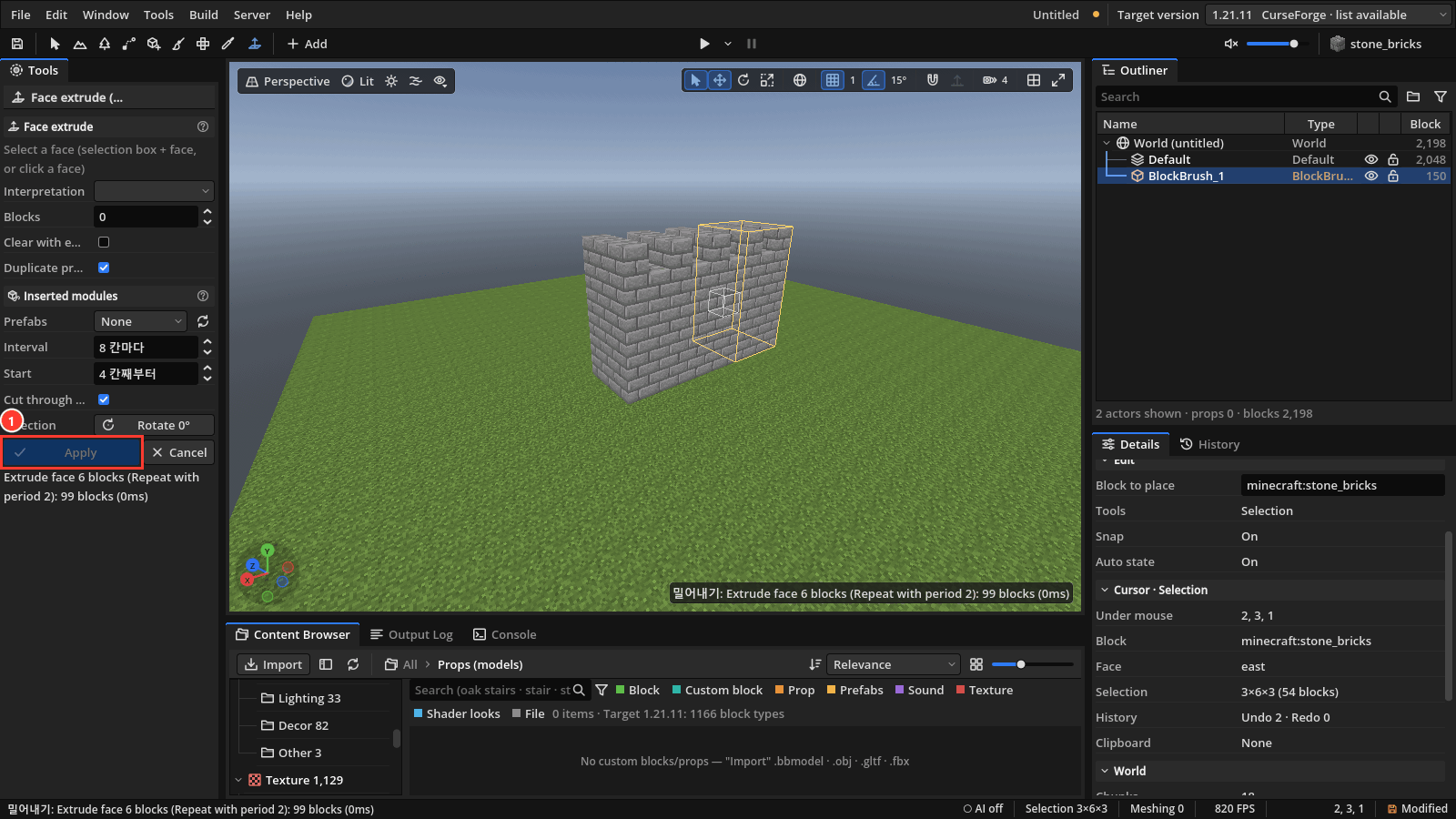
Click Apply (Enter does the same). The wall grows by 6 blocks.
Tips and tricks
Section titled “Tips and tricks”- If you change your mind while extending, press Esc before releasing to cancel the preview. Releasing the mouse button afterward places nothing (status bar “Extrude canceled”).
- You can drag an exposed face directly without a selection. With no selection, drag the top face of a 3×3 plank floor up 2 blocks: the exposed faces connected in the same direction (one layer) become the target, and “Copy single layer” stacks the 3×3 two layers high (18 blocks).
- Select up to where the pattern repeats once. If you select only two wall rows (crenel · none), the repeat period cannot be read and another interpretation becomes Auto. In this example the two rows differ in height (6 · 5), so Auto was “Size change per layer: y width −1” and it stopped at 4 blocks. Selecting three rows (crenel · none · crenel) gives “Repeat with period 2”.
- To set an exact block count, only click the face. Then type a number in Blocks and click Apply, or press Enter to apply.
- To extend from the Selection tool without changing modes, use the scale handle (W → R). The interpretations and the Tab order are the same, and the scale handle has one more, “Copy end face” (the Scale gizmo of 0.10.1).
Reference
Section titled “Reference”Extending and shrinking
Section titled “Extending and shrinking”| Input | Action |
|---|---|
| Drag outward from a face | Extend N blocks (green ghost). Release the mouse button to apply |
| Drag inward from a face | Remove N layers starting from the face layer (red ghost) |
| Click a face | Show the handle only (block count 0) |
| Blocks | Enter a number (− = shrink, −4096~4096) |
| Tab · Shift+Tab | Next · previous interpretation |
| Enter · Apply | Apply (large jobs show a progress bar) |
| Esc · Cancel | Cancel the preview |
Interpretations
Section titled “Interpretations”“Auto” is the interpretation with the shortest period among those that describe the selected layers exactly. Interpretations that do not fit the selected layers do not appear in the Interpretation list.
| Interpretation | Screen text example | Result | Used for |
|---|---|---|---|
| Repeat | “Repeat with period 2” | Repeats the layers of one period | Crenels · rows of windows |
| Shift | “Shift +1 x every layer” | The layers move sideways every period | Diagonal stairs · spirals |
| Size change | “Size change per layer: all sides −1” | The outline shrinks or grows every layer (stops at 0) | Pyramids · cones · spires |
| Rotate | “Rotate 90° clockwise per layer” | Each layer turns 90° around the Y axis (top · bottom faces only) | Spiral pillars |
| Repeat whole selection | “Repeat whole selection (3 layers)” | Repeats all selected layers as one unit | When there is no period |
| Copy face layer only | “Copy face layer only” | Keeps copying only the outer face layer | Plain thickening |
If you select a single layer, “Copy single layer” is the only option. Size change shrinks or grows by whole blocks only per layer.
Inserted modules
Section titled “Inserted modules”While the wall extends, a prefab is inserted every N blocks (towers · archer posts · stairways on a castle wall).
| Field | Values | Meaning |
|---|---|---|
| Prefabs | List (button beside it = reload) | Prefab to insert. “None” at first |
| Interval | 1~512 (default every 8 blocks) | Spacing between modules (layers) |
| Start | 1~512 (default from the 4th block) | Position of the first module (blocks from the face) |
| Cut through wall | On (default) · off | Replaces wall cells inside the module box with the module’s cells. The module’s empty cells become door and path openings |
| Direction | Rotate 0° button | Each click rotates the module 90° around the Y axis |
Known issue in 0.10.2: the Interval and Start fields show untranslated Korean suffixes (“8 칸마다” = every 8 blocks, “4 칸째부터” = from the 4th block).
The wall and modules go into the original actor and are undone together as one step.
Other fields
Section titled “Other fields”| Field | Default | Meaning |
|---|---|---|
| Clear with empty cells | Off | When on, the pattern’s empty cells remove existing blocks |
| Duplicate props too | On | Also duplicates props in the selected layers (Repeat · Shift interpretations only) |
- Added blocks go into the actor of the original layer. Cells in locked groups and protected areas are skipped.
- One operation can change up to 67,108,864 blocks (64 × 1024 × 1024) and 4096 layers. Beyond that, the text gets “too large (max … blocks)” and nothing is applied.
Shortcuts
Section titled “Shortcuts”| Shortcut | Action |
|---|---|
| Ctrl+E | Face extrude mode |
| Tab · Shift+Tab | Switch interpretation |
| Enter | Apply |
| Esc | Cancel |
| Ctrl+Z | Undo the applied extrude (one step) |
Related pages
Section titled “Related pages”Not an official Minecraft product. Not approved by or associated with Mojang or Microsoft.