
World logic
Overview
Section titled “Overview”World logic is a list of rules that adds gameplay to a map. You write no code. The editor exports the rules as data (scene.json), and the server plugin NPBridge runs them as they are. To see the same rules as nodes, use the Logic graph (same data).
A rule runs in the following order.
| Order | Part | Meaning | Example |
|---|---|---|---|
| 1 | Trigger | What starts the rule (one) | Entering a zone · right-clicking an actor · timer |
| 2 | Filters | Rule limits | Once globally · once per player · cooldown · permission |
| 3 | Conditions | Continue only when all are true | Time of day · held item · chance |
| 4 | Actions | Run in order from the top | Sound · screen title · show actor · wait |
Basic use
Section titled “Basic use”Use the zone trigger wizard to create an “enter Entrance → bell + title” rule, then test it in Play. The screenshots were taken on the road in front of the castle gate in the sample world castle.npworld.
-
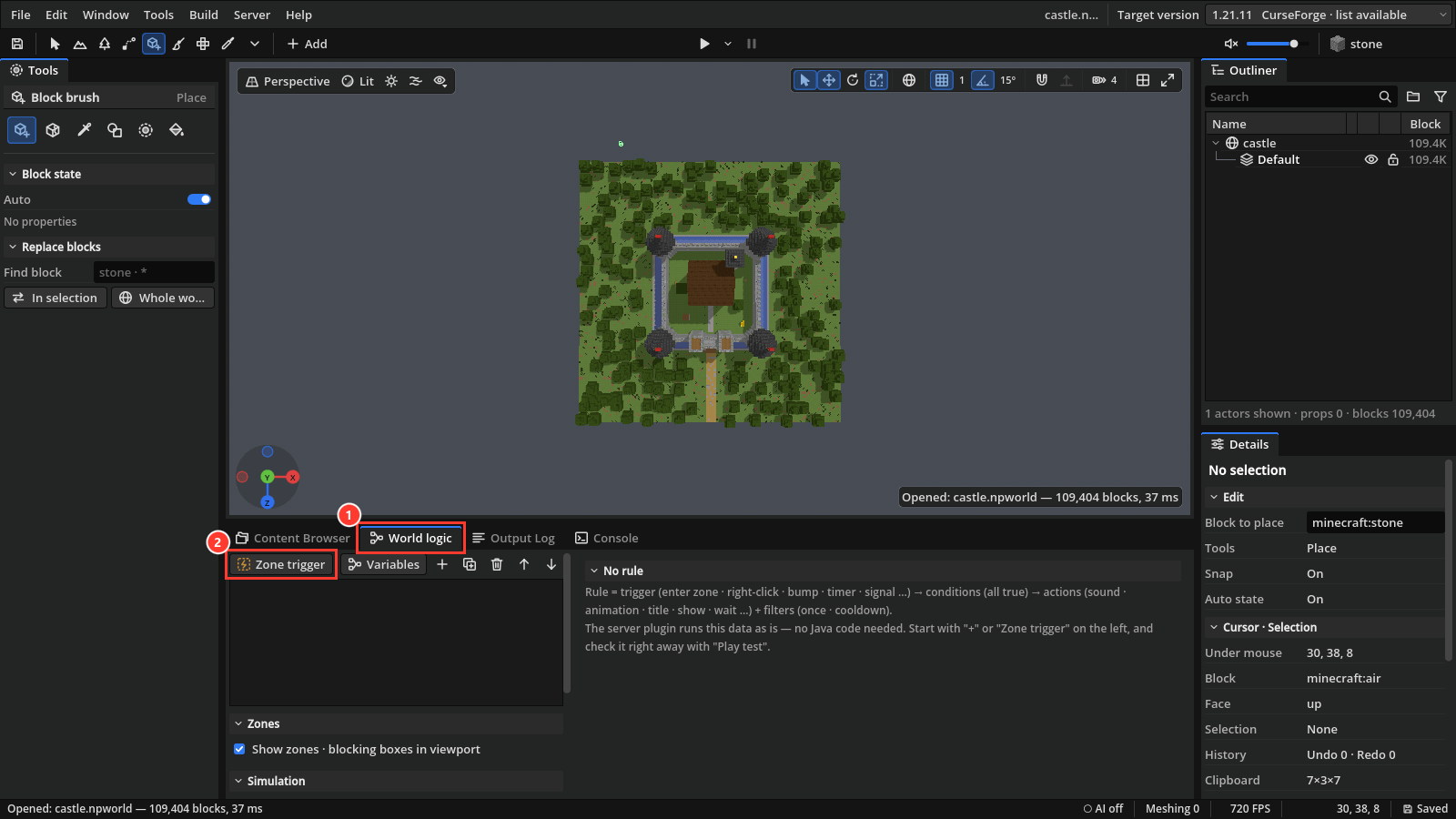
Click Tools > World logic. The World logic tab opens in the bottom dock area. The Zone trigger button is at the top left.
-
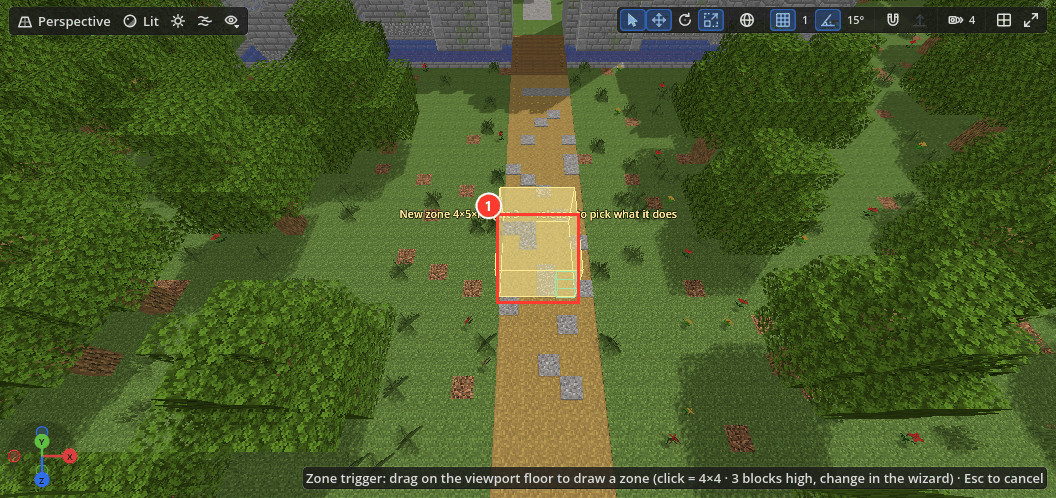
Press Ctrl+Shift+T to start drawing a zone (same as the Zone trigger button), then drag on the viewport floor to draw the zone. While you drag, a yellow draft box and its size appear. Esc cancels drawing.
-
When you release the mouse, the Zone trigger window opens. Type
Entrancein the Name field, then click Play sound and Show title under Actions. Rows appear below, and the Result field shows a one-line description (”→ When a player enters 「Entrance」 → 종소리 + Title 「Entrance」”). Click Create.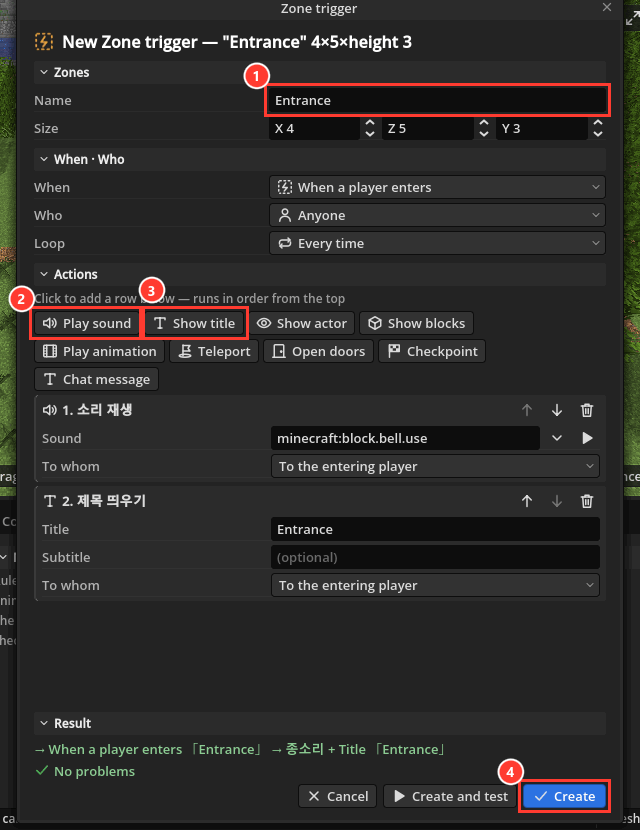
Known issue in 0.10.2: the result line shows the untranslated Korean “종소리” (“bell”), and the action rows are headed in Korean (“1. 소리 재생” for Play sound, “2. 제목 띄우기” for Show title).
-
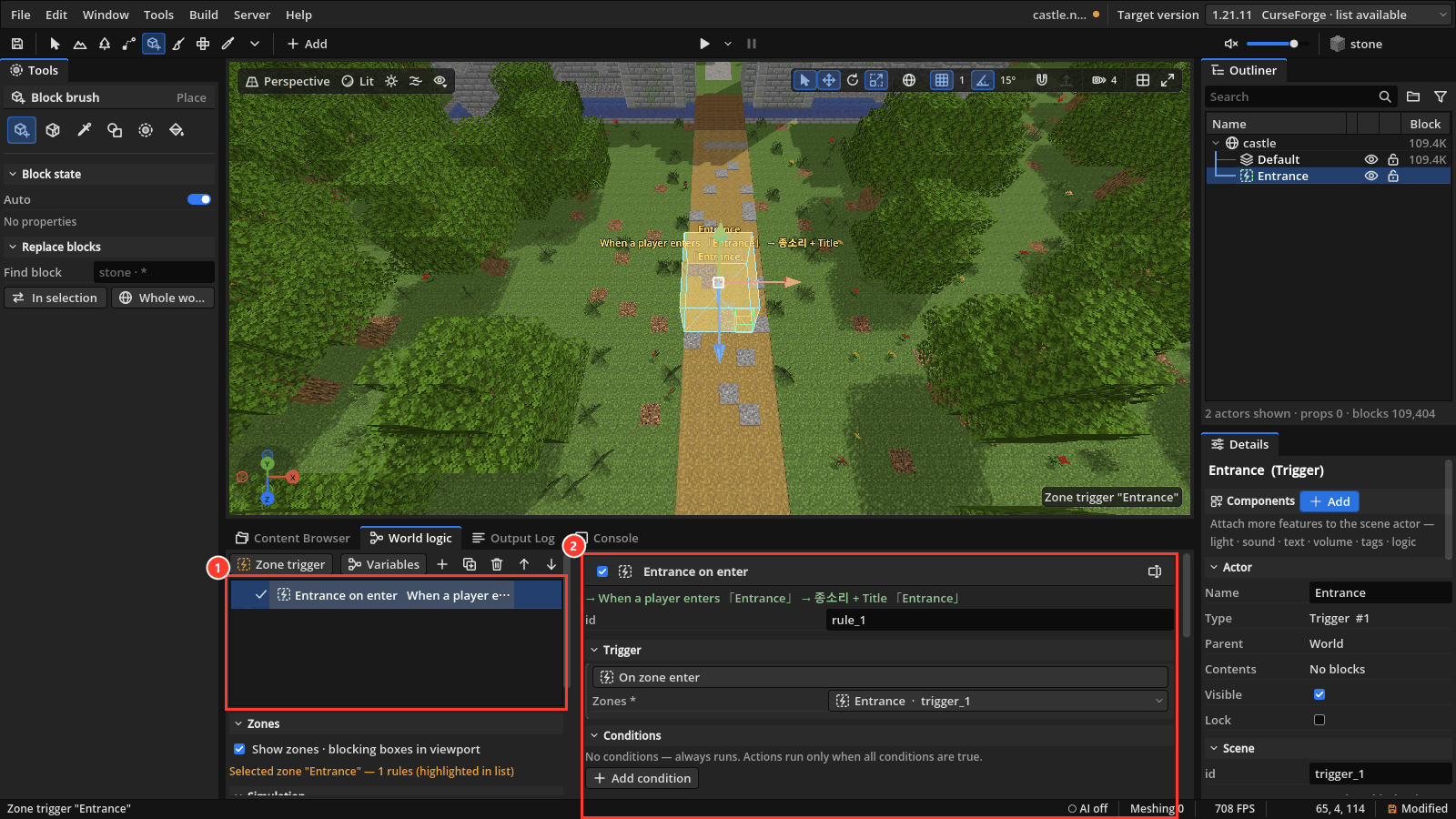
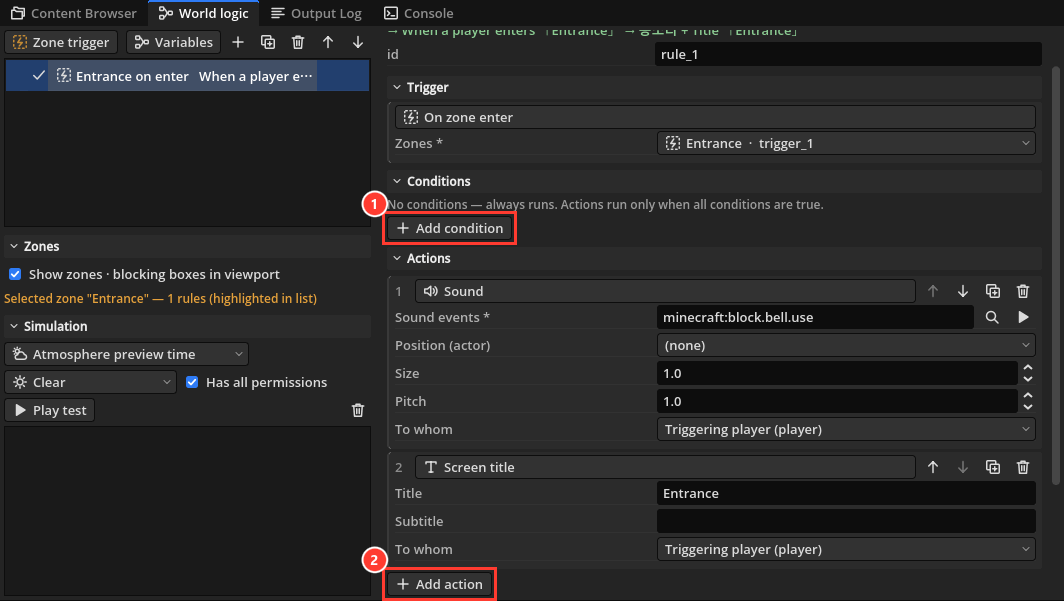
The zone actor and the rule are created together (one Ctrl+Z undoes both). The rule list on the left shows the rule row, and the property fields on the right show its one-line description, Trigger, Conditions and Actions. The viewport shows the translucent zone and its name tag.
-
Scroll down the property fields and add conditions and actions with Add condition and Add action. You can also edit each field of the Sound and Screen title cards that the wizard created here.
-
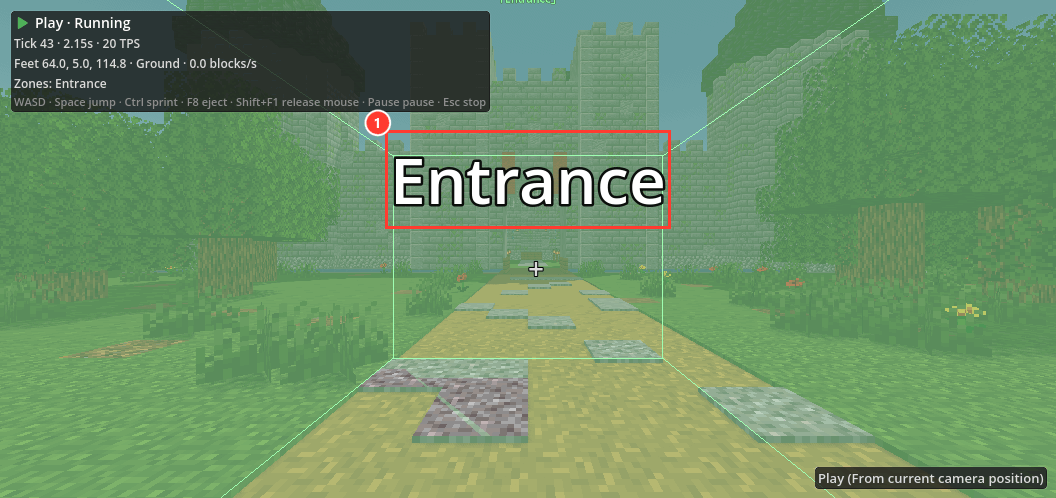
Place the camera on the ground in front of the zone and click Play test on the left. Walk into the zone with W: a bell rings and the screen title “Entrance” appears. Press Esc to stop. A fire entry stays in the log at the bottom left.
Tips and tricks
Section titled “Tips and tricks”- After you create a rule, the same rule appears as an event node in the Logic graph tab. When the flow gets long, edit it in the graph; to edit fields as text, use this panel (fields wired to values in the Logic graph can also be edited as text here).
- Create and test in the wizard creates the rule and starts Play in one step.
- Play copies the rules when it starts. Rule changes made during Play apply from the next Play.
Reference
Section titled “Reference”World logic panel
Section titled “World logic panel”| Part | Contents |
|---|---|
| Zone trigger | Zone trigger wizard (Ctrl+Shift+T) |
| Variables | Variables, enums and data types window — Variables, functions and data types |
| + · Duplicate · Delete · Up · Down | New rule · duplicate the selected rule · delete · order (rules that fire at the same moment run in list order) |
| Rule row | Enable · trigger icon · name · one-line description · error/warning icon. A trigger that only fires by hand shows “Fire” at the end of the row |
| Zones | Show zones · blocking boxes in viewport · notes on the selected zone · zone check |
| Simulation | Time of day (Atmosphere preview time · Day · Night) · weather (Clear · Rain · Thunderstorm) · Has all permissions — the values conditions see in Play |
| Play test · log | Start Play · log of fires, skips and actions (time in seconds) |
| Property fields | Enabled check · name · one-line description · id · Trigger · Conditions · Actions · Filters |
Zone trigger window
Section titled “Zone trigger window”| Field | Options |
|---|---|
| Name | Name of the zone (or blocking box) actor |
| Size | Number of blocks in X · Z · Y |
| When | When a player enters · leaves · collides (blocking box) · breaks a block |
| Who · Loop | Anyone · first person only / every time · once only (per player) |
| Actions | Play sound · Show title · Show actor · Show blocks · Play animation · Teleport · Open doors · Checkpoint · Chat message |
| Result | One-line description and check (“No problems”, etc.) |
Filters
Section titled “Filters”| Field | scene.json | Meaning |
|---|---|---|
| Once globally | once | Once on the whole server |
| Once per player | once_per_player | Once per player |
| Cooldown | cooldown | Seconds the same player waits before it can run again |
| Permission | permission | Only players with this permission node (for example noplatea.vip) |
Running on the server
Section titled “Running on the server”- If you include the scene when you build an
.npbuild,scene.jsongoes in with it, and once it is installed on the server, NPBridge runs the rules — Export and import. - While connected live, rule edits apply on the server immediately — Server connection (live). Logic that contains the new flow nodes of 0.10.2 needs NPBridge 2.0.8 or later — Logic graph.
- The full list of triggers, conditions and actions is in World logic type list.
Shortcuts
Section titled “Shortcuts”| Shortcut | Action |
|---|---|
| Ctrl+Shift+T | Create a zone trigger (drag a zone → wizard) |
| Esc | Cancel zone drawing · close the wizard window |
| Ctrl+Z | Undo rule changes |
| 1~9 | Run the rules in the “Fire” list during Play — Testing in Play mode |
Related pages
Section titled “Related pages”Not an official Minecraft product. Not approved by or associated with Mojang or Microsoft.