
World logic
Overview
Section titled “Overview”World logic is a list of rules that adds gameplay to a map. You write no code. The editor exports the rules as data (scene.json), and the server plugin NPBridge runs them as they are. To see the same rules as nodes, use the Logic graph (same data).
A rule runs in the following order.
| Order | Part | Meaning | Example |
|---|---|---|---|
| 1 | Trigger | What starts the rule (one) | Entering a zone · right-clicking an actor · timer · command · chat |
| 2 | Filters | Rule limits | Once globally · once per player · cooldown · permission |
| 3 | Conditions | Continue only when all are true | Time of day · held item · chance · text compare |
| 4 | Actions | Run in order from the top | Sound · screen title · show actor · wait |
New in 0.11.0: the triggers When a command is entered and When chat is sent (before it goes out) and 36 player events (first join · kill · hunger · craft · fishing · inventory …) were added. The fields and action name that pointed to a Sequencer clip are now called “sequence” (action Play sequence). Custom blocks (
np:<id>) can also be used in block fields. For game-server support, first read “Game server and versions” below.
Basic use
Section titled “Basic use”Making a zone trigger
Section titled “Making a zone trigger”Use the zone trigger wizard to create an “enter Entrance → bell + title” rule, then test it in Play. The screenshots were taken on the road in front of the castle gate in the sample world castle.npworld.
-
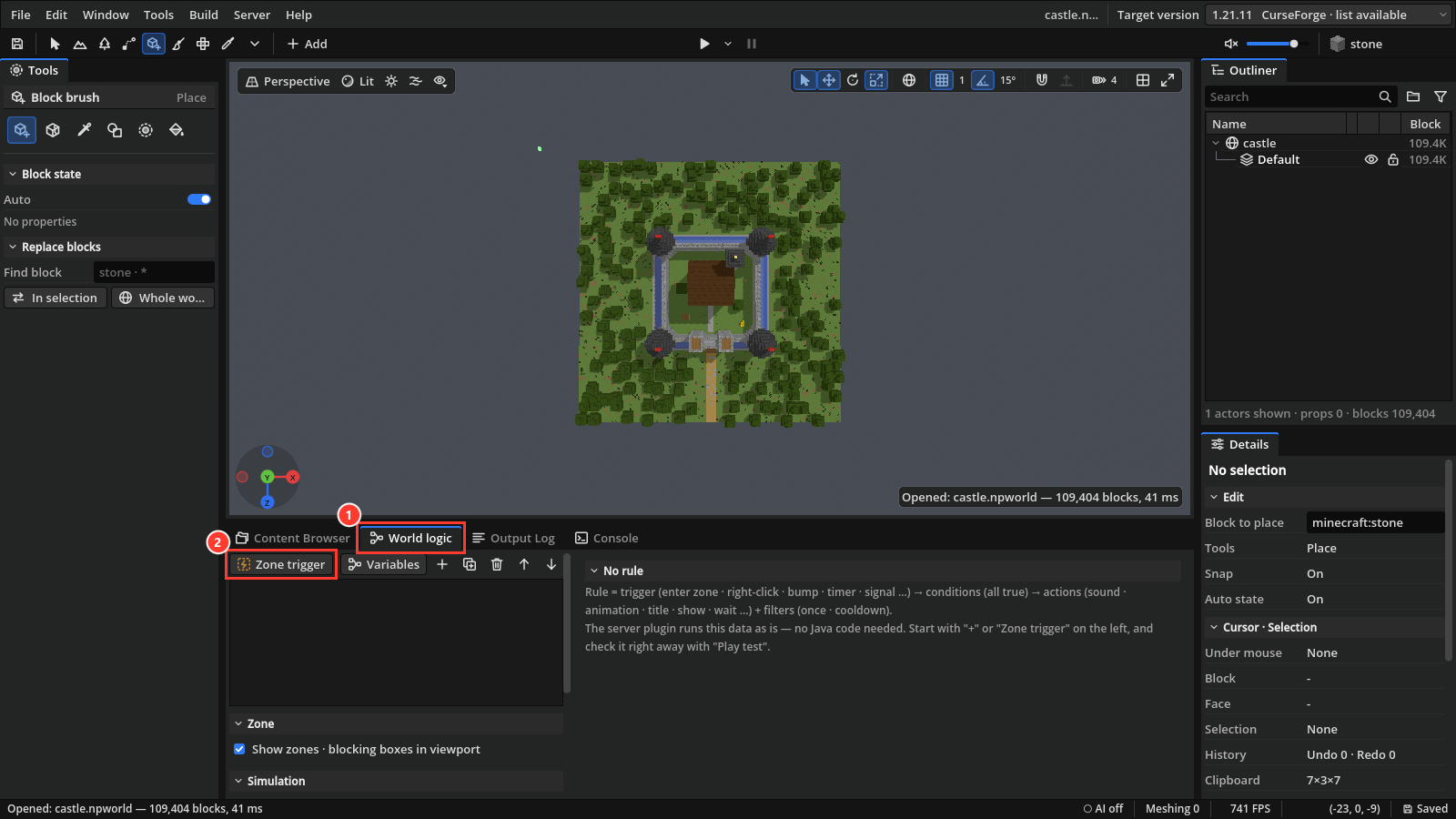
Click Tools > World logic. The World logic tab opens in the bottom dock area. The Zone trigger button is at the top left.
-
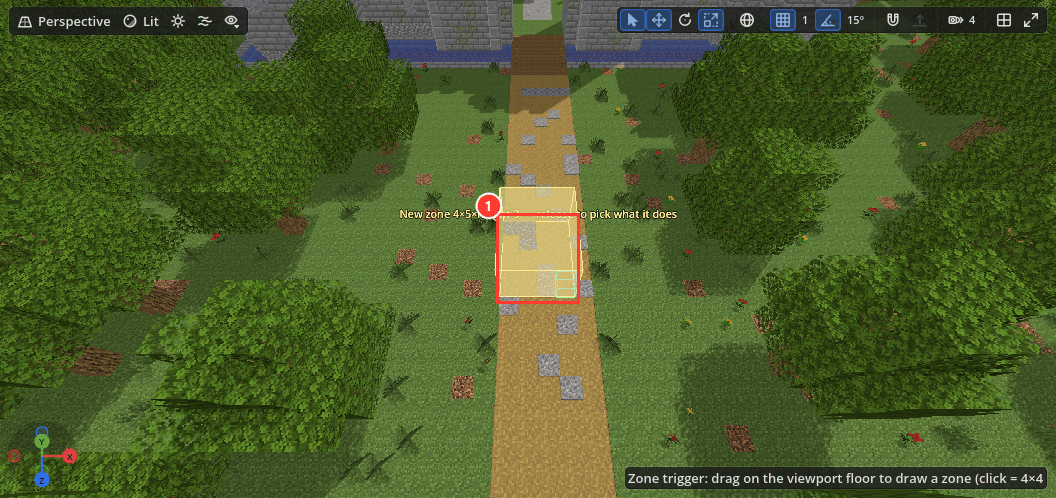
Press Ctrl+Shift+T to start drawing a zone (same as the Zone trigger button), then drag on the viewport floor to draw the zone. While you drag, a yellow draft box and its size appear. Esc cancels drawing.
-
When you release the mouse, the Zone trigger window opens. Type
Entrancein the Name field, then click Play sound and Show title under Actions. Rows appear below, and the Result field shows a one-line description (”→ When a player enters “Entrance” → Bell + Title “Entrance""). Click Create.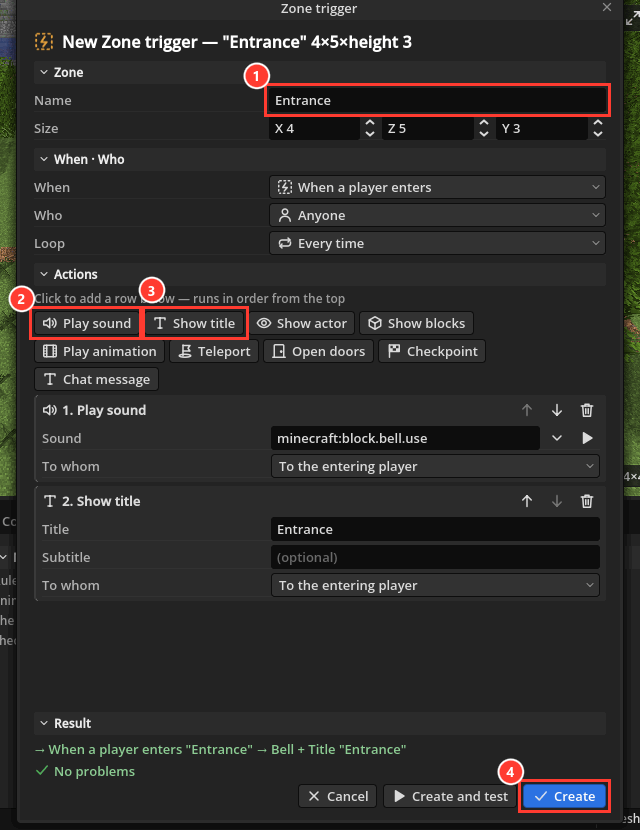
-
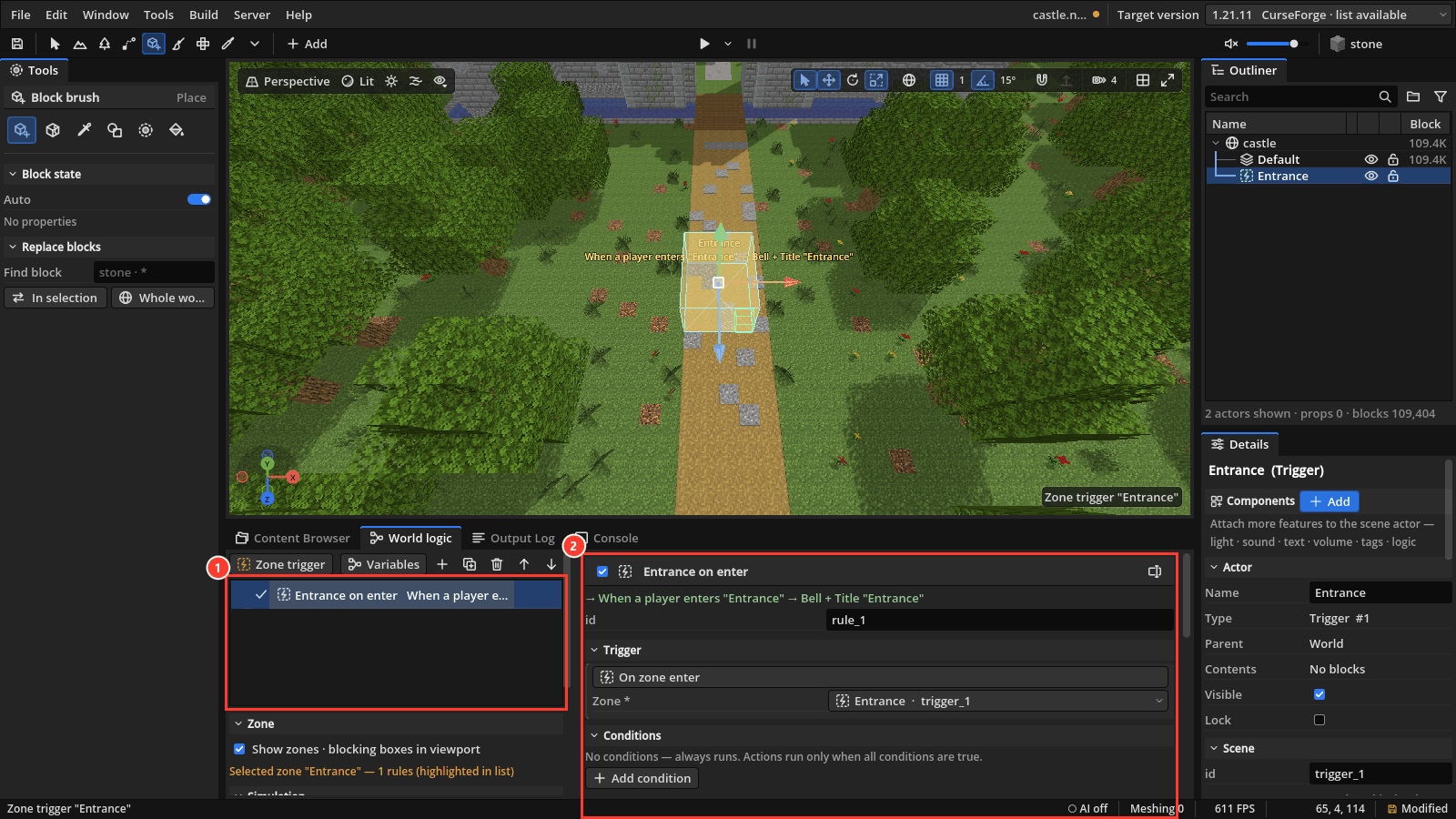
The zone actor and the rule are created together (one Ctrl+Z undoes both). The rule list on the left shows the rule row, and the property fields on the right show its one-line description, Trigger, Conditions and Actions. The viewport shows the translucent zone and its name tag.
-
Scroll down the property fields and add conditions and actions with Add condition and Add action. You can also edit each field of the Sound and Screen title cards that the wizard created here.
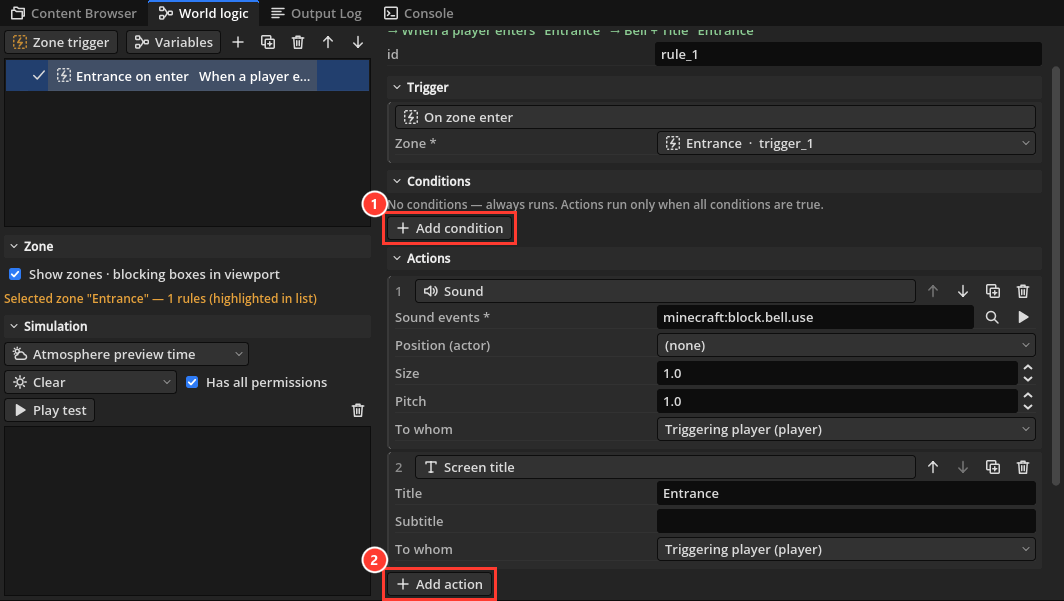
-
Place the camera on the ground in front of the zone and click Play test on the left. Walk into the zone with W: a bell rings and the screen title “Entrance” appears. Press Esc to stop. A fire entry stays in the log at the bottom left.
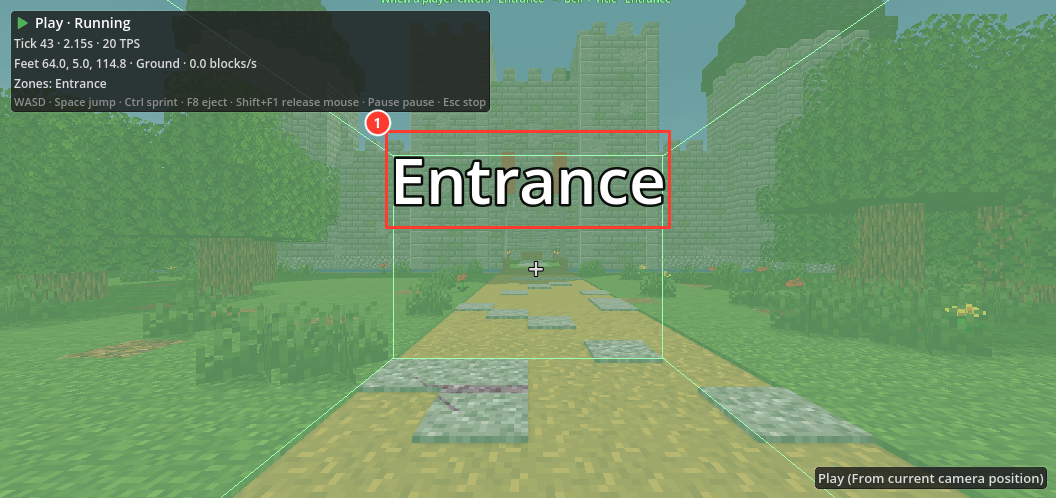
Making a command
Section titled “Making a command”Make a rule that runs when a player types something like /quest start 3 in chat. This trigger registers the name as a real command (Tab autocomplete · permission · argument check). On the game server it runs with NPBridge 2.4.0 or later (see “Game server and versions” below).
-
Make a new rule with the + of the rule list, and in the property field Trigger list, select When a command is entered from the “Commands · Chat” group (the list shows it as “When a command is entered (trigger button)”).
-
In the Command name field, type
quest(without the slash — letters, digits,_,-, Korean allowed, up to 32 characters), and in the Aliases field, type퀘스트, q(comma separated). In the Arguments field, type<mode:start|stop> [n:int(1..9)=1|5].<…>is an argument you must type,[…]an argument you may leave out,start|stopa choice,int(1..9)a range, and=1|5autocomplete candidates. If you leave the Permission field empty, anyone can use it (for examplemyserver.quest— people without the permission do not see it in the command list or autocomplete). Description is the one line shown above the usage. -
With Add action, add Send command result and type
{mode} 단계 {n}in the Text field (a Korean sample text — any text works). The arguments become the variables{mode}and{n}with exactly those names. Select Result fromsuccess(green) ·fail(red — command failed) ·info(white). -
Click Play test and press / to open the command field. Type
/quest start 3and send it with Enter. The result text appears in the HUD chat. If you type the arguments wrong (for example/quest go), the rule does not run and the sender sees the usage in red.
Intercepting chat
Section titled “Intercepting chat”The rule runs before the chat actually goes out, and it blocks that chat or changes its text. The old trigger When chatting remains as it was, and it runs after the chat has gone out.
-
Set the new rule’s Trigger to When chat is sent (before it goes out). Choose Match from
any(all chat) ·contains(contains the text) ·starts_with(starts with the text) ·equals(equals the text), and type the text to match in the Text field. Ignore case is on by default. -
At the very start of the action list, put one of the following.
- Void this chat (cancel) — sends the chat to no one. The text in Notice to the sender is shown only to the sender (empty = no notice).
- Change chat text — type something like
[VIP] {message}in New text.{message}is the current text, and the later actions and the next rules see the changed text too. - Cancel event — blocks the chat (no notice text).
-
Click Play test and open the chat field with Enter or T. Type some text and send it with Enter. The changed text, a block, or a notice appears in the HUD chat. In the chat field, Esc closes only the field and Play continues.
Tips and tricks
Section titled “Tips and tricks”- After you create a rule, the same rule appears as an event node in the Logic graph tab. When the flow gets long, edit it in the graph; to edit fields as text, use this panel (fields wired to values in the Logic graph can also be edited as text here).
- Create and test in the wizard creates the rule and starts Play in one step.
- Play copies the rules when it starts. Rule changes made during Play apply from the next Play.
- Next to the Sequence field of Play sequence there are two icon buttons. The ▶ button (tooltip ”▶ View — …”) plays the selected sequence in the viewport right away without going to the Sequencer tab (it is off when the field shows “(Select)”). The Sequencer icon button (tooltip “Open in Sequencer — shows the selected sequence in the Sequencer”) opens the Sequencer tab and selects that sequence. If there is no sequence at all, this button becomes “Create in Sequencer — creates a new sequence and selects it in this field (also opens the Sequencer)”, which makes a new sequence and selects it in the field (if the editor is busy, the field is left as it is and a notice appears). As the field tooltip says, the bone animation of a model is not chosen in this field but in Animation in the display actor’s Details — Sequencer.
- A chat profanity filter: When chat is sent (before it goes out) (
any) → condition Text compare (Compareregex, a regular expression in Values) → Void this chat (cancel) at the start of the actions. If the regular expression runs out of time, that condition becomes false, and while chat is being intercepted, that chat is blocked (so the filter does not open up). - To filter by a command argument as a condition, use Text compare too:
{mode}in Text,equalsin Compare,startin Values. - To keep players out of a zone entirely, choose the zone in the On move trigger and turn on Block entry (no-entry zone) (see “Player events” below). Cancel event alone blocks only that one step, so a player can slip in between the rate limits.
Reference
Section titled “Reference”World logic panel
Section titled “World logic panel”| Part | Contents |
|---|---|
| Zone trigger | Zone trigger wizard (Ctrl+Shift+T) |
| Variables | Variables, enums and data types window — Variables, functions and data types |
| + · Duplicate · Delete · Up · Down | New rule · duplicate the selected rule · delete · order (rules that fire at the same moment run in list order) |
| Rule row | Enable · trigger icon · name · one-line description · error/warning icon. A trigger that only fires by hand shows “Fire” at the end of the row |
| Zone | Show zones · blocking boxes in viewport · notes on the selected zone · zone check |
| Simulation | Time of day (Atmosphere preview time · Day · Night) · weather (Clear · Rain · Thunderstorm) · Has all permissions — the values conditions see in Play |
| Play test · log | Start Play · log of fires, skips and actions (time in seconds) |
| Property fields | Enabled check · name · one-line description · id · Trigger · Conditions · Actions · Filters |
The mark after a trigger name in the list tells you how that trigger happens in the editor’s Play.
| Mark | Meaning |
|---|---|
| (no mark) | Play causes it by itself (zones · timers …). |
| “(trigger button)” | It happens from ▶ Play input (chat field · click · breaking …) and you can also test it with the “Fire” button. |
| “(server only)” | The editor cannot imitate it. It happens only on the game server, and in editor Play you test it by entering example values with the “Fire” button. An orange icon is added to the head of the trigger card. |
Zone trigger window
Section titled “Zone trigger window”| Field | Options |
|---|---|
| Name | Name of the zone (or blocking box) actor |
| Size | Number of blocks in X · Z · Y |
| When | When a player enters · leaves · collides (blocking box) · breaks a block |
| Who · Loop | Anyone · first person only / every time · once only (per player) |
| Actions | Play sound · Show title · Show actor · Show blocks · Play sequence · Teleport · Open doors · Checkpoint · Chat message |
| Result | One-line description and check (“No problems”, etc.) |
Filters
Section titled “Filters”| Field | scene.json | Meaning |
|---|---|---|
| Once globally | once | Once on the whole server |
| Once per player | once_per_player | Once per player |
| Cooldown | cooldown | Seconds the same player waits before it can run again |
| Permission | permission | Only players with this permission node (for example noplatea.vip) |
Making a command
Section titled “Making a command”Field (custom_command) | Contents |
|---|---|
| Command name | Without the slash. Letters, digits, _, - (Korean allowed), up to 32 characters |
| Aliases | Other names separated by commas |
| Arguments | <name:kind> required · [name:kind] optional. Kinds: word (default) · text (all the rest — last only) · int · number · bool · player · a|b (choice). Range int(1..64) · autocomplete =a|b. Up to 16 arguments |
| Permission | Empty = anyone. Lowercase letters, digits, _, - joined with dots (myserver.quest) |
| Description | The text shown above /help and the usage |
- Event variables:
{command}(the name or alias typed) ·{args}(the argument text) ·{args_list}(the argument list) +{name}for each argument (a typed value — Variables, functions and data types). You cannot useplayer·command·args·args_list·eventas argument names. - The result is sent to the person who typed it with the action Send command result. If you put it in a rule that is not a command trigger, it goes out as a plain message (a check warning).
| Check | Level |
|---|---|
| The name, alias, argument, or permission text has the wrong form | Error |
| The name or alias overlaps another rule of the same logic (”/… is also defined by another rule (…) — names · aliases must not overlap”) | Error |
An admin or server command name (op · ban · stop · gamemode · lp · luckperms · npscene …) — ”/… is an admin/server command — cannot be used as a scene command name or alias (the server refuses to register it)” | Error |
An argument name is the same as a declared variable — {name} becomes the variable’s value, not the typed value | Error |
| A command inside actor logic (every attached actor makes the same name, so they overlap) | Error |
The same name as a vanilla command or a common plugin command (the server does not override it and receives it only as /npscene:name) | Warning |
| An older trigger When a command is typed rule also receives the same name (both run) | Warning |
| More than 16 aliases, an argument definition longer than 1,024 characters, or more than 64 choice values in one argument — the game server does not register this command | Error |
A description longer than 256 characters or more than 64 completions in one argument (the game server shows only the first part) · more than 64 commands in this world (server setting scene.runtime.custom-commands-max, default 64 — the extra commands may not be registered) | Warning |
A server command run by text a player typed (the command of a chat or command rule, or a command with typed text such as {message} · {args}) — server 2.4.0 runs it with that player’s permissions (it fails for players without the permission; to run it from the console, the server admin adds it to the setting scene.commands.player-input-console) | Warning |
Intercepting chat
Section titled “Intercepting chat”| Node | Fields | Contents |
|---|---|---|
| Trigger When chat is sent (before it goes out) | Match · Text · Ignore case | {message} = the chat text. It does not run on chat that another plugin (mute · waiting for input) has already blocked. |
| Action Void this chat (cancel) | Notice to the sender | Sends to no one |
| Action Change chat text | New text | Changes the text that goes out ([VIP] {message}) |
| Condition Text compare | Text (default {message}) · Compare · Values · Ignore case | Compare = starts_with (starts with) · contains (contains) · equals (equals) · ends_with (ends with) · regex (regular expression — {variable} in Values is not replaced) |
Chat is decided in two stages. First, for each rule it looks once at the trigger fields, filters, and conditions, and decides whether to block or change it with Void this chat (cancel), Change chat text, or Cancel event at the start of the action list. Then it runs the remaining actions of the rules that matched. That is why these three actions go only at the start.
| Where it is placed | Check |
|---|---|
After another action, a flow node (gate · stop · do_once …), call, or wait | Error — “Put … at the start of the rule’s actions — …” (blocks export) |
| Inside a function | Error — ”… cannot change the chat inside a function — …” |
| In a rule that is not When chat is sent (before it goes out) | Error — ”… only works with the ‘When chat is sent’ trigger — it does nothing in this rule …” |
Player events
Section titled “Player events”These are the 36 triggers added in 0.11.0. The triggering person = that player. The exact fields and event variables are in the World logic type list.
| Group | Triggers (type) |
|---|---|
| Player | On first join (first_join) · Resource pack response (resource_pack) · On advancement (advancement) · On game mode change (gamemode_change) · On bed enter (bed_enter) · On bed leave (bed_leave) · On click (air · block · step) (click) |
| Survival | On hunger change (food_change) · On health regain (regain_health) · On potion effect change (potion_effect) · On experience gain (exp_change) |
| Motion | On move (move) · On sprint start · stop (sprint) · On flight toggle (flight) · On elytra glide (glide) · On swim start · stop (swim) · On teleport (teleport) · On mount (mount) · On dismount (dismount) |
| Item | On held item change (held_change) · Swap hands (F) (swap_hands) · On armor change (armor_change) · On tool break (item_break) · On craft (craft) · On enchant (enchant) · On fishing (fish) · On bucket use (bucket) · On villager trade (trade) |
| Combat · Entity · Block | On kill (kill) · On projectile launch (projectile_launch) · On tame (tame) · On breed (breed) · On sign edit (sign_change) |
| Inventory | On inventory open (inventory_open) · On inventory close (inventory_close) · On inventory click (inventory_click) |
- What really happens in the editor’s ▶ Play: On first join (every time Play starts), On move (when the body walks), On sprint start · stop (Ctrl+forward), On click (air · block · step) (left and right click — with a cancel, breaking and placing are blocked too), and the existing When sneaking (Shift) and When jumping (Space). The rest get “(server only)” in the list, and the “Fire” button causes them with example values.
- On move happens very often, so reduce it with Interval (s) and Minimum distance (blocks) (the check warns if the interval is shorter than 0.25 seconds). If you only watch entering and leaving a zone, the zone trigger is lighter.
- If you turn on Block entry (no-entry zone) in On move, a move from outside to inside the zone is always blocked (if the conditions are true) and the player is put back at the last outside spot. It blocks regardless of interval, distance, cooldown, and once (cooldown and once apply only to the notice action), and the permission filter chooses “who to block”. A person who started inside or came in by teleport can walk out. Turning it on without a zone is an error, and with a zone + Cancel event while it is off, the check warns you to turn that field on.
The triggers where Cancel event has a meaning (if cancelled, that thing does not happen):
| What | Triggers (type) |
|---|---|
| Already in 0.10.3 | Breaking, placing, and right-clicking blocks, damage, when a projectile hits, picking up · dropping · eating, attacking · mob damage · right-clicking entities, using items, When a command is typed |
| 0.11.0 | player_chat · food_change · regain_health · potion_effect · exp_change (→ 0) · gamemode_change · move · flight · glide · swim · teleport · mount · dismount · bed_enter · click · held_change · swap_hands · projectile_launch · craft · enchant · fish · bucket · trade · sign_change · tame · breed · inventory_open · inventory_click |
Block fields and custom blocks
Section titled “Block fields and custom blocks”Use a project custom block (np:<id>) in the block fields of Place one block · Box fill · Replace blocks (Find block · Replace with) · Fill blocks · block triggers · the condition If block is ~. The field’s picker list shows custom blocks with their pictures (blocks left out of the resource pack are missing).
- On export (
.npbuild· scene deployment · live upload to the server), it is converted to that block’s note block state (minecraft:note_block[instrument=…,note=…,powered=…]— the same state as the custom block on the map) and sent. The server does not seenp:. The original logic in the editor staysnp:<id>, and when you load a server scene, the note block state is turned back intonp:<id>. - An
np:<id>or a prop that is not in the registry is a check error. If it cannot be converted because it has no note block assignment, the export leaves a warning (rule id · field name · reason) and keeps the value as it is. Tags (#…) and vanilla blocks stay as they are. - The editor’s Play places
np:<id>as the custom block in the world.
Replace blocks — Where = actor
Section titled “Replace blocks — Where = actor”When Where of Replace blocks is actor (actor box), the zone box of the chosen Actor is used as the range. Only zone (trigger) and blocking box (blocker) actors and zones made by components (for example a3.trigger) have a zone box. If you choose a block actor, the check gives an error and the node is shown in red.
“Block actor “BlockBrush_3(a3)” has no zone box — add a Trigger volume component to it (padding 0) and pick that zone, or set Where = two coordinates”
- The fix: attach a Trigger volume component to that block actor and choose that zone (
a3.trigger) in the Actor field. Or change Where tobox(two coordinates). - If you choose another kind (display · spawn …), you get “Actor ”…” (…) has no zone box — pick a zone (trigger) or blocker box (blocker) actor, or set Where = two coordinates”.
- The editor Play log leaves one line: “Actor … (…) has no zone box — nothing changed”.
Physics trigger
Section titled “Physics trigger”- When a physics object hits (
physics_impact): it happens when a physics body hits a block, another body, or a player (filtered by Minimum impulse (physics settings unit) and Minimum speed (blocks/s)). Physics bodies and the world physics settings are in Physics.
Game server and versions
Section titled “Game server and versions”- If you include the scene when you build an
.npbuild,scene.jsongoes in with it, and once it is installed on the server, NPBridge runs the rules — Export and import. - While connected live, rule edits apply on the server immediately — Server connection (live). Logic that contains the new flow nodes of 0.10.2 needs NPBridge 2.0.8 or later — Logic graph.
- The editor attaches
min_bridge: "2.4.0"to rules with the new triggers (command · chat · player events). A 2.3.0 or older server skips those rules entirely. They never ran on an older server anyway, so live sync is not blocked; the warning “scene: N rules use new events · nodes from server NPBridge 2.4.0 or later (…) — older servers skip these rules (they won’t run)” is left on a file export and shown in the Server window during live sync. - If you put a new action (Send command result · chat actions) into a rule with an older trigger, the version is not raised. An older server skips only that action, and a cancel such as “block breaking” still runs.
- If you put the new condition Text compare into a rule with an older trigger, live sync and scene deploy to a server older than 2.4.0 (2.3.0 included) are blocked (the older server does not know the condition, so the whole rule would not run).
Game server: commands, chat, and the new player events run on server NPBridge 2.4.0 or later (the version in the 0.11.1 installer). For a rule without a version mark, a 2.3.0 or older server skips the rules of triggers it does not know (the server warning “rule ’…’: unknown trigger.type ’…’ — all rules of that type skipped”), always treats a condition it does not know (Text compare) as false, and skips an action it does not know (Send command result). So for servers 2.3.0 and earlier the editor attaches
min_bridgeto the rules as described above or blocks the upload. How to replace the server plugin is in Installing NPBridge (server admins).
- The full list of triggers, conditions and actions is in World logic type list.
Shortcuts
Section titled “Shortcuts”| Shortcut | Action |
|---|---|
| Ctrl+Shift+T | Create a zone trigger (drag a zone → wizard) |
| Esc | Cancel zone drawing · close the wizard window |
| Ctrl+Z | Undo rule changes |
| 1~9 | Run the rules in the “Fire” list during Play — Testing in Play mode |
| Enter · T · / | The chat field and command field during Play (Tab autocomplete, Esc closes only the field) |
Related pages
Section titled “Related pages”Not an official Minecraft product. Not approved by or associated with Mojang or Microsoft.