
Scene actors and Outliner
Overview
Section titled “Overview”Scene actors are actors used for gameplay. They have no blocks, only a position, a direction and properties. The server plugin NPBridge receives them through scene.json and turns them into real entities, blocks and checks. World logic rules and Sequencer tracks refer to scene actors by id.
New in 0.11.0: the scene actor kinds now include Moving block group, Physics body (billiard ball · basketball · colliders), and Sun (directional light), and camera actors have new Lens (mm) and Tilt (roll) fields.
The Outliner lists every actor in the world (block groups, scene actors, folders) one per row, and Details edits the properties of the selected actor. In the default layout they are at the top right and bottom right.
Basic use
Section titled “Basic use”Place a trigger zone and a text actor on the road in front of the castle gate in the sample world castle.npworld. The screenshots were taken with the right column slightly widened (drag the splitter between it and the viewport).
-
Click Add on the toolbar and type
triggerin the search box. Trigger zone — box (4×3×4) appears in the Actor group.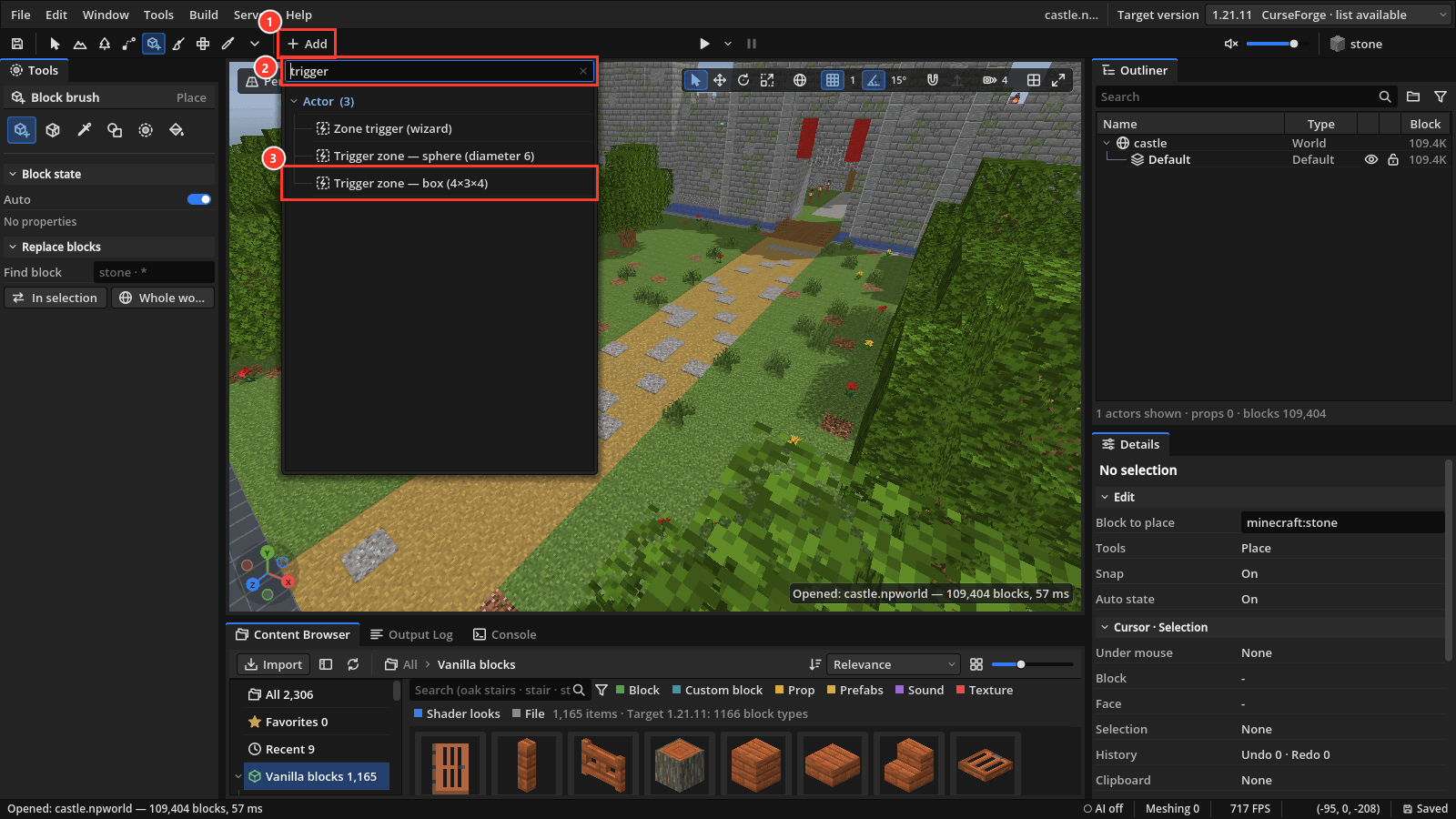
-
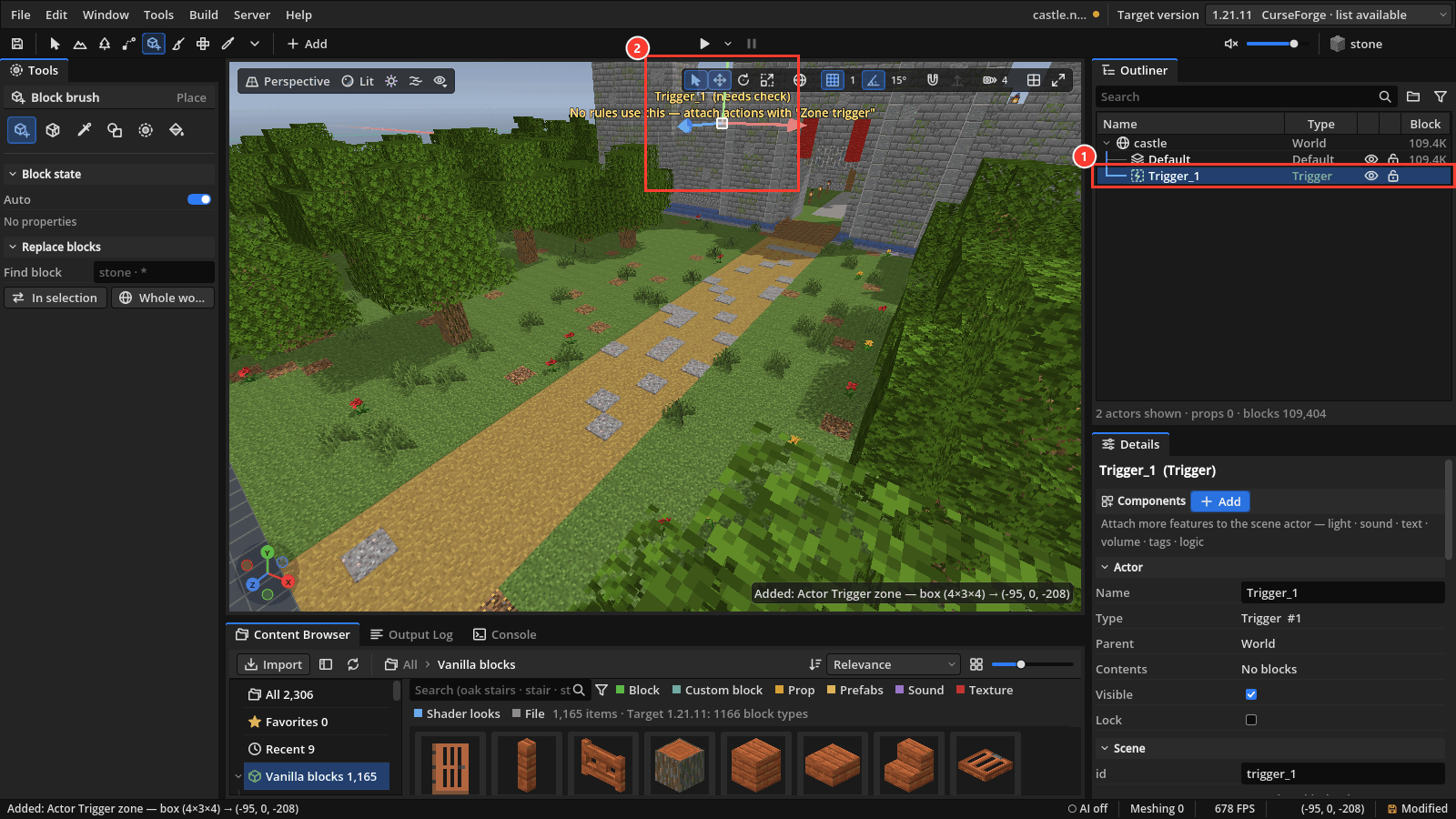
Click Trigger zone — box (4×3×4). A translucent zone appears under the mouse (or where the center of the screen points if the mouse is outside the viewport), and a new row appears in the Outliner and is selected. A zone that no rule uses shows a “No rules use this” note in the viewport.
-
In the Scene section of Details, change
idtogate_zoneand press Enter to apply. Rules and tracks refer to the zone by this name.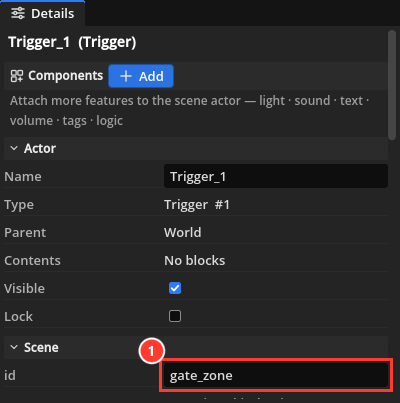
-
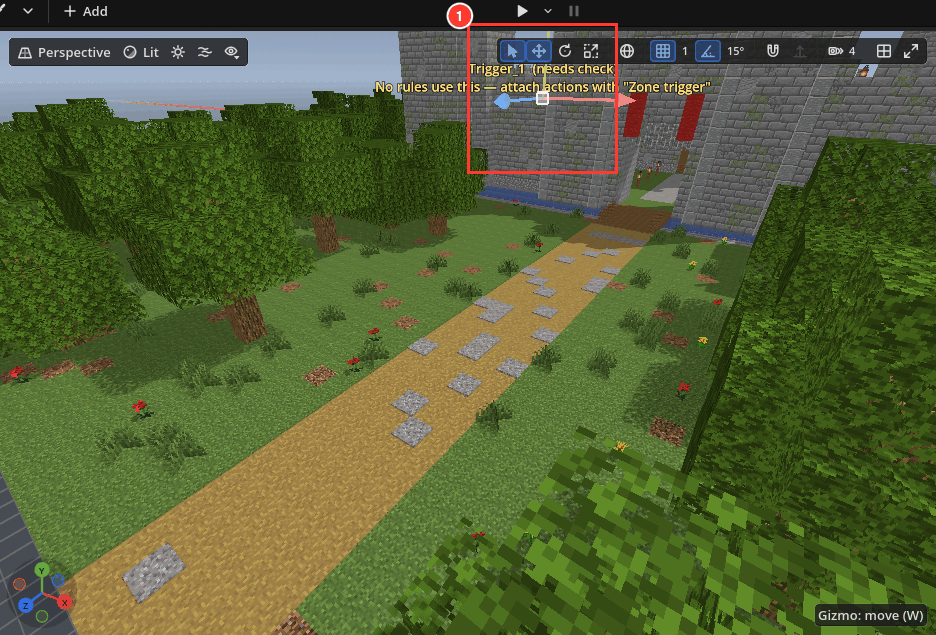
Press W to turn on the move gizmo, then drag an arrow to move the zone (E rotate · R scale). When you release it, the move is kept as one undo step.
-
In Add, type
hologramand click Text (hologram Text Display). A text actor appears, and Properties at the bottom of Details shows the Text · Text color · Background · Billboard · Align · Line width · Visible at start · Shadows · Visible through walls fields.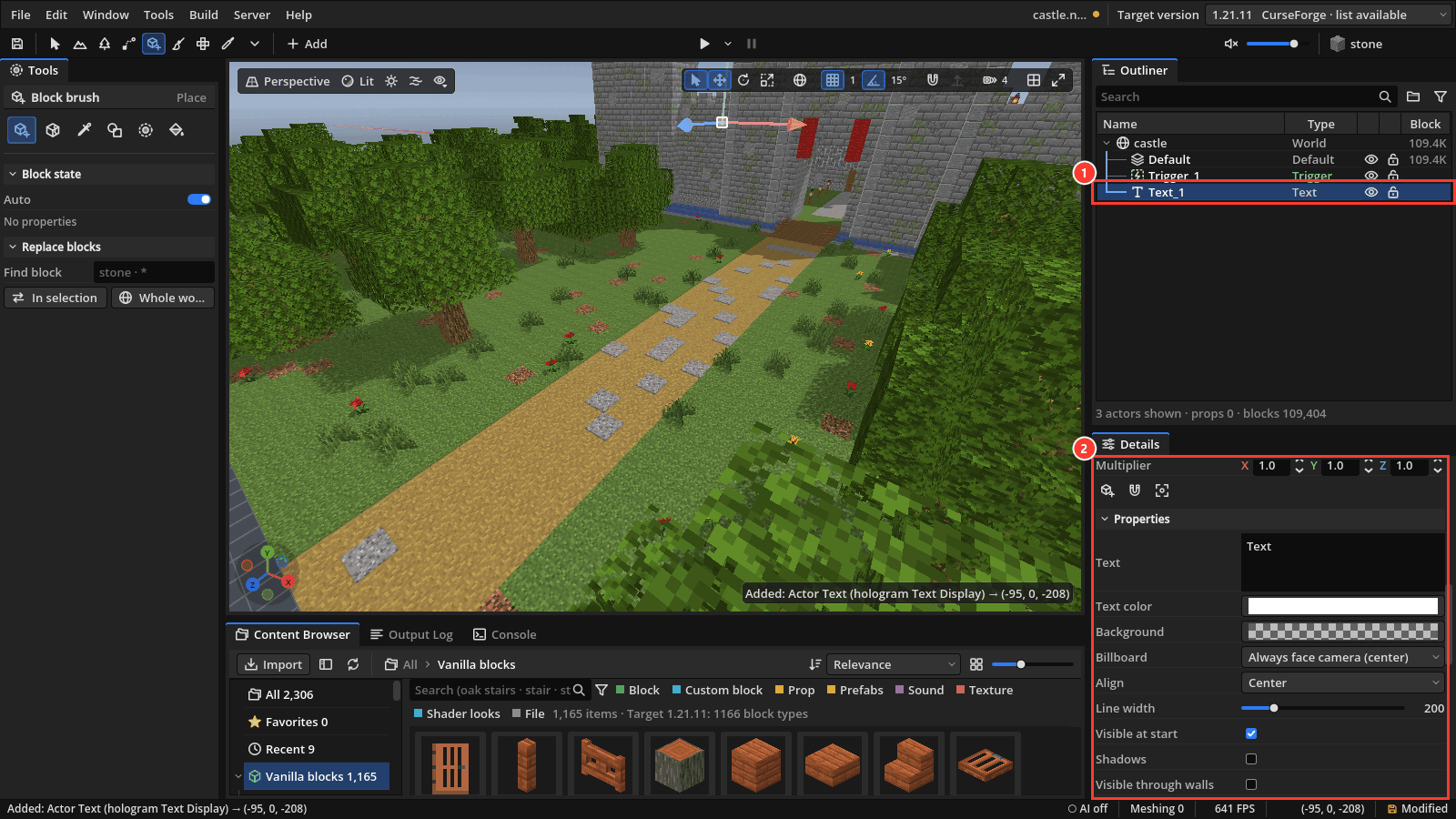
-
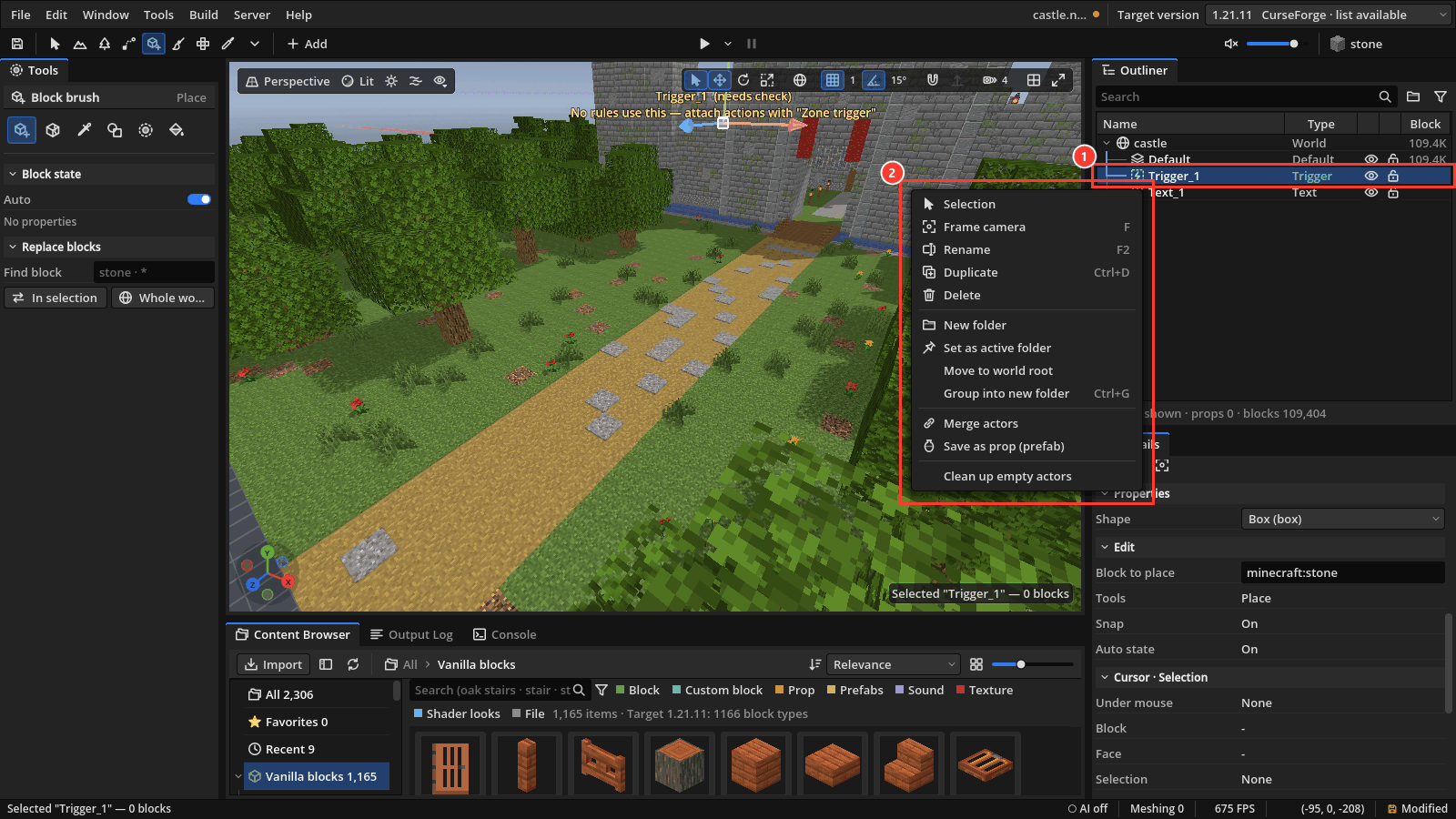
Right-click the zone row in the Outliner. Select Frame camera, Rename, Duplicate, Delete, Group into new folder or another item from the menu (see the table “Outliner right-click menu” below for all items).
Moving block groups
Section titled “Moving block groups”To move a platform, door, or lift built from blocks with the Sequencer or logic, turn the block actor into a Moving block group. It becomes a scene actor (blockgroup) holding one block display per cell. The name, scene id, and tags stay as they were, so the tracks and rules that used that id carry on.
-
Right-click a block actor row (such as
BlockBrush) in the Outliner and click To moving block group. The To moving block group button in the Actor group of Details and Moving block group — from the selected block actor under Add do the same. You can select several actors and convert them all at once, and one Ctrl+Z undoes them all. -
The Moving block group fields in Details show “N blocks · N types · N entities in game”. If you turn off Visible at start, it stays hidden until a rule (
actor_show) shows it (it is semi-transparent in the editor). -
In the Sequencer, add position, rotation, size, and visible tracks to this actor, or point at it with a logic action (
actor_show·actor_hide· Play sequence). It moves as a whole in the Sequencer preview, ▶ Play, and Simulate. The gizmos W · E · R, number fields, duplicate, and paste work the same as for other scene actors. -
To go back to blocks, click Solidify back to blocks in Details (or Solidify back to blocks in the Outliner right-click menu). It places the blocks back in the world in their current pose (position, rotation, size) and it becomes the original block actor again (undoable with Ctrl+Z). Rotations in multiples of 90°, scale 1, and moves by whole cells are exact (stairs and log orientations rotate with it), and anything else snaps to the nearest cell.
A moving block group has no collision. If you stand on it, you pass through (the editor’s Play is the same). To make it something you can stand on, move a Blocking box — invisible wall (4×3×1) with the same sequence.
In the game, groups show and move only when the server has NPBridge 2.4.0 or later (
server\NPBridge.jarfrom the 0.11.1 installer). The server shows a group as one block display per cell. The editor does not upload groups to a server without theblockgroupfeature (2.3.0 included) and also blocks scene deploy. Blocks converted to a group are removed from the world blocks, so on an older server that spot looks empty. A group with Physics turned on (a physics block group) moves in the game too, with the physics of NPBridge 2.1.0.
Tips and tricks
Section titled “Tips and tricks”- Select several actors (Ctrl+click) and press Ctrl+G to group them into one new folder (same as Group into new folder, one undo step).
- Decide on the
idbefore you create rules and tracks. Changing aniddoes not update the rules and tracks that used it. - For a zone with the “No rules use this” note, attach an action with the zone trigger wizard in World logic.
- Clicking an actor in the viewport selects the first thing you hit at the click point among the shapes actually drawn on screen (triangles, transparent parts, group cells, zone faces, name tags). A block behind a figure you clicked is never selected instead.
- If you drag a model with animations from the Content Browser, or place it with Add, it is placed as a Display — item model (Item Display) actor and moves in ▶ Play and Simulate. If you drop it with Alt+drag, or use the “(prop · static)” or “(block · static)” items under Add, it is placed as a static prop or block (Importing custom models).
- If a rule uses a block actor as a zone, the check shows “Block actor ”…” has no zone box — add a Trigger volume component to it (padding 0) and pick that zone, or set Where = two coordinates”. A block actor is not sent to the server scene, so attach a trigger volume with Add under Components in Details and pick that zone (World logic). You can also attach interaction, trigger volume, and blocking volume components to a moving block group (bounds = the group’s cell bounds).
- ▶ View sequence in the Outliner right-click menu plays the sequences that contain that actor right in the viewport, without going to the Sequencer tab.
Reference
Section titled “Reference”Scene actor types (the Actor group in Add)
Section titled “Scene actor types (the Actor group in Add)”| Item | kind | Meaning |
|---|---|---|
| Trigger zone — box (4×3×4) · Trigger zone — sphere (diameter 6) | trigger | A zone that detects entering, leaving and staying |
| Spawn point — player · Spawn point — NPC | spawn | Entry point · teleport destination · NPC position |
| Display — block (Block Display) · Display — item model (Item Display) | display | An entity that shows a block or a custom model (animation target). If the model has animations, choose the animation to play in Animation in Details — Exporting animations and viewing in game |
| Text (hologram Text Display) | text | Text floating in the air |
| Light (level 15) | light | An invisible light source (level 0–15) |
| Camera — from current view | camera | Cutscene and cinematic viewpoint (same as Tools > Camera actor — create from current view) |
| Sun (directional light) — side light · stained-glass light shafts | sun | A directional light from the side (several allowed · color · stained-glass light shafts) |
| Path (3 points) | path | A line connecting points (animation and cinematic path) |
| Blocking box — invisible wall (4×3×1) | blocker | An invisible wall (barrier blocks or push-out) |
| Particles — fireflies (night, 24×8×24) · Particles — waterfall mist (8×5×8) | particles | Ambient particles inside a box |
| The 8 physics presets such as Physics — Billiard ball (hit) | physics | Physics bodies (billiard ball · basketball · colliders) — Physics |
| Moving block group — from the selected block actor | blockgroup | A moving block group — converts the selected block actor instead of placing an empty actor (“Moving block groups” above) |
An id is first assigned as <kind>_<number> (for example trigger_1).
Details fields
Section titled “Details fields”| Field | Contents |
|---|---|
| Components | List of features attached to the actor · attach more with Add |
| Actor | Name · Type · Parent · Contents · Visible · Lock. For a block actor, the To moving block group and Enable physics buttons |
| Scene | id · Export (the exported kind) · Tags · Editor only (when on, the actor is left out of scene.json) |
| Position · Rotate · Multiplier/Size | Transform (rotation, scale and size depend on the type) |
| Properties | Fields that differ per type |
Camera actor
Section titled “Camera actor”| Field · button | Contents |
|---|---|
| Field of view (FOV) | Vertical field of view (degrees, 10 to 120). Minecraft’s default is 70 |
| Lens (mm) | The same value as the field of view, seen in mm (for a 36 mm sensor — 18 mm = 90° · 24 mm ≈ 74° · 50 mm ≈ 40°). Changing it changes Field of view (FOV) too |
| Tilt (roll) | Tilts the camera sideways (degrees, positive = the picture turns clockwise). Visible only in the editor and renders; it is exported as 0 to the game (server) with a warning |
| Look through · Snap to current view · New camera | Look through this camera in the viewport · set this camera to the current viewport view · make a new camera from the current view |
Lens effects such as depth of field, focus, and lens flare are set in the Details Lens · Depth of field fields (each field undoes with Ctrl+Z). To change them over time use the Lens (focus·f·mm) track of the Sequencer; the AI uses camera_lens. Every lens value has a Details field.
| Value | Details field | Default |
|---|---|---|
dof | Depth of field (background blur) | Off |
focus_dist | Focus distance (m) | 8 |
fstop | Aperture (f-number) | 2.8 |
lens_mm · apply_fov | DOF lens (mm, 0 = from the field of view) · Also set FOV from this mm (on = the field of view follows this mm too) | 0 · Off (mm is used only for depth of field) |
focus_target · focus_point | Focus target (actor) · Focus point (coordinates) + Focus point x · y · z (turning it on starts at the focus distance in front of the camera; only one of focus target and focus point) | Empty |
autofocus | Autofocus (center) | Off |
flare · flare_gain | Lens flare · Flare strength | None · 1 |
blades · blade_rot | Aperture blades (polygon bokeh · star rays) · Blade rotation (degrees) | 0 · 0 |
squeeze | Bokeh width ratio (1 = round, 0.66 = anamorphic) | 1 |
In the game, the lens (field of view, focus, depth of field) plays on server NPBridge 2.3.0 or later + the shader pack NP-Lite (see the warning table in Export and import).
Sun actor
Section titled “Sun actor”In Details you edit the position and rotation (the direction the light travels). The light color, strength, shadows, light shafts, light disc size, and lens flare source are set with the Sequencer Light (intensity·shafts·size) track or the AI tool light_actor.
Outliner right-click menu
Section titled “Outliner right-click menu”| Item | Action |
|---|---|
| Selection · Frame camera (F) · Rename (F2) | Select · frame the camera · edit the name |
| Duplicate (Ctrl+D) · Delete | Duplicate next to it · delete the actor with its blocks and props |
| New folder · Set as active folder · Move to world root · Group into new folder (Ctrl+G) | Organize folders |
| Merge actors · Save as prop (prefab) | Merge block actors · save as a prefab |
| Add to logic graph… (Ctrl+Shift+L) | A menu that makes logic graph variable, struct, and property nodes from the selected actor — works even when drag and drop does not (Logic graph) |
| To moving block group · Solidify back to blocks | Block actor ↔ moving block group (up to 1,024 cells, undoable with Ctrl+Z) |
| Enable physics · Disable physics (solidify into blocks) | Block actor or moving block group → physics block group; display or text actor → a moving physics box that follows that actor; a physics block group back to blocks in its current pose (Physics) |
| Clean up empty actors | Delete actors without blocks |
| ▶ View sequence | Play the sequences that contain that actor in the viewport (only if there is one; the last item of the menu) |
Moving block groups — refusals and limits
Section titled “Moving block groups — refusals and limits”| Case | Result |
|---|---|
| More than 1,024 cells | Not converted, and the reason (cell count, limit, hollowing out, splitting) is shown. One cell = one game entity |
| An actor holding props, a locked actor, or an actor overlapping a protected area | Not converted (no undo entry is made either) |
| The scene’s group cells total more than 2,048 | On export the warning “Moving block groups total N entities (blocks), over the recommended limit of N — heavy load for the server” |
| The server is below 2.4.0 or the version is unknown (live) | Uploaded without the groups, with the notice “N moving block groups weren’t uploaded — this server lacks the feature ‘blockgroup’ (NPBridge below 2.4.0). …” |
| Scene deploy | Blocked if the scene.json to send has a group: “Server NPBridge … does not know the scene actors (blockgroup ×N), so the scene was not deployed — …” |
| File export | Included, with the warning “N moving block groups (N entities) need server NPBridge 2.4.0 or later (older servers skip these actors)” |
Shortcuts
Section titled “Shortcuts”| Shortcut | Action |
|---|---|
| W · E · R | Gizmo move · rotate · scale |
| F | Frame the camera on the selection |
| F2 | Rename (Outliner focused) |
| Ctrl+D | Duplicate the actor selected in the Outliner |
| Ctrl+G | Group the selected actors into a new folder |
| Ctrl+Shift+L | Add the selected actor to the logic graph |
| Ctrl+Z | Undo |
Related pages
Section titled “Related pages”Not an official Minecraft product. Not approved by or associated with Mojang or Microsoft.