
Minecraft versions
Overview
Section titled “Overview”The target version is the Minecraft version you build the map for. The block list, textures and export checks follow this version. The default is 1.21.11. The editor finds the client jar of the same version in the launcher folders on this PC and reads the vanilla textures from it (the jar is never copied or extracted). The authoritative source for block names and properties is the block list (data report) built from that version’s server jar.
Basic use
Section titled “Basic use”-
Click the Target version dropdown on the right of the menu bar and select the
1.21.11row. Each row shows the version, the launcher it was found in (for example CurseForge) and “list available” (the block list is on this PC). The notification shows the block count, for example “Target version 1.21.11: 1166 block types · 29,671 states”.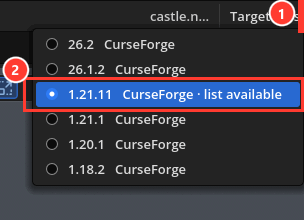
-
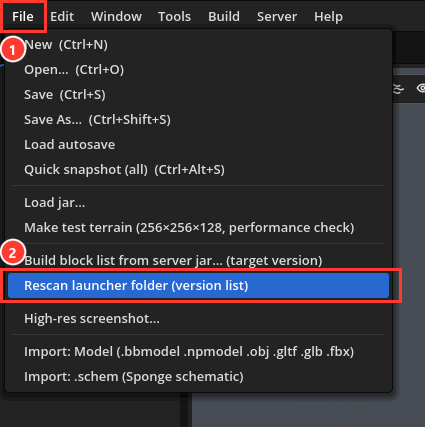
If you downloaded a new version with a launcher, click File > Rescan launcher folder (version list). The notification reads “Launcher folder: N vanilla versions — 26.2(CurseForge), …” and the dropdown list is refilled.
-
To use a jar outside the launcher folders, click File > Load jar… and pick a client jar (for example
versions\1.21.11\1.21.11.jar) (the file picker is a Windows dialog — no image). The notification reads “jar loaded: N block types (… ms)” and the textures switch to that jar. The target version does not change.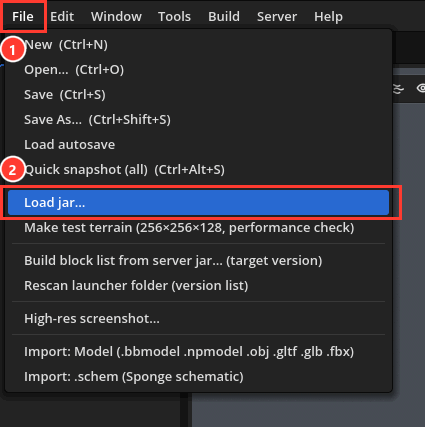
-
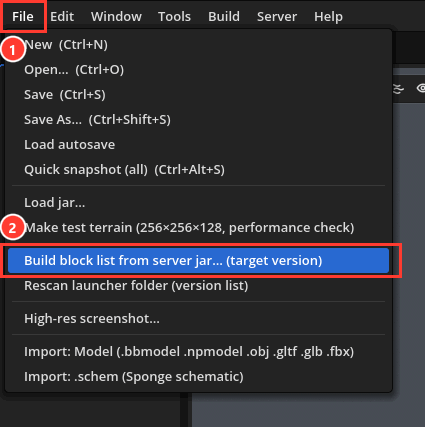
If there is no block list for the chosen version, click File > Build block list from server jar… (target version) and pick the Minecraft server jar for that version (Windows dialog — no image). The editor generates the data report with java (tens of seconds) and keeps it in the user cache. The list is built for the jar’s version and is used right away when that version matches the target version.
If java cannot be found, the notification reads “java not found — set JAVA_HOME or add java to PATH (any java that runs the server will do)”. In that case, set the Windows environment variable JAVA_HOME to the java install folder or add java to PATH, then reopen the editor (Windows settings — no image). After JAVA_HOME and PATH, the editor also looks for the java bundled with launchers (CurseForge Install\runtime, .minecraft\runtime and so on).
Tips and tricks
Section titled “Tips and tricks”- Choosing the same version again rereads the block list and shows the block count notification again. Use it to check how many block types the current version has.
- Long notifications are cut off before ” — ” (for example the version list from rescanning the launcher folders). To see the rest, open the Output Log tab in the bottom area.
- Load jar… changes only the textures and leaves the target version as it is. Use it on a PC without the target version’s jar to work with the art from a nearby version’s jar.
Reference
Section titled “Reference”Where to open
Section titled “Where to open”| What | Where |
|---|---|
| Choose the target version | Target version dropdown on the right of the menu bar · World > Target version in Edit > Project Settings… |
| Rescan the launcher folders | File > Rescan launcher folder (version list) |
| Pick a jar directly | File > Load jar… |
| Build a block list | File > Build block list from server jar… (target version) |
Where the jar is searched (earlier rows win)
Section titled “Where the jar is searched (earlier rows win)”| Order | Launcher | Folder searched |
|---|---|---|
| 1 | CurseForge | %USERPROFILE%\curseforge\minecraft\Install\versions |
| 2 | Official launcher | %APPDATA%\.minecraft\versions |
| 3 | Prism | %APPDATA%\PrismLauncher\libraries\com\mojang\minecraft |
| 4 | MultiMC | %APPDATA%\MultiMC\libraries\com\mojang\minecraft |
| 5 | TLauncher | %APPDATA%\.tlauncher\legacy\Minecraft\game\versions |
| 6 | ModrinthApp · Modrinth(com) | %APPDATA%\ModrinthApp\meta\versions · com.modrinth.theseus\meta\versions |
| 7 | Official launcher (~) | %USERPROFILE%\.minecraft\versions |
| 8 | Picked manually | Jars picked with Load jar… (the last 12 are remembered) |
- Only vanilla versions are found. The forge · neoforge · fabric · quilt · optifine folders are excluded.
- Dropdown list = versions found + versions with a block list. A version without a client jar shows “no jar”.
- When you choose another version as the target version and it has no block list, the editor looks for a server jar (named
mojang_<version>.jar·server-<version>.jarinDedicated\cacheand other places) and starts building the block list on its own. If it finds none, it shows “No <version> block list (server report) — ‘File → Build block list from server jar…’” and uses the client jar’s block list (weaker property value checks).
Drawing blocks from other versions
Section titled “Drawing blocks from other versions”Blocks that are not in the chosen jar are drawn with that block’s art instead of a placeholder box.
| Case | How it is drawn |
|---|---|
| Block that was only renamed | Drawn with the name used in that jar (table below). |
| Block not in that version (a block from a newer version) | The art is taken from a newer jar on this PC. The block list stays that of the target jar. |
| No newer jar either | Drawn as a name-colored box. |
| Old name | New name | Changed in |
|---|---|---|
sign | oak_sign | 1.14 |
wall_sign | oak_wall_sign | 1.14 |
grass_path | dirt_path | 1.17 |
grass | short_grass | 1.20.3 |
chain | iron_chain | 1.21.9 |
What works now
Section titled “What works now”| Feature | What works now |
|---|---|
| Target version list | All vanilla versions in the launcher folders on this PC (including 26.x) + versions with a block list cache |
| Export target versions (.schem · .npbuild) | 1.20.1 · 1.20.4 · 1.20.6 · 1.21 · 1.21.1 · 1.21.3 · 1.21.4 – 1.21.11 · 26.3 |
| Minecraft world save | 1.20.1 and later (props from 1.21.4). 26.x writes level.dat in the 1.21.11 format, and the game upgrades it when it opens the world. 26.3 writes chunks in the 26.3 format (DataVersion 5023); if you pick 26.3, the export uses the 26.3 values even without the 26.3 client jar. |
| World import | Worlds from 1.18 and later |
| Resource pack · shader pack | Based on 1.21.11 (resource pack pack_format 75) |
- The target version is saved in the world file. Opening another world switches to the version saved in that world.
- Vanilla textures are read only from the jar on the user’s PC. If there is no jar at all, the block list looks empty — running that version once in the official launcher creates the jar.
- Exporting for 1.13 – 1.19, matching blocks whose properties changed (1.16 walls and so on), and a tool to rename world blocks to the target version’s names are still not in 0.11.0.
Shortcuts
Section titled “Shortcuts”There are no dedicated shortcuts for this feature.
Related pages
Section titled “Related pages”Not an official Minecraft product. Not approved by or associated with Mojang or Microsoft.