
Protected areas
Overview
Section titled “Overview”Protected areas lock part of the world. While a protected area is on, the cells inside it are not changed by the brush, fill, delete, paste, terrain tools, generators or AI tools. Use it to keep a finished building safe while you work next to it, or to give AI Studio a firm “don’t touch this area”. Protected areas are saved in the world file (.npworld) and apply only in your own editor.
Basic use
Section titled “Basic use”This walkthrough keeps the main keep of the example world castle safe while filling the area around it.
-
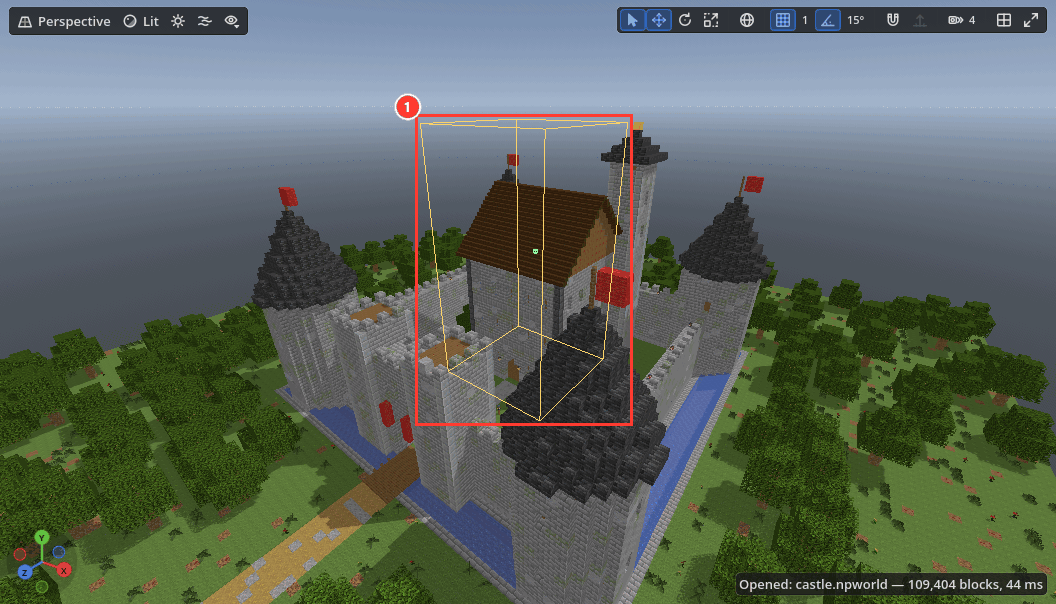
Select the building to keep with the selection tool (Selection and region editing). In this example it is a 19×38×19 box around the main keep.
-
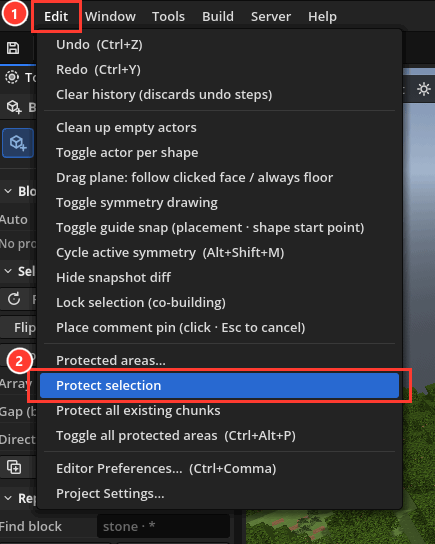
Click Edit > Protect selection. The notification reads “Protected area added: Protected area 1”.
-
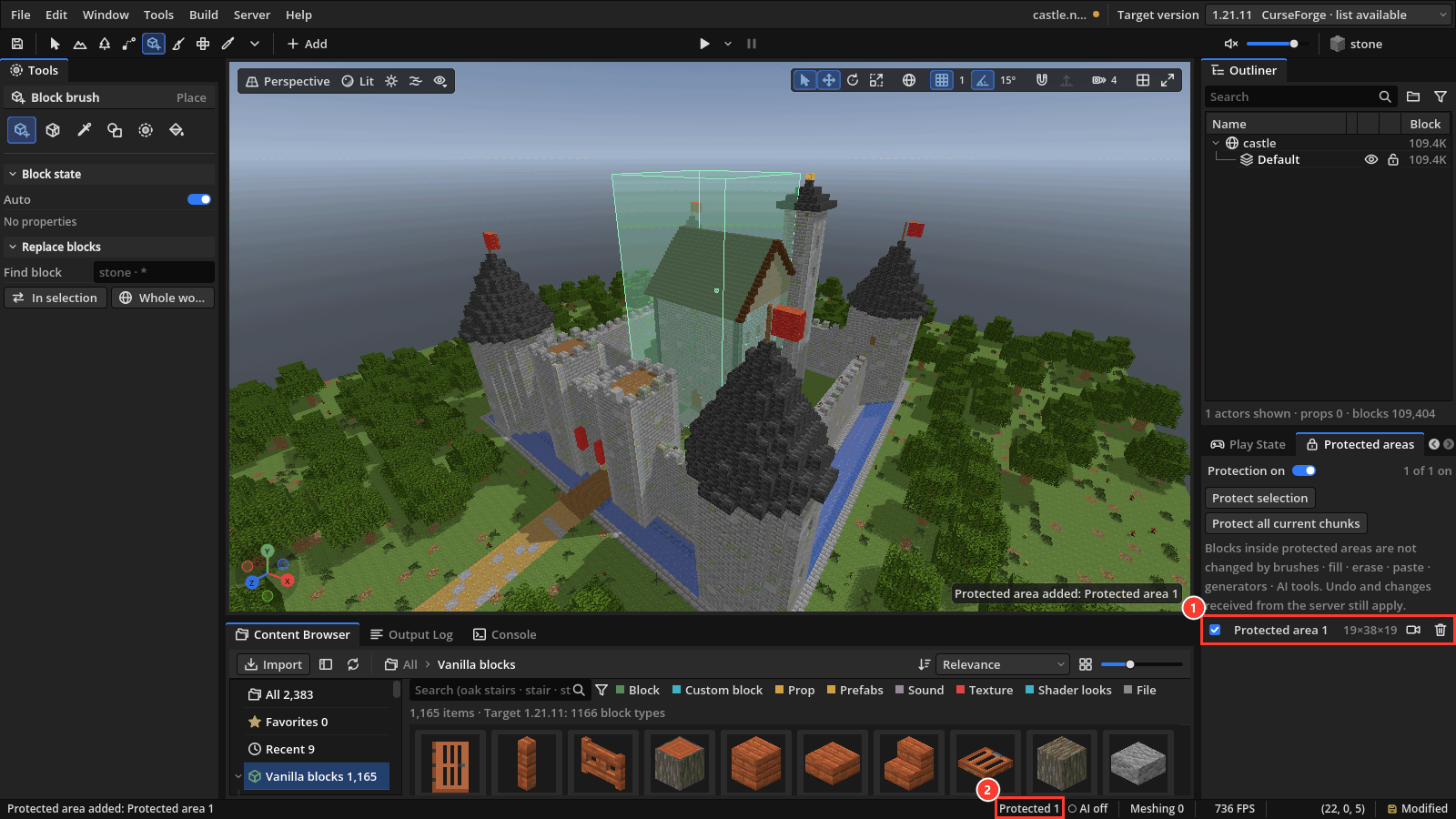
A green outline appears in the viewport, a “Protected 1” item appears in the status bar, and a Protected areas tab appears in the bottom-right area. Click the tab to see the “Protected area 1” row (size 19×38×19).
-
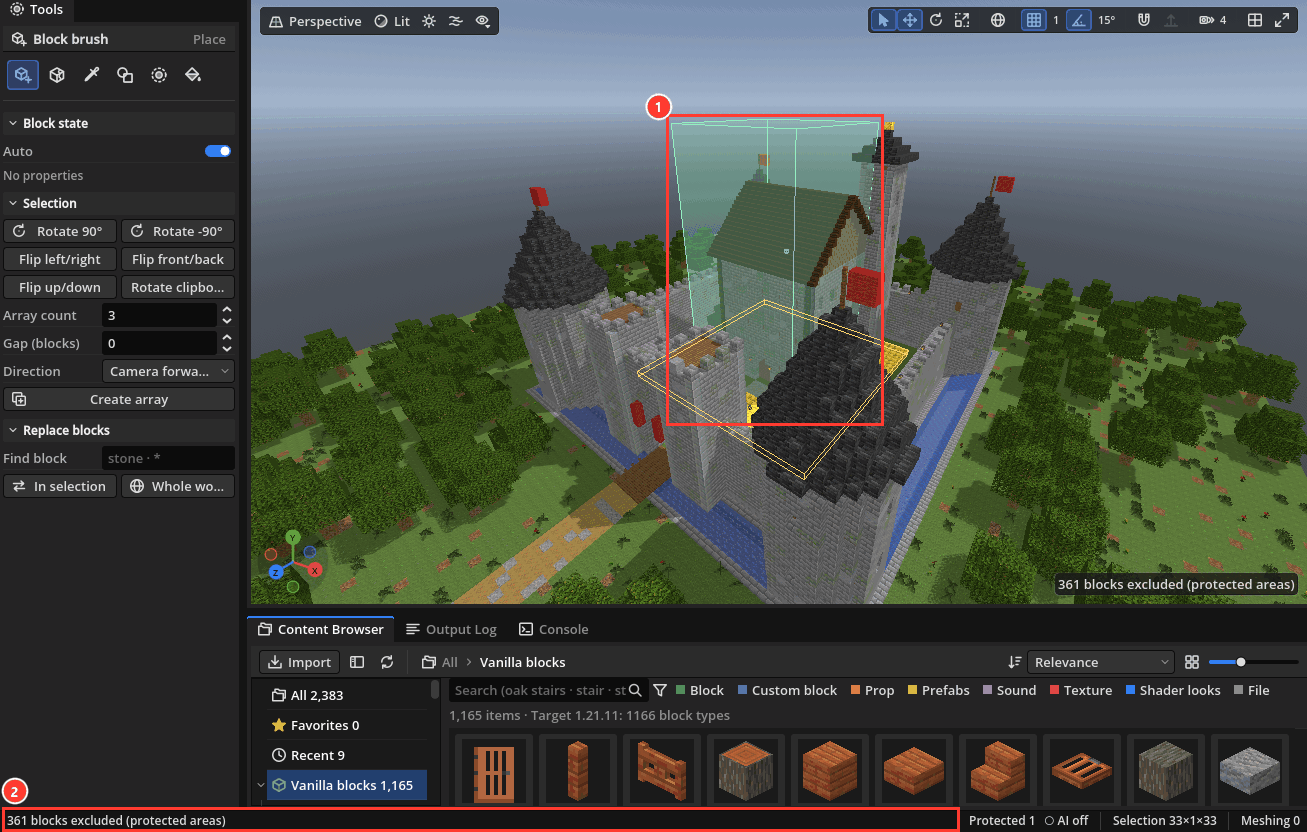
Make an edit such as a fill or brush stroke that is larger than the protected area (in this example, filling a 33×1×33 area around it with gold blocks). The cells inside the protected area stay as they are, and the notification and status bar show “361 blocks excluded (protected areas)”.
-
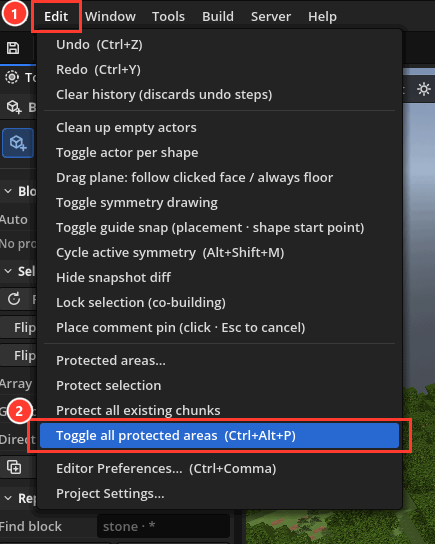
When you need to change something inside the protected area, click Edit > Toggle all protected areas. The notification reads “Protected areas off — protected areas can be edited too”, the status bar item changes to “Protection off”, and the Protection on switch in the panel turns off. When you are done, click the same menu item again to turn protection back on.
Tips and tricks
Section titled “Tips and tricks”- In Tools > Shortcuts…, change the “Toggle all protected areas” key to another key (for example Ctrl+Alt+O) to toggle protection with that key.
- Adding a protected area is one undo step. Remove an area you made by mistake right away with Ctrl+Z (the blocks stay as they are).
- Toggling when there are no protected areas shows the notification “No protected areas — Edit › Protect selection”.
- To keep the whole existing world and build only in empty space, click Edit > Protect all existing chunks. Every chunk (16×16×16) that contains at least one block is protected. Chunks you build after that are not included.
Reference
Section titled “Reference”Where to open
Section titled “Where to open”| What | Where |
|---|---|
| “Protected areas” panel | Edit > Protected areas… (bottom-right area) · click the “Protected N” item in the status bar |
| Protect the selection | Edit > Protect selection · Protect selection in the panel |
| Protect all existing chunks | Edit > Protect all existing chunks · Protect all current chunks in the panel |
| Turn everything on / off | Edit > Toggle all protected areas · Protection on in the panel |
| Show / hide outlines | The eye icon button (show flags) in the viewport’s left bar > Protected areas |
Kinds of protected area
Section titled “Kinds of protected area”| Kind | How to make it | What it covers | Size shown in the panel |
|---|---|---|---|
| Box | Protect selection | The box you have selected | width×height×depth |
| Chunk set | Protect all existing chunks | Every chunk (16×16×16) that had blocks when you ran the menu item | “Chunks N” |
- New areas are named automatically, such as “Protected area 1” or “N existing chunks”. Click the name field in the panel to rename one.
- Turning areas on or off is not added to the undo history, but the status bar shows “Modified” (there is something to save).
“Protected areas” panel
Section titled ““Protected areas” panel”| Field · button | Meaning |
|---|---|
| Protection on | Turns everything on or off. When off, protected areas can be edited too. Each area’s own on/off state is remembered. |
| Summary | “M of N on” or “All off” |
| Protect selection · Protect all current chunks | Same as the menu items above. |
| Check box on an area row | Turns only this area on or off (Toggle this area) |
| Name field | Rename. Hover to see the range and the number of cells. |
| Camera icon | Move camera to this area |
| Trash icon | Delete protected area (undoable) — the blocks stay as they are |
| Outline · status bar | Meaning |
|---|---|
| Dark green outline | An area that is on |
| Faded outline | An area that is off (or everything is off) |
| Status bar “Protected N” | N areas are on |
| Status bar “Protection off” | Everything is off — protected areas can be edited too |
What is blocked and what still works
Section titled “What is blocked and what still works”| Action | Cells inside a protected area |
|---|---|
| Place · break · brush · shapes · fill · replace | Not changed. |
| Delete · paste · placing prefabs · terrain tools · map generator | Run on everything except the protected cells. |
| Placing and moving props | Props in protected cells are not changed. |
| AI tools (AI Studio · external MCP) | Run on everything except the protected cells. The AI cannot change cells inside a protected area or remove a protected area, not even through undo. |
| Your own undo and redo | Work as usual. |
| Changes received from a live server | Applied as usual (the server is the source of truth). |
If an edit skipped protected cells, the notification “N blocks excluded (protected areas)” appears once for that edit.
AI overlap check
Section titled “AI overlap check”The editor remembers the cells you placed or changed yourself (edit tools · paste · placing prefabs). When a step of an AI Studio job tries to change those cells, the editor stops that step, selects the overlapping cells to show them, and opens the “AI work overlaps your work” dialog (this needs an AI account, so this page has no image of it).
| Choice | Result |
|---|---|
| Save as prefab, then overwrite | Saves the overlapping part as the prefab “My work backup <time>”, then lets the AI overwrite it. |
| Overwrite | Replaces it with the AI’s work. You can cancel with undo. |
| Keep selection, install the rest (default) | Keeps your work, and places the AI’s work everywhere except those cells. |
- Turn on Use the same answer for this job so you are not asked again until this AI job ends.
- If you close the dialog or do not answer for about 100 seconds, the default is used.
| Protected areas | AI overlap check | |
|---|---|---|
| Applies to | A region you choose | Cells you built yourself |
| Blocks | Every edit, generator and AI | AI jobs only |
| Asks you? | No, always skips. | Asks once. |
Moving block groups and Enable physics
Section titled “Moving block groups and Enable physics”- When you use To moving block group or Enable physics on a block actor, and the actor has blocks that overlap a protected area or a locked cell, it is not converted, and the notice
"<actor name>" has blocks in a protected zone or locked cells — not convertedappears. No undo entry is made either. - When you Solidify back to blocks, blocks are not placed in protected areas or locked cells, and the number of cells that could not be placed is added to the notice.
Co-building and live servers
Section titled “Co-building and live servers”- Protected areas apply only in your own editor, and other editors connected to the same live server are not told about them.
- To keep a region safe from other people, use a region lock from Co-building. When you connect to a live server (NPBridge 2.0.4 or later; the version bundled with the 0.11.1 installer is 2.4.0), your locks are sent to the other editors.
Shortcuts
Section titled “Shortcuts”| Shortcut | Action |
|---|---|
| Ctrl+Z | Undo adding or deleting a protected area |
| Ctrl+Alt+P | Toggle all protected areas (same as Edit > Toggle all protected areas) |
Protect selection and Protect all existing chunks have no default keys. You can assign them in Tools > Shortcuts….
Related pages
Section titled “Related pages”Not an official Minecraft product. Not approved by or associated with Mojang or Microsoft.