
Resource pack and HUD
Overview
Section titled “Overview”NP Editor builds the server resource pack from scratch using only the assets you imported and painted in the editor. It does not read or merge existing resource packs. The target is Java 1.21.11 (pack_format 75). Custom blocks, props, weapons, armor, effect frames, sounds, sky images, HUD images and saved materials (LabPBR) all go into one zip. The resource pack panel shows in advance what will be included and any problems, and the HUD · item textures panel replaces HUD images such as hearts and the hotbar, and vanilla item textures.
Basic use
Section titled “Basic use”This walkthrough uses a copy of the sample world castle. The project folder is the folder that contains the world file (.npworld), and results are created in the export folder under it.
Build a resource pack
Section titled “Build a resource pack”-
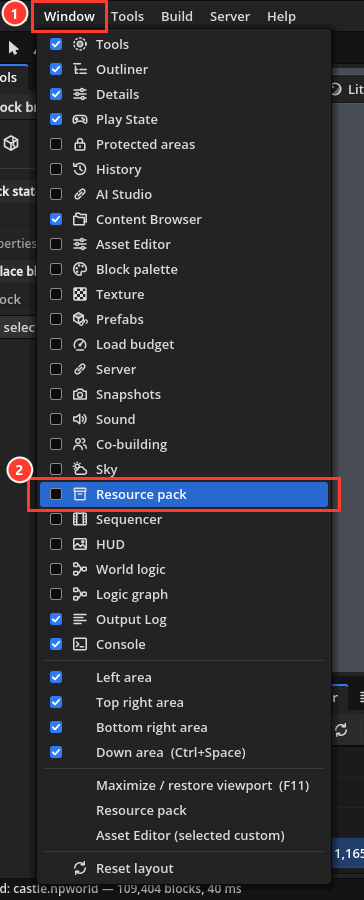
Click Window > Resource pack. The resource pack panel opens in the bottom area.
-
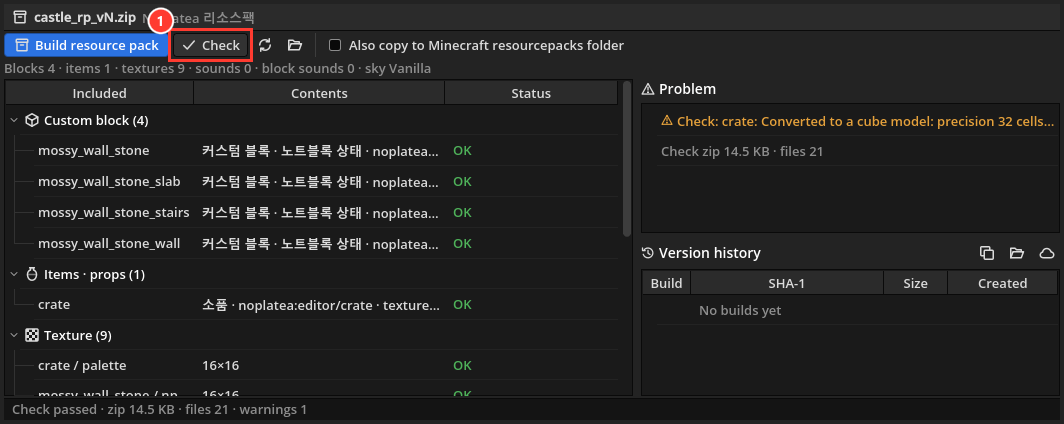
Click Check. It does a trial build in memory, and the status line shows “Check passed · zip … · files … · warnings …”. No files are written.
-
Click Build resource pack.
castle_rp_v1.zipandcastle_rp_v1.zip.sha1.txtare created in the output folder, and a v1 row (SHA-1 · size · build time) appears in Version history.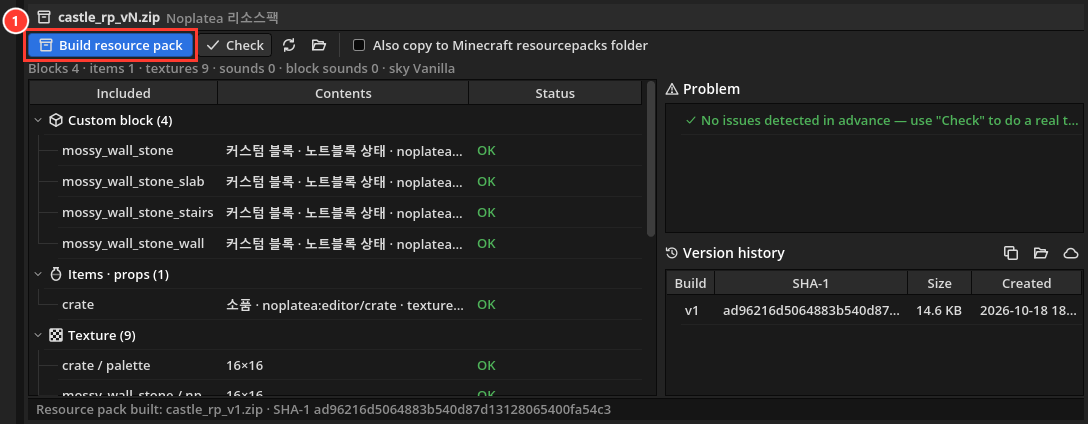
Upload the zip to the web and put the three lines of .sha1.txt into the server’s server.properties (editing server files happens outside the editor — no screenshot).
Replace a HUD image
Section titled “Replace a HUD image”-
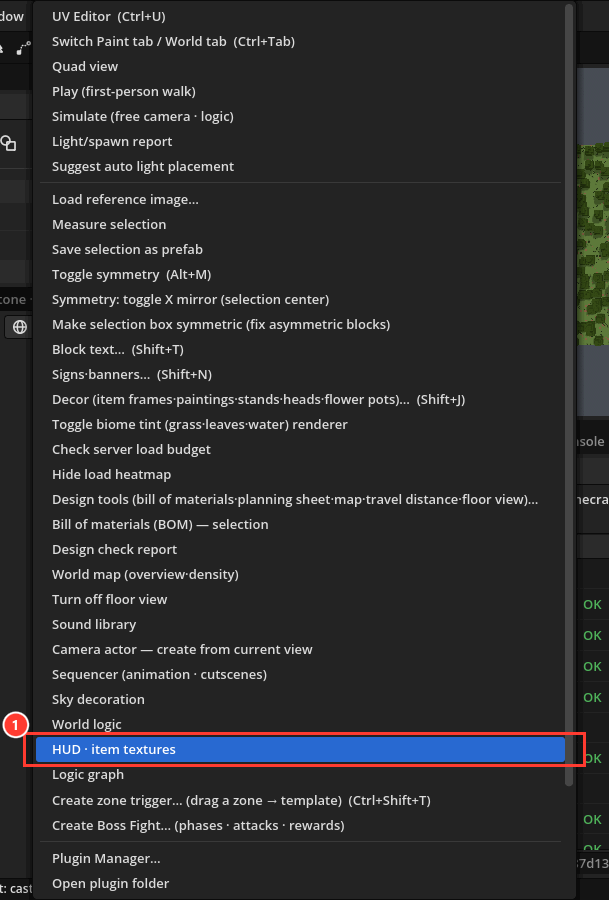
Click Tools > HUD · item textures. The HUD panel opens in the bottom area.
-
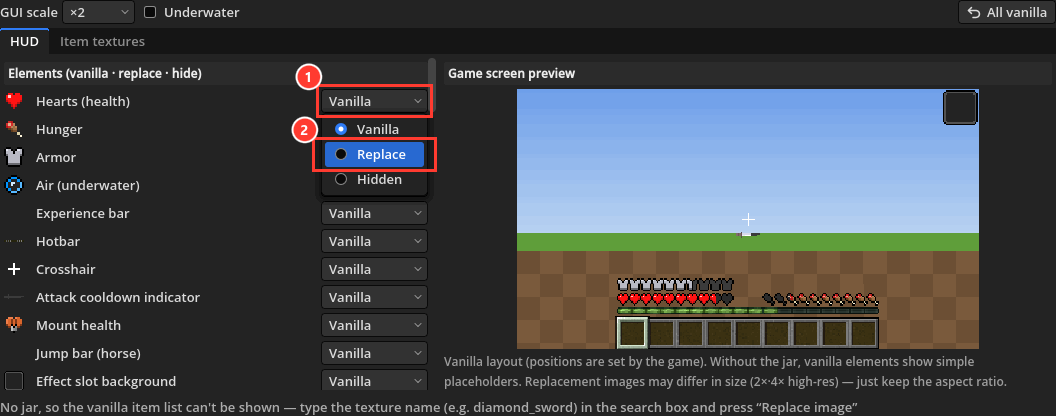
Click the drop-down in the Hearts (health) row and select Replace. The heart sprites appear in the Image group.
-
In the
fullsprite of the Image group, click Image… and pick a PNG (file picking happens in a Windows dialog — no screenshot). The sprite name changes to★ full, and the heart in Game screen preview on the right changes to the image you picked. The setting is saved toassets/hud.np.json, and the image is copied toassets/hud/hearts/heart_full.png.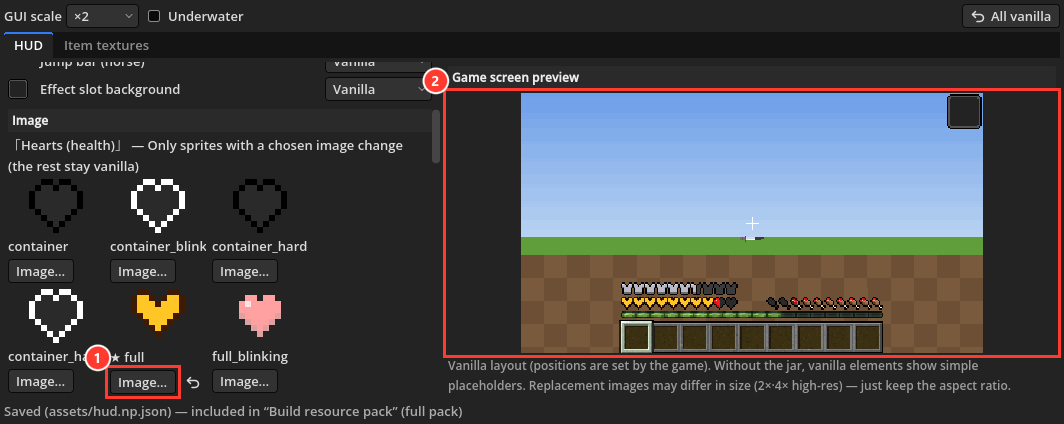
-
Click Build resource pack in the resource pack panel again. A new
castle_rp_v2.zipis created (v1 stays as is), with the HUD heart image inside.
Tips and tricks
Section titled “Tips and tricks”- Run Check first to see problems, then build. Check writes no files, so clicking it many times does not clutter the output folder.
- Builds never overwrite; they raise the version number (
_rp_v1→_rp_v2). Changing the pack also changes its SHA-1, so update the SHA-1 line in the server’sserver.propertieswith the new.sha1.txttoo. - To reset the HUD, click All vanilla. Every element goes back to vanilla, and the copied image files (
assets/hud/…) remain so you can pick them again. - You do not need to keep the panel open: clicking Build > Build resource pack opens the panel and builds the next version right away.
Reference
Section titled “Reference”Where to open
Section titled “Where to open”| What | Where |
|---|---|
| Resource pack panel | Window > Resource pack |
| Build directly | Build > Build resource pack |
| HUD · item textures panel | Tools > HUD · item textures |
| Resource pack group of the Export window | Ctrl+Shift+E (Export and import) |
| Asset editor | Double-click a custom block or prop in the Content Browser |
Resource pack panel
Section titled “Resource pack panel”| Part | Contents |
|---|---|
| Header | The file name to build, <name>_rp_vN.zip, and the pack.mcmeta description |
| Build resource pack | Builds the complete resource pack + .sha1.txt. Never overwrites; uses the next number. |
| Check | Does a trial build in memory and shows the self-check, errors, warnings and zip size. Warns when it exceeds 100 MB. |
| Refresh · open output folder | Icon buttons (tooltips Refresh · Open output folder). Open output folder creates the folder if it does not exist and opens Explorer. |
| Also copy to Minecraft resourcepacks folder | Also puts the built zip in .minecraft/resourcepacks so you can check it in single player right away. Does not overwrite a file with the same name. Off by default; the on state is remembered for the next launch. |
| Included | Custom block · Items · props · Texture · Sound events · Block sounds · Sky (sun · moon · clouds) · Excluded assets. Double-click a row to open the asset editor. |
| Problem | Missing source or icon files, duplicate item model ids, textures over 512 or not a power of two, missing sound files, etc. |
| Version history | Built version · SHA-1 · size · build time. Icons at the top right: Copy selected build’s SHA-1 · Show selected zip location · cloud icon (marks the selected build as the pack on the server — animated models use this build’s bone models in the game). |
- The output folder follows Output folder in the Export window; if that is empty, it is
<project>/export. - The file name is decided in this order: File name in the Export window → the resource pack name in Project Settings → the map name → the world file name.
- The panel’s Build resource pack always builds the complete pack (standalone). Build resource pack in the resource pack group of the Export window follows that window’s Mode (Standalone (server-ready) · Fragment (merge into existing pack)).
What goes into the resource pack
Section titled “What goes into the resource pack”| Kind | Where it goes | Notes |
|---|---|---|
| Custom blocks | Note block states + block models · textures | State assignments are kept in a fixed table. |
| Props | Item models (item_model) | The server places them as ItemDisplay. |
| Weapons | Item models + in-hand appearance (display) | |
| Armor | 1.21.4+ equipment + equipment images | The images are 64×32. |
| Effects | Item models per frame + np_effects.json | The server plugin switches them every tick. |
| Sounds | assets/<ns>/sounds.json + ogg + subtitles | Sky and sound |
| Sky | Sun · moon (8 phases) · cloud images | Sky and sound |
| HUD · item textures | textures/gui/sprites/hud/… · textures/item/… | Included only in the complete pack (standalone). |
| Material (LabPBR) | <number>_n.png · <number>_s.png next to the texture + optifine/texture.properties | Only in the complete pack (standalone). How they are included follows Material (LabPBR) in the export window (Export and import). |
- A model texture named
glow·emissive, or ending in_glow·_emissive, is an emissive texture. - If you turn off Include in resource pack in the asset editor, that asset is left out of the pack and appears under Excluded assets.
- If the self-check finds errors, the zip is not built.
- Materials (LabPBR) go into both Build resource pack in the panel and the resource pack deployment in the Server window. If Material (LabPBR) in the export window is Separate add-on pack, a separate
<name>_rp-pbr_vN.zipcontaining only materials is made, it is not put into the pack deployed from the Server window, and the notice “N material textures are not in the server pack — the “Separate add-on pack” setting keeps them out” appears. If you do not use materials, the pack is the same as before. - The vanilla faces of a texture block hold no image and point only to a
minecraft:id (vanilla images and materials do not go into the pack).
HUD · item textures panel
Section titled “HUD · item textures panel”| Part | Contents |
|---|---|
| GUI scale | Preview scale ×1–×4 (default ×2, Minecraft “GUI Scale”) |
| Underwater | Shows air bubbles in the preview. |
| All vanilla | Removes all sprite and item texture replacements (no confirmation). |
| HUD tab — Elements (vanilla · replace · hide) | Vanilla · Replace · Hidden per element |
| HUD tab — Image | The sprites of the selected element. Image… per sprite, and a Back to vanilla for this sprite icon on replaced sprites |
| HUD tab — Game screen preview | A preview drawn with the vanilla layout as is |
| Item textures tab | Vanilla item search · Replace image… · To vanilla (the list is empty without the jar) |
| Element | Contents |
|---|---|
| Hearts (health) | Including poison · wither · absorption · frozen · hardcore hearts |
| Hunger | Food bar |
| Armor | Armor bar |
| Air (underwater) | Underwater air bubbles |
| Experience bar | Background · fill |
| Hotbar | 9 item slots · selected slot frame · off-hand slot |
| Crosshair | The cross at the center of the screen |
| Attack cooldown indicator | Attack ready indicator |
| Mount health | Hearts of mounts such as horses and pigs |
| Jump bar (horse) | Horse jump strength bar |
| Effect slot background | Background of potion effect icons at the top right |
| Mode | What goes into the resource pack |
|---|---|
| Vanilla | Nothing. |
| Replace | Replaces only the images of the chosen sprites. The other sprites stay vanilla. 2× and 4× high-resolution images also work (only the aspect ratio has to match). |
| Hidden | Adds transparent images of the same size. Health and hunger calculations are unchanged. |
Project assets folder
Section titled “Project assets folder”| Path | Contents |
|---|---|
assets/registry.json | Custom registry (block · prop · item model ids) |
assets/models/ · assets/textures/ | Imported models · textures |
assets/sounds.np.json · assets/sounds/ | Sound registry · sound files |
assets/sky.np.json | Sky decoration |
assets/hud.np.json · assets/hud/ | HUD settings · HUD images (a .bak is also kept on save) |
- If you change the id of a custom block or prop, ones already placed keep the old id.
- PNG textures are read up to 8192×8192 pixels.
- When you first open the HUD panel, the status line at the bottom may still show “No jar, so the vanilla item list can’t be shown…” (even when the jar is loaded). Click the Item textures tab once to fill the vanilla item list and clear this text.
- If you place a custom block (
np:) while connected live to a server, it is placed on the server with the same note block state as in the resource pack. Blocks without a note block assignment stay only in the editor, so build the resource pack first to create the assignments (Server connection (live)).
Related pages
Section titled “Related pages”Not an official Minecraft product. Not approved by or associated with Mojang or Microsoft.