
Variables, functions and data types
Overview
Section titled “Overview”World logic rules remember and calculate values (score · remaining tries · quest stage …) with variables. A function is a rule that runs only when another action calls it, and enums and data types bundle values into a fixed shape.
| Feature | Action | Nodes that use it |
|---|---|---|
| Variable | Remembers a value | Set variable · the “Compare” condition · {name} inside fields |
| Function | A rule that runs only when called | The Function event · Call function · Flip Flop · Switch … |
| enum | A type that holds one of a fixed set of values | The type of a variable or data type field |
| Data type | A type made of several fields (similar to a class) | The type of a variable, {hero.hp} |
Basic use
Section titled “Basic use”Declare variables, enums and data types
Section titled “Declare variables, enums and data types”Click Variables at the top left of the World logic tab to open the “World logic variables · enums · data types” window.
-
On the Variables tab, click Add variable twice and fill in the two rows:
score·int· Global ·0, andcoins·int· Player ·0(name · type · scope · initial value).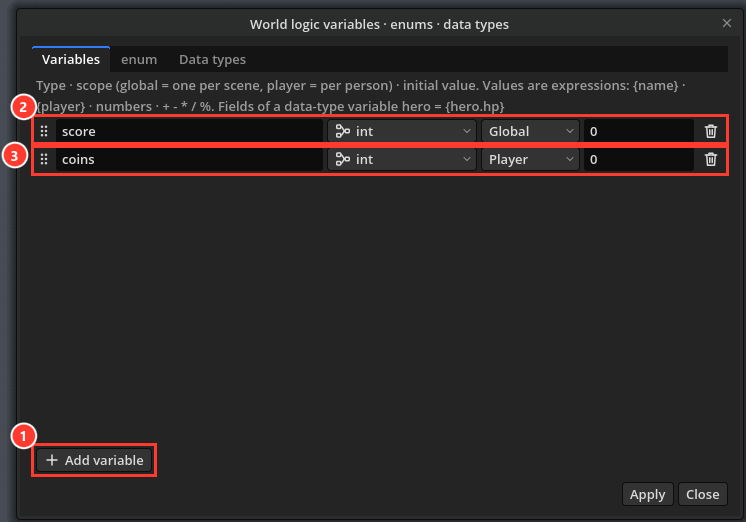
-
On the “enum” tab, click Add enum and type the name
Joband the valueswarrior, mage, archer(initial value = the first value).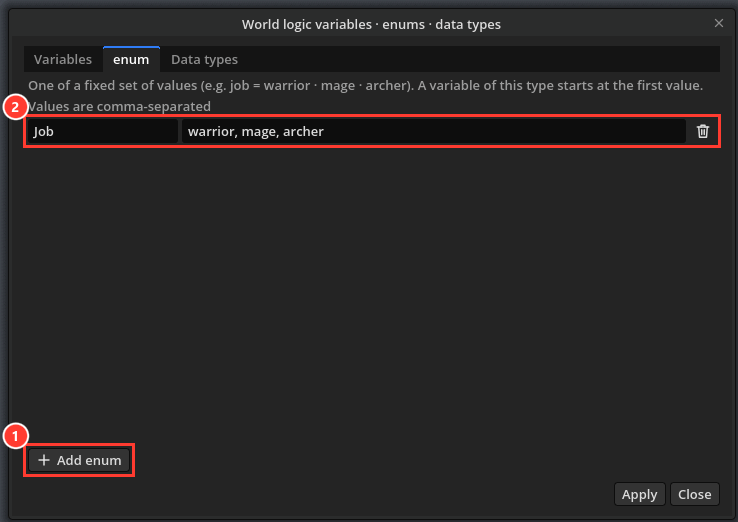
-
On the Data types tab, click Add data type and type the name
Hero. Change the first field tohp·int·20, create a second fieldjobwith Add field, and selectJob (enum)as its type.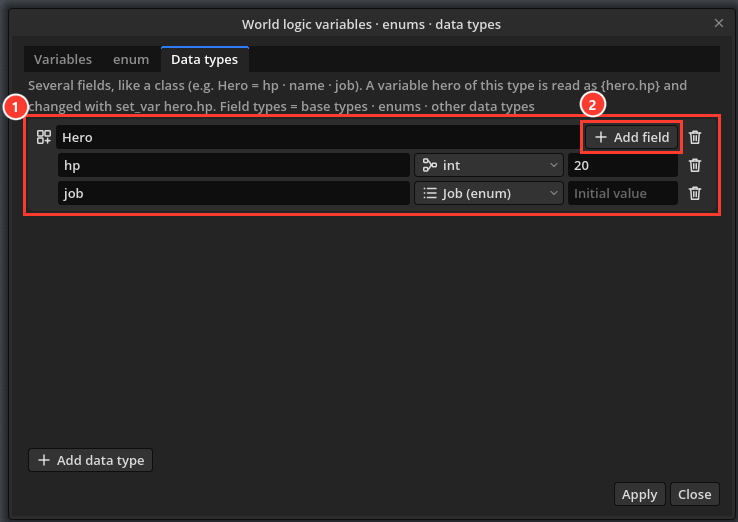
-
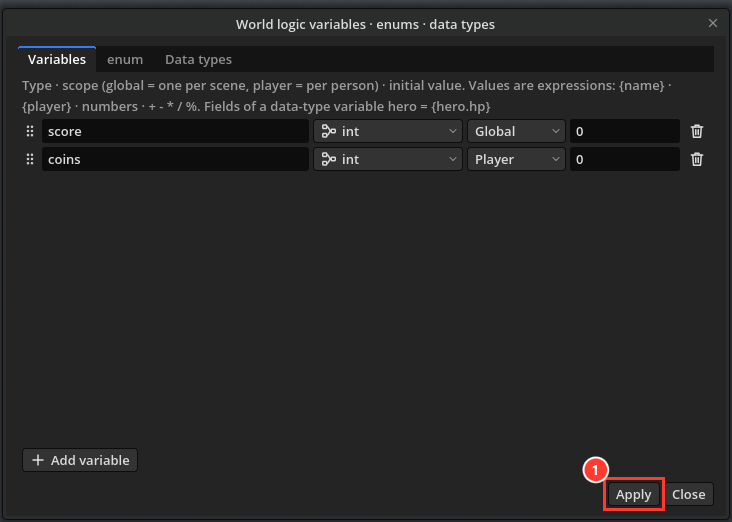
Click Apply. All three tabs are saved at once (one Ctrl+Z step). Press Esc to close the window.
Set variable and Call function
Section titled “Set variable and Call function”-
In the Logic graph, connect Timer (global) (interval 1 second) → Set variable (variable
score· calculationadd· value1) → Set variable (coins·add·1) → Call function with exec pins. Drop the yellow pin of Call function on an empty spot to create a new function rulefunc_1. Add Action bar text (textScore: {score}) to that function.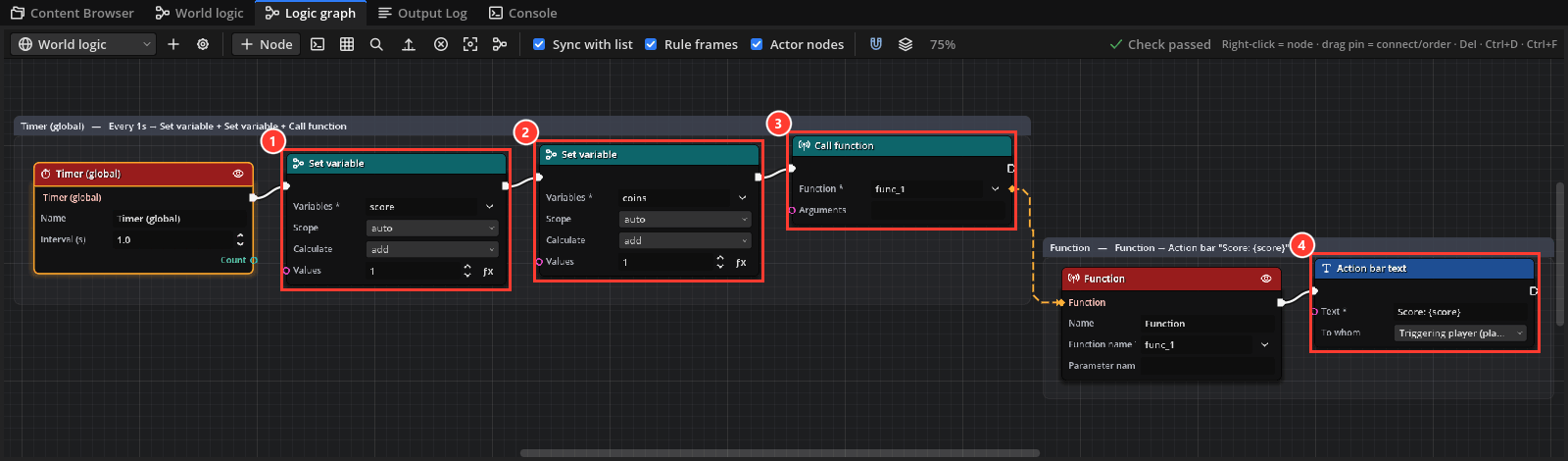
-
Click the ▶ (Play) button. Every second
scoregoes up by 1, and the function shows “Score: 1” · “Score: 2” … on the action bar. The “Flags:” line of the Play info overlay shows the current values. Press Esc to stop.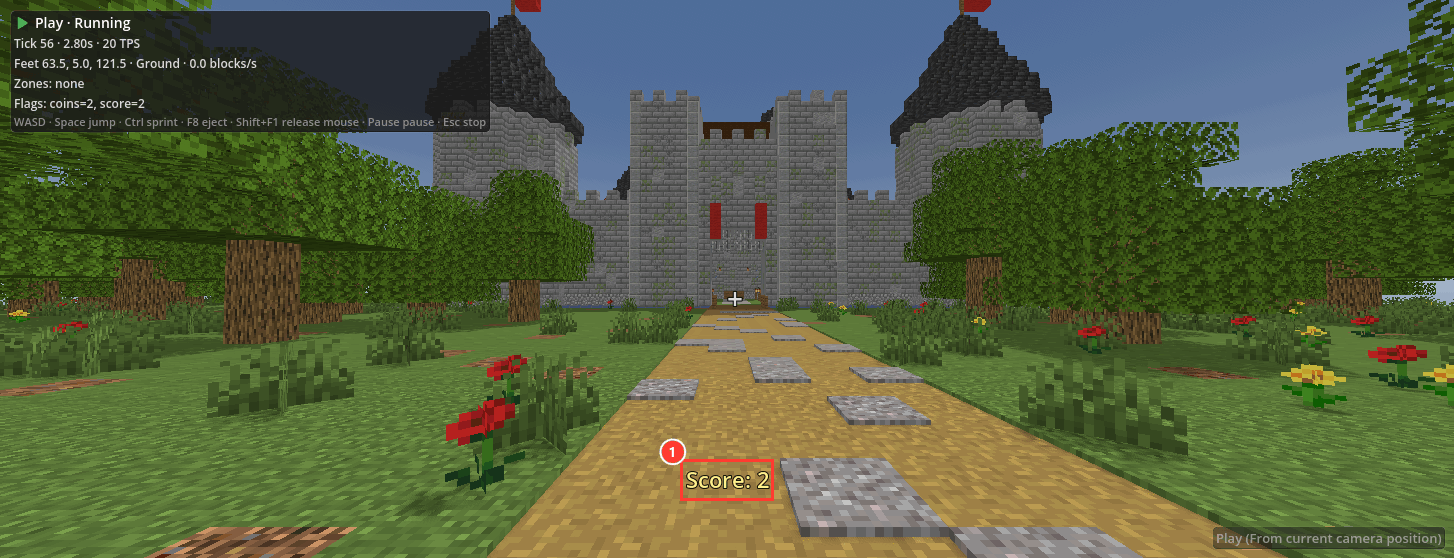
Tips and tricks
Section titled “Tips and tricks”- If you set a Player scope variable in a rule with no triggering player, such as Timer (global), the value goes into the global value (
coins=2in the step 6 screenshot). To count per player, use an event that a player triggers (When a player joins · On zone enter …) or “Run for = For each player” in “Every tick (server tick)”. - In text with nothing to calculate (
Welcome, {player}), only the{name}parts are replaced with their values. If there are numbers and operators, it is calculated as an expression ({score} * 2 + 1). - The arguments of the trigger When a command is typed become
{name}variables with exactly those names, and in the logic graph they appear as typed value pins (word·text· choice = text,int= integer,number= decimal,bool= true/false,player= player). If you give an argument the same name as a declared variable,{name}becomes the variable’s value instead of what was typed, so the check reports an error — World logic. - For the initial value of a
blockvariable and the value of Set variable, use the custom blocknp:<id>. On export it becomes that block’s note block state and goes to the server (the editor original staysnp:<id>) — World logic.
Reference
Section titled “Reference”Variable fields
Section titled “Variable fields”| Field | Meaning |
|---|---|
| Name | Written as {name} in expressions (starts with a letter; letters, digits and _). |
| Type | bool · int · float · string · player · actor · position · block · item · sound · particle · effect · enum · data type |
| Scope | Global (one value per scene) · Player (one value per player) |
| Initial value | If empty, the zero value of the type. For the block type, minecraft:stone or np:<id> (a custom block) |
Expressions
Section titled “Expressions”Value fields take expressions.
| What you can use | Example |
|---|---|
| Variables · fields · axes | {score} · {hero.hp} · {spot}.y |
| Values | number 2.5 · vector "1 64 -3" · text 'mage' · true false |
| Operators | or · and · not · == != < <= > >= · + - * / % · ^ |
| Math functions | sin cos … min max clamp lerp mod · random … · dist len … · 0.10.2: inverse_lerp wrap snap |
- Examples:
{score} * 2 + 1(score = 4 →9) ·mod(-7, 3)=2(sign of the divisor) ·clamp(15, 0, 10)=10·{spot}.y(spot =1 64 -3) =64.
| Special name | Value |
|---|---|
{player} | Name of the triggering player |
{player_x} · {player_y} · {player_z} · {player_pos} | Position of the triggering player |
{time} | Seconds since the scene started |
{random} | A random number between 0 and 1 |
{index} | The current count inside a repeat or loop |
{message} | (chat trigger) The chat text |
{command} · {args} · argument names | (command trigger) The command name typed · the argument text · the value typed for each argument |
Set variable
Section titled “Set variable”| Field | Value |
|---|---|
| Variables | Name (for a data type, down to the field, like hero.hp) |
| Scope | auto (as declared) · global · player · local |
| Calculate | set · add · sub · mul · div · mod · min · max · append · toggle |
| Values | Expression |
Actions that call functions
Section titled “Actions that call functions”| Node | type | Action |
|---|---|---|
| Call function | call | Runs the function, then the next action when it ends |
| In order (sequence) | sequence | Several functions in order |
| Branch · If | branch · if | Calls one function by a comparison or expression |
| Repeat · Loop · For each | repeat · while · for_each | Repeats the body function ({index}) |
| For each player | for_each_player | Makes each recipient the triggering player in turn |
| Switch · Flip Flop | switch · flip_flop | 0.10.2 — Logic graph |
- A function inherits the caller’s triggering player and local values (node results). When the called function reaches “Wait”, the caller waits too.
- When you use the flow nodes Gate (pass condition), Return (stop here) or Do Once inside a function, only that function ends and the caller goes on to its next action.
“Variables” window buttons
Section titled ““Variables” window buttons”| Button | Action |
|---|---|
| Add variable · Add enum · Add data type · Add field | New row · new field |
| Apply | Saves all three tabs at once (one undo step) |
| Close (Esc) | Closes without saving |
Related pages
Section titled “Related pages”Not an official Minecraft product. Not approved by or associated with Mojang or Microsoft.