
Detail tools
Overview
Section titled “Overview”These are six modes for refining buildings and signboards. Each mode has a shortcut, and when you turn one on, the Tools panel shows that mode’s panel. All placing modes (block text · signs and banners · decor) work in the order “click a face = placement spot (ghost) → Enter = place”.
| Mode | Shortcut | Action |
|---|---|---|
| Block text (Korean·English) | Shift+T | Builds text out of blocks to make signboards. |
| Symmetry (mirror·radial) | Shift+M | Applies one edit at the mirror, radial and diagonal positions too. |
| Detail (refine · weathering) | Shift+W | Smooths edges with stairs and slabs, and ages blocks with moss, cracks and vines. |
| Signs·banners | Shift+N | Places vanilla signs and banners with text and patterns. |
| Decor (item frames·paintings·stands·heads·flower pots) | Shift+J | Places item frames, paintings, armor stands, mob heads and flower pots. |
| Reference · measure · guides | Shift+G | Shows blueprint images, measures lengths and draws guide lines. |
Basic use
Section titled “Basic use”The example is an oak plank wall (17×6) on a grass floor.
Block text
Section titled “Block text”-
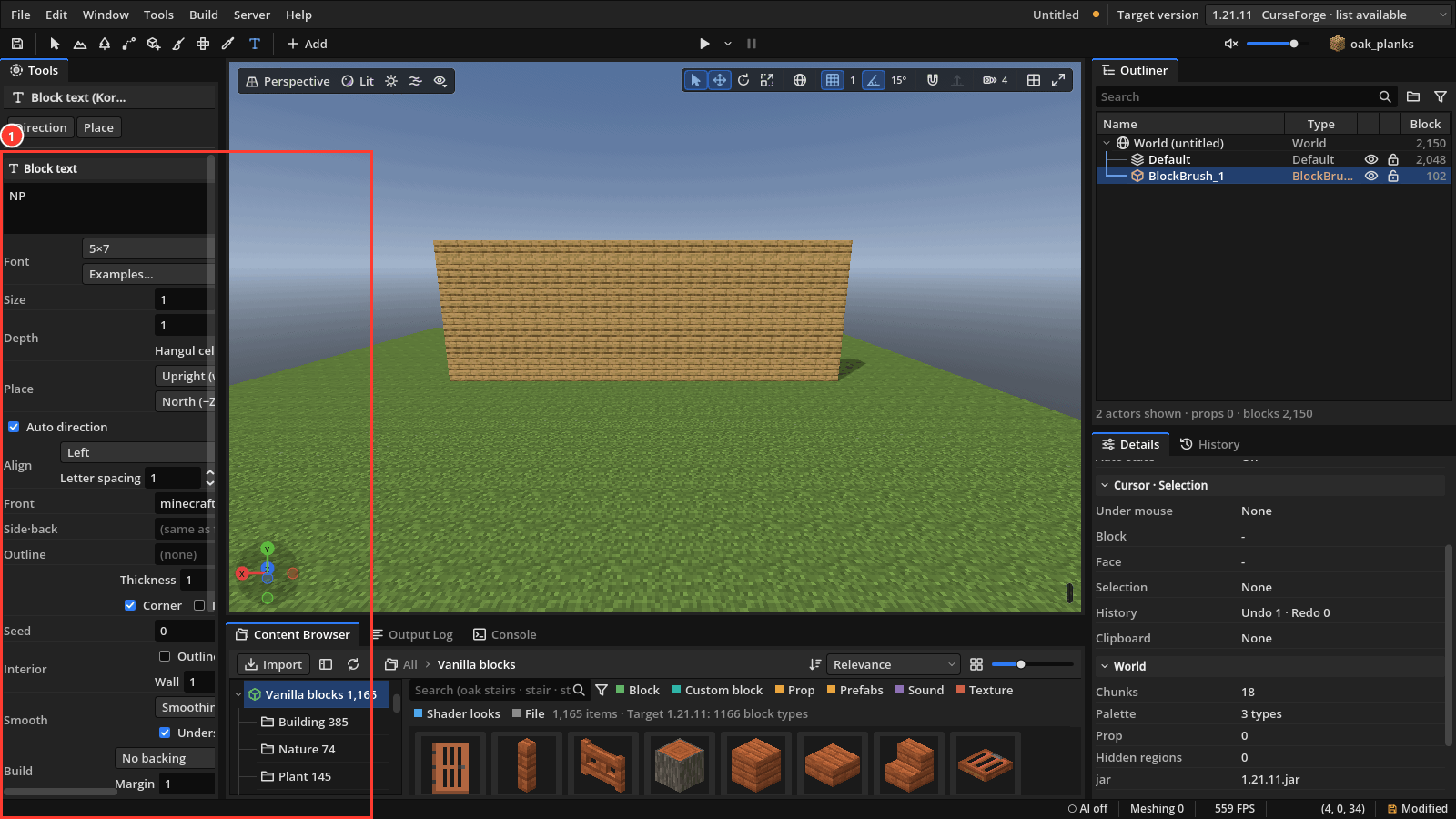
Press Shift+T to turn on the Block text (Korean·English) mode. The Tools panel shows the Block text panel (text field · Font · Examples… · Size · Depth · Place …).
-
In Examples…, select Sign (stone bricks, upright), then clear the text field and type
NP. The front block is set tominecraft:stone_bricksand placement to upright (wall).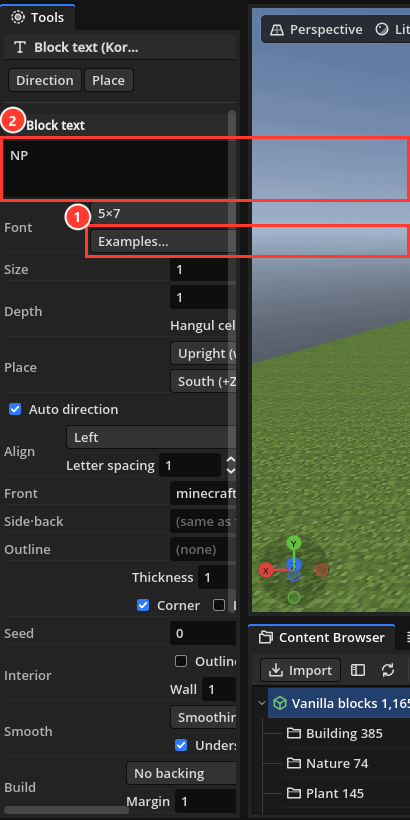
-
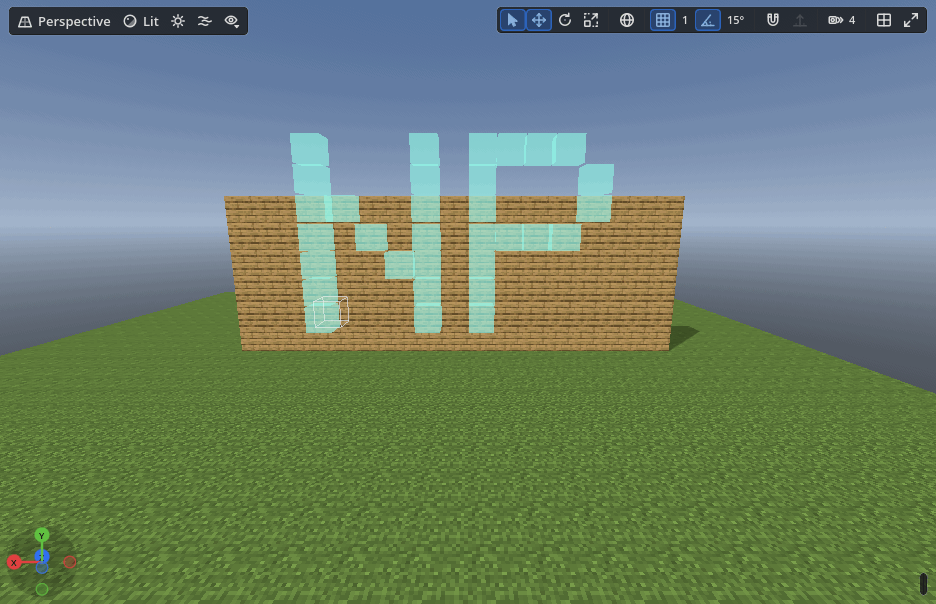
Click the front face of the wall. Upright letters facing that face appear as a teal ghost. The ghost does not change the world, and it updates as soon as you change the panel.
-
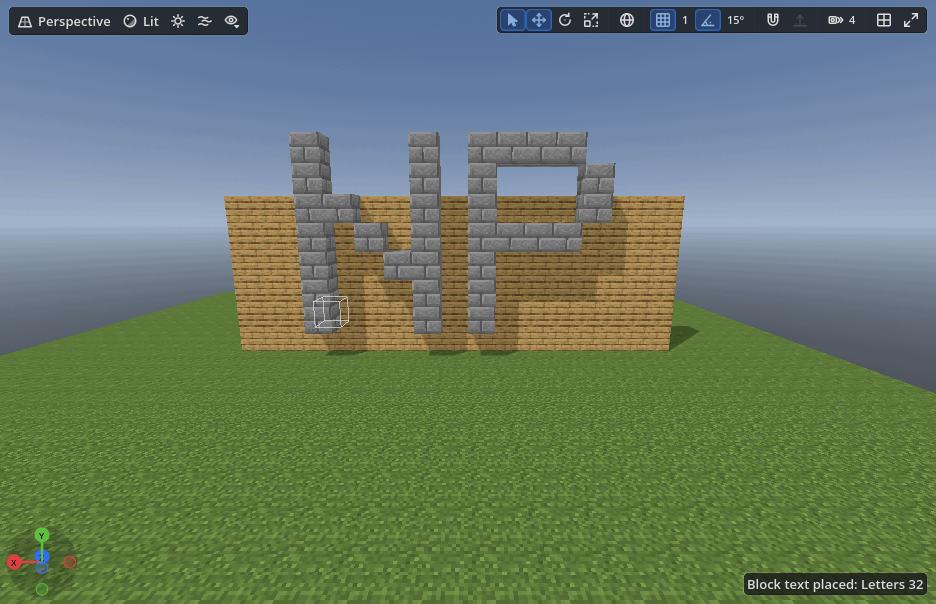
Press Enter to place. 32 blocks of stone brick letters are placed as one undo step.
Symmetry
Section titled “Symmetry”-
Press Shift+M to turn on the Symmetry (mirror·radial) mode and turn on Mirror X. Type
10.5(.5 = cell center) in the X field of the Center row and1in the Height field. The text at the top of the panel becomes “Mirror X @ (10.5, 0.5) — 2 copies”.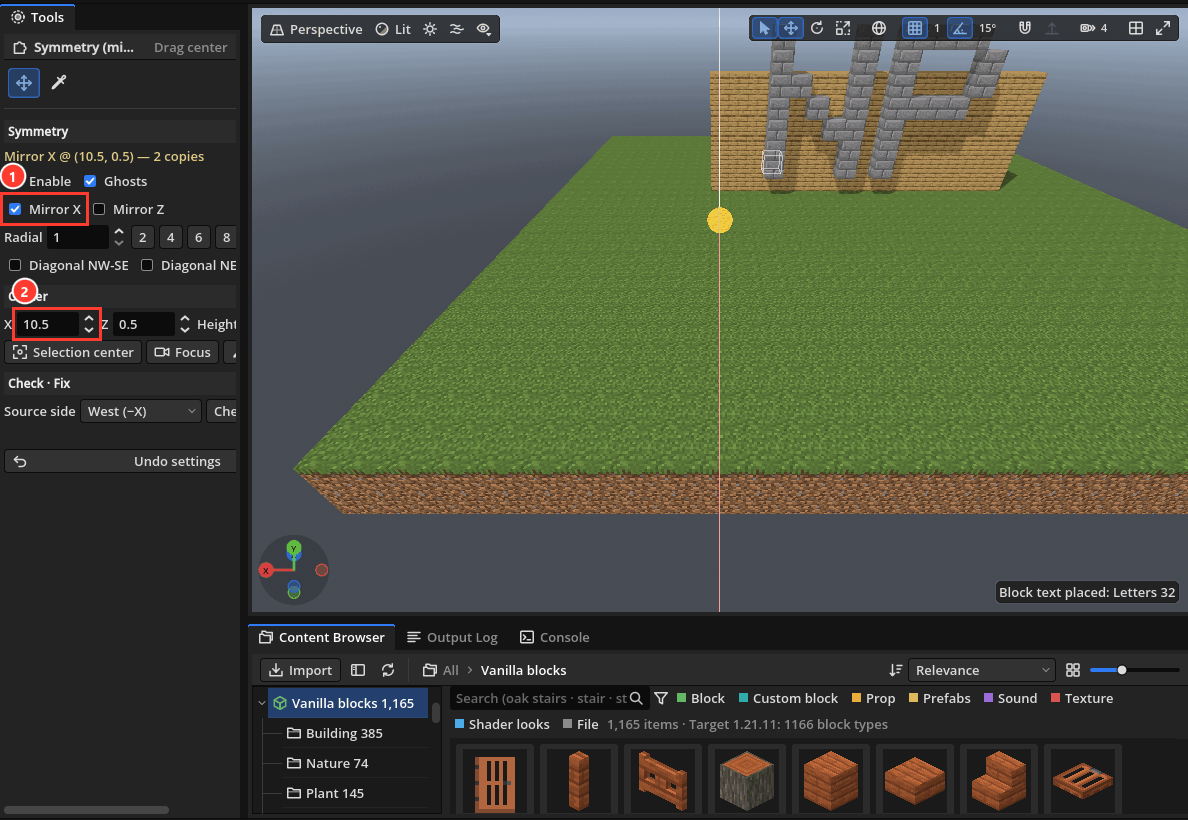
-
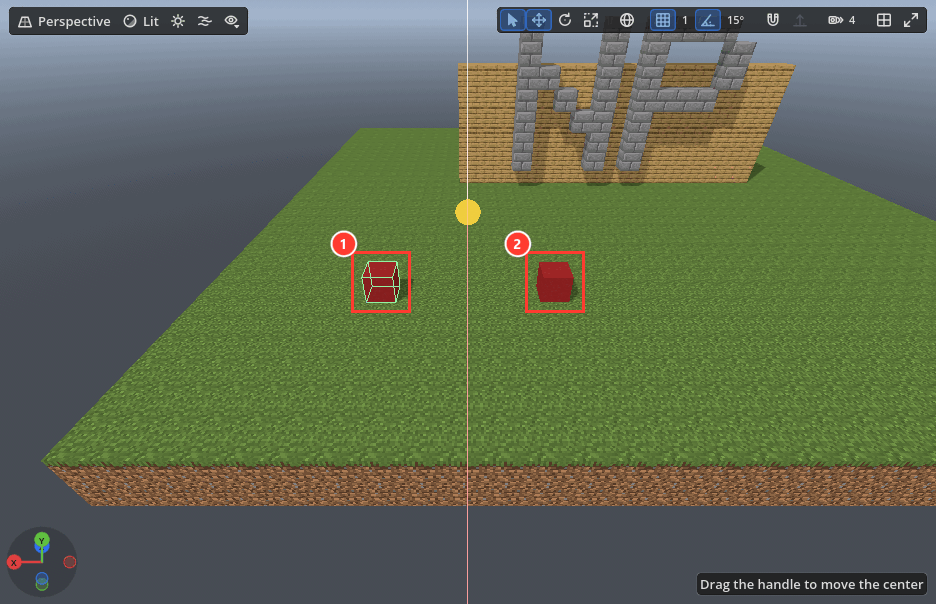
Press 1 to switch to the Place tool and click the floor (x = 13). Blocks are placed both in the clicked cell and at the mirror position (x = 7). Symmetry stays on for Place, Break, Brush, Shape and drag boxes even after you leave the mode, so turn it off with Alt+M when you are done.
Smoothing
Section titled “Smoothing”-
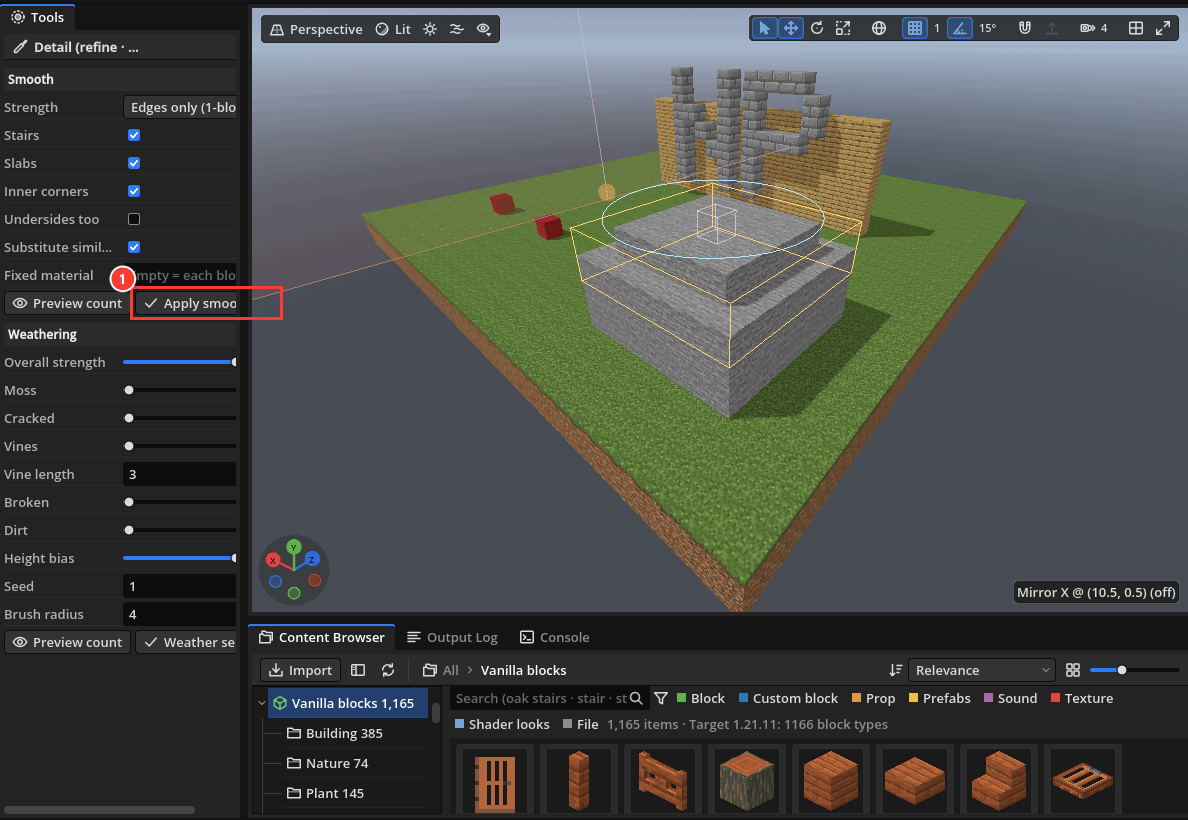
With the Selection tool, select the top two layers of a stepped stone mass (5×1×5 on top of 7×3×7). Drag from a corner of the lower mass’s top layer to the opposite corner, and while dragging, roll Shift+wheel up one notch. Press Shift+W to turn on the Detail (refine · weathering) mode. The top of the panel is the Smooth group and the bottom is the Weathering group.
-
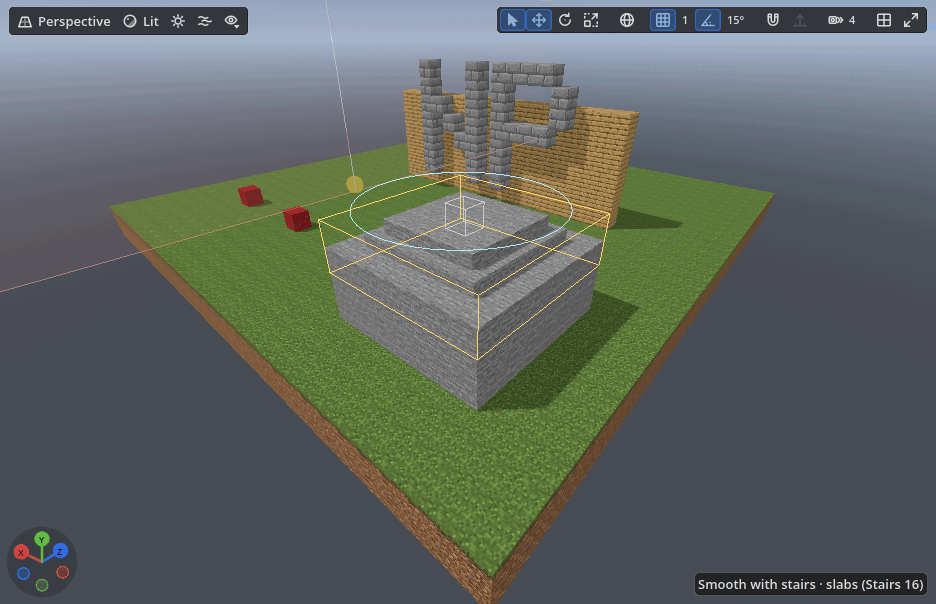
Click Apply smoothing. The stepped edges inside the selection become stone stairs and slabs (16 stairs in this example) and the status bar shows “Smooth with stairs · slabs (Stairs 16)”. This is one undo step.
Signs · decor · reference
Section titled “Signs · decor · reference”-
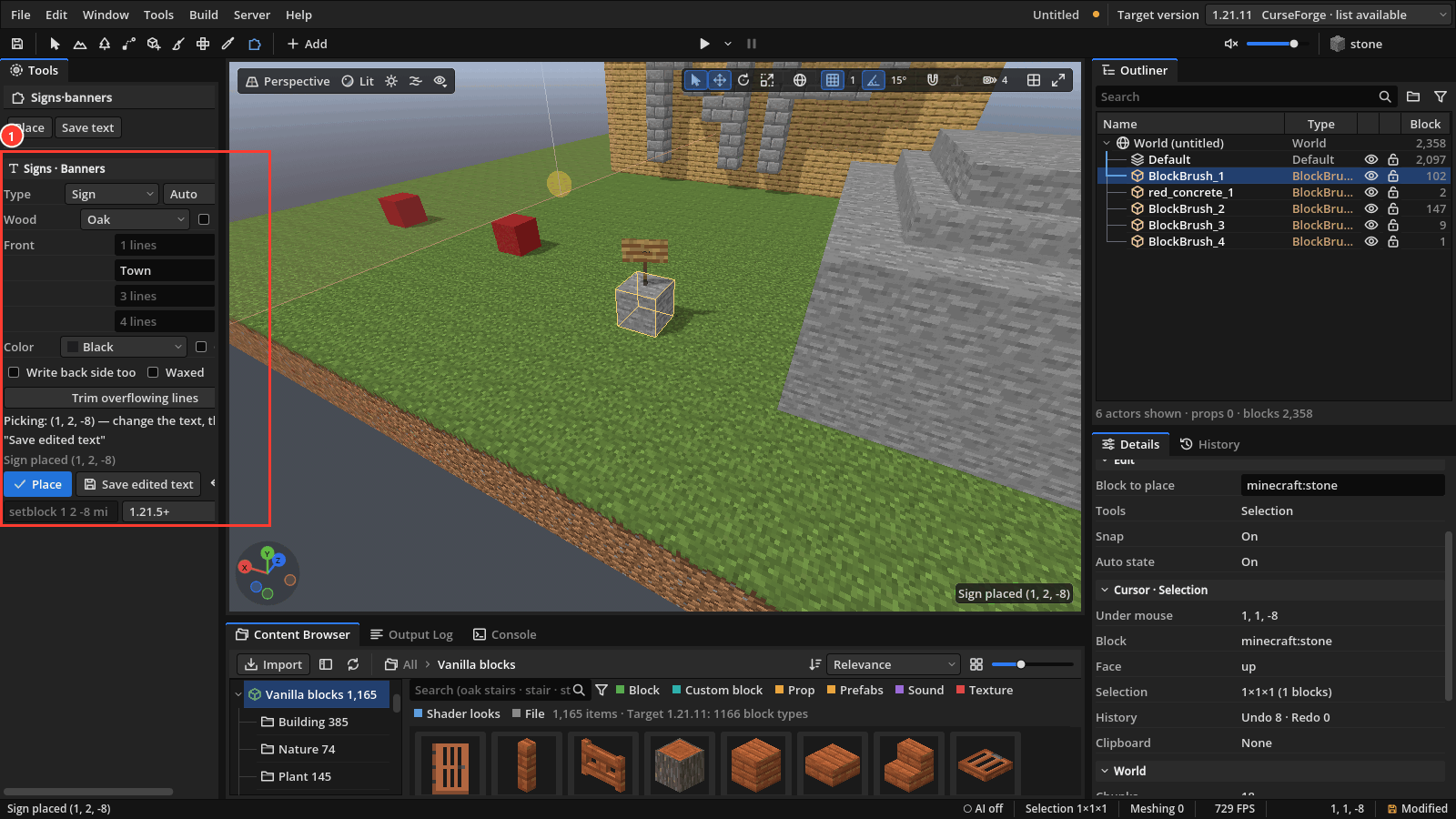
Press Shift+N to turn on the Signs·banners mode, click the top face of a block and press Enter to place. Because it is a top face, a standing oak sign is placed and the status bar shows “Sign placed (…)”.
-
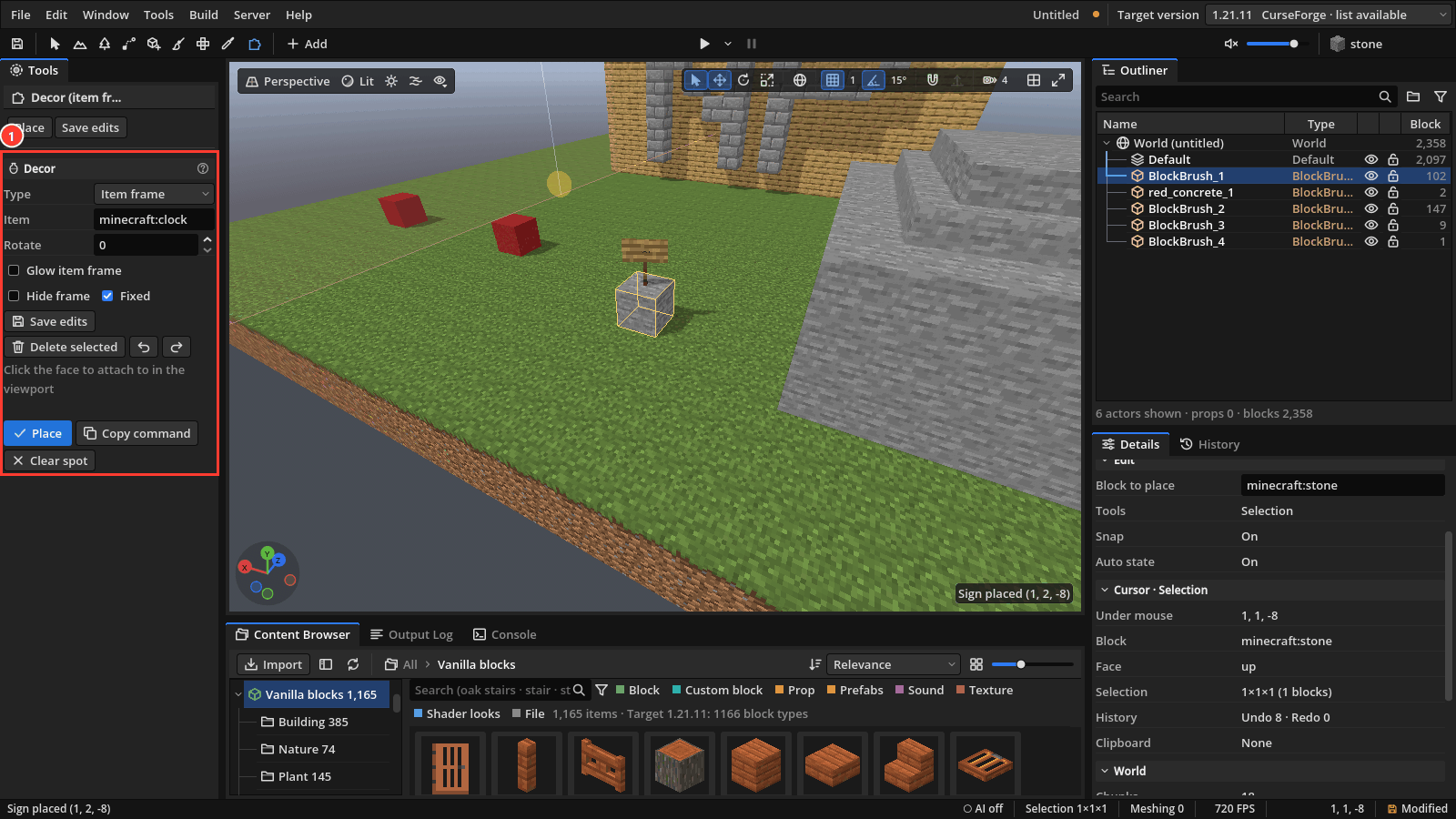
Press Shift+J to turn on the Decor (item frames·paintings·stands·heads·flower pots) mode. Set Type · Item · Rotate in the Decor panel; placing works the same as for block text and signs (click a face → Place or Enter).
-
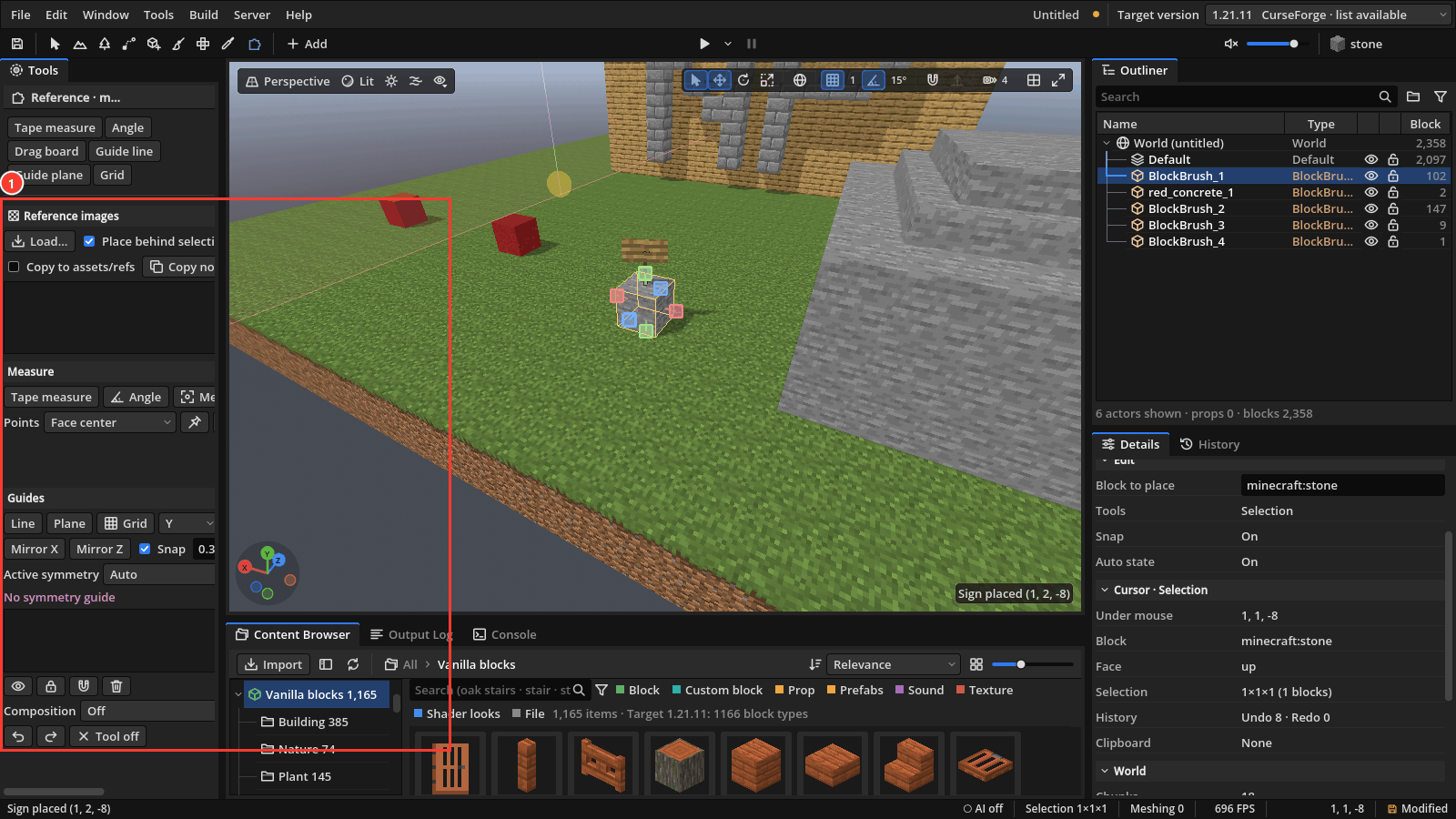
Press Shift+G to turn on the Reference · measure · guides mode. The panel consists of the Reference images (Load… — choose the image file in the Windows file dialog) · Measure (Tape measure · Angle · Measure selection) · Guides (Line · Plane · Grid) groups.
Tips and tricks
Section titled “Tips and tricks”- Press R to rotate block text 90° clockwise. After you click a wall to set the spot, R changes the direction, for example North (−Z) → East (+X).
- Shift+click = place right away without a ghost. In the Block text mode, Shift+click a wall to place the text there immediately as one undo step.
- Entering the symmetry center as a number is the most precise. Center X 10.5 is the middle of cell x = 10, so placing at x = 13 creates the mirror cell at x = 7 (3 blocks either side of 10). Enter .0 to put the center on a cell boundary.
- Remember to turn symmetry off. Symmetry stays on after you leave the mode. One Alt+M turns it off and on.
- In placing modes, start from an example. Examples… in Block text sets the font, blocks and depth at once, so after choosing an example you only need to change the text.
Reference
Section titled “Reference”Block text
Section titled “Block text”| Field | Meaning |
|---|---|
| Text field | Korean · English · digits (multiple lines) |
| Font · Examples… | 5×7 · 8×8 · Bold / ready-made settings |
| Size · Thickness | One letter pixel = N×N blocks · thicker strokes |
| Depth · Hangul cell | Stacking thickness · cell size of one Korean character (0 = default) |
| Place | Upright (wall) · Flat (floor) + direction (North (−Z) · East (+X) · South (+Z) · West (−X)) |
| Auto direction | Match the direction to the clicked face · the camera side |
| Align · Letter spacing · Line spacing | Which part of the text the placement spot is · spacing |
| Front · Side·back · Outline | Block for each part (pattern ratios work too) |
Letters, plate, outline and stairs are all one undo step, and up to 400,000 blocks can be placed at once.
Symmetry
Section titled “Symmetry”| Field | Meaning |
|---|---|
| Enable · Ghosts | Apply symmetry · show symmetric cells in brush and shape previews |
| Mirror X · Mirror Z | East-west symmetry (x = center X) · north-south symmetry (z = center Z) |
| Radial | N directions around the center (1 = off, 2~16). Buttons beside it: 2 · 4 · 6 · 8 |
| Diagonal NW-SE · Diagonal NE-SW | Diagonal mirrors |
| Center: X · Z · Height | Center coordinates (.5 = cell center) and the height of the yellow handle |
| Selection center · Focus · Pick center | Set the center to the selection box center · the camera focus cell · the clicked cell |
| Source side · Check · Fix | Count asymmetric cells inside the selection box and match the other side to the source side (one undo step) |
| Undo settings | Undo only the axis and center settings |
Dragging the yellow ball in the viewport also moves the center (0.5 blocks, Shift = 1 block). With several guides, press Alt+Shift+M (Edit > Cycle active symmetry) to change which symmetry to follow.
Smoothing · weathering
Section titled “Smoothing · weathering”| Group | Field | Meaning |
|---|---|---|
| Smooth | Strength | Edges only (1-block-high steps) · All (including cliff tops · ridges) |
| Stairs · Slabs · Inner corners · Undersides too · Substitute similar colors | Shapes to use · upside-down stairs under eaves · use similar colors for materials without a matching stair | |
| Fixed material | Leave empty to use each block’s own material (stone → stone_stairs) | |
| Preview count · Apply smoothing | Count only the cells that would change · apply | |
| Weathering | Overall strength · Moss · Cracked · Vines · Broken · Dirt | Amount per effect (0~1) |
| Vine length · Height bias · Seed · Brush radius | Maximum vine length · more toward the top · same seed = same result · viewport paint size | |
| Preview count · Weather selection | Apply to the selection at once |
While the mode is on, you can drag in the viewport to paint weathering (one stroke = one undo step).
Signs · banners · decor · reference
Section titled “Signs · banners · decor · reference”- Signs·banners: Type (sign · banner, with Auto beside it = top face → standing, side face → wall, bottom face → hanging) · Wood · Front lines 1~4 · color · Write back side too · Waxed · Trim overflowing lines · Save edited text ·
/setblockcommand. Ctrl+click = select a placed sign. - Decor: Type · Item · Rotate · Glow item frame · Hide frame · Fixed · Save edits · Delete selected · Copy command · Clear spot. Mob heads and flower pots are blocks, so undo them with Ctrl+Z; undo item frames, paintings and stands with the undo button in the panel.
- Reference · measure · guides: Reference images (PNG · JPG · WebP blueprint boards, Copy to assets/refs) · Measure (Tape measure · Angle · Measure selection) · Guides (Line · Plane · Grid · Mirror X · Mirror Z) · Composition · Tool off.
Shortcuts
Section titled “Shortcuts”| Shortcut | Action |
|---|---|
| Shift+T · Shift+N · Shift+J · Shift+G · Shift+W · Shift+M | Block text · signs and banners · decor · reference, measure and guides · detail · symmetry |
| Alt+M · Alt+Shift+M | Toggle symmetry · cycle active symmetry |
| Enter · Shift+click · Esc | Place · place right away · clear spot (placing modes) |
| R | Rotate block text 90° |
| Ctrl+click | Select a placed sign · decor item |
Related pages
Section titled “Related pages”Not an official Minecraft product. Not approved by or associated with Mojang or Microsoft.