
Logic graph
Overview
Section titled “Overview”The logic graph is an editor that shows World logic rules as nodes and wires, like Unreal Blueprints. It is not a new format: it is the same data as the World logic panel, so an edit on either side is reflected on the other immediately. Each rule is one row connected from left to right: event (red) → conditions (green) → actions (blue · a color per category).
New in 0.10.2: Where nodes overlap, the node drawn on top receives clicks, pins and drags, and a node moves only after you drag it more than 5 px. Dropping a wire on an empty spot opens a search window that shows only the nodes that can connect to that pin. Five flow nodes (Gate · Return · Do Once · Flip Flop · Switch), the math functions
inverse_lerp·wrap·snap, node search and alignment were added. Logic that contains the new flow nodes needs NPBridge 2.0.8 or later on the server (see “Reference” below).
New in 0.11.0: drop an actor row from the Outliner anywhere on the graph (including on nodes, rule boxes, and the minimap) and the drop menu opens. There are also ways to add one without dragging (Outliner right-click · the Actor button on the toolbar · Ctrl+Shift+L) (see “Adding actors to the graph” below).
The screenshots on this page were taken in the sample world castle.npworld with the “Left area”, “Top right area” and “Bottom right area” checks in the Window menu turned off, and the ⚙ (details) and minimap buttons on the graph toolbar turned off to widen the graph. The first hands-on exercise is in Tutorial: your first script.
Basic use
Section titled “Basic use”Create a rule: alternate “Door open” and “Door closed” every second
Section titled “Create a rule: alternate “Door open” and “Door closed” every second”Click Tools > Logic graph to open the Logic graph tab in the bottom dock area.
-
Right-click an empty spot in the graph. The Add node window opens. At the top is a search box; below it are the grouped list (Event · Zone, Event · Actor …) and a preview area.
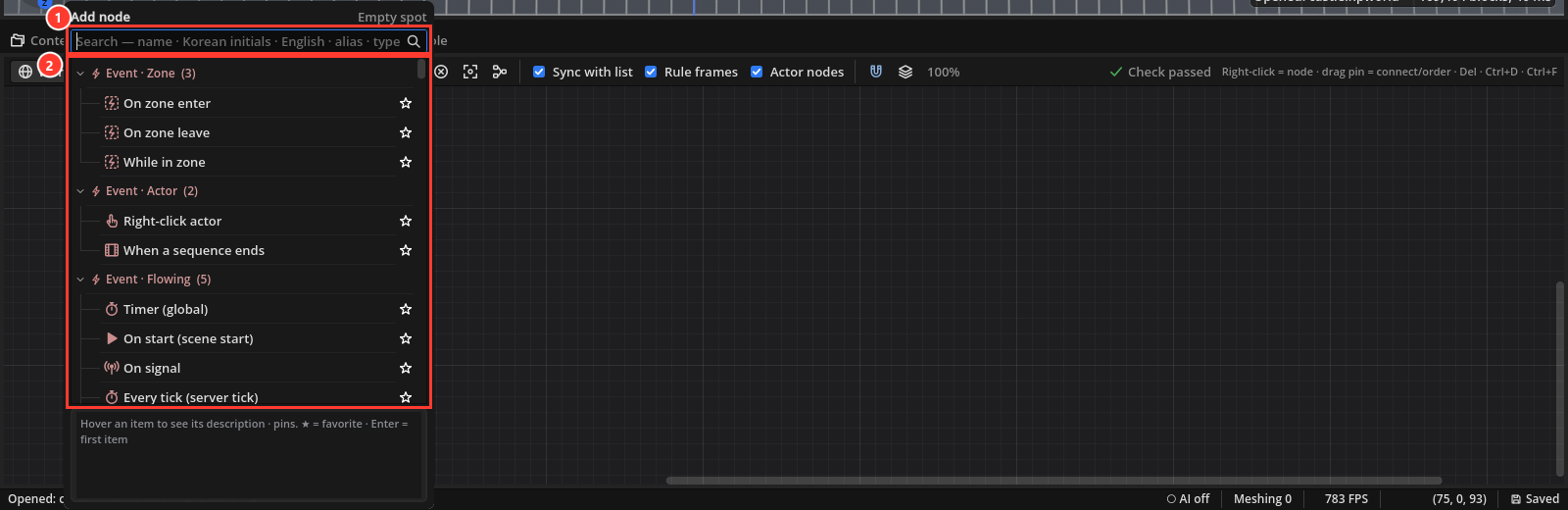
-
Type
timerin the search box and click Timer (global). An event picked on an empty spot becomes a new rule.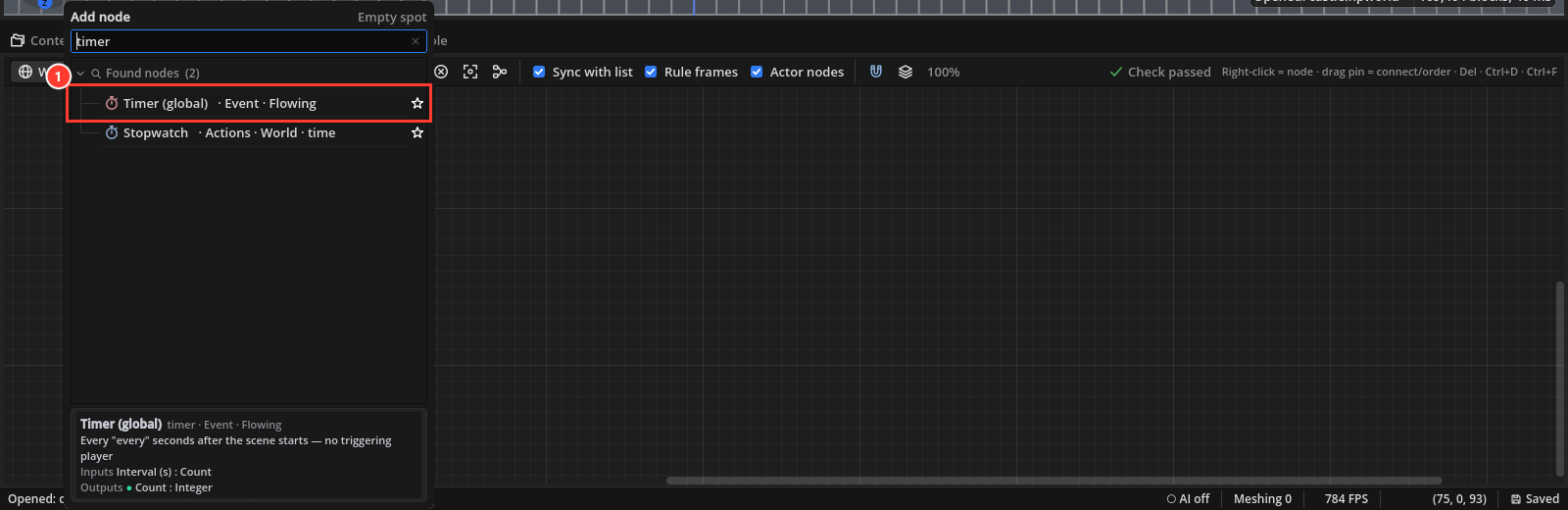
-
Type
1in the Interval (s) field of the event node.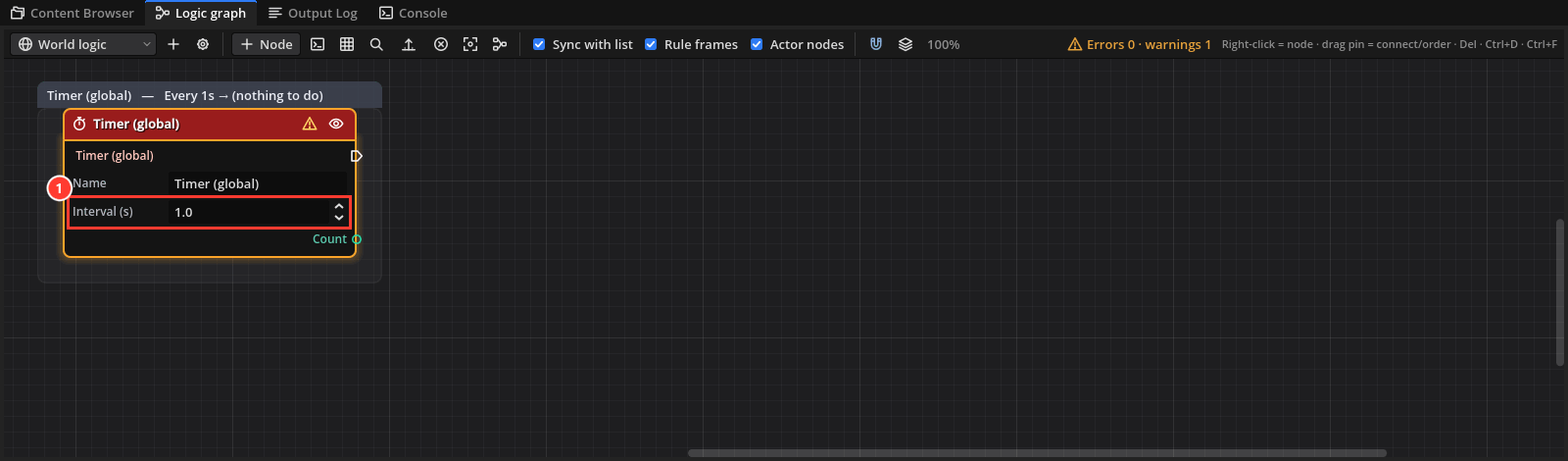
-
Drag the white exec pin on the right of the event node and drop it on an empty spot. The “Connects after this” window shows only the nodes that can come after it (no events). Type
flip flopand click Flip Flop. The node appears where you dropped the wire and connects to the event.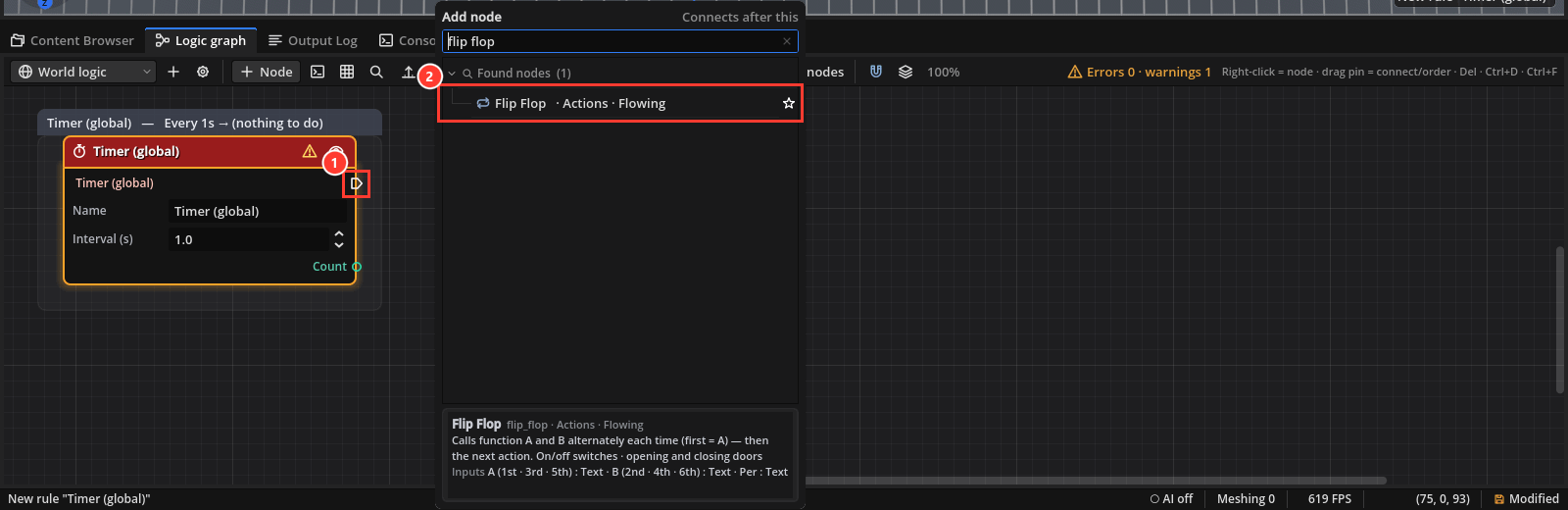
-
Drag the yellow pin A (1st · 3rd · 5th) of the Flip Flop node and drop it on an empty spot. A new Function rule (
func_1) is created, and field A is set to that function. Connect the B (2nd · 4th · 6th) pin tofunc_2the same way.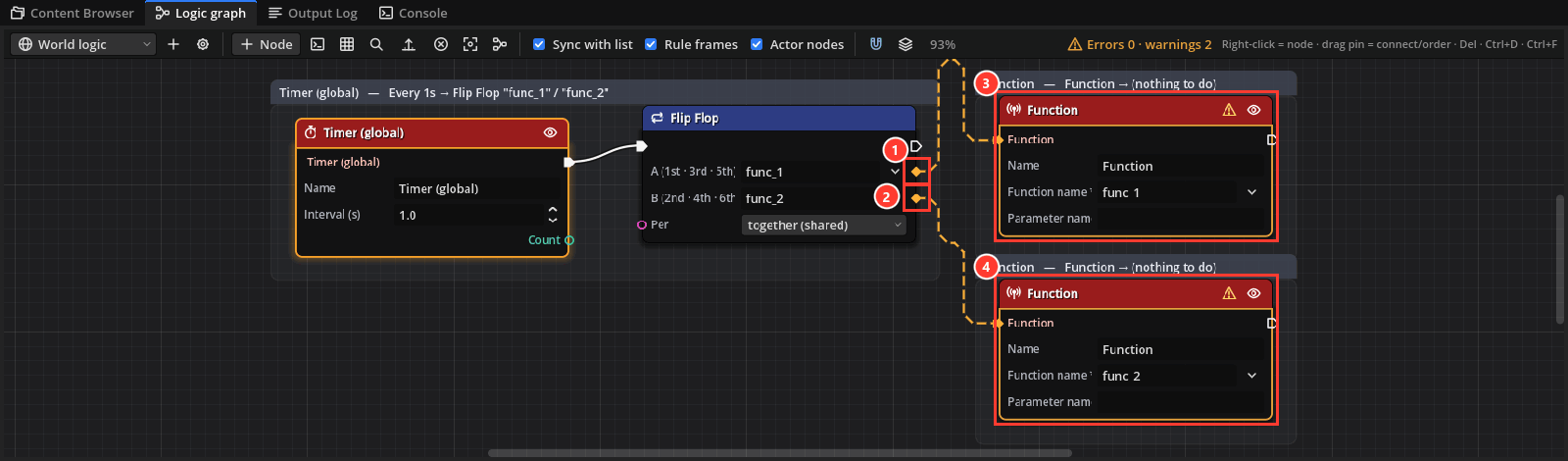
-
Drop the white exec pin of each function event on an empty spot to add a Chat message, and type
Door open(func_1) andDoor closed(func_2) in its Text field. Check passed appears on the right of the toolbar.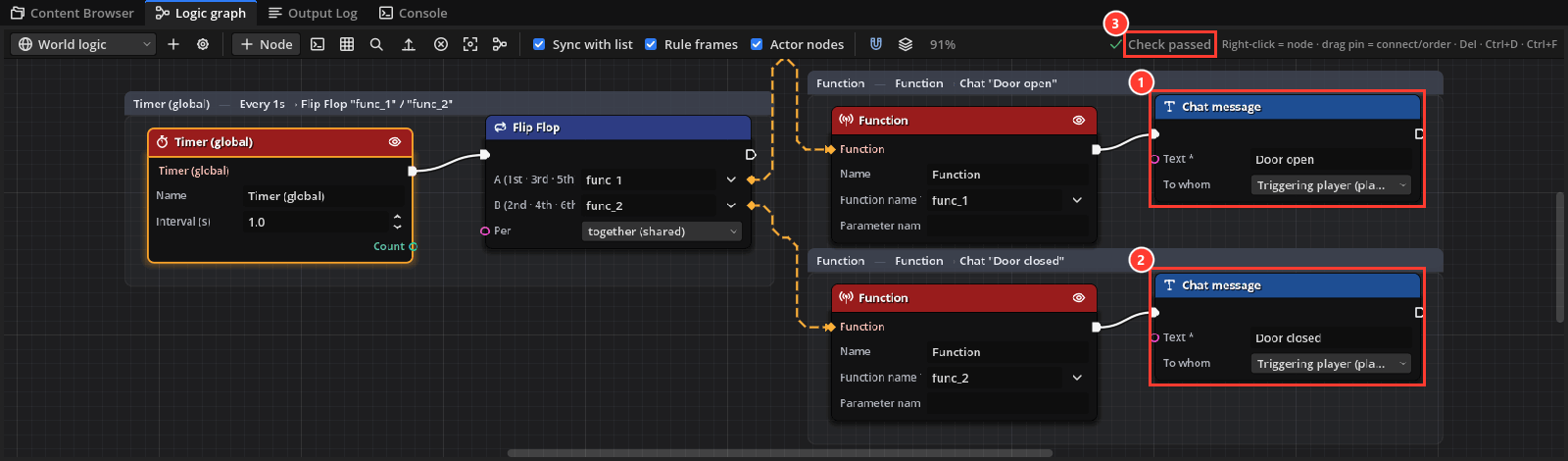
-
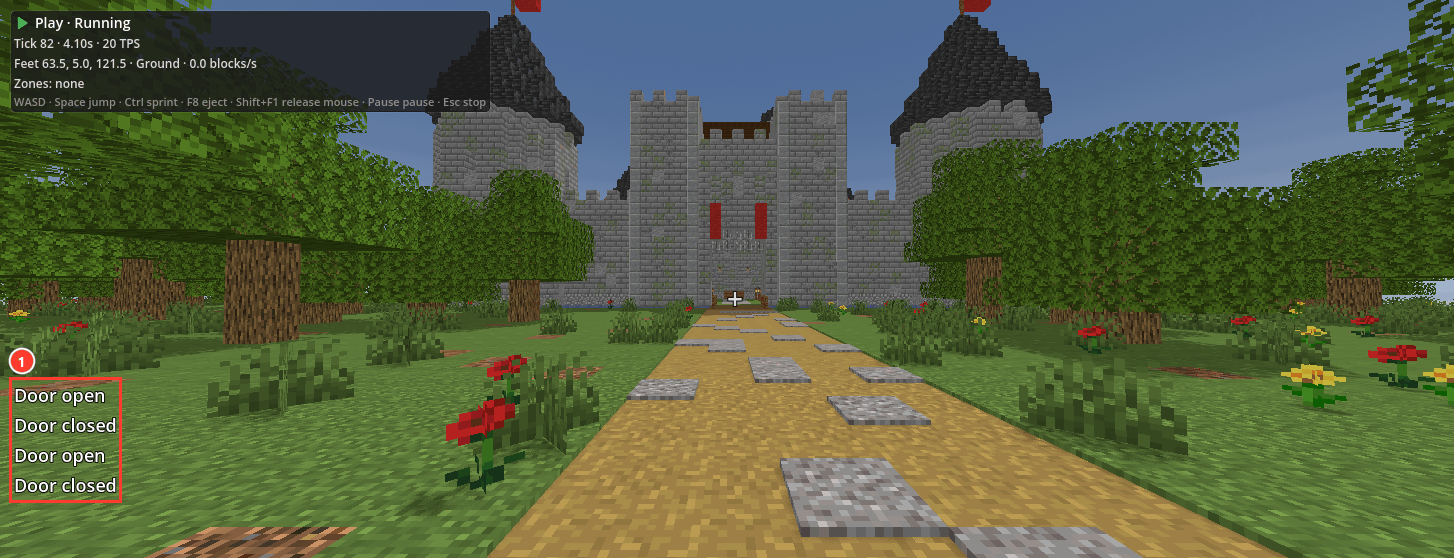
Click the ▶ (Play) button on the toolbar. “Door open” and “Door closed” alternate in the chat every second. Press Esc to stop.
Overlapping nodes
Section titled “Overlapping nodes”-
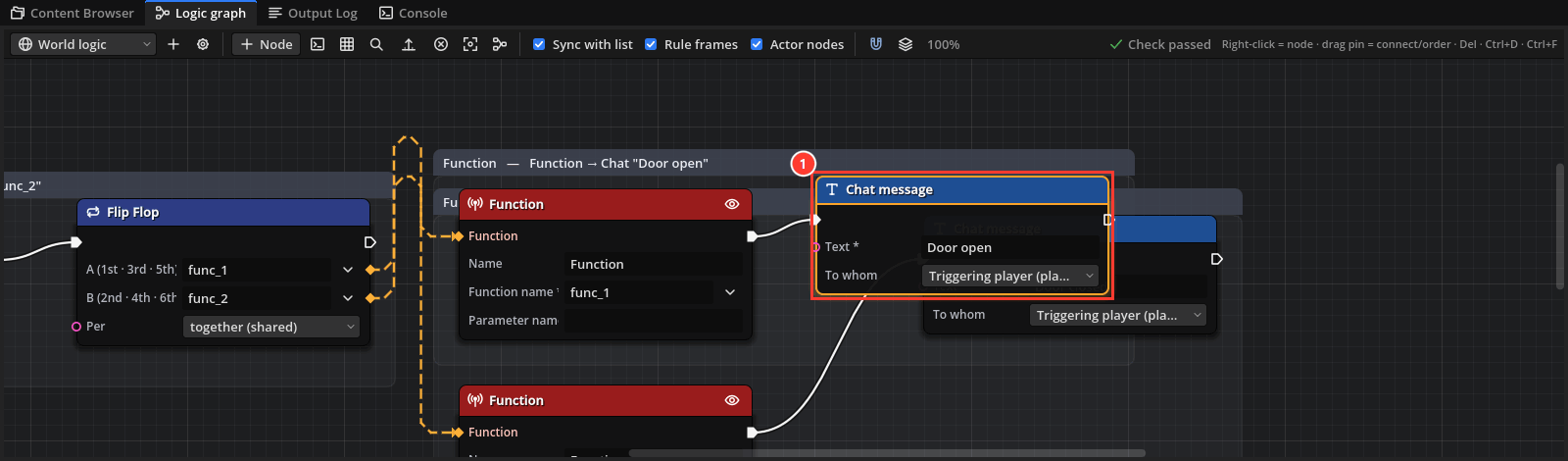
When you drag a node on top of another, the node drawn on top receives clicks, pins and drags in the overlapping area. Click the lower node to select it and bring it to the front. This order is kept when the graph is redrawn.
Insert before with the exec input pin
Section titled “Insert before with the exec input pin”-
Drag the exec input pin on the left of a condition or action node and drop it on an empty spot. The “Connects before this node” window shows only the nodes that can come before it. Type
do onceand click Do Once: it appears where you dropped the wire and connects directly before the Flip Flop node (one Ctrl+Z undoes it).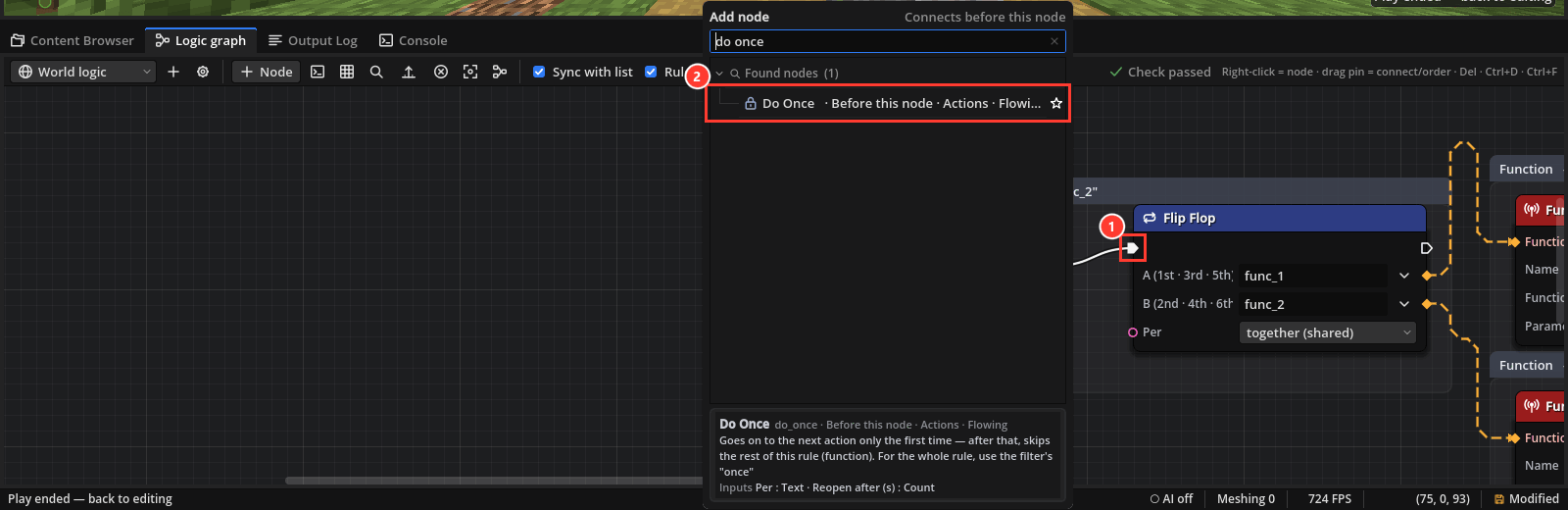
New flow nodes
Section titled “New flow nodes”-
From the exec pin of the “On start (scene start)” rule, add Do Once → Gate (pass condition) → Switch → Return (stop here) in order. Put an expression (
{time} > 1) in the If passed field and the value to compare in the Values field of the Switch node. Click + in Cases to add one more case (if equal n · → function to call) and one more yellow pin.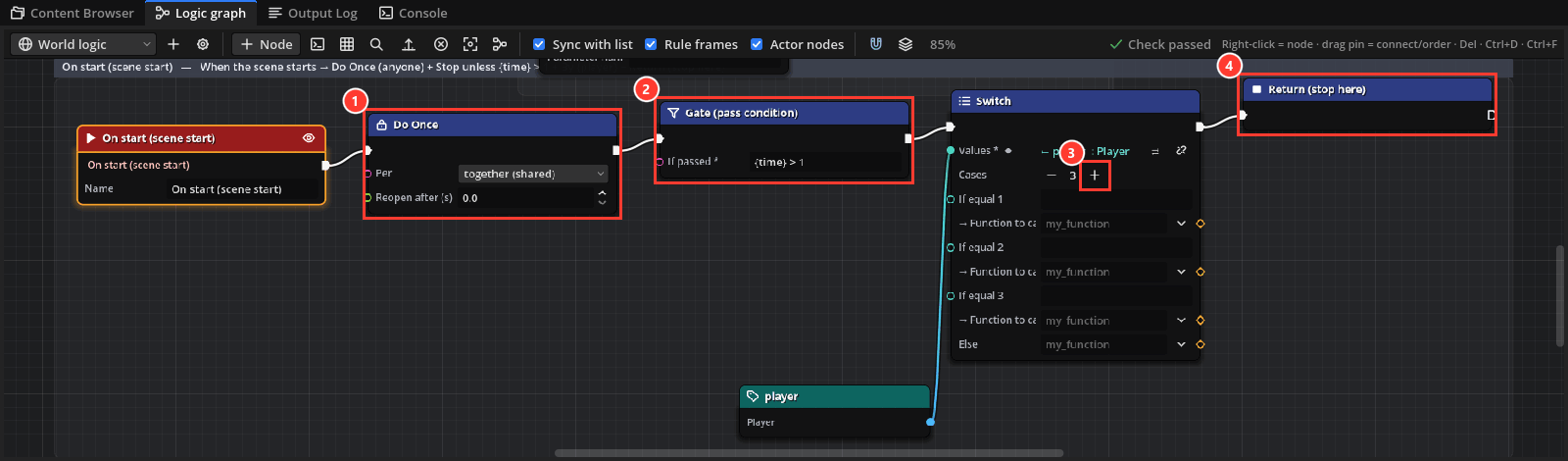
Find nodes
Section titled “Find nodes”-
Click the magnifier button (Find node) on the toolbar and type
closedin the search box. It searches the nodes of the current graph by name, type, field value and rule name. Click an entry to select that node and move it to the center of the view.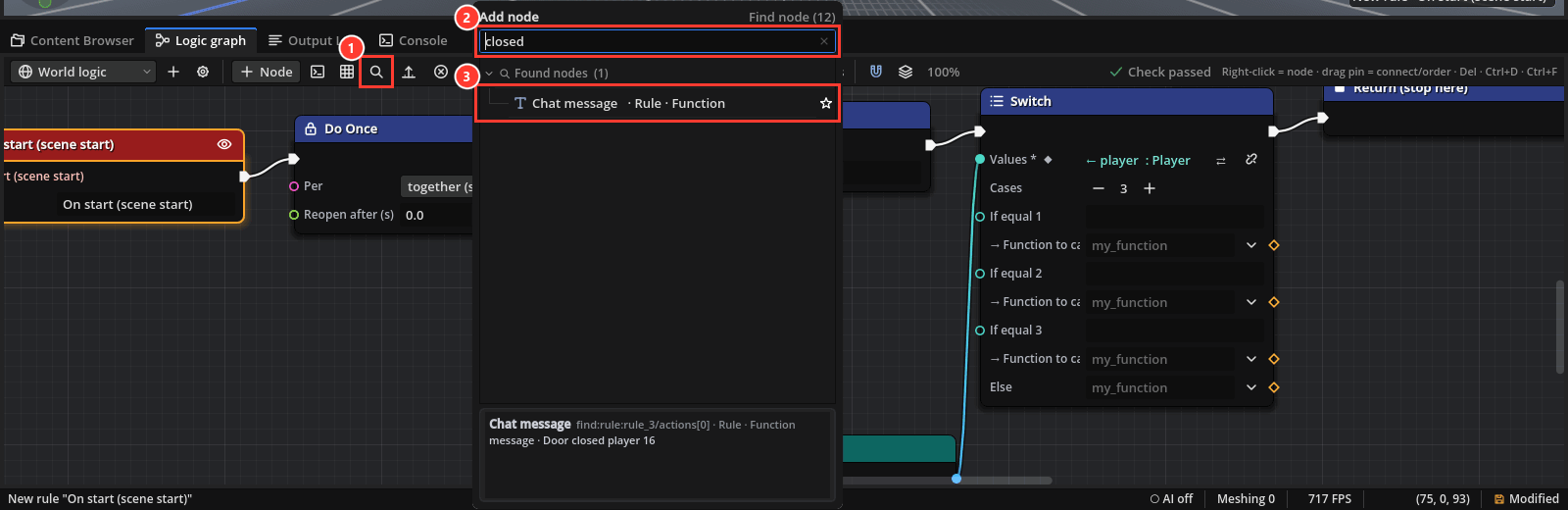
-
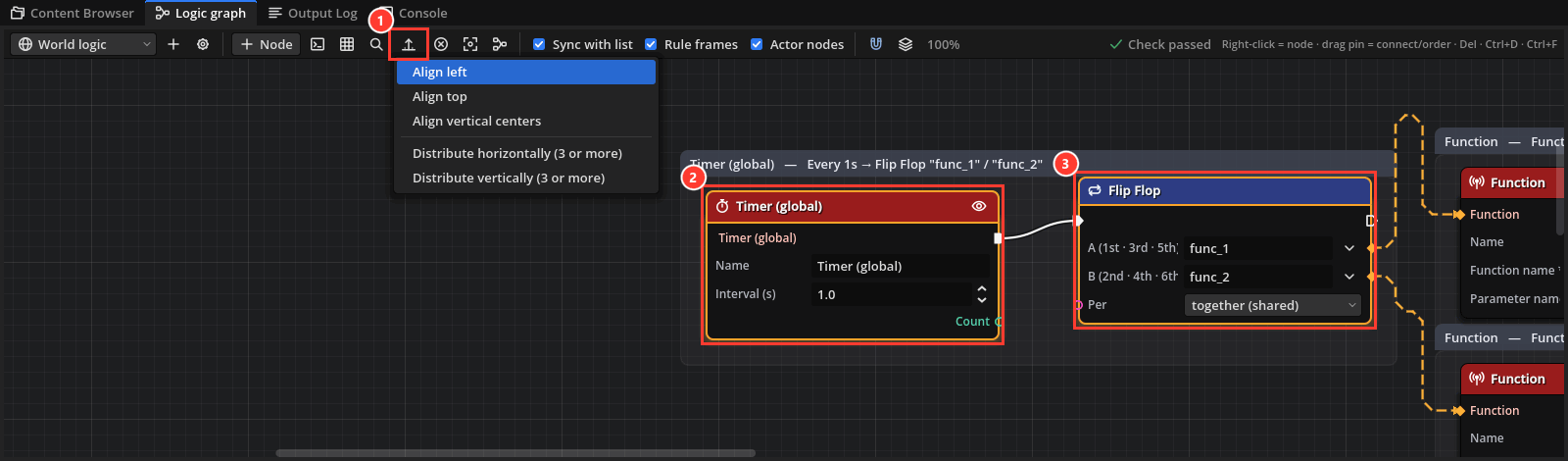
Select two or more nodes (drag a box from an empty spot), click the align button on the toolbar, then click Align top. The tops of the selected nodes line up (one undo step).
Adding actors to the graph
Section titled “Adding actors to the graph”-
Drag a scene actor row (for example
door_1) from the Outliner onto the graph. While you drag, “Drop: actor door_1 → variable · struct · property menu” appears beside the mouse. You can drop it anywhere: on a node, on a rule box, or on the minimap. -
A menu opens where you dropped. Click one of: an actor variable (“Actor variable door_1 = …”), a position variable (
…_pos), a block variable (…_block, for an actor that has a block), a struct (actor · position · block), “Get — one actor property”, “Break — all actor properties (multiple pins)”, or “Set — change an actor property”. The node you chose appears at that spot (one Ctrl+Z undoes it).
- For a row that cannot be dropped (folder, terrain, foliage, water, “Plain”, prop), the reason text shows while dragging, and dropping there shows the same text as a notice. Examples: “Folder ”…” can’t be used as a logic value — drag the actors inside one at a time” and “Props aren’t logic values (actors) — place it as a “display actor” first to use it”.
- If you drag several rows, the menu opens for the first scene actor only and the notice “Used the first of N actors (…) — drag them one at a time” appears.
- To add without dragging, select the actor in the Outliner and use one of the following. The same menu opens at the center of the graph (it opens the Logic graph tab if it is closed).
- Right-click the Outliner row and click Add to logic graph….
- Click Actor on the graph toolbar.
- Click Tools > Add selected actor to logic graph (Ctrl+Shift+L).
- You can drag and drop between windows even when the Outliner or the Logic graph is in a floating (operating system) window.
Tips and tricks
Section titled “Tips and tricks”- If you drag a node less than 5 px (times the UI scale) and release it, it counts as a click. The node stays where it is and nothing is saved.
- While dragging a node, press Esc to return it to where it started (nothing is saved). After you release it, one Ctrl+Z moves it back.
- With snap to grid on (the magnet button on the toolbar, on by default), the node you hold snaps to a 16-unit grid. Moving one node does not move the others.
- When you drop a value pin (circle) on an empty spot, Store in variable (Set variable) is at the top, followed by nodes that take the same type and nodes that take it with a conversion. The node you pick is inserted directly after that pin’s node, with the value wired in.
- Dropping a yellow function pin on an empty spot creates a new Function rule and connects it right away (step 5).
- Entries picked in the Find node window are not added to “Recently used” in the Add node window.
- Ctrl+F opens Find node even when only the graph is focused. In 0.11.0 the world shortcut F (Frame camera) took it first, so you had to use the magnifier button on the toolbar.
- Turn a rule off and on with the eye button in the header of its event node. A rule that is off is dimmed and does not run.
- Value nodes (Text operation · Math …) added by right-click or from an exec pin have an empty Result variable, which causes a check error. If you add them by dropping a value pin on an empty spot, the result variable (
t1·m1…) is filled in automatically.
Reference
Section titled “Reference”Nodes and pins
Section titled “Nodes and pins”| Node | Header color | Meaning |
|---|---|---|
| Event | Red | Start of a rule. Its header has the name and the enable (eye) button |
| Condition | Green | Continues when true (“If true” on the right) |
| Action | Blue · a color per category | What the rule does |
| Actor reference | Purple | One scene actor — wire it to an actor field |
| Not connected | Gray | A node not attached to a rule (not saved) |
| Pin | Shape | Connects |
|---|---|---|
| Exec pin | White pentagon | Execution order (event → conditions → actions) |
| Function pin | Yellow diamond | An action that calls a function (Call function · Flip Flop · Switch …) → a “Function” rule. One function per pin |
| Value pin | Circle, colored by type | Node results · event data → fields |
Lists that open when you drop a pin on an empty spot
Section titled “Lists that open when you drop a pin on an empty spot”| Dropped pin | List | When you pick |
|---|---|---|
| Exec output pin | “Connects after this” — the conditions and actions that can come after it (no conditions after an action) | Created where you dropped and connected after that node. The following nodes are not pushed aside |
| Exec input pin | “Connects before this node” — the nodes that can come before it. For an unconnected node, a new event | Inserted directly before that node |
| Value output pin | Nodes that can take that value | Inserted directly after it, with the value wire connected |
| Value input pin (field) | This rule’s values · nodes that output a value · variables | Inserted directly before it and connected |
| Actor reference pin | Nodes that take that actor (type) | Added to the end of that rule’s chain, with the actor field filled in |
| Yellow function pin | (no list) | Creates a new function rule and connects it |
New nodes in 0.10.2
Section titled “New nodes in 0.10.2”| Node | type | Action |
|---|---|---|
| Gate (pass condition) | gate | If the expression is true, goes on to the next action; if false, skips the remaining actions of this rule (function). It is a condition placed between actions. |
| Return (stop here) | stop | Skips the remaining actions of this rule (function). Inside a function, goes on to the caller’s next action. |
| Do Once | do_once | Goes on to the next action only the first time. Per = everyone together (shared) · each player (each). If Reopen after (s) > 0, it opens once more after that many seconds. |
| Flip Flop | flip_flop | Calls functions A and B alternately each time it is reached (first = A). |
| Switch | switch | Calls the function of the first case equal to Values. Cases 1–8, Else if none match. Numbers are compared as numbers (1 = 1.0). |
| Math function (Math node · expression fields) | Example | Result |
|---|---|---|
inverse_lerp(a, b, x) — where x lies between a and b (0–1) | inverse_lerp(0, 10, 5) | 0.5 |
wrap(x, low, high) — wraps around to the other end when out of range | wrap(370, 0, 360) | 10 |
snap(x, step) — the nearest multiple of the step | snap(7, 5) | 5 |
NPBridge 2.0.8
Section titled “NPBridge 2.0.8”Logic that contains the new flow nodes (gate · stop · do_once · flip_flop · switch) or the new math functions needs the server plugin NPBridge 2.0.8 or later. An older server skips nodes it does not know, so actions that should be blocked may still run.
- Live connection and server deployment: if the server is older than 2.0.8 or does not report its version, the logic is not uploaded and a notice such as “The server’s NPBridge … does not know the new nodes (…), so the logic was not uploaded — …” appears — Server connection (live).
- Export to file: it is not blocked, but the warning “scene: this logic needs NPBridge 2.0.8 or later on the server (…)” is logged, and the rule’s JSON gets
min_bridge(minimum version) andstop_unknown(the actions at which a server that does not know them stops) — Export and import. - The server plugin in the 0.11.1 installer is NPBridge 2.4.0 (the new flow nodes run on 2.0.8 or later) — Installing NPBridge (server admins).
New triggers, new conditions, and 2.4.0
Section titled “New triggers, new conditions, and 2.4.0”- Rules with the new triggers of 0.11.0 (commands, chat, player events) carry
min_bridge: "2.4.0". Servers 2.3.0 and earlier skip those rules. Live sync is not blocked; the editor reports the skip in the Server window. - If you put the new condition Text compare into a rule with an older trigger, live sync and scene deploy to a server older than 2.4.0 (2.3.0 included) are blocked (the older server does not know the condition, so the rule would not run).
- These triggers and conditions run when the game server has NPBridge 2.4.0 or later (the version in the 0.11.1 installer) — World logic.
Toolbar
Section titled “Toolbar”| Button · field | Action |
|---|---|
| World logic list · + · ⚙ | Pick the logic to edit (world logic · actor logic) · new actor logic · show the details area |
| Node | Add node window (same as right-clicking an empty spot) |
| Actor | A variable · struct · property node menu for the actor selected in the Outliner (same as drag and drop, Ctrl+Shift+L) |
| Code button | Opens the current logic as C#-style code (same as double-clicking a node) |
| Grid button | Auto layout — clears the saved node positions and lays out one row per rule |
| Magnifier button | Find node |
| Align button | Align left · Align top · Align vertical centers · Distribute horizontally (3 or more) · Distribute vertically (3 or more) |
| Breakpoint button | Breakpoint (F9) on the selected action node — stops before that action during Play |
| Frame all | Fits all nodes in view |
| Sync with list · Rule frames · Actor nodes | Sync the selected rule with the World logic list · a comment frame per rule · an actor reference node per actor field (all on by default) |
| Magnet · minimap buttons · zoom | Snap to grid (16) · minimap · current zoom (25%–200%) |
| Check passed · “Errors n · warnings n” | Check result of the current logic |
Shortcuts
Section titled “Shortcuts”| Shortcut | Action |
|---|---|
| Right-click (empty spot) | Add node window |
| Delete | Delete the selected nodes (event = the whole rule) |
| Ctrl+D | Duplicate the selected nodes |
| Ctrl+C · Ctrl+V | Copy · paste nodes |
| F9 | Toggle breakpoint (graph focused) |
| Ctrl+F | Find node (while typing in a node’s text field — see Tips and tricks) |
| Esc (while dragging a node) | Back to where it started |
| Ctrl+drag (node) | Invert grid snap while dragging |
| Ctrl+wheel · wheel | Zoom in · out · pan the graph |
| Ctrl+Z | Undo (all graph edits) |
| Ctrl+Shift+L | Add the selected actor to the logic graph (the drop menu at the center of the graph) |
| Drag an Outliner row onto the graph | The variable · struct · property menu (at the drop spot) |
Related pages
Section titled “Related pages”Not an official Minecraft product. Not approved by or associated with Mojang or Microsoft.