
Markers, load budget and snapshots
Overview
Section titled “Overview”These are three tools to use before you put a map on the server. Markers are server point markers such as spawns, NPC spots, regions and warps; they are not blocks. The load budget counts block entities, props, light sources and flowing water in each chunk to show the load on the server. A snapshot is a named save point that you use to compare with the current world or to restore only the changed cells.
Basic use
Section titled “Basic use”This walkthrough uses a copy of the example world castle.
Markers
Section titled “Markers”-
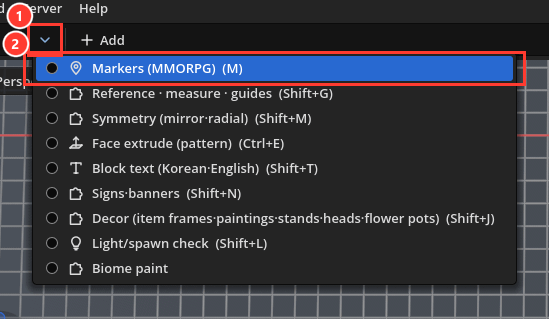
Click the ▾ button at the end of the toolbar’s mode row (tooltip More modes) and select Markers (MMORPG). The Tools panel on the left turns into the marker panel.
-
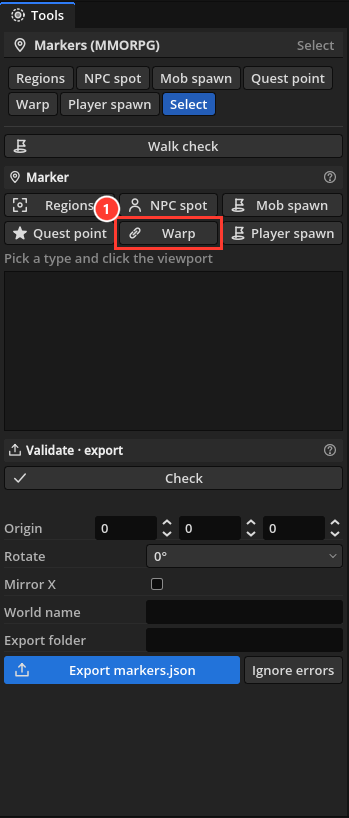
Click Warp among the type buttons of the marker panel.
-
In the viewport, click the top face of the block where you want the marker. The warp marker
warp_1is created and selected, and the Properties section appears in the panel.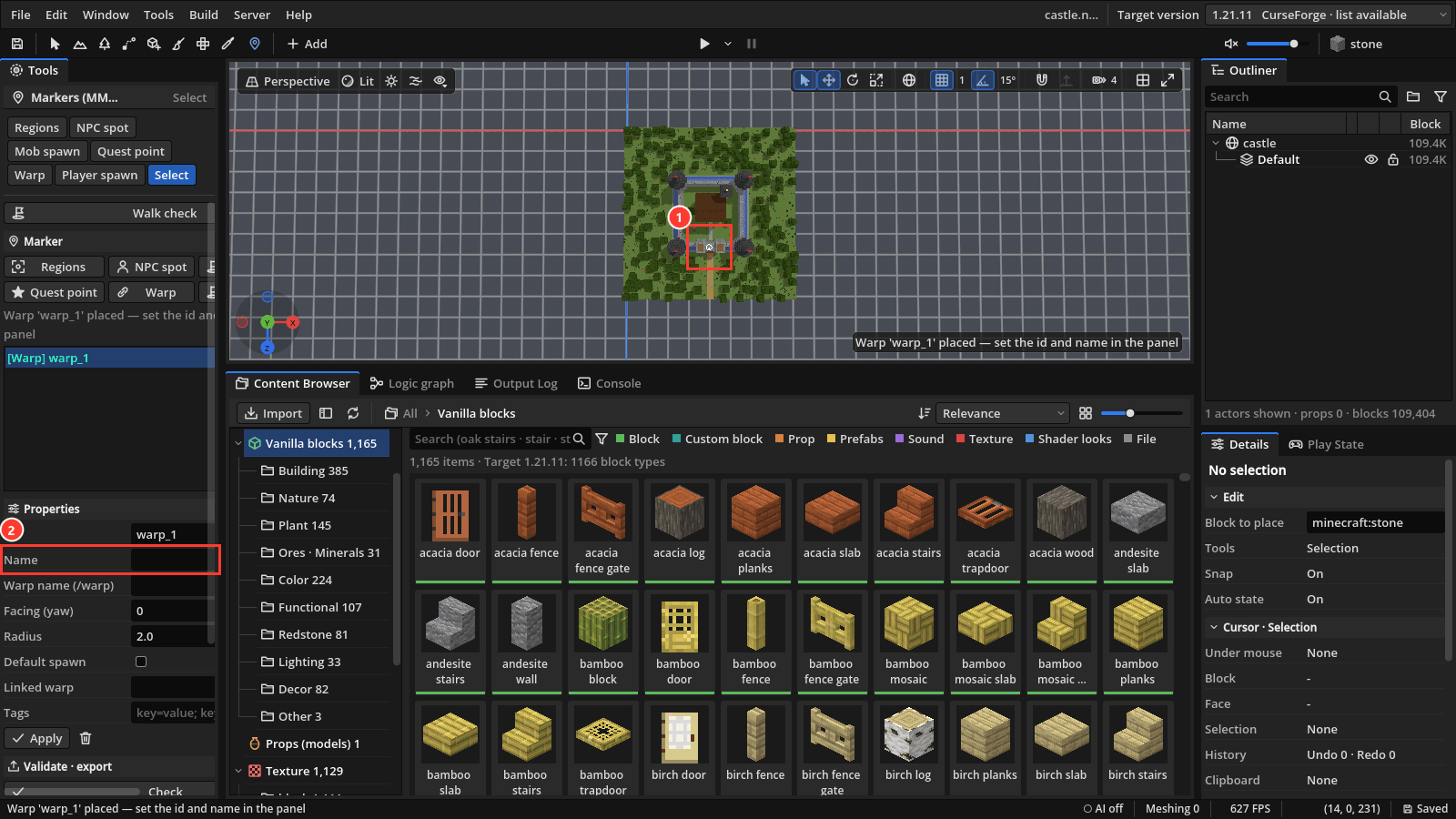
-
Type
Castle gatein the Name field andgatein the Warp name (/warp) field, then click Apply.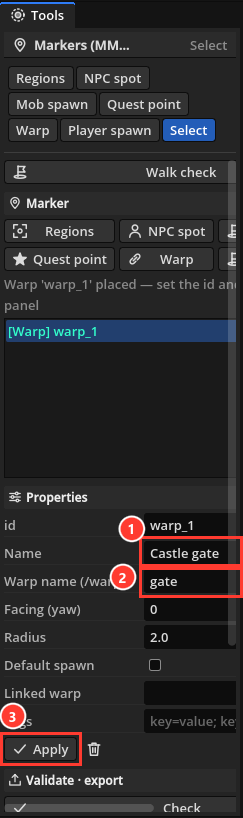
-
Click Check. If no values are missing, “No problems” appears.
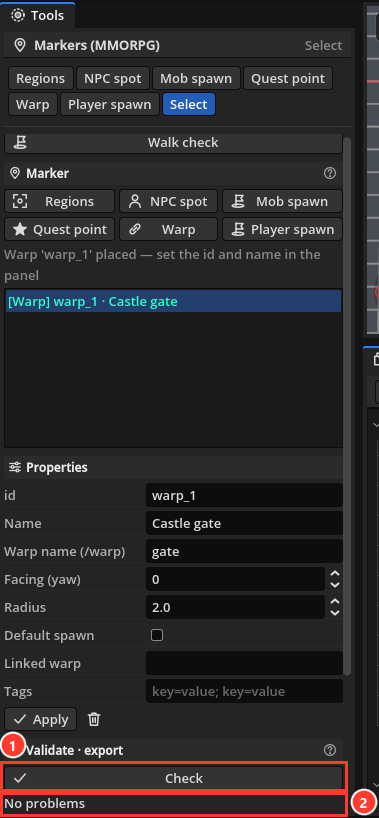
-
Click the Build menu, then click “Export: markers.json (server markers)”.
<project>/export/castle_markers.jsonis created.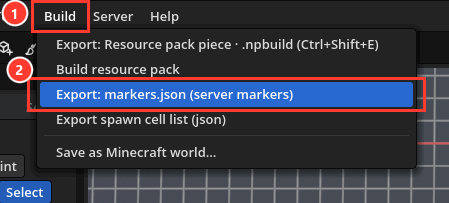
Load budget
Section titled “Load budget”-
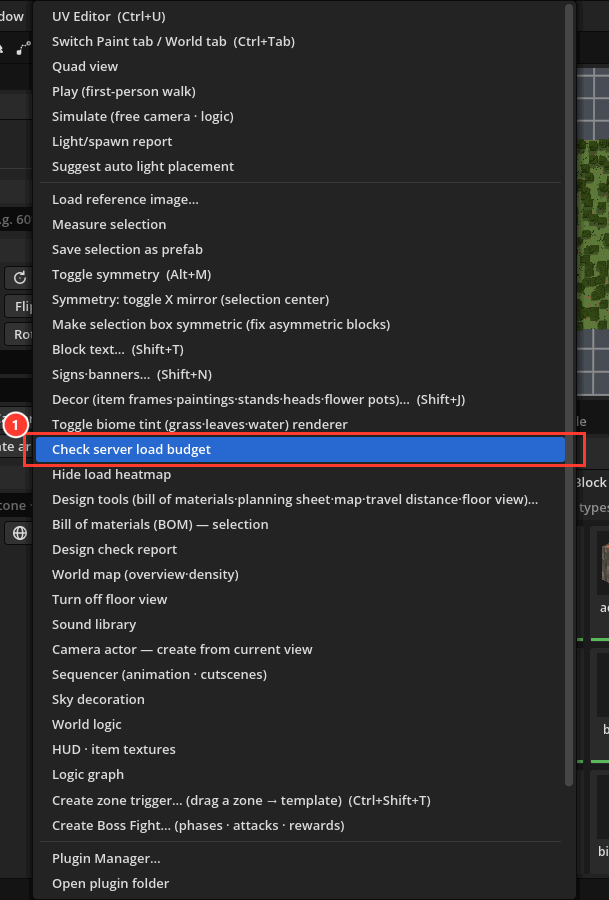
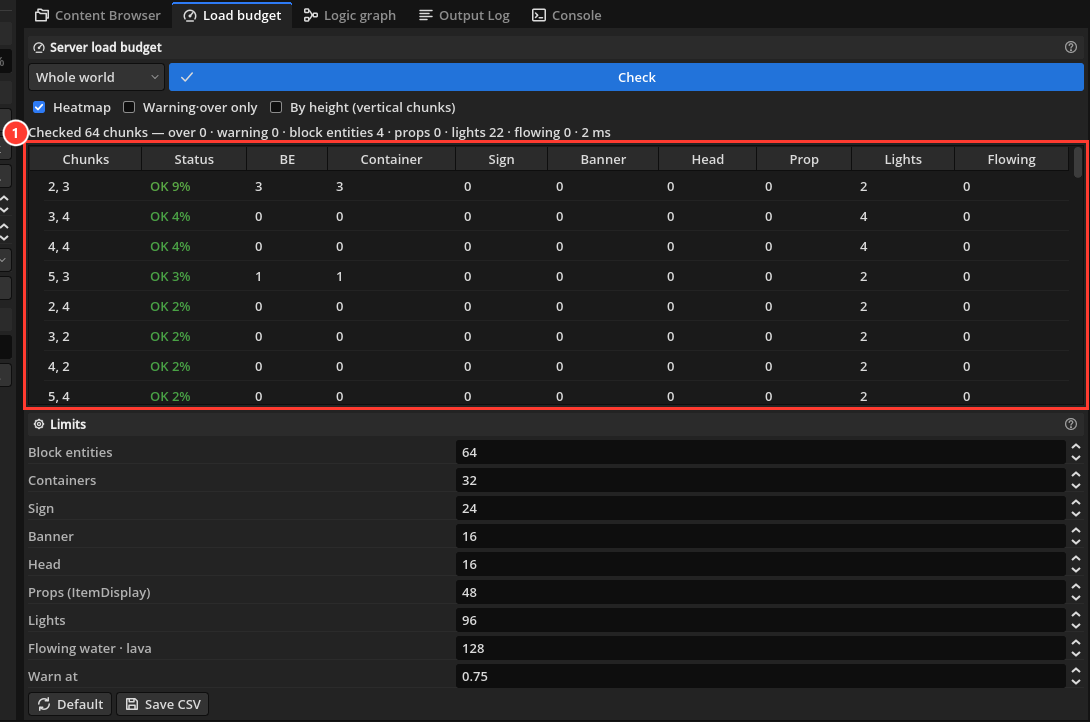
Click Tools > Check server load budget. The whole world is counted, and a colored tile (heatmap) appears over each chunk in the viewport. The notification reads “Checked 64 chunks — over 0 · warning 0 · …”.
-
Click Window > Load budget to open the panel. The table lists each chunk’s status (OK, Warning or Over, with the ratio) and the count per item, heaviest first.
-
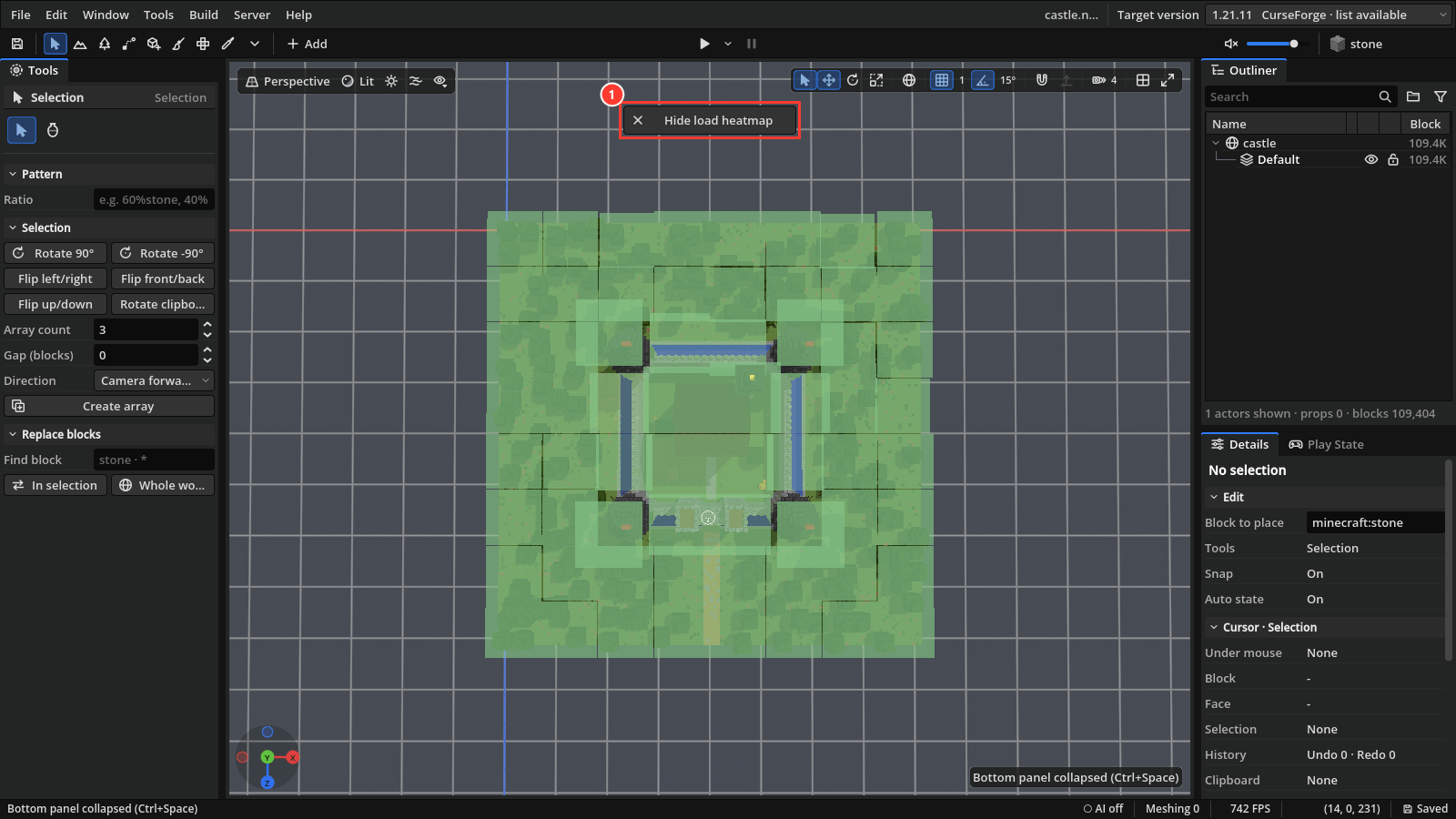
Press Ctrl+Space to collapse the bottom area. The viewport shows the heatmap (heavier from green → yellow → orange → red) and the Hide load heatmap button at the top.
-
Click Hide load heatmap, then press Ctrl+Space to expand the bottom area again.
Snapshots
Section titled “Snapshots”-
Click Window > Snapshots, type
baselinein the Name field, then click Save all. Abaselinesnapshot with a thumbnail appears in the list (in thecastle.snapshotsfolder next to the world file).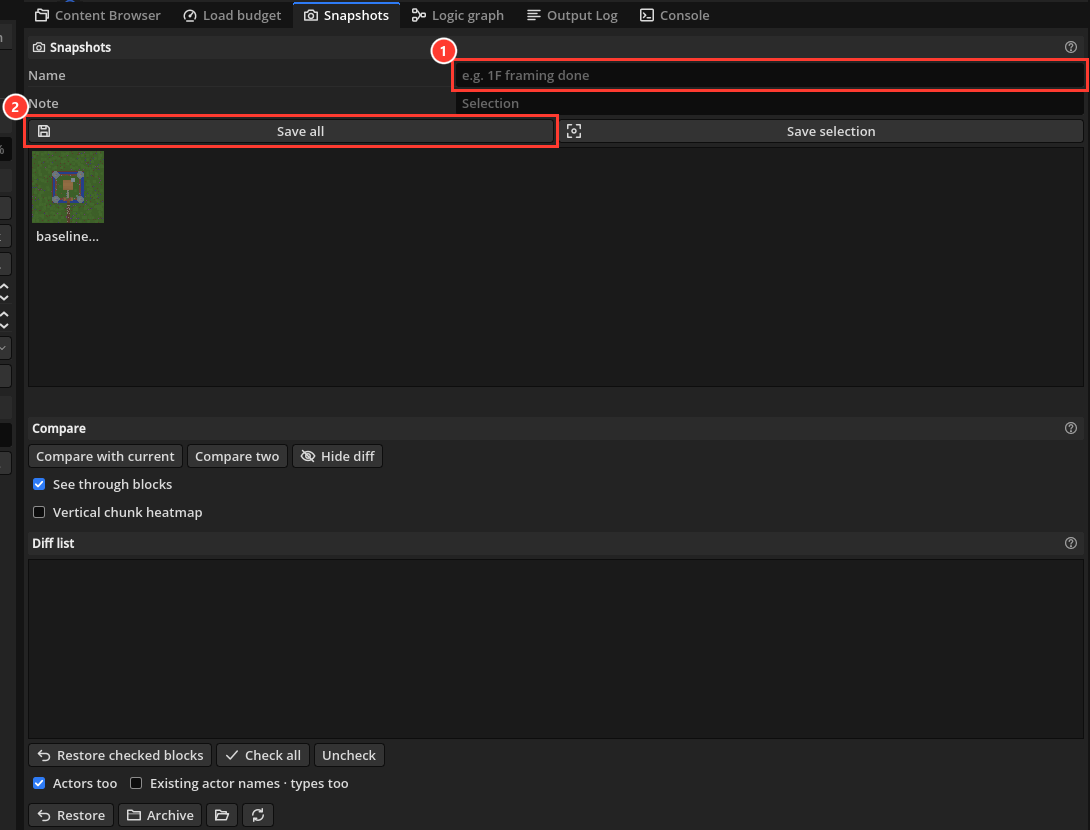
-
Change the world (in this example, 81 gold blocks are placed).
-
Click
baselinein the list, then click Compare with current. The notification “baseline → Now: Added 81 · removed 0 · changed 0 blocks” appears, and the changed chunks show in the Diff list. The camera moves to the changed area.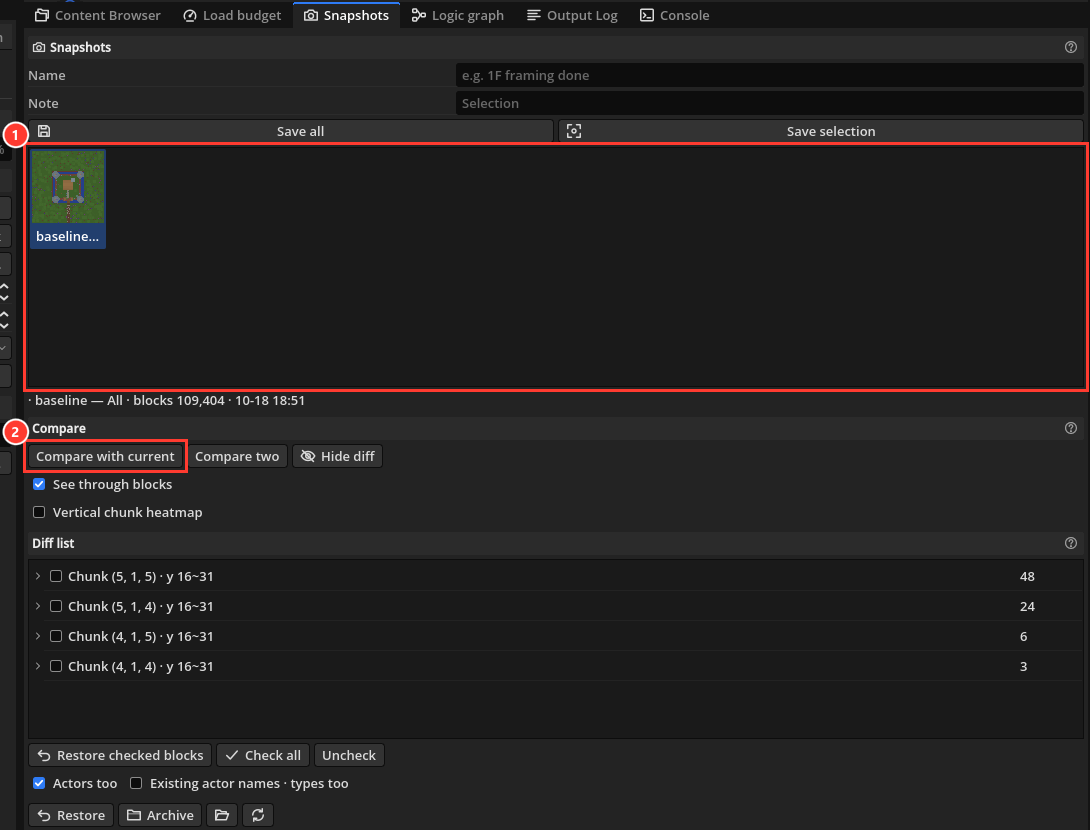
-
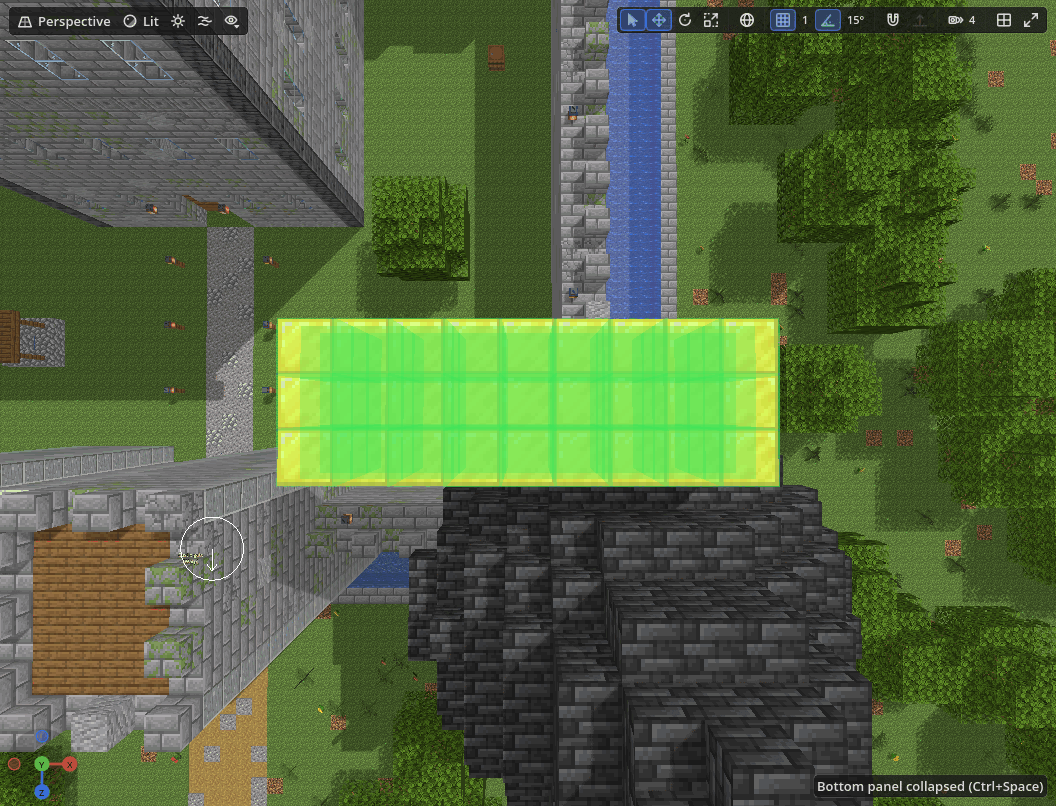
Press Ctrl+Space to collapse the bottom area and see the differences in the viewport. Green = added, red = removed, yellow = changed.
-
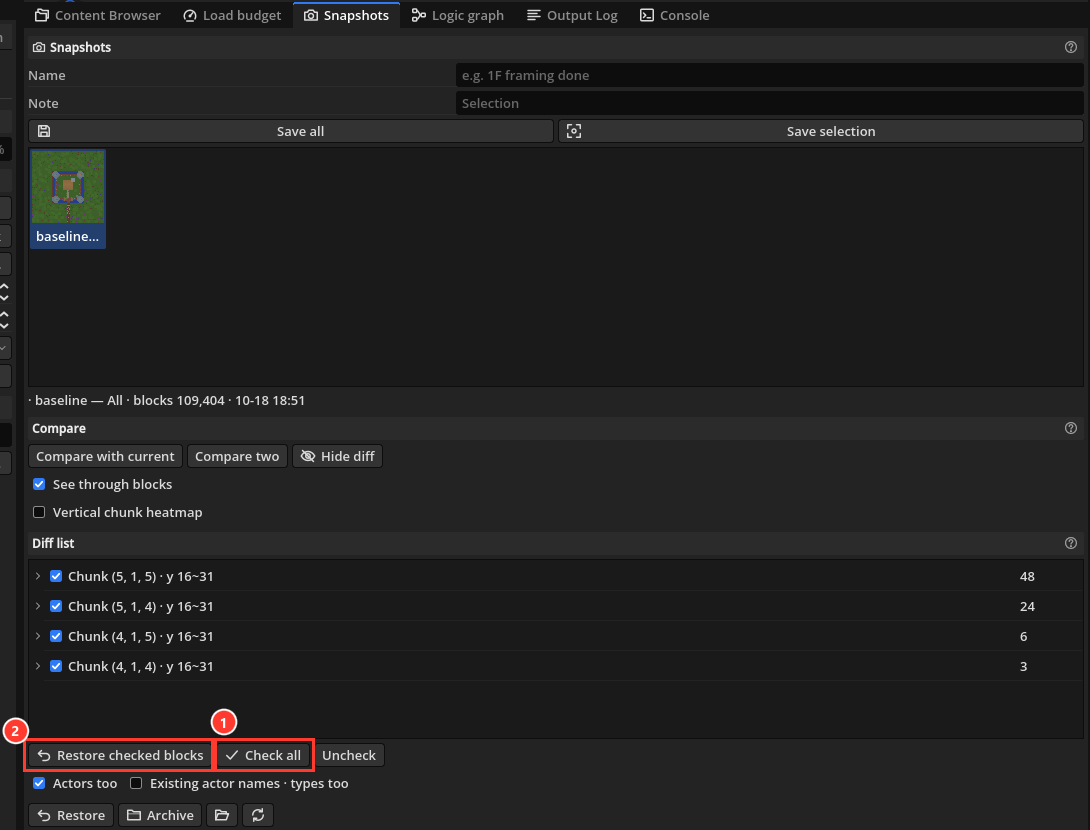
Press Ctrl+Space to expand the bottom area again, click Check all under the Diff list, then click Restore checked blocks. The checked cells return to the snapshot state (the block count matches the original again).
Tips and tricks
Section titled “Tips and tricks”- Press M to enter marker mode directly (no need to open ▾ More modes).
- There are two ways to write markers.json: “Export: markers.json (server markers)” in the Build menu =
<project>/export/<world>_markers.json(no folder to fill in), or type a folder in Export folder in the marker panel and click Export markers.json =<that folder>/markers.json. - The Load budget and Snapshots panels are tall and almost cover the viewport in a 1600×900 window. After reading the table, collapse and expand the bottom area with Ctrl+Space to switch to the viewport without closing the panel.
- After comparing a snapshot, use Restore checked blocks to restore only the chunks you need. Use Restore (with a confirmation dialog) only when you want to restore everything.
Reference
Section titled “Reference”Where to open
Section titled “Where to open”| What | Where |
|---|---|
| Marker mode | Toolbar ▾ More modes > Markers (MMORPG) · M |
| markers.json | Build menu “Export: markers.json (server markers)” · Export markers.json in the marker panel |
| Load budget check | Tools > Check server load budget (does not open the panel) |
| Load budget panel | Window > Load budget |
| Hide the heatmap | Hide load heatmap above the viewport · Tools > Hide load heatmap |
| Snapshots panel | Window > Snapshots |
| Quick snapshot | File > Quick snapshot (all) (Ctrl+Alt+S) |
| Clear the diff display | Edit > Hide snapshot diff |
Marker types and properties
Section titled “Marker types and properties”| Type | Shape | Main properties |
|---|---|---|
| Regions | Area (polygon prism) | Region type (town · hunting ground · dungeon · safe zone · field · custom; default field) · Min level · Max level · PvP · BGM · Priority · Bottom Y · Top Y |
| NPC spot | Point | NPC id |
| Mob spawn | Area | Mob id (MythicMobs, etc.) · Mob count (default 1) · Respawn (s) (default 30) · Bottom Y · Top Y |
| Quest point | Point | Quest id |
| Warp | Point | Warp name (/warp) · Linked warp |
| Player spawn | Point | Default spawn |
- Every marker has an id, Name and Tags (
key=value; key=value), and point markers also have Facing (yaw), Radius (default 2) and Default spawn fields. Properties appears only while a marker is selected. - For area markers (region · mob spawn), click the vertices in order and close the shape with Enter.
- Walk check at the top of the panel shows how far players can walk from the player spawn.
- The Validate · export group: Check · Origin (X · Y · Z) · Rotate (0° · 90° · 180° · 270°) · Mirror X · World name · Export folder · Export markers.json · Ignore errors (a button that exports right away even with errors). Server coordinates = editor coordinates → mirror → rotate → + origin.
- Broader checks (overlapping regions · mob spawns inside safe zones · naming rules) are in Checks · design sheet in Design tools.
Load budget limits (defaults per chunk)
Section titled “Load budget limits (defaults per chunk)”| Field | What | Default |
|---|---|---|
| Block entities | Containers · signs · banners · heads + beds · beacons · spawners, etc. | 64 |
| Containers | Chests · barrels · shulker boxes · hoppers · furnaces · dispensers, etc. | 32 |
| Sign | Signs · wall signs · hanging signs | 24 |
| Banner | Banners · wall banners | 16 |
| Head | Heads · skulls | 16 |
| Props (ItemDisplay) | 1 editor prop = 1 server ItemDisplay | 48 |
| Lights | Blocks with a brightness above 0 | 96 |
| Flowing water · lava | Flowing water · lava | 128 |
- When the ratio of the worst item is at or above Warn at (default 0.75), the chunk is marked Warning; above 1, it is marked Over. Setting a limit to 0 skips that item. Default restores the default values.
- Top of the panel: range (Whole world · Selection; whole world when nothing is selected) · Check · Heatmap · Warning·over only (both the table and the heatmap) · By height (vertical chunks). Bottom: Save CSV.
- Load budget check in the export window (on by default) asks before exporting when chunks are over the limit, and turns on the heatmap (Export and import).
- You can also turn on the heatmap with Load heatmap in the plugin group of the View mode menu.
Snapshots panel
Section titled “Snapshots panel”| Button · field | Action |
|---|---|
| Name · Note | Snapshot name (empty = “Snapshot N”) · description |
| Save all · Save selection | Creates a save point. File = <world>.snapshots/<time>_<name>.npsnap next to the world file |
| Compare with current | Differences from the selected snapshot → the current world. Double-clicking it in the list does the same. |
| Compare two | Select two with Ctrl+click to compare the earlier one → the later one |
| Hide diff | Clears the diff display. |
| See through blocks · Vertical chunk heatmap | On by default · off by default |
| Diff list | A check box for each chunk and cell. Check all · Uncheck · Restore checked blocks |
| Actors too · Existing actor names · types too | Also restore actors (on by default · off by default) |
| Restore | Restores everything to the selected snapshot state (a selection snapshot restores only its range; with a confirmation dialog) |
| Archive | Removes it from the list and moves it to the _보관 folder (nothing is deleted). |
| Icon buttons | Open folder · Rescan |
- A single Ctrl+Z undoes a restore. A restore of more than 500,000 cells shows progress and a cancel option.
- Cells locked by co-building are skipped when restoring.
Shortcuts
Section titled “Shortcuts”| Shortcut | Action |
|---|---|
| M | Marker mode |
| Enter · Backspace · Esc | Close an area marker · cancel the last vertex · stop placing |
| Arrow keys · PgUp · PgDn | Move the selected marker 1 block in X · Z · up and down (marker mode) |
| R · Shift+R | Rotate the selected marker 45° · the other way |
| Delete | Delete the selected marker |
| Ctrl+Z · Ctrl+Y | Undo · redo markers (in marker mode, or when the last change was a marker) |
| Ctrl+Alt+S | Quick snapshot (all) |
| Ctrl+Space | Collapse or expand the bottom area |
Related pages
Section titled “Related pages”Not an official Minecraft product. Not approved by or associated with Mojang or Microsoft.