
Tutorial "Mulgyeol" part 4 — Plaza group dance
Overview
Section titled “Overview”When you step onto the stage in the middle of the village plaza, 30 dancers in the same outfit surround it in three rings and dance in time for 30 seconds. The camera changes four times to show the stand-in for the protagonist standing still in the middle and the surrounding dance from several angles. At the end everyone bows together, and a fade returns you to the player’s view. After the dance ends, the dancers do not freeze but go on with an idle motion. No music is added.
| What you do | Where | What you build |
|---|---|---|
| Place the dancers | Viewport · Details | 8 dancers in the inner ring (the 22 in the outer two rings are in the starting file) |
| Make them dance | Sequencer | One Model anim track per dancer (idle_a → dance → bow) + a Visible track for the stand-in |
| Idle motion | Sequencer | One idle track per dancer in the sequence “Plaza idle” |
| Play it | World logic tab | 2 rules: on entering the stage, the group dance · when the group dance ends, back to idle |
There are 3 rings of dancers (inner 8 at radius 5 · middle 10 at radius 8 · outer 12 at radius 11). In this part you build the 8 in the inner ring from scratch. You can extend the outer rings the same way, and the starting file already has those 22.
The group dance sequence “Plaza group dance” (mg_dance) is 30 seconds long. The camera cuts are in the starting file and are as follows.
| Time (s) | Camera | What it shows |
|---|---|---|
| 0 | mg_cam_dance_1 | Slowly approaching the stage from the south |
| 7 | mg_cam_dance_2 (blend 0.7) | A low view going around the ring |
| 14 | mg_cam_dance_3 (blend 0.5) | Looking down on the three rings from above |
| 21 | mg_cam_dance_4 | From low on the south of the stage to behind the stand-in, through the bow |
| 29.3 | Player view | Returns with a fade |
Preparation: pictures 06 to 18 in this part (Sequencer · World logic) show the bottom area enlarged with the left and right areas collapsed by turning off the “Left area”, “Right top area”, and “Right bottom area” checks in the Window menu, and the pictures that type positions and rotations (03 to 04) show the right column widened. You can follow along without the same screen, but before steps 1 to 5, which use the outliner and Details, and before ▶ Play, turn the collapsed areas back on. If the right column is narrow, the front of a number in the Position fields looks cut off (148.5 shown as “48.5”), so drag the left border of the column to widen it.
A note on input fields: right after you type a value into a text or number field, editing shortcuts such as Ctrl+A and F, and in ▶ Play Shift, WASD, and the number keys, go into that field and do not work (during Play, Esc ends Play even when a field has focus). Put the mouse over the viewport and scroll the wheel one notch to leave the field before you continue (it is fine if the view moves a little).
This tutorial’s sample world uses Korean names. Type the Korean values given in code format exactly as shown, so your world matches the sample and the pictures; the English in parentheses is only a gloss.
Starting file for this part
Section titled “Starting file for this part”The starting file is samples\showcase\mulgyeol_start4.npworld (in the install folder, by default %LOCALAPPDATA%\Programs\NP Editor\samples\showcase\). Open it the same way as “Starting file for this part” in part 2. In Explorer, copy the whole samples\showcase folder under your own working folder (if you already copied it in an earlier part, use that folder), open mulgyeol_start4.npworld in that folder with File > Open…, and immediately save it in the same folder as mulgyeol_part4.npworld with File > Save As…, then start. The sky (assets\sky.np.json), the registry (assets\registry.json), and the models (models\) must be in the folder together for the sky and models to look like the pictures. Even if you have continued from part 3 with your own file, start from this file, because the village buildings, plaza, and stage exist only in this file. This file contains the results through part 3 and the following.
- The village buildings, the plaza, the stage, and the zone
mg_stage_zone(5×3×5, in the middle of the stage). - The 22 dancers of the outer two rings (
mg_dancer_09tomg_dancer_30) and the protagonist’s stand-inmg_hero. The stand-in has Visible at start turned off and a Model anim track (hero_stand→bow). - 4 cameras (
mg_cam_dance_1to4). - The sequences “Plaza group dance” (with the camera cuts, fades, and the tracks of the outer two rings of dancers) and “Plaza idle” (the idle tracks of the outer two rings of dancers).
- The rule
r_plaza_start(on start, plays “Plaza idle” to the whole world). - What is missing: the 8 inner-ring dancers and their tracks, the stand-in’s Visible track, and the rules
r_dance_startandr_dance_done. You build these yourself in this part.
Basic use
Section titled “Basic use”Place the 8 inner-ring dancers
Section titled “Place the 8 inner-ring dancers”-
Open the starting file and save it as
mulgyeol_part4.npworldin the same folder with File > Save As…. The notice “Saved: mulgyeol_part4.npworld” appears at the bottom of the screen.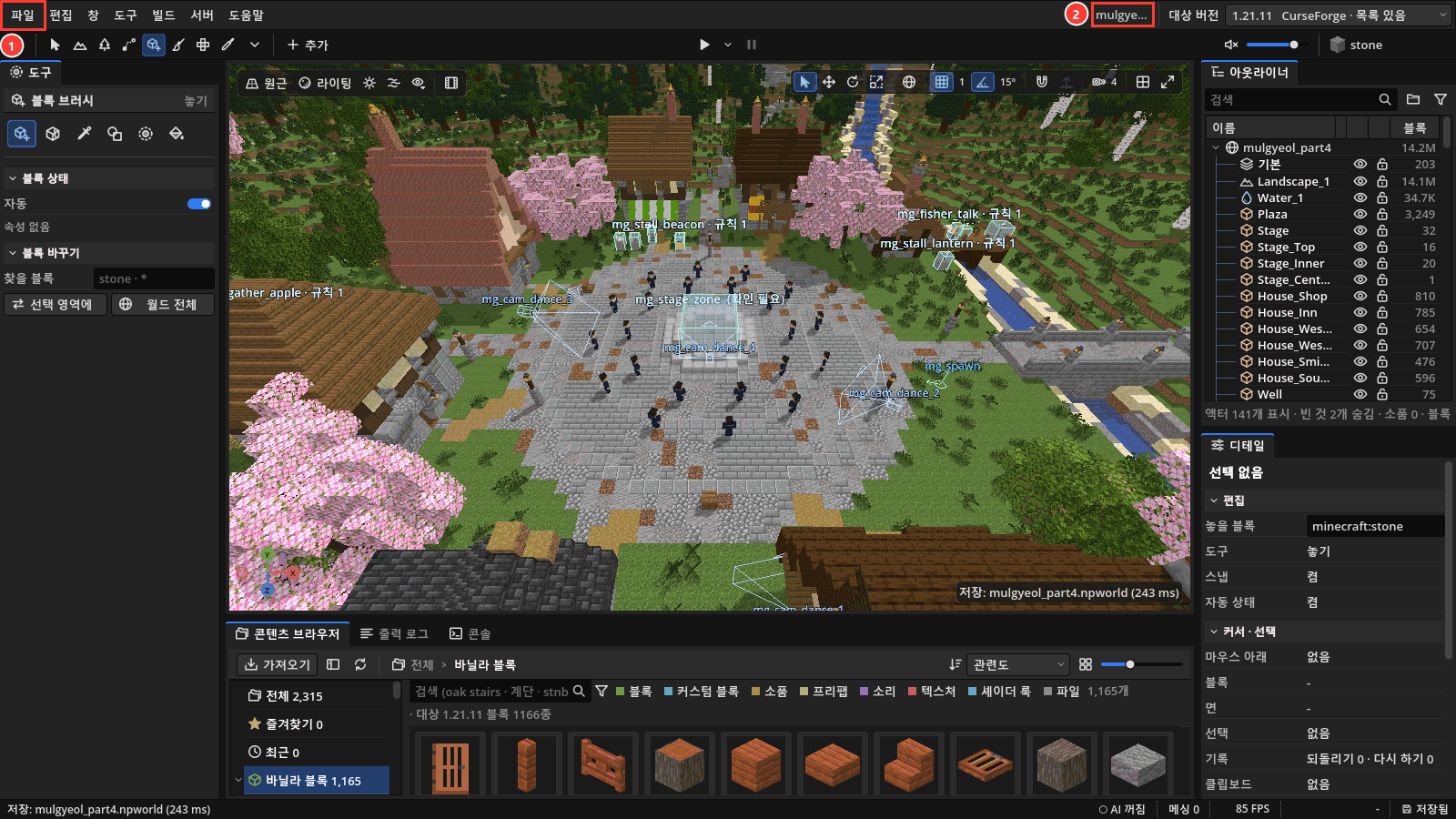
-
The shortest way to make the first dancer is to duplicate an outer-ring dancer. The model, size, and height come along. In the outliner, click
mg_dancer_09and press Ctrl+D. A new actormg_dancer_09_copyis created and selected.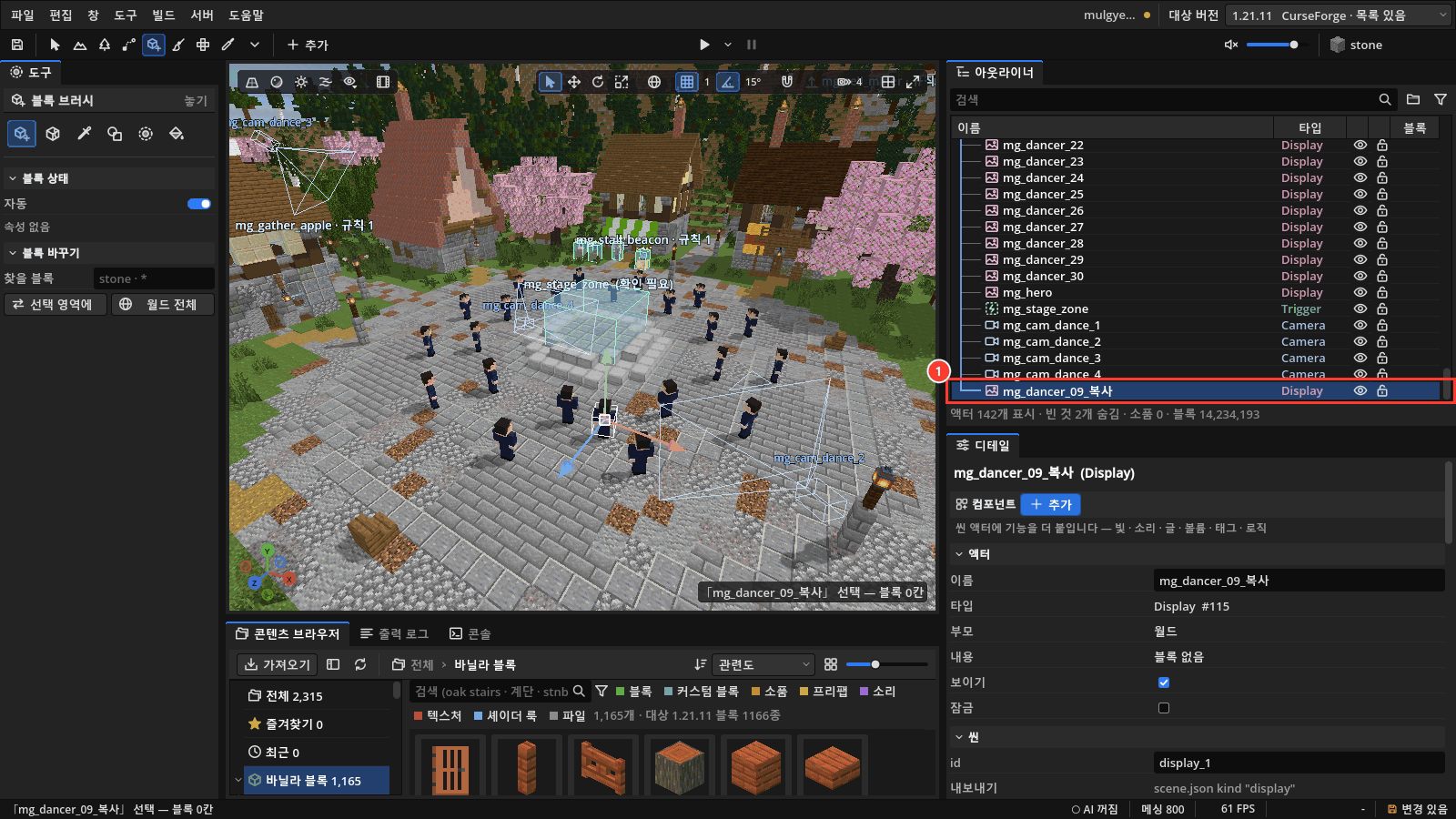
-
In Details, type
mg_dancer_01in Name andmg_dancer_01inidbelow (each with Enter). A duplicate gets a name like ”…_copy” and an automaticidsuch asdisplay_1, so change both. Write theidin English letters. The rules and sequences point to the actor by this id.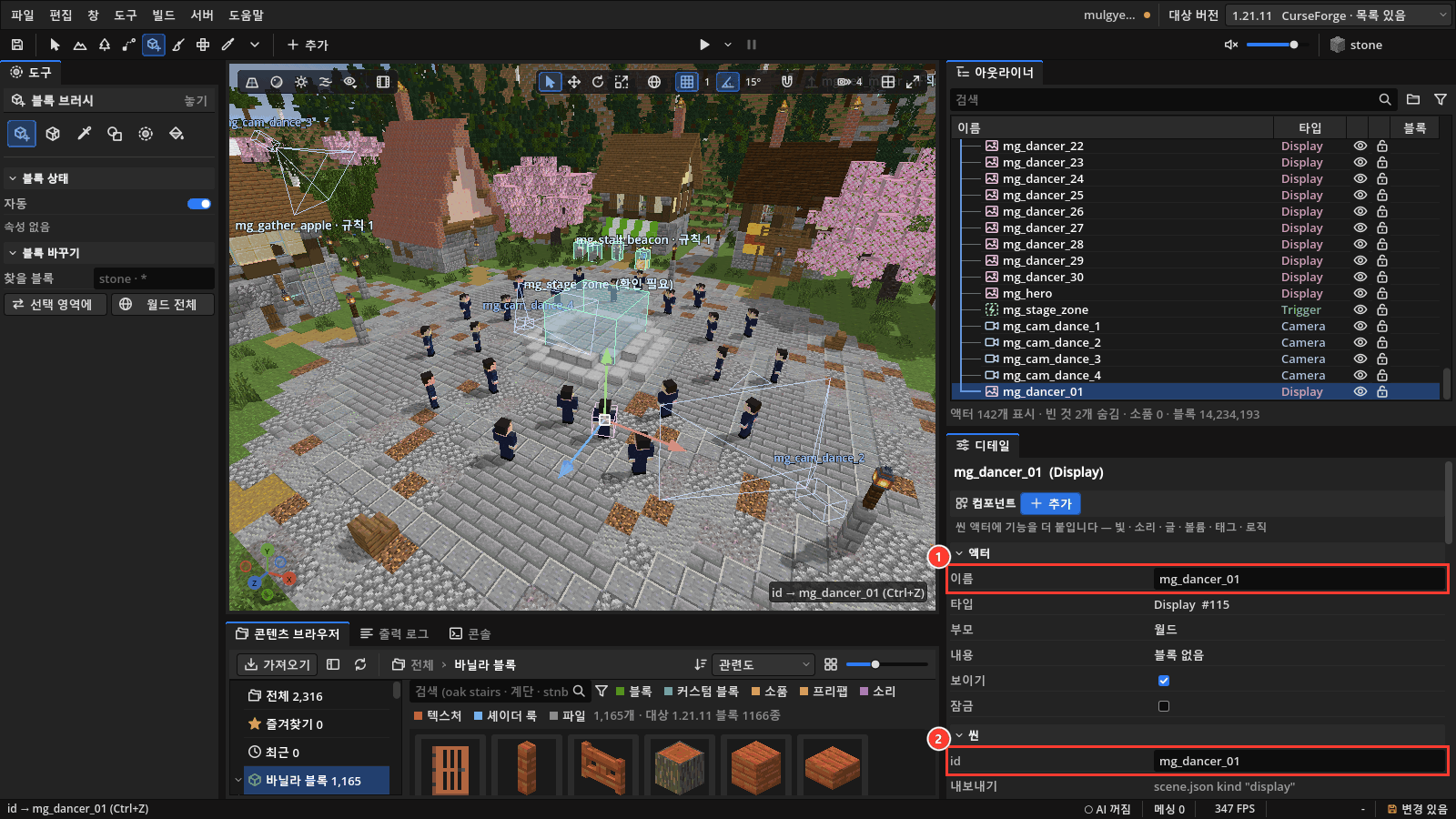
-
Type
148.5,69,237.5in the X, Y, Z fields of the Position row,180in the first field (yaw) of the Rotate row, andidle_ain Animation. This spot is 5 blocks south of the center (stage148.5, 232.5), and rotation 180 faces the center.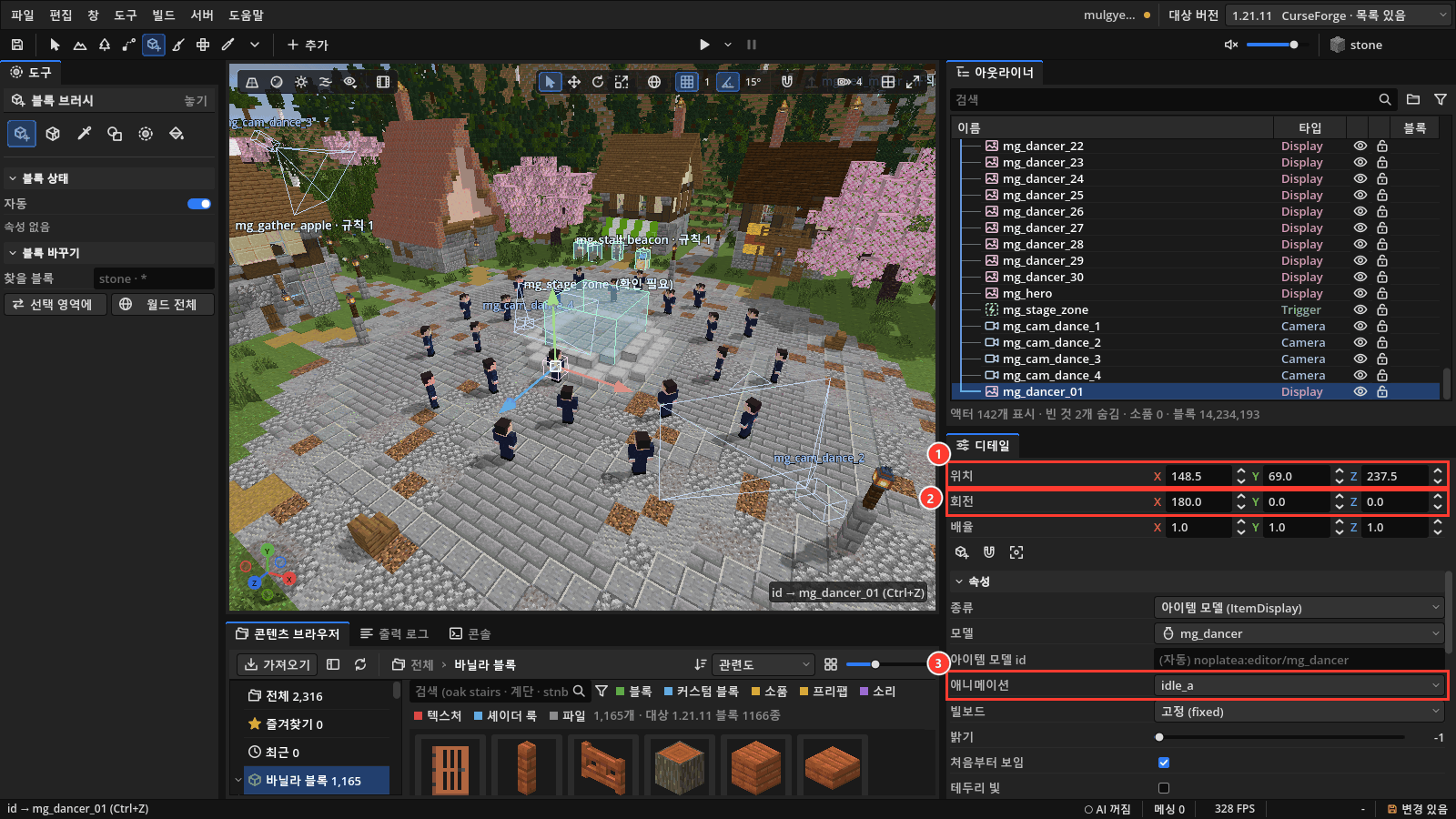
-
For the other 7, click the previous dancer, duplicate with Ctrl+D, and change the same three fields as in the table below (the name and
idaremg_dancer_02tomg_dancer_08). All of them stand on a circle of radius 5 blocks from the center, spaced 45 degrees apart, facing the center.Dancer Position x, z (y is 69 for all) Rotation yaw Animation mg_dancer_01148.5, 237.5 180 idle_amg_dancer_02152.04, 236.04 135 idle_bmg_dancer_03153.5, 232.5 90 idle_amg_dancer_04152.04, 228.96 45 idle_bmg_dancer_05148.5, 227.5 0 idle_amg_dancer_06144.96, 228.96 -45 idle_bmg_dancer_07143.5, 232.5 -90 idle_amg_dancer_08144.96, 236.04 -135 idle_b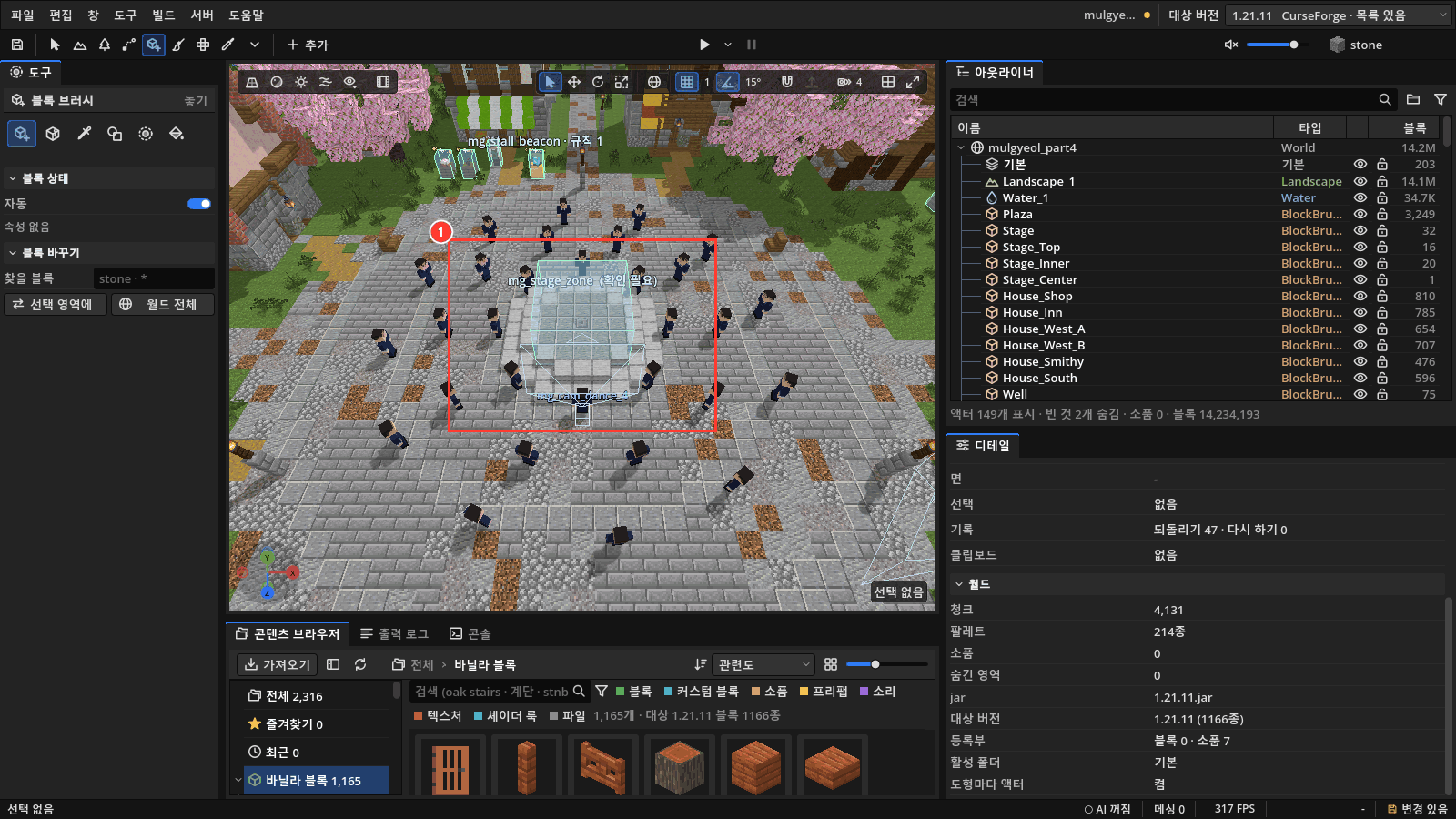
Actors have no feature for laying out a ring (radial symmetry exists only in the block brush). The position fields accept only two decimal places, so write 152.04 instead of 152.036. The 0.004-block difference from the finished map’s values is not visible.
Add dancer tracks to the group dance
Section titled “Add dancer tracks to the group dance”-
Click Tools > Sequencer (sequences · cutscenes) (Ctrl+Shift+Q does the same). In the Sequencer tab of the bottom area, choose
광장 군무 (mg_dance) · 컷신(“Plaza group dance (mg_dance) · cutscene”) in the Sequence field. To keep the viewport’s view as it is, leave Cut preview off.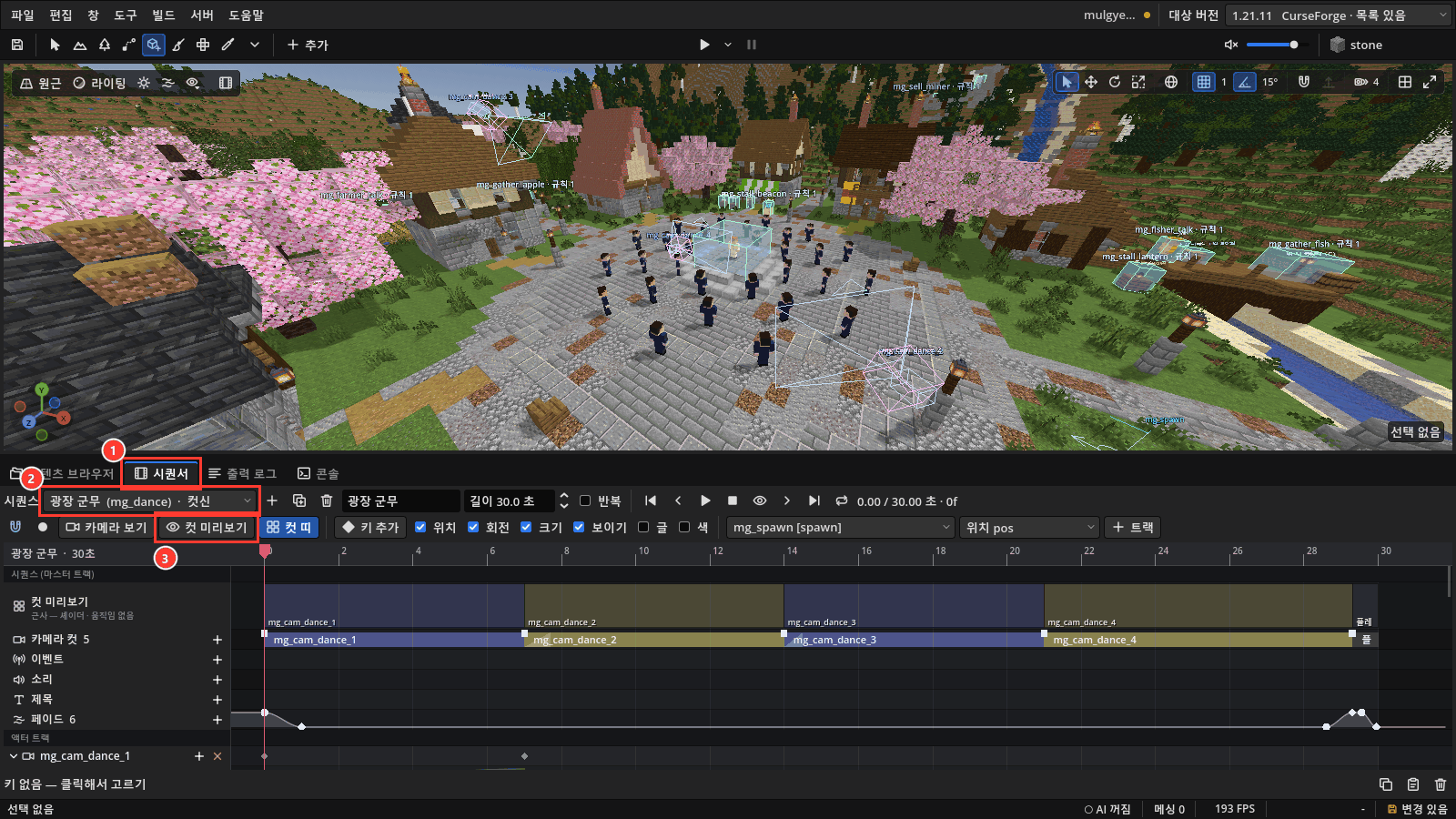
-
Make the first dancer’s track. Turn the time bar back with To start (|◀), choose
mg_dancer_01 [display]as the track actor and Model anim as the property, and click Track. One key appears at 0 seconds with the animationidle_a. This key plays the role of “its own idle motion before the first key”.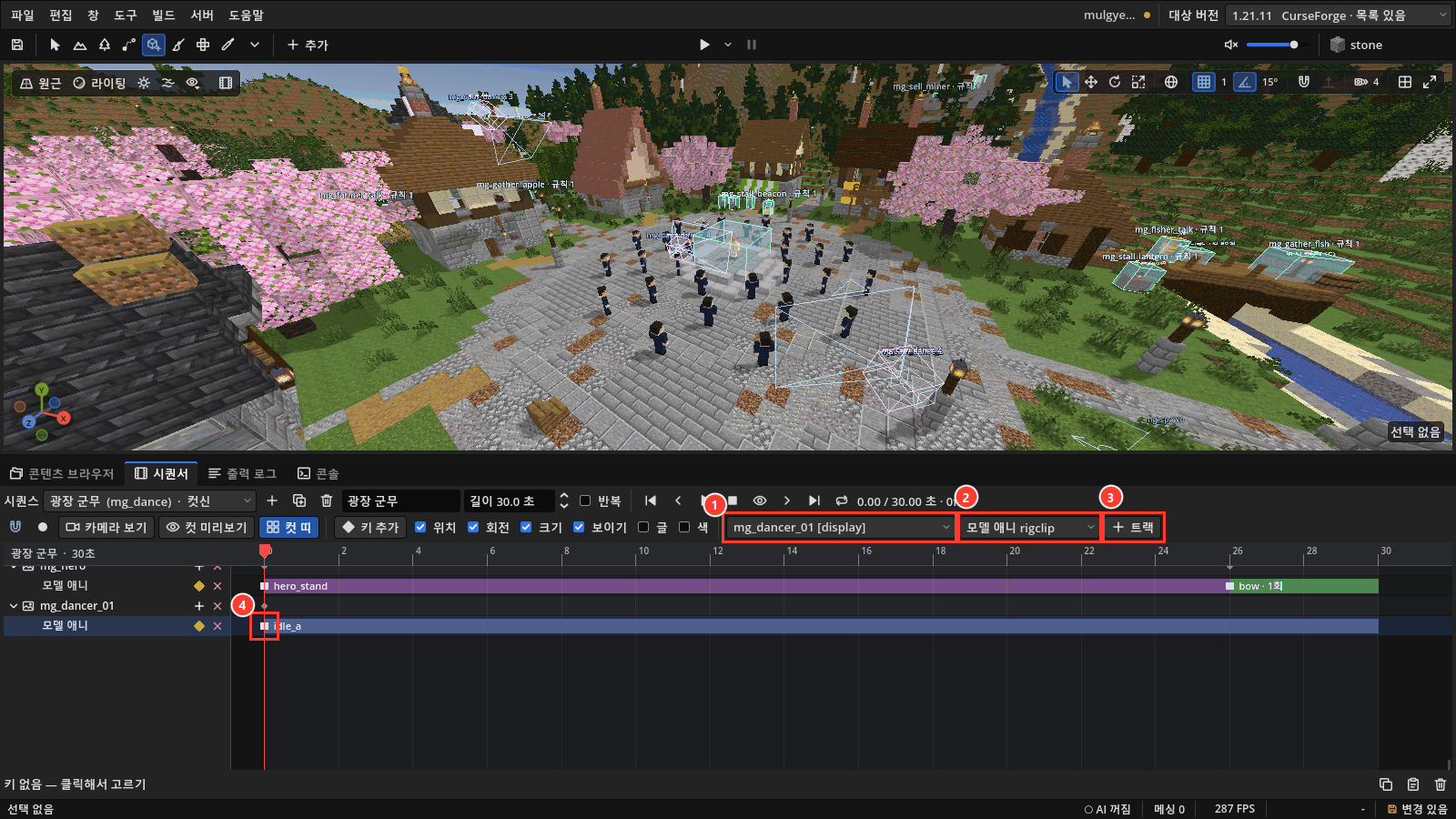
-
Double-click the 1.2-second point of that row to make a key, then in the key fields below set Animation to
danceand turn Loop off. The dance clip plays only once.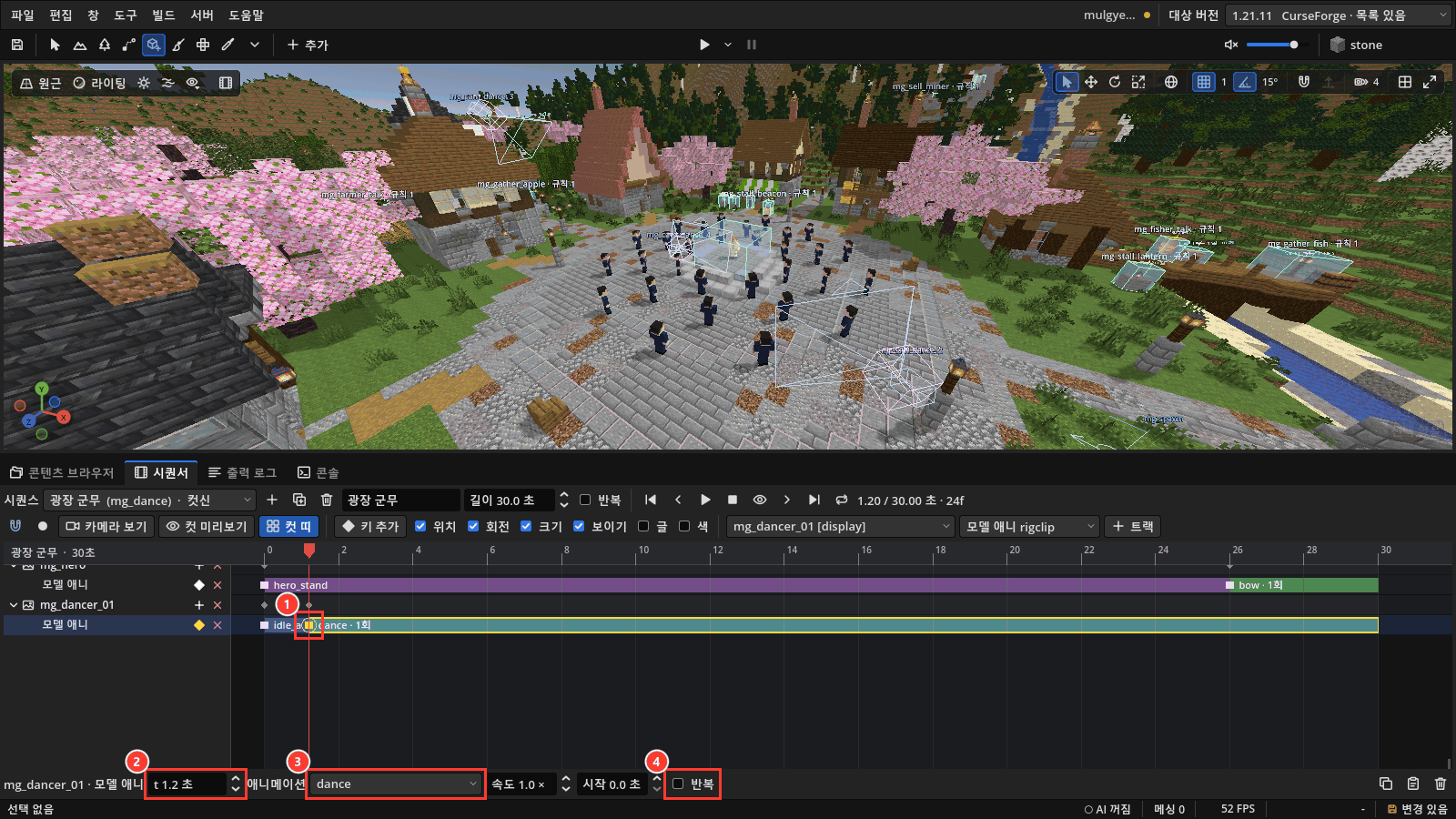
-
Double-click the 26-second point to make one more key and set Animation to
bow. At 26 seconds, when the group dance ends, everyone bows together.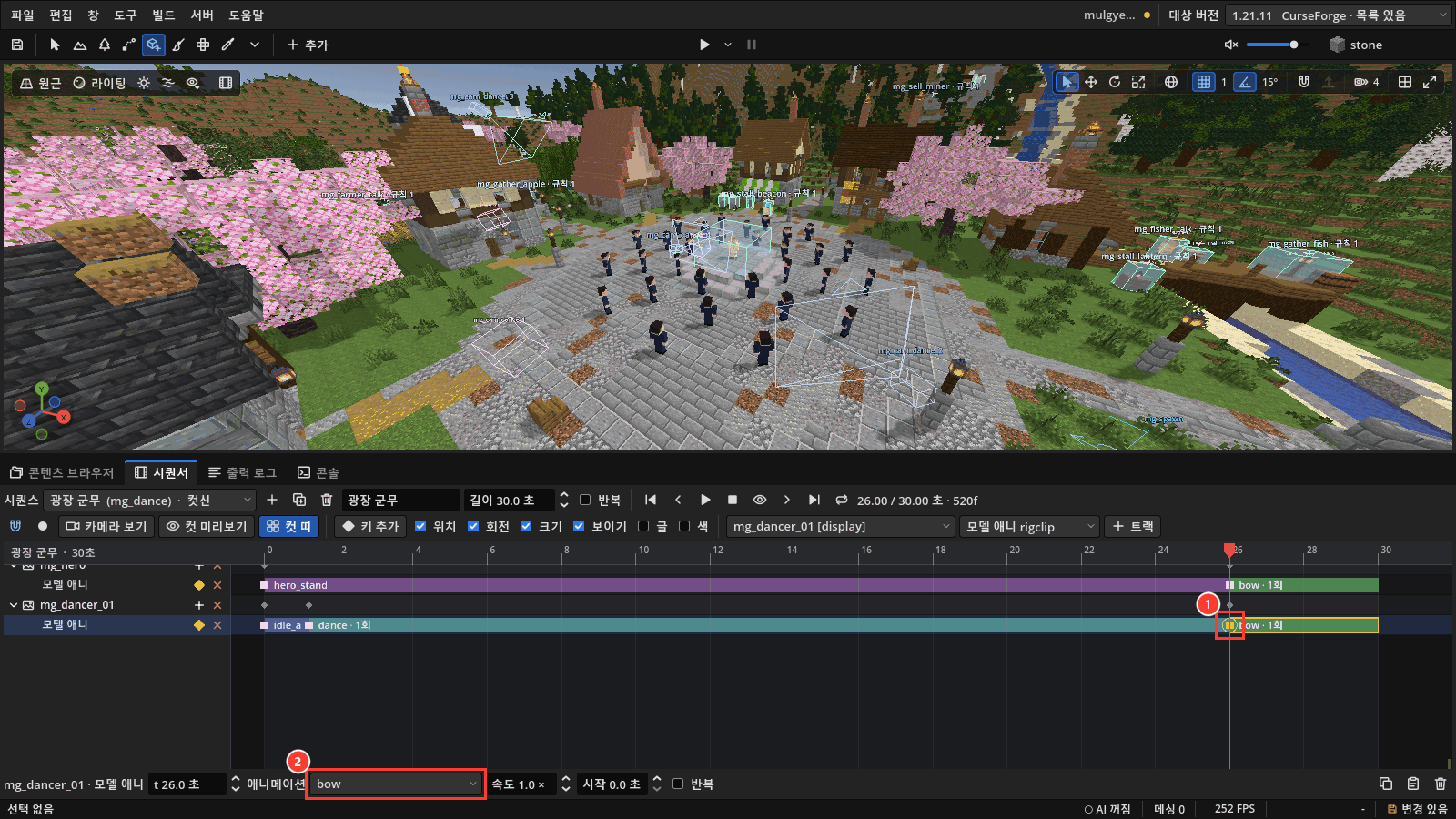
-
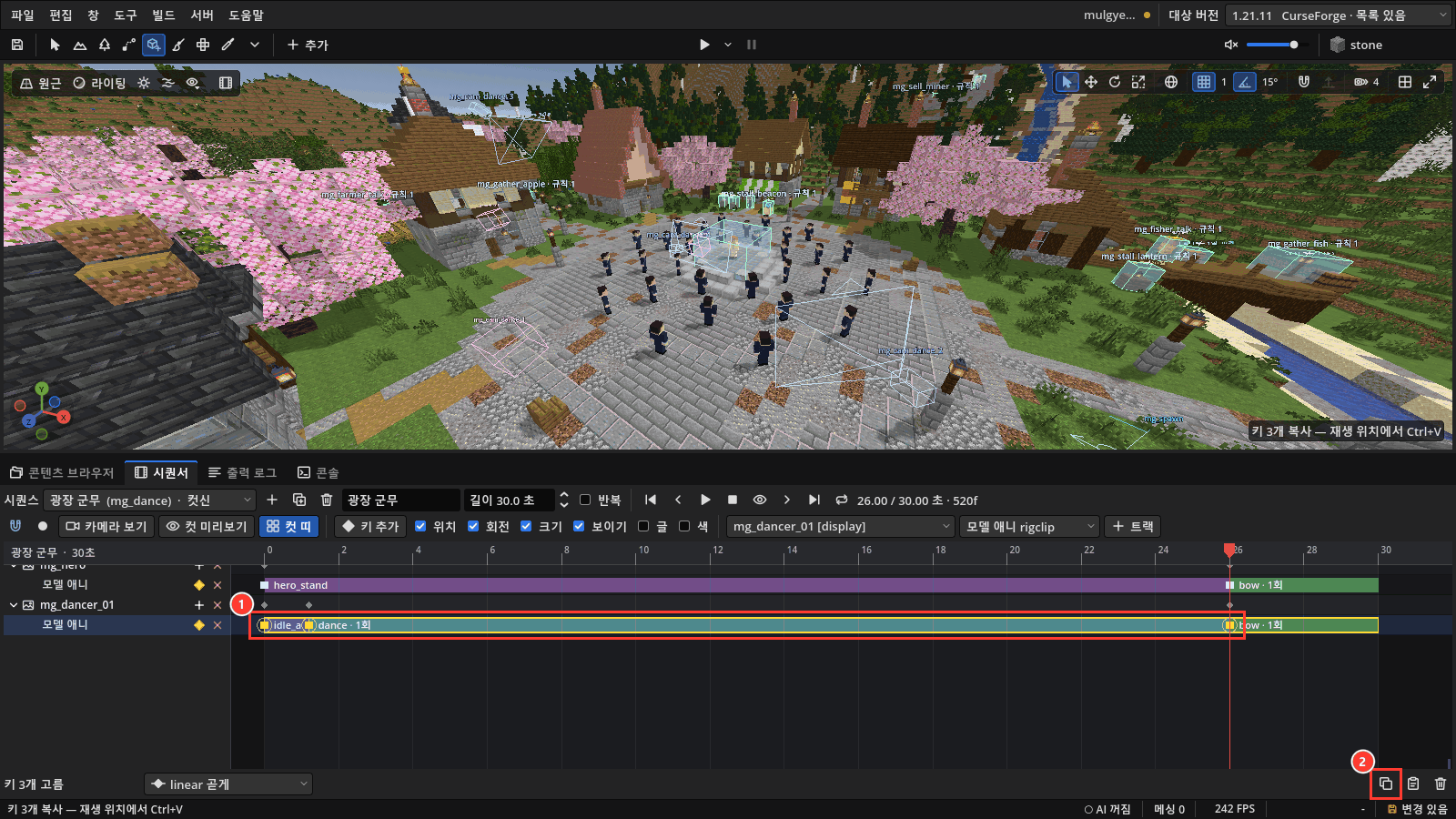
Drag a box to select all 3 keys at once and press Ctrl+C. The notice “Copied 3 keys — Ctrl+V at the playhead” appears.
-
Paste onto the second dancer. Turn the time bar back with To start, choose
mg_dancer_02as the track actor and Model anim as the property, and click Track. Click the newly created row name “Model anim” in the left list to select that row and press Ctrl+V. The notice “Pasted 3 keys @ 0.00 s” appears and the 3 keys are pasted onto that row.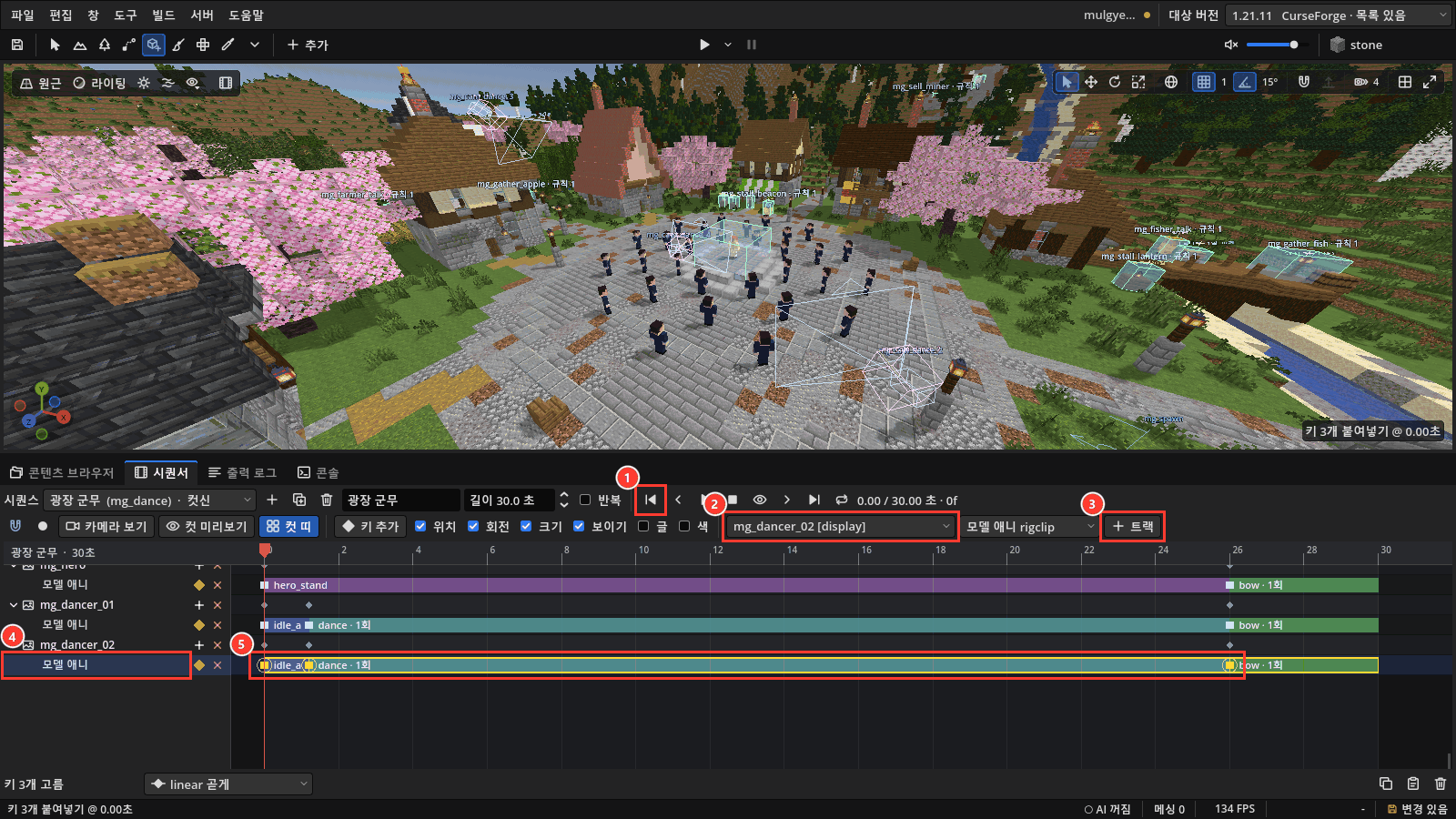
If you do not click the row name first, the paste may go to pasting world blocks instead of that row. Always click the row name first, and press the keys with the mouse pointer over the timeline. If you get “Nothing copied” instead of “Pasted 3 keys @ 0.00 s”, the pointer or keyboard focus is not on the timeline.
-
Make the dance start late. Click an empty spot in the row once to clear the selection, click the
dancekey, type1.23in the key fieldt, and press Enter. You click the empty spot first because the 3 pasted keys all stay selected, and in that state clicking one key does not show thetfield.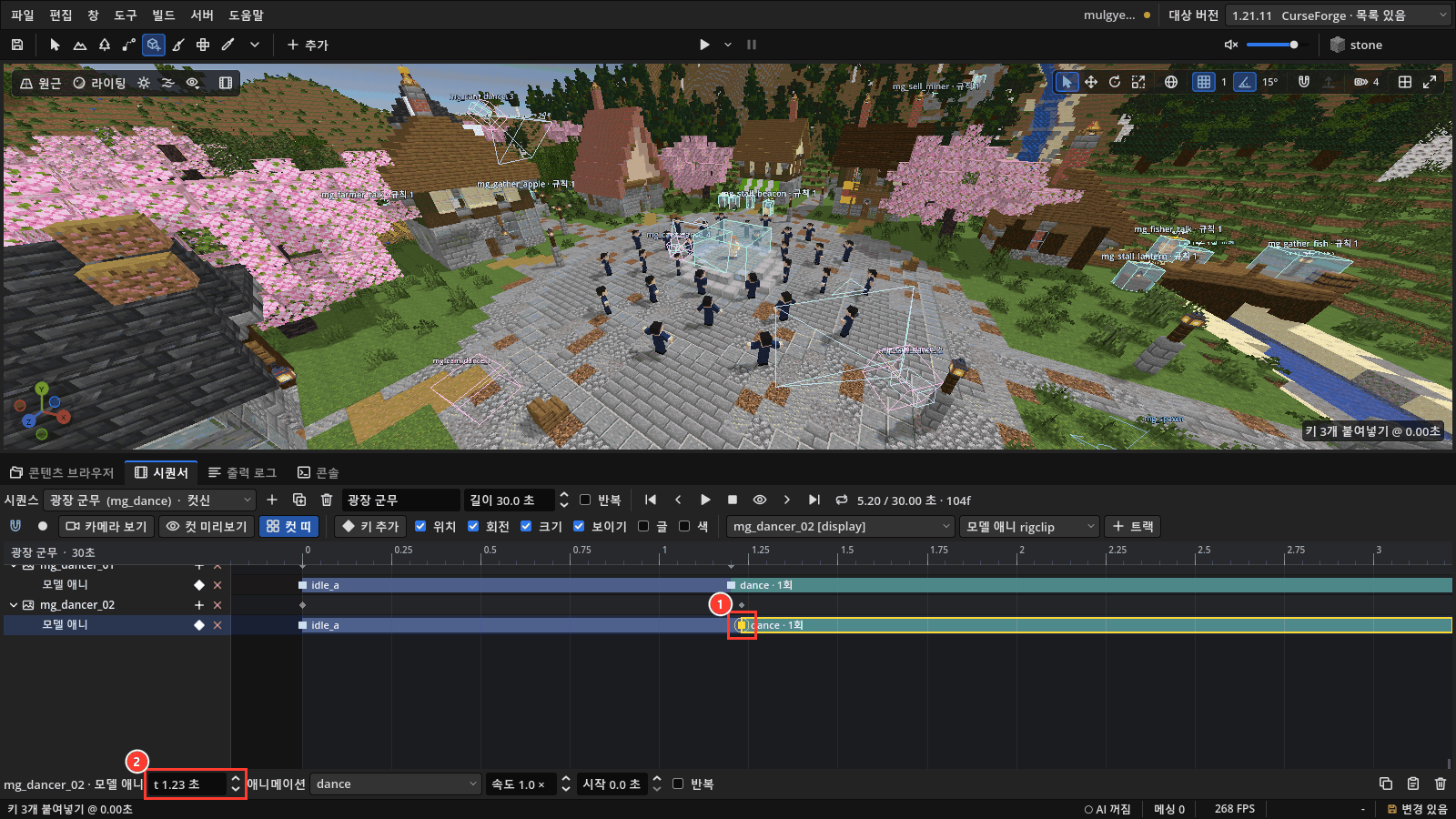
-
Do the other 6 (03 to 08) as in steps 11 and 12. Only the time of the first
dancekey differs, as in the table. If they all start on the same beat they look like one lump, so stagger each person by 0.03 seconds to spread it like a wave.Dancer First dance key (s) Last bow key (s) 01 1.20 26 02 1.23 26 03 1.26 26 04 1.20 26 05 1.23 26 06 1.26 26 07 1.20 26 08 1.23 26 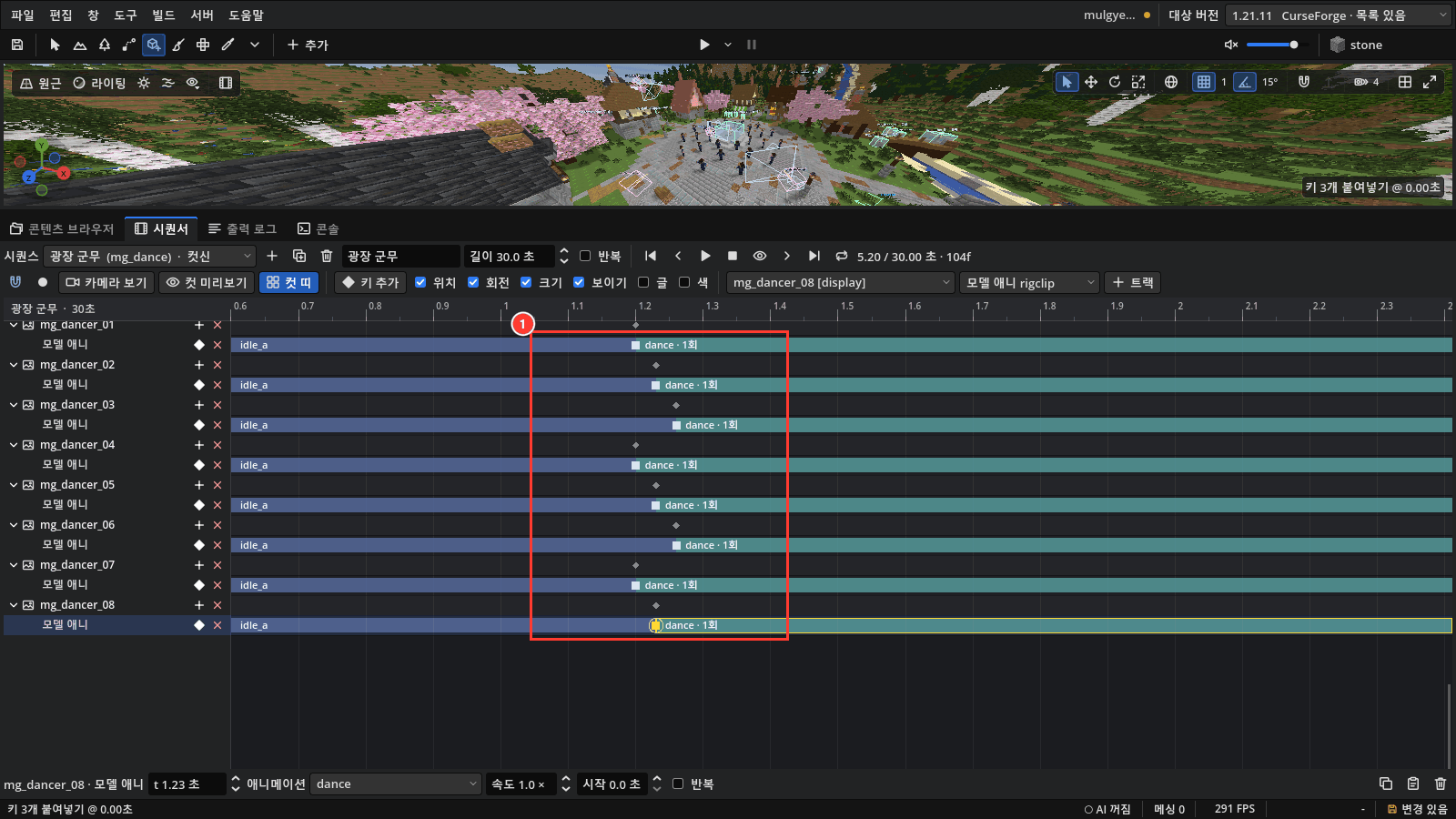
The outer two rings in the starting file were already made with the same rule (middle ring 1.45 · 1.48 · 1.51 s / outer ring 1.70 · 1.73 · 1.76 s). The further out the ring, the 0.25 seconds later it starts, so the shape spreads out like ripples.
-
Make the stand-in visible only during the group dance. The starting file already has a Model anim track for
mg_hero, so add only Visible. Turn the time bar back with To start, choosemg_heroas the track actor and Visible as the property, and click Track. A false (false) key appears at 0 seconds. Double-click the 0.6-second point and typetruein the value field, then double-click the 29.4-second point and typefalsein the value field.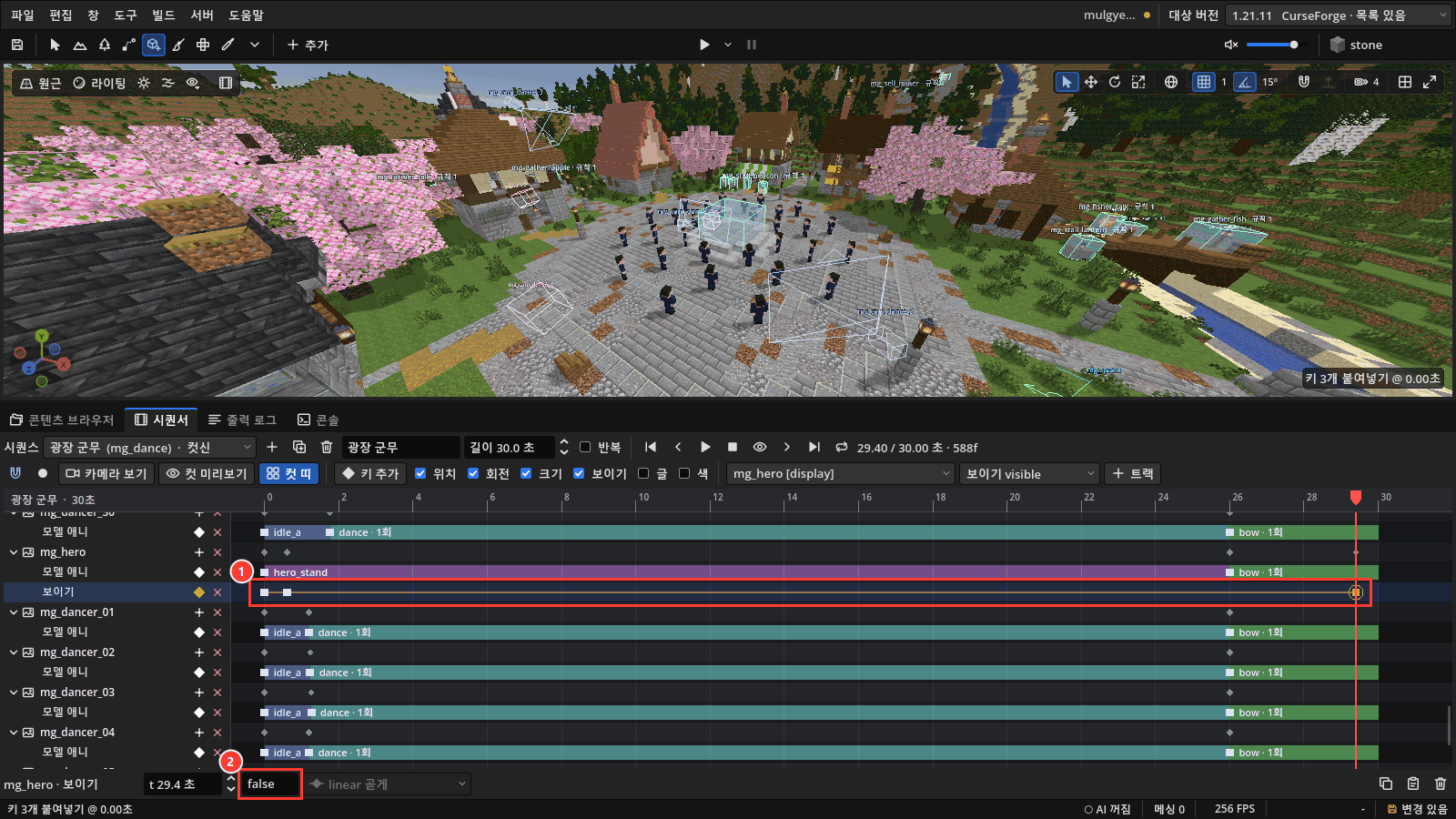
In the editor’s ▶ Play, the player’s body is not drawn, so the very center of the camera that films the surrounding dance looks empty. So a stand-in in the protagonist’s shape (
mg_hero) stands in the middle and is visible only during the group dance, and disappears when you return to the player’s view. If you turn on the Sequencer preview while editing, the label ”⚠ Static in game” may appear above the stand-in’s head. This warning appears because a Visible track points at the stand-in (see “On a real server” below).
Plaza idle
Section titled “Plaza idle”-
So the dancers do not freeze after the group dance ends, add the same kind of track to the idle sequence. Change the Sequence field to
광장 대기 (mg_plaza_idle)(“Plaza idle (mg_plaza_idle)”). This sequence is 20 seconds long and has Loop on. For each dancer, turn the time bar back with To start, choose that dancer as the track actor, click the property Model anim → Track, click the 0-second key, and enter Animation and Start as in the table (leave Loop on). Start sets how many seconds into the clip to begin, so giving each dancer a different value keeps their resting poses out of step, which looks natural.Dancer Animation Start (s) 01 idle_a0.35 02 idle_b0.75 03 idle_a1.1 04 idle_b1.5 05 idle_a1.85 06 idle_b2.2 07 idle_a2.6 08 idle_b2.95 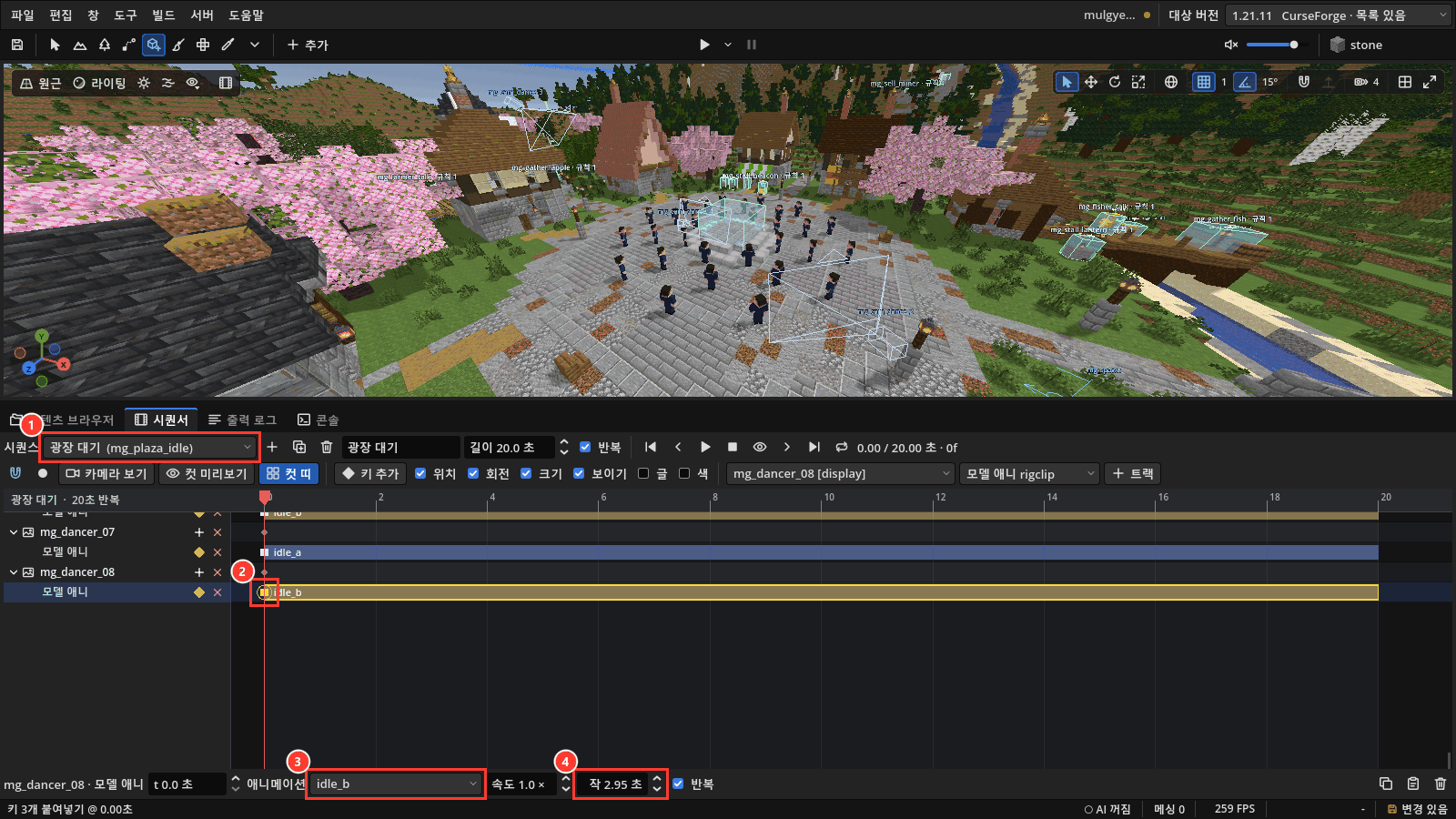
The Start field moves in 0.05-second steps, so the values differ a little from the finished map’s (0.37 · 0.74 …). The Start field is narrow, so a value with two decimals may look cut off at the front, like “t 2.95 s”. The value is correct. The stand-in’s false Visible key already exists.
Play it with rules
Section titled “Play it with rules”-
In the World logic tab of the bottom area, click the ”+” (new rule) at the top left. A new rule starts with the trigger On zone enter and action 1 Chat message. The
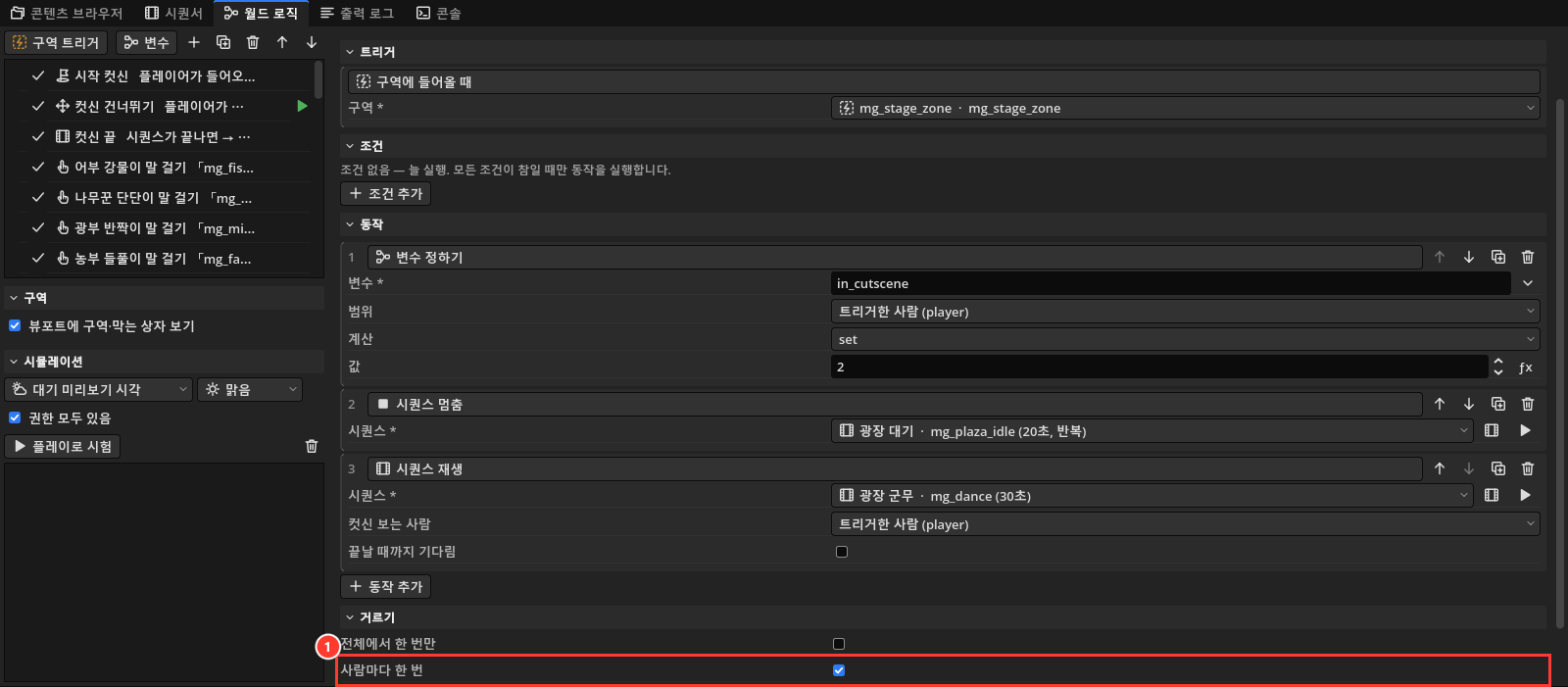
idfield starts asrule_1. Click the field, select all with Ctrl+A, typer_dance_start, and confirm with Enter (it changes only after you press Enter). For the rule name, select all in the bold field above theidrow (it starts as “New rule”) the same way and type광장 군무(Plaza group dance). Clear and type theidand name fields of step 18 the same way. Choosemg_stage_zonein Zone of the trigger On zone enter. Change the type button of action 1 Chat message to Set variable and enter Variablesin_cutscene· RegionTriggering player (player)· Calculateset· Values2. With Add action, add Stop sequence (Sequence광장 대기, “Plaza idle”) and Play sequence (Sequence광장 군무· Cutscene viewersTriggering player (player)). The summary line at the top of the rule changes to ”→ When a player enters “mg_stage_zone” → set variable + stop anim “광장 대기” + play anim “광장 군무"". The summary line uses the older word “anim”, but the actions are the same (Stop sequence and Play sequence).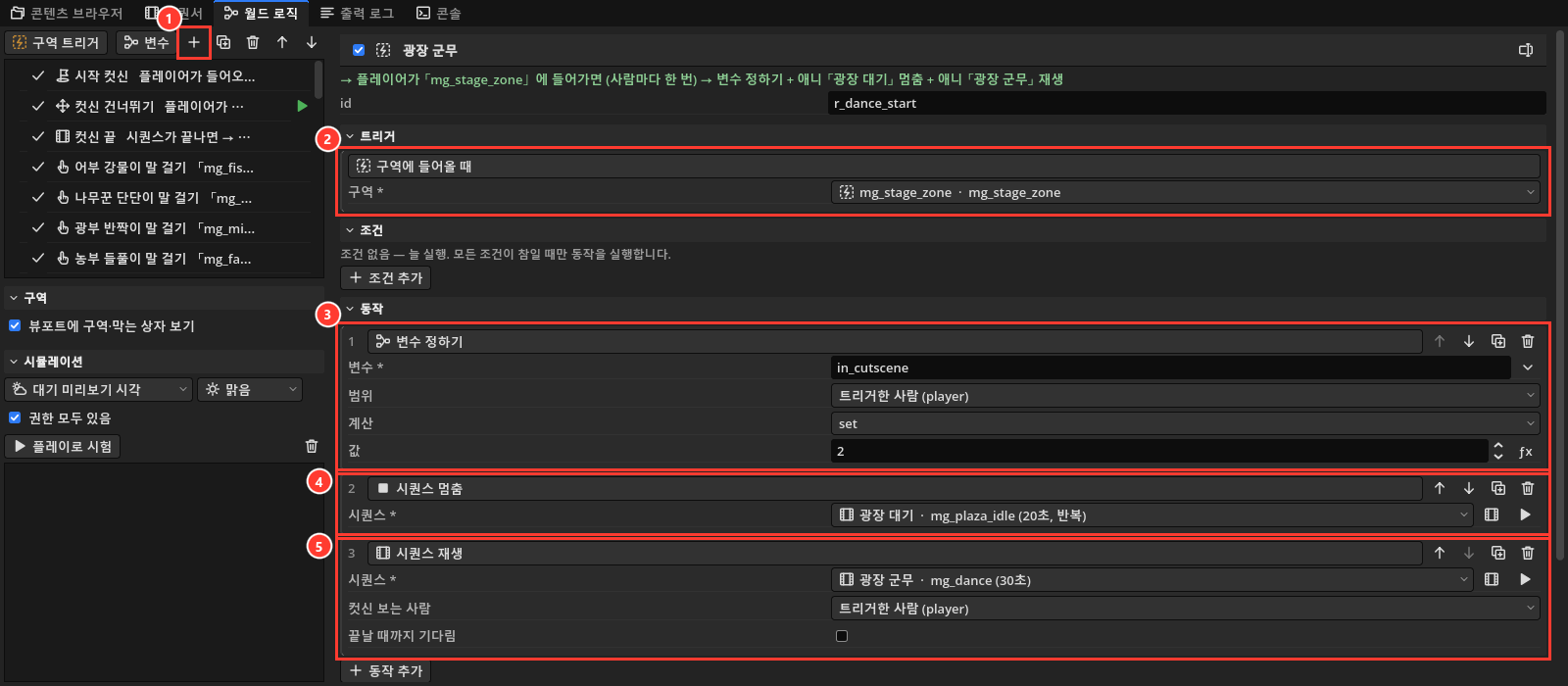
in_cutsceneis the variable used in part 2. During a cutscene it is a nonzero value, so part 3’s money display function (shown only when{in_cutscene} == 0) stops. The opening cutscene is 1 and the group dance is 2, to tell them apart. -
Under the filter at the bottom of the same rule, turn on Once per player. Even if a person steps back onto the stage, the group dance does not run again. The summary line changes to ”→ When a player enters “mg_stage_zone” (once per player) → …”.
-
Make one more new rule. Type
r_dance_doneinidand confirm with Enter, and type군무 끝(Dance ends) as the rule name. Change the trigger to When a sequence ends and choose광장 군무in Sequence. Change the default action to Play sequence (Sequence광장 대기· Cutscene viewersEveryone in the world (world)), and with Add action add Set variable (Variablesin_cutscene· RegionTriggering player (player)· Calculateset· Values0). When the group dance ends, the dancers go back to their idle motion and the money display returns.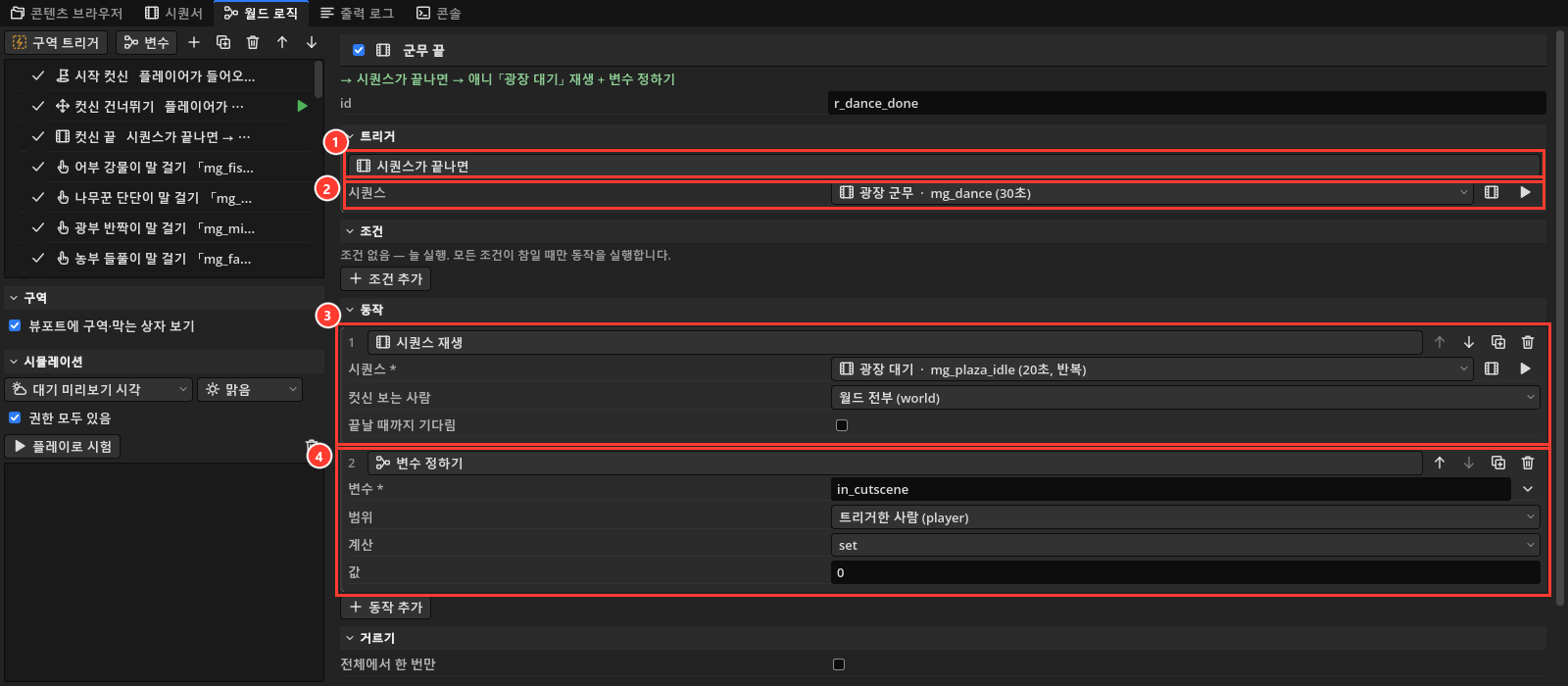
One loop in Play
Section titled “One loop in Play”-
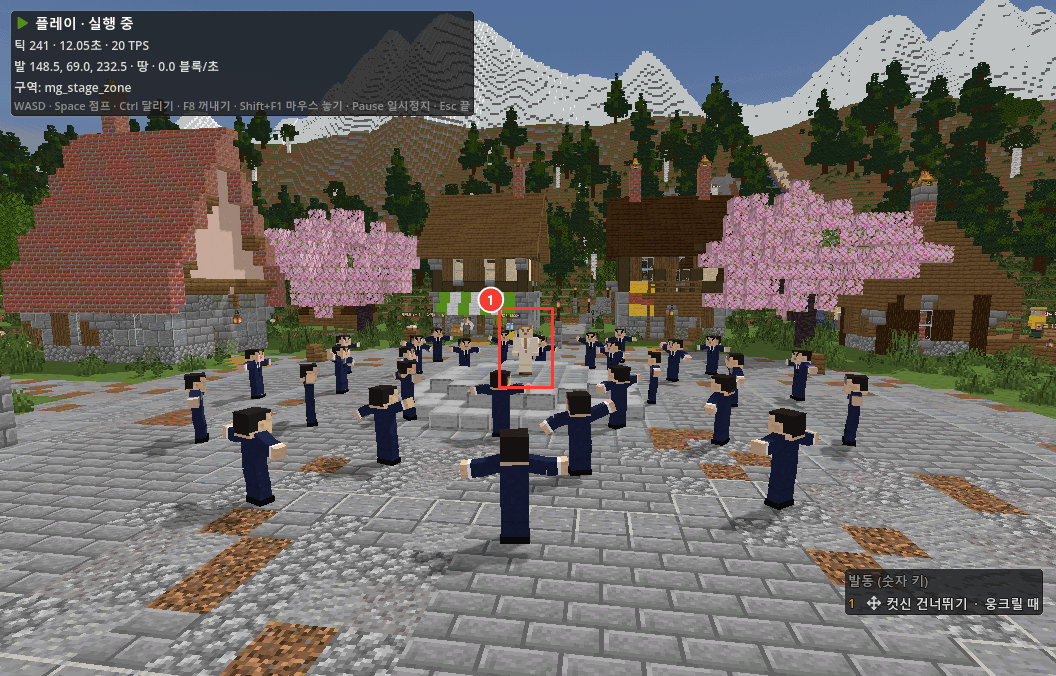
In the middle of the top toolbar, click the ▾ right next to ▶ and check that Switch view to sequence cuts in Play is checked. If you typed in a field a moment ago, scroll the wheel one notch over the viewport to leave the field, then click the ▶ (Play) button. When the part 2 opening cutscene plays, skip it with Shift. Walk to the stage in the middle of the plaza and step onto it, and the group dance starts with the screen covered in black and brightens within 1 second. The first cut (about 4 seconds) approaches the stage from the south. The stand-in of the protagonist in cream clothes stands in the middle, and the dancers around it dance with their arms spread.
-
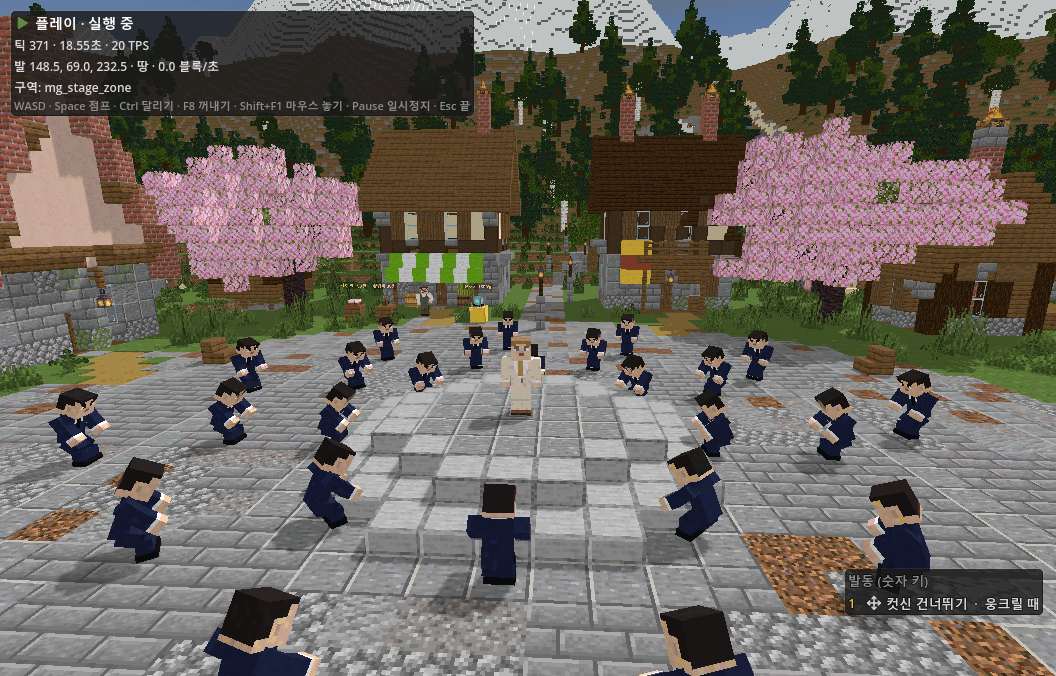
At 7 seconds the camera changes (about 10.5 seconds) to a low view going around the ring.
-
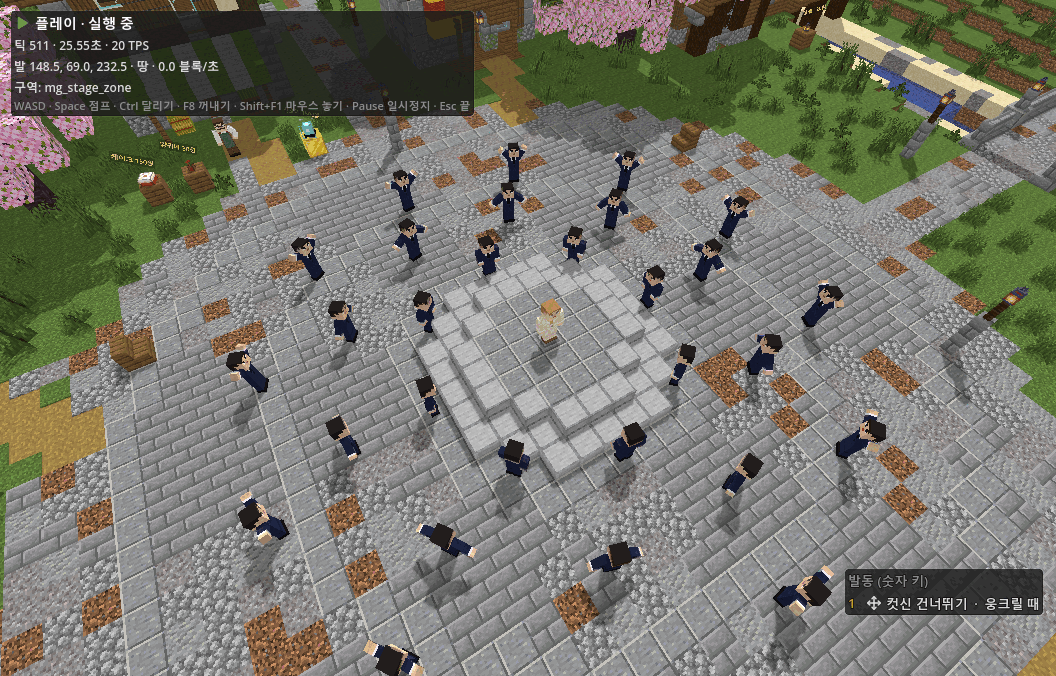
At 14 seconds it changes to a view looking down from above (about 17.5 seconds). You can see all three rings at once.
-
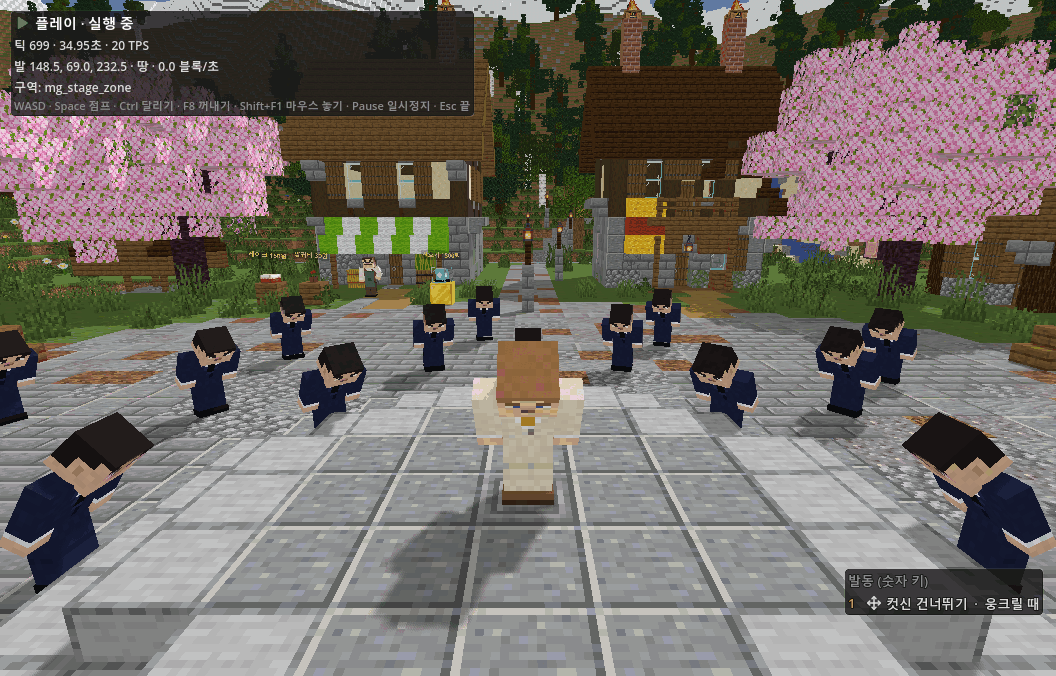
At 21 seconds it changes to a view from low on the south of the stage, looking at the stand-in’s back, and at 26 seconds everyone bows together (about 26.9 seconds). At 29.3 seconds a fade returns you to the player’s view and the stand-in disappears.
-
When the group dance ends, the dancers go on with their idle motion without freezing, and “Money 1000” appears on the action bar again (the “Mulgyeol — Money 1000” chip at the top right is there because the starting file’s money display function also uses the sidebar action). If you step off the stage and back on, the group dance does not run again (once per player). End Play with Esc and save with Ctrl+S.
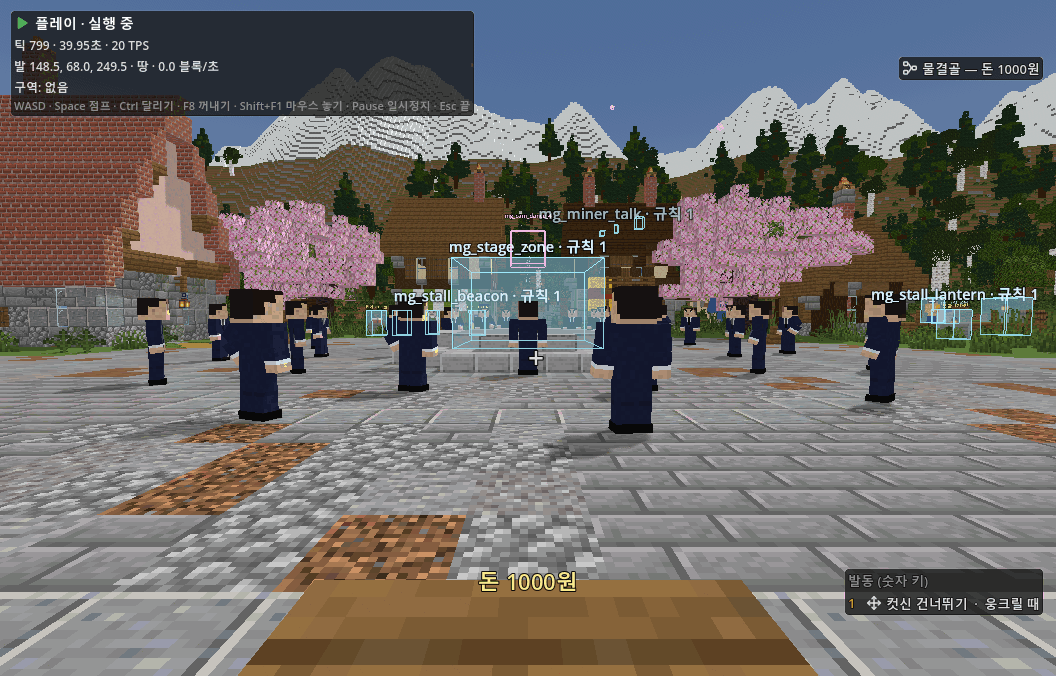
The ▶ screen also shows the “Play · running” status panel at the top left and the “Fire (number keys)” list at the bottom right. They look the same as in the part 2 pictures and are editing displays that do not appear in the game. The time in the status panel is the time elapsed since Play started, so it differs from the group dance time (about 4 seconds, 10.5 seconds … in the picture captions).
When you get here
Section titled “When you get here”-
The stand-in stands in the middle of the plaza, and 30 dancers in three rings dance the same motion slightly out of step. Stepping onto the stage runs the 30-second group dance, and when it ends they return to the idle motion. With this one part, all four parts, “land and river · opening cutscene · villagers and trading · plaza group dance”, are done. The finished map (
mulgyeol_final.npworld) is the result of these four parts.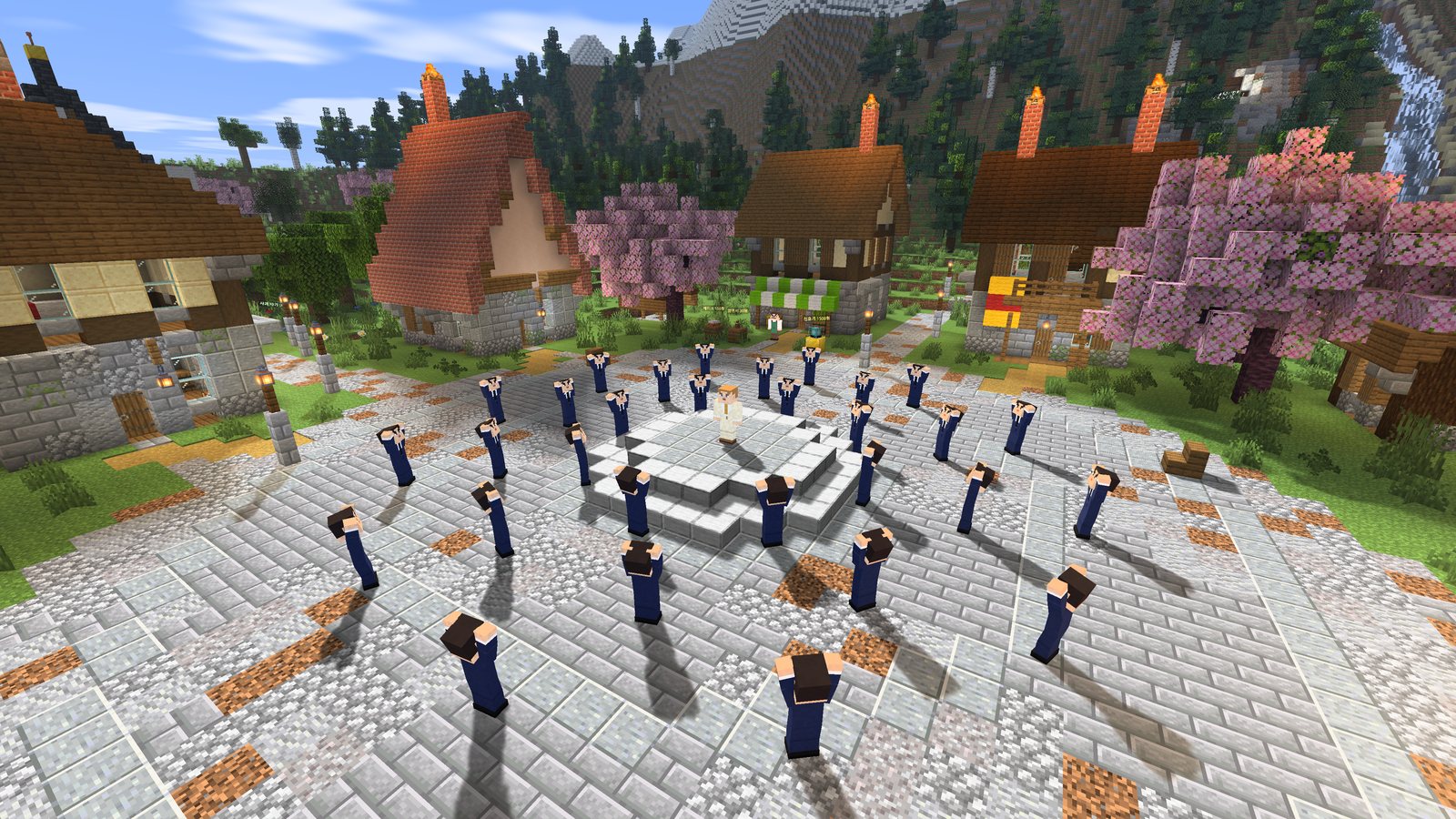
Tips and tricks
Section titled “Tips and tricks”- To add more dancers, duplicate an outer-ring dancer and increase the radius, copy and paste the same track, and delay only the first
dancekey by 0.25 seconds each. - Change the length of the group dance and the camera cuts in the sequence’s length and cut strip. A movement speed of 30 blocks per second or less at each cut change is safe (it keeps the camera from stuttering on the server).
- You can swap in any dancer model that is a
.bbmodelin Minecraft human proportions. If the clip names are the same,idle_a·idle_b·dance·bow, the tracks work as they are. A wrong clip name still plays the first animation without an error, so check that the spelling is exactly the same.
Reference
Section titled “Reference”Tracks and rules used
Section titled “Tracks and rules used”| Name | What it does |
|---|---|
The 30 dancer tracks in mg_dance | For each dancer idle_a → dance (only the first key staggered) → bow (26 s) |
mg_hero Visible in mg_dance | Visible at 0.6 s · hidden at 29.4 s |
The 30 dancer tracks in mg_plaza_idle | For each dancer idle_a or idle_b (only Start differs) |
r_dance_start | Entering the stage → in_cutscene 2 · stop idle · play the group dance (once per player) |
r_dance_done | When the group dance ends → play idle · in_cutscene 0 |
r_plaza_start | (starting file) On start → play idle |
- In the Sequencer, add a Model anim track one actor at a time. Copying works on keys (Ctrl+C → choose another track row → Ctrl+V), and for pasting you must first click the row the keys will go onto.
- The editor’s ▶ moves only the nearest 32 within 64 blocks of the camera with their own animations. A dancer held by a sequence’s Model anim track is taken out of those 32 and moved separately, up to 64, regardless of distance. The 31 in this tutorial (30 dancers + the stand-in) are all within the limit.
- During the group dance, the screen may hitch for about 10 milliseconds once or twice a second. The model calculation itself is under 1 millisecond per frame, and the hitch coincides with the program’s memory cleanup.
- Even after the sequence ends, a dancer held by a Model anim track freezes at the end of the last key’s animation. This tutorial avoids that by following on with the rule (
r_dance_done) that plays “Plaza idle” right away.
Differences from the pictures
Section titled “Differences from the pictures”Since the 0.11.0 installer, the top row of the Sequencer has one more button, a frame-shaped “Render…” button, to the right of the eye icon, so you see one more button than in this part’s Sequencer pictures (06 to 15). This tutorial does not use it.
When you select a Model anim key, the key fields below have one more field, Blend (the seconds to move from the previous key’s motion to this one; default 0), so it looks slightly different from pictures 08, 09, and 15. Leave it at 0 as you follow along.
On a real server
Section titled “On a real server”This tutorial’s baseline is the editor’s ▶ Play. If you put the same map on a Minecraft server, the following differs (based on this release’s editor and the server plugin NPBridge 2.3.0; check the server version with /npbridge status. This section will be revised when a newer version comes out).
- The server (NPBridge 2.2.0 or later) moves the dancers driven by a Model anim track with poses pre-baked to the sequence time (20 times per second). However, if two sequences move one dancer, only the first sequence is baked and the export shows a warning. The dancers in this tutorial are moved by two sequences, “Plaza group dance” and “Plaza idle”, so only “Plaza group dance”, which comes first in the sequence list, is baked, and the idle motion of “Plaza idle” and the staggering by Start do not appear on the server. A baked dancer stands still in the first pose of the clip in each actor’s Animation field outside the group dance (and, for other players who are not watching the group dance, during it too).
- A baked dancer does not accept showing, hiding, or clicks, or tracks outside the baked sequence. If a rule or sequence points at a dancer that way, the export shows a warning.
- For dancers and villagers to move on the server, a resource pack with the bone models must be uploaded to the server. A dancer baked by a sequence needs a pack rebuilt with this release (a pack that includes bone models at the joint centers), and without it the dancer goes out with a warning as a static model or as its own animation loop. Deploy the pack built with Build > Build resource pack through the Server window, or if you uploaded it yourself, choose that version in the resource pack panel’s Version history and click the cloud icon (marks the chosen version as the pack uploaded to the server). If you only build and do not upload, everything goes out as a static model.
- The stand-in (
mg_hero) always goes out as a static model on the server, because it has Visible at start off and is an actor that a Visible track points at (moving models on the server do not accept showing, hiding, or moving). The Visible track still works, so it appears at 0.6 seconds and disappears at 29.4 seconds, but it does not bow at the end and stands still. The stand-in is visible to every nearby player, not only the ones watching the group dance. For the same reason, if an actor id (or tag) appears anywhere in a rule’s or sequence’s text, that actor becomes a static model, so do not use the dancer ids (mg_dancer_01…) in dialogue or name tags. - Biomes painted in the editor do not go to the server. This tutorial paints no biome, so in the editor it has plains colors, but on the server it shows the colors of the biome the server world originally has at that spot (exporting to a Minecraft world folder makes everything plains).
- The editor’s river places only water block states. Flat places are source water, and the surface cells on a descending slope are flowing water, so in the game you see flowing water on the slope cells. The server places the water without physics updates, so at first it stays as placed, but when a nearby block changes, it recalculates the flow of the surrounding water and the water can spread or shrink.
- The rule that starts the group dance with “On zone enter” (+ once per player) behaves the same on the server, and playing it again starts from the beginning. However, the server saves the “once per player” record and player variables (money and so on), so a person who has seen it once will not see it again even after reconnecting or restarting the server. To test again, an op types
/npscene reset <scene id>(check the scene id with/npscene list; variables such as money also return to their initial values). - The server camera stutters above about 40 blocks per second. The cameras in this tutorial stay under 30 blocks even in the fastest stretch.
Related pages
Section titled “Related pages”The detailed explanation of each feature is in the pages below.
Not an official Minecraft product. Not approved by or associated with Mojang or Microsoft.