
Co-building
Overview
Section titled “Overview”Co-building is for when several people split up the work on the same map. Divide areas of responsibility with region locks, leave feedback with comment pins, and see who changed what in the change log. It works with files, without a server, and all data is saved together in the world file (.npworld). If your account tier does not include co-building, the panel shows “Co-building is a paid feature — check your tier on the account page” with the Account page and Check again buttons, and the lock and pin menus are blocked (Credits and pricing).
The images on this page cover what you can do alone (your own locks, comment pins and the change log). Other people’s locks and other editors’ displays need a second person, so they are described in text only.
Basic use
Section titled “Basic use”-
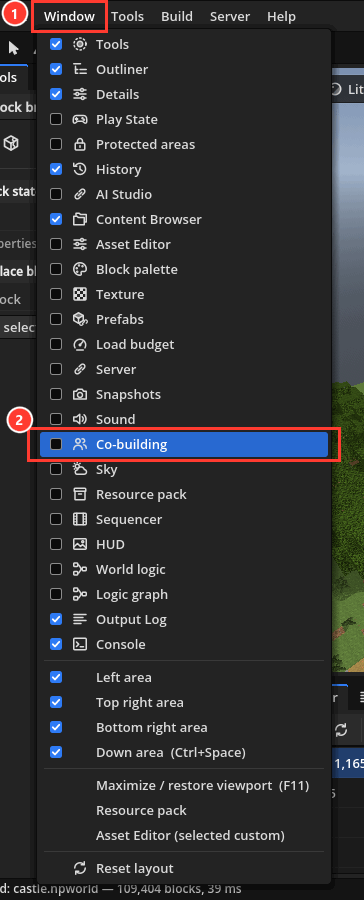
Click Window > Co-building. The Co-building panel opens in the bottom area.
-
Type your name (for example
demo) in the Me field and press Enter to set it. This name is used for lock ownership, comment authors and the change log. The initial value is your Windows user name.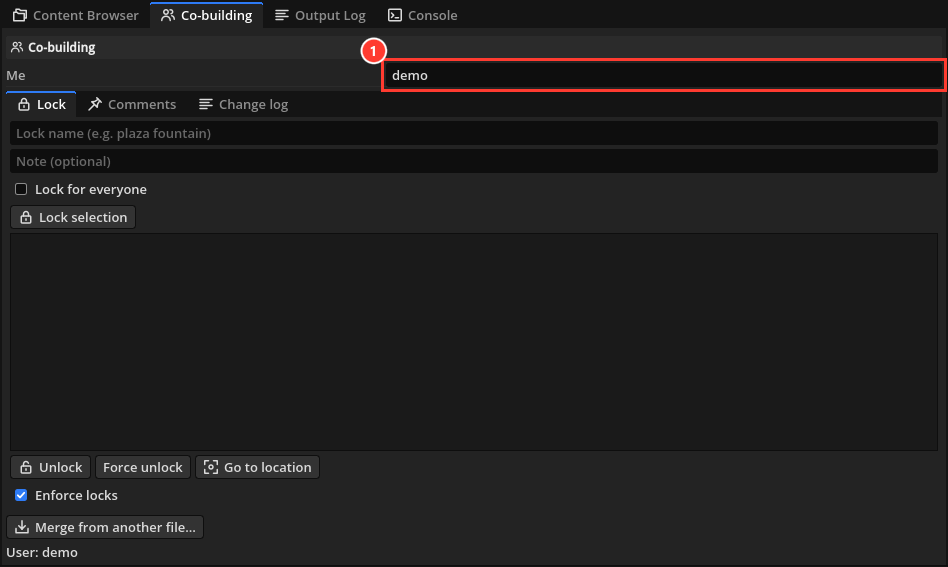
-
Select the area you are responsible for in the viewport, type
Main keepin the lock name field on the Lock tab (placeholder “Lock name (e.g. plaza fountain)”), then click Lock selection. A blue box (your lock) and the text “[Locked] Main keep / demo” appear in the viewport, and a row appears in the list.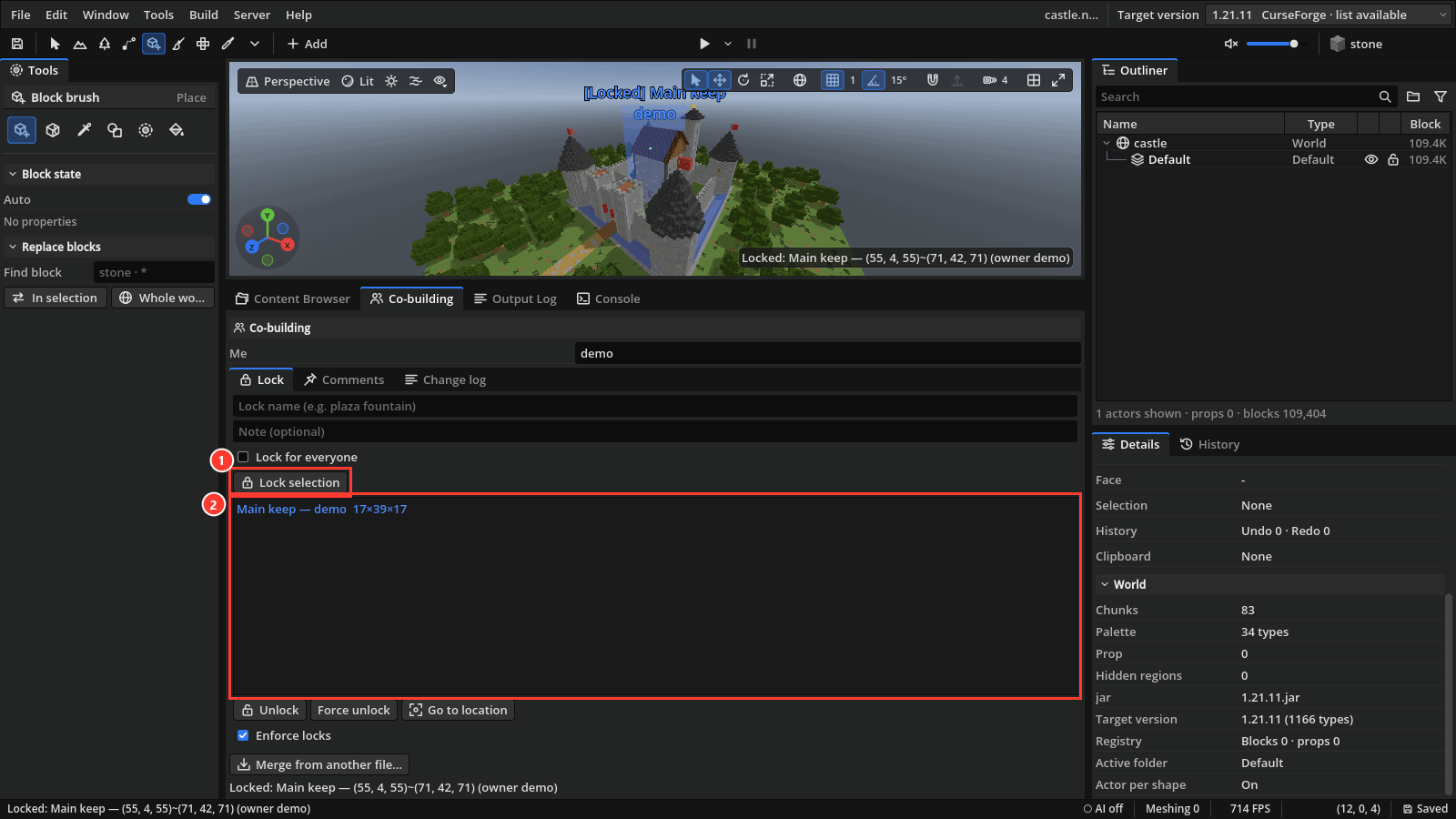
-
On the Comments tab, type
Make the window one block smallerin the text field, click Place pin, then click a block in the viewport. A “demo: Make the window one block smaller” pin appears at that spot. Press Esc before clicking to cancel.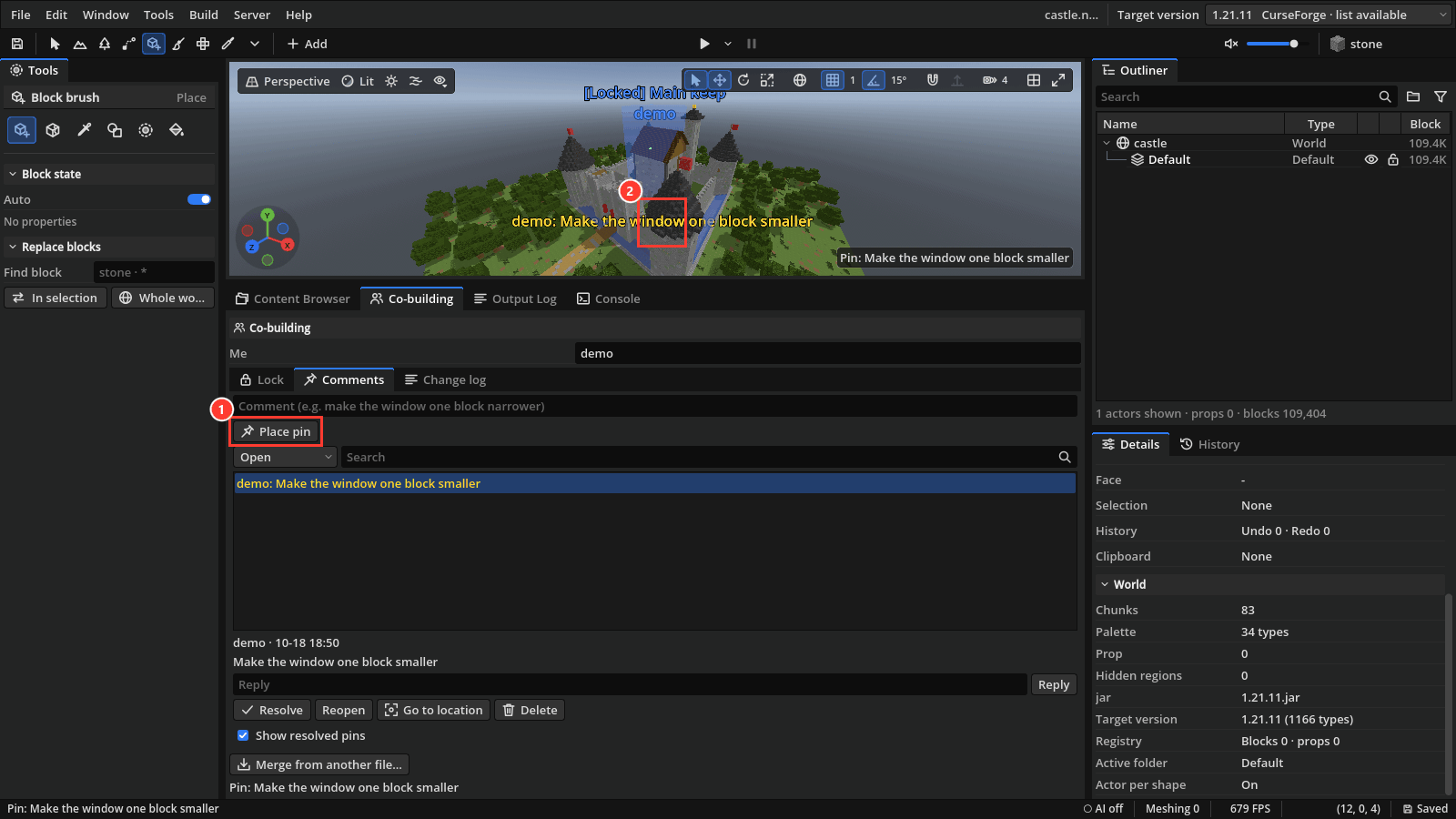
-
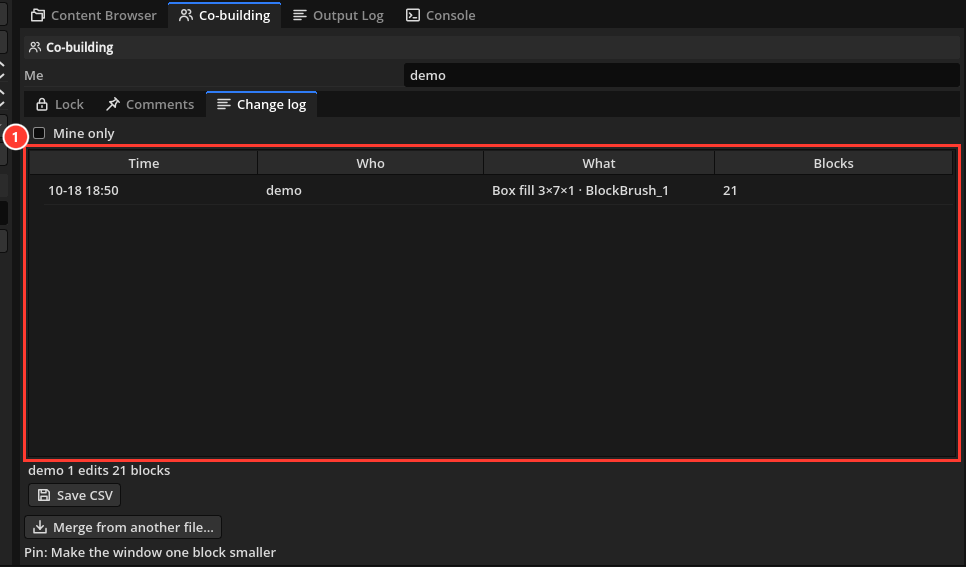
Edit some blocks, then click the Change log tab. Each edit (one undo step) leaves one row with Time · Who · What · Blocks.
-
Save the world and give it to others through a shared folder, Git and so on. For files that others saved separately, collect their locks, pins and log with Merge from another file… (the file picker is a Windows dialog and this needs a second person — no image).
Tips and tricks
Section titled “Tips and tricks”- You can keep editing cells inside your own lock, while cells inside a lock owned by someone else (red) do not change when you edit them. Before splitting up areas with others, have each person lock their area and save, then share the files.
- The “Me” name is remembered when you reopen the editor. If you use several PCs, enter the same name on each PC so your locks are recognized as yours.
- Edit > Lock selection (co-building) locks right away with the name “Lock HH:mm” without asking for a name. To add a name and note, use Lock selection in the panel.
Reference
Section titled “Reference”Where to open
Section titled “Where to open”| What | Where |
|---|---|
| Co-building panel | Window > Co-building (bottom area) |
| Lock the selection | Edit > Lock selection (co-building) · Lock tab in the panel |
| Place a comment pin | Edit > Place comment pin (click · Esc to cancel) (the pin text is “Note”) · Comments tab in the panel |
| Hide locks and pins | Hide locks·pins in the plugin group of the View mode menu |
Lock tab
Section titled “Lock tab”| Field · button | Meaning |
|---|---|
| Lock name · note (optional) | The name and description that identify the lock |
| Lock for everyone | Even you cannot change it (protects finished work; purple). |
| Lock selection | Locks the currently selected box as your area. |
| Unlock | Only the owner can unlock. |
| Force unlock | For when the owner is not around (not otherwise restricted). |
| Go to location | Moves the camera to the lock box (same as double-clicking in the list). |
| Enforce locks | On by default. Rejects edits to cells locked by others. |
| Color | Meaning |
|---|---|
| Blue | My lock |
| Red | Someone else’s lock |
| Purple | Locked for everyone |
- Undo and redo work regardless of locks. Snapshot restores skip locked cells.
- Locks tell owners apart by the “Me” name. If someone changes their “Me” name to match yours, locks cannot stop them.
Comments tab
Section titled “Comments tab”| Field · button | Meaning |
|---|---|
| Open · Resolved · All · Search | Filter the list · search by text |
| Reply | Adds a reply to the pin (anyone). |
| Resolve · Reopen | Changes the status (anyone) |
| Go to location | Moves the camera to the pin. |
| Delete | Only the author can delete. Usually use Resolve instead. |
| Show resolved pins | Resolved pins are also shown in the world (on by default). |
Change log tab
Section titled “Change log tab”| Column | Contents |
|---|---|
| Time | When the edit was made (local time) |
| Who | The “Me” name |
| What | The undo name (for example, box fill). If locks rejected some cells, “(rejected N)” |
| Blocks | Number of cells that actually changed |
- Turn on Mine only to see only your own entries. Save CSV writes a CSV that opens directly in Excel (
changes_<date>_<time>.csv) to your user folder. - The log keeps up to the most recent 5000 rows, and undo and redo are not recorded.
Merge from another file
Section titled “Merge from another file”| Data | Merge rule |
|---|---|
| Locks | Combines both. If the same lock differs, yours is kept. |
| Pins | Combines both. For the same pin, the later-edited side is kept and the replies are combined. |
| Log | Identical rows are kept once, and the rows are merged in time order. |
Blocks are not merged. If two people save the same file, the blocks from the later save remain.
Co-building on a live server (needs a second person — no images)
Section titled “Co-building on a live server (needs a second person — no images)”When several people connect live to the same NPBridge server (2.0.4 or later; the version bundled with the 0.11.1 installer is 2.4.0), everyone sees each other’s block changes right away without exchanging files.
| What | Behavior |
|---|---|
| Other editors | Other people’s cameras, names and selection boxes appear in the viewport. In Connected editors in the “Server” window, jump to their view or turn on Follow. |
| Shared region locks | Your locks (up to 32) are sent to the other editors, and the server also filters writes to those cells. If the lock owner name matches the other person’s “Me” name, the edit goes through. Cells skipped because of someone else’s lock are reported as “N blocks excluded (protected areas)”. |
| AI work display | When someone works with AI Studio, you see “AI working — <name>‘s AI” and the box the AI is changing. |
- Only locks are shared through the server. Comment pins and the change log stay in each person’s editor.
- To keep yourself from changing something by accident, use protected areas.
Shortcuts
Section titled “Shortcuts”| Shortcut | Action |
|---|---|
| Enter (“Me” field) | Set the name |
| Esc | Cancel pin placement |
| Double-click in the list | Go to the lock or pin location |
Related pages
Section titled “Related pages”Not an official Minecraft product. Not approved by or associated with Mojang or Microsoft.