
Install and first launch
Overview
Section titled “Overview”NP Editor ships as a single Windows installer. It installs for the current Windows user only and does not need administrator rights. The program name shown on screen is “Noplatea Editor”, shortened to NP Editor. On first launch you accept the terms, sign in and pass the license check, and then the editor opens with an empty world. If you don’t have a Noplatea account, you can create one right on the sign-in screen with a code sent to your email.
New in 0.10.3: the closed beta has ended, and anyone can create an account. Clicking Email Me a Code with a new email creates an account, and the terms consent now includes a check that you are 16 or older. The lock screen tells you why the editor is locked (free trial ended, pass ended, or trial already used on this PC).
Requirements
Section titled “Requirements”| Item | Details |
|---|---|
| Operating system | Windows 64-bit |
| .NET | No separate install. It is included in the installer. |
| Minecraft | A vanilla client installed with a launcher must be on this PC. Block textures and models are read from that jar. |
| Graphics | The Game view (F6) and Path tracing (F7) view modes require the Forward+ renderer and compute shaders. |
| Account · internet | You need a Noplatea account (16 or older). If you don’t have one, it is created the first time you sign in. The editor opens with the free 14-day trial, an editor pass or Supporter tier or higher. The account is checked over the internet at every launch. |
| Java (optional) | Needed only for “Build block list from server jar”. |
The Minecraft jar is never copied into the editor folder or your saved files. While the editor runs, it reads the jar on this PC directly and uses it only in memory.
Basic use
Section titled “Basic use”-
Run the installer
NPEditor_Setup_0.11.1.exeand follow the steps. The installer screens are in Korean.- On the components screen (it comes before the install location), “NP Editor 파일(.npworld 등)을 NP Editor로 열기” (open NP Editor files such as .npworld with NP Editor) is on by default. With it on,
.npworld·.npprefab·.npmodelfiles show the NP Editor icon and open in NP Editor when you double-click them in File Explorer. It applies only to this Windows user account and is undone when you uninstall the editor. Installing again with it off removes the association an earlier version made. - The default install location is
%LOCALAPPDATA%\Programs\NP Editor. When you update, the previous install folder is the default. - If the folder you pick already contains other files, a new
NP Editorfolder is created inside it and the editor is installed there. - If the editor is running while files are being copied, the installer shows “Noplatea Editor 가 실행 중입니다. 닫은 뒤 [다시 시도]를 누르세요.” (Noplatea Editor is running. Close it, then click [Retry].). Close the editor and click “다시 시도” (Retry).
- If you leave “Noplatea Editor 실행” (Run Noplatea Editor) checked on the last screen and close the installer, the editor starts right away.
- On the components screen (it comes before the install location), “NP Editor 파일(.npworld 등)을 NP Editor로 열기” (open NP Editor files such as .npworld with NP Editor) is on by default. With it on,
-
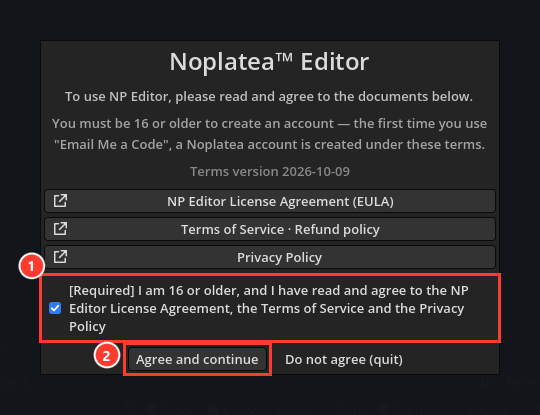
On first launch, the terms screen appears. Click NP Editor License Agreement (EULA), Terms of Service · Refund policy and Privacy Policy to read them in your browser, then click the “[Required] I am 16 or older, and I have read and agree to the NP Editor License Agreement, the Terms of Service and the Privacy Policy” check box to check it, and click Agree and continue. Agree and continue stays disabled until you check the box. As the note at the top of the screen says, only people 16 or older can create an account.
-
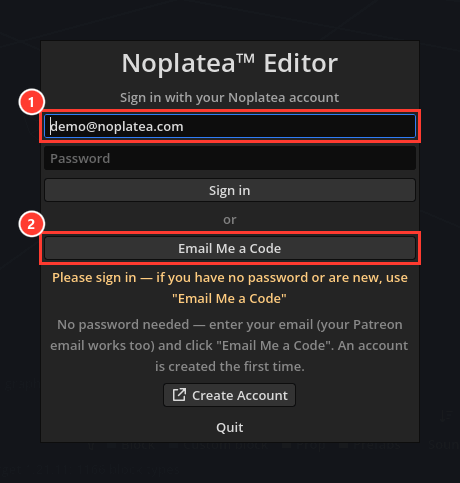
On the sign-in screen, type your email in the Email field and click Email Me a Code. You don’t need a password. If the email is new, a Noplatea account is created at this point. If you enter the email you use on Patreon, your pledge tier is linked to that account automatically. If your account has a password, you can also type it in the Password field and click Sign in.
-
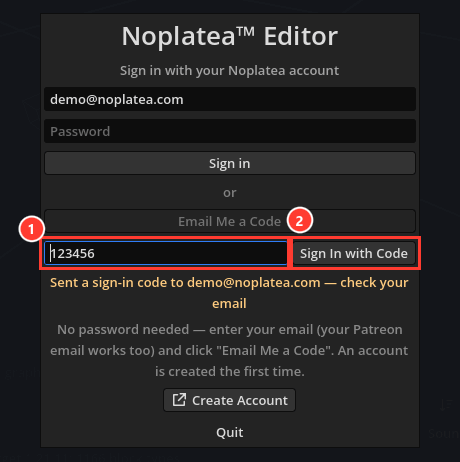
Type the code you received by email in the Code from the email field and click Sign In with Code. This field appears only after the code is sent.
-
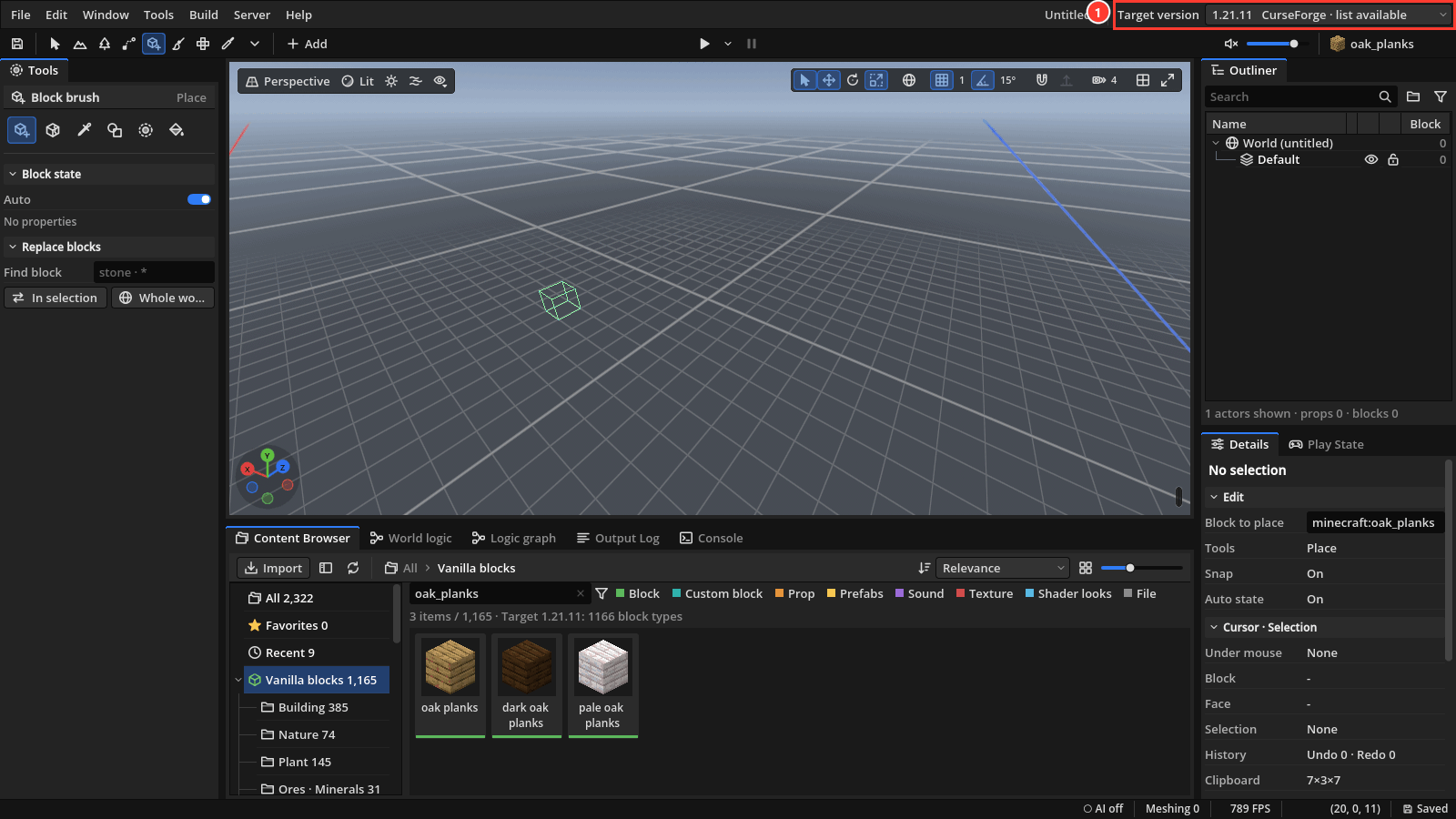
When sign-in and the license check finish, the editor opens with an empty world (“Untitled”). Target version at the right end of the menu bar shows the Minecraft version and launcher name found on this PC.
The editor does not reopen the last world automatically. Open a world with File > Open… (Ctrl+O). Pick a recently opened world from File > Open Recent, or double-click a .npworld file in File Explorer to open that world. Example worlds are in samples\ in the install folder. For the steps to build your first map, see Your first map.
When the lock screen appears
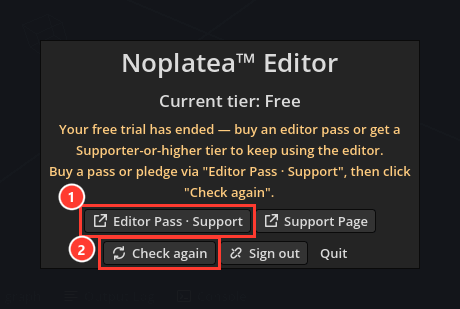
Section titled “When the lock screen appears”If you have no license to use the editor, a lock screen appears after you sign in. Your current tier is shown at the top, and the reason for the lock below it (for the text of each reason, see “Lock screen text” below).
-
Click Editor Pass · Support to open the account page in your browser, and buy an editor pass or check your pledge tier. Then click Check again on the lock screen; the editor gets a new license from the server and opens.
Tips and tricks
Section titled “Tips and tricks”- Sign in without a password: if you have no password or forgot it, sign in with Email Me a Code (steps 3–4 above). If you get “Incorrect email or password — if you have no password or are new, use “Email Me a Code"" while signing in with a password, get a code for the same email.
- Patreon supporters: sign in with the email you use on Patreon and your pledge tier is linked to your account automatically. If you signed in with a different email, link it with Link Patreon in Edit > Editor Preferences… > Account (Linking Patreon).
- Change the target version: click Target version at the right of the menu bar to open the list of vanilla versions found on this PC. Each row shows “version · launcher name”. Versions without a jar are marked “no jar”, and versions whose block list is already built are marked “list available”. When you pick one, textures switch to that version’s jar, and the block list and export checks follow that version. Your choice is saved in the world file.
- A newly installed version is missing from the list: the editor scans the launcher folders only once at launch. If you installed a new version with the launcher while the editor was running, click File > Rescan launcher folder (version list). The notice “Launcher folder: N vanilla versions — …” appears and the list is refilled.
Reference
Section titled “Reference”What happens on first launch
Section titled “What happens on first launch”| Step | Screen | Details |
|---|---|---|
| 1 | Duplicate launch check | If the editor is already running, it asks “NP Editor is already running. Launch another copy?”. Choose “Yes” to open another window. If you turn on Remember my choice and choose “Yes”, it does not ask again. Change this behavior in Duplicate launch under Edit > Editor Preferences…. |
| 2 | Splash screen | The NP cube and “불러오는 중… · Loading…” appear briefly. |
| 3 | Terms consent | Appears on first launch, on the first launch of an installed version whose terms have changed, and when your consent record is an old one without the 16-or-older check (0.10.2 or earlier). Click Do not agree (quit) to close the editor. |
| 4 | Sign in | Appears when there is no saved sign-in or it has expired. See “Sign-in and license” below. |
| 5 | License check | Without a license, a lock screen appears. |
| 6 | Crash report | The “NP Editor crash report” window appears only if the editor crashed last time. See Troubleshooting. |
The mode is Block brush the first time. After that, the editor starts in the mode you used last.
Sign-in and license
Section titled “Sign-in and license”| Item | Details |
|---|---|
| Sign-in screen | Has the Email and Password fields, Sign in, Email Me a Code, and at the bottom Create Account and Quit. Builds with a support page URL set also show a Support Page button. |
| Getting a new code | 30 seconds after a code is sent, you can click Email Me a Code again. |
| Creating an account | Click Email Me a Code with a new email and sign in with the code you receive. This creates an account (16 or older). To create one on the web, click Create Account — the account page (account.noplatea.com) opens in your browser in the editor’s language. While the server has paused new sign-ups, “No account with this email, and new accounts can’t be created right now — try again later” appears. |
| Consent record | If there is no record that you agreed to the current terms (including the 16-or-older check), Email Me a Code shows the terms screen first instead of sending a code. Once you agree, the code is sent. |
| One account | One Noplatea account works for both the web (account.noplatea.com) and the editor. Even if you signed in on the web, you sign in once more in the editor. For the account page, signing out and deleting your account, see Noplatea account. |
| License | After you sign in, the editor gets a license. The server decides whether you can use the editor: it opens with the free 14-day trial, an editor pass or Supporter tier or higher. Accounts that took part in the closed beta keep using the editor with the Beta Tester tier (see Free trial and devices and Credits and pricing). Otherwise a lock screen appears (step 6 above). |
| Devices | One license works on up to 2 devices. When the limit is reached, “Device limit reached” appears. Release devices you no longer use in the Account section of Edit > Editor Preferences… (up to 3 times in 30 days). |
| Check interval | The account is checked at every launch, and again every 6 hours while the editor is running. |
| Without internet | You can keep working for up to 1 day (24 hours) after the last successful check. After that, “Offline period (1-day limit) has expired — connect to the internet and sign in” appears. Turning back the PC clock does not extend it. |
| Account menu | Help > Account: Change password · Help > Account: Sign out |
| Sign-in data | %APPDATA%\NPEditor\account.json is encrypted with Windows protected storage (DPAPI). The license is license.json. |
| Reading the terms again | Help > Terms of Service · License (EULA) · Help > Privacy Policy |
AI Studio also uses the account you signed in with in the editor. There is no separate token to enter. See AI Studio in the editor.
Lock screen text
Section titled “Lock screen text”The first line of the lock screen is the reason for the lock, and the second line tells you to buy a pass or pledge via Editor Pass · Support and then click Check again.
| First line | Meaning |
|---|---|
| “Your free trial has ended — buy an editor pass or get a Supporter-or-higher tier to keep using the editor.” | The account’s free 14-day trial has ended. |
| “Your editor pass has expired — buy another pass or get a Supporter-or-higher tier to keep using the editor.” | The period of your editor pass has ended. |
| “Another account has already used the free trial on this PC (one trial per account and per PC) — you can use the editor with an editor pass or a Supporter-or-higher tier.” | Another account has already used the trial on this PC. |
| “This account can’t use the editor right now — the free trial has ended, or there is no editor pass or support tier.” | The text shown when the reason is unknown. |
Use Sign out at the bottom of the lock screen to switch to another account, and Quit to close the editor.
Finding the Minecraft jar automatically
Section titled “Finding the Minecraft jar automatically”At launch, the editor looks for vanilla client jars in the launcher folders on this PC. If the same version is in several places, the launcher higher in the table wins. In the Target version list, each one appears with the name in the right column.
| Order | Folder searched | Name in the list |
|---|---|---|
| 1 | %USERPROFILE%\curseforge\minecraft\Install\versions | CurseForge |
| 2 | %APPDATA%\.minecraft\versions | Official launcher |
| 3 | %APPDATA%\PrismLauncher\libraries\com\mojang\minecraft | Prism |
| 4 | %APPDATA%\MultiMC\libraries\com\mojang\minecraft | MultiMC |
| 5 | %APPDATA%\.tlauncher\legacy\Minecraft\game\versions | TLauncher |
| 6 | %APPDATA%\ModrinthApp\meta\versions · %APPDATA%\com.modrinth.theseus\meta\versions | ModrinthApp · Modrinth(com) |
| 7 | %USERPROFILE%\.minecraft\versions | Official launcher (~) |
| 8 | A jar picked with File > Load jar… | Picked manually |
- Only vanilla version folders are used. Mod loader folders such as Forge, NeoForge, Fabric, Quilt and OptiFine are skipped.
- If there is no jar, the notice “Minecraft <version> client jar not found — run that version once in the launcher, or use ‘File → Load jar’” appears. Run that version once in the launcher and click File > Rescan launcher folder (version list), or pick the jar yourself with File > Load jar….
- For a version without a block list (server report), build one with File > Build block list from server jar… (target version). When you pick a server jar, Java generates the data report. It takes tens of seconds, and you do it only once per version. For details, see Minecraft versions.
Inside the install folder
Section titled “Inside the install folder”| Path | Contents |
|---|---|
NPEditor.exe · NPEditor.pck · npeditor.ico | The editor itself and its icon |
data_NPEditor_windows_x86_64\ | .NET runtime and editor libraries |
server\NPBridge.jar | The NPBridge plugin for your Minecraft server. See Installing NPBridge (server admins) |
samples\ | Example worlds castle.npworld · elder_sanctuary.npworld |
samples\showcase\ | Examples for the tutorial “Mulgyeol” (the starting world for each part · the heightmap picture · villager and dancer models · the finished map mulgyeol_final.npworld · README.txt). Copy the whole folder into your own working folder to use it — Tutorial “Mulgyeol” part 1 — Land and river |
licenses\ | License notices (NOTICE.txt · THIRD_PARTY_NOTICES.txt) |
Uninstall.exe | Uninstaller |
The installer creates Noplatea Editor and Noplatea Editor 제거 (Uninstall Noplatea Editor) in the Noplatea Editor folder of the Start menu, and a Noplatea Editor shortcut on the desktop.
Silent install
Section titled “Silent install”You can install from the command line without any screens.
| Task | Command |
|---|---|
| Silent install | NPEditor_Setup_0.11.1.exe /S |
| Silent install to a chosen folder | NPEditor_Setup_0.11.1.exe /S /D=<install folder> (/D= goes last) |
| Silent uninstall | "<install folder>\Uninstall.exe" /S |
If the editor is running during a silent install or uninstall, the installer stops with exit code 5 without asking.
Updating to a new version
Section titled “Updating to a new version”Close the editor, run the new installer and install into the previous install folder.
- Program files (
data_NPEditor_windows_x86_64\, the notice files inlicenses\andserver\NPBridge.jar) are deleted and replaced. Insamples\, only files with the same name are overwritten. - Your worlds, settings, shortcuts and plugins (the user data folder) stay as they are.
- In
samples\showcase\, too, only files with the same names are replaced with new ones. Files you put in that folder yourself stay. - To see which version you have, open Help > About / Licenses. For the changes in each version, see What’s new in 0.11.1.
Note: since 0.11.0 the installed editor loads only external plugins signed by Noplatea. An unsigned plugin (for example the
np_cinematicused in 0.10.3) appears in the Plugin Manager as “Signature problem” after the update and is not loaded, so replace it with a signed build — Distribution and versioning.
Uninstalling
Section titled “Uninstalling”Remove “Noplatea Editor” from the app list in Windows Settings, or run “Noplatea Editor 제거” (Uninstall Noplatea Editor) from the Start menu. The uninstaller deletes the shortcuts, the program files, the example worlds the installer added and the registry entries. If files you added yourself remain in the install folder, it leaves the folder in place and shows you the list. The user data folder and world files you saved yourself remain.
Saving and autosave
Section titled “Saving and autosave”| Item | Details |
|---|---|
| World file | .npworld. File > Save (Ctrl+S) · File > Save As… (Ctrl+Shift+S) |
| Project folder | The folder that contains the world file. The custom block and model registry (assets\), prefabs (prefabs\), export results (export\) and screenshots (shots\) are created here. |
| AI chat history | Kept in the <world>.npworld.npchat\ folder next to the world file. |
| Copy before AI jobs | Before an AI Studio job starts, a copy of the current world is kept in .studio_backup\ in the world folder (latest 5). |
| Safe save | The editor writes to a temporary file first and then swaps it in. The previous file is kept as .bak. If the original file cannot be read, the editor restores it from .tmp or .bak the next time you open it. |
| Autosave | If anything changed, the editor saves in the background every 120 seconds. The original file is not touched. Beyond 10 files, the oldest are deleted first. |
| Loading an autosave | File > Load autosave opens the newest autosave file. After opening it, save with File > Save As…. |
| On quit | If there are unsaved changes, the editor asks “There are unsaved changes. Quit without saving?” (Quit without saving · Save and quit · Cancel). Even if you quit without saving, the changes are kept in the autosave file. |
| Switching maps | Before New, Open or Load autosave, if there are unsaved changes, the editor asks you to choose Save, Don’t Save or Cancel. |
Change the autosave interval and the number of files kept in “Autosave” in Settings.
User data folder
Section titled “User data folder”| Folder · file | Contents |
|---|---|
%APPDATA%\NPEditor\settings.cfg | Editor preferences · docking layout · view settings |
%APPDATA%\NPEditor\shortcuts.json | Changed shortcuts |
%APPDATA%\NPEditor\autosave\ | Autosave files |
%APPDATA%\NPEditor\project\ | Project folder for a world that is not saved yet |
%APPDATA%\NPEditor\plugins\ · plugins_state.json · plugin_settings\ | External plugin folder · on/off state · per-plugin settings |
%APPDATA%\NPEditor\account.json · license.json · terms_consent.json | Sign-in data · license · terms consent record |
%APPDATA%\NPEditor\server_link.json | Server connection settings |
%APPDATA%\NPEditor\chats\ | Where AI chat history goes when the world folder is not writable |
%APPDATA%\NPEditor\logs\ | Run logs (log files) and the error collection np_editor_errors.log |
%APPDATA%\NPEditor\crash\ | Where crash reports are collected before they are sent |
%LOCALAPPDATA%\NPEditor\versions\<version>\ | Per-version block list (server report) cache |
%LOCALAPPDATA%\NPEditor\texture_index\ · block_colors\ | Texture index · block color cache (no images are stored) |
Documents\NPEditor\looks\ · Documents\NPEditor\shaderpacks\ | Saved atmosphere and lighting looks · shader packs you made |
You can delete the cache folder (%LOCALAPPDATA%\NPEditor\). It is rebuilt the next time it is needed.
Related pages
Section titled “Related pages”Not an official Minecraft product. Not approved by or associated with Mojang or Microsoft.