
Shapes, brush and fill
Overview
Section titled “Overview”These are the Shape (5) · Brush (6) · Fill (7) tools of the Block brush mode. Shape places a sphere, cylinder, arch or similar shape with one click, Brush paints where you drag, and Fill changes a connected area of the same block at once. The Tools panel of these tools also holds Pattern, which mixes several blocks by ratio, and Replace blocks, which replaces the blocks it finds.
Basic use
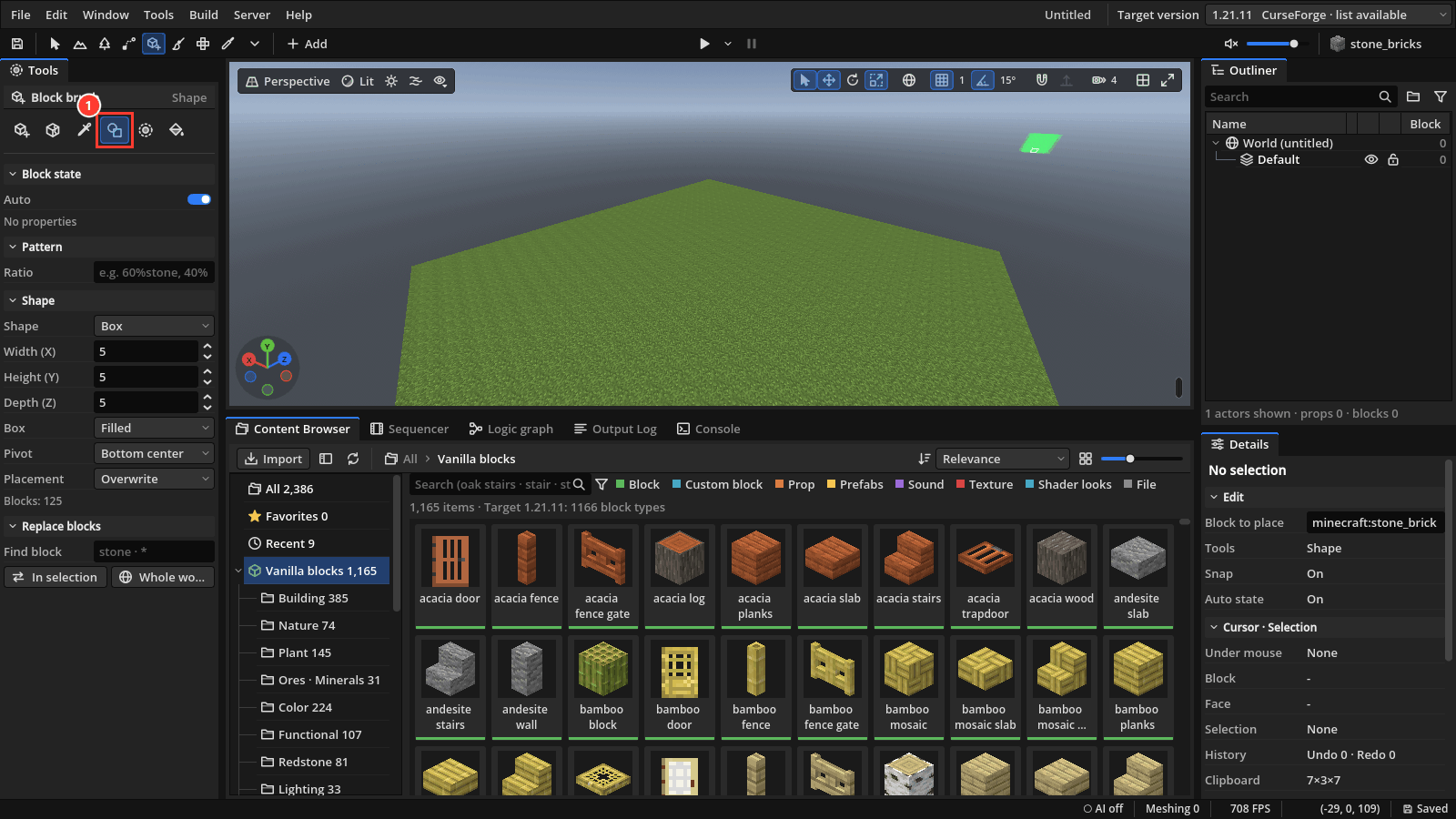
Section titled “Basic use”The example uses a grass floor, with the block to place already set to minecraft:stone_bricks (Placing and breaking blocks).
-
Click the Shape button in the Tools panel (5). The panel shows the Shape group.
-
Under Shape in the Shape group, select Sphere · ellipsoid and type
3in Radius X · Radius Y · Radius Z. “Blocks: 179” appears below the group.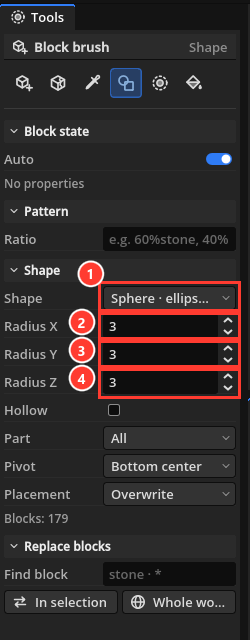
-
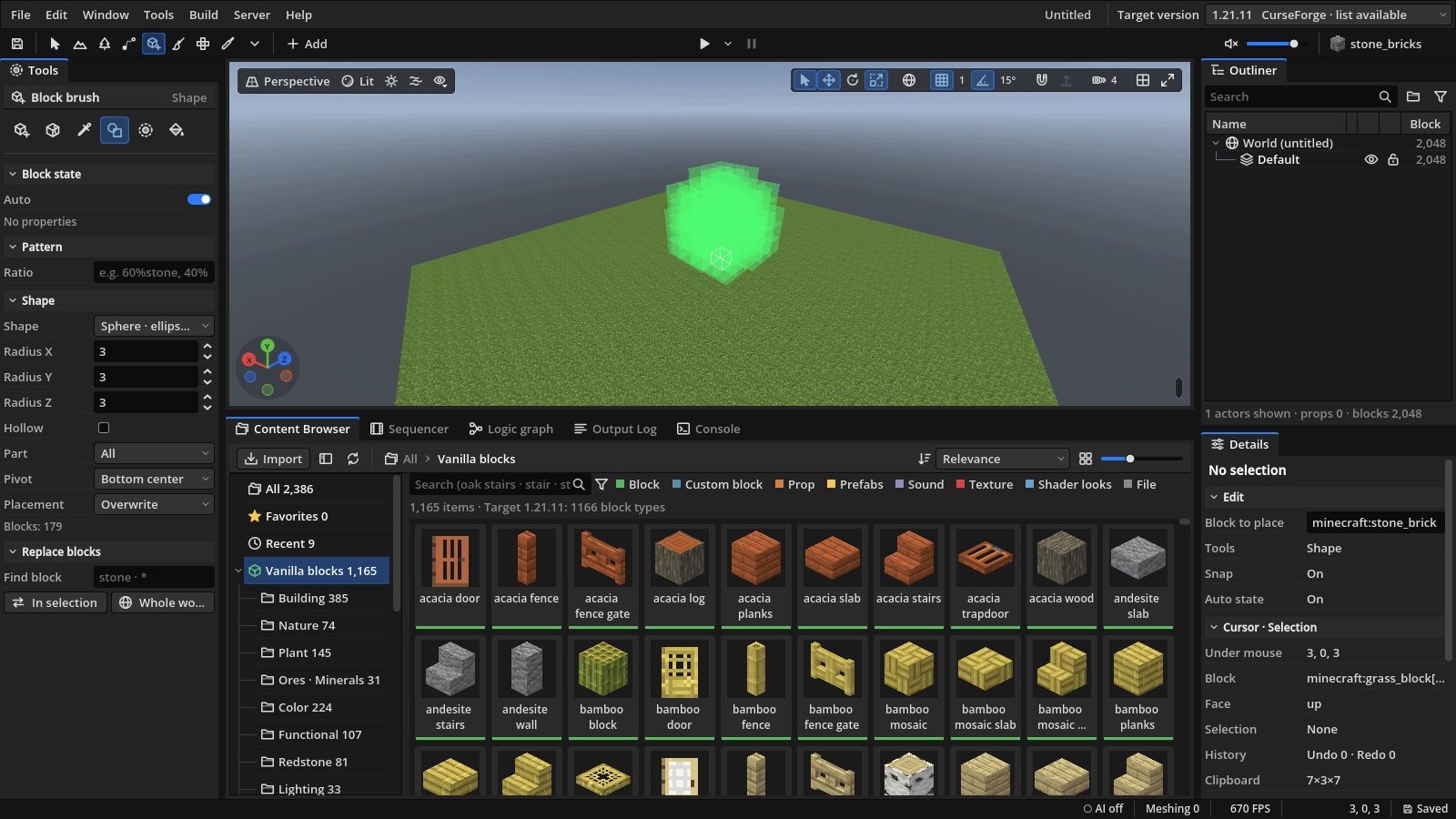
Hover over the grass in the viewport. A green ghost sphere appears, using the cell under the mouse as its pivot (Bottom center by default). The ghost does not change the world.
-
Click. The 179-block sphere is placed; one shape is one actor (
BlockBrush_1) and one undo step. The bounding box of the placed shape becomes selected.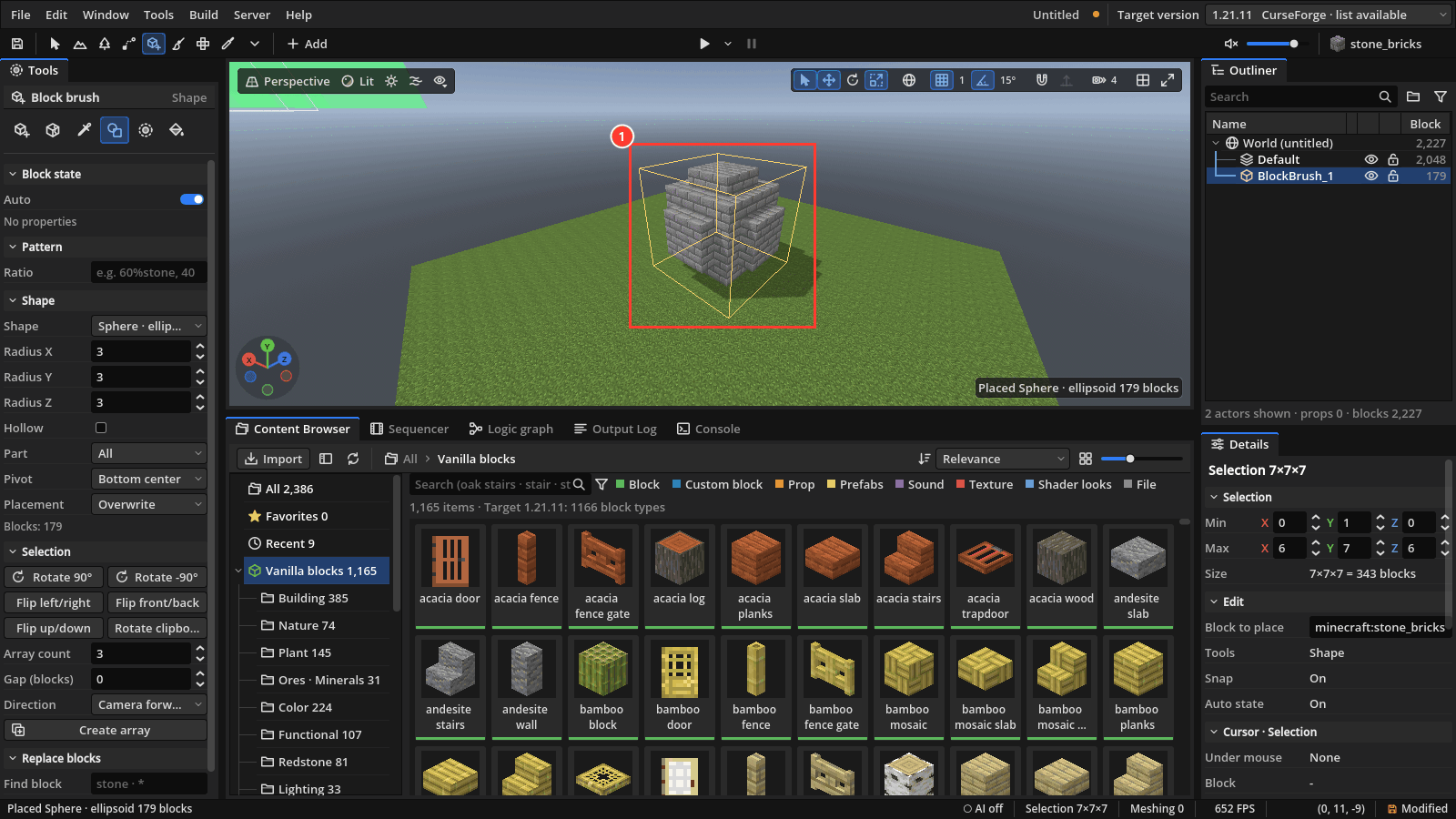
Pattern
Section titled “Pattern”-
Type
70%stone_bricks, 30%mossy_stone_bricksin the Ratio field of the Pattern group.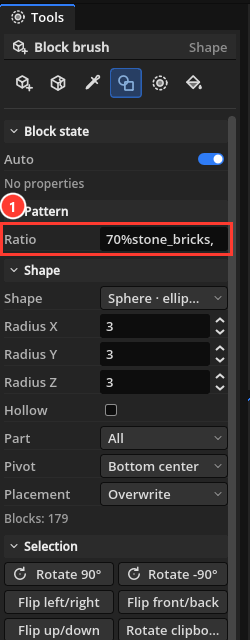
-
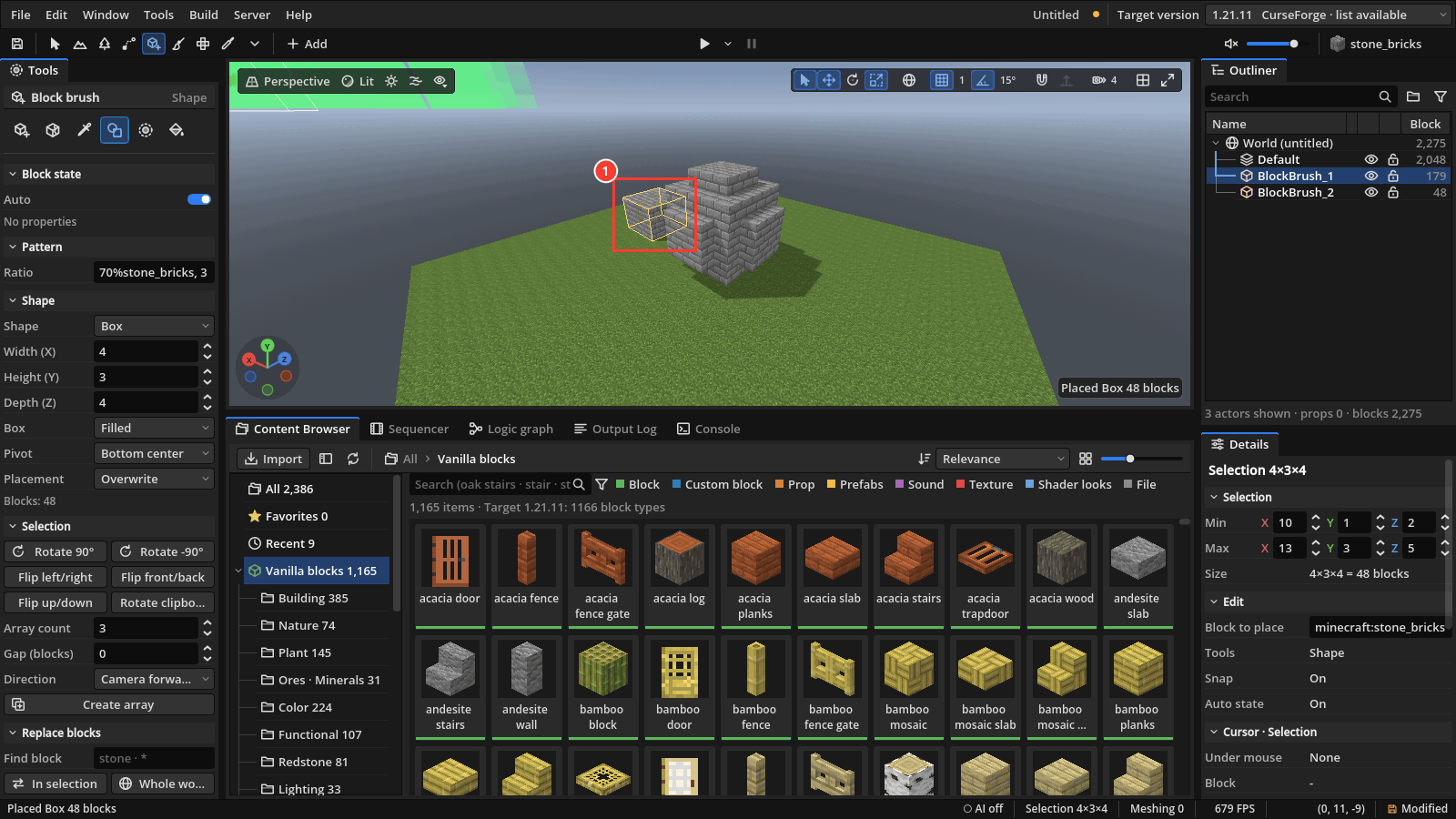
Change Shape to Box, type Width (X) 4 · Height (Y) 3 · Depth (Z) 4, and click the floor. A 48-block box is placed as a mix of 36 stone bricks and 12 mossy stone bricks. The same cell always gets the same block, so undoing and placing again gives the same pattern.
-
Click the Brush button in the Tools panel (6), select Paint (existing blocks only) under Mode in the Brush group, and type
1in Radius [ ]. Drag a long stroke across the grass floor. Only the grass under the stroke changes to the pattern blocks and nothing piles up on top (a stone path).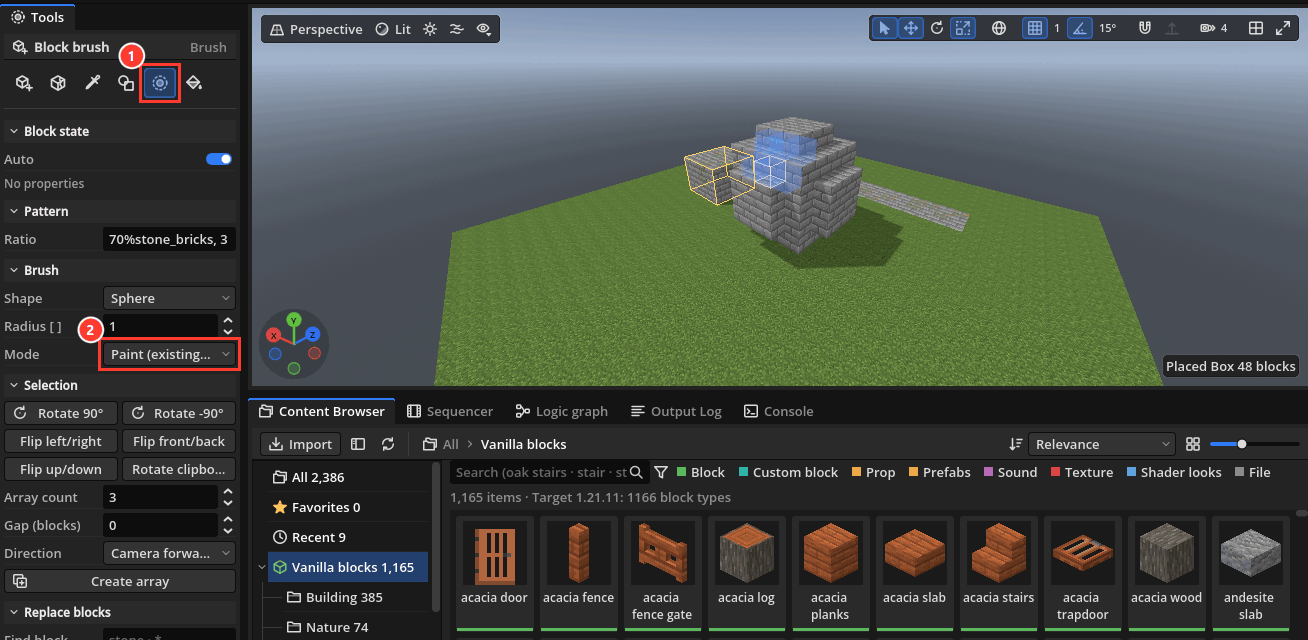
-
Press Esc to clear the selection (when there is a selection, Fill searches only inside it). Clear the Ratio field, change Block to place to
minecraft:sandstone, click the Fill button in the Tools panel (7) and click the sphere. All 179 stone bricks connected to the sphere become sandstone; the stone bricks of the separate box stay as they are.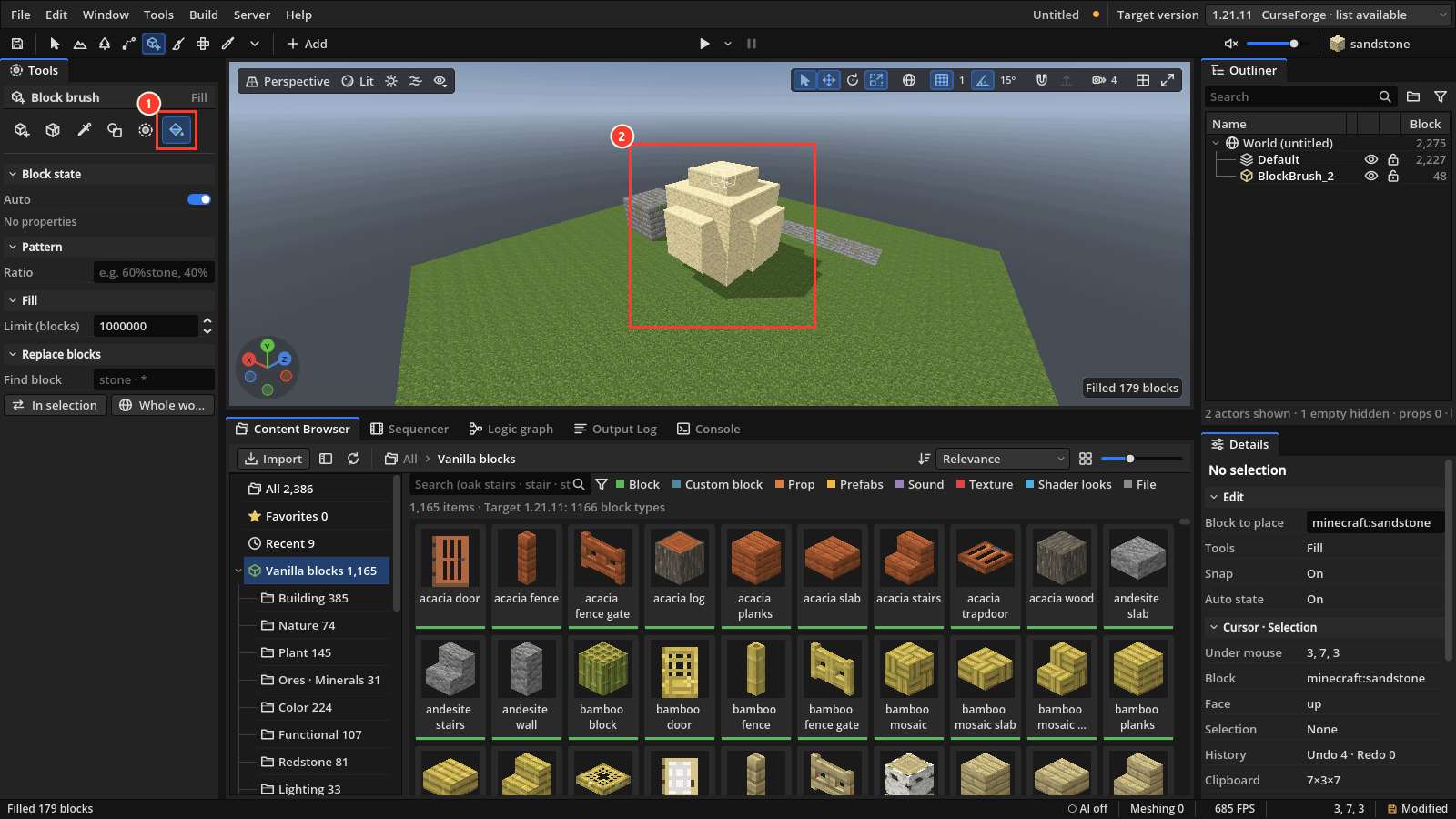
Replace blocks
Section titled “Replace blocks”-
In the Replace blocks group, type
mossy_stone_bricksin Find block andcracked_stone_bricksin Ratio of Pattern, then click Whole world. All 42 mossy stone bricks become cracked stone bricks (one undo step). To replace only inside the selection, click In selection.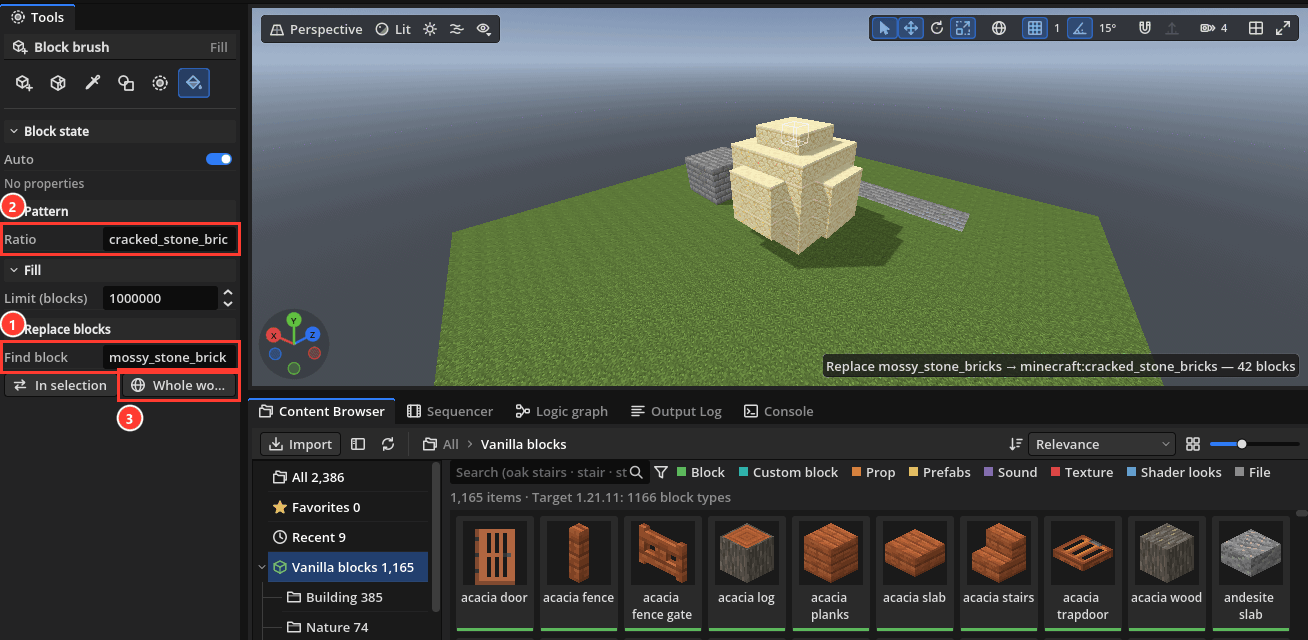
Tips and tricks
Section titled “Tips and tricks”- Change the shape size with [ · ]. With the Shape tool, ] grows X · Y · Z by 1 each (Shift = larger step). With the Brush and Break tools, the keys change the radius.
- Use a gradient pattern to change the material from bottom to top. Put
grad(y: stone → andesite → cobblestone)in Ratio and place a 3×6×3 box: the bottom isstoneand the top iscobblestone. - Brush Shift+drag = erase at the same size. Shift+drag across the top of a box to carve it away by the brush radius (48 blocks → 24 blocks).
- If Fill reports “Filled 0 blocks”, check the selection first. Placing a shape or drag box selects its bounding box, so a Fill click outside it changes nothing. Press Esc to clear the selection and click again.
- Use Paint mode to draw paths on terrain. It changes only existing blocks, so nothing piles up on the ground.
Reference
Section titled “Reference”Shape types
Section titled “Shape types”| Shape | X · Y · Z fields | Extra fields |
|---|---|---|
| Box | Width (X) · Height (Y) · Depth (Z) | Box: Filled · Hollow · Walls only |
| Sphere · ellipsoid | Radius X · Radius Y · Radius Z | Hollow, Part: All · Top half (dome) · Bottom half |
| Cylinder · circle · ellipse | Radius X · Height · Radius Z | Hollow, Axis: X (lying) · Y (upright) · Z (lying) |
| Cone | Base radius · Height | Hollow, Axis |
| Pyramid | Height | Hollow |
| Line (two points) | (none) | Thickness (1~64). First click = start point, second click = end point, right-click · Esc = cancel |
| Arch | Width · Pillar height · Depth | Thickness, Direction (R) |
| Slope · stairs | Length · Height · Width | Top surface only, Direction (R), Top stairs · Stair block |
Shape options
Section titled “Shape options”| Field | Values | Meaning |
|---|---|---|
| Shape | The 8 types above | Shape to place |
| X · Y · Z | 0~1024 | Meaning depends on the shape (table above) |
| Direction (R) | East (+X) · South (+Z) · West (−X) · North (−Z) | Direction a slope rises · direction an arch spans. With no selection, R · Shift+R also rotate it |
| Pivot | Corner · Bottom center · Center | Which part of the shape the clicked cell becomes |
| Placement | Overwrite · Existing blocks only (paint) · Empty cells only · Delete | With Delete, the ghost shows red |
Brush and fill
Section titled “Brush and fill”| Field | Values | Meaning |
|---|---|---|
| Shape (Brush) | Sphere · Cube · Cylinder | Brush shape |
| Radius [ ] | 0~64 (default 2) | Brush size |
| Mode | Overwrite · Paint (existing blocks only) · Empty cells only · Delete | Paint changes only existing blocks and keeps their original actor |
| Limit (blocks) (Fill) | 1,000~20,000,000 (default 1,000,000) | If the connected cells exceed this, nothing changes. Narrow the range with a selection |
- The brush locks the face where the drag started as its plane and paints only on that plane. One drag = one undo step, one stroke = one actor (Paint keeps the original actor).
- Fill changes the area connected to the clicked block with the same block to the current pattern (or the block to place if there is none). Clicking where there is no block fills the connected empty cells, so use it inside a selection.
Writing patterns
Section titled “Writing patterns”The Ratio field of the Pattern group appears with the Shape, Brush, Fill and Selection tools, and also applies to the Place tool’s drag box and to Replace blocks. Leave it empty to use only the block to place.
| Syntax | Example | Meaning |
|---|---|---|
| Ratio | 60%stone, 40%andesite | Mix by ratio |
| Count | 3*stone_bricks, cracked_stone_bricks | Mix 3 : 1 |
| Equal ratio | stone, dirt | Half and half |
| Block state | oak_stairs[half=top], oak_planks | Commas inside [ ] do not split |
| Gradient | grad(y: stone → andesite → cobblestone) | Changes along an axis (x · y · z · dist). You can add a range, blending and seed, as in grad(y 60..80 blend=0.3: grass_block → stone) |
You can omit minecraft:. If the text is invalid, the block to place is used alone.
Replace blocks
Section titled “Replace blocks”| Find block example | Meaning |
|---|---|
stone | That block in any state |
oak_stairs[half=top] | Only states that match the listed properties |
stone, andesite | Several blocks |
* | Every block that is not air |
air | Empty cells (In selection only) |
With symmetry (mirror · radial) on, Place, Break, Brush, Shape and drag boxes also apply at the symmetric positions (Detail tools).
Shortcuts
Section titled “Shortcuts”| Shortcut | Action |
|---|---|
| 5 · 6 · 7 | Shape · Brush · Fill |
| [ · ] (- · = · numpad − · +) | Shape size · brush radius ±1 (Shift = larger step) |
| R · Shift+R | Slope · arch direction (when nothing is selected) |
| Shift+drag (Brush) | Erase at the same size |
| Right-click · Esc (Line) | Cancel the line start point |
- Shapes over 200,000 blocks are placed across several frames. Press Esc while in progress to cancel.
- When protected areas are on, Shape, Brush, Fill and Replace skip protected cells.
Related pages
Section titled “Related pages”Not an official Minecraft product. Not approved by or associated with Mojang or Microsoft.