
Sky and sound
Overview
Section titled “Overview”Sky decoration has the engine draw sun, moon and cloud images itself and puts them in the resource pack and shader pack. It neither reads nor copies the vanilla sky images. The night sky (stars · Milky Way · aurora · constellations) is drawn by the shader pack and the F6 game view. Settings are saved immediately to the project’s assets/sky.np.json.
The Sound library manages sound events and sound files. A Sound emitter actor plays a sound at a fixed spot, like cave drips or a waterfall. In the game, the server plugin plays it at the emitter’s position and interval. For a sound at a set moment in a cutscene, use a Sound row key in the Sequencer; for rain and thunder, use Weather.
Basic use
Section titled “Basic use”Sky decoration
Section titled “Sky decoration”-
Click Tools > Sky decoration. The Sky tab opens in the bottom area. The sun, moon, clouds, night sky and image size fields sit side by side.
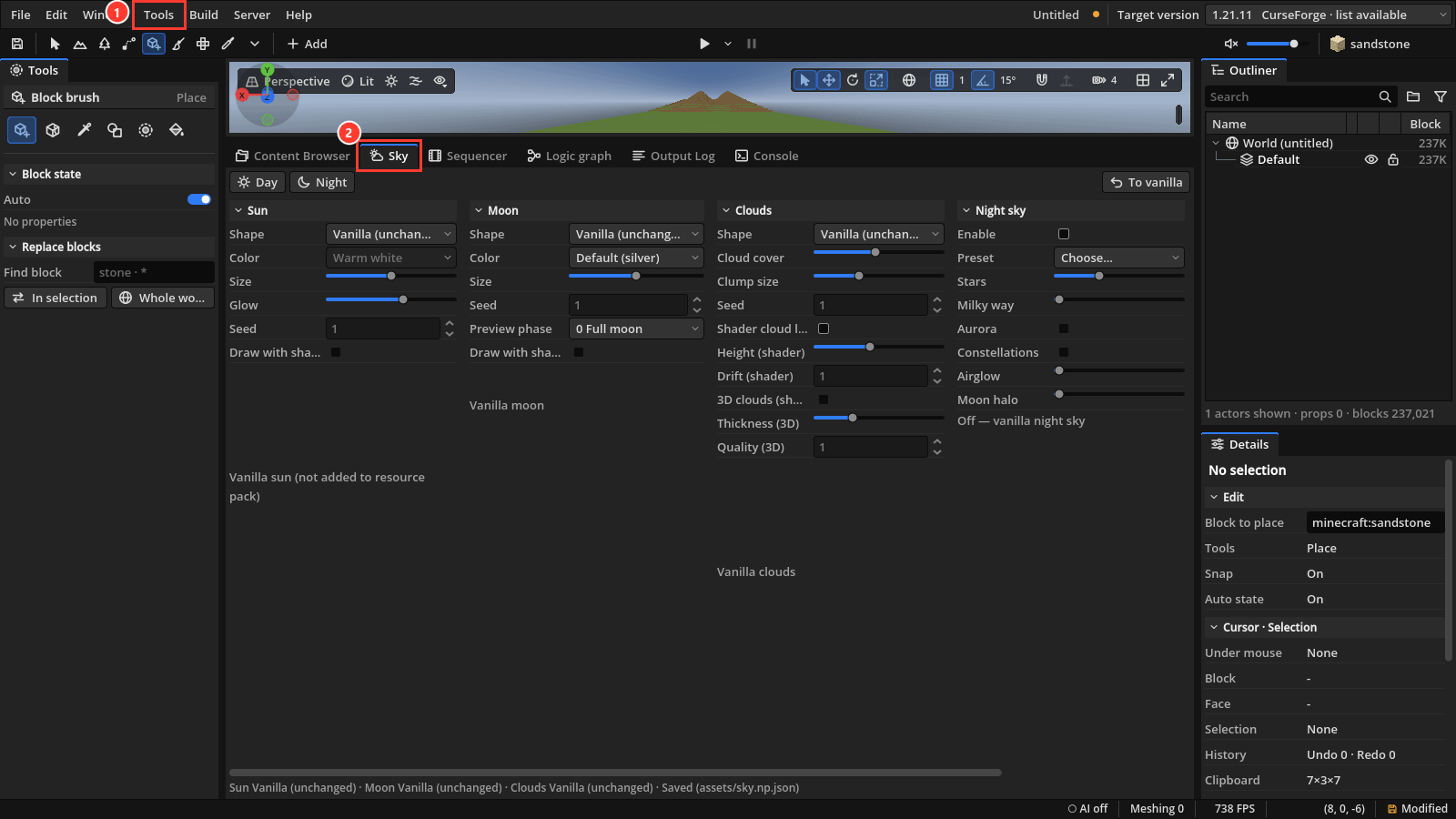
-
Select “Soft sun (halo)” in Shape under Sun, “Cratered moon” in Shape under Moon, and “Cumulus” in Shape under Clouds. Each field’s image changes right away, and the bottom line of the panel shows ”… · Saved (assets/sky.np.json)”.
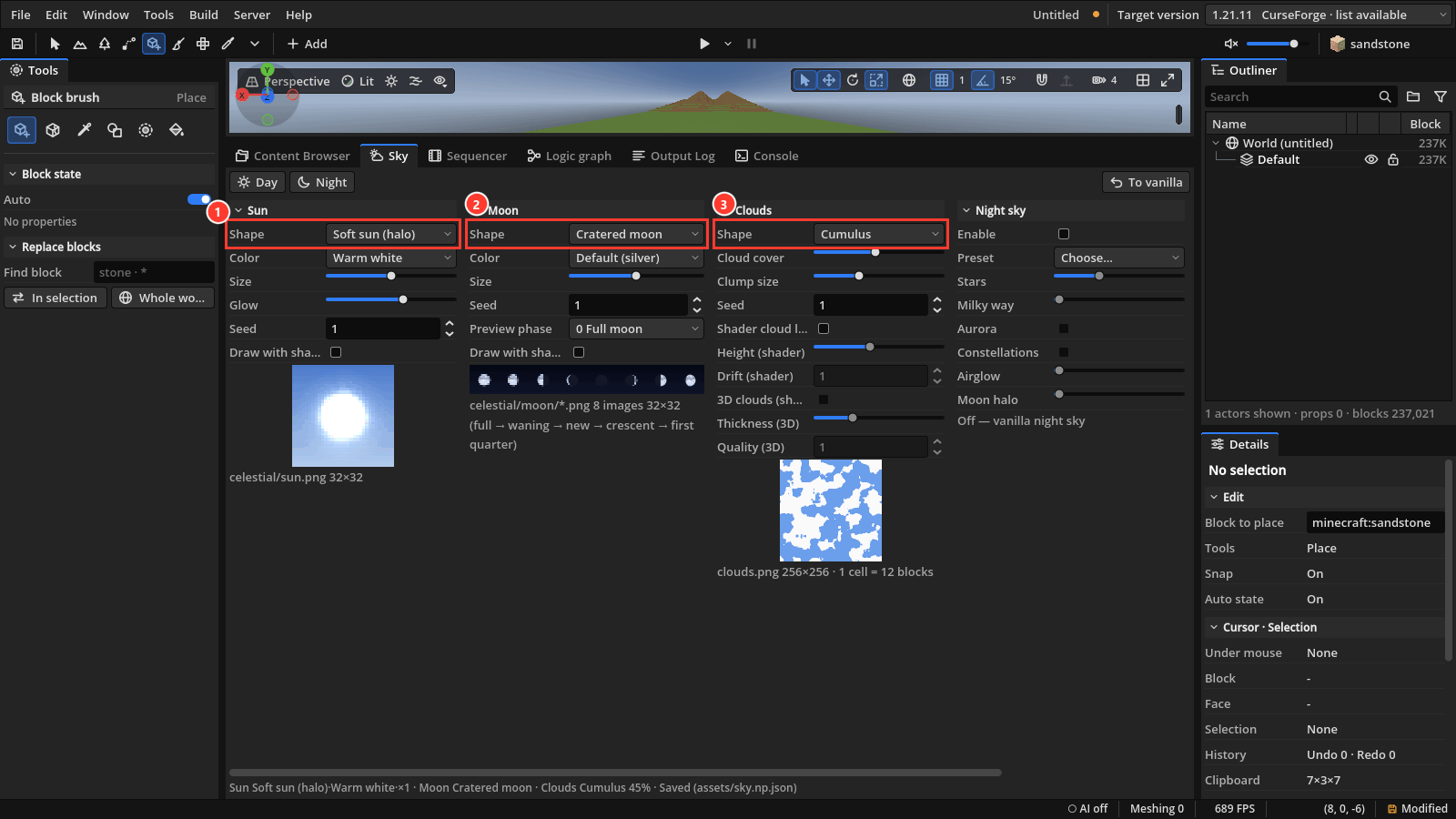
-
Check Enable under Night sky and select “Fantasy night” in Preset. Aurora, Milky Way, constellations, two moons and shooting stars turn on at once.
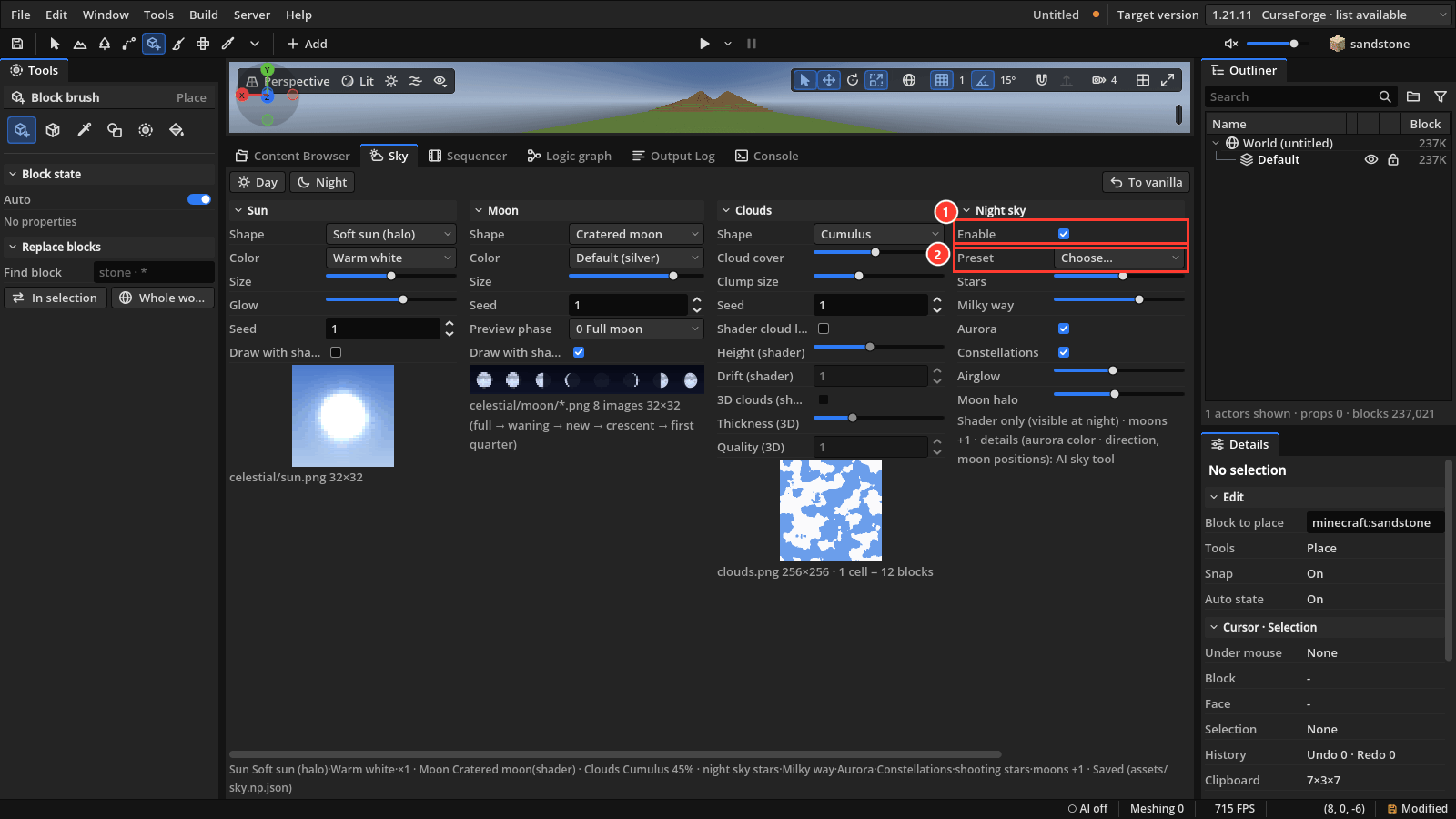
-
Click Night. The viewport switches to the F6 game view (shader preview) and shows the sky at 23:00.
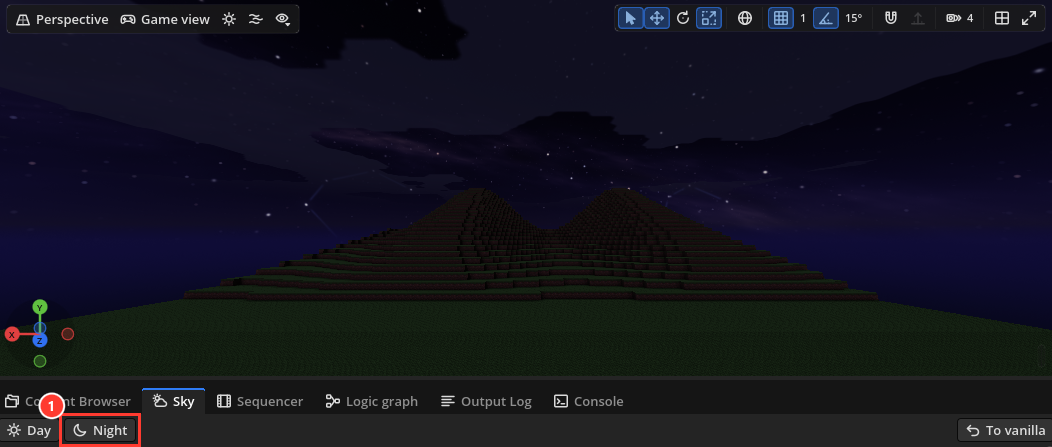
-
Click Day. The sky at 13:00 appears. The night sky appears only after sunset, so it does not affect the daytime view.
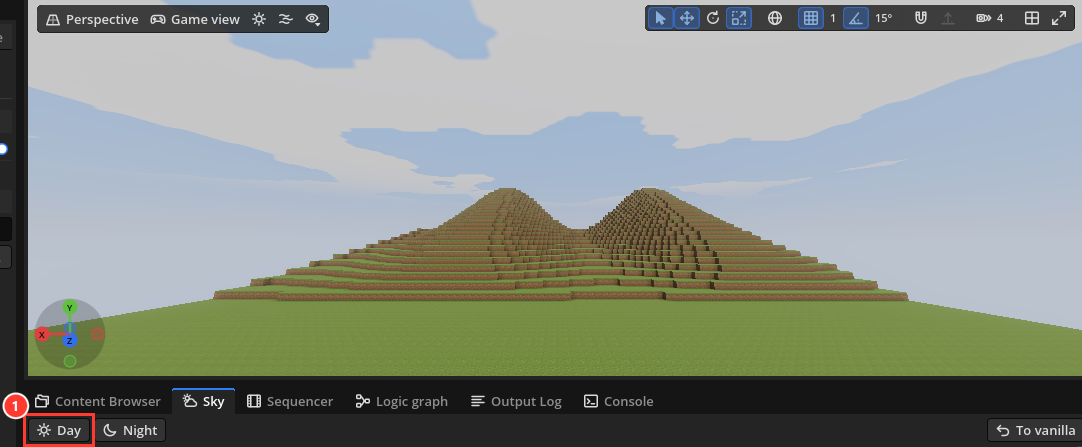
When you build the resource pack (Build > Build resource pack), the sky images go in with it; when you make the shader pack, the shader fields (Draw with shader · Shader cloud layer · night sky) go in. Press F1 to return to the normal editing view (Lit view) (Game view and shader pack).
Add sounds
Section titled “Add sounds”-
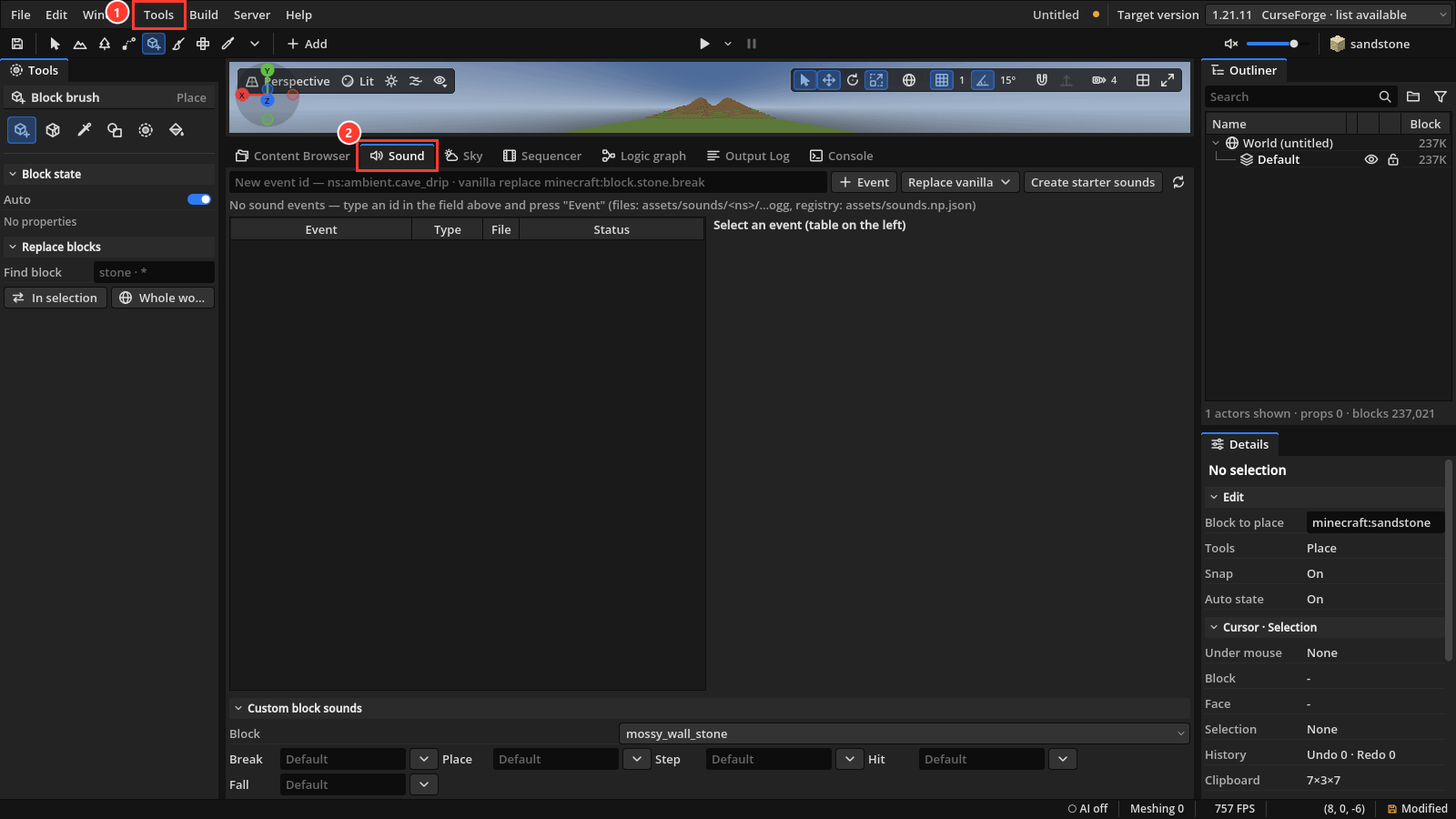
Click Tools > Sound library. The Sound tab opens in the bottom area.
-
Click Create starter sounds. Sounds synthesized by the engine itself (cave drips · stream · waterfall · campfire · wind · cave echo · chime · stone/wood/crystal blocks · thunder · rain · sword fights · wet footsteps · impacts and more) are added as
np:…events (“Starter sounds: created 41 events · 108 files”). These sounds are free of copyright concerns.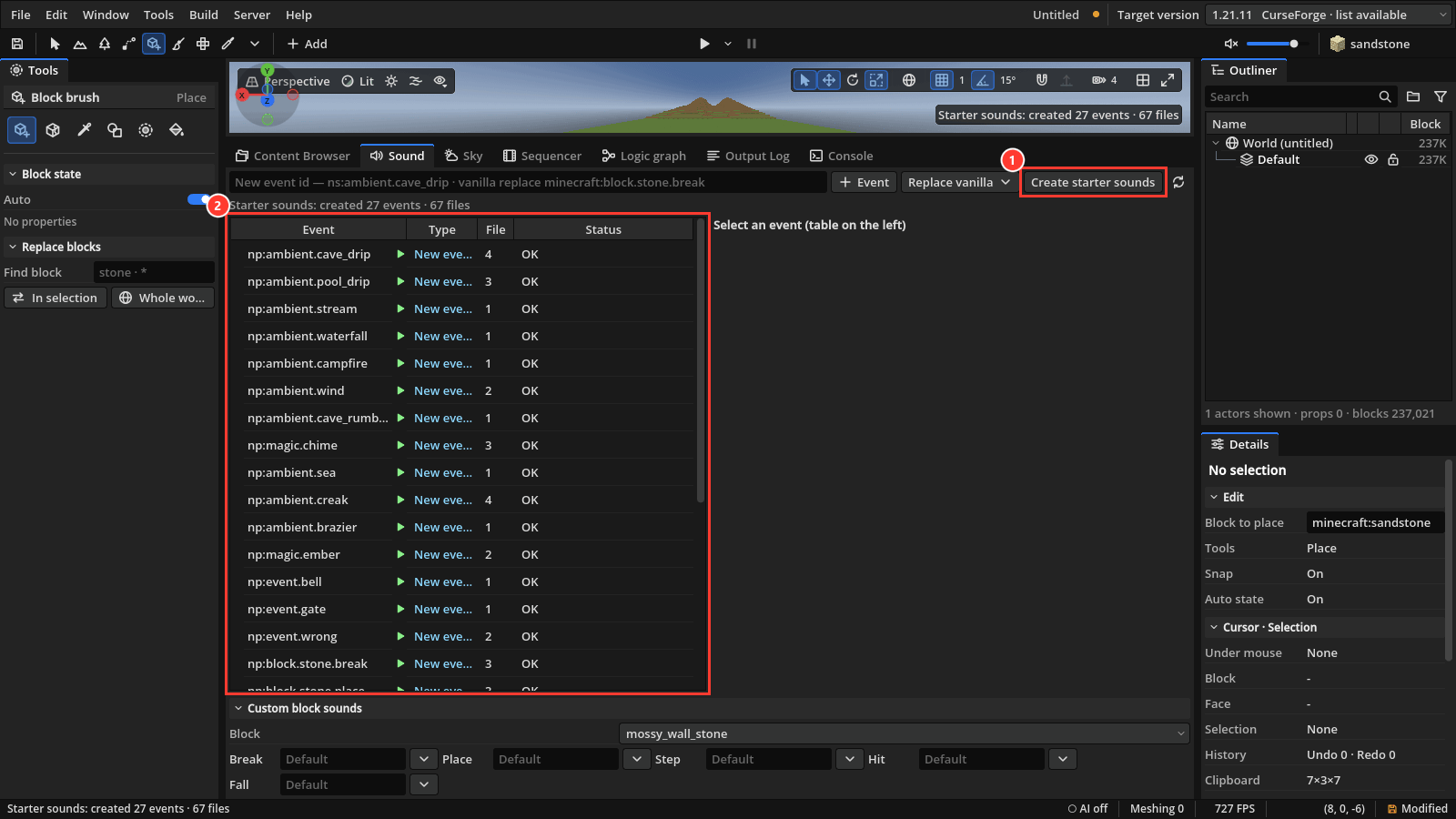
-
Click Add on the toolbar, type
dripin the search box, then double-click Cave drips in the list.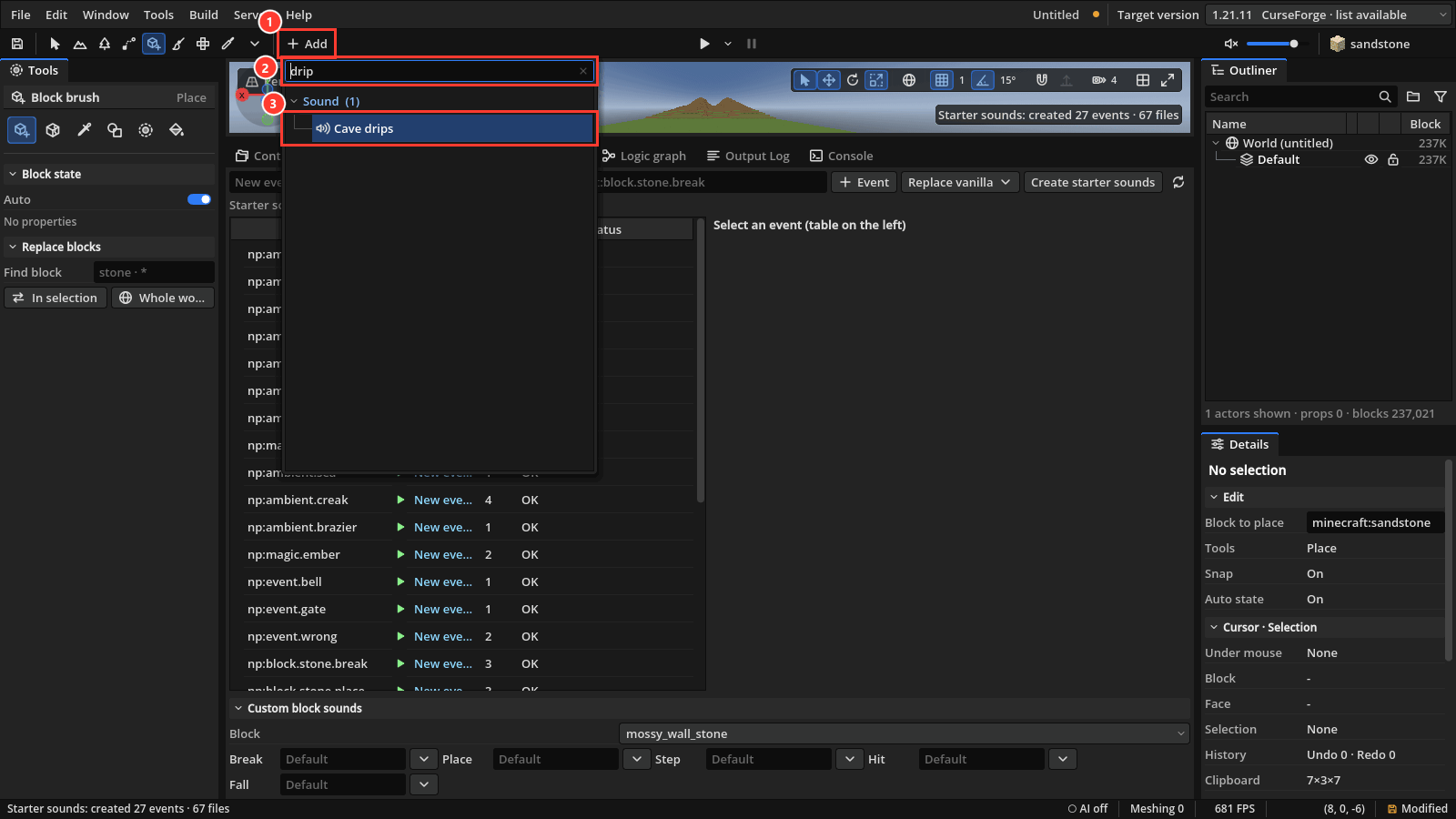
-
A sound emitter is placed under the mouse (or at the center of the screen if there is none), and a
SoundEmitter_1actor appears in the Outliner. The Event in the Details panel is the vanilla soundminecraft:block.pointed_dripstone.drip_water.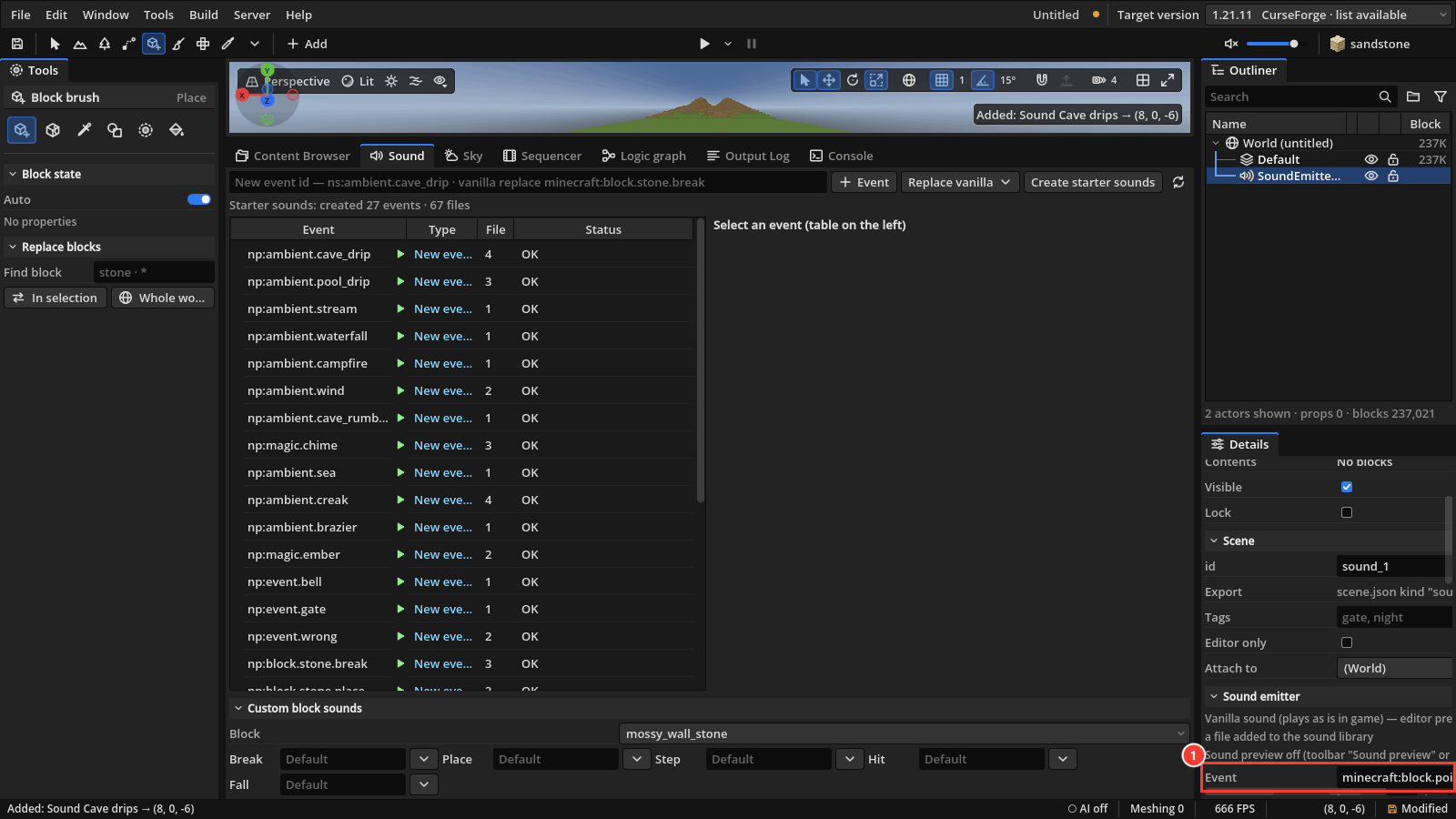
-
Type
np:ambient.cave_dripin the Event field and press Enter to apply it. The emitter now uses the starter sound added in step 7.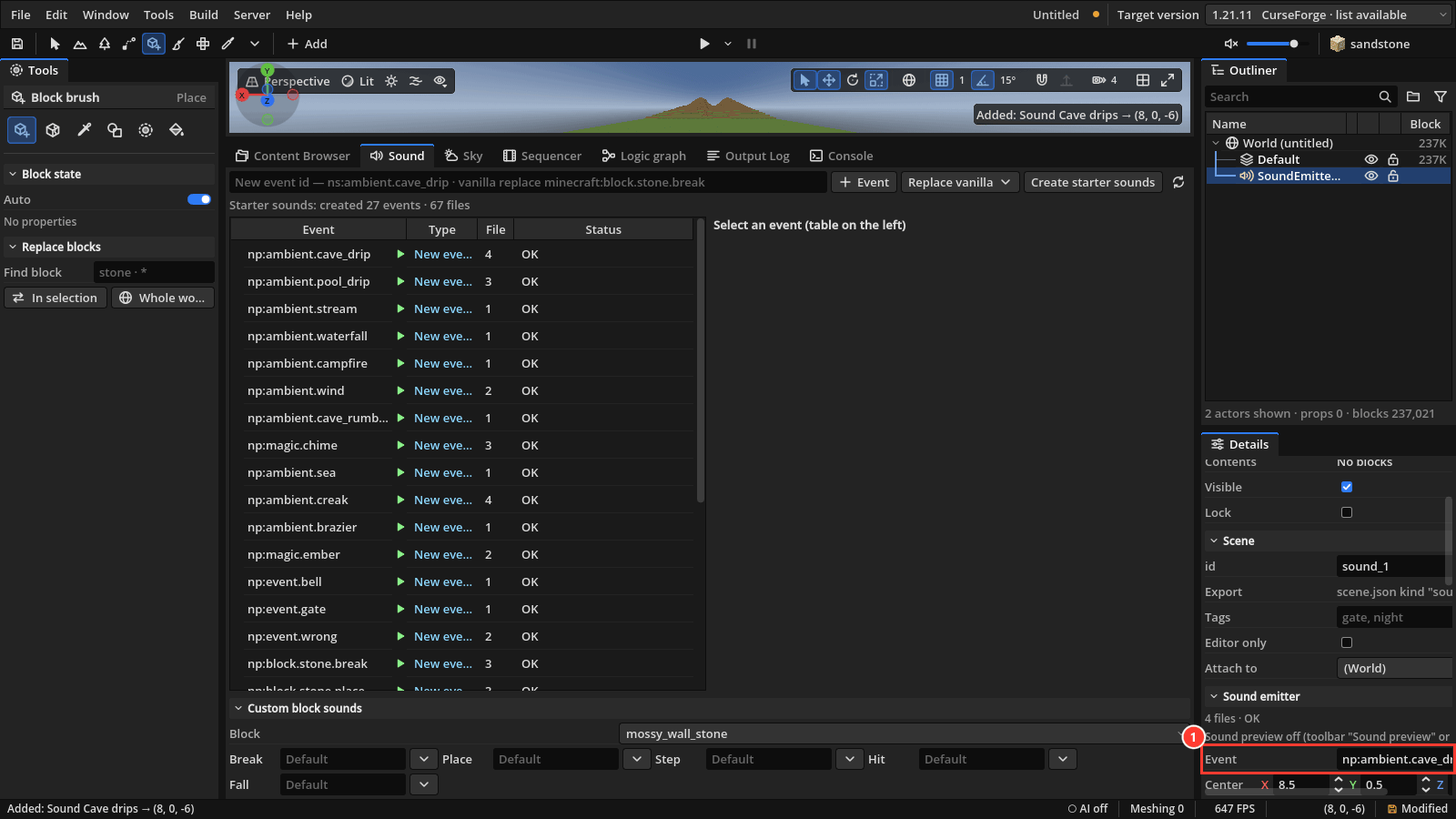
Tips and tricks
Section titled “Tips and tricks”- Vanilla events have no sound files in the editor, so their preview is silent. After placing an emitter, switch its event to an
np:…event from Create starter sounds to hear it in the editor right away; the sound files also go into the resource pack. - When you first decorate the night sky, start with a Preset and adjust only fields such as Stars and Milky way. Presets leave the clouds and sun unchanged.
- Sky settings are saved each time you pick something, so there is nothing to save separately. To reset, click To vanilla.
- Check the F6 sky with the Day and Night buttons. They jump straight to 13:00 and 23:00 without setting the time by hand.
- To fix the sky time in the world, use Sky time (-1 = view setting) in the Weather window. It is saved as world data and becomes the
level.dattime when you export to a Minecraft world (Weather, rain and lightning). - If you choose the place a sound comes from (an actor) in a sequence sound key, the preview plays it as a 3D sound from that place, getting quieter with distance. Each key plays on its own voice, so it does not cut off the previous sound.
Reference
Section titled “Reference”Sky fields
Section titled “Sky fields”| Field | Options |
|---|---|
| Sun > Shape | “Vanilla (unchanged)” · “Soft sun (halo)” · “Pixel sun” · “Ringed sun” · “Star shape” · “Eclipse” |
| Sun > Color · Size · Glow · Seed | “Warm white” · “Gold” · “Sunset orange” · “Cool white” · “Rose” / 0.5–1.5 / 0–1 / pattern seed |
| Moon > Shape | “Vanilla (unchanged)” · “Cratered moon” · “Pixel moon” · “Crescent drawing” · “Halo moon (craters + soft glow·halo)” |
| Moon > Color | “Default (silver)” · “Blood red” · “Blue moon” · “Violet moon” · “Gold moon”. The shader multiplies the moon color even when Draw with shader is off. |
| Moon > Preview phase | The phase shown in F6 (0 full moon – 7 waxing gibbous). In the game it cycles with the date. |
| Clouds > Shape · Cloud cover · Clump size | “Vanilla (unchanged)” · “Cumulus” · “Cirrus (streaks)” · “Scattered puffs (sparse)” · “No clouds” / 0.05–0.9 / 0.5–2 |
| Clouds > Shader cloud layer · Height (shader) · Drift (shader) | The shader pack draws a 2D cloud layer in the sky and hides the vanilla clouds. The height runs from -64 (the world bottom) to 320. Set it low for a cloud sea (see “Cloud sea” below). Drift is how many times the cloud pattern passes per hour (0 = stopped, up to 8, decimals allowed). |
| Clouds > 3D clouds (shader) · Thickness (3D) · Quality (3D) | Draws the shader cloud layer as 3D clouds. Quality 0 low · 1 medium · 2 high. |
| Night sky > Enable · Preset | After sunset, the shader (shader pack · F6) draws stars · Milky Way · aurora · constellations · extra moons. Presets: “Fantasy night” · “Clear night” · “Northern aurora” · “Off (vanilla night)” |
| Night sky > Stars · Milky way · Aurora · Constellations · Airglow · Moon halo | Night sky details. Set the aurora color, direction and width and the positions of extra moons with the AI sky tool or in assets/sky.np.json. |
| Image size > Sun · moon · Cloud map | ×1 (32×32, same as vanilla) · ×2 · ×4 / ×1 (256×256) · ×2 · ×4 (resource pack self-check warning) |
| Image size > Legacy paths too | Also writes the image paths for older clients (on by default). |
| Image size > Save in this world | When on, the sky is saved inside this world (.npworld), so it follows the world when you copy it to another folder. When off, it is saved in the project file assets/sky.np.json, which the worlds in the same folder share. |
| Sun · Moon > Draw with shader | When on, the shader pack draws this shape itself. When off, the resource pack image is used. |
The same seed gives the same image. The sky images are drawn from engine formulas, so you can distribute them as they are.
Sky color · cloud color · cloud sea · storm vortex
Section titled “Sky color · cloud color · cloud sea · storm vortex”These have no fields in the sky panel (the cloud sea height can also be set with Height (shader) above). Set them with the AI’s sky tool or in the sky file (assets/sky.np.json, or inside the world when Save in this world is on); in the game you can also change them in the shader pack options. Only the shaders (shader pack · F6) draw them.
| Feature | Sky file · look keys | Shader pack options |
|---|---|---|
| Sky color | color with zenith (color overhead) · horizon (color at the horizon) · zenith_mix · horizon_mix (0 = game sky color, up to 1) · saturation (0–2, 1 = unchanged). The look keys sky_zenith · sky_horizon · sky_saturation do the same. The colors are for noon; at sunset, at night and in rain the sky darkens like the game sky. | “Sky & Clouds” → “Sky & Cloud Colour” |
| Cloud color · brightness | clouds.tint (#rrggbb, white = unchanged) · clouds.brightness (0.2–2). The look keys cloud_tint · cloud_brightness do the same. | “Sky & Clouds” → “Sky & Cloud Colour” |
| Cloud sea | Lower clouds.height down to -64 (the world bottom). Keep the top of the cloud layer (height + 3D thickness) below the camera to look down on it — for example height 40 · thickness 48 for a camera at y 111 on a plateau. Clouds are visible from above the layer too. | — |
| Storm vortex | vortex. Presets of the AI sky tool: storm_vortex (world point) · storm_vortex_flat (flat disc) · storm_vortex_sky (fixed in the sky) · storm_vortex_dark (vortex + deep blue sky color + shader cumulus clouds) · vortex_off (off) | “Sky & Clouds” → “Storm Vortex” |
Sound library
Section titled “Sound library”| Button · field | Action |
|---|---|
| id field + Event | Creates a new event (<ns>:…, played by the server) or picks a vanilla event to replace (minecraft:…, replaced everywhere through the resource pack). |
| Replace vanilla | Picks the vanilla sound id to replace from a list and fills it into the field. |
| Create starter sounds | Adds the synthesized starter sounds as np:… events. Existing events are skipped. |
| Add file… · To mono | Adds .ogg · .wav to the selected event. .wav is converted to Ogg, and To mono (on by default) converts positional sounds to mono. If the same name exists, a new name such as _v2 is used. |
| Subtitle | The subtitle translation key or text. Leave it empty for no subtitle. |
| Play · remove · delete · refresh icons | Listen to the event once · remove the selected file from the event · delete the event from the registry · reread assets/sounds.np.json. Sound files on disk are not deleted. |
| Custom block sounds | Sets the events to play for Break · Place · Step · Hit · Fall of each custom block. Custom blocks have fixed client sounds, so the server plugin plays them instead. |
When you open a registry that has events, the line at the top of the Sound tab shows the full path of the registry file. Hide this line when you share your screen.
Sound emitters
Section titled “Sound emitters”| Add > Sound | Default |
|---|---|
| Cave drips | Once per interval · underground only |
| Waterfall · flowing water · Campfire crackle | Once per interval |
| Wind | Continuous loop |
| Empty sound emitter | No event |
| Details field | Meaning |
|---|---|
| Event | The id of the sound event to play. Pick from the library or vanilla suggestions with the button on the right, or type it and press Enter to apply. |
| Center | Where the sound comes from. Move it with the “Move under mouse” icon button. |
| Audible range · Volume · Pitch | The distance (blocks) at which the sound fades to 0 · loudness · pitch (random between minimum and maximum). |
| Mode · Interval (s) | “Once per interval (random)” · “Continuous (loop)” / the wait time for once per interval. |
| Time of day · Underground only | “Always” · “Day only” · “Night only” (day = 06–18 h) / plays only where the sky is blocked (caves). |
- Turn on the speaker button (sound preview) on the right of the toolbar to hear emitters within 64 blocks of the camera in the editor (off by default; the bar next to it = master volume). It is always on during Play.
- In the game, the server plugin plays them at the emitter positions and intervals in the exported
sounds_server.json. - Sounds and sky go only into the full resource pack.
Added to the starter sounds (0.11.0)
Section titled “Added to the starter sounds (0.11.0)”| Event | Sound |
|---|---|
np:weather.thunder · np:weather.thunder_far | Near thunder · distant thunder |
np:weather.rain | Rain (loop) |
np:combat.sword_clash · np:combat.sword_parry · np:combat.sword_swing · np:combat.sword_draw | Sword clash · parry · swing · draw |
np:combat.sword_scrape · np:combat.sword_scrape_short | Sword tip scrape (loop) · short scrape |
np:step.wet · np:step.splash | Footsteps on a wet road · stepping in a puddle |
np:combat.body_hit | A body being hit |
np:impact.metal · np:impact.metal_clatter | Big metal impact · small metal drop |
Sequence sound keys
Section titled “Sequence sound keys”A key on the Sound row of the Sequencer plays one sound event at that time. The fields are the sound event id, Volume, Pitch, and the place the sound comes from (an actor; if empty, the viewer’s position).
- The preview plays every key on a new voice (it does not cut off the previous sound), and a key with a place plays in 3D, getting quieter with distance.
- Rain and thunder sounds are played by the weather preview. Thunder and rain sound keys placed automatically by AI tools are not played again by the editor preview, so they do not sound twice (for mixing the video’s sound).
- Keys placed by AI tools may have a world coordinate place (
pos) and a game exclusion (game:false). Server NPBridge 2.2.0 or later plays the sound at theposplace and does not playgame:falsekeys. You do not choose these two values in the Sequencer screen. - For the weather sound settings (Preview rain · thunder sound · Rain sound radius · Thunder: installed Minecraft sound), see Weather, rain and lightning.
Related pages
Section titled “Related pages”Not an official Minecraft product. Not approved by or associated with Mojang or Microsoft.