
Testing in Play mode
Overview
Section titled “Overview”Play tests World logic rules inside the editor without a server. Rules, walking physics and animations run at the same 20 TPS (20 ticks per second) as the server. Blocks and state changed during Play all return to their original state when you stop.
| Mode | Camera | Player |
|---|---|---|
| Play | First person — the player’s eyes | You walk yourself. The body’s name is player. |
| Simulate | The edit camera as is (free) | A blue capsule is the player. |
New in 0.11.0: in Play you can type chat and commands to test command and chat rules, the camera cuts of a sequence change your view, you can hit and throw Physics bodies, and the moving models in the map play their animations. Sprint is Ctrl and sneak is Shift.
Basic use
Section titled “Basic use”The screenshots were taken on the road in front of the castle gate in the sample world castle.npworld, with one rule: the manually fired trigger When chatting → Chat message (text You said: {message}).
-
Click ▾ next to ▶ in the middle of the toolbar. Select the mode (Play — walk in the viewport (Alt+P) · Simulate — free camera, logic only (Alt+S)), the start location (From current camera position · From spawn point (Project Settings default spawn)), Play stats overlay (tick · zone · flag) and Switch view to sequence cuts in Play. ▶ uses the mode you picked.

-
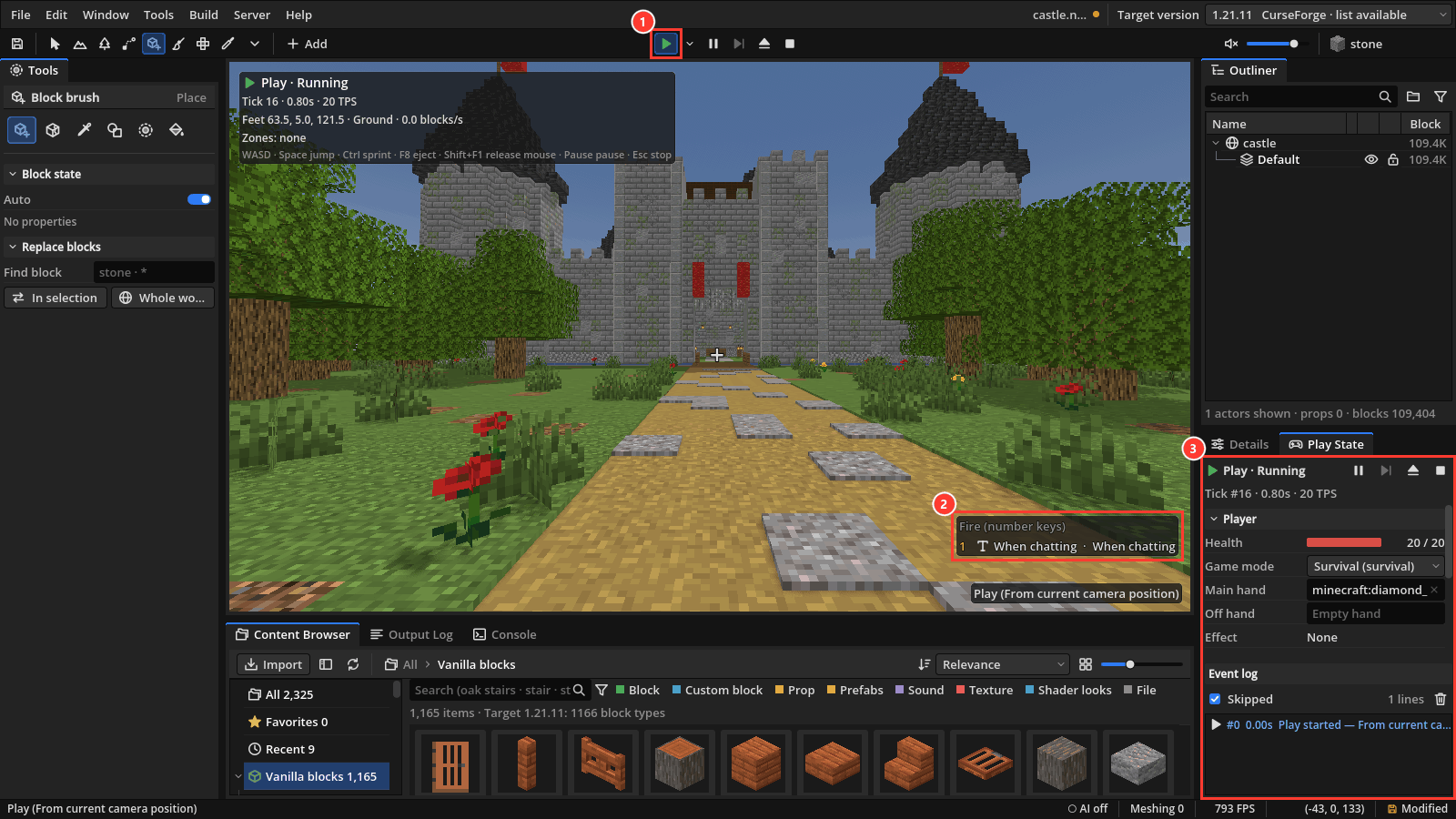
Click the ▶ button. A body appears at the camera position and the view switches to first person. Play info (tick · foot position · zone) appears at the top left of the viewport, the “Fire (number keys)” list at the bottom right, and the Play State panel opens in the bottom right area.
-
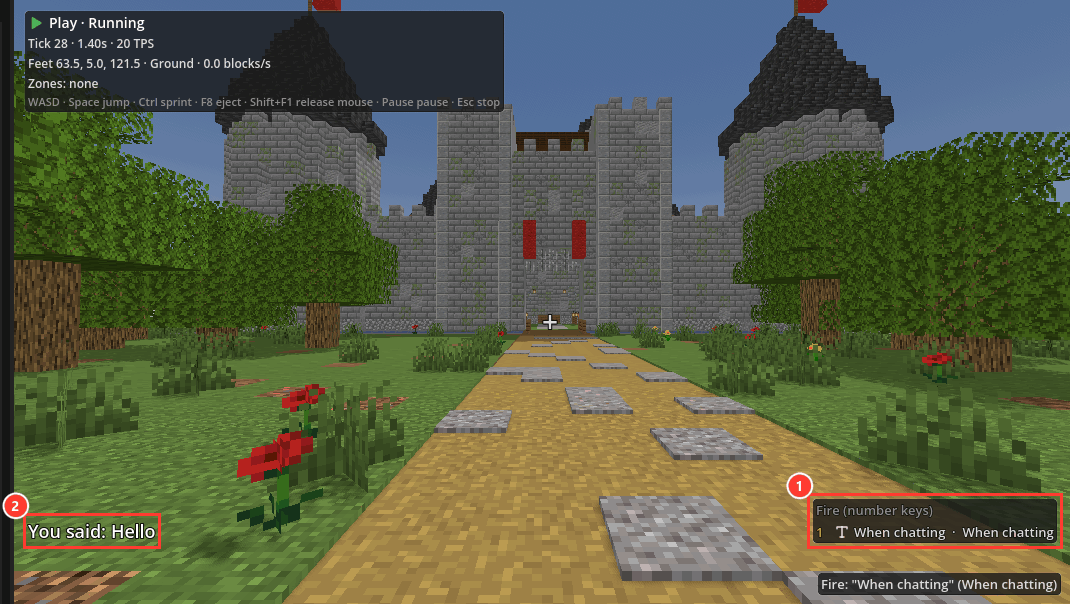
Press 1 to fire the first rule in the “Fire” list (When chatting). Firing runs the rule with an example value (chat text “Hello”), so “You said: Hello” appears in the chat.
-
Press Pause to pause. Ticks stop and the one-tick button turns on. Each click of the one-tick button advances 1/20 second. Press Pause again to resume.

-
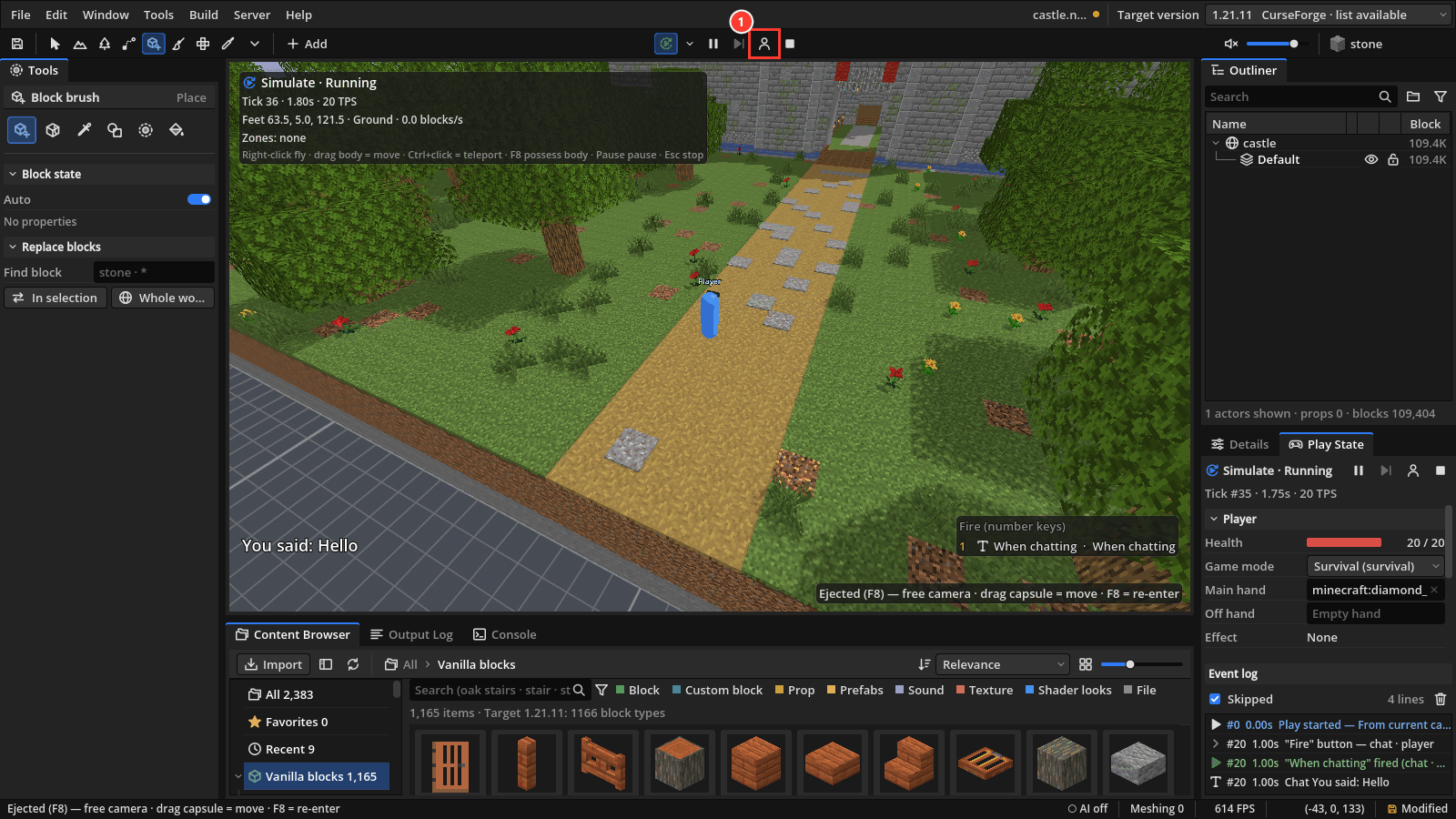
Press F8 to leave the body (eject). Play switches to Simulate, you can move the camera freely, and the body appears as a blue capsule. Press F8 again to re-enter the body.
-
Press Esc to stop Play. The world and the undo history are as they were before you started.
Testing chat and commands
Section titled “Testing chat and commands”If World logic has a When a command is entered or When chat is sent (before it goes out) rule, test it in Play by actually typing.
-
While playing, press Enter (or T) to open the chat field. Type some text and press Enter to send it, and the chat rules run; the result, any block, and notices appear in the on-screen chat. If a rule blocks the chat, “(Chat blocked by a rule — nobody sees it)” appears.
-
Press / to open the command field (a
/is already entered). Type a few letters of a command name and press Tab to autocomplete. A usage line and candidates appear above the field, and a name this logic does not have gives “No such command in this logic”. Press Enter to run it, and the Send command result result appears in the chat. -
Press Esc to close only the field. Play does not end.
Tips and tricks
Section titled “Tips and tricks”- Editing shortcuts are blocked during Play. Ctrl+Z and tool keys (Q etc.) do not undo or change tools (the keys belong to walking).
- Click Tools > Simulate (free camera · logic) to start Simulate directly regardless of the ▶ mode; click it again during Play to stop.
- “Fire” is for testing triggers that do not happen on their own (chat · damage · breaking blocks …). Fire at the end of a rule row in the World logic tab and rule firing in the Play State panel do the same. Events marked “(server only)” in the choice list do not happen by themselves in Play, so test them by entering example values with Fire.
- Player events that really happen in Play: first join (Play start) · moving · sprinting (Ctrl) · sneaking (Shift — When sneaking) · jumping (Space — When jumping) · clicking (with a cancel rule, breaking and placing are blocked too) · commands · chat.
- A zone with Block entry (no-entry zone) turned on cannot be walked into. If you start inside it, or teleport in, you can walk out.
- A sequence’s camera cuts change your view in Play and Simulate too (when you are the cutscene viewer). The view returns to your body at a “Player view” cut, at the end of the sequence, at Stop sequence, and at the end of Play. If a sequence started later has not reached its first cut yet, the earlier sequence’s cut is kept. To stop cuts from changing your view, turn off Switch view to sequence cuts in Play in the ▾ menu (on by default).
- While playing, ▶ in the Sequencer is turned off and “While playing, logic plays sequences” is shown. Sequences are played by logic (Play sequence).
- The moving models in the map (display actors and props with animations) play their animations during Play and Simulate. The nearest 32 within 64 blocks of the camera move and the rest stay still. When you stop, they return to static models (Exporting animations and viewing in game).
- For Physics bodies, click = hit (Shift+click = half power), right-click = pick up, right-click again = throw, and click while holding = put down. You can also push a ball by walking into it.
- “When a player joins” rules run the moment the body appears — Tutorial: your first script.
Reference
Section titled “Reference”Toolbar buttons (during Play)
Section titled “Toolbar buttons (during Play)”| Button | Action |
|---|---|
| ▶ (green) | Shows that Play is running · click to stop |
| Pause | Pause · resume (Pause) |
| One tick | Advances only 1/20 second while paused |
| Eject | Leave · re-enter the body (F8) |
| Stop | Stop (Esc) |
Play controls
Section titled “Play controls”| Shortcut · control | Action |
|---|---|
| Mouse · W A S D | Look around · walk |
| Space | Jump (the When jumping trigger) |
| Ctrl | Sprint (when walking forward). Shift does not speed you up |
| Shift | Sneak (the When sneaking trigger) |
| Enter · T | Open the chat field |
| / | Open the command field (Tab autocomplete · usage line) |
| Click · right-click | Hit, pick up, and throw physics bodies (Physics) |
| 1~9 | Run a rule in the “Fire” list |
| F8 | Eject · re-enter the body |
| Shift+F1 | Release the mouse |
| Pause | Pause · resume |
| Esc | Stop (if the chat or command field is open, closes only the field) |
Chat field
Section titled “Chat field”| Shortcut | Action |
|---|---|
| Enter | Send (chat) · run (command) |
| Tab | Autocomplete command names and arguments |
| Esc | Close the field (Play continues) |
How rules fire
Section titled “How rules fire”| Trigger | In Play |
|---|---|
| Entering · leaving · staying inside a zone | Checked automatically by foot position — World logic |
| On start (scene start) · timer · every tick · when a player joins | Automatic (join = when the body appears) |
| Signals · functions · when a sequence ends | Automatic, following the side that sends, calls or plays |
| When a command is entered · When chat is sent (before it goes out) · When chatting | Automatic when you type in the chat field or command field |
| Moving · sprinting · sneaking · jumping · clicking · first join | Automatic from the body’s real actions |
| When a physics object hits | Automatic from physics impacts |
| Damage · death · “(server only)” events and so on | “Fire” (number keys · rule row · Play State panel) — with example values |
Play State panel
Section titled “Play State panel”| Field | Contents |
|---|---|
| Header | Mode · running/paused · tick · pause · one tick · eject · stop |
| Player | Health · game mode · main hand · off hand · effects — the values the “Game mode” and “Holding” conditions see |
| Event log | Log stamped with ticks (fire · action · chat lines). Filter with the Skipped check · also show rows skipped because of conditions |
Related pages
Section titled “Related pages”Not an official Minecraft product. Not approved by or associated with Mojang or Microsoft.