
External AI (MCP)
Overview
Section titled “Overview”External AI lets MCP apps such as Claude Code and Claude Desktop use NP Editor tools with an AI connection key from your Noplatea account. It opened on 2026-11-09. There is one endpoint, https://studio.noplatea.com/mcp (Streamable HTTP), and the key is sent in the Authorization: Bearer npai_… header.
External AI builds only in NP Editor open on your PC.
- When the AI app connects, if an NP Editor signed in with the same account is linked to Studio and has Allow external AI on, the AI builds directly in that editor (live).
- If there is no such editor, the connection is refused. It is not moved to a server workspace (since 2026-11-09).
- Once connected, the AI keeps building in the same editor window until that connection ends.
Each paid tool call uses credits from your Noplatea account. AI model usage is billed to the subscription of the AI app you use.
AI app (Claude Code · Claude Desktop · other MCP apps) │ MCP · Authorization: Bearer npai_… ▼https://studio.noplatea.com/mcp ── credits for each paid tool call ├─▶ open NP Editor (live) signed in · Studio link + Allow external AI on └─✕ no such editor connection refused (no server workspace)| What you need | Condition |
|---|---|
| Noplatea account | “Supporter” tier or higher |
| Credits | To use paid tools, your balance must be at least the minimum needed to start a job. See Credits and pricing. |
| AI app | Claude Code, Claude Desktop, or an MCP app that can send request headers |
| NP Editor | NP Editor 0.11.0 or later · signed in with the account that owns the key · Studio link on · Allow external AI on. Keep the editor open while the AI works. |
Basic use
Section titled “Basic use”1. Create an AI connection key
Section titled “1. Create an AI connection key”- Sign in to https://account.noplatea.com in your browser.
- In the “AI connection keys” card, type a name in the “Key name” field (for example
Claude Code on my PC). - Click “Create key”.
- Copy the key shown on the screen (it starts with
npai_). The key is shown only this once.
Treat the key like a password. Do not leave it in chats, public repositories or screenshots. If you lose it, revoke it and create a new one. You can create up to 5 keys per account.
2. Prepare the editor
Section titled “2. Prepare the editor”If you skip this step, the AI app’s connection is refused.
-
Open NP Editor and sign in with the account that owns the key.
-
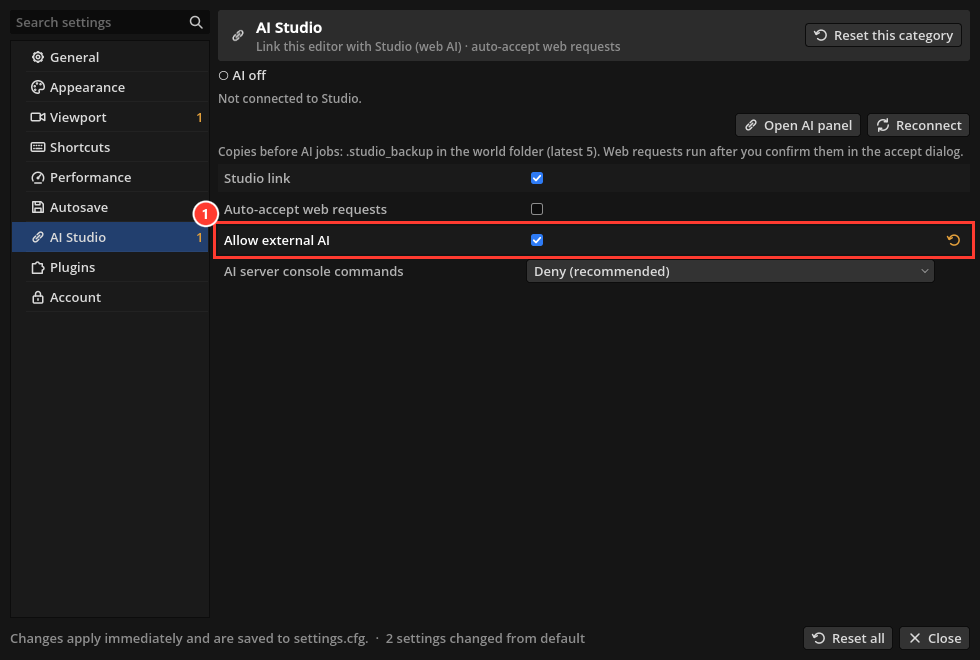
Click Edit > Editor Preferences… > AI Studio (Ctrl+,).
-
Check that Studio link is on.
-
Click Allow external AI to turn it on.
-
Check that the AI section of the status bar shows ”● AI connected”.
3-A. Claude Code
Section titled “3-A. Claude Code”-
Run the command below in a terminal. Replace
npai_…with your key. The account page also shows the same command right after you create a key.claude mcp add --transport http noplatea https://studio.noplatea.com/mcp --header "Authorization: Bearer npai_…" -
Run
claude mcp listto check thatnoplateais connected.
- This command registers the server only for the project you ran it in (default scope
local). To use it in every folder, add--scope user:claude mcp add --transport http --scope user noplatea https://studio.noplatea.com/mcp --header "Authorization: Bearer npai_…" - Keep
--headerat the end. If it comes before the name and URL, the values after it are read as headers too.
3-B. Claude Desktop
Section titled “3-B. Claude Desktop”Claude Desktop connects through an extension file. The extension runs on the Node.js built into Claude Desktop, so there is nothing else to install.
- Download the extension file
noplatea-np-editor.mcpb. - Double-click the downloaded file. Claude Desktop opens the extension install window.
- Paste your key into the “AI 연결 키 / AI connection key” field and save.
- Check that the “NP Editor (Noplatea)” extension is turned on.
| Extension setting | Default | Notes |
|---|---|---|
| “AI 연결 키 / AI connection key” | (none) | Required. The field is masked, and Claude Desktop stores the value. |
| “MCP 주소 / MCP endpoint” | https://studio.noplatea.com/mcp | Leave as is (for testing only). |
3-C. Other MCP apps
Section titled “3-C. Other MCP apps”Any MCP app that supports Streamable HTTP and request headers can connect with these values.
| Item | Value |
|---|---|
| URL | https://studio.noplatea.com/mcp |
| Transport | Streamable HTTP (MCP 2025-06-18 · 2025-03-26) |
| Header | Authorization: Bearer npai_… |
Apps that attach remote servers only through an account sign-in (OAuth), such as claude.ai on the web and ChatGPT, cannot connect for now.
4. Check the connection
Section titled “4. Check the connection”- Ask the AI app “Check the Noplatea status”. The AI calls the free
statustool. - Check that the first line of the result is
[Noplatea] connection: live — the user's open NP Editor, and check the credits used by this connection and your balance.
While the external AI is working, the editor status bar shows ”● External AI: {0}” ({0} = tool name). If the connection is refused, the AI app shows the refusal message — see “Troubleshooting” under “Reference”.
Tips and tricks
Section titled “Tips and tricks”- Instead of many calls that place blocks one by one, combine the work into one larger call such as
build,build_scriptorfillwith a pattern. It saves credits and time. - Credits are rounded up per connection. If you keep working in the same connection, the total is rounded up only once.
- One AI tool call is one undo step. If you do not like the result, press Ctrl+Z in the editor to undo it. You can also ask the AI to call
undo(free). - To pause the AI, turn off Allow external AI in the editor. The editor refuses the tool calls after that, and no credits are used. Turn it back on, then reconnect from the AI app.
- Create a separate key for each AI app. To cut off one app, revoke only its key.
Reference
Section titled “Reference”Credits
Section titled “Credits”The current rate is tool cost 1 = 0.1 credits. The tool descriptions your AI app receives end with the cost of one call, such as [Noplatea credits: 0.1 per call].
| Tools | Credits (per call) |
|---|---|
Status, reading and undo (status · read_blocks · undo and so on) | 0 (free) |
Normal edits, saving and viewing images (fill · build · world_save · view_image and so on) | 0.1 |
Terrain, scattering and map images (terrain_sculpt · scatter · map_image and so on) | 0.2 |
build_script · build_shaderpack · build_resourcepack · sound_generate · texture_generate · fight_choreo | 0.3 |
generate · export | 0.5 |
Whole-map generation (build_map) | 1 |
- Paid tools are charged before they run. If the charge cannot be made (balance too low, credit server error), the tool does not run.
- The amount used in one connection (session) is added up and rounded up to whole credits. Example: a 0.1-credit tool called 3 times → 0.3 → 1 credit.
- If one connection reaches your tier’s per-job cap, the paid calls after that are counted in a new job (rounded up per job).
- Calls that are refunded: edits that changed nothing (
changed 0 blocks), calls that clearly failed with nothing applied, and calls that could not be sent at all (including calls refused because the editor had already disconnected or Allow external AI was off). - Calls that stay charged: timeouts, the editor disconnecting during the call, the AI app disconnecting, errors after part of the edit was already applied, and internal server errors where it is unknown whether the call ran. Even if the AI app disconnects after sending a call, that call runs to the end.
- Editors of version 0.10.3 or earlier do not report how much changed, so failed calls are not refunded (edits that changed nothing still are). Use the latest version.
- When your balance is 5 credits or less, a note about the remaining credits is added to tool results. Check your balance and top up on the account page.
- AI model usage is not included in credits (it is billed by your AI app subscription).
Where the AI connects
Section titled “Where the AI connects”| Situation when connecting or after connecting | Result |
|---|---|
| An NP Editor on the same account is signed in, linked to Studio and has Allow external AI on | The connection is made. Edits appear right away in that editor’s viewport, and screenshot captures the actual viewport. Save files in the editor. |
| The editor is linked to Studio but Allow external AI is off | The connection is refused (“NP Editor is connected but ‘Allow external AI’ is off. …”). |
| No editor is linked to Studio (closed · signed out · Studio link off · another account) | The connection is refused (“NP Editor is not connected. …”). |
| The editor is closed or loses its Studio link after connecting | Later tool calls return the error “NP Editor is no longer connected (…). …”. Reopen the editor and reconnect from the AI app. |
| Allow external AI is turned off after connecting | The editor refuses tool calls (external_ai_off, not charged). |
- If several editor windows meet the conditions, the window that is talking to Studio right now is picked first, then the most recently used one.
- Before 2026-11-09, when no editor met the conditions, the AI built in a workspace on the Noplatea server. The server workspace is no longer used for external AI.
Tools that are not available
Section titled “Tools that are not available”| Tool | Why |
|---|---|
server_link | It operates a real game server, so it is not opened to external AI. |
engine_render · preview_clip | They need a GPU render on a development PC and cannot run in the service. Check images with view_image and motion with anim_check · shot_check · anim_preview. |
New tools that are not in the Noplatea price table stay closed until they are reviewed (read-only tools are opened for free). The tools are listed in the MCP tool list.
Connection limits
Section titled “Connection limits”| Item | Value |
|---|---|
| AI connection keys | 5 per account |
| Open connections at the same time | 3 per account — when there are more, the connection unused for the longest time is closed. |
| Requests | 120 per minute per key |
| Idle connections | Closed after 20 minutes without calls; the connection’s credits are settled at that point. |
| One editor tool call | 180 seconds — longer when progress notifications arrive. Timeouts are charged. |
Revoking a key
Section titled “Revoking a key”- On https://account.noplatea.com, in the “AI connection keys” card, click “Revoke” on the key’s row.
- Click OK in the browser’s confirmation dialog.
A revoked key stops working within one minute at the latest (the server remembers key checks for up to one minute). Tier changes also take effect within one minute.
Privacy
Section titled “Privacy”- The key itself is not stored. Only a hash of the key, its name, and the times it was created, last used and revoked are kept.
- Tool usage and credit records are kept for each connection. The values passed to tools and the content of results are not included in those records.
- Your conversation with the AI model takes place between the AI app and its AI service and does not come to Noplatea servers.
For details, see the Privacy Policy.
Troubleshooting
Section titled “Troubleshooting”Error messages from the server are written in Korean and English joined by ” / ”. The table quotes the English part, shortened.
| Symptom | Cause | Fix |
|---|---|---|
| “Missing AI connection key: …” (HTTP 401) | The request has no Authorization: Bearer npai_… header. | For Claude Code, run the command in “3-A” again. For other apps, check the header setting. |
| “The AI connection key is invalid or revoked — …” (HTTP 401) | The key is wrong or has been revoked. | Create a new key. For Claude Code, run claude mcp remove noplatea, then run the command in “3-A” again. For Claude Desktop, change the key in the extension settings. |
| “AI connection needs the ‘supporter’ tier or higher …” (HTTP 403) | Your account tier is below Supporter. | Check your tier on the account page. |
| “NP Editor is connected but ‘Allow external AI’ is off. Turn it on in Edit > Editor Preferences > AI Studio, then reconnect this MCP server.” (when connecting) | The editor is linked to Studio, but Allow external AI is off. | In the editor, turn on Allow external AI under Edit > Editor Preferences… > AI Studio (“2. Prepare the editor”), then reconnect from the AI app. |
| “NP Editor is not connected. External AI works only in your own NP Editor — …” (when connecting) | No NP Editor signed in with the account that owns the key is linked to Studio. The editor is closed, signed out, has Studio link off, or is signed in with another account. | Open the editor and sign in with the same account. Check that the AI section of the status bar shows ”● AI connected”, turn on Allow external AI, then reconnect from the AI app. |
| “NP Editor is no longer connected (…). Reopen NP Editor with the Studio link and ‘Allow external AI’ on, then reconnect this MCP server.” (tool result) | The editor was closed or lost its Studio link after the AI connected. | Reopen the editor, check “2. Prepare the editor”, then reconnect from the AI app. |
external_ai_off in a tool result | Allow external AI was turned off in the editor after the AI connected. The call did not run and no credits were used. | Turn it back on and reconnect from the AI app. |
| “Too many requests — slow down.” (HTTP 429) | The key went over its requests per minute. | Try again after a moment. |
| “Could not reach the Noplatea account server — try again shortly.” (HTTP 503) | The credit server cannot be reached for a moment. | Try again after a moment. |
| A tool did not run because there were not enough credits | Your balance is below the minimum needed to start a job. | Check your balance on the account page and top up. |
Session not found or expired — initialize again. (HTTP 404) | The connection was closed after 20 minutes without calls, or because a 4th connection was opened on the same account and this one was the least recently used (each account keeps up to 3 open connections). | Reconnect from the AI app. If several AI apps or chat windows keep closing each other’s connections, use 3 or fewer at the same time. |
| Claude Desktop has no NP Editor tools | The extension is off, the key field is empty, or the connection was refused because the editor was not ready. | Turn the extension on and enter the key. Check “2. Prepare the editor”, then turn the extension off and on. |
| Cannot connect from claude.ai on the web or ChatGPT | These apps connect with an account sign-in (OAuth) instead of a key. This is not supported yet. | Use Claude Code, Claude Desktop or an MCP app that can send headers. |
Related pages
Section titled “Related pages”Not an official Minecraft product. Not approved by or associated with Mojang or Microsoft.