
Panel UI (NpUi)
Overview
Section titled “Overview”NpUi is a small builder that describes panel content. The plugin only lists rows, and the editor draws them with controls that look the same as the built-in panels. You do not need to know Godot. NpUi is used in two places.
| Registration point | Field | Where it appears |
|---|---|---|
AddContentTab | Build | Bottom area panel (open from the Window menu) |
AddMode | Panel | Tool panel while in that mode |
Basic use
Section titled “Basic use”-
At the start of
Register, read the saved settings into fields. These become the panel’s initial values. -
After
new NpUi(), chain rows such as.Title(…)·.Number(…)·.Button(…). Rows are laid out from top to bottom in the order you write them.private int _width = 3;private bool _lamps = true;private int _built;public void Register(INpEditorHost host){_width = host.Settings.GetInt("width", 3); // read first so the field's initial value is correct_lamps = host.Settings.GetBool("lamps", true);host.AddContentTab(new NpContentTab("panel", "Road", () => new NpUi().Title("Build road").Number("Width", _width, 1, 9, 1, v => { _width = (int)v; host.Settings.SetInt("width", _width); }).Check("Street lamps", _lamps, v => { _lamps = v; host.Settings.SetBool("lamps", v); }).Label(() => $"Roads laid {_built} · world blocks {host.World.CountBlocks():N0}").Separator().Button("Lay in selection", () =>{if (host.World.Selection is not { } b) { host.Message("No selection"); return; }_built++;// … lay the road with World.Edit …}, "Lays a road on the floor of the selection box")));} -
Build, then click Reload (selected) in the Plugin Manager.
-
In the Window menu, check the
Roadpanel to open it. The panel opens in the bottom area.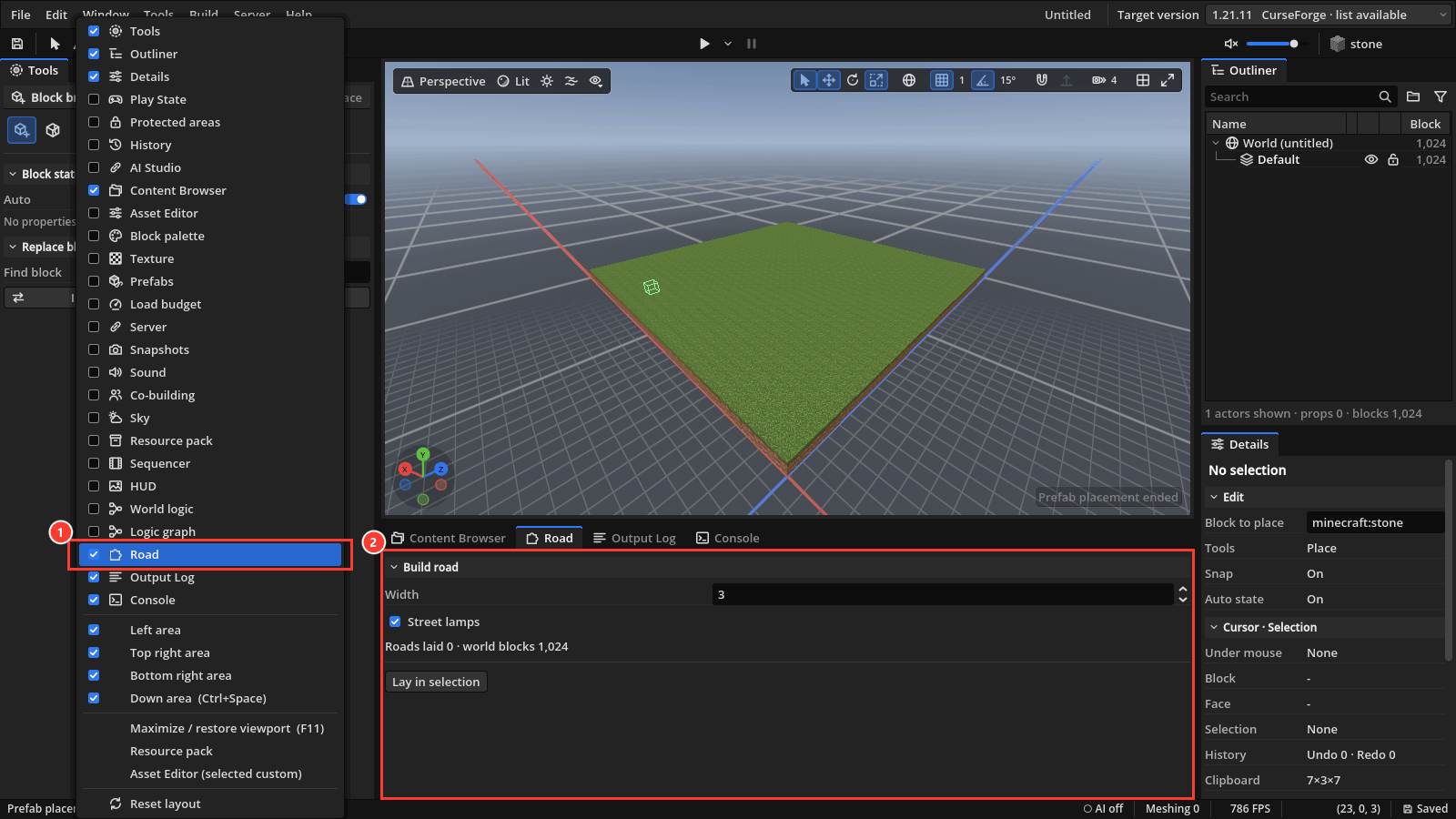
Tips and tricks
Section titled “Tips and tricks”- Right-click the panel tab to move it to another area or a floating window. Move panels you use often to the right area.
- Show changing values with
Label(() => …). It is reread right after a button is clicked, so a value a button changed appears immediately. - Keep the results of heavy calculations in fields, and read only those fields in live text.
- To keep a field’s value in sync with the settings, call
host.Settings.Set…directly in thechangedcallback.
Reference
Section titled “Reference”Builder methods
Section titled “Builder methods”Every method returns the same NpUi, so you chain calls with ..
| Method | What is drawn | When the callback is called |
|---|---|---|
Title(string text) | Bold group title | — |
Label(string text) | One line of text (wraps) | — |
Label(Func<string> text) | Live text. Reread every 0.5 seconds while visible | — |
Button(string text, Action click, string tooltip = "") | Button | click on click |
Text(string label, string initial, Action<string> changed) | Name + text field | changed every time a character is typed |
Number(string label, double initial, double min, double max, double step, Action<double> changed) | Name + number field (up/down buttons) | changed every time the value changes |
Check(string label, bool initial, Action<bool> changed) | Checkbox | changed when toggled |
Separator() | Horizontal separator | — |
Live text
Section titled “Live text”Label(() => …) calls the function again every 0.5 seconds while the panel is visible and updates the text.
- It is also reread immediately when the panel becomes visible again and right after a button is clicked.
- It is called every 0.5 seconds, so keep it light. Do not put calculations that scan the whole world (
Bounds·Blocks()) in it. Show light values such asCountBlocks(), or values you keep in fields. - If the function throws, the plugin is isolated.
When panels are built
Section titled “When panels are built”| Registration point | When it is built |
|---|---|
Build of AddContentTab | Once, when the plugin is enabled |
Panel of AddMode | Once, when that mode panel is first shown |
A panel, once built, is not rebuilt. So initial for Number · Text · Check is the value at the moment it is built. If code changes the value later, the field does not follow, so show changing values with Label(() => …).
Cautions
Section titled “Cautions”- Do not put emoji or pictographic characters in on-screen text. Pictographic characters in the panel title (
NpContentTab.Label) are stripped on screen. - Callbacks (
click·changed) are called on the editor main thread. You can callWorld.Editfrom them. - If a callback throws, the plugin is isolated, and the panel disappears as the plugin is unloaded.
- Icon buttons, collapsible groups, lists and color pickers are not available.
- Plugin text that is not in the editor’s translation table is not translated and appears as written. If you need multiple languages, the plugin chooses the text itself.
Related pages
Section titled “Related pages”Not an official Minecraft product. Not approved by or associated with Mojang or Microsoft.