
Exporting animations and viewing in game
Overview
Section titled “Overview”New in 0.11.0: moving models placed in the map (display actors and props) play in the editor’s ▶ Play, in Simulate, and in the viewport “Anim preview”, and figures the Sequencer moves play in the game as baked poses (NPBridge 2.2.0 or later).
Animations you make in Editing animations can go to four places.
| Where | How |
|---|---|
| Other programs · server plugins | .bbmodel · .glb · .gltf · .fbx · .anim.json files from the Export animation window |
| Viewing right away in the game | View in game in the Animation tab — shows the model in the game world of the live-connected server and follows your edits |
| Animated models in the map | A Display — item model (Item Display) actor whose model has animations — it moves in the editor’s Play, and becomes an animated model (rig) in scene export and live sync |
| Sequencer figures | A display actor moved by the Sequencer Model anim, Hold in right hand, and Hold in left hand tracks — in the game it plays as 20 Hz baked poses at the same time as the cutscene |
Basic use
Section titled “Basic use”The example model is the same robot as in Editing animations (animations walk and wave).
Exporting to a file
Section titled “Exporting to a file”-
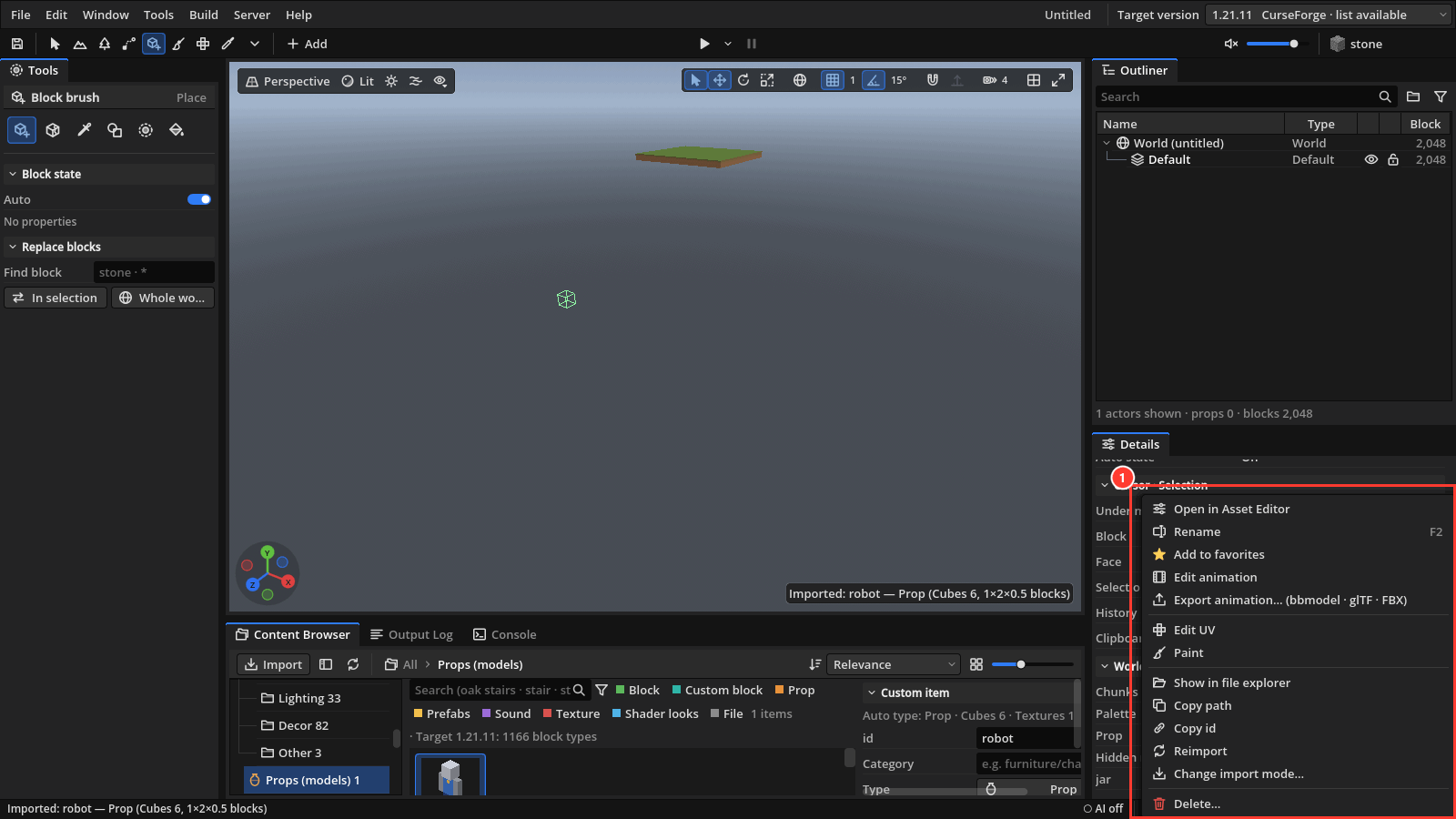
Right-click the model in the Content Browser and click Export animation… (bbmodel · glTF · FBX). The Export animation window opens together with the Animation tab of the Asset Editor. Clicking Export… in the Animation tab opens the same window.
-
Select
glTF binary (.glb)in Format. In Animations to export, all of the model’s animations are checked (All, Current only and None change them all at once). Click Browse… to choose where to save, then click Export.D:\NPExport\robot.glbin the image is an example path.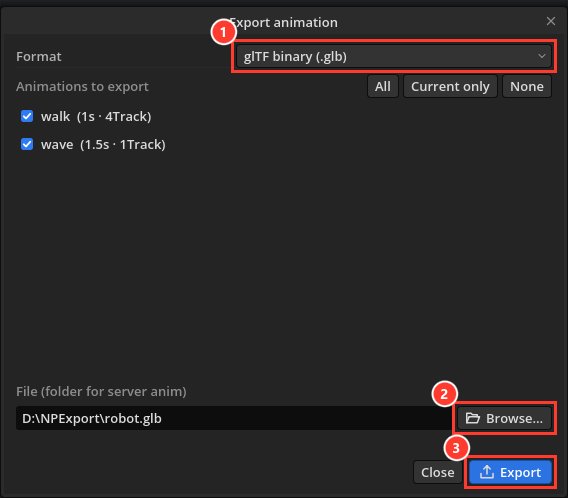
-
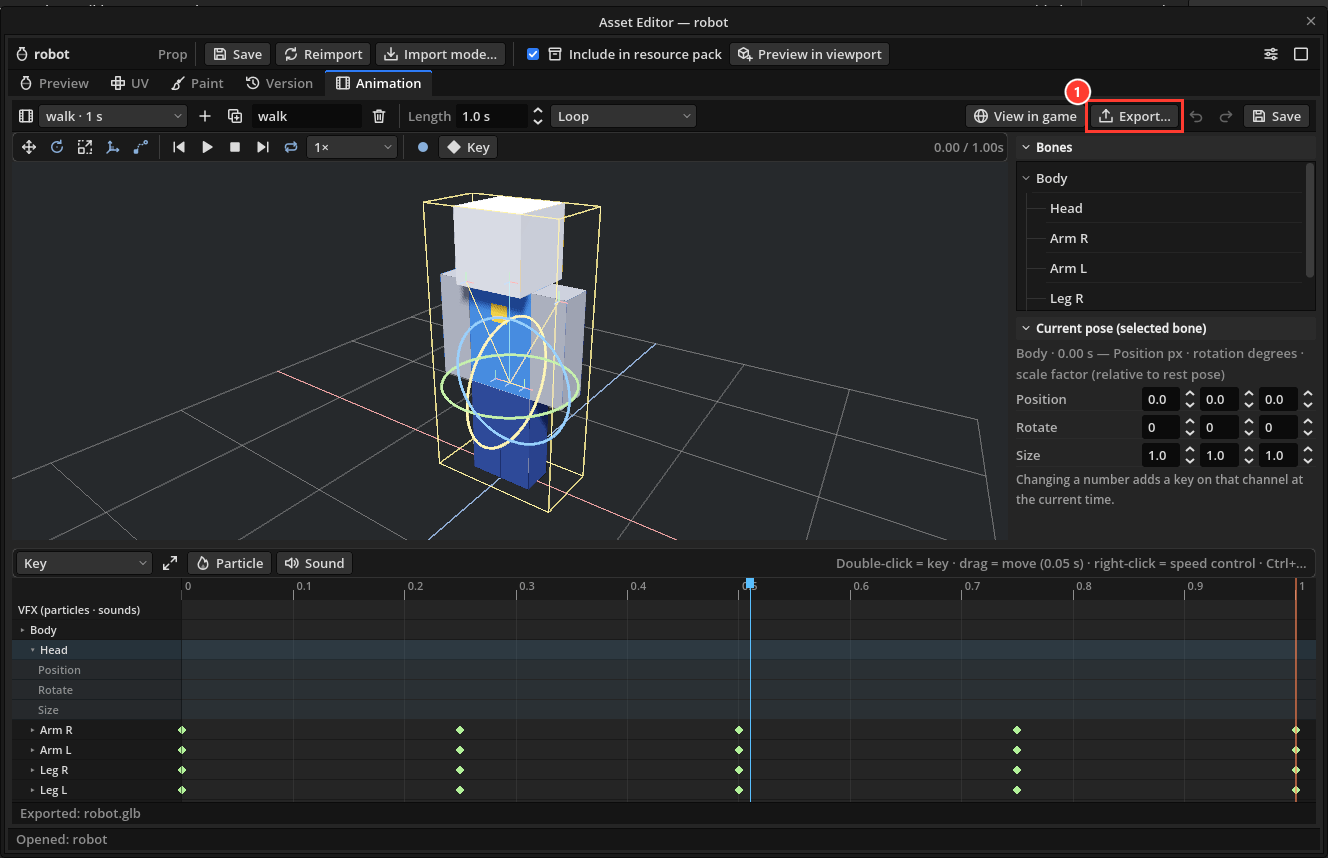
When the export finishes, the saved path appears at the bottom of the window, and “Exported: robot.glb” appears at the bottom of the Animation tab. To export again after you close the window, click Export… in the Animation tab.
Viewing in game
Section titled “Viewing in game”-
Click View in game in the Animation tab. If you are connected live to a server, the model appears in the game world (in front of the center of the world view, facing the camera), and when you edit keys or change the animation, playback or time, the game follows right away. If you are not connected, “Not connected live to a server — connect in the “Server” window” appears at the bottom. Click again to remove the model from the game.
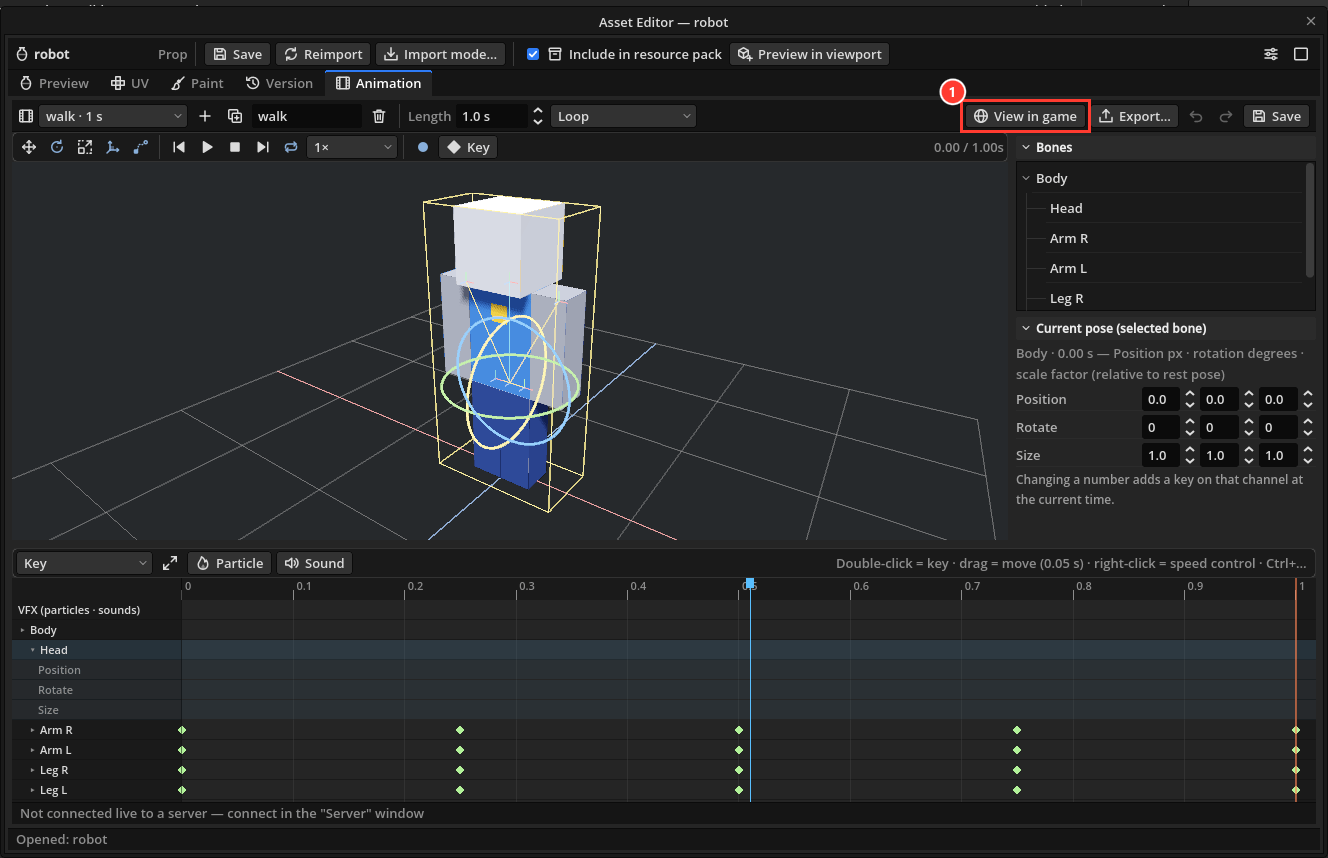
The view inside the game is outside the editor, so there is no image. A model shown in the game does not change the server world’s blocks or scene files, and it is removed from the server when you turn off View in game or disconnect.
Animated models in the map
Section titled “Animated models in the map”-
Click a Display — item model (Item Display) actor placed in the map to select it (see Scene actors and Outliner for how to place one) and select
robotin Model in Details. If the model has animations, an Animation field appears below it. Select “First animation (autoplay)”, an animation name (walkorwave) or “Don’t animate (still model)”. A model with animations that you drop from the Content Browser is placed as this display actor from the start (Importing custom models).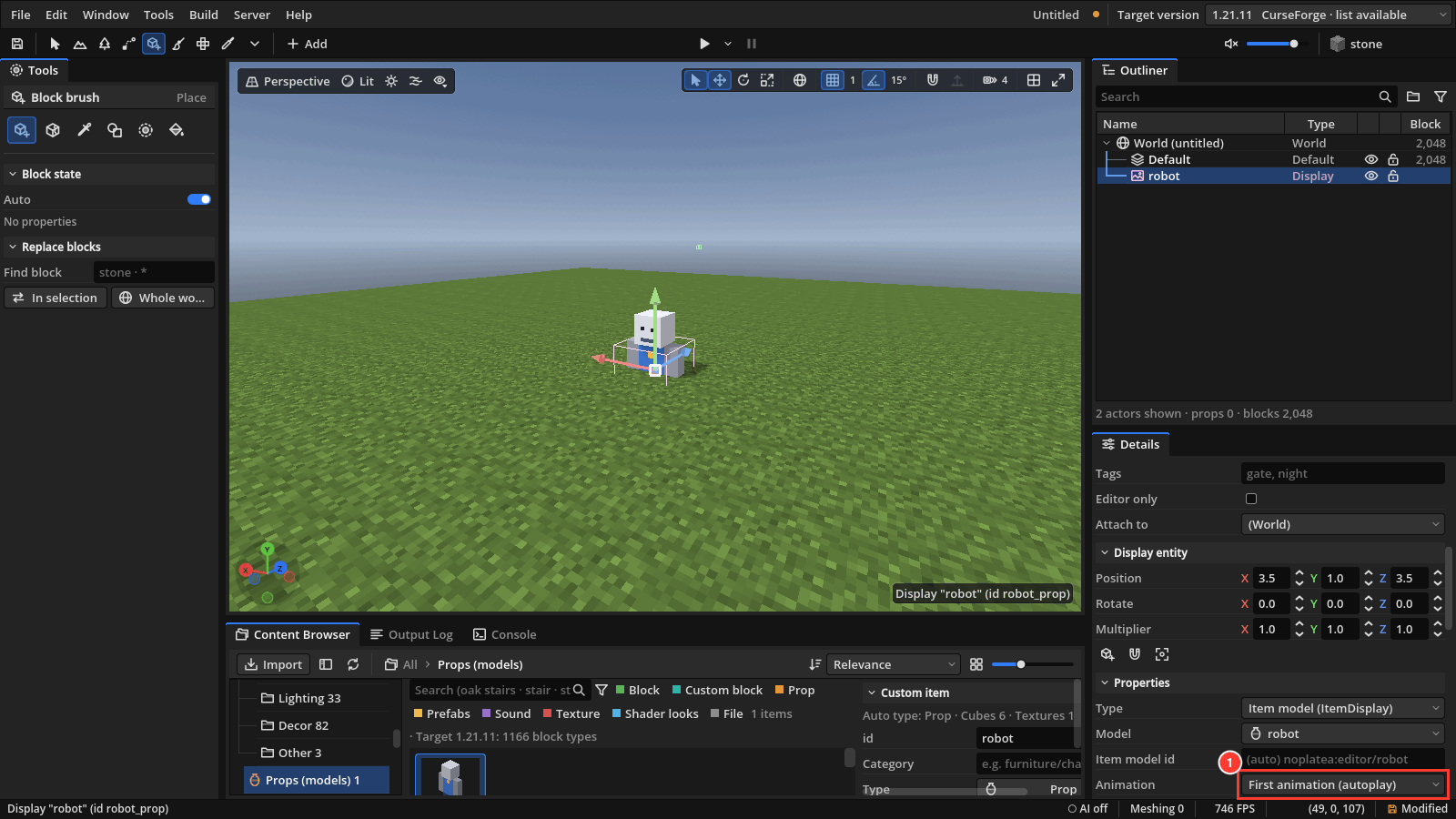
-
Click the animation icon on the left bar of the viewport (next to the view mode and display menus; tooltip “Anim preview — …”) to turn it on. Even in edit mode, the moving models in the map (display actors and props) play in real time from the moment you turn it on, and the notice “Anim preview on — N moving display actors · N props (nearest 32)” appears. Click again to turn it off.
In ▶ Play and Simulate, moving models play regardless of this icon. Within 64 blocks of the camera, the nearest 32 move with their bones and the rest appear as static models. Identical models share meshes and materials, so many of them are still light.
In scene export and live sync, this actor goes out as an animated model (actor rig) in the server scene and plays the chosen animation in a loop. An animated model placed as a prop moves only in the editor and stays in its rest pose in the game.
Tips and tricks
Section titled “Tips and tricks”- Find display actors that stay still in the game: a display actor that a rule or scene animation points to goes out as a static display instead of an animated model in the game. With Anim preview on, such a model gets a ”⚠ Static in game” name tag (not shown during Play), and a line “Still in the game — a rule · scene animation references this actor (it still moves in the editor’s ▶ Play)” appears under Animation in Details.
- Figures moved by the Sequencer: when the Model anim, Hold in right hand, or Hold in left hand tracks of the Sequencer move a display actor, the export includes that figure as 20 Hz baked poses so it plays at the same time as the game cutscene (see “Sequencer figures (baked poses)” below).
- Replace only the animations in the source bbmodel: when you export a model whose source is a
.bbmodelto the Blockbench format, the cubes and UVs of that file stay as they are and only the animations are replaced. Use this when you keep refining the shape in Blockbench and make the motion in NP Editor. - FBX goes through Blender: FBX is converted by Blender on this PC, which runs briefly without a window. The editor finds Steam and blender.org installs by itself; if it can’t, set
blender.exewith Choose… on the Blender row of the window. The location you set is remembered. - Game server animation module: with
Server anim (.anim.json — one file per animation), choose a folder and one file in the noplatea anim module format is created per animation. You must select at least one animation. - Exact shapes in game: if you turn on View in game without a resource pack, each bone shows a rough shape made of vanilla block pieces. Build the resource pack and put it on the server, and each bone shows its original shape as an item display (see “Resource pack bone models” below).
- Prefabs work the same way: the Prefab animation window also has View in game and Export…. In the game each part appears as its blocks, and when you export, the parts become Blockbench groups or glTF bones. View in map in the window shows it temporarily in the editor map (Prefabs).
Reference
Section titled “Reference”Export formats
Section titled “Export formats”| Format | Result |
|---|---|
Blockbench .bbmodel | If the source is a bbmodel, only the animations in that file are replaced (cubes and UVs stay). Otherwise bones = groups, shape = mesh elements, textures embedded, VFX = effect keys |
glTF binary (.glb) · glTF (.gltf + texture files) | Skeleton · skin · morphs · selected animations |
FBX (.fbx — converted by Blender) | Converts glTF with Blender on this PC. One take per animation |
Server anim (.anim.json — one file per animation) | Key files for the noplatea anim module. One per animation in the chosen folder |
Choosing None exports only the model, without animations (not possible for server anim). Reading an exported file back gives the same bone motion.
View in game
Section titled “View in game”| Item | Details |
|---|---|
| Requirements | A live connection to a server · NPBridge 2.0.9 or later on the server (the version bundled with this release’s installer is 2.4.0) |
| Where it appears | In front of the center of the world view (facing the camera) |
| What it follows | Key edits · changing the animation · play · stop · moving the time · particle and sound VFX |
| Model shape | If the resource pack on the server has this model’s bone models, each bone is an item display (original shape); otherwise each bone is a vanilla block piece. The status line says which |
| Prefabs | Each cell of a part shows its block |
| Turning it off | Click again or disconnect to remove it from the server. Scene and world files do not change |
| Message | Meaning |
|---|---|
| “Not connected live to a server — connect in the “Server” window” | Connect in the Server window first. Server connection (live) |
| “The server’s NPBridge is older than 2.0.9 — put NPBridge 2.0.9 on the server to use “View in game"" | Update the server plugin. Installing NPBridge (server admins) |
| “View in game on — check the motion in the game” | It appeared in the game |
Where it moves in the editor
Section titled “Where it moves in the editor”| Where | Display actor | Prop |
|---|---|---|
| While editing (Anim preview off) | Rest pose | Rest pose |
| Anim preview on | Plays | Plays |
| ▶ Play · Simulate | Plays (on the Play clock — pause · one tick as is) | Plays |
| Sequencer preview · video render | The animation and time set by the Model anim track | — |
If Animation in Details is “Don’t animate (still model)”, it does not move anywhere. The limit (the nearest 32) counts display actors and props together.
When an animated model in the map stays a still model
Section titled “When an animated model in the map stays a still model”In the following cases the actor is exported as a still display. From the second case on, a warning also appears.
- Over the live link, the server’s NPBridge is older than 2.0.9 or its version is unknown. When exporting to a file, the editor cannot know the version of the server that will receive it, so it exports the animated model and shows the warning ”… needs server NPBridge 2.0.9 or later (older servers skip these actors)”.
- A rule or scene animation targets that actor (id · tag) — an animated model does not accept show, hide, move or click.
- The resource pack on the server does not have that model’s bone models.
- The scene has more than 2,048 animated model entities.
- An animated model placed as a prop (props are always static in the game).
When you save an animation or the resource pack on the server changes, it is sent again to the server you are connected to live.
Sequencer figures (baked poses)
Section titled “Sequencer figures (baked poses)”A display actor moved by the Sequencer’s Model anim or hold-in-hand tracks is exported as 20 Hz baked poses (seq rig — poses, held items, blade trails, effects), and the server plays them at the same time as the cutscene clock.
| Item | Contents |
|---|---|
| Version needed | NPBridge 2.2.0 or later. With live sync, an older server gets them without baked poses and you see “N sequencer fighter(s) were pushed without baked poses because this server (NPBridge below 2.2.0) does not know them …”. File export shows the warning “N sequencer fighter(s) exported as baked poses (seq rig, N KB) — needs server NPBridge 2.2.0 or newer (older servers freeze on the first frame)” |
| Resource pack | The resource pack on the server must have the model’s joint-centred bone models (_p). If not, you get the warning “Display actor ”…”: the sequencer moves it, but the resource pack on the server has no joint-centred bone models (_p), so it cannot be exported as a baked pose — …” |
| Several sequences | If two or more sequences move the same actor, only the first sequence is baked |
| Rules | A baked figure ignores movement from rules and other sequences — pointing at it gives a warning |
Resource pack bone models
Section titled “Resource pack bone models”When you build a resource pack with Build > Build resource pack, every model with animations (props · custom blocks) also gets bone models noplatea:editor/rig/<model id>/<bone>, and the pack you built is recorded in assets\export\rig_models.json in the project. For the game (View in game · scenes) to use these bone models, that pack must be the “pack on the server”.
- When a resource pack deploy through the Server window succeeds, that pack becomes the pack on the server.
- If you uploaded it yourself, choose the version in Version history in the Resource pack panel and click the cloud icon (mark as the pack on the server).
- Building alone does not change it.
Related pages
Section titled “Related pages”Not an official Minecraft product. Not approved by or associated with Mojang or Microsoft.