
Settings
Overview
Section titled “Overview”There are two kinds of settings. Editor Preferences are saved per user on this PC and apply to all worlds. Project Settings are saved inside the world file and apply only to that world. There is also a Performance window that gathers only the performance values, and a Shortcuts window for changing keys (for shortcuts, see Shortcuts).
| Window | How to open | Saved in |
|---|---|---|
| Editor Preferences | Edit > Editor Preferences… (Ctrl+,) | %APPDATA%\NPEditor\settings.cfg |
| Project Settings | Edit > Project Settings… | The current world file (.npworld) |
| Performance | Tools > Performance settings… (view distance · LOD · shadows · threads) | settings.cfg (the same values as the Performance section of Preferences) |
| Shortcuts | Tools > Shortcuts… | %APPDATA%\NPEditor\shortcuts.json |
Basic use
Section titled “Basic use”-
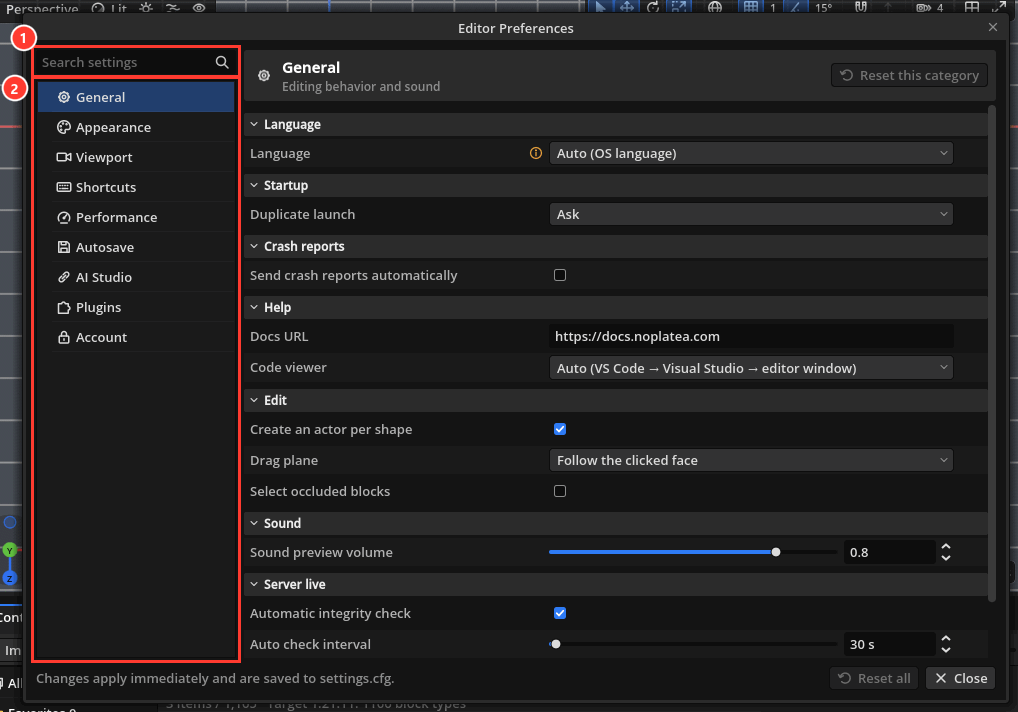
Click Edit > Editor Preferences… (Ctrl+,). The Search settings field (①) is at the top left, with the section list (②) below it. The number to the right of a section name is the number of settings changed from their defaults (while you search, the number of settings that match the search).
-
Type
autosavein the Search settings field. Settings whose name, description or English keywords match are gathered from all sections, grouped by section.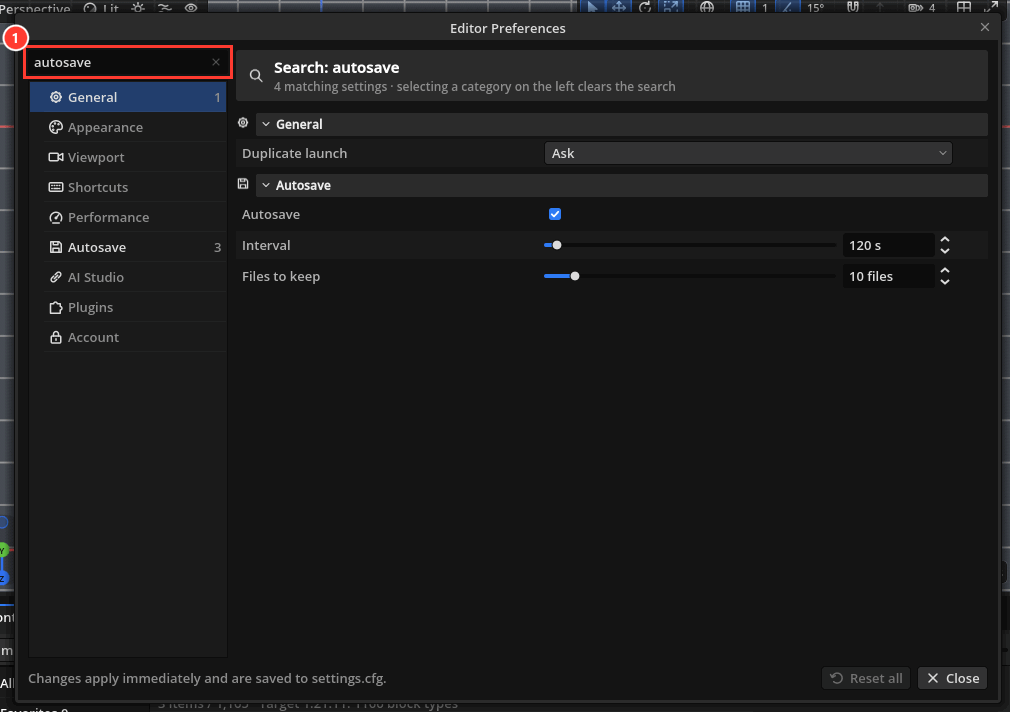
-
Change the Interval value to
300. A value takes effect as soon as you change it and is saved tosettings.cfg. The name of a changed row becomes brighter, and a “Reset to default” arrow (②) appears on the right. Click the arrow to return that row to its default (120 seconds).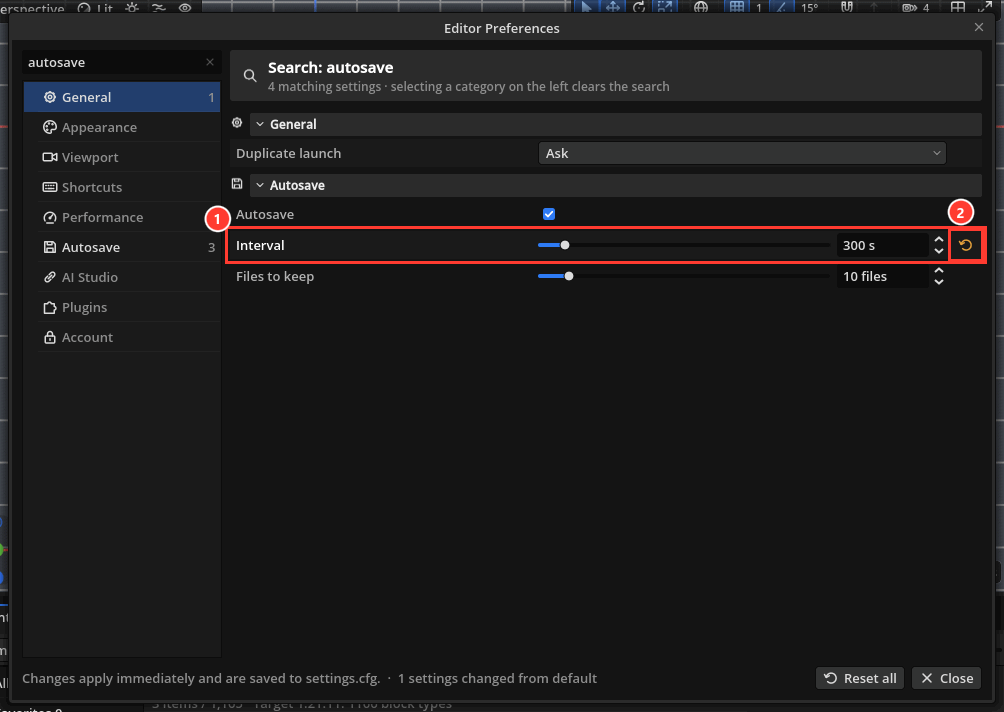
-
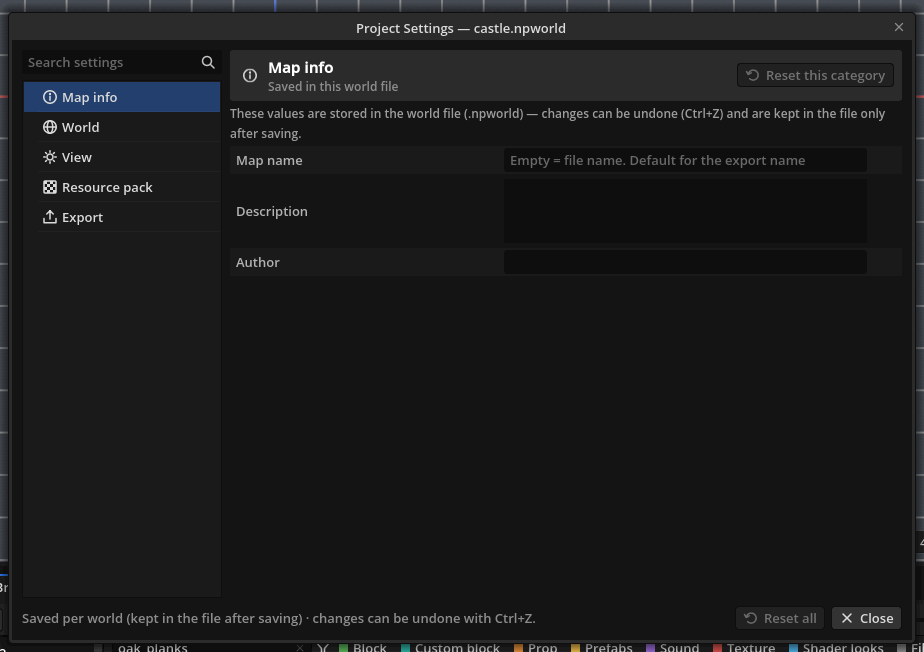
Click Edit > Project Settings…. A window with the same layout shows the settings of the current world. The window title includes the world file name.
-
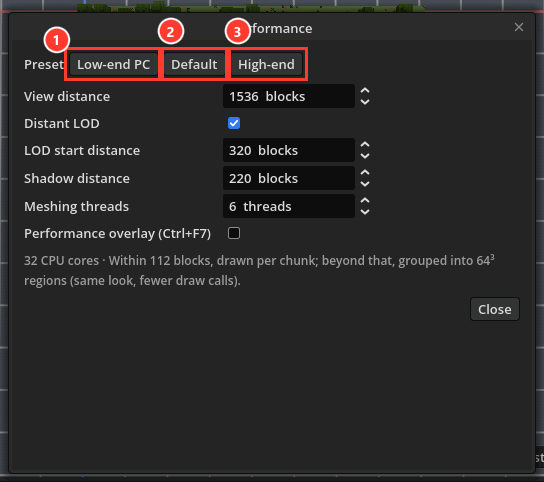
Click Tools > Performance settings… (view distance · LOD · shadows · threads). Use the Low-end PC, Default and High-end preset buttons at the top to set the performance values in one go.
Tips and tricks
Section titled “Tips and tricks”- Change settings from the console: type something like
pref autosave/interval 300in the Console panel to change a value without opening the window.pref reset autosave/intervalreturns it to the default. With only a search term, such aspref autosave, it shows the matching setting ids and their current values.prefalone lists the settings changed from their defaults. - Reset a whole section: click Reset this category in the section header to return every setting in that section to its default (for example, the interval you changed in the Autosave section goes back to 120 seconds).
Reference
Section titled “Reference”Settings window layout
Section titled “Settings window layout”Editor Preferences and Project Settings use the same window layout.
| Part | Details |
|---|---|
| Search settings | Searches all sections by name, description and English keywords. Picking a section on the left clears the search. |
| Section list | Categories and the number of settings changed from their defaults |
| Section header | Section name · one-line description · Reset this category |
| Setting row | Name and value editor. Hover over the name to see the description, default and key. |
| “Reset to default” arrow | Appears only on changed rows. |
| Restart marker | An orange info icon (“Applies after restart”). Attached to Language and UI scale. |
| Bottom row | Number of changed settings · Reset all · Close |
Editor Preferences take effect immediately and are saved to settings.cfg. Project Settings go into the world file when you save the world, and you undo changes with Ctrl+Z.
Editor Preferences — General
Section titled “Editor Preferences — General”| Group | Setting | Default | Details |
|---|---|---|---|
| Language | Language | Auto (OS language) | The language of on-screen text. See “Display language” below. Takes effect after a restart. |
| Startup | Duplicate launch | Ask | When you launch the editor while it is already running: Ask = asks “NP Editor is already running. Launch another copy?”. Always allow = opens another window without asking. Always block (quit right away if already running) = closes the new window. |
| Crash reports | Send crash reports automatically | Off | When on, after the editor crashes, the crash report is sent without asking the next time you launch it. See Troubleshooting. |
| Help | Docs URL | https://docs.noplatea.com | The documentation site opened by F1 and Help > Open Docs (Current Context) (https only) |
| Help | Code viewer | Auto (VS Code → Visual Studio → editor window) | The program that opens a rule as code when you double-click a logic graph node |
| Edit | Create an actor per shape | On | One shape or brush stroke = one actor. When off, blocks go into the active folder or group. |
| Edit | Drag plane | Follow the clicked face | The plane along which the place and select drag boxes grow. Always floor (horizontal) = grows along the floor even when you click a wall. Change the height with Alt+drag or Shift+wheel. |
| Edit | Select occluded blocks | Off | Drag boxes and the screen rectangle selection also pick blocks hidden behind blocks in front. |
| Sound | Sound preview volume | 0.8 | Master volume of the sound emitter preview (0–1) |
| Sound | Rain sound radius | 10 blocks | 3–10. The rain sound of the weather preview plays only from the ground within this radius around the camera, like vanilla (game graphics default 10 · fast 5). Changing it in the Weather window changes this value too (0.11.0). |
| Sound | Thunder: installed Minecraft sound | On | When on, it only reads the vanilla thunder sound of the Minecraft installed on this PC and uses it for the preview (synthesized thunder if there is none). Video renders get only synthesized thunder. It can also be changed in the Weather window (0.11.0). |
| Server live | Automatic integrity check | On | At the set interval, compares the chunks around the camera with the server and fixes differences to match the server. |
| Server live | Auto check interval | 30 s | 10–3600 |
| Server live | Custom blocks (np:) | Send as server form (note block mapping · default) | How custom blocks placed during a live session are handled. Other options: Editor only (overlay), Off (erased when re-downloaded) |
| Server live | Group server scene actors in a folder | On | Groups the actors of a loaded server scene into one Outliner folder (display only). |
| Server live | Work autosave interval | 180 s | 0–3600, 0 = off. The interval for saving work to an .npworld work file during a live server connection (only if you changed something). It always saves when you disconnect — Server connection (live) (0.11.0) |
Editor Preferences — Appearance · Viewport
Section titled “Editor Preferences — Appearance · Viewport”| Section | Group | Setting | Default | Range · details |
|---|---|---|---|---|
| Appearance | — | UI scale | 0 (auto) | 0 = fit to screen size, or fix at 0.75–3. Takes effect after a restart. |
| Appearance | — | Floating windows outside the editor | On | Opens floating panels and tool windows as operating system windows. |
| Appearance | — | Theme accent color | #2f7cf6 | Color of selections, pressed buttons, checkboxes and progress bars |
| Viewport | Camera | Camera speed level | 4 | 1–8 (4 = 12 blocks/s) |
| Viewport | Camera | Camera speed multiplier | 1.0× | 0.05–16 |
| Viewport | Camera | Mouse sensitivity | 1.0× | 0.1–5 |
| Viewport | Camera | Movement acceleration (smoothing) | 0.07 s | 0–0.5. 0 = full speed immediately |
| Viewport | Camera | Invert wheel direction | Off | |
| Viewport | Grid·snap | Grid snap | 1 block | 0–64. Step for moving props and gizmos, 0 = off |
| Viewport | Grid·snap | Rotation snap | 15° | 0–90, 0 = off |
| Viewport | Grid·snap | Show floor grid · Show chunk borders | On · Off | |
| Viewport | Gizmo·display | Gizmo size | 92 px | 40–240 |
| Viewport | Gizmo·display | Mipmaps | On | Smooths distant block textures. |
Editor Preferences — Performance · Autosave
Section titled “Editor Preferences — Performance · Autosave”| Section | Setting | Default | Range · details |
|---|---|---|---|
| Performance | View distance | 1536 blocks | 128–4096 |
| Performance | Distant LOD | On | Draws distant terrain at lower detail. |
| Performance | LOD start distance | 320 blocks | 64–4096 |
| Performance | Shadow distance | 220 blocks | 16–2000 |
| Performance | Meshing threads | CPU cores − 2 (1–6) | 0–16. 0 = render thread only (slow) |
| Performance | Performance overlay | Off | FPS, frame ms, chunks and memory at the top left of the viewport (Ctrl+F7) |
| Performance | Reduce viewport shimmer (TAA) | On | Blends with the previous frame to even out the shimmer of blocks smaller than a pixel, such as distant mountains and forests, when the camera moves (slightly more GPU, a little smearing when moving fast). Off is crisp but shimmering (0.11.0). |
| Autosave | Autosave | On | If anything changed, writes to the autosave folder in the background. The original file stays as it is. |
| Autosave | Interval | 120 s | 30–3600 |
| Autosave | Files to keep | 10 | 1–100 |
The Performance section also has the Low-end PC, Default and High-end preset buttons at the top.
| Preset | View distance | LOD start | Shadows | Meshing threads |
|---|---|---|---|---|
| Low-end PC | 512 | 160 | 96 | cores − 1 (1–2) |
| Default | 1536 | 320 | 220 | cores − 2 (1–6) |
| High-end | 3072 | 512 | 320 | cores − 2 (1–8) |
Nearby areas (within about 112 blocks) are drawn per chunk, and everything beyond is grouped into 64³ regions. It looks the same; only the number of draw calls drops.
Editor Preferences — AI Studio · Shortcuts · Plugins · Account
Section titled “Editor Preferences — AI Studio · Shortcuts · Plugins · Account”| Section | Details |
|---|---|
| AI Studio | Studio link (on by default — when off, AI jobs are not accepted; same as Tools > Studio link on/off) · Auto-accept web requests (off by default) · Allow external AI (off by default — when on, external AI apps connected with your account’s AI connection key build directly in this editor, and each tool call uses account credits; when off, connections from external AI apps are refused — external AI builds only in an editor with this setting on, External AI (MCP)) · AI server console commands (Deny (recommended) or Ask every time — denied if there is no answer within 60 seconds). The connection state and the Open AI panel and Reconnect buttons are at the top. The Studio address is fixed to the official NP Studio and cannot be changed. |
| Shortcuts | The number of registered commands, changed keys and conflicts, and the Edit shortcuts… button |
| Plugins | The number of loaded plugins and warnings, and the Plugin Manager… button |
| Account | In installs that use sign-in: Account (the signed-in email, Change password, Sign out), License (tier, expiry, feature names, Get License Again), Registered devices (up to 2) (Remove for each device), Patreon (Link Patreon, Unlink, Open Support Page, Manage account · support on the web — sign in with the email you use on Patreon and your pledge tier is linked automatically; with a different email, link it with Link Patreon), and at the very bottom Request account deletion (sends an email to support@noplatea.com) |
For AI Studio, see AI Studio in the editor and AI safety features.
Play ▾ menu
Section titled “Play ▾ menu”These are the settings of the ▾ menu next to the Play button (▶) on the toolbar. The chosen mode and start location stay on this PC.
| Item | Default | Contents |
|---|---|---|
| Mode | Play | “Play — walk in the viewport” · “Simulate — free camera, logic only” |
| Start location | Current camera position | From current camera position · From spawn point (Project Settings default spawn) |
| Play stats overlay (tick · zone · flag) | — | The info line over the viewport during Play |
| Switch view to sequence cuts in Play | On | The camera cuts of a sequence played in Play and Simulate change your view (when you are the receiver; it returns to your body when it ends). If off, the cuts are only recorded (0.11.0). |
Display language
Section titled “Display language”| Value | Display language |
|---|---|
| Auto (OS language) | Follows the operating system language. If it is not Korean, Japanese or Chinese, English is used. |
| Korean · English · 日本語 · 简体中文 | That language |
Pick it in Language in the General section of Edit > Editor Preferences…, then restart the editor.
Project Settings
Section titled “Project Settings”Applies only to the current world. The settings are saved in the world file, and you can undo changes.
| Section | Setting | Default | Details |
|---|---|---|---|
| Map info | Map name · Description · Author | (empty) | If the map name is empty, the file name is used. It is the default export name. |
| World | Target version | 1.21.11 | The same value as Target version at the right of the menu bar |
| World | Default spawn | 0, 64, 0 | The cell where players first appear. The Set to the block below the camera and Move camera to spawn icons are at the right of the row |
| World | World border size | 0 | Length of one side (center = default spawn). 0 = none |
| View | Default atmosphere·lighting look | (Use editor settings) | When you open this world, the game view (F6) is set to this look. |
| Resource pack | Resource pack name · Resource pack description | (empty) | File name of the exported resource pack and the description in pack.mcmeta |
| Export | Include markers · Include scene (scene.json) | On · On | This world’s defaults for the export window. Open Export window… is below |
Performance window
Section titled “Performance window”Tools > Performance settings… (view distance · LOD · shadows · threads) shows the same values as the Performance section of Preferences in a separate Performance window. Below the preset buttons are the View distance, Distant LOD, LOD start distance, Shadow distance, Meshing threads and Performance overlay (Ctrl+F7) rows, and at the bottom the number of CPU cores and Close (Esc also closes it).
- If the editor is slow, click the Low-end PC preset first.
- Then check FPS and the meshing queue with the Ctrl+F7 performance overlay.
- If distant parts of a large map look cut off, increase View distance.
Console commands
Section titled “Console commands”| Command | Action |
|---|---|
pref | Lists settings changed from their defaults |
pref <search term> | Finds settings (shows the id, current value and name) |
pref <id> <value> | Changes a value (for example pref autosave/interval 300) |
pref reset <id> | Returns to the default |
An id has the form <group>/<key> (for example camera/speed_level, perf/view_distance, ui/language, crash/auto_send, startup/duplicate_launch, and in 0.11.0 server_live/work_save_seconds, sound/rain_radius, sound/installed_thunder, perf/taa).
Related pages
Section titled “Related pages”Not an official Minecraft product. Not approved by or associated with Mojang or Microsoft.