
Editor layout
Overview
Section titled “Overview”The NP Editor window is laid out much like Unreal Engine. From top to bottom there is the menu bar, the main toolbar, the viewport in the middle with docking panels around it, and the status bar. Buttons appear as icons; hover over one to see its name and shortcut in a tooltip. You can move panels to any area or pop them out as floating windows, and the layout stays the same the next time you launch the editor.
Basic use
Section titled “Basic use”-
The window is divided into the 7 areas below. This is the layout on first launch.
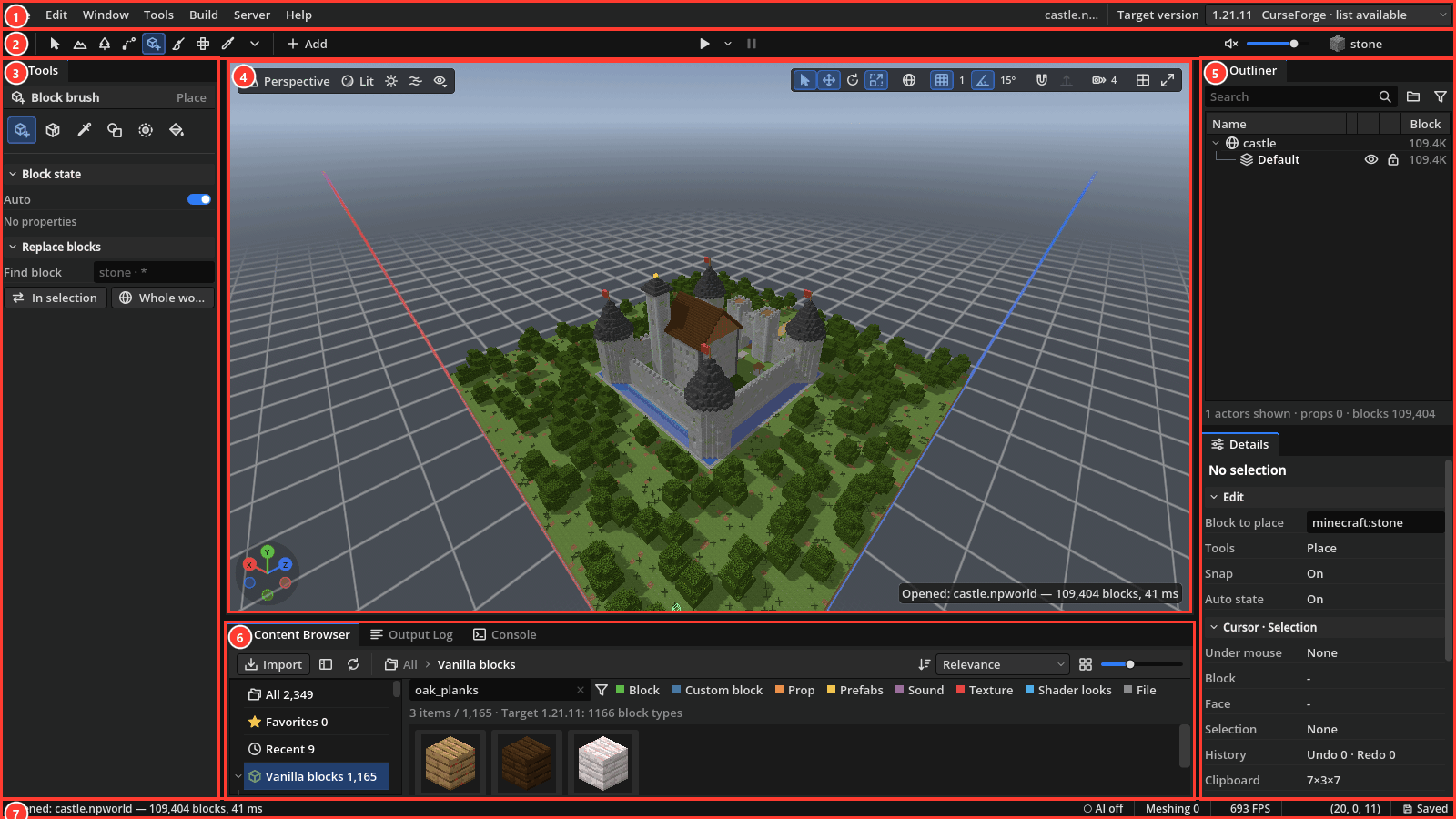
No. Area What it does 1 Menu bar The File · Edit · Window · Tools · Build · Server · Help menus, with the world name and Target version at the right end 2 Main toolbar Save · modes · Add · play · sound preview · block to place 3 Left area (Tools) Tools and options for the current mode 4 Viewport Where you view and edit the world in 3D. Two view bars float at the top. 5 Top right · bottom right areas (Outliner · Details) The actor list and the properties of what you selected 6 Bottom area Content Browser · Output Log · Console and other panels 7 Status bar Notices · progress · meshing · FPS · coordinates · save state -
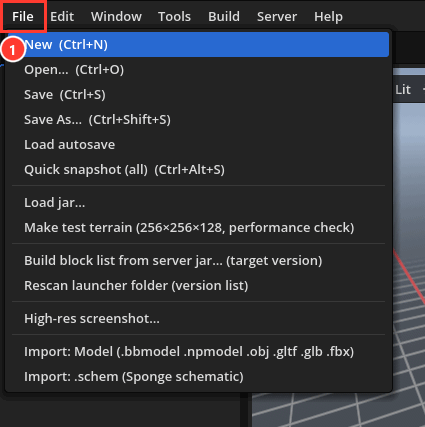
Click File in the menu bar to open the menu. The parentheses next to each item show the shortcut currently assigned to it.
-
The main toolbar shows up to 8 mode buttons. To pick another mode, click the ▾ button (More modes).

-
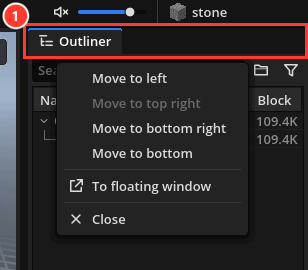
Right-click a panel tab (for example Outliner) to open a menu where you move that panel to another area (Move to left · Move to top right · Move to bottom right · Move to bottom), pop it out with To floating window, or close it with Close.
-
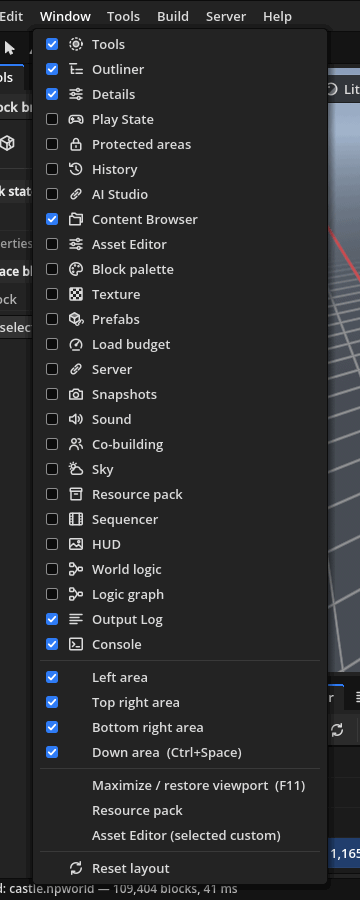
To open a closed panel, or a panel that is closed at first, click it in the Window menu. The same menu shows and hides areas and has Maximize / restore viewport and Reset layout.
-
The status bar at the very bottom shows, from the left, the last notice (①), the number of chunks waiting for meshing (②), FPS (③), the coordinates under the mouse (④) and the save state (⑤).

Tips and tricks
Section titled “Tips and tricks”- Move a panel and put it back: use Move to bottom in the tab’s right-click menu to move the Outliner to the bottom area and see it wider. If the layout gets tangled, click Window > Reset layout to return to the original layout.
- Collapse the bottom area: press Ctrl+Space to collapse the bottom area, and press it again to expand it. If no panel is open when you expand it, the Content Browser opens.
- Viewport only: press F11 to hide all docking areas and see only the viewport. Press it again to bring back the areas that were visible. Floating windows stay where they are.
Reference
Section titled “Reference”Menu bar
Section titled “Menu bar”When a plugin adds a menu, the new menu appears before Help. In the table below, ”—” is a separator inside the menu.
| Menu | Items |
|---|---|
| File | New · Open… · Open Recent · Save · Save As… · Load autosave · Save work (server live) · Quick snapshot (all) — Load jar… · Make test terrain (256×256×128, performance check) — Build block list from server jar… (target version) · Rescan launcher folder (version list) — High-res screenshot… · Render Sequence… (video · image sequence) — “Import: Model (.bbmodel .npmodel .obj .gltf .glb .fbx)” · “Import: .schem (Sponge schematic)” |
| Edit | Undo · Redo · Clear history (discards undo steps) — Clean up empty actors · Toggle actor per shape · Drag plane: follow clicked face / always floor · Toggle symmetry drawing · Toggle guide snap (placement · shape start point) · Cycle active symmetry · Hide snapshot diff · Lock selection (co-building) · Place comment pin (click · Esc to cancel) — Protected areas… · Protect selection · Protect all existing chunks · Toggle all protected areas — Editor Preferences… · Project Settings… |
| Window | All panels (checked when open) — show the 4 areas (“Left area” · “Top right area” · “Bottom right area” · “Down area (Ctrl+Space)”) — Maximize / restore viewport · Resource pack · Asset Editor (selected custom) — Reset layout |
| Tools | UV Editor · Switch Paint tab / World tab · Quad view · Play (first-person walk) · Simulate (free camera · logic) · light · spawn report — reference · measure · symmetry · block text · signs · decorations · biome colors · load check · Save selection as prefab · Design tools (bill of materials·planning sheet·map·travel distance·floor view)… · sound library · camera actor · Sequencer (sequences · cutscenes) · sky decoration · World logic · HUD · Logic graph · Add selected actor to logic graph · Create zone trigger… (drag a zone → template) · Create Boss Fight… (phases · attacks · rewards) — Plugin Manager… · Open plugin folder · Shortcuts… · AI Studio · Performance settings… (view distance · LOD · shadows · threads) · Studio link on/off · Toggle performance overlay |
| Build | “Export: Resource pack piece · .npbuild (Ctrl+Shift+E)” · Build resource pack · “Export: markers.json (server markers)” · Export spawn cell list (json) — Save as Minecraft world… |
| Server | Server window · Connect · reconnect · Disconnect… · Save to server (live) · Toggle v1 sync · Send selection to server · Pull selection from server · Deploy map as server world… · Test server (this PC)… — see Server connection (live) |
| Help | Open Docs (Current Context) · Docs Home · Plugin list · About / Licenses — Terms of Service · License (EULA) · Privacy Policy — Account: Change password · Account: Sign out (only in installs that use sign-in) |
The right end of the menu bar has the following.
| Item | Details |
|---|---|
| World name | The current world file name (such as castle.npworld). A new world that has not been saved is “Untitled”. Hover over it to see the full path. |
| Change dot | A small orange dot lights up when there are unsaved changes. |
| Target version | A drop-down that picks the Minecraft version to build the map for. See Install and first launch. |
Main toolbar
Section titled “Main toolbar”| Position | Button | What it does |
|---|---|---|
| Left | Save | Saves the current world (Ctrl+S). |
| Left | 8 mode buttons | Selection · Landscape · Foliage (scatter) · Walkability check · Block brush · Paint · UV · Detail (refine · weathering) |
| Left | ▾ More modes | Markers, reference/measure/guides, symmetry, face extrude, block text, signs/banners, decor, light/spawn check, biome paint |
| Left | Add | Quick add. Search for blocks, shapes, props, volumes, lights and markers and place them at the mouse position (or the center of the screen if there is none). Enter = first item |
| Center | Play ▶ · ▾ | Starts play. In ▾, pick the mode (“Play — walk in the viewport” or “Simulate — free camera, logic only”), the start position (From current camera position or From spawn point (Project Settings default spawn)) and Play stats overlay (tick · zone · flag). |
| Center | Pause · One tick · Eject · Stop | Used only during play. One tick, Eject and Stop appear when play starts. See Testing in Play mode. |
| Right | Sound preview | Turns the sound emitter preview on and off and sets the master volume. |
| Right | Block to place | Icon and name of the block you are about to place. |
Tool keys also switch modes. 1, 2, 3, 5, 6 and 7 switch to Block brush, 4, 8 and Q to Selection, and T to Landscape mode. For all keys, see Shortcuts.
Docking panels
Section titled “Docking panels”| Area | Panels open at first | Panels you open from the Window menu |
|---|---|---|
| Left | Tools | — |
| Top right | Outliner | — |
| Bottom right | Details | Play State · Protected areas · History · AI Studio |
| Bottom | Content Browser · Output Log · Console | Asset Editor · Block palette · Texture · Prefabs · Load budget · Server · Snapshots · Sound · Co-building · Sky · Resource pack · Sequencer · HUD · World logic · Logic graph |
| Panel | Contents |
|---|---|
| Tools | Tool icons and options for the current mode. Each icon’s tooltip shows “Name (key)”. |
| Outliner | Lists the actors in the world with their name, eye, lock and block count. See Scene actors and Outliner. |
| Details | Properties of the selected actor, block or selection. |
| Content Browser | Find blocks, prefabs, models, sounds and textures and drag them into the viewport. See Content Browser. |
| Output Log | All text written by the editor and plugins. Every short notice is kept here too. |
| Console | Type commands as text (fill · replace · select · tp · lookat · cam · shot · pref · keys · help and more). ↑ ↓ = previous commands, Tab = complete |
| History | The list of undo steps. Click a row to go to that step. |
A tab’s tooltip shows “right-click: move · floating window · close”. The layout (areas, order, open and collapsed state, split positions) stays the same the next time you launch the editor.
Floating windows
Section titled “Floating windows”Floating panels and tool windows open as operating system windows. You can move them outside the editor window or to another monitor. This applies to floating panels, prefab editing, design tools, export, Editor Preferences, Project Settings, shortcuts, the Plugin Manager, performance settings, the zone trigger wizard, the expression editor, the UV Editor, world logic variables, Create Boss Fight and the logic code window.
To keep them inside the editor window, turn off Floating windows outside the editor in the Appearance section of Edit > Editor Preferences…. Dialogs close with Esc.
- You can drag an actor row of the Outliner onto the Logic graph taken out into another operating system window (this also works between floating windows).
- Open drop-down lists and menus close when you click outside them, press Esc, or switch to another tab.
New in 0.10.3: confirmation dialogs such as “Quit without saving?” appear in the center of the window that opened them (the main window or a floating window) and always stay on top while they are open. While a confirmation dialog is open, other windows do not accept clicks, and clicking another window brings the dialog back to the front. Between floating windows and the main window, the one you click comes to the front.
Viewport
Section titled “Viewport”The left bar at the top of the viewport (view type, view mode, sun, weather, atmosphere and lighting, show flags, Anim preview), the right bar (gizmos, snapping, surface snap, camera speed, quad view, maximize) and the axis indicator at the bottom left are described in Camera and views.
| Top of the viewport and inside it | Contents |
|---|---|
| Weather button (cloud icon) | The window for rain, thunderstorms, wind, wetness, puddles, lens drops, and lightning. See Weather, rain and lightning. |
| Anim preview button | Plays the map’s moving models even while editing. Models that go out static in the game get a ”⚠ Static in game” name tag. See Exporting animations and viewing in game. |
| Sequence bar (bottom center) | Appears while you view a sequence — to start · previous/next cut · play · speed · repeat · aspect ratio · close. See Sequencer. |
Right-click the viewport without dragging to open a menu. If nothing is selected, the block you right-clicked is selected first, and the selection size appears at the top of the menu.
| Group | Items |
|---|---|
| Edit | Cut · Copy · Paste here · Duplicate (beside) · Delete |
| Selection | Selection → make actor · merge actors · Select all matching blocks · Same block within selection only (when you right-click inside the selection) · Invert selection |
| View | Camera here · Drop to floor · Hide · Show all hidden |
| Quick add | Submenus by category — places the item in the cell you right-clicked. |
Short notices pop up briefly at the bottom right of the viewport and disappear; the same text stays at the left of the status bar and in the Output Log. While an AI Studio job runs, a job bar (the tool in use, progress, Stop) appears at the top of the viewport. See AI Studio in the editor.
Status bar
Section titled “Status bar”Items appear in this order from the left.
| Item | Details |
|---|---|
| Notice | The last notice text (“Ready” at first). |
| Context fields | See the table below |
| Large job progress | While a large job runs: name, progress bar and cancel button (Esc) |
| Selection size | The selection size (for example “Selection 8×5×6”) or the number of cells in a group selection |
| Meshing | The number of chunks waiting for their mesh to be drawn |
| FPS | Recent average frames per second |
| Coordinates | The cell coordinates under the mouse. The coordinates in parentheses are the cell where a block would be placed. |
| Save state | Saved or Modified |
| Field | When it appears | Details |
|---|---|---|
| Server live | While connected live to a server | “Server live: server · world · N chunks · N ms” |
| Integrity | After a check during a live server session | “Integrity: match · last check HH:MM” or the number of mismatched cells |
| Waiting for server | When the server has not yet confirmed some of your edits | Usually disappears within 1–2 seconds. Turns yellow after 10 seconds. |
| Resume | When you open a server live work file without the server | A yellow “Not synced with server · world · last synced …”. Click it to open the Server window. See Server connection (live). |
| Protected areas | When there is at least one protected area | “Protected N” or “Protection off” |
| AI Studio | Always | ”● AI connected” · ”◐ AI connecting” · ”○ AI off” · ”○ AI sign-in needed” · ”○ AI standby”, and during a job ”● AI working: <tool>” |
Click a context field to open the window or panel for that feature.
Paint tab
Section titled “Paint tab”The viewport space is split into a World tab and a Paint tab. Switch with Ctrl+Tab or Tools > Switch Paint tab / World tab. While the Paint tab is showing, world editing keys are blocked. See Paint and materials.
Related pages
Section titled “Related pages”Not an official Minecraft product. Not approved by or associated with Mojang or Microsoft.