
Loading and lifecycle
Overview
Section titled “Overview”The editor scans the plugin folders for plugin.json and loads only plugins that pass the checks and that the user has allowed. If plugin code throws an exception, the editor unloads only that plugin and keeps running. This is called isolation. This page covers the load order, the states, the Plugin Manager window and file locations.
Basic use
Section titled “Basic use”-
Click Tools > Plugin Manager…. The window rescans the plugin folders once when it opens.
-
Select a plugin row in the list. The detail line below shows the
id, version, state, error, SDK range, dll and folder. -
For a new plugin (“Approval needed”), check Enable on its row to allow and load it. The first time, click Trusted — load in the External plugins confirmation window.
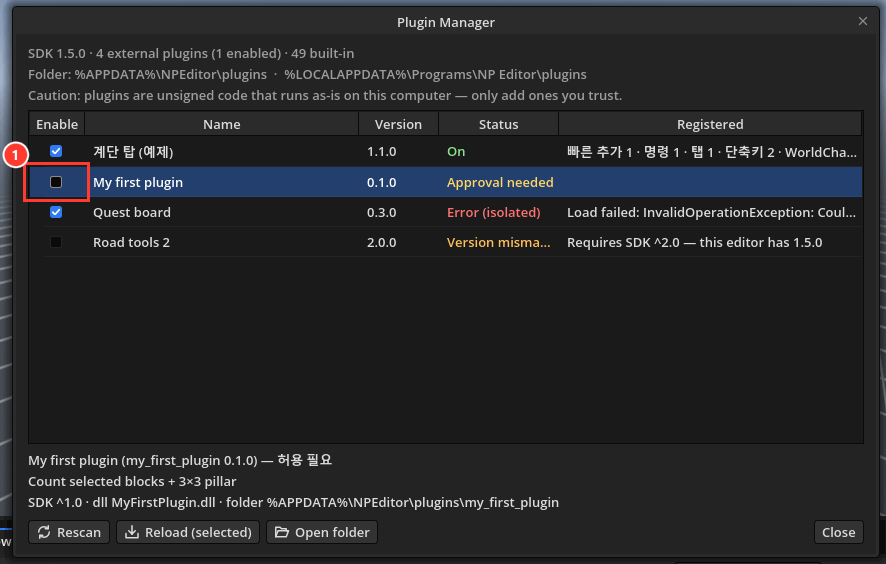
Known issue in 0.10.2: the detail line (
— 허용 필요= “Approval needed”) and the registration summary in the Registered column (빠른 추가 1 · 명령 1 …= “Quick add 1 · Command 1 …”) are shown in Korean. -
To disable a plugin, clear its Enable checkbox. Everything that plugin registered disappears from the screen.
-
If you rebuilt the dll, select the row and click Reload (selected).
-
After you add or delete a folder, click Rescan.
Tips and tricks
Section titled “Tips and tricks”- For a plugin in “Error (isolated)”, clear and re-check Enable, or click Reload (selected), to try loading it again.
- Rescan does not reload plugins that are already on. To apply a rebuilt dll, use Reload (selected).
- If you clicked Don’t load this time in the first confirmation window, the confirmation window appears again when you check Enable in the Plugin Manager.
- Hover over the name column to see the
id, description and folder as a tooltip. Use it to tell which folder is which when two plugins have the same name. - The console command
pluginsshows each plugin’s state on its own line, without opening the manager window.plugins reloaddoes the same as Rescan.
Reference
Section titled “Reference”Load order
Section titled “Load order”- Scan folders. For each plugin folder, the editor looks at its direct subfolders in name order. Only folders that contain
plugin.jsonare plugins. - Check plugin.json. If a field is invalid, the state is “Error (file)”. The rules are in plugin.json.
- Compare SDK versions. If the editor’s SDK version (1.5.0) is outside the
sdkrange, the state is “Version mismatch”. - Check whether it is enabled. A plugin the user disabled is “Off”.
- Wait for the sign-in check. Plugin code loads only after account sign-in and the license check have finished and the editor has opened.
- First confirmation window. If the warning has not been confirmed yet, the External plugins confirmation window appears once. Click Trusted — load to allow and remember all plugins found at that moment. Click Don’t load this time to load nothing this time.
- Check approval. Only plugins the user has allowed (
id+ full folder path) load automatically. A newly appeared folder stays “Approval needed”, and the Output Log records a[Plugin <id>] New plugin, not loaded automatically — …line. - Check the dll location. The editor checks that the real location of the dll (the link target, if it is a link) is inside the plugin folder. If not, the state is “Error (file)”.
- Create the load context. One is created per plugin. The dll is read and loaded as bytes, so the file is not locked. If a
.pdbwith the same name is in the same folder, it is loaded too. - Create the entry class. The editor creates
entry(or the firstINpEditorPluginimplementation if empty) with its parameterless constructor. If the class cannot be found or created, the state is “Error (isolated)”. - Call
Register(host). If it throws, nothing is registered and the state is “Error (isolated)”. If a world logic type collides with a built-in type or another plugin’s type, the state is “Version mismatch” (“Not loaded: overlaps a built-in feature — …”). If the plugin uses a member the editor SDK lacks and its types cannot be read, the state is also “Version mismatch”. - Attach to the editor. Menus, modes, panels, commands and so on are attached to the screen. If an exception occurs while attaching, the state is “Error (isolated)”. If the name of a console command or actor type already exists, only that item is not attached.
- On. The Output Log records a
[Plugin <id>] <version> enabled — <registration summary>line.
The editor runs steps 1–13 once at startup. Rescan and the console command plugins reload run steps 1–4 and 7 again and, once the warning is confirmed, load enabled plugins that are not loaded yet. Plugins whose folder is gone are unloaded.
States
Section titled “States”These texts appear in the Status column of the Plugin Manager and in the console plugins output.
| State | Meaning | What to do |
|---|---|---|
| Waiting (shown as “Atmosphere”) | Found and allowed but not loaded yet (for example, before the sign-in check) | Wait, or click Rescan |
| “Approval needed” | A plugin folder not allowed yet, so it is not loaded | If you trust it, check Enable |
| “On” | Running normally | — |
| “Off” | The user cleared the Enable checkbox | Check it again |
| “Error (file)” | plugin.json is invalid · dll missing · dll path rule broken · duplicate id | Fix the reason on the detail line |
| “Version mismatch” | The sdk range does not include the editor SDK · the plugin uses a member the editor SDK lacks · a world logic type collides with a built-in feature or another plugin | Fix sdk, update the editor, or rename the colliding type |
| “Error (isolated)” | The entry class could not be created · an exception in Register or a callback → only that plugin is unloaded | Fix the exception from the Output Log, then click Reload (selected) |
Known issue in 0.10.2: the screen shows the waiting state as “Atmosphere” (a mistranslation).
On “Error (file)” and “Version mismatch” rows, the Enable checkbox cannot be changed. Fix the files and click Rescan.
Plugin Manager
Section titled “Plugin Manager”Open it with Tools > Plugin Manager…. The top of the window shows the SDK version, the number of plugins, the folders it reads and a security notice.
| Column · button | What it does |
|---|---|
| Enable | Check to enable (load); clear to unload. Checking a plugin in “Approval needed” allows and loads it. |
| Name · Version · Status | The name and version from plugin.json, and the current state. If docs is set, a docs button appears next to the name. |
| Registered | If enabled, the registration summary (for example 메뉴 1 · 빠른 추가 1, shown in Korean in 0.10.2); otherwise the error reason. |
| Rescan | Scans the folders again. Finds new plugins and unloads plugins whose folder is gone. |
| Reload (selected) | Unloads the selected plugin, reads plugin.json and the dll again and enables it. Reloading with this button counts as allowing that plugin. |
| Open folder | Opens the user plugin folder. |
| Docs | Opens the docs URL of the selected plugin in the browser (visible only when docs is set). |
| Close | Closes the window (Esc). |
Enable/disable, whether the warning was confirmed, and the allowed folders are stored in %APPDATA%\NPEditor\plugins_state.json.
Disable, reload and unload
Section titled “Disable, reload and unload”A plugin is unloaded when: its Enable checkbox is cleared · Reload (selected) · Rescan after its folder is deleted · error isolation. When the editor closes, the process ends without the unload steps, so do not put work that must happen, such as saving, in Dispose.
- The editor detaches everything that plugin registered (menus · quick add · commands · import/export · panels · modes · actor types · shortcuts · show flags · status bar items · map replace guards · 3D drawing). If one of that plugin’s modes was in use, the editor returns to Block brush mode.
- If the entry class is
IDisposable, the editor callsDispose(). - The plugin’s world logic types are removed from the registry. Rules that used those types are not deleted; they stay with an “Unknown type” warning.
- If the plugin was moving the play camera, the camera is released (back to the original view).
- The load context is unloaded (collectible unload).
host.Settings values stay in the file and are read back as they were when the plugin is enabled again. After unloading, any leftover callbacks that get called do nothing.
Dispose rules
Section titled “Dispose rules”| What to do | Why |
|---|---|
Unhook anything attached to static events, timers or threads in Dispose. | If it stays attached, the load context cannot be unloaded from memory. |
Stop work started with Task.Run in Dispose (CancellationToken). | The plugin must not touch the world after it is disabled. |
You do not need to unhook host.WorldChanged · Committed · View.PlayChanged · View.PlayTicked. | The host drops them all on unload. -= on these events does nothing. |
Unhook host.Account.Changed with -= in Dispose. | Only this event is not unhooked automatically. If it stays attached, the load context cannot be unloaded. |
Do not throw exceptions from Dispose. | It is recorded in the Output Log as “Dispose error”, and unloading continues. |
public sealed class Plugin : INpEditorPlugin, IDisposable{    private readonly CancellationTokenSource _stop = new();
    public void Register(INpEditorHost host)    {        // … registration …        _ = Task.Run(async () =>        {            while (!_stop.IsCancellationRequested)            {                // … background work (does not touch the world) …                try { await Task.Delay(1000, _stop.Token); } catch (OperationCanceledException) { }            }        });    }
    public void Dispose() => _stop.Cancel();   // stop the background work}
Threads
Section titled “Threads”- Menu, command, panel, mode, event,
Simulate,PlayTickedand status barPollcallbacks are called on the editor’s main thread. - Move long calculations to
Task.Run, and write results to the world (World.Edit) and callDrawinside a main thread callback. - While a callback runs for a long time, the editor screen freezes. Infinite loops are not isolated.
File locations
Section titled “File locations”| What | Location |
|---|---|
| User plugin folder | %APPDATA%\NPEditor\plugins\<folder>\ (Tools > Open plugin folder) |
| Install folder plugins | <install folder>\plugins\<folder>\ |
| Enable/disable · warning confirmed · allowed folders | %APPDATA%\NPEditor\plugins_state.json |
Plugin settings (host.Settings) | %APPDATA%\NPEditor\plugin_settings\<id>.json |
| Shortcuts the user rebound | %APPDATA%\NPEditor\shortcuts.json |
| Editor log file | %APPDATA%\NPEditor\logs\godot.log (notifications and isolation notices are recorded) |
| Large data of your own | Your own files under host.PluginDir (= the folder that contains plugin.json) |
The folders are scanned in the order user plugin folder → install folder plugins\. For the same id, the one found first is used. The installed editor does not read additional folders from environment variables.
id namespace
Section titled “id namespace”| What you register | Name inside the editor | On a collision |
|---|---|---|
| Menus · quick add · import/export · panels · modes · shortcuts · show flags · status bar items · map replace guards | ext.<plugin id>.<your id> | Never collides with other plugins or built-in features |
Shortcut Mode | If you use your mode id as is, the editor adds ext.<plugin id>.. An id that starts with np. or ext. is used as is | — |
| Console command names | As is | If it already exists, only that command is not attached (the existing one wins) |
| World logic types | As is (per role) | If it already exists (including built-in), registration throws → “Version mismatch” |
Actor type Kind | As is | If it already exists, only that type is not attached (the existing one wins) |
So put your own name in front of command names, world logic types and actor kinds (for example road_build, myquest_start, myroad.zone).
What isolation does not prevent
Section titled “What isolation does not prevent”- Infinite loops · stack overflows · process exit (
Environment.Exit) - File and network access
A plugin is code that runs with the same permissions as the editor. Isolation guards against mistakes; it is not a security boundary. Folder approval is likewise a guard that keeps a dll dropped in without your knowledge from running on its own. Approval is remembered by id and folder, so rebuilding and overwriting the dll in an allowed folder does not ask again.
Related pages
Section titled “Related pages”Not an official Minecraft product. Not approved by or associated with Mojang or Microsoft.