
Sequencer
Overview
Section titled “Overview”The Sequencer is an editor that places scene actor movement and cutscenes on a timeline. What you build is called a clip, and you play it with the Play animation action of World logic. The server plugin NPBridge plays the same clip in the game.
| Track | What | For whom |
|---|---|---|
| Actor tracks | Position · rotation · size · visibility · text · color of scene actors | Everyone sees the same movement |
| Master tracks (Camera cut · Event · Sound · Title · Fade) | Cutscene direction | Each player in “Cutscene viewers” of “Play animation” |
Basic use
Section titled “Basic use”Create a clip gate_open that moves the display actor in front of the castle gate (Display — block (Block Display), Scene actors and Outliner) sideways over 3 seconds.
-
Click Tools > Sequencer (animation · cutscenes). The Sequencer tab opens in the bottom dock area. There are no clips yet.
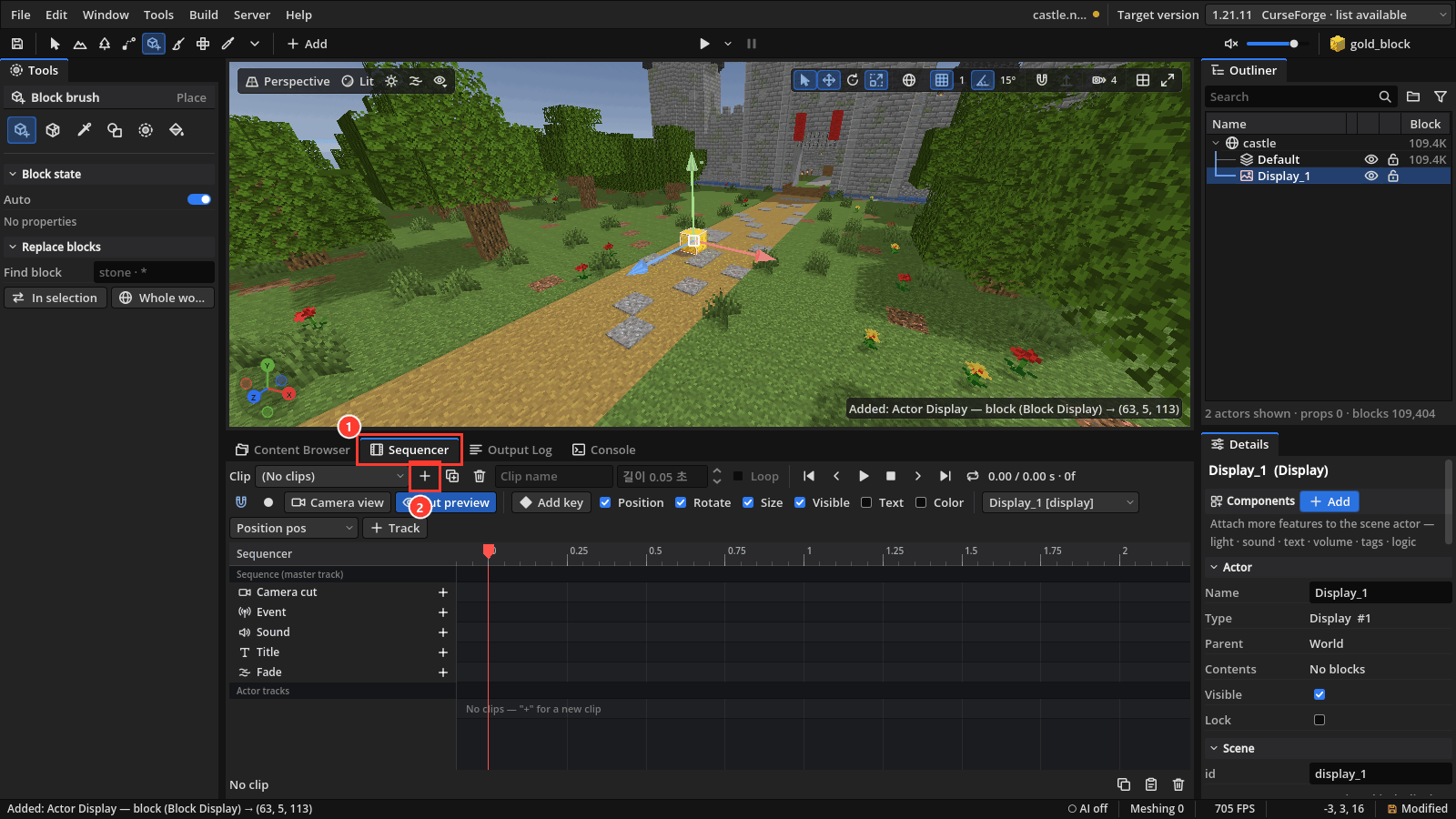
-
Click the + button (new clip) next to Clip. A 4-second clip is created. Type
gate_openin the name field.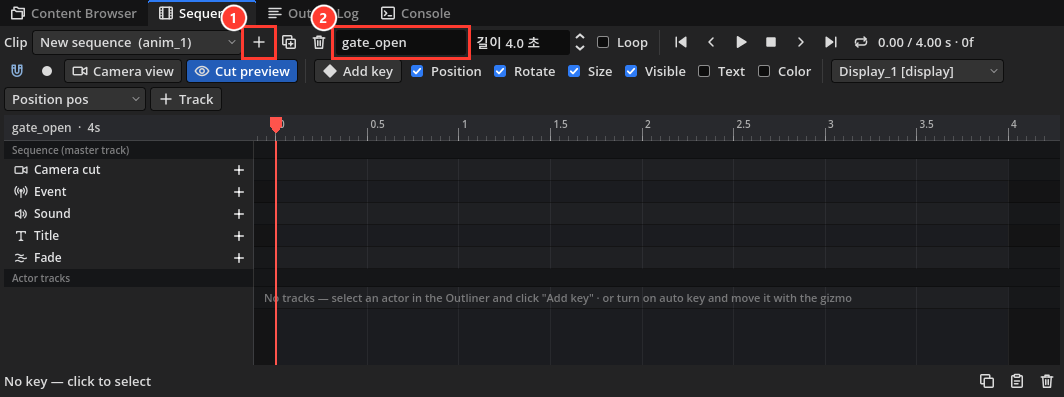
Known issue in 0.10.2: the clip length field shows the untranslated Korean “길이 4.0 초” (“length 4.0 s”).
-
Select the display actor to move in the Outliner and, with the playhead at 0 seconds, click Add key. The current state of the checked properties (Position · Rotate · Size · Visible) becomes the 0-second key, and a row for that actor appears under Actor tracks below.
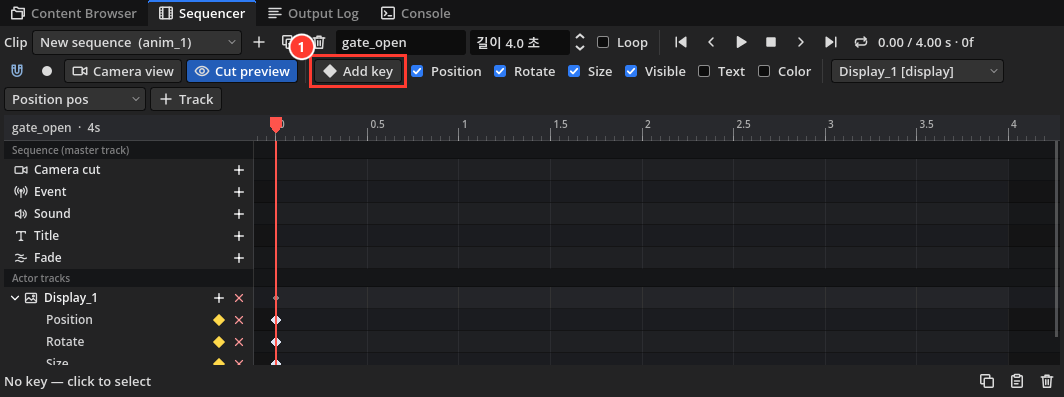
-
Click the timeline ruler to move the playhead to 3 seconds, then click the auto key button (red dot) to turn it on.
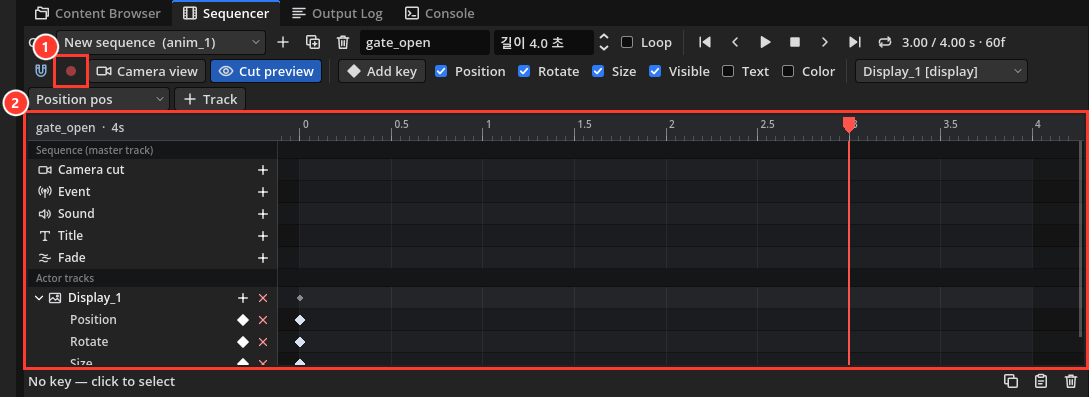
-
In the viewport, drag the actor sideways (4 blocks along X) with the W gizmo. When you release it, a position key is created at 3 seconds (“Auto key: 1 keys @ 3.00s (…위치)” at the bottom right of the viewport).
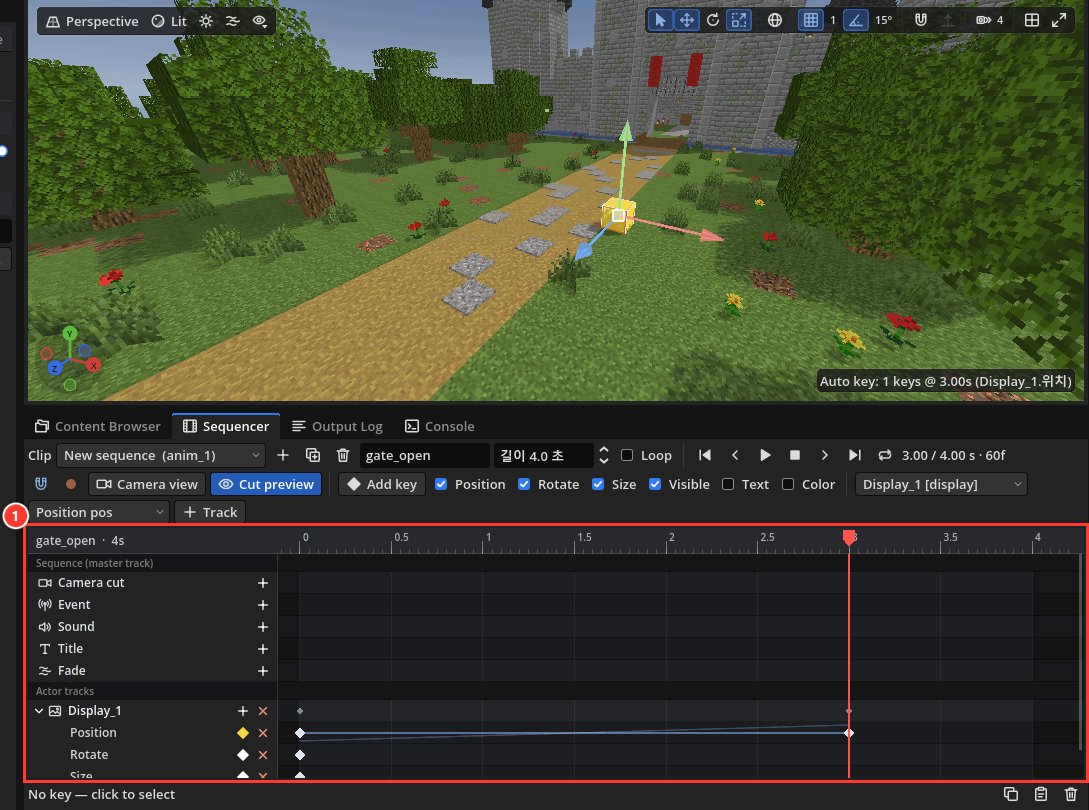
Known issue in 0.10.2: the property name in this message is the untranslated Korean “위치” (“Position”).
-
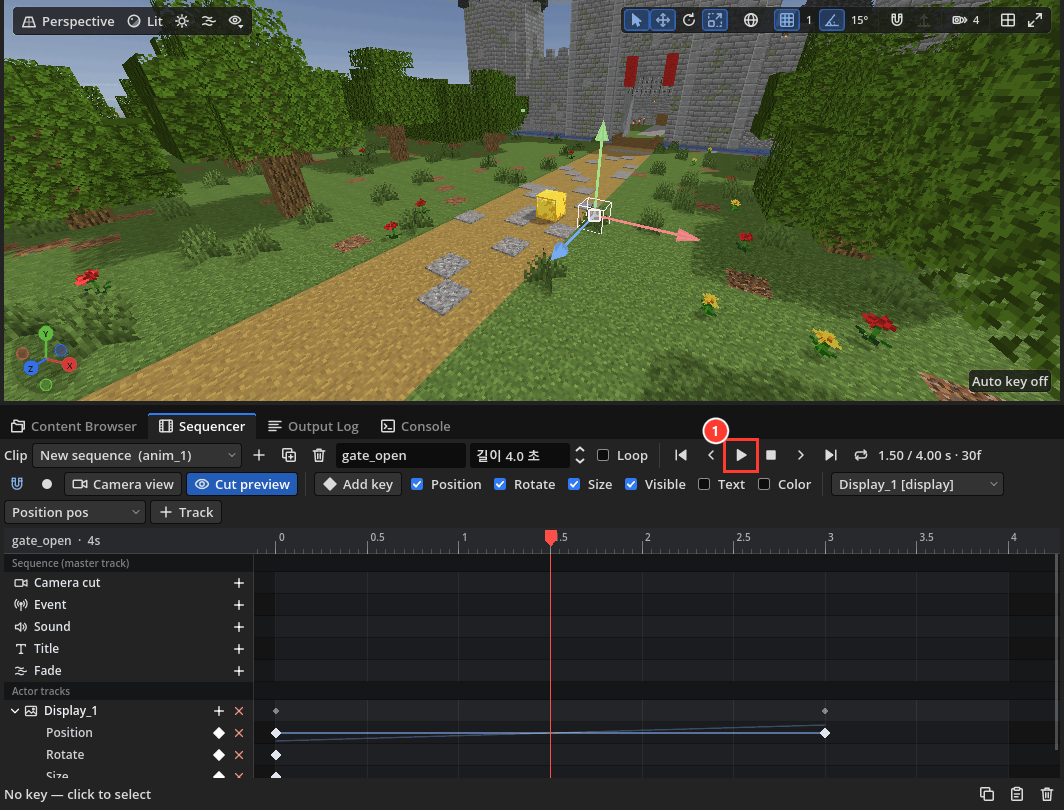
Turn auto key off and click the play button (▶ — same as Space). The preview plays and the block slides from its 0-second position to its 3-second position. Click it again at 1.5 seconds to stop: the block is about halfway. The preview is non-destructive, so the actor’s real position (gizmo) does not change.
-
Create a rule to play it. In the Logic graph, drop the exec pin of On start (scene start) on an empty spot to add Play animation, then select
gate_openin the Clip field.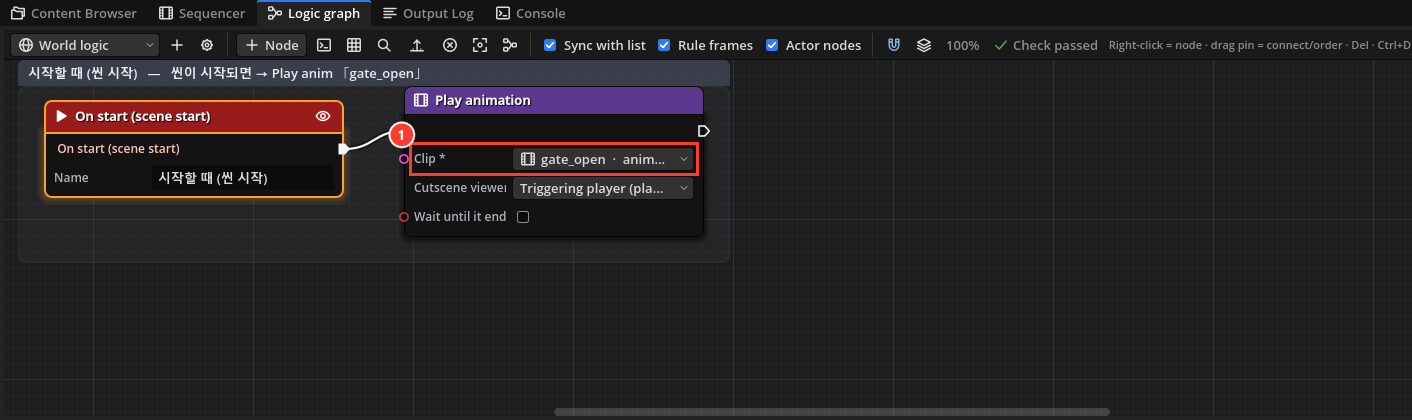
Known issue in 0.10.2: the new rule gets the untranslated Korean name “시작할 때 (씬 시작)” (“On start (scene start)”).
Tips and tricks
Section titled “Tips and tricks”- To set one key per time step, you can repeat “move the playhead → edit the position in Details → Add key” instead of using auto key. Add key records all checked properties at once.
- Auto key creates keys only while the Sequencer tab is open. If you close the tab and move the actor with the gizmo, only the actor moves.
- The Sequencer preview moves display and text actors as real blocks and text (not wire boxes). Click the stop button to return them to their original state.
Reference
Section titled “Reference”Layout
Section titled “Layout”| Part | Contents |
|---|---|
| First row | Clip picker · new clip · duplicate · delete · name · length · Loop · go to start · previous key · play · stop · next key · go to end · loop range · time |
| Second row | Snap · auto key · Camera view · Cut preview · Add key and property checks (Position · Rotate · Size · Visible · Text · Color) · actor to create a track for · property · Track |
| Left tree | Sequence (master tracks) · actor tracks (actor rows · property rows) |
| Right timeline | Ruler · keys · playhead line |
| Bottom row | Time and value of the selected key |
Key interpolation
Section titled “Key interpolation”| Interpolation | Meaning |
|---|---|
linear | Changes at a constant rate (default) |
step | Holds the value until the next key |
smooth | Starts slowly and stops slowly |
Using it with world logic
Section titled “Using it with world logic”| Node | Kind | Action |
|---|---|---|
Play animation (anim_play) | Action | Plays the clip from the start. Cutscene viewers · Wait until it ends |
Stop animation (anim_stop) | Action | Stops where it is |
When a sequence ends (anim_finished) | Event | When a non-looping clip reaches the end |
Shortcuts (timeline focused)
Section titled “Shortcuts (timeline focused)”| Shortcut | Action |
|---|---|
| Space | Play · pause |
| ← · → | One frame (0.05 seconds) back · forward |
| Home · End | Go to start · end |
| F | Frame view |
| Ctrl+C · Ctrl+V | Copy the selected keys · paste at the playhead |
| Delete | Delete the selected keys |
Related pages
Section titled “Related pages”Not an official Minecraft product. Not approved by or associated with Mojang or Microsoft.