
Sample: hello_tool
Overview
Section titled “Overview”A sample that adds a stone brick stair tower preset to Add on the main toolbar. It has the id hello_tool, SDK ^1.1 and version 1.1.0, and appears in the Plugin Manager as 계단 탑 (예제) (stair tower, sample). It shows how to use several registration points together in one plugin. The sample’s UI text is Korean only, so this page quotes it as shown on screen, with an English gloss.
| What it shows | Code |
|---|---|
| Quick add + one undo step | AddQuickAddItem · World.Edit |
| Settings panel | AddContentTab · NpUi |
| Console command | AddCommand |
| Shortcuts | AddShortcut |
| 3D overlay drawing | host.Draw |
| Settings storage | host.Settings |
| Clearing state in a new world | WorldChanged |
The source is in samples/plugins/hello_tool/ in the NP Editor repository (Plugin.cs · HelloTool.csproj · plugin.json).
Basic use
Section titled “Basic use”-
From the repository root, run
dotnet build samples/plugins/hello_tool/HelloTool.csproj -c Release. When you build inside the repository, the output goes to%LOCALAPPDATA%\NPEditorBuild\HelloTool\bin\Release\net8.0\. -
Copy
HelloTool.dllandplugin.jsonfrom the output to%APPDATA%\NPEditor\plugins\hello_tool\(Tools > Open plugin folder). Do not includeNP.Editor.Sdk.dll. -
Click Tools > Plugin Manager…, then check Enable on the
계단 탑 (예제)row shown as “Approval needed”. The first time, click Trusted — load in the External plugins confirmation window. -
In the viewport, move the mouse over a floor block.
-
Click Add on the main toolbar, type
towerin the search field, then click계단 탑(stair tower) in thePresetcategory. A 5×5 tower appears with the cell the mouse points at as its smallest x · z corner. -
Press Ctrl+Alt+H to turn on the tower display. A blue box and a
계단 탑 #1name tag appear around the tower.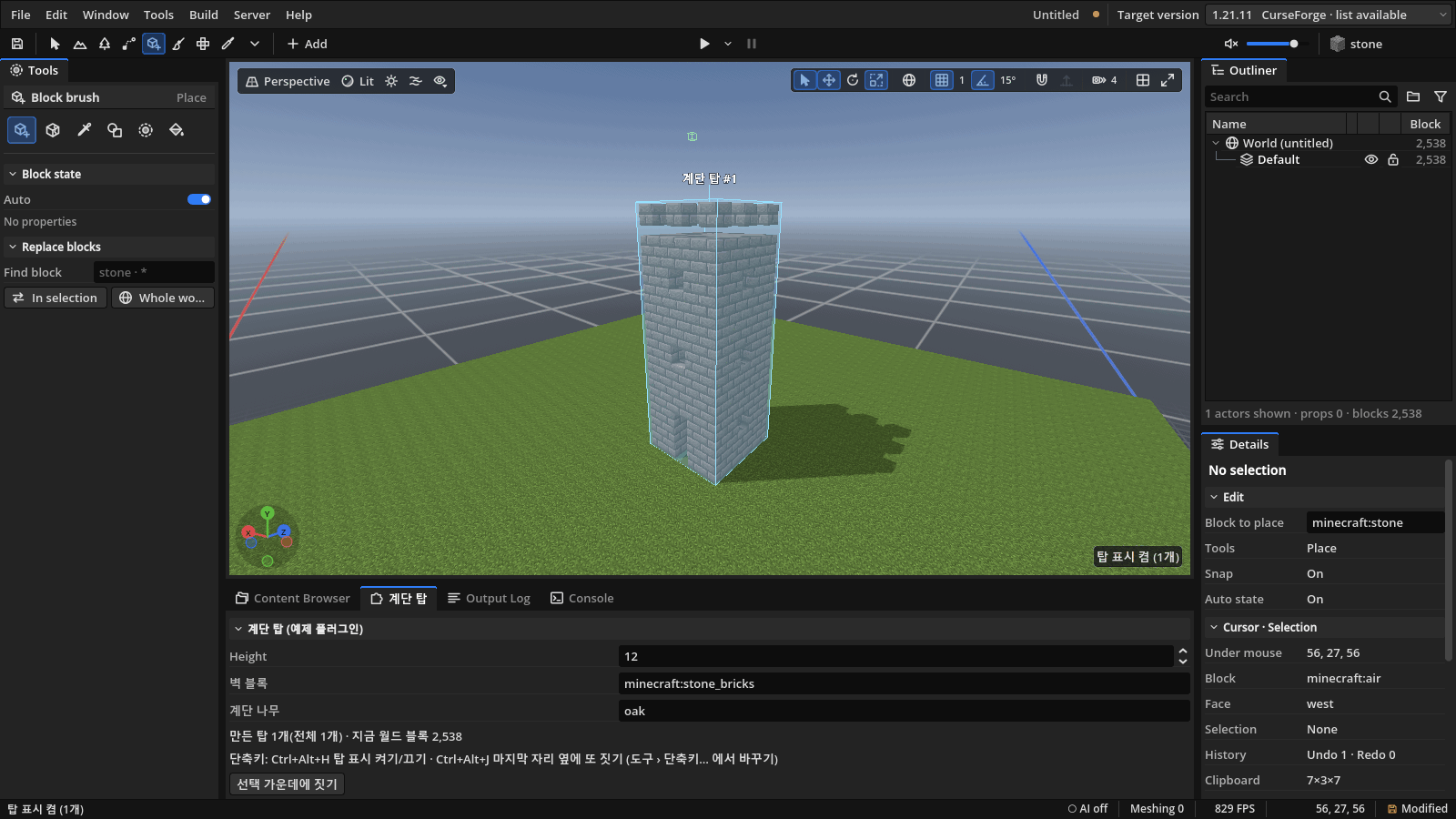
-
Press Ctrl+Z to undo. The whole tower disappears at once.
Tips and tricks
Section titled “Tips and tricks”- Open the
계단 탑panel from the Window menu to change the height · wall block · stair wood. Changed values are saved immediately and remain after you restart the editor. - Select a region, then click
선택 가운데에 짓기(build at selection center) in the panel. The tower is built on the floor at the center of the selection box. - Press Ctrl+Alt+J to build another tower 7 cells along x from the last one. Repeat it to line the towers up in a row.
- To change the two shortcuts, search for
계단 탑:in Tools > Shortcuts…. - Type
tower 20in the Console to build a tower of height 20 at (0, 1, 0).
Reference
Section titled “Reference”What it adds
Section titled “What it adds”| Kind | Name | Description |
|---|---|---|
| Quick add | Add > Preset > 계단 탑 | Builds a tower with ctx.Place as the smallest x · z corner. Search words: tower stair 탑 계단 나선. The icon is the stone brick stairs block image from IconState. |
| Panel | 계단 탑 | Height · wall block · stair wood settings, build count, and a 선택 가운데에 짓기 button. Open it from the Window menu. |
| Command | tower [높이] | Builds a tower at (0, 1, 0). The height (높이) is clamped to 4–64. Result: 계단 탑 높이 12 — <cell count>칸 (stair tower height 12 — |
| Shortcut | 계단 탑: 탑 표시 켜기/끄기 (toggle tower display, Ctrl+Alt+H) | Draws or clears a surrounding box + name tag for each tower built in this world. |
| Shortcut | 계단 탑: 마지막 자리 옆에 또 짓기 (build another next to the last spot, Ctrl+Alt+J) | Builds 7 cells along x from the last tower. If no tower has been built, at (0, 1, 0). |
| Event | WorldChanged | Clears the list of built towers and the drawings on new world · open. |
Tower shape
Section titled “Tower shape”| Part | Details |
|---|---|
| Walls | 5×5 perimeter, height = the Height setting, block = the 벽 블록 (wall block) setting |
| Door | Center of the wall on the smallest-z side, bottom 2 cells |
| Windows | Every 4 floors (y % 4 == 2), one cell at the center of each of the four walls |
| Center pillar | Cell (2, 2), wall block |
| Stairs | A spiral that circles the 8 cells around the pillar, rising one cell per level. minecraft:<stair wood>_stairs |
| Roof | Stone brick slabs + battlements, with an exit hole above the top of the stairs |
One tower is one World.Edit (undo label 계단 탑 ×<height>).
Panel rows
Section titled “Panel rows”| Row | Kind | What it does |
|---|---|---|
Height | Number 4–64 | Tower height. Saved immediately when changed |
벽 블록 (wall block) | Text | Block state string for the walls and the pillar. Saved immediately when changed |
계단 나무 (stair wood) | Text | Stair wood name (oak · spruce · birch …). Saved immediately when changed |
만든 탑 … (towers built …) | Live text | Count built in this world · total built so far · world block count |
단축키: … (shortcuts: …) | Live text | Shortcut guide |
선택 가운데에 짓기 (build at selection center) | Button | Builds at the center of the selection box, at floor height. Only a notification if there is no selection |
Settings
Section titled “Settings”Stored in host.Settings. The file is %APPDATA%\NPEditor\plugin_settings\hello_tool.json.
| Key | Type | Default | Description |
|---|---|---|---|
height | integer | 12 | Tower height (panel Height) |
wall | string | minecraft:stone_bricks | Wall block (panel 벽 블록) |
stair_wood | string | oak | Stair wood (panel 계단 나무) |
towers | integer | 0 | Number of towers built so far (sum across all worlds) |
Limitations and known issues
Section titled “Limitations and known issues”- The wall block and stair wood strings are not checked. A wrong name is placed as is.
- A height changed with
tower <height>is used only during this run and is not saved. The panel’sHeightfield does not change either. - The tower display draws only towers built by the plugin in this world. Boxes remain for towers removed with undo.
- The initial values of the panel fields are the settings at the time the plugin was enabled.
- The
Iconfield holds the old pictographic character▤, but becauseIconStateis set, the block image is used first. The pictographic character in the panel name▤ 계단 탑is stripped on screen, so it appears as계단 탑. New plugins use an icon name such asIcon: "prefab". - If you move the sample out of the source tree to build it, change the csproj’s SDK project reference to a reference to
NP.Editor.Sdk.dllin the install folder, as in Quick start.
Changelog
Section titled “Changelog”| Version | Date | Details |
|---|---|---|
| 1.1.0 | 2026-10-02 | SDK 1.1: settings storage (height · wall · stair wood · build count) · shortcuts Ctrl+Alt+H / J · 3D drawing around towers |
| 1.0.0 | — | First version: quick add 계단 탑 · settings panel · command tower |
Related pages
Section titled “Related pages”Not an official Minecraft product. Not approved by or associated with Mojang or Microsoft.