
Your first map
Overview
Section titled “Overview”In this exercise you create a new empty world, give it a name and save it, lay a 32×32 grass floor in one go, place a few oak plank blocks on it, and save again. The goal is for first-time users to learn the basic flow of picking, placing and saving blocks. It takes about 10 minutes.
Before you start, finish Install and first launch and check that a version with a jar is selected in Target version at the right of the menu bar. For the names of the parts of the window, see Editor layout; for camera controls, see Camera and views.
Basic use
Section titled “Basic use”-
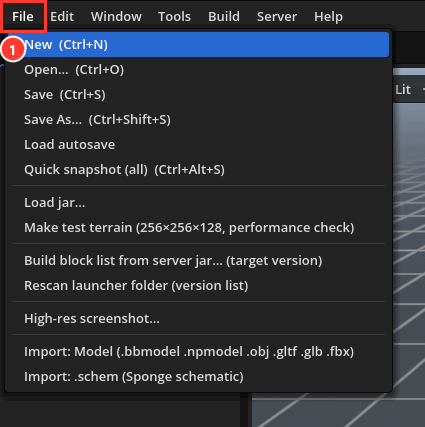
Click File > New (Ctrl+N). A new world with no blocks opens. The world name at the right of the menu bar is “Untitled”.
-
Click File > Save As… (Ctrl+Shift+S). In the Windows save dialog, create a new folder
first_mapand save the file inside it asfirst_map.npworld. The world name at the right of the menu bar changes tofirst_map.npworld(a long name is shortened; hover over it to see the full path).
This folder is the project folder. Prefabs (
prefabs\), export results (export\) and screenshots (shots\) are also created here. -
Type
grass_blockin the search field (①) of the Content Browser in the bottom area. The grass block tile (②) appears in the results.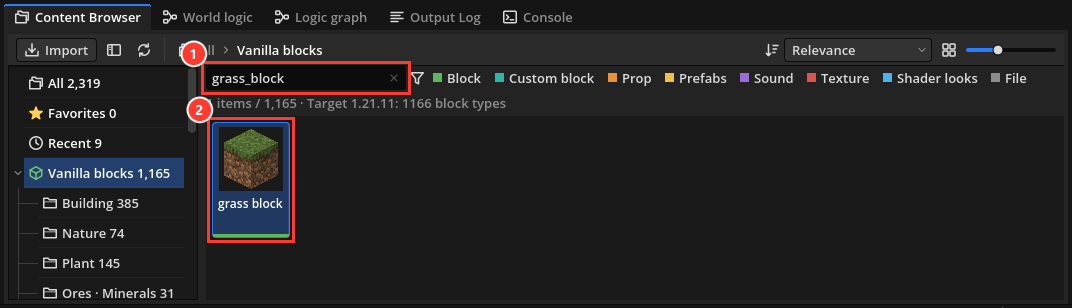
-
Double-click the grass block tile. The block to place at the right of the toolbar changes to
grass_block.
-
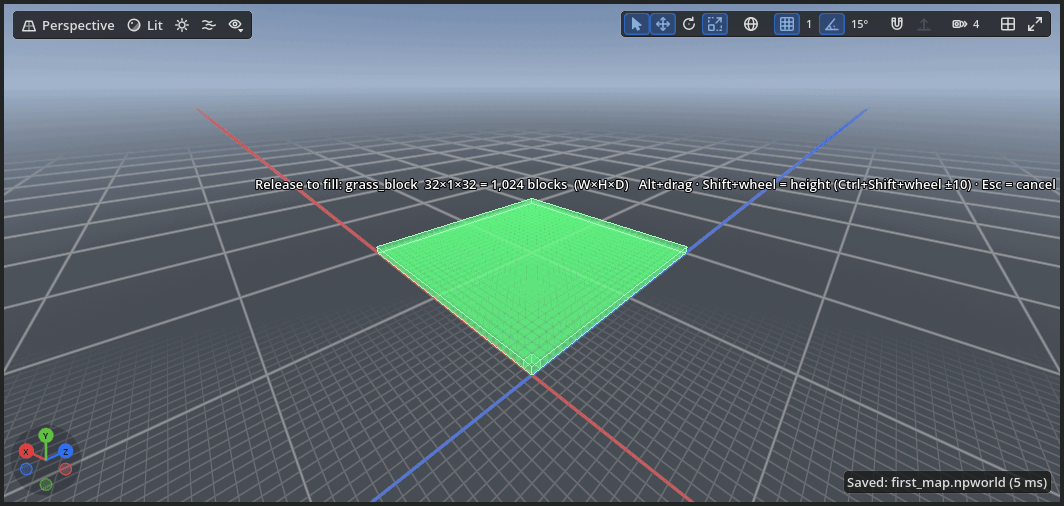
Press 1 to pick the place tool, then drag across the floor of the viewport from one corner to the opposite corner. While you drag, a green ghost box and the text “Release to fill: grass_block 32×1×32 = 1,024 blocks …” appear. In an empty world, blocks go on the floor (y = 0).
-
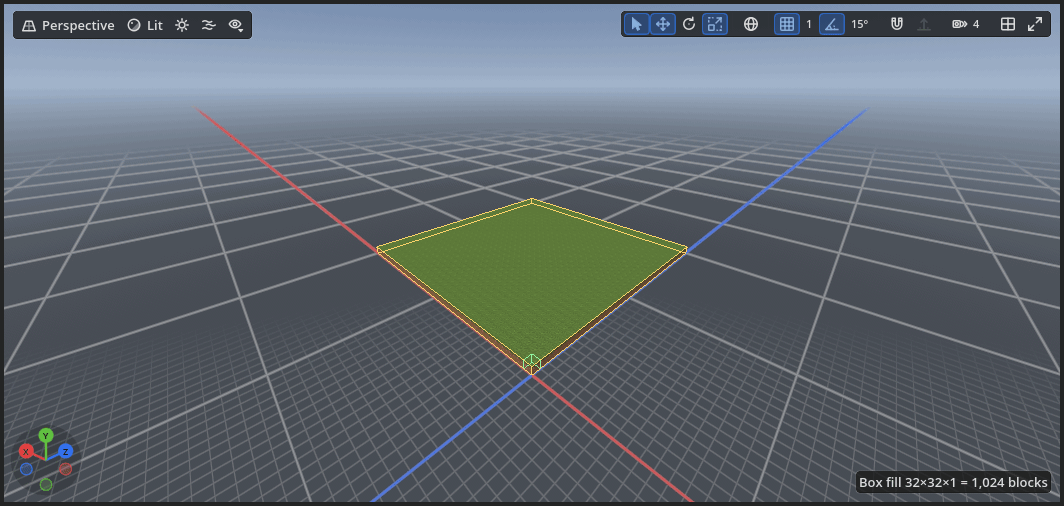
Release the mouse button to create a grass floor of 1,024 blocks (32×32). The notice “Box fill 32×32×1 = 1,024 blocks” appears at the bottom right.
-
Type
oak_planksin the Content Browser search field and double-click the result tile. Click the top face of the grass floor several times; each click places one oak plank on the face you clicked. In this exercise, click 8 times to make a ring with an empty cell in the middle.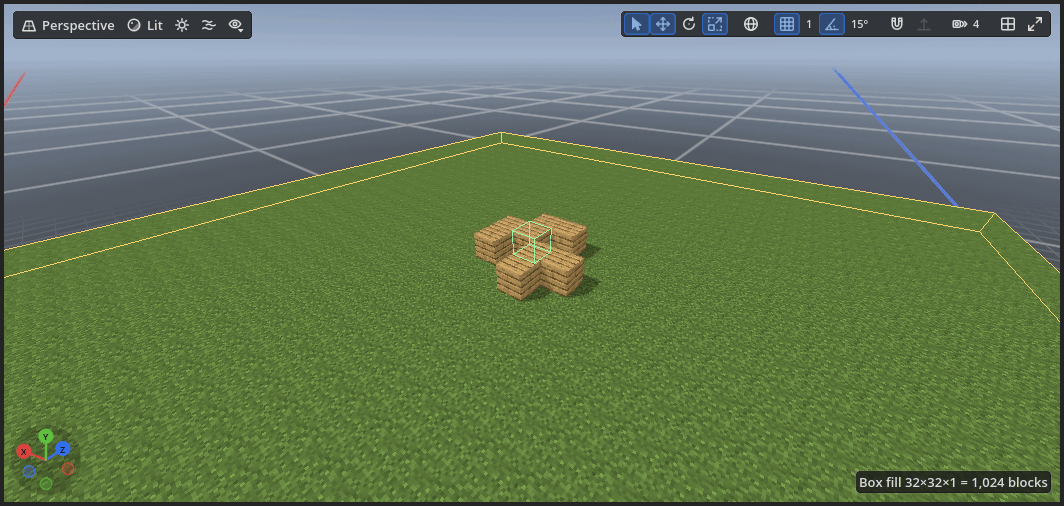
-
Press Ctrl+S to save. The change dot in the menu bar turns off and the right end of the status bar shows Saved.

Tips and tricks
Section titled “Tips and tricks”- Undo one block at a time: press Ctrl+Z to remove the last plank you placed, and Ctrl+Y to bring it back.
- Switch between placing and selecting: number keys pick tools. 1 = place, 4 = select, 5 = shape. For all keys, see Shortcuts.
Reference
Section titled “Reference”- Even if you do not save, autosave keeps a separate copy every 120 seconds. When there are unsaved changes, a small orange dot lights up at the right of the menu bar.
- You can change the height of the drag box with Alt+drag or Shift+wheel. For more ways to place blocks, see Placing and breaking blocks.
Where to go next
Section titled “Where to go next”| What you want to do | Page |
|---|---|
| Place shapes such as walls and roofs in one go | Shapes, brush and fill |
| Select, move and stretch blocks | Selection and region editing · Face extrude |
| Make hills, rivers and forests | Landscape · Water, roads and coasts · Foliage |
| Place copies of a building you built | Prefabs |
| Game behavior such as a zone that shows a title when you enter | World logic · Tutorial: your first script |
| Test by walking around inside the editor | Testing in Play mode |
| Export to a Minecraft world or server files | Export and import |
| Let the AI build | AI Studio in the editor |
Not an official Minecraft product. Not approved by or associated with Mojang or Microsoft.