Most commands have a key assigned, and you can change keys in the Shortcuts window. The parentheses next to a menu item show its current key. All default keys are collected in “Reference” below.
When the cursor is in a text field (the console, search fields, name fields and so on), editing shortcuts are off. Click the viewport once to turn them back on. Only the keys in the “When the cursor is in a text field” table keep working.
-
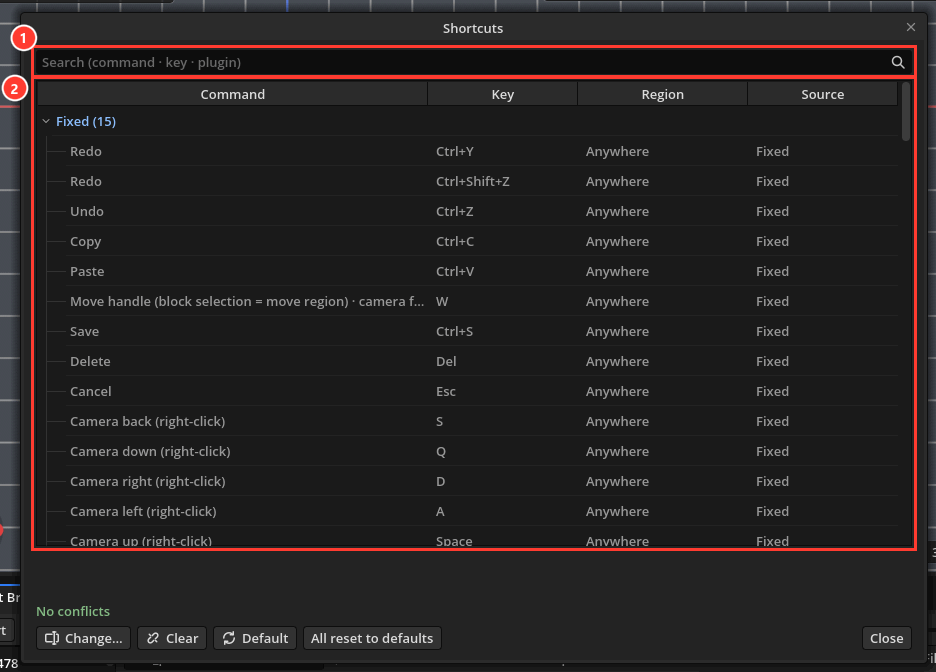
Click Tools > Shortcuts…. The Shortcuts window opens. At the top is the search field (①), and below it a table with Command, Key, Region and Source columns (②). The table is split into groups such as Fixed, Default keys, modes, menus and External plugins.
-
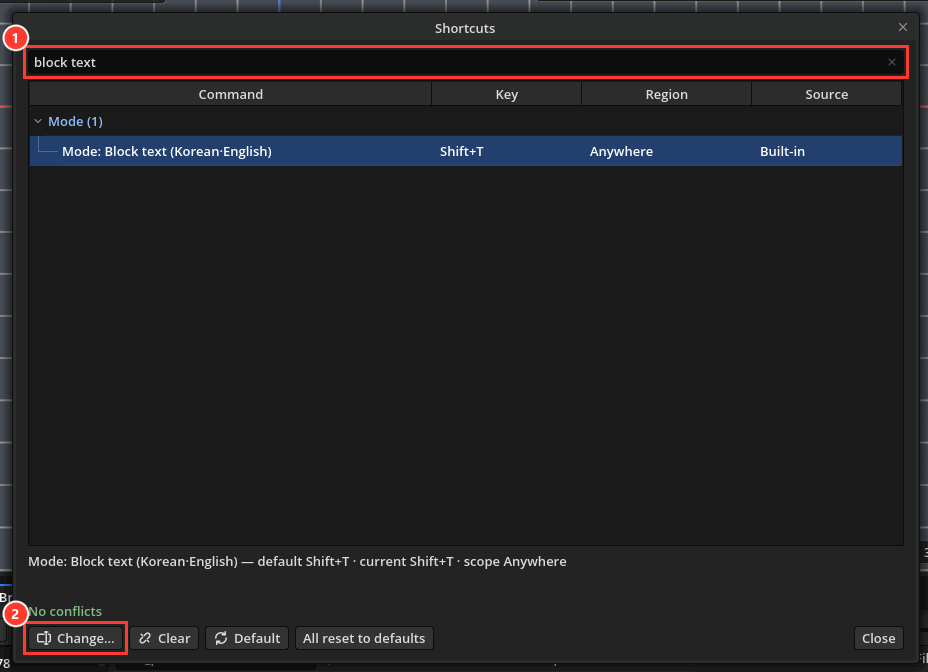
Type block text in the search field, select the “Mode: Block text (Korean·English)” row and click Change…. You can also double-click the row.
-
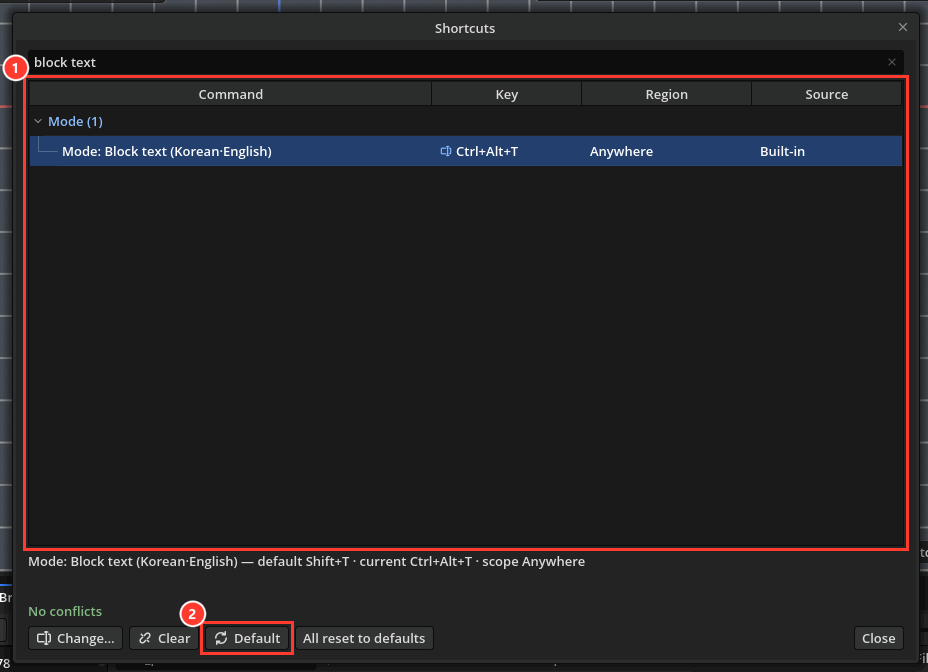
Press the new key Ctrl+Alt+T. The key field changes and a blue icon (changed key) appears next to it. Now Ctrl+Alt+T opens Block text mode, and the old key Shift+T no longer works. While the window is waiting for a key, press Esc to cancel the change.
-
To restore the original key, select the row and click Default. The key returns to Shift+T. All reset to defaults returns every key to its default.
Changed keys are saved immediately (%APPDATA%\NPEditor\shortcuts.json), and the keys in parentheses in the menus update immediately too.
- Check for conflicts: type
keys conflicts in the Console panel to list commands that share the same key (serious conflicts are marked ”!”). The bottom of the Shortcuts window also shows “No conflicts” or the number of conflicts.
- When a menu key does not work: in 0.10.2, some menu keys such as Alt+P do not work as keys (see “Menu keys that do not work in 0.10.2” below). In the Shortcuts window, change that command (for example “Play (walk in viewport)”) to a key different from the default (for example Shift+F5), and it works with that key. Setting the same key again (Alt+P) still does not work.
- Change keys from the console:
keys = list shortcuts (key, name, id), keys set <id> <key> = change, keys reset <id> = restore the default, keys resetall = restore all defaults.
| Button · indicator | Details |
|---|
| Search field | Finds commands by name, key or plugin id. |
| Change… · double-click a row | Press a new key combination (Ctrl · Alt · Shift + key). Esc = cancel |
| Clear | Removes the key from that command. |
| Default · All reset to defaults | Returns that command (Default) or all commands (All reset to defaults) to the default keys. |
| Close | Closes the window (Esc). |
| Red key | Same key as another command, and their regions overlap. Change one of them. |
| Yellow key | Two defaults share the same key. Usually the same command (menu and mode). |
| Blue icon | A key changed from its default. |
| Fixed group | Keys you cannot change (see “Keys you cannot change” below). |
If you move a default key, using the old key shows the notice “<key> has moved to another key — Tools › Shortcuts…”.
| Shortcut | Action |
|---|
| Ctrl+N | New |
| Ctrl+O | Open |
| Ctrl+S | Save (an untitled world opens the Save As dialog) |
| Ctrl+Shift+S | Save As |
| Ctrl+Z | Undo (up to 200 steps; the selection is restored too) |
| Ctrl+Y · Ctrl+Shift+Z | Redo |
| Ctrl+Shift+E | Export window |
| Ctrl+, | Editor Preferences |
| Shortcut | Action |
|---|
| Ctrl+Space | Collapse · expand the bottom area (opens the Content Browser if no panel is open) |
| F11 | Maximize · restore the viewport |
| F1 (in a panel or window) | Opens the docs for that panel or window in the browser. In the viewport, switches to the “Lit” view |
| Ctrl+Tab | World tab ↔ Paint tab |
| Ctrl+U | UV Editor |
| Ctrl+F7 | Performance overlay on · off |
| Ctrl+Shift+A | Open the AI Studio panel |
| Esc (dialog) | Close the dialog |
| Control | Action |
|---|
| Right-drag | Look around (orthographic views = pan) |
| W A S D while right-dragging | Fly |
| E · Space / Q · Ctrl while right-dragging | Up / down |
| Shift while right-dragging | 4× faster |
| Wheel while right-dragging | Flying speed |
| Wheel | Forward and back (orthographic views = zoom toward the mouse) |
| Middle-drag | Pan |
| Middle-click | Eyedropper |
| Alt+drag (left button) | Orbit |
| Alt+drag (right button) | Move toward or away from the pivot |
| F | Frame the selection (if none, the block under the mouse → the whole world) |
| Numpad 1 · 3 · 7 | Front · right · top orthographic (Ctrl = opposite side) |
| Numpad 5 | Perspective ↔ orthographic |
| Ctrl+1–9 | Load a camera bookmark |
| Ctrl+Shift+1–9 | Save a camera bookmark |
For details, see Camera and views.
| Shortcut | Action |
|---|
| F1 | Lit |
| F2 | Unlit (rename when the Outliner has focus) |
| F3 | Wireframe |
| F4 | Lit+Wire |
| F5 | Normals |
| F6 | Game view (shader) |
| F7 | Path tracing |
| G | Show · hide the floor grid (in the game view, the game view grid) |
| H | Hide the selection · (without a selection) show everything |
In the Shortcuts window, F4, F6 and F7 appear with the names “View: Wireframe+texture”, “View: Shader preview” and “View: Ray tracing preview”.
| Shortcut | Action |
|---|
| 1 | Place |
| 2 | Break |
| 3 | Eyedropper |
| 4 · Q | Select |
| 5 | Shape |
| 6 | Brush |
| 7 | Fill |
| 8 | Prop |
| T | Terrain (Landscape mode) |
| Tab | In the select tool, place ↔ select; in other tools, switches to select |
| [ · - · numpad - | Current brush size − (brush, shape, terrain, scatter and more) |
| ] · = · numpad + | Current brush size + |
| Shift+ the size keys above | Large step (±5 or ×1.5) |
Tool keys also switch the toolbar mode. 1, 2, 3, 5, 6 and 7 switch to Block brush, 4, 8 and Q to Selection, and T to Landscape.
| Control | Tool | Action |
|---|
| Click | Place | One block in the cell outside the face you hit |
| Drag | Place | Floor-sized box → release to fill a cuboid |
| Alt+drag up and down · Shift+wheel while dragging | Place · select | Box height ±1 (drag down to go into the ground) |
| Ctrl+Shift+wheel while dragging | Place · select | Box height ±10 |
| Shift+click | Place | Break that block |
| Click | Shape | Place a shape with the clicked cell as the anchor (lines take two clicks, right-click = cancel) |
| R | Shape (no selection) | Turn the shape direction (slopes, arches) |
| Drag | Brush | Paint |
| Shift+drag | Brush | Erase with the same size and shape |
| Click | Fill | Fill connected identical blocks with the pattern |
| Alt+M | Anywhere | Symmetry on · off |
| Alt+Shift+M | Anywhere | Cycle active symmetry |
| Control | Action |
|---|
| Drag (select tool) | Box selection |
| Shift+drag (place or select tool) | Screen rectangle selection — groups only the blocks visible on screen |
| Ctrl+drag (select tool) | Add to the current selection |
| Ctrl+Shift+drag | Subtract from the current selection |
| Ctrl+click (select tool) | Add · remove that cell |
| Drag a face handle | Push or pull one face of the selection box (Esc = cancel) |
| Ctrl+A | Select the whole range that contains blocks |
| Ctrl+I | Invert selection |
| Shift+E | Select all blocks matching the one under the mouse (only inside the selection when the mouse is inside it) |
| Ctrl+C · Ctrl+X · Ctrl+V | Copy · cut · paste under the mouse (air is skipped) |
| Del | Clear the selection |
| W · E | Move · rotate (90°) gizmo |
| R | Scale gizmo when a gizmo is on; otherwise rotate 90° clockwise |
| Shift+R (no gizmo) | Rotate 90° counterclockwise |
| Alt+drag on the move gizmo | Copy while moving |
| Drag a scale gizmo (R) handle | Stretch — with two or more layers, the pattern is read and continued (0.10.2) |
| Tab · Shift+Tab while dragging a scale handle | Pick another interpretation (“Copy end face” = the old behavior) |
| Alt+drag on the scale gizmo | Array (repeat) |
| X · Shift+X · U | Flip left-right · front-back · up-down |
| Arrow keys | Move 1 block forward · back · left · right relative to the camera (Shift = 10 blocks) |
| PgUp · PgDn | Move 1 block up · down (Shift = 10 blocks) |
| K | Array — duplicate by the count, spacing and direction set in the panel |
| End | Drop to the floor (block selection, props, actors) |
| Esc | Cancel the gizmo drag → cancel the drag box → cancel a large job → clear the selection, in that order |
For details, see Selection and region editing.
| Shortcut | Action |
|---|
| W · E · R | Move · rotate · scale gizmo for the selected prop or actor without blocks |
| Ctrl+D | Duplicate the selected prop, or the actor selected in the Outliner |
| Del | Delete the selected prop or actor without blocks |
| Ctrl+G | Group the actors selected in the Outliner into a new folder |
| F2 (Outliner has focus) | Rename an actor |
Select a prefab in the Prefabs panel and click Place to enter placing mode.
| Shortcut | Action |
|---|
| Click | Place it there (switches to the select tool after placing) |
| Shift+click | Keep placing |
| R | Rotate |
| F | Flip |
| Esc | Stop placing |
| Shortcut | Action |
|---|
| Drag a face | Outward = extend, inward = erase |
| Tab · Shift+Tab | Change the interpretation (auto, repeat, shift, size change, rotation …) |
| Enter | Apply |
| Esc | Cancel |
| Shortcut | Mode |
|---|
| T | Landscape |
| M | Markers (MMORPG) |
| Shift+W | Detail (refine · weathering) |
| Shift+G | Reference · measure · guides |
| Shift+L | Light/spawn check |
| Shift+M | Symmetry (mirror·radial) |
| Shift+T | Block text (Korean·English) |
| Shift+N | Signs·banners |
| Shift+J | Decor (item frames·paintings·stands·heads·flower pots) |
| Ctrl+E | Face extrude (pattern) |
| Ctrl+Shift+T | Create zone trigger (drag on the floor to make a zone → wizard) |
| Control | Action |
|---|
| Drag | Paint with the height brush |
| Shift+drag | Lower |
| Ctrl+drag | Smooth |
| Shift+click · Ctrl+click (ramp tool) | Ramp point A · point B |
| Click (river, curve, road and more) | Add a point |
| Enter · Backspace · Esc | Create · delete the last point · delete all points |
| Click (scatter) | Scatter inside the brush circle |
| Shift+click (scatter) | Place one of the current preset |
| Shortcut | Action |
|---|
| Click | Place a marker of the selected type · select a marker |
| Enter · Backspace · Esc | Close the region vertices · delete the last point · cancel |
| Arrow keys · PgUp · PgDn | Move the selected marker 1 block |
| R · Shift+R | Rotate 45° |
| Del | Delete the selected marker |
| Shortcut | Action |
|---|
| Click | Set the ghost position |
| Shift+click | Place immediately |
| Ctrl+click | Select something already placed (signs, decor) |
| Enter | Place · save |
| R | Direction (block text) |
| Del | Delete the selected item (decor) |
| Esc | Clear the placement position |
| Shortcut | Where | Action |
|---|
| Ctrl+Shift+A | Anywhere | Open the AI Studio panel |
| Ctrl+Enter | AI panel request field | “Estimate” if there is no estimate yet, otherwise “Start” (“Send” during a job) |
| Ctrl+V | AI panel | Attach the image on the clipboard |
| Ctrl+Z | After an AI job finishes | Undo everything that one AI job changed |
| Ctrl+S | While connected live to a server | Save the server world + save the scene state |
For details, see AI Studio in the editor and Server connection (live).
| Shortcut | When | Action |
|---|
| W A S D · mouse | During play | Walk · look around |
| Space | During play | Jump |
| Ctrl or Shift | During play | Sprint |
| Click | During play (in the body) | Break a block |
| F · right-click | During play (in the body) | Use the interactive actor in front (within 6 blocks); if there is none, right-click · place a block |
| 1–9 | During play | Trigger that rule in the “Fire” list by hand |
| F8 | During play | Eject (to free camera) · re-enter the body |
| Pause | During play | Pause · resume |
| Shift+F1 | During play | Release the mouse (click the viewport to capture it again) |
| Esc | During play | Stop and return to editing |
Start play with the play button (▶) on the toolbar. Start simulate with the ▾ next to the play button or Tools > Simulate (free camera · logic). During play, other editing shortcuts are blocked. See Testing in Play mode.
| Shortcut · control | Action |
|---|
| Click · Ctrl+click · Shift+click · Ctrl+A | Select · add/remove · range · all |
| Double-click · Enter | Open (block = block to place, prefab = edit window, sound = listen …) |
| F2 · Delete | Rename · delete (confirmation dialog) |
| Arrow keys · Home · End | Move the selection (Shift = range) |
| Ctrl+wheel | Tile size |
| Esc · ↓ · Enter in the search field | Clear · go to the grid · open the first item |
| Shortcut · control | Action |
|---|
| Right-click empty space | Node palette (search) |
| Drop a wire on empty space | Search menu that lists only nodes that can connect to that pin (0.10.2) |
| Delete · Ctrl+D | Delete · duplicate |
| Ctrl+C · Ctrl+V | Copy · paste nodes |
| Esc while dragging a node | Returns it to where it started (0.10.2) |
| Ctrl+wheel | Zoom in · out |
| F9 | Breakpoint on · off |
| Ctrl+Z · Ctrl+Y | Undo · redo (same history as world logic) |
| Double-click a node | Opens the code view window at that node’s line |
| Ctrl+S · Ctrl+Enter in the code window | Apply the edited code to the logic graph |
Find node and alignment are done with buttons on the logic graph toolbar. See Logic graph.
| Shortcut | Action |
|---|
| Enter | Run (the input line keeps focus) |
| ↑ · ↓ | Previous commands |
| Tab | Complete the command name |
| Shortcut | Action |
|---|
| Space | Play |
| Home · End | Start · end |
| ← · → | 1 frame |
| F | Fit |
| Del | Delete keys |
| Shortcut | Action |
|---|
| Click · Shift+click | Select a face · add/remove |
| Drag empty space · Shift+drag | Box select · add |
| Drag selected faces | Move |
| Arrow keys | Move 1 texel (Shift = 8 texels) |
| R · Shift+R | 90° clockwise · counterclockwise |
| M · Shift+M | Flip horizontally · vertically |
| P | Pixel snap on · off |
| Home · F | Fit the texture to the window |
| Ctrl+A · Esc | Select all · clear the selection |
| Ctrl+Z · Ctrl+Y | UV-only undo · redo |
| Shortcut | Action |
|---|
| P · B · E · G · I | Pencil · brush · eraser · fill · eyedropper |
| M · L · V | Rectangle select · lasso · move |
| O | Sphere brush on · off |
| [ · ] | Paint brush size −1 · +1 (1–32 px) |
| Ctrl+A · Ctrl+D · Ctrl+Shift+I | Select all · deselect · invert |
| Delete · Esc | Delete the selection · deselect |
| Ctrl+Z · Ctrl+Y | Paint-only undo · redo |
| Ctrl+S | Save the layer + save the world |
| Numpad 1 · 3 · 7 | Paint 3D view front · side · top |
| F | Fit to the visible bounds |
Even when the cursor is in a text field such as the console or a search field, the following keys keep working. They do not work while a dialog is open.
| Shortcut | Action |
|---|
| Ctrl+O · Ctrl+N · Ctrl+S · Ctrl+Shift+S | Open · new · save · save as |
| Ctrl+Shift+E · Ctrl+U · Ctrl+Tab | Export · UV Editor · switch tabs |
| Ctrl+Space | Bottom area (single-line fields only) |
| Ctrl+, | Editor Preferences |
| Ctrl+1–9 · Ctrl+Shift+1–9 | Camera bookmarks |
| F1 | Docs for that panel |
Text editing keys such as Ctrl+A, C, V, X, Z and Y go to the text field.
Ctrl+Z, Ctrl+Y, Ctrl+Shift+Z, Ctrl+S, Ctrl+C, Ctrl+V, Del, Esc and the camera flying keys (W A S D Q E Space) are in the Fixed group of the Shortcuts window and cannot be changed. For the same reason, the gizmo keys W and E and the select tool key Q cannot be changed either. All other default keys (the Default keys group, modes and menus) can be changed.
Some keys are shown next to menu items but do not work as keys in 0.10.2 (checked with real key input). Use the menu or toolbar button instead, or change the key in the Shortcuts window as described in “Tips and tricks” above.
| Key shown in the menu | Command | What to use instead |
|---|
| Alt+P | Play | The play button (▶) on the toolbar or Tools > Play (first-person walk) |
| Alt+S | Simulate | Tools > Simulate (free camera · logic) |
| Ctrl+Alt+K | Shortcuts window | Tools > Shortcuts… or Edit shortcuts… in the Shortcuts section of Preferences |
| Ctrl+Alt+P | Toggle all protected areas | Edit > Toggle all protected areas |
| Ctrl+Alt+S | Quick snapshot (all) | File > Quick snapshot (all). In 0.10.2 this key saves the world instead (Ctrl+S). |
Not an official Minecraft product. Not approved by or associated with Mojang or Microsoft.
