
Selection and region editing
Overview
Section titled “Overview”Select a block region with the Selection tool, then edit the whole region at once with the gizmo, shortcuts or the right-click menu. Since 0.10.2, when you stretch a selection with the scale (R) handle, it continues the pattern of the chosen layers, like auto-fill in Excel. A stepped pyramid closes at the top, diagonal stairs keep climbing, and a wall with alternating windows continues at the same spacing.
There are two kinds of selection.
| Kind | How to make it | Meaning |
|---|---|---|
| Box selection | Drag · type Min · Max in Details | Every cell inside the box |
| Cell-set selection | Shift+drag · Shift+E · the result of continuing a pattern with the scale handle | Only the chosen block cells. Its bounding box is shown as well. |
Basic use
Section titled “Basic use”The example is a three-layer sandstone stepped pyramid (7×7 · 5×5 · 3×3 from the bottom) on a grass floor.
Selecting a region
Section titled “Selecting a region”-
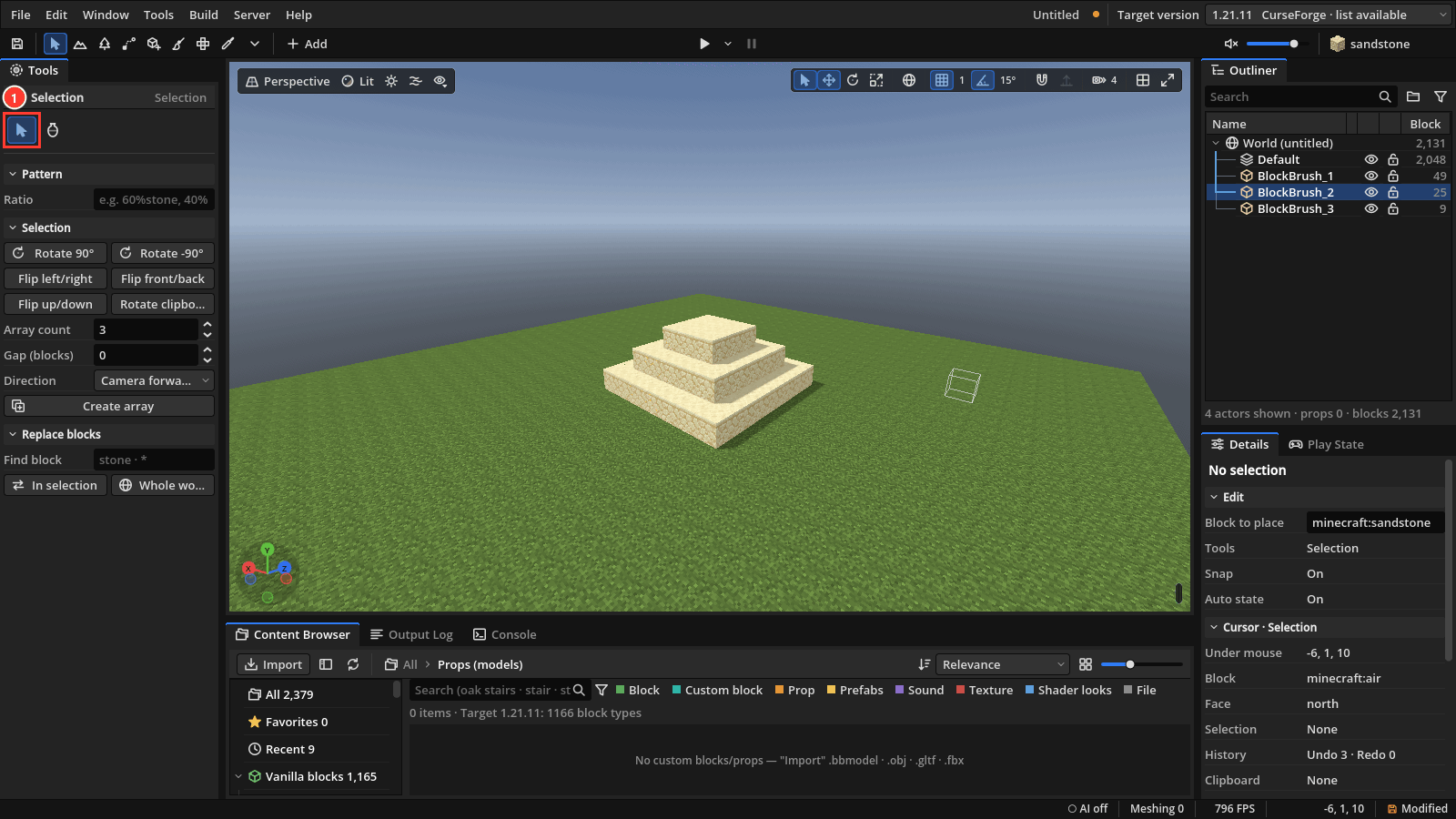
Press Q to switch to the Selection tool. The Tools panel header changes to Selection and the Selection tool button turns on.
-
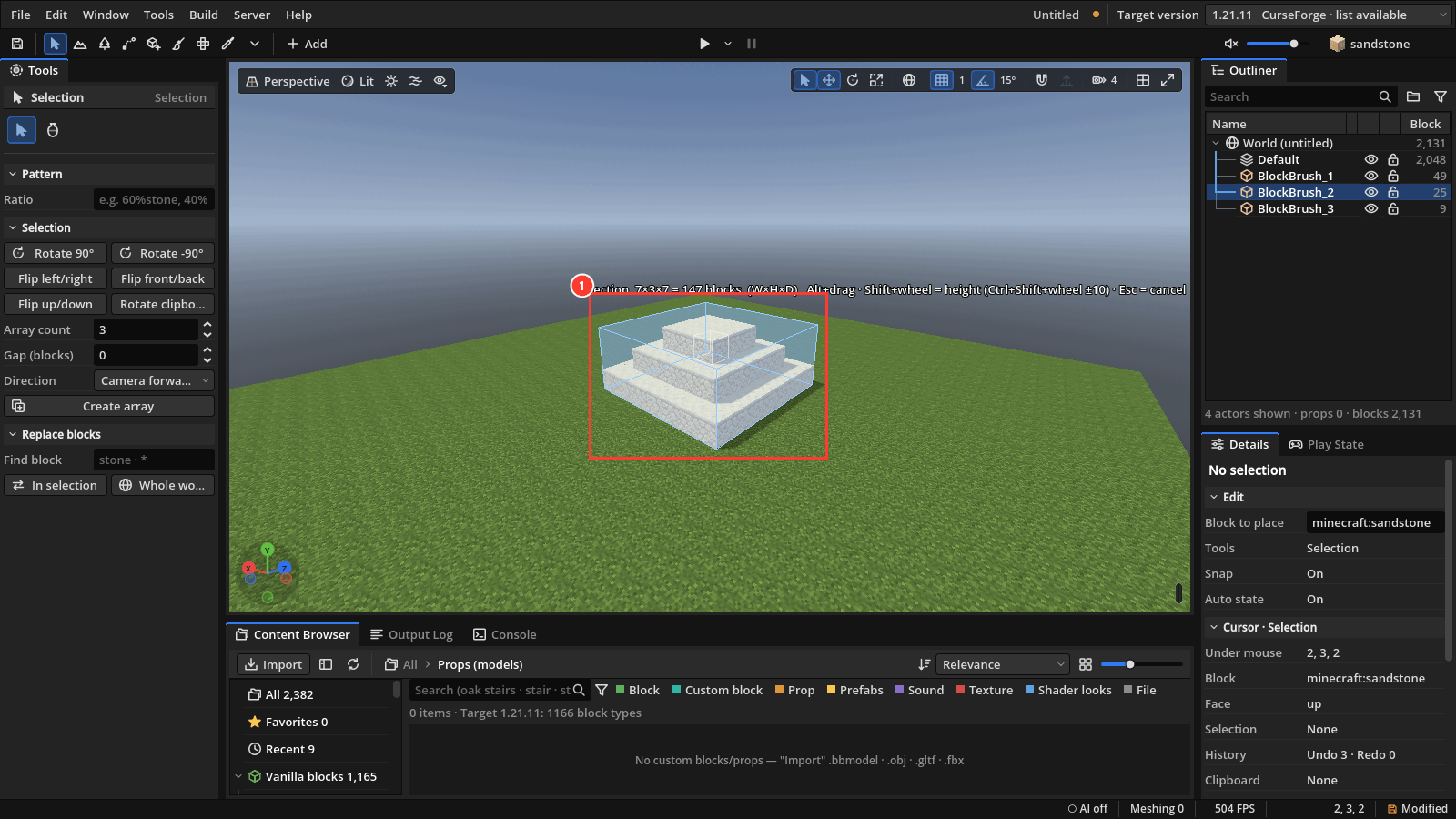
Drag from the top face of a corner block on the bottom layer of the pyramid to the opposite corner. While dragging, roll Shift+wheel up two notches to set the height to 3 blocks. The text “Selection 7×3×7 = 147 blocks …” appears next to the blue box.
-
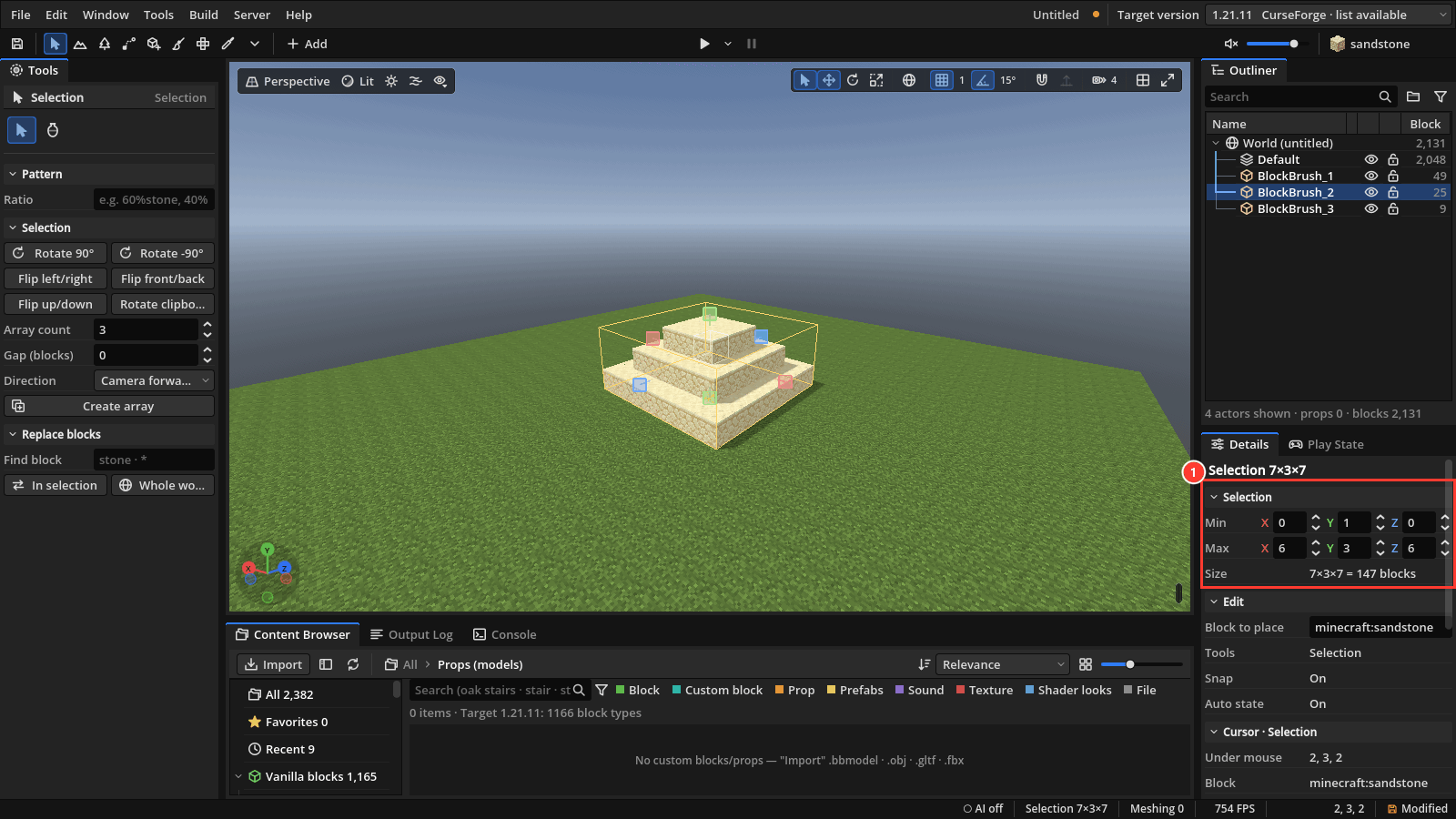
Release the mouse button. The pyramid is selected, and Min · Max in the Selection group of the Details panel show the coordinates of the two corner cells (0, 1, 0 · 6, 3, 6). You can also type numbers in these fields to change the selection.
Continuing a pattern with the scale handle
Section titled “Continuing a pattern with the scale handle”New in 0.10.2: stretching a selection that is two or more layers deep in the drag direction with the scale handle continues its pattern using the same interpretation as Face extrude (Ctrl+E). Up to 0.10.1, it repeated the single end-face layer as is (now “Copy end face”).
-
Press W to turn on the Move gizmo, then R to switch to the Scale gizmo. The Scale (R) button on the viewport bar turns on and the selection box shows a handle on each axis. Hover over the green handle at the top.
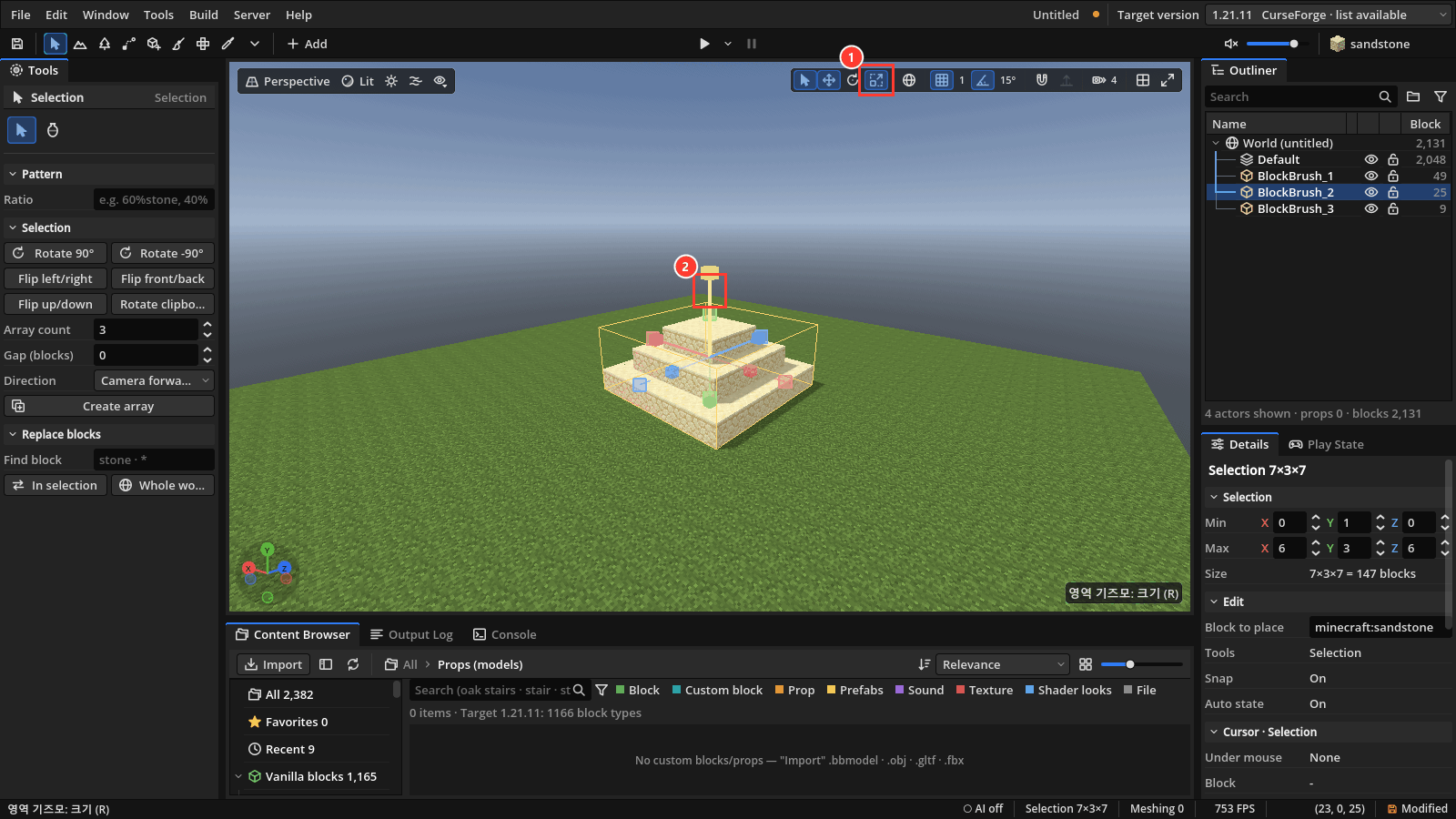
Known issue in 0.10.2: switching the gizmo shows the untranslated Korean message “영역 기즈모: 크기 (R)” (“Region gizmo: Scale (R)”) in the viewport and the status bar.
-
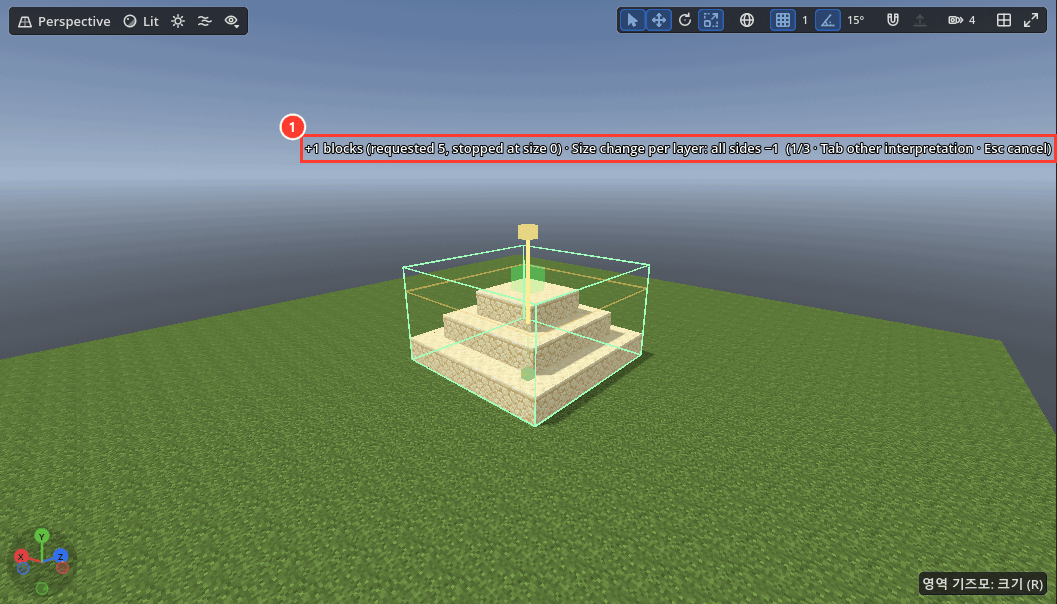
Drag the top handle up about 5 blocks. The text “+1 blocks (requested 5, stopped at size 0) · Size change per layer: all sides −1 (1/3 · Tab other interpretation · Esc cancel)” appears next to the handle, and the green ghost shows only one block at the top. The outline shrinks by 1 block per layer and stops when the size reaches 0 (it does not become a 3×3 column).
-
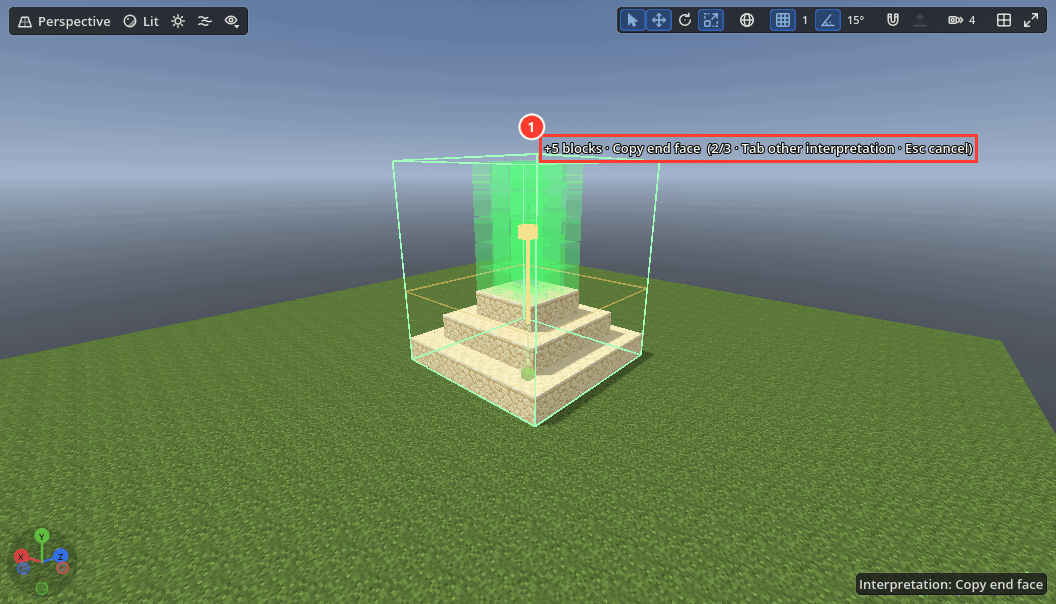
While dragging, press Tab to switch to the next interpretation, “Copy end face”. It behaves like the Scale gizmo up to 0.10.1, so the ghost shows the top 3×3 layer continued 5 layers up. The number in the text becomes “2/3”. Press Shift+Tab to go back to the previous interpretation (Auto = Size change). Switching interpretations keeps the tool and the drag.
-
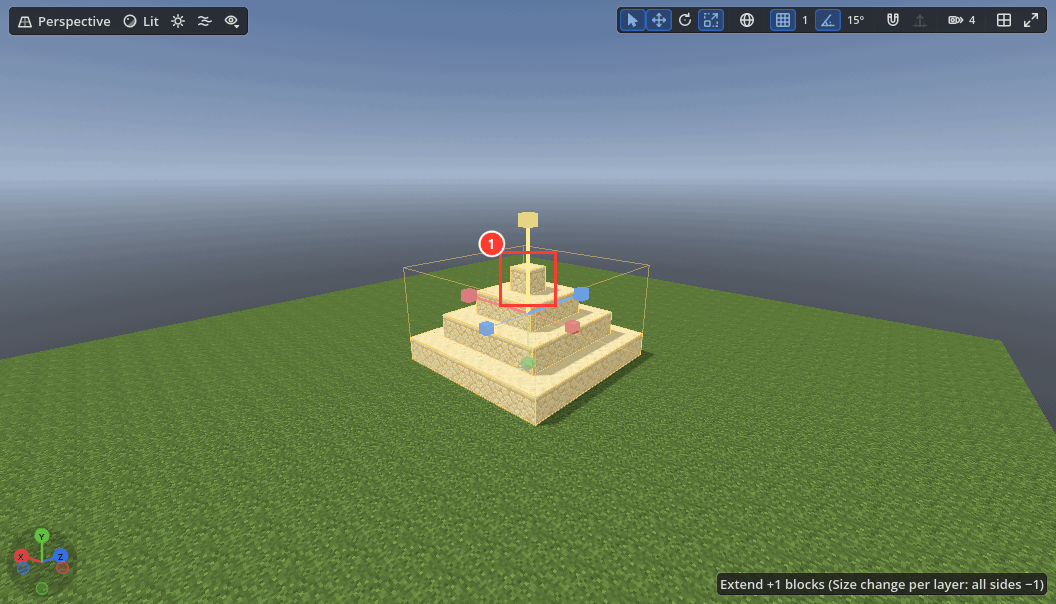
Release the mouse button. One sandstone block is placed at the top and the status bar shows “Extend +1 blocks (Size change per layer: all sides −1)”. One release is one undo step, and the selection becomes a cell-set selection that includes the added cells.
-
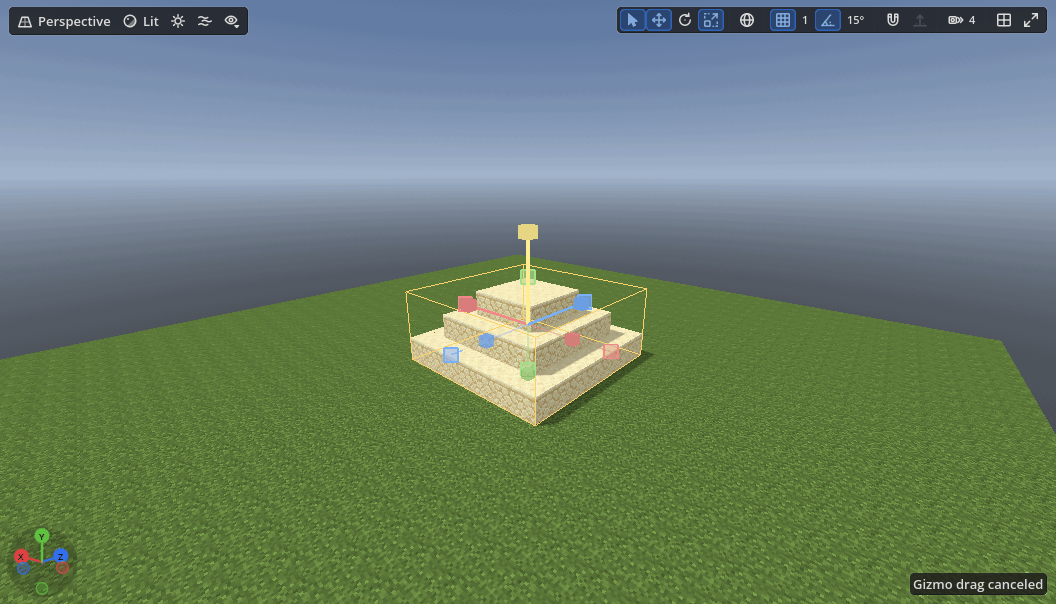
Press Ctrl+Z to undo. The blocks and the selection box both go back to the three-layer pyramid. Drag the top handle again, then press Esc to cancel the drag. Nothing changes and the undo history stays the same. Releasing the mouse button does not place anything either.
-
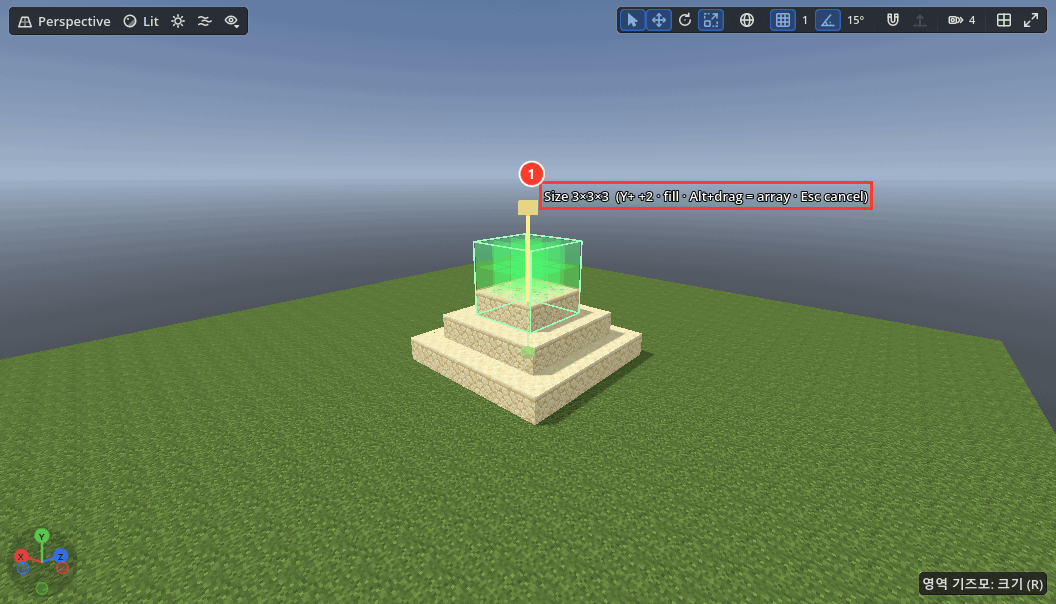
A single-layer selection has no pattern to continue, so it stretches with Copy end face. Drag to select only the top face of the top 3×3 layer, turn on the Scale gizmo with W · R, and drag the top handle 2 blocks. The text next to the handle reads “Size 3×3×3 (Y+ +2 · fill · Alt+drag = array · Esc cancel)” and there is no Tab interpretation. On release, the 3×3 continues 2 layers up (18 blocks).
Copy and paste · right-click menu
Section titled “Copy and paste · right-click menu”-
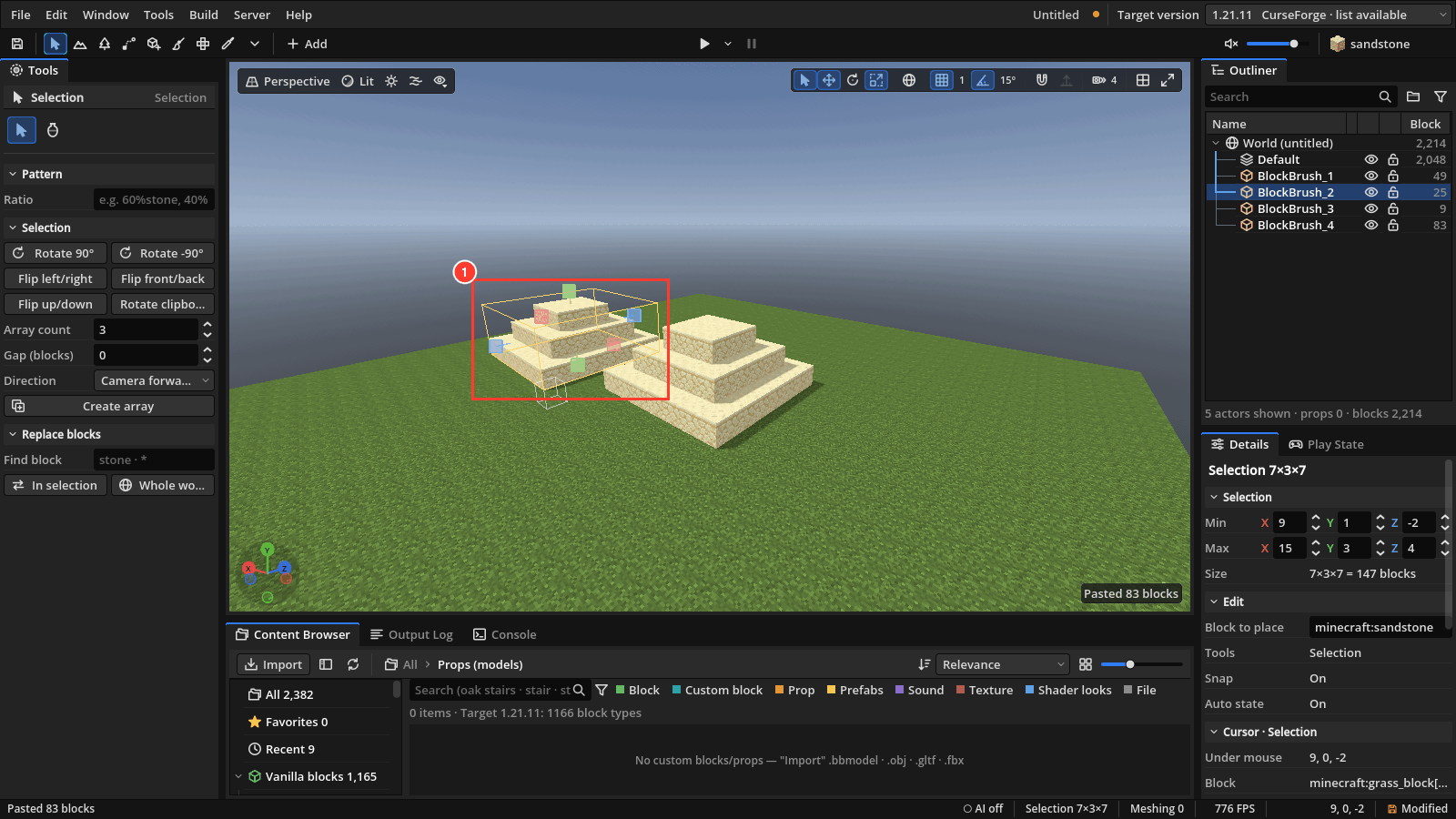
Select the pyramid again and press Ctrl+C to copy. Hover over the floor beside it and press Ctrl+V to paste. The placement cell under the mouse becomes the minimum corner of the pasted region, and the pasted region (83 blocks) becomes selected.
-
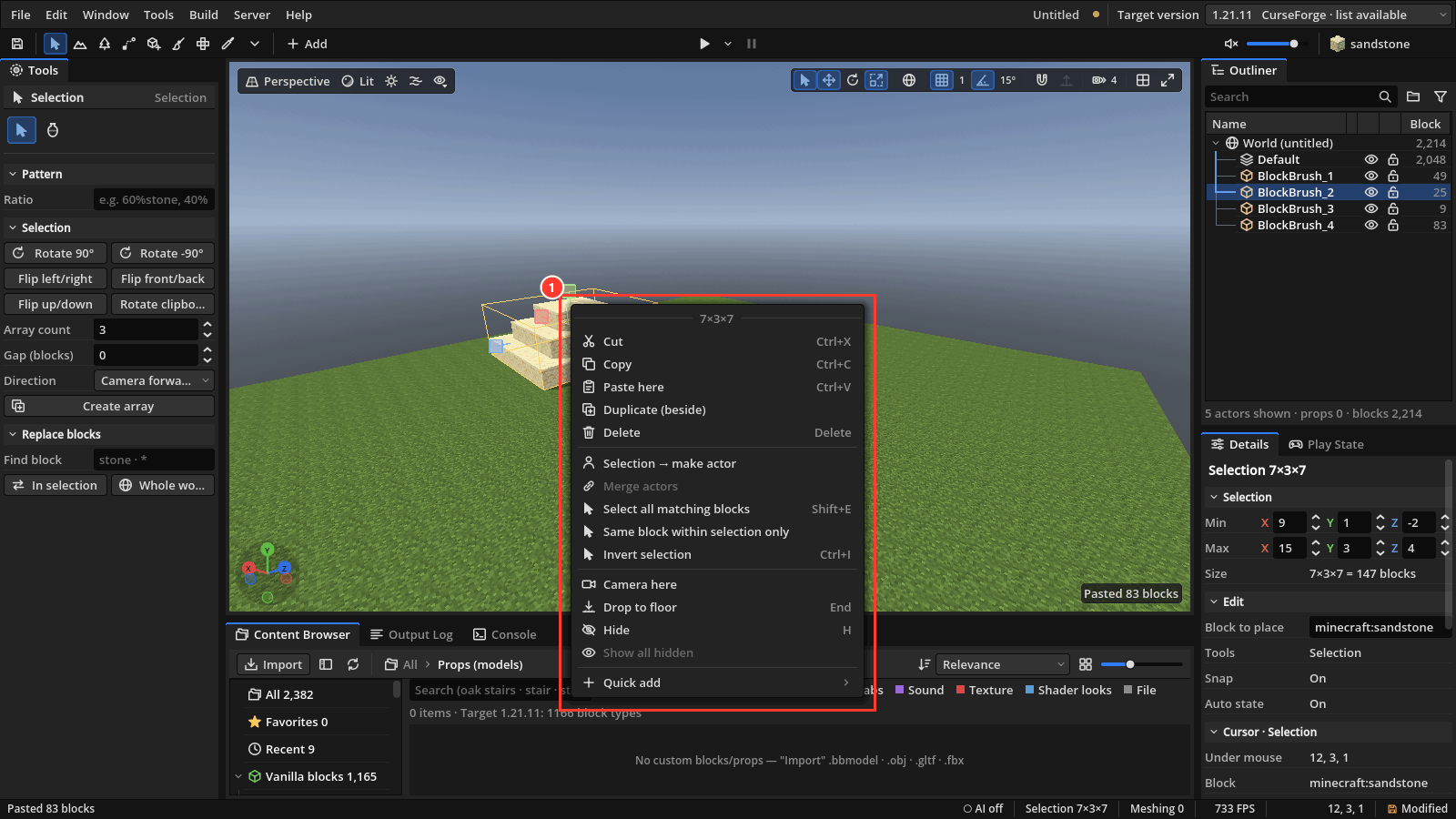
Right-click a selected block. A region menu opens with the selection size (7×3×7) as its header.
Tips and tricks
Section titled “Tips and tricks”- Diagonal stairs continue when you drag up. Select three steps that each shift 1 block sideways per layer (a 1×3 row of cobblestone) and drag the top handle 3 blocks: the Auto interpretation becomes “Shift +1 x every layer” and the stairs climb three more steps.
- For a wall with alternating windows, select up to where the pattern repeats once. Select three columns — stone brick column · glass window column · stone brick column (A B A) — and drag the +X handle 6 blocks: with “Repeat with period 2”, columns and windows alternate. If you select only two columns (A B), Auto is “Copy end face” and one Tab gives “Repeat whole selection (2 layers)”.
- For pyramids and spires, dragging too far is fine. “Size change” stops at size 0 by itself, and the text adds “requested N, stopped at size 0”.
- If the interpretation is not the one you want, pick another with Tab before releasing. When Auto is a pattern, Copy end face (the 0.10.1 behavior) is always one Tab away. If you do not like the result, one Ctrl+Z restores the blocks and the selection together.
- Pattern fill with the scale handle and Ctrl+E Face extrude use the same interpretation engine. Use the scale handle to stretch directly from the Selection tool without changing modes, and Face extrude to enter the block count as a number or insert a middle module.
Reference
Section titled “Reference”Selecting regions (Selection tool)
Section titled “Selecting regions (Selection tool)”| Input | Action |
|---|---|
| Click | Selects one cell. |
| Drag | Box selection along the face where the drag started (blue box) |
| Shift+wheel · Ctrl+Shift+wheel while dragging | Box height ±1 · ±10 (rolling down extends below the starting layer) |
| Alt+drag while dragging | Box height up to the mouse height |
| Shift+drag | Cell-set selection of only the visible blocks inside the screen rectangle |
| Ctrl+drag · Ctrl+click | Add to the current selection · add/remove that cell |
| Ctrl+Shift+drag | Subtract from the current selection |
| Shift+E | Select all blocks of the same type as the one under the mouse (only inside the selection if the mouse is inside it) |
| Ctrl+I · Ctrl+A | Invert selection · the whole range that contains blocks |
| Esc | Cancel the gizmo or box being dragged → clear selection |
- Screen rectangle selection does not pick blocks hidden behind front blocks. Turn on Shift+drag screen select: include hidden in the sun window of the viewport’s left bar to pick hidden blocks too.
- A box selection shows a small face handle at the center of each of its six faces. Face handles change only the selection box; the blocks stay as they are.
- Changes to the selection alone (selecting · face handles · typed numbers) are not recorded in the undo history.
W / E / R region gizmos
Section titled “W / E / R region gizmos”With a block selection, turn them on with W · E · R (or Move (W) · Rotate (E) · Scale (R) on the viewport bar). One drag is one undo step, and the selection follows the result. Press Q to turn the gizmo off.
| Key | Gizmo | Drag | Alt+drag |
|---|---|---|---|
| W | Move | Move with the axis arrows · planes · center (ghost preview) | Duplicate (the original stays) |
| E | Rotate | Turn the ring in 90° steps. Shift = X · Z rings too | (none) |
| R | Scale | Stretch · shrink with the + side · − side handles. Stretching continues the pattern (steps above); Tab · Shift+Tab while dragging = interpretation | Array (duplicate per selection size) |
- R is the Scale gizmo only while a gizmo is on. Without a gizmo, R rotates the selection 90°.
- Shrinking with Scale removes the selected cells that end up outside the box. Stretching does not overwrite cells that already hold blocks or blocks of other actors. One operation can create up to 4 million blocks.
- Move and Scale move in steps of the grid snap value on the viewport bar (1 block or more).
Scale handle interpretations (Tab order)
Section titled “Scale handle interpretations (Tab order)”| Interpretation | Screen text example | Result |
|---|---|---|
| Auto | Whichever of the below fits | The exactly matching pattern with the shortest period. If no pattern fits (single layer · terrain · solid box), “Copy end face” |
| Copy end face | “Copy end face” | Repeats the single end-face layer as is (0.10.1 behavior). When Auto is a pattern, one Tab away |
| Repeat | “Repeat with period 2” | Repeats the layers of one period |
| Shift | “Shift +1 x every layer” | The layers move sideways every period (diagonal stairs) |
| Size change | “Size change per layer: all sides −1” | The outline shrinks or grows every layer and stops at size 0 (pyramids · spires) |
| Rotate | “Rotate 90° clockwise per layer” | Each layer turns around the Y axis (top · bottom handles) |
| Repeat whole selection | “Repeat whole selection (3 layers)” | Repeats all chosen layers as one unit |
Interpretations that do not fit the chosen layers do not appear in the list. For the example pyramid there were three: “Size change” · “Copy end face” · “Repeat whole selection (3 layers)”.
Region operations by key
Section titled “Region operations by key”| Shortcut | Action |
|---|---|
| R · Shift+R | Rotate 90° clockwise · counterclockwise (when the gizmo is off). Block orientation turns too. |
| X · Shift+X · U | Flip left/right · front/back · up/down |
| Arrow keys · PgUp · PgDn | Move 1 block forward · back · left · right · up · down relative to the camera (Shift = 10 blocks) |
| K | Array: duplicate by Array count · Gap (blocks) · Direction in the Selection group of the Tools panel |
| End | Drop to floor (lower until it touches the block below) |
| Del | Clear the selected region (only the chosen cells for a cell-set selection) |
| H | Hide the selected region on screen only. H with no selection = show everything hidden |
| F | Frame the selection |
| Ctrl+C · Ctrl+X · Ctrl+V | Copy · cut · paste at the cell under the mouse (air cells are skipped; one paste = one actor) |
| Ctrl+Z | Undo (the selection box too) |
The Selection group of the Tools panel also has Rotate 90° · Rotate -90° · Flip left/right · Flip front/back · Flip up/down · Rotate clipboard · Create array buttons.
Right-click menu
Section titled “Right-click menu”| Item | Action |
|---|---|
| Cut · Copy · Paste here | Same as the table above. Paste goes to the right-clicked cell |
| Duplicate (beside) | Duplicate beside the selection by its size |
| Delete | Remove the selection |
| Selection → make actor | Group the selected blocks into a new actor (up to 8 million blocks; large selections show a progress bar) |
| Merge actors | Merge into one when the selection contains blocks of two or more actors |
| Select all matching blocks · Same block within selection only | Same as Shift+E |
| Invert selection | Ctrl+I |
| Camera here · Drop to floor · Hide · Show all hidden · Quick add | Move camera · End · H · Quick add menu |
Related pages
Section titled “Related pages”Not an official Minecraft product. Not approved by or associated with Mojang or Microsoft.