
Foliage
Overview
Section titled “Overview”The Foliage mode plants trees, grass, flowers and rocks on the ground. It scatters them inside the brush circle where you click, or over a whole selection at once. You can also set a shape with the Tree · rock generator and place them one at a time. Leaves and trunks left in mid-air after you delete a tree or cut away the ground are removed with Clean floating trees & foliage. The Foliage mode is the same screen as Mode > Scatter in the Landscape panel.
Basic use
Section titled “Basic use”Scattering
Section titled “Scattering”-
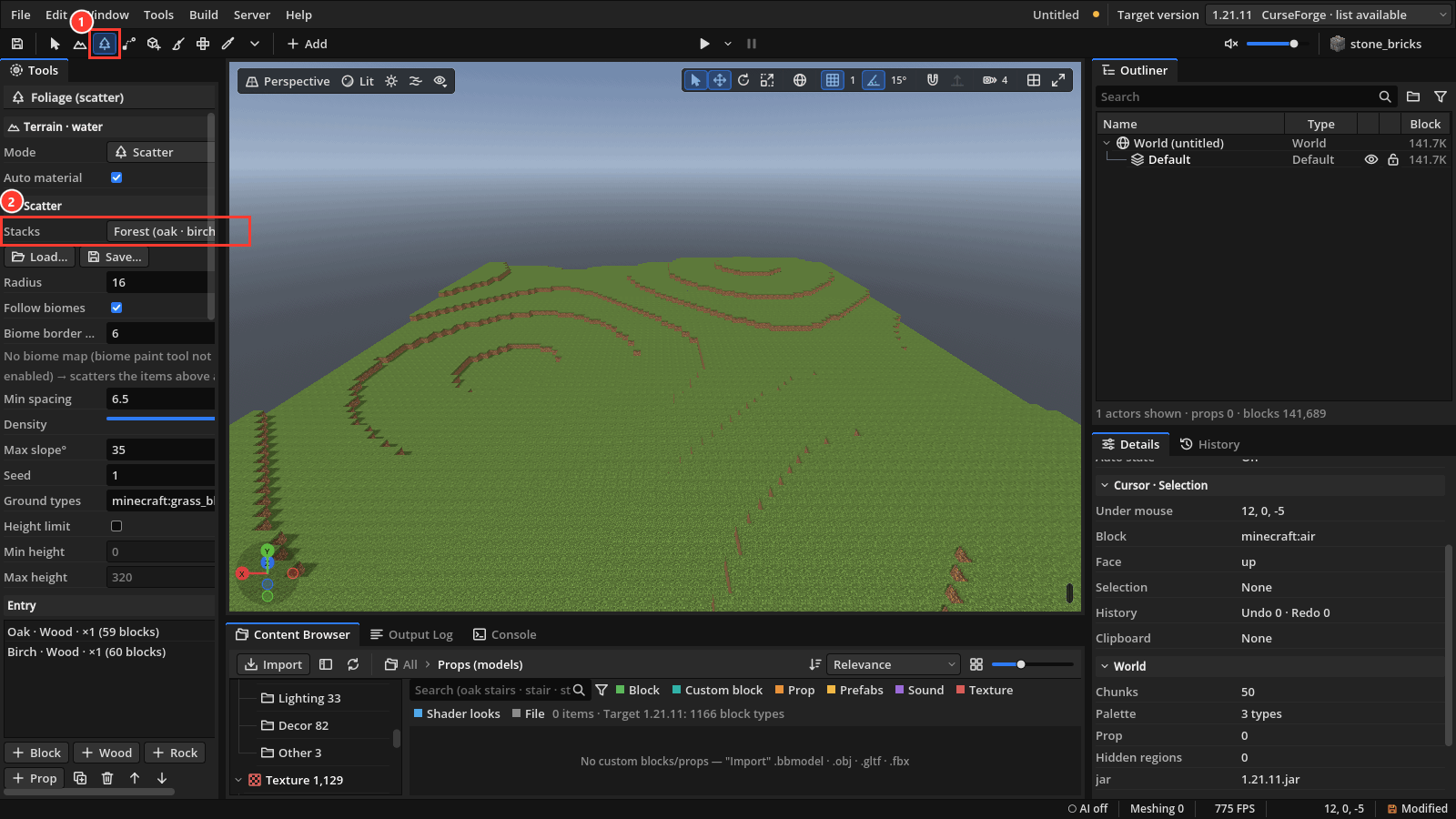
Click the Foliage (scatter) button (tree icon) on the toolbar. The Scatter section opens on the left. The Foliage mode has no default shortcut.
-
In Stacks, select “Forest (oak · birch)” and type
12in Radius. A brush circle appears in the viewport.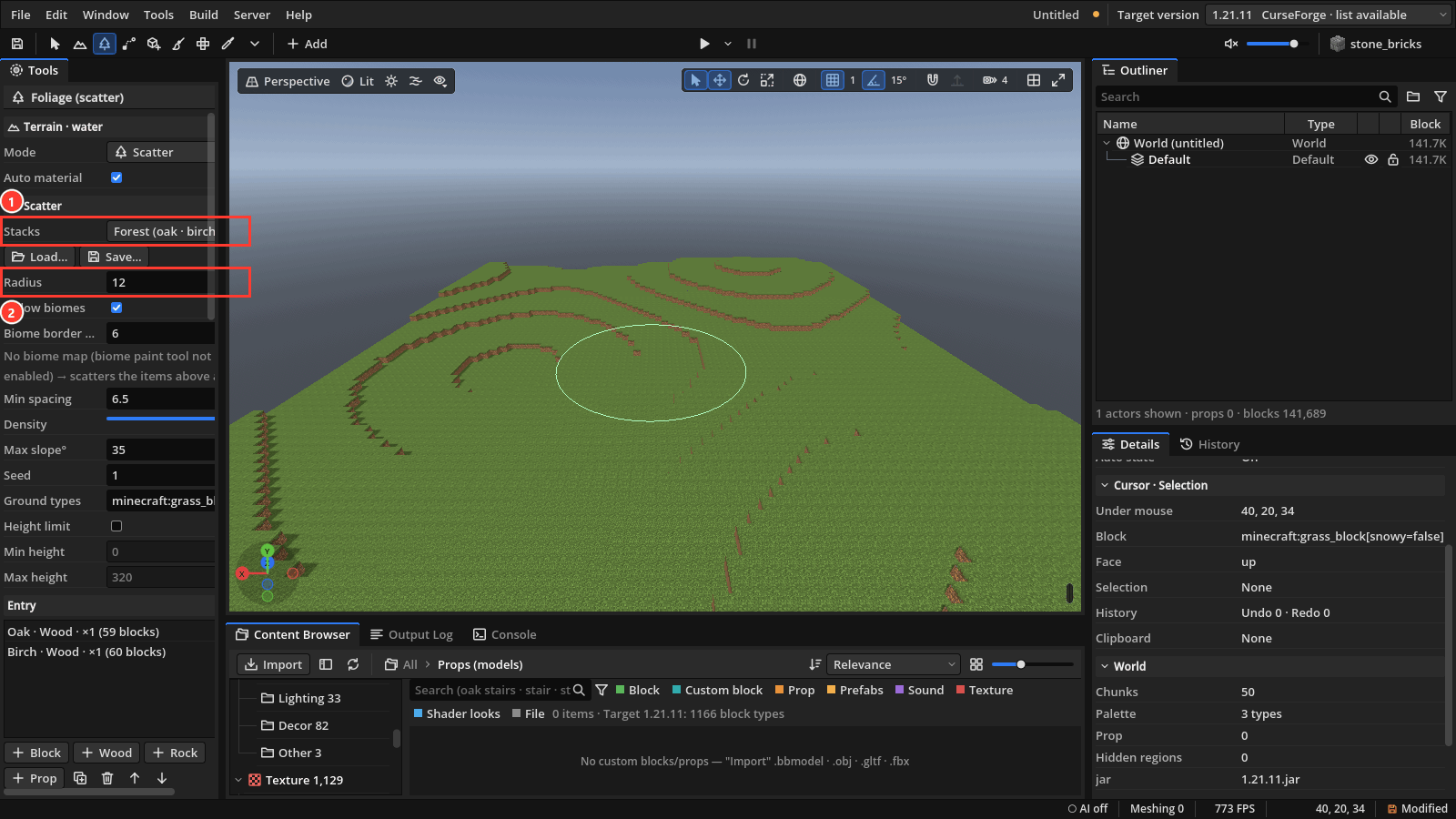
Known issue in 0.10.2: the field that chooses the foliage set is labeled “Stacks” (a mistranslation of the Korean “세트”, “set”).
-
Click the ground. Oaks and birches are planted inside the circle. The demo clicked three spots. The results are collected as per-group actors such as
흩뿌리기/나무in the “Foliage” folder of the Outliner.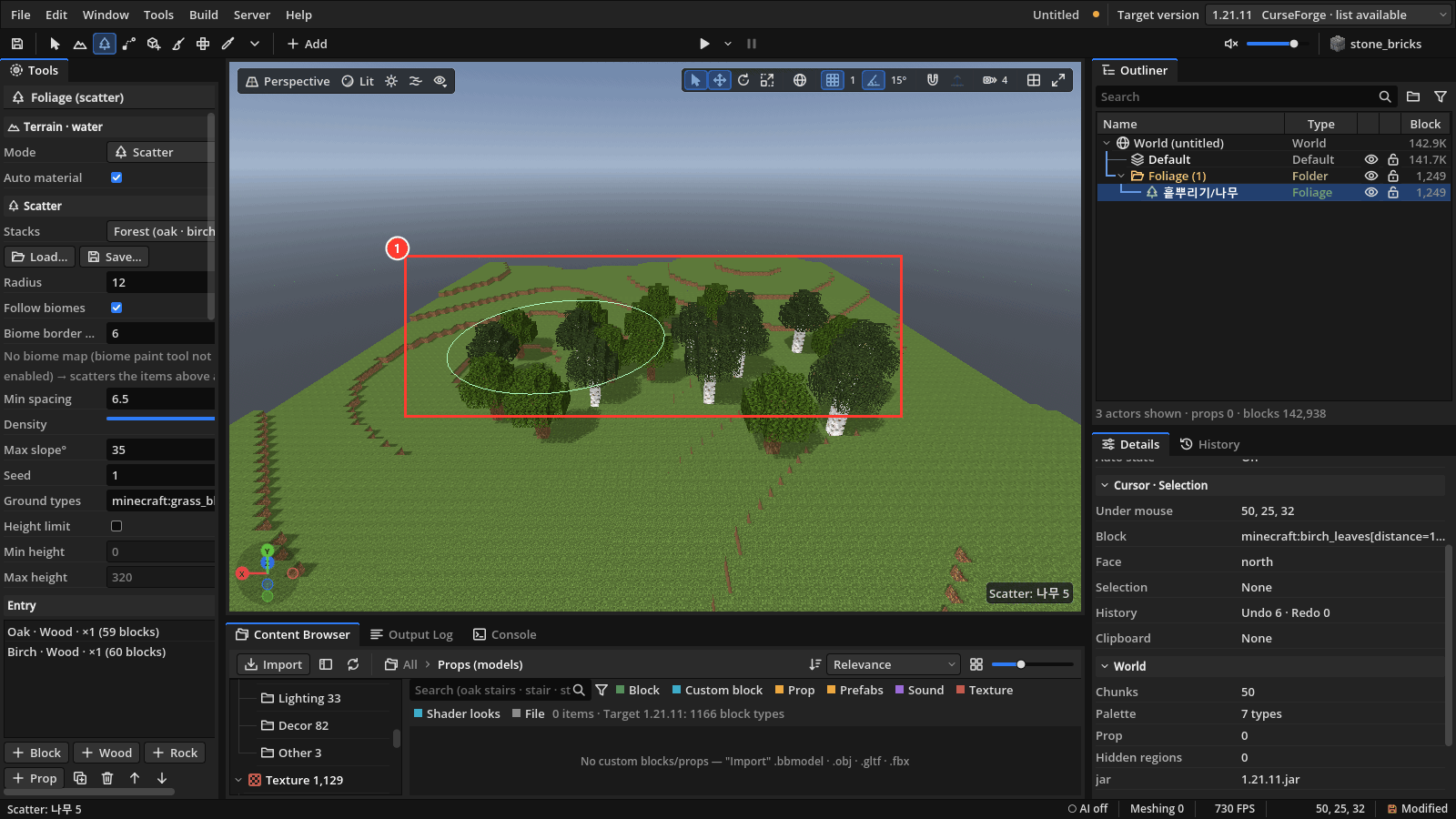
Known issue in 0.10.2: group names are shown in untranslated Korean in the actor names and messages, for example “흩뿌리기/나무” (Scatter/Tree) and “Scatter: 나무 5” (Scatter: Tree 5).
-
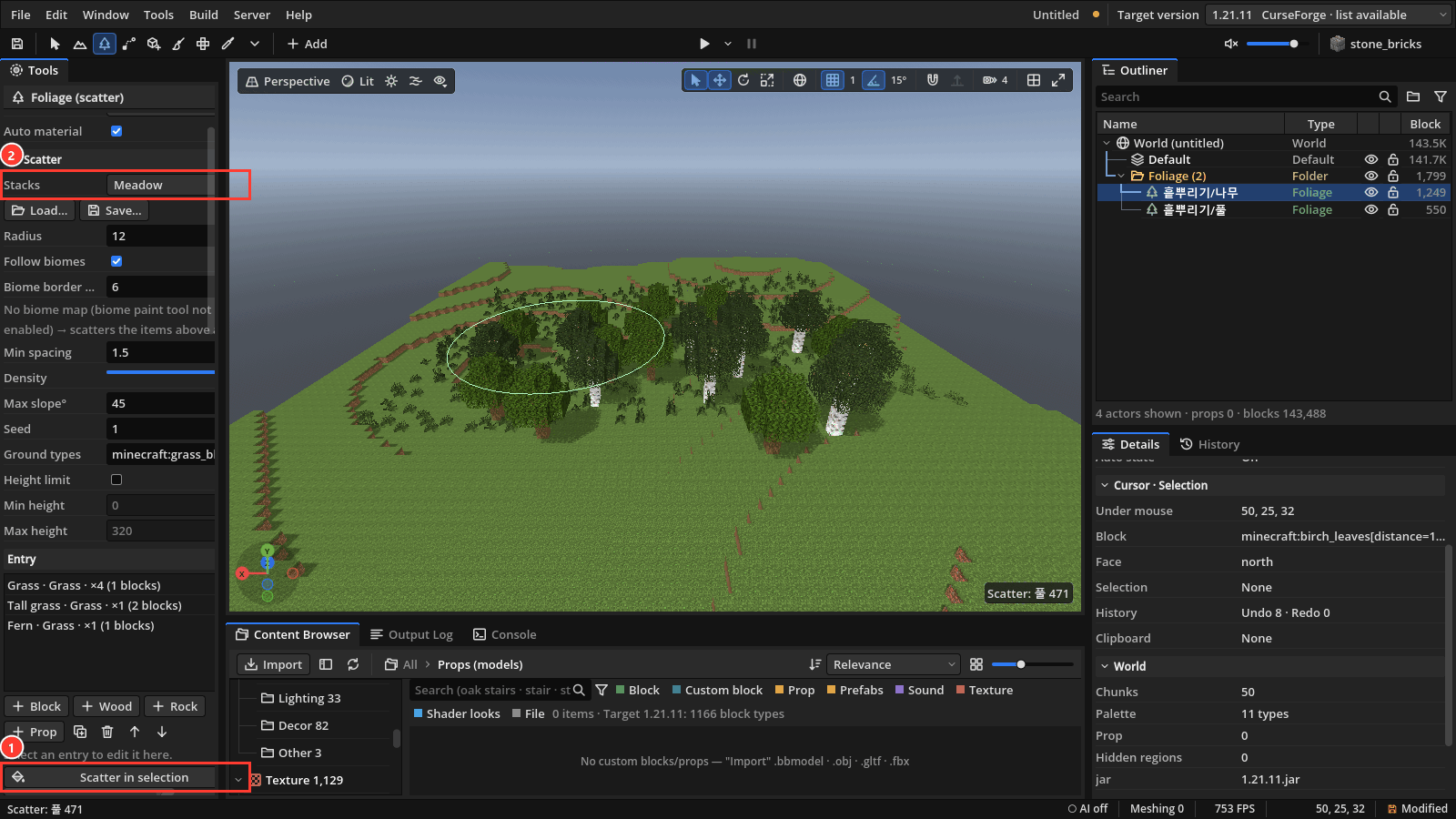
Change Stacks to “Meadow”, select a region that covers the forest, and click Scatter in selection. The trees stay as they are and grass covers only the empty ground (demo: 550 grass blocks).
Placing a single tree
Section titled “Placing a single tree”-
In Preset of the Tree · rock generator, choose “[Tree] Oak” and Shift+click an empty patch of ground. One oak is placed there (“Placed 참나무 #1 (62 blocks)”).
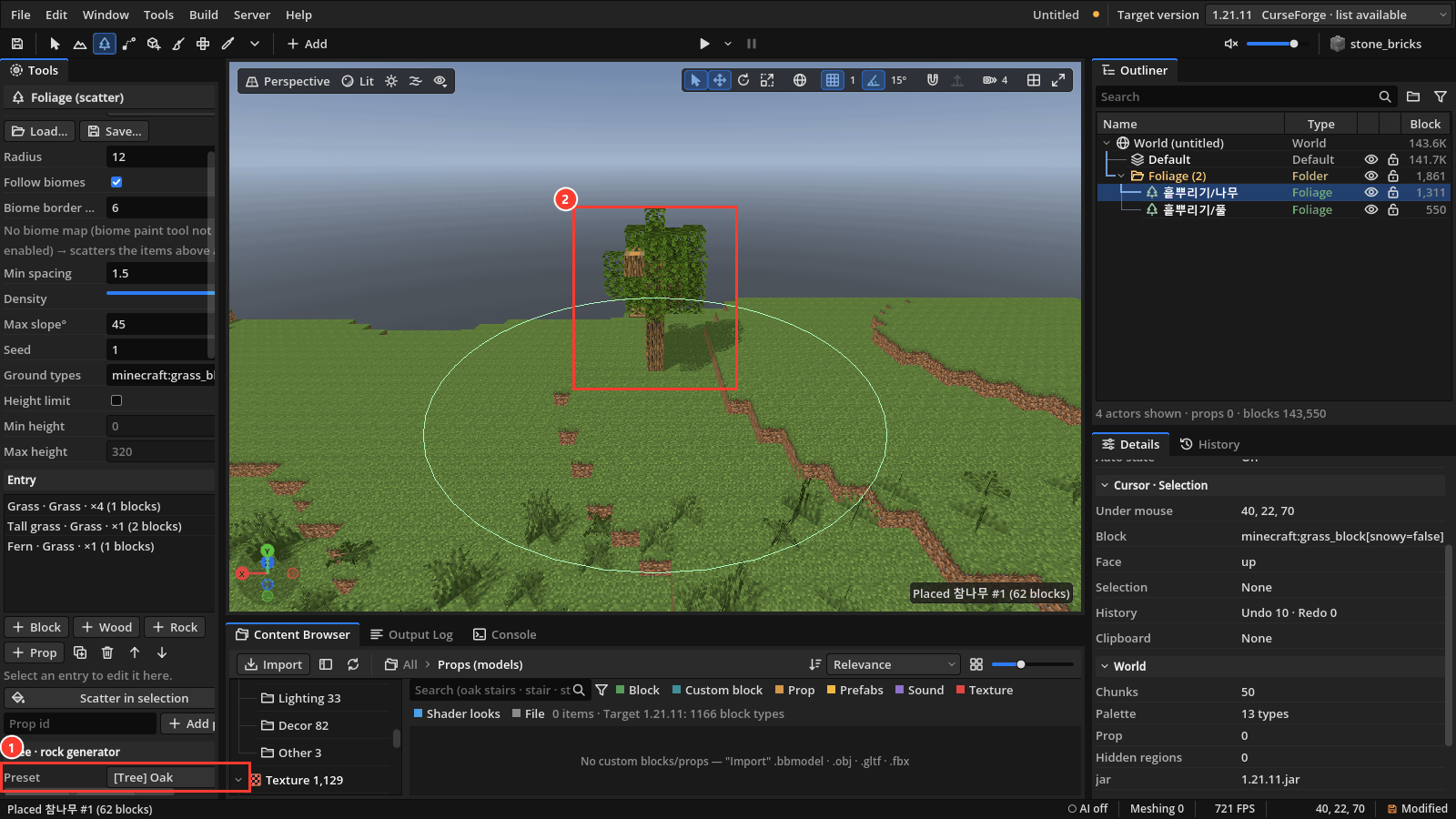
Known issue in 0.10.2: the tree name in this message is shown in untranslated Korean (“참나무” = Oak).
Cleaning up floating leaves
Section titled “Cleaning up floating leaves”-
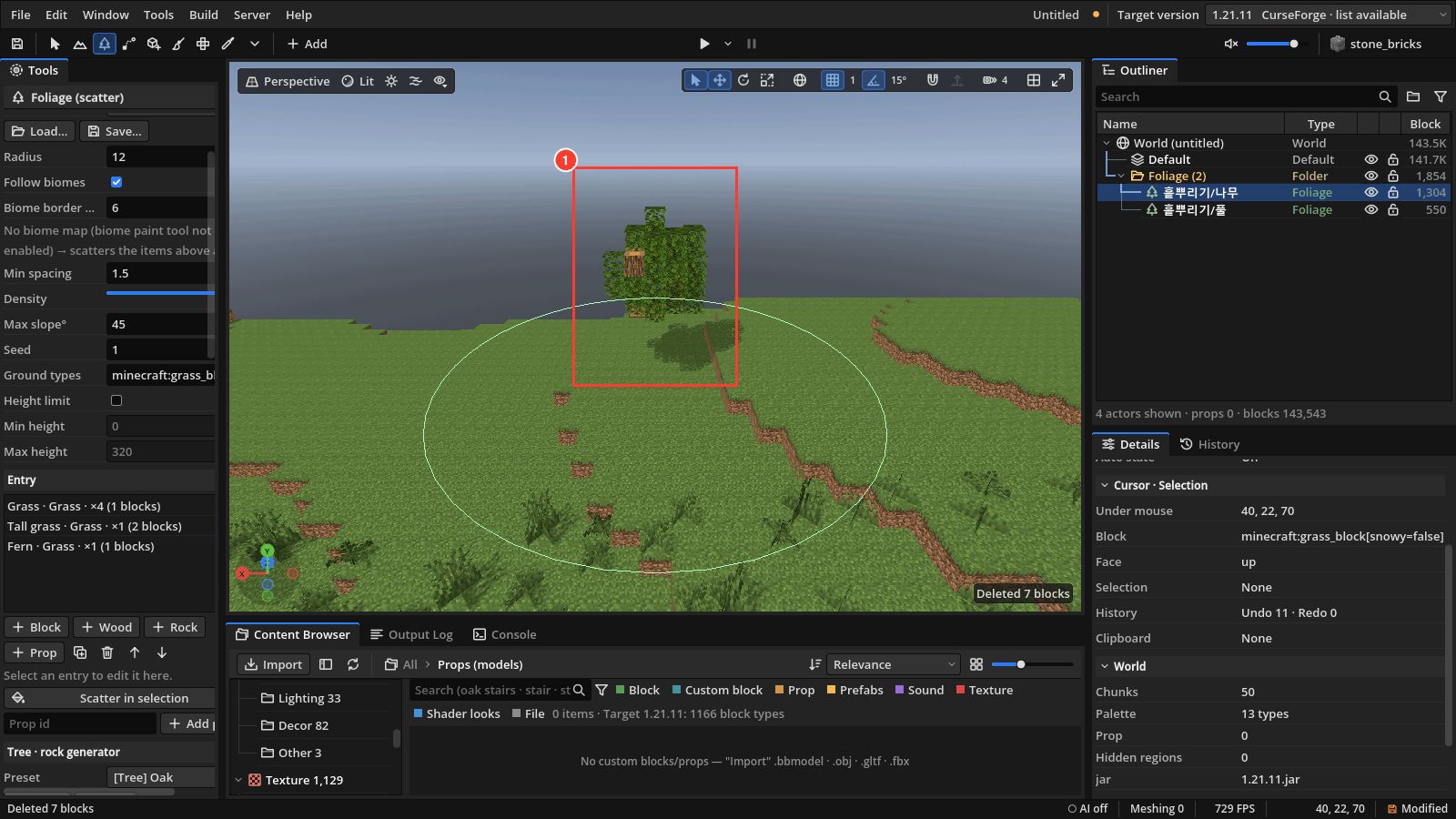
Select the trunk of that tree and press Delete to remove it. The editor places leaves as non-decaying, so the leaf mass stays in mid-air.
-
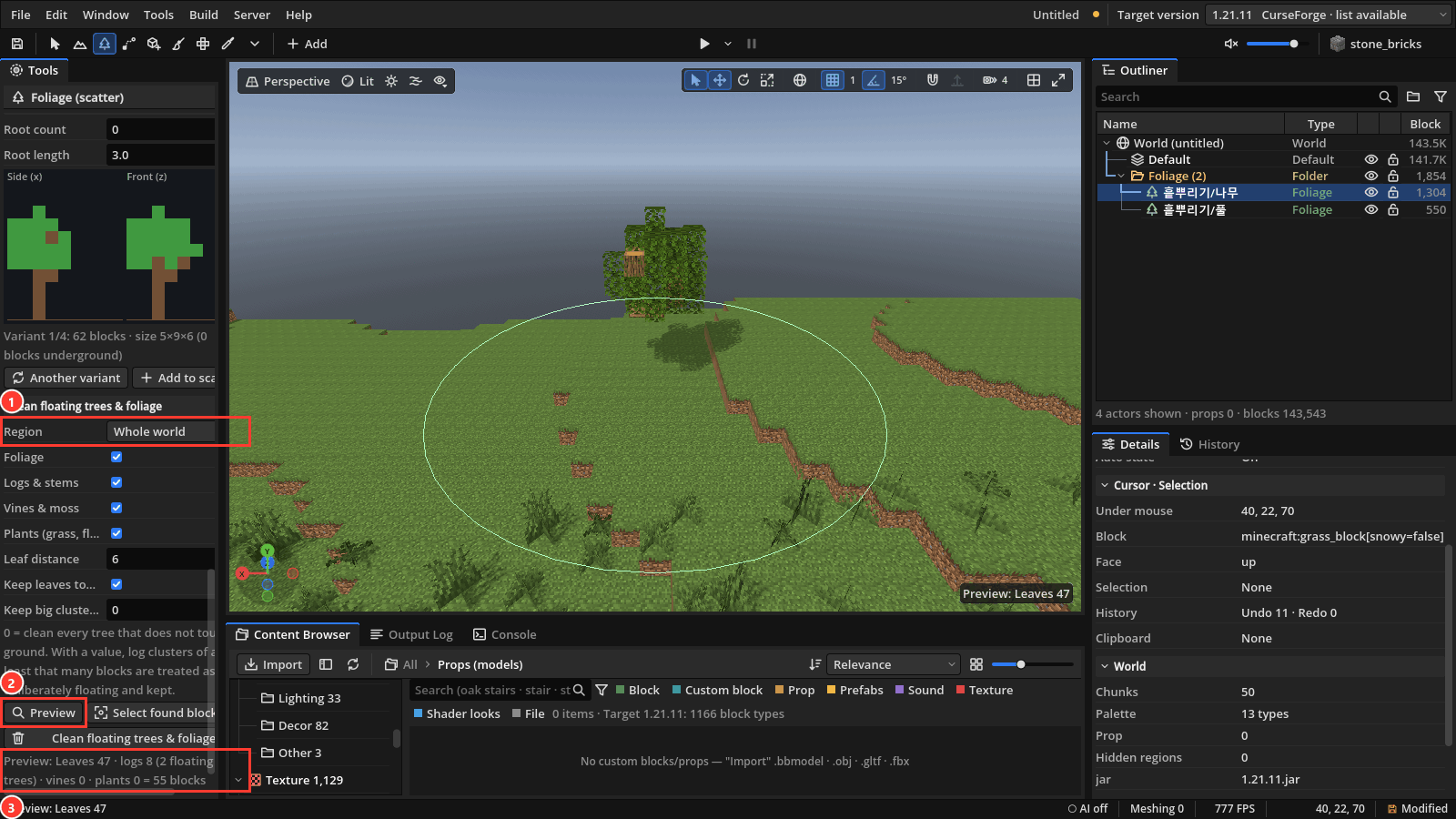
In the Clean floating trees & foliage section, choose “Whole world” in Region and click Preview. Without changing anything, it shows only the number of cells to remove, such as “Preview: Leaves 47 · logs 8 (2 floating trees) · vines 0 · plants 0 = 55 blocks”. Click Select found blocks to select those cells so you can see them on screen.
-
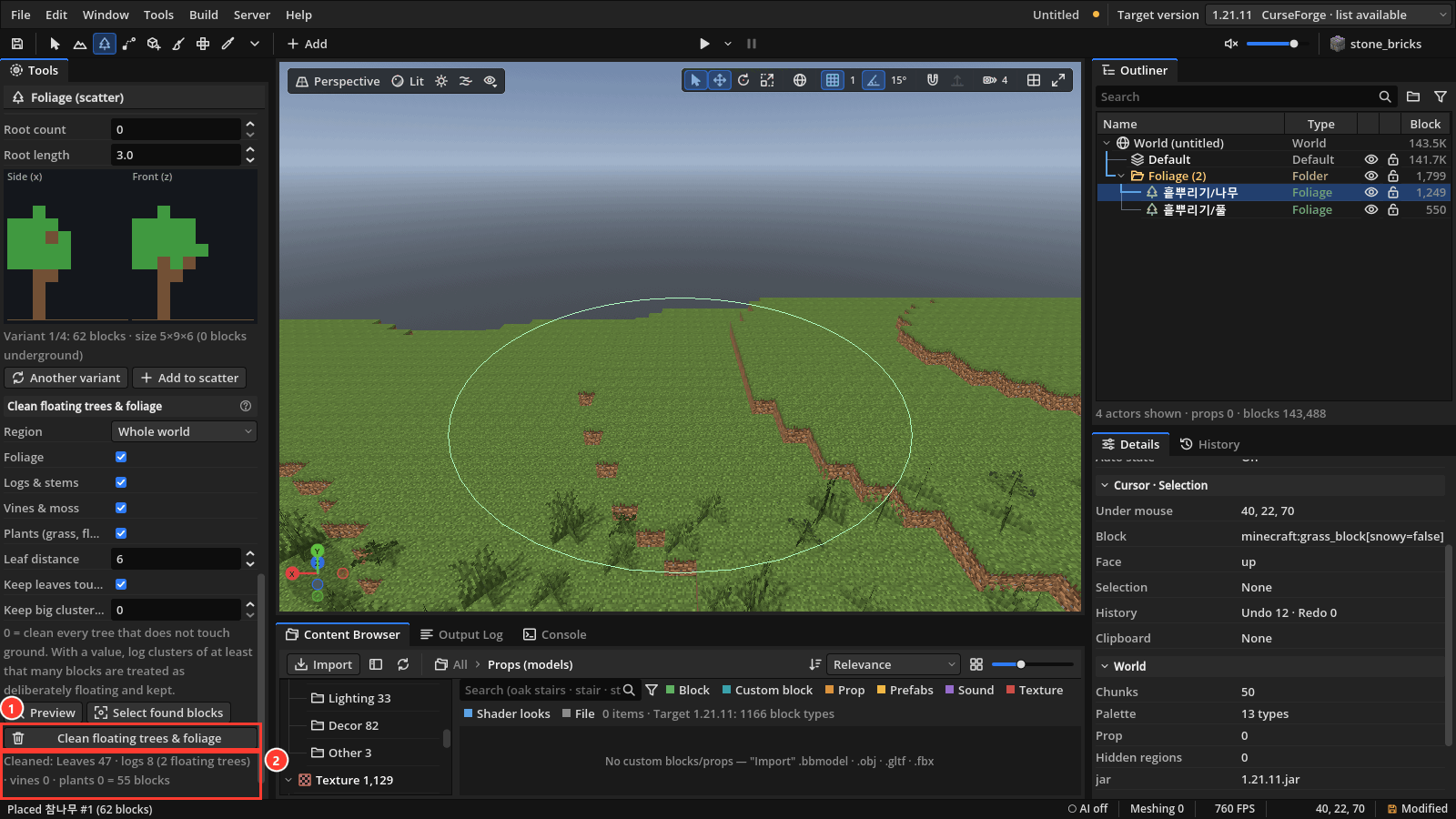
Click the Clean floating trees & foliage button. It removes the same cells as the preview. This is one undo step.
Tips and tricks
Section titled “Tips and tricks”- Layered planting: scatter a large tree set first, then cover it with “Meadow” · “Flower field” using Scatter in selection. Cells with trees already planted are skipped, so only the forest floor is filled.
- One scatter leaves two lines in the history (“Scatter N” · “Create group → 흩뿌리기/
”). Undoing takes Ctrl+Z twice: the first only removes the group, the second removes the planted blocks. - Clicking the same spot with the same Seed gives the same result. You can undo a layout you liked and make it again, and change Seed when you want a different layout.
- Change the generator Preset to a rock such as “[Rock] Mossy boulder” and Shift+click to place one rock.
- [ · ] change Radius by 1.
Reference
Section titled “Reference”Scatter fields
Section titled “Scatter fields”| Field | Range | Default | Description |
|---|---|---|---|
| Stacks | “Forest (oak · birch)” · “Meadow” · “Flower field” · “Rock” | “Forest (oak · birch)” | Choosing a set changes the fields below and Entry to that set’s values. Load… · Save… exchange sets as JSON files. |
| Radius | 1 ~ 256 | 16 | Radius of the circle scattered per click. |
| Follow biomes · Biome border blend | On/off · 0 ~ 32 | On · 6 | Scatters each cell with the foliage set of that spot’s biome and blends over this width at borders. Paint biomes with biome painting in Light and biomes. If no biomes are painted, the panel shows “No biome map …” and plants Entry as is. |
| Min spacing | 0.5 ~ 64 | Set value | Minimum distance between planted objects. |
| Density | 0 ~ 1 | Set value | Fraction of sampled spots that are actually planted. |
| Max slope° | 0 ~ 90 | Set value | Nothing is planted where it is steeper than this. |
| Seed | 0 ~ 99999 | 1 | Same seed · same spot = same result. |
| Ground types | Block list (commas) | Set value | Plants only on these blocks. Example: grass_block[snowy=false], dirt. Empty = any ground. |
| Height limit · Min height · Max height | On/off · −64 ~ 320 | Off | When on, plants only within this height range. |
| Set | Min spacing | Density | Max slope° | Ground types |
|---|---|---|---|---|
| “Forest (oak · birch)” | 6 | 1 | 35 | Grass block · dirt |
| “Meadow” | 1.5 | 0.7 | 45 | Grass block |
| “Flower field” | 2 | 0.6 | 40 | Grass block |
| “Rock” | 8 | 0.8 | 50 | (any ground) |
When the panel first opens, Min spacing of “Forest (oak · birch)” shows 6.5 and the Density slider sits at the right end. Until you change the fields, planting uses the set values in the table above.
Entries
Section titled “Entries”The Entry list holds what the set plants and in what ratio. Add new entries with the Block · Wood · Rock · Prop buttons below the list, and duplicate · delete · move up · move down with the icon buttons. Select an entry to edit it below.
- Set Name · Group (Wood · Grass · Flower · Rock · Prop · Other) · Ratio. The group becomes the result actor name (
흩뿌리기/<group>). - For a block cluster, write one line =
dx dy dz blockin the text field and click Apply blocks.dy 0is right on top of the ground. - For a prop, set Prop id · Min size · Max size · Random rotation. You can also add a prop entry by typing an id in the Prop id field at the bottom of the panel and clicking Add prop. For importing props, see Importing custom models.
Known issue in 0.10.2: the tree group and the button that adds a tree entry are labeled “Wood” (a mistranslation of the Korean “나무”, “tree”).
Tree · rock generator
Section titled “Tree · rock generator”Preset starts with 7 trees (oak · birch · spruce · jungle · cherry · ancient · fantasy) and 7 rocks (gray boulder · mossy boulder · flat slab · rock pile · sandstone boulder · standing stone · basalt pile). Changing a value immediately updates the pictures below (side · front) and the block count.
| Field | Description |
|---|---|
| Name · Seed · Variants · Ratio | Common values. The same seed gives the same shape. Use Another variant to see a different shape. |
| Tree: Type · Log · Foliage · Decor · Accent ratio | Tree type and the blocks it uses. The log axis is automatic. |
| Tree: Trunk (Height · Height ± · Thickness · Bend) | Trunk shape. Height goes up to 48. |
| Tree: Branches (Branch count · Angle° · Length (× trunk) · Start height) | Branch shape. |
| Tree: Foliage (Shape · Radius · Height (ellipsoid · layered) · Density · Leaves at branch tips) | Leaf mass. Shapes are “Sphere” · “Ellipsoid” · “Tiered (cone)”. |
| Tree: Roots (Root count · Root length) | Roots spreading from the base. |
| Rock: Preset values · Type · Size (diameter) · Elongation · Flatness · Roughness · Pattern scale | Rock shape. Types are “Rock” · “Rock pile” · “Standing stone (pointed)”. |
| Rock: Material · Sort by brightness · Boundary noise · Moss ratio · Moss block · Small stones (pile) · Embed depth | Material and finish. “Sort by brightness” puts darker materials at the bottom. |
Add to scatter puts N variants into the Entry list (entries with the same name are updated). Add · duplicate · delete · load · save the preset list with the icon buttons.
Cleaning floating trees · foliage
Section titled “Cleaning floating trees · foliage”New in 0.10.0: removes leaves, logs, vines and grass left in mid-air after you delete a tree or cut away the ground, all at once.
| Field | Default | Description |
|---|---|---|
| Region | “Selection” | “Selection” (the surroundings are only read to judge support) or “Whole world”. |
| Foliage · Logs & stems · Vines & moss · Plants (grass, flowers …) | On | Kinds to remove. |
| Leaf distance | 6 | Leaves farther than this along the leaves from a log attached to the ground are floating (the game’s leaf-decay rule). |
| Keep leaves touching ground | On | Leaves touching the ground count as supported, so hedges and bushes stay. |
| Keep big clusters (blocks) | 0 | 0 = clean up every tree that does not touch the ground. With a value, log clusters of that many blocks or more are treated as floated on purpose and kept. |
| Also clean floating foliage after clearing a selection | Off | When on, clearing a selection with Delete also removes floating foliage within 8 blocks around it in the same undo step. It can remove standing trees too, so it is off by default. |
Only blocks classified as foliage are removed. Floating building blocks such as stone, planks and glass are left alone. Cells in protected areas and locked actors are not removed.
Shortcuts
Section titled “Shortcuts”| Shortcut | Action |
|---|---|
| Click | Scatter inside the brush circle |
| Shift+click | Place one of the generator’s current preset |
| [ · ] | Radius −1 · +1 |
| Ctrl+Z | Undo (one scatter = twice) |
Related pages
Section titled “Related pages”Not an official Minecraft product. Not approved by or associated with Mojang or Microsoft.