
Troubleshooting
Overview
Section titled “Overview”This page collects common problems in tables of symptom, cause and solution. Find the message shown on screen in the “Symptom” column and follow the “Solution” column. If that does not help, check the records as described in “Viewing logs” below. If the editor crashed, send a report from the crash report window that appears the next time you launch it.
Basic use
Section titled “Basic use”If the editor crashes, the NP Editor crash report window appears the next time you launch it (after you sign in). Nothing is sent unless you agree. For what is sent and how long it is kept, see Crash reports and privacy.
-
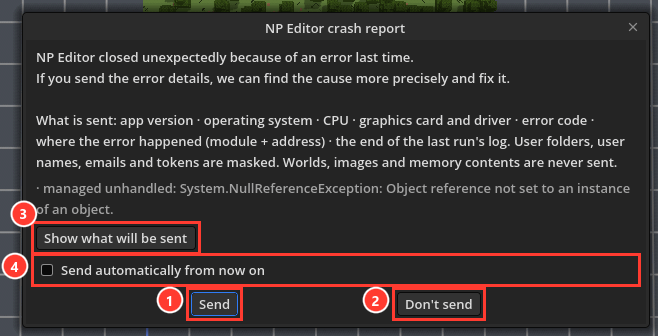
Read the window’s description and the summary line. To send the report, click Send; to not send it, click Don’t send. To send automatically from now on without being asked, turn on Send automatically from now on before you click Send.
-
To see what will be sent first, click Show what will be sent. The exact contents to be sent appear. User folders are masked, as in
<home>. Click Hide what will be sent to collapse it again.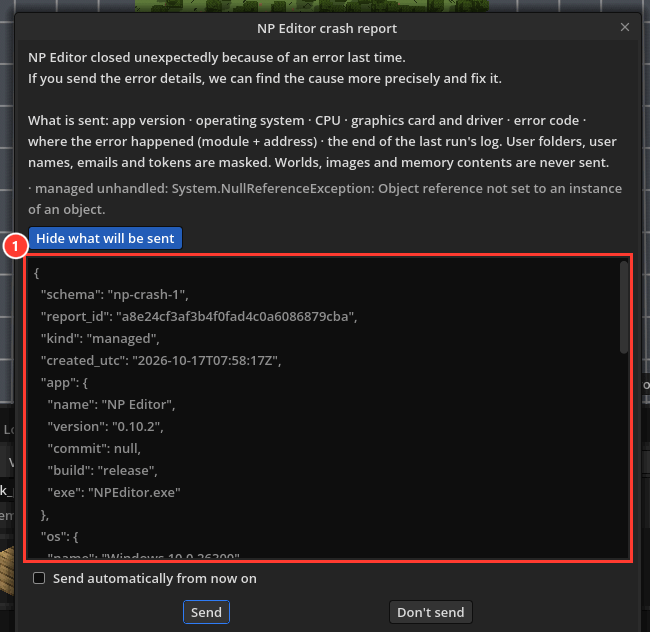
-
Click Don’t send to delete the report without sending it. The notice “The crash report was not sent” appears.
| Button · field | What it does |
|---|---|
| Send | Sends the report to the NP Studio server. When sent, “Sent N crash report(s) — thank you” appears. |
| Don’t send | Deletes this report without sending it. |
| Show what will be sent | Shows the exact contents that will be sent. |
| Send automatically from now on | If you turn it on and click Send, later reports are sent without asking. Combined with Don’t send, it is not remembered. |
| Closing the window (X or Esc) | Keeps the report and asks again the next time you launch the editor. |
| Sent | Not sent |
|---|---|
| Editor version, Windows version, CPU, memory, graphics card and driver | World, block and prefab contents, images |
| Error code and where the error occurred (module + address) | Your conversations with the AI |
| The end of the previous run’s log (up to 64 KB — user folders, names, emails and tokens are masked) | Memory contents, memory dump files |
Tips and tricks
Section titled “Tips and tricks”- Turn off automatic sending: the value you turn on with Send automatically from now on is the same as Send crash reports automatically in the Crash reports group of the General section of Edit > Editor Preferences…. Turn it off to be asked every time again (it is off by default).
- Decide later: if you cannot decide now, close the window with X. The report is kept and you are asked again the next time you launch the editor.
- Without internet: if sending fails, “Couldn’t send the crash report right now — it will be sent again later” appears, and up to 5 reports are kept and sent again later.
Reference
Section titled “Reference”Install · launch
Section titled “Install · launch”| Symptom | Cause | Solution |
|---|---|---|
| “Noplatea Editor 가 실행 중입니다. 닫은 뒤 [다시 시도]를 누르세요.” (Noplatea Editor is running. Close it, then click [Retry].) (during install) | The editor is running. | Close the editor and click “다시 시도” (Retry) in the installer. |
| “NP Editor is already running. Launch another copy?” | The editor is already running. | Choose “Yes” to use another window, or “No” otherwise. To stop being asked, change Duplicate launch in Edit > Editor Preferences…. |
| “NP Editor is already running, so this window will close. …” | Duplicate launch is set to Always block (quit right away if already running). | Use the window that is already open. To use several windows, change Duplicate launch to Ask or Always allow. |
| The sign-in screen appears at launch | The installed editor opens only after you sign in with a Noplatea account. | Sign in. Accounts created through the closed beta application have no password, so sign in with Email Me a Code. If you have no account, click Apply for Closed Beta. See Install and first launch. |
| “Using offline (Can’t connect to server) — …” | The account server cannot be reached. You can keep working for up to 1 day (24 hours) after the last check. | Check your internet connection. |
| “Offline period (1 days) has expired — connect to the internet and sign in” | 1 day has passed without internet. | Connect to the internet and sign in. Your sign-in data is not deleted. |
| “The computer clock went backwards or the time record does not match — …” | The PC clock was turned back, or the time record is out of sync. | Set the Windows clock and connect to the internet. |
| “Sign-in check failed: …” | An unexpected error occurred while checking the account. | Restart the editor. If it keeps happening, contact support with the log from “Viewing logs”. |
| The editor locks while you are working | The 6-hourly account check found the account blocked, or the license is gone. | The editor autosaves before it locks. Check your tier and expiry in the Account section of Edit > Editor Preferences…. |
| A lock screen appears after you sign in | There is no license (not yet approved for the beta, or supporter tier too low). | After approval or becoming a supporter, click Check again on the lock screen or Get License Again in the Account section. |
| “A license covers up to 2 devices. …” | 2 devices are already registered. | Unregister a device you no longer use from the list on the lock screen. You can unregister up to 3 times in 30 days. |
| The editor closes right after launch | You clicked Do not agree (quit) on the terms screen. | Launch it again, read the terms and click Agree and continue. |
Minecraft jar · versions
Section titled “Minecraft jar · versions”| Symptom | Cause | Solution |
|---|---|---|
| “Minecraft <version> client jar not found — …” | The launcher folders do not have a jar for that version. | Run that version once in the launcher, then click File > Rescan launcher folder (version list). Or pick the jar yourself with File > Load jar…. |
| Blocks appear as colored boxes without textures | The jar could not be read, or the block is not in the current jar. | Do the jar solution above first. Check the list in the notice “N block types not in this jar …”. |
| Some blocks look different after switching to another version’s jar | They are new blocks that do not exist in that version, or blocks that were renamed. | Blocks that were only renamed (sign ↔ oak_sign, wall_sign ↔ oak_wall_sign, grass_path ↔ dirt_path, grass ↔ short_grass, chain ↔ iron_chain) are drawn with that jar’s name. Blocks that do not exist in that version are shown with art from a newer jar on this PC, and as colored boxes if there is no newer jar either. Those blocks do not exist in the target version’s game, so replace them with other blocks. |
| “No <version> block list (server report) — …” | There is no block list cache for that version. | Pick a server jar with File > Build block list from server jar… (target version). Once per version; it takes tens of seconds. |
| “java not found — …” | There is no Java to build the block list. | Install Java and set JAVA_HOME or add it to PATH. Any Java that runs a server will do. |
| A newly installed version is missing from the Target version list | The editor scans only once at launch. | Click File > Rescan launcher folder (version list). Mod loader folders (Forge, Fabric and so on) do not appear in the list. |
For details, see Minecraft versions.
Editing
Section titled “Editing”| Symptom | Cause | Solution |
|---|---|---|
| No shortcuts work at all | The cursor is in a text field such as the console or a search field. | Click the viewport once. Some keys such as Ctrl+S work even in text fields (see Shortcuts). |
| “<key> has moved to another key — Tools › Shortcuts…” | The key for that command was changed in the Shortcuts window. | Check the current key in Tools > Shortcuts…, or click Default on that row. |
| Alt+P, Alt+S, Ctrl+Alt+K and Ctrl+Alt+P shown next to menu items do not work, and Ctrl+Alt+S saves instead of taking a snapshot | A known issue in 0.10.2. | Use the menu and toolbar buttons. See “Menu keys that do not work in 0.10.2” in Shortcuts. |
| World editing keys do not work | The Paint tab is showing. | Press Ctrl+Tab to return to the World tab. |
| Editing keys do not work during play | Editing shortcuts are blocked during play. | Press Esc to end play. |
| The W, E and R gizmos do not appear | Nothing is selected. | Press Q to pick the select tool, select a region, prop or actor, then try again. |
| Other edits and saving do not work during a large job | Jobs of more than 200,000 blocks are applied over several frames. Other edits and saving are blocked while they run. | Wait for the progress in the status bar to finish, or cancel with Esc or the cancel button in the status bar. Canceling also reverts the part already applied. |
| Placing while pointing at the sky creates a block in front of the camera | Where there are no blocks, blocks go on the floor (y = 0), and if the floor is not visible either, in the air 6 blocks in front of the camera. | Point at the ground or a block face before placing. |
| Undo stops working | The undo history holds up to 200 steps. Edit > Clear history (discards undo steps) empties the history. | Check the remaining steps in the Window > History panel. Keep important moments with File > Quick snapshot (all). |
| Only some blocks are placed or erased, with “N blocks excluded (protected areas)” | Protected areas are on, so protected cells are left out of edits. | Click “Protected N” in the status bar and turn that area off in the Protected areas panel, or turn all of them off with Edit > Toggle all protected areas. See Protected areas. |
Models · resource packs
Section titled “Models · resource packs”| Symptom | Cause | Solution |
|---|---|---|
| Imported OBJ, FBX and glTF models are left out of the resource pack | They were imported as original shape (triangles) and cannot become Minecraft models. | Right-click the model in the Content Browser, select Change import mode…, then pick “Display — …” or “Convert to blocks — …”. When building a resource pack, the editor converts them to display automatically and warns you. |
| OBJ, FBX and glTF models cannot be edited in the UV Editor | UV editing works only for .bbmodel, .npmodel and custom blocks. | Import models whose UVs you want to edit as .bbmodel. |
For details, see Importing custom models and Resource pack and HUD.
Display · performance
Section titled “Display · performance”| Symptom | Cause | Solution |
|---|---|---|
| Slow or stuttering on large maps | The view distance and shadow distance are too large for the PC. | Click the Low-end PC preset in Tools > Performance settings… (view distance · LOD · shadows · threads). Check FPS and the meshing queue with the Ctrl+F7 performance overlay. |
| Distant areas look empty for a while after opening | Chunk meshes are being built. | Wait until “Meshing N” in the status bar reaches 0. More meshing threads make it faster. |
| F6 game view looks like the older approximate view, or F7 path tracing does not turn on | The Forward+ renderer is not available in this environment. | Update your graphics driver. |
| When you look at the whole map from far away in F6, the terrain fades into sky blue | This is the fog at the end of the game’s view distance. | Open the panel with the atmosphere and lighting button on the left bar of the viewport, then in Game view (F6) increase Render distance (chunks) or turn on Overview mode (editor only) (on by default). |
| The grid is not visible in F6 | The game view hides the grid. | Press G to show the grid in the game view too. |
| Floating windows going outside the editor is inconvenient | Floating panels and tool windows open as operating system windows. | Turn off Floating windows outside the editor in the Appearance section of Edit > Editor Preferences…. |
| The panel layout is tangled | — | Click Window > Reset layout. |
| You changed the language but nothing changed | The language changes only after a restart. | Restart the editor. |
Saving · files
Section titled “Saving · files”| Symptom | Cause | Solution |
|---|---|---|
| You quit without saving | — | Launch the editor again and click File > Load autosave. After it opens, save with File > Save As…. |
| The PC shut down while saving | — | Open that world again. If the original file cannot be read, it is restored from the remaining .tmp or .bak file, and the notice shows “recovered”. |
| “Couldn’t read the registry; starting with an empty one: …” | assets\registry.json in the project folder could not be read. | Check that the file was not deleted or changed by another program. |
| A world saved as a Minecraft world is missing from the singleplayer list | It is not in the saves folder. | Copy the generated <name>_world folder to %APPDATA%\.minecraft\saves\ (or the saves folder of the launcher you use). |
| Zone triggers do not run in a singleplayer world | World logic is run by the server plugin NPBridge. | Build server files in the export window (Ctrl+Shift+E). See Export and import. If you connect live to an NPBridge server, you can test right away — Server connection (live). |
AI Studio
Section titled “AI Studio”| Symptom | Cause | Solution |
|---|---|---|
| ”○ AI off” in the status bar | The Studio link is off. | Click Tools > Studio link on/off, or turn on Studio link in the AI Studio section of Preferences. |
| ”○ AI sign-in needed” or ”● AI sign-in needed” | You are not signed in to the editor, or the sign-in has expired. | Restart the editor and sign in. AI Studio uses the account you signed in with in the editor. |
| ”○ AI standby” | Another editor window on the same account is using Studio. | When you start an AI job in this window, this window takes over. |
| ”● AI update needed” | The editor version is too old, so Studio does not accept it. | Update to the latest installer. |
| ”● AI link error” or “Can’t reach Studio — check your internet connection.” | An internet or firewall problem. | Check your internet connection and click Reconnect in the AI Studio section of Preferences. |
| ”● Studio verification failed” | The signature on Studio’s reply could not be verified, so the reply was discarded. | Set the PC clock (date and time) correctly. If it keeps happening, update to the latest version. |
| “Not enough credits to start — …” | The balance is below the minimum needed to start. | Top up, then start again. See Credits and pricing. |
| “An AI job is already running — …” | Only one AI job runs at a time in a window. | Start after the current job finishes or is stopped. |
| “This model or mode isn’t available on your current tier.” | Your account tier does not include that model or mode. | Pick another model. |
| “The AI server is briefly busy — resending” | The AI server is briefly busy. Appears only if the wait is longer than 3 seconds. | Wait. There is nothing else to do. |
| “Too many requests — please try again in about a minute.” | Too many requests in a short time. | Try again in about a minute. |
| “The request was too large, so Studio did not accept it — …” | The attached images or the conversation are too large. | Attach fewer images, or try again in a New chat. |
| The job stops after the editor shuts down during an AI job | When the editor connection drops, the server stops the job and uses no more credits after that. | Restore with File > Load autosave, then reconnect and send “Continue” in the AI panel to pick up where it stopped. |
| A request sent from Web Studio does not run | The editor is off, you are signed in with another account, or you did not accept in time in the accept window. | Keep an editor signed in with the same account running, and click Accept in the “AI job request” window. To stop being asked, turn on Auto-accept web requests. |
| “Didn’t run it — …” notices (outside the allowed folders, blocked tool, no server) | The editor’s safety check blocked that tool call. | This is normal behavior. See AI safety features. |
| You want to remove everything the AI made | — | After the job finishes, press Ctrl+Z once to undo the whole job. There is also a copy from before the job in .studio_backup\ in the world folder. |
Server live
Section titled “Server live”| Symptom | Cause | Solution |
|---|---|---|
| “Nothing is listening on this port — …” | NPBridge is not running, or the port in the address is different. | Check that NPBridge is running on the server and that the port in the address matches port in the server’s config.yml (default 25590). |
| “There is no NPBridge at this address — …” | Another program (for example a resource pack server) answered on that port. | Change the address to the NPBridge port (default 25590). |
| “This PC’s clock differs a lot from the server clock — …” | The PC clock is wrong. | Set the Windows clock (internet time sync), then connect again. |
| “Awaiting server N” in the status bar stays yellow for more than 10 seconds | The connection is slow or the server load is high. | Check the connection and server load. It is safer to undo only after it reaches 0. |
| “The server’s NPBridge … does not know the new nodes (…), so the logic was not uploaded — …” | The new logic nodes in 0.10.2 run only on NPBridge 2.0.8 or later. | Update the server plugin to NPBridge 2.0.8, then reconnect. See Installing NPBridge (server admins). |
For details, see Server connection (live).
Plugins
Section titled “Plugins”| Symptom | Cause | Solution |
|---|---|---|
| A plugin is turned off and shows an error | When a plugin throws an exception, only that plugin is turned off and the editor keeps running. | Check the error in Tools > Plugin Manager… and reload it. Warnings are collected in Help > Plugin list. |
| A plugin is missing from the list | It is not in the plugin folder. | Put it in the folder opened by Tools > Open plugin folder (%APPDATA%\NPEditor\plugins\). |
| A “Found … in the plugin folder.” confirmation at launch | The first time an external plugin is found, the editor asks once whether to allow it to run. Plugins are code that runs with the same permissions as the editor, without signature checks. | Click Trusted — load only for plugins you made yourself or got from a source you trust. You can turn them off one by one later in Tools > Plugin Manager…. |
For problems on the plugin developer side, see the plugin development overview and the SDK troubleshooting page.
Viewing logs
Section titled “Viewing logs”| Where | Contents |
|---|---|
| Output Log panel | All notices and errors written by the editor and plugins. It is the Output Log tab in the bottom area. |
| Log files | Run log files are kept in %APPDATA%\NPEditor\logs\. Each line is written to the file immediately, so the log keeps everything up to the last line even if the editor shuts down suddenly. Errors are also collected separately in np_editor_errors.log. |
| Crash report store | %APPDATA%\NPEditor\crash\ — crash reports waiting to be sent (up to 5, deleted after 30 days). |
| Help > Plugin list | Loaded plugins and registration warnings |
| Help > About / Licenses | The editor version (include it when you contact support) |
To contact support directly, send the editor version, the symptoms and the log files to support@noplatea.com.
Related pages
Section titled “Related pages”Not an official Minecraft product. Not approved by or associated with Mojang or Microsoft.