
Server connection (live)
Overview
Section titled “Overview”Server connection opens the world of a running Minecraft server (Paper) in the editor so you can edit it directly. Install the NPBridge plugin on the server and connect from the editor’s Server window to enter live mode.
- The server world is the source of truth. You don’t pick a region: the editor keeps loading the chunks around the camera.
- Blocks you place and break in the editor reach the server right away, and blocks changed in the game show up in the editor right away.
- When you edit World logic rules or scene actors, the changes apply right away without restarting the server.
- Editor coordinates and server coordinates are the same.
Server-side setup (install, token, port, security) is covered in Installing NPBridge (server admins). The 0.10.2 installer includes NPBridge 2.0.8.
New in 0.10.2: logic that uses the new Logic graph flow nodes (Gate · Return · Do Once · Flip Flop · Switch) or the math functions
inverse_lerp·wrap·snapis uploaded only to servers running NPBridge 2.0.8 or later (Connecting to an older NPBridge).
Basic use
Section titled “Basic use”The images on this page show the screen before connecting and were taken without a real server. The address play.example.com is an example. The screen after connecting is described in text.
Connecting
Section titled “Connecting”You need the address of a server with NPBridge installed and a token from the server admin.
-
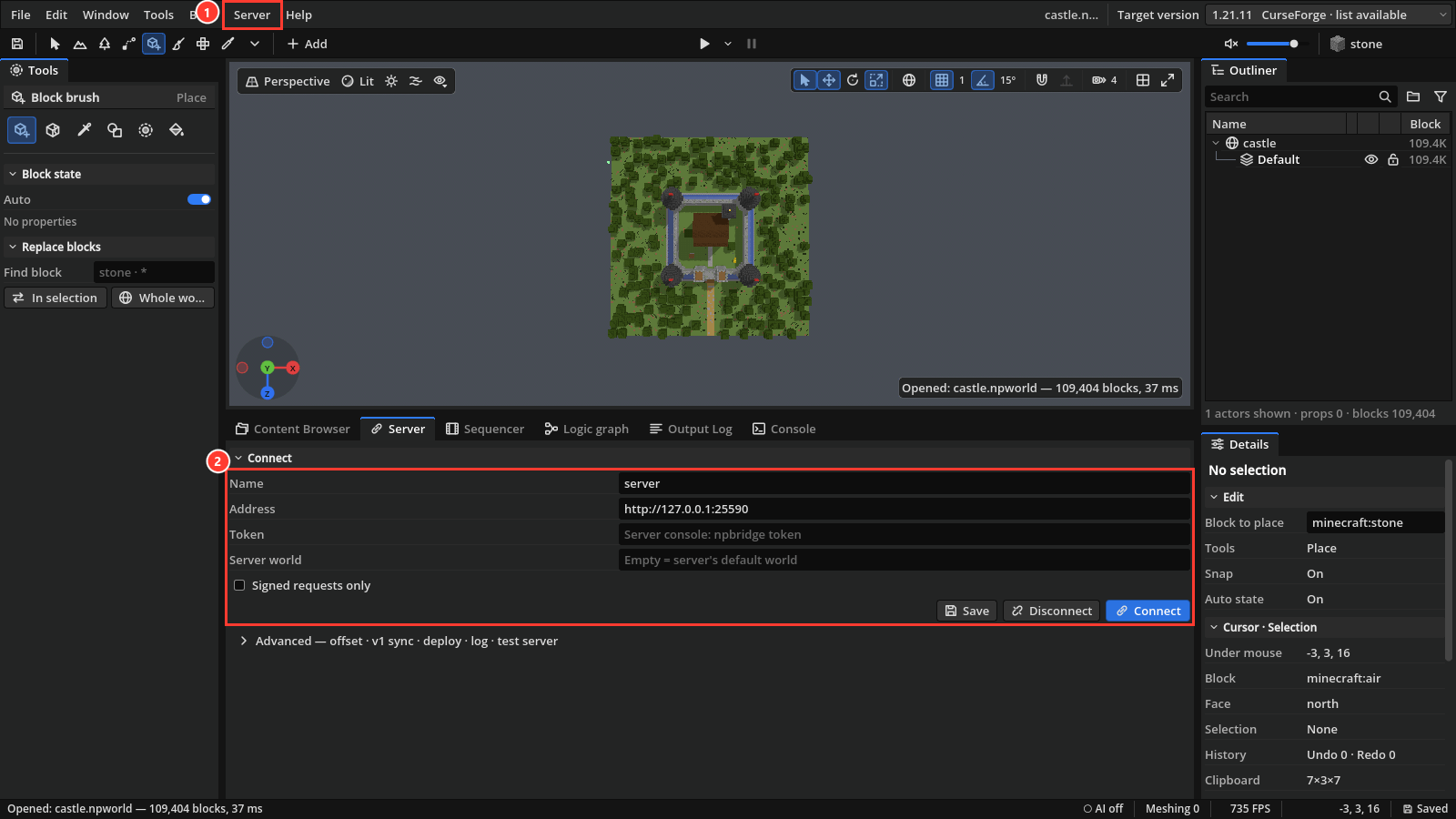
In the menu bar, click Server > Server window. The Server tab opens in the bottom dock area. The Connect section at the top has the Name, Address, Token and Server world fields and the Save, Disconnect and Connect buttons.
-
In the Name field, type a name to identify this connection (for example
play). In the Address field, typehttp://<server address>:25590.25590is the default NPBridge port. It differs from the Minecraft port (25565and so on).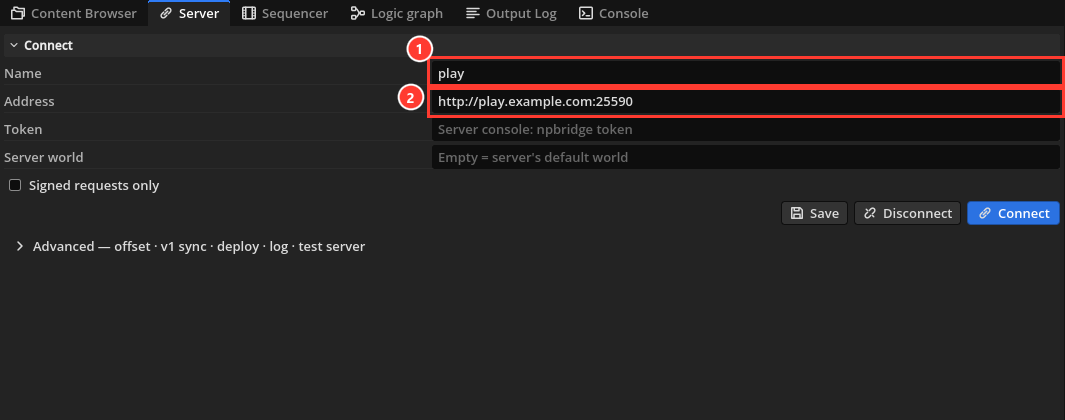
-
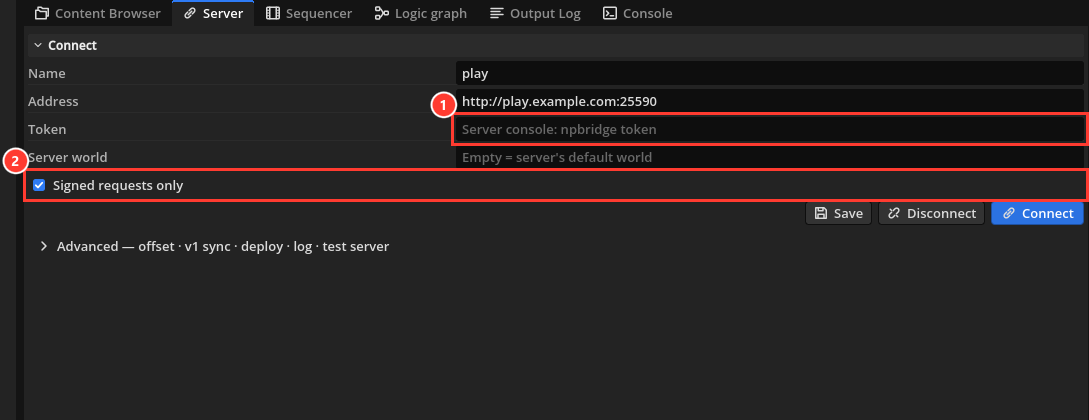
Type the token in the Token field. The text you type is masked. If the server runs NPBridge 2.0.3 or later, turn on Signed requests only. To open a world other than the server’s default world, type its name in the Server world field (leave it empty for the default world).
-
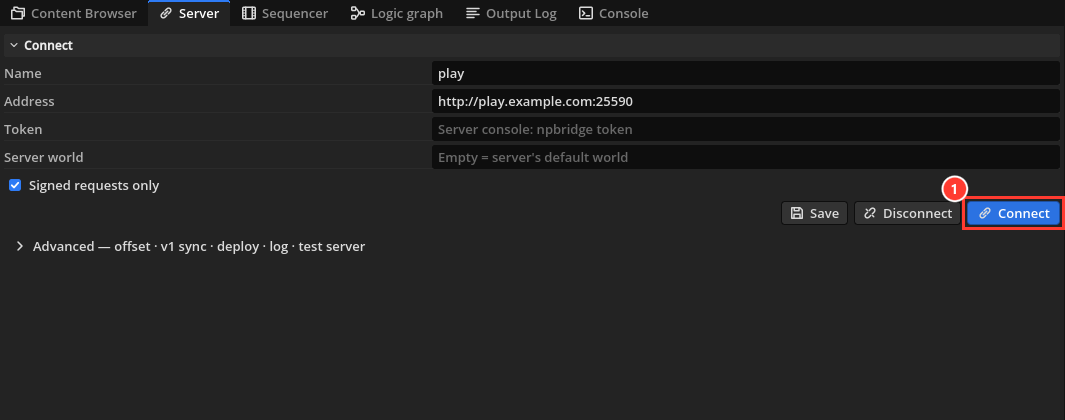
Click Connect.
-
If the current map has unsaved changes, the dialog “Connecting to the server opens the server world instead of the current map (the server is authoritative). …” appears. Click Save and connect, Discard and connect or Cancel. Discard and connect also keeps the current state in the autosave file before connecting.
-
Once connected, the server world opens instead of the current map and the chunks around the camera load. The status bar shows a “Server live:
· · N chunks · N ms” item (the ms at the end is the round trip time to the server). Click this item to open the Server window. The Server window shows the Live, Integrity check, Server scene and Online players sections.
Keeping the connection settings
Section titled “Keeping the connection settings”- Click Save in the Connect section of the Server window. The name, address, token and server world are stored in your user folder on this PC with Windows data protection (only this user on this PC can read them). If you only click Connect, the settings are not saved.
- From then on, click Server > Connect · reconnect to connect right away with the saved settings.
Editing live
Section titled “Editing live”| What | Behavior |
|---|---|
| Blocks | Placing, breaking, brushes and shapes go to the server right away. Undo and redo go to the server too. Undo reverts only your own edits, not changes made by other people or by the game. |
| Changes in the game | Blocks placed and broken by players, and blocks changed by commands or other plugins, show up in the editor. |
| Entities | Players, mobs, item frames, armor stands and scene actors move as boxes with name tags. Turn them on or off with Show server entities (players · mobs · item frames …) in the Server window or Server entities in the show flags menu of the viewport bar. |
| Scene logic | When you edit rules, actors or variables, they apply right away without restarting the server. Variables, flags and running actions are kept. |
| Online players | Double-click a row in the Online players list to move the camera to that player. |
| Load range | Load radius in the Live section (2–32 chunks, default 12). A larger radius uses more memory and network. Selecting another server world in World loads that world’s chunks from scratch. |
| AI Studio | You can work with AI Studio while live. AI edits go to the server too. While live, the AI cannot open or create maps. |
Saving
Section titled “Saving”- Press Ctrl+S to save the server world and scene state to the server’s disk. Clicking Save to server in the Live section does the same.
- Turn on Also save a local copy (.npworld) on Ctrl+S to also save the received blocks on this PC as
.npworld. - Save local copy… saves only the blocks received so far as
.npworld(the server is unchanged).
Disconnecting
Section titled “Disconnecting”- Click Disconnect in the Server window. Clicking Server > Disconnect… does the same.
- In the “Disconnect from the server? …” dialog, click Save copy and disconnect or Just disconnect. The server world stays on the server, and the blocks received in the editor remain as the current map. Before disconnecting, the editor first sends any edits that have not been sent yet.
- If you click File > New (Ctrl+N) or File > Open… (Ctrl+O) while live, the editor asks first. Click Disconnect and create new or Disconnect and open to disconnect and continue, or click Cancel to keep the connection and the map as they are.
- If the server restarts or the network drops, the editor reconnects by itself. Edits made in the meantime are sent once it is connected again.
Tips and tricks
Section titled “Tips and tricks”- The gray placeholder “Server console: npbridge token” shown while the Token field is empty is the server command that shows the token. Ask the server admin for the output of this command.
- If the Address or Token field is empty, clicking Connect does not contact the server, and the status text below the section tells you right away (for example “The address is empty — e.g. http://server-address:25590 (NPBridge default port)”).
- Before you use the new 0.10.2 flow nodes in a blueprint, check the server’s NPBridge version. Servers older than 2.0.8 do not receive that logic (Connecting to an older NPBridge).
Reference
Section titled “Reference”Connecting to an older NPBridge
Section titled “Connecting to an older NPBridge”| Server version | Editor behavior |
|---|---|
| NPBridge 1.x | Connects the old v1 way without live mode, and only the features under Advanced — offset · v1 sync · deploy · log · test server work. Replace the server plugin with NPBridge 2.0.8. |
| 2.0.0 – 2.0.2 | These versions don’t know request signing, so the token is sent in plain text and the Server window shows “This server runs an old NPBridge, so the token is sent in plain text — …”. With Signed requests only on, the editor does not connect to such servers. |
| 2.0.7 or earlier | Logic that contains the new flow nodes or the math functions inverse_lerp · wrap · snap is not uploaded through the live link and is not deployed as a scene. The Server issues section and a notification show “The server’s NPBridge 2.0.7 does not know the new nodes (…), so the logic was not uploaded — …”. Other live features such as blocks, entities and saving keep working. |
| Servers that don’t report their version | Logic with new nodes is blocked with “The server did not report its NPBridge version, so logic with new nodes (…) was not uploaded — …”. |
Older servers skip actions they don’t know and run the next actions as usual. To keep actions such as rewards guarded by a Gate from being unlocked, the editor does not upload the logic. Replace the server plugin with the NPBridge.jar (2.0.8) from the installer and reconnect (Installing NPBridge).
Integrity check
Section titled “Integrity check”Compares the blocks on the server and in the editor. The server is the source of truth, so blocks that differ are fixed to match the server.
- In Region in the Integrity check section, select All loaded chunks or Visible only (around the camera), then click Integrity check. If you turn off Fix differences to match the server right away, only the list of differing blocks is shown; review it, then click Fix to match server.
- Click a row in the list of differing blocks to move the camera to that block. With Integrity mismatches on in the viewport show flags menu, differing blocks briefly appear as red boxes.
- While live, Auto check is on by default: every 30 seconds it checks the area around the camera and fixes differences to match the server. It waits while you edit or chunks are loading.
- Fixes made to match the server are not added to the undo history.
Server scene controls
Section titled “Server scene controls”Control the server’s scene directly in the Server scene section. These controls affect online players immediately, so Stop, Restart and Reset ask first.
| Field · button | Action |
|---|---|
| Editing scene | The server scene paired with the editor logic. Changing it loads that scene from the server. |
| Start · Stop · Restart · Reset | Start, stop and reload the scene. Reset clears variables, flags and “Do Once” records. |
| Debug (receive rule fires · node runs) | Shows rules firing on the server in the Logic graph. |
| Rule firing | Fires the selected rule on the server manually (the server checks the conditions). |
| Change server value | Changes the server value of the selected variable. |
| Recent fires · Server issues | Fire records and issues sent by the server |
Connecting with several editors
Section titled “Connecting with several editors”When several editors connect to the same server and world, each sees the others’ block edits right away, and the other editors’ cameras, names and selection boxes also appear in the viewport.
- The Connected editors list in the Server window shows the other editors in the same world. Turn on Follow to make the camera follow that editor.
- My name field = the name other editors see.
- Turn the display on or off with Other editors in the viewport show flags menu.
- For scene logic, whatever was sent last stays on the server. Have one person handle the logic (Co-building).
Preferences
Section titled “Preferences”The Server live group in Edit > Editor Preferences… > General:
| Setting | Default | Meaning |
|---|---|---|
| Custom blocks (np:) | Send as server form (note block mapping · default) | Editor-only custom blocks placed while live are placed on the server as note block states and shown as custom blocks again when received. You can also select Editor only (overlay) or Off (erased when re-downloaded). Takes effect from the next connection. |
| Group server scene actors in a folder | On | Groups the server scene’s actors under one “Server scene: |
| Automatic integrity check | On | Compares the area around the camera with the server at the set interval. |
| Auto check interval | 30 s | 10–3600 s |
Shortcuts
Section titled “Shortcuts”| Shortcut | Action |
|---|---|
| Ctrl+S | Save to server (while live) |
| Ctrl+N · Ctrl+O | Ask about disconnecting first, then create new · open |
| Ctrl+Alt+L | Turn v1 sync on/off (old method, Advanced — offset · v1 sync · deploy · log · test server) |
Troubleshooting
Section titled “Troubleshooting”| Symptom | Cause | What to do |
|---|---|---|
| “The token is empty — …” · “The address is empty — …” | The field is empty | Fill in the field, then click Connect. |
| “Nothing is listening on this port — …” | NPBridge is off, or the port differs | Check that listening on …:<port> in the server log matches the port in the address. |
| “No response — …” · “Response timed out — …” | A firewall or router blocks it, allow_ips | Ask the server admin to open the port for the editor PC’s IP. |
| “Address not found — …” | Typo in the server address | Fix the address. |
| “Cannot connect with https — NPBridge uses http (start the address with http://)” | The address uses https:// | Start it with http://. |
| “There is no NPBridge at this address — …” | Another program (the resource pack server on 25580 and so on) answers on that port | Set the port in the address to the NPBridge port (default 25590). |
| “Wrong token — …” | The token is wrong, or the server created a new token | Get the token again from the server admin and enter it. |
| “The server blocked this PC …” | This PC’s address is not in the server’s allow_ips | Tell the server admin. |
| “This PC’s clock differs a lot from the server clock — …” | The PC clock is more than 60 seconds off from the server | Sync the Windows clock with internet time, then reconnect. |
| “The server’s live connection slots are full …” | Simultaneous connection limit (default 16) | Close another editor connection, or reconnect after 2 minutes. |
| You edited the logic but the server still behaves the old way | The old NPBridge doesn’t know the new nodes and did not receive the logic · the server scene is stopped | Check the Server issues section. Connecting to an older NPBridge · Start in Server scene |
Related docs
Section titled “Related docs”Not an official Minecraft product. Not approved by or associated with Mojang or Microsoft.